Selection Translator
unlistedby ruoshui
Translate selected editor text with an OpenAI-compatible Chat API provider.
Selection Translator
Features | Quick Start | Settings | Usage Guide | Privacy | Install | FAQ | Development
Selection Translator is an Obsidian plugin for translating selected Markdown editor and PDF text with selectable AI and traditional translation providers plus automatic dictionary lookup. An optional AI Q&A panel lets you ask follow-up questions about the selected text, with optional web search and page fetching for up-to-date answers.
Features
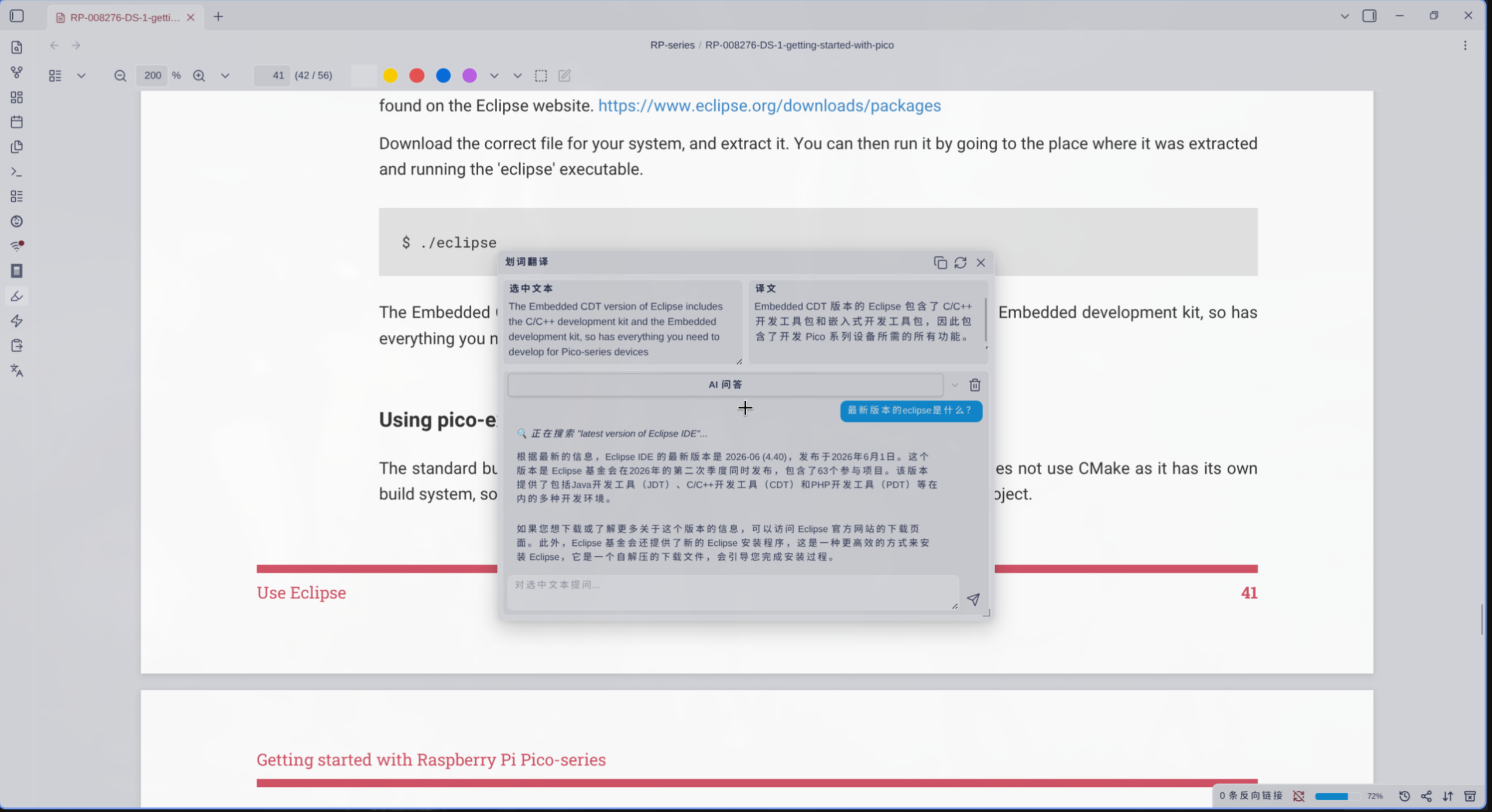
Selection Translation
- Translate selected Markdown editor or selectable PDF text from the command palette, a hotkey, the ribbon button, or the Markdown editor context menu.
- Keep the floating popover open while selecting more text; the new Markdown or PDF selection is translated automatically.
- Edit the selected source text in the popover and translate again.
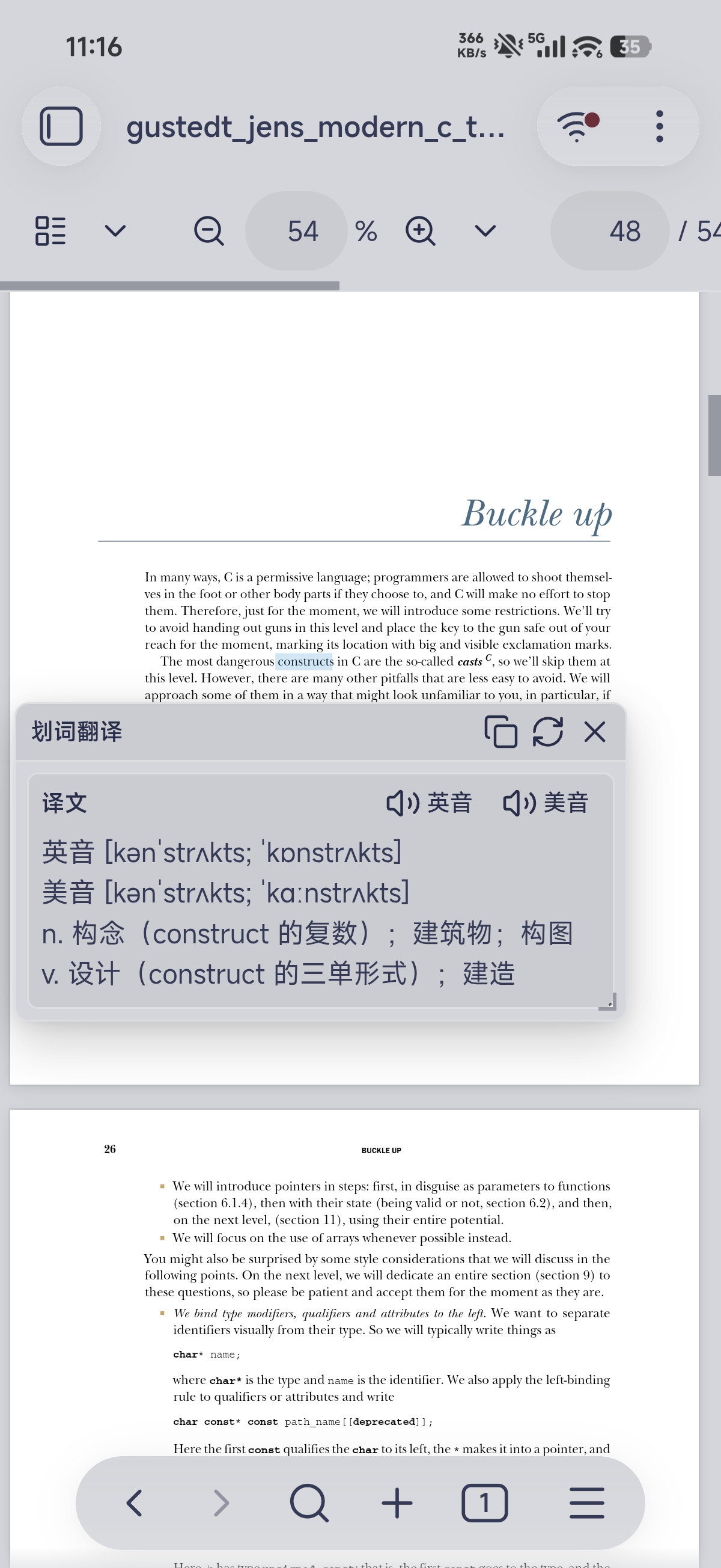
- Automatically look up one selected English word with the configured dictionary provider and play UK/US pronunciations when available.
Language Defaults
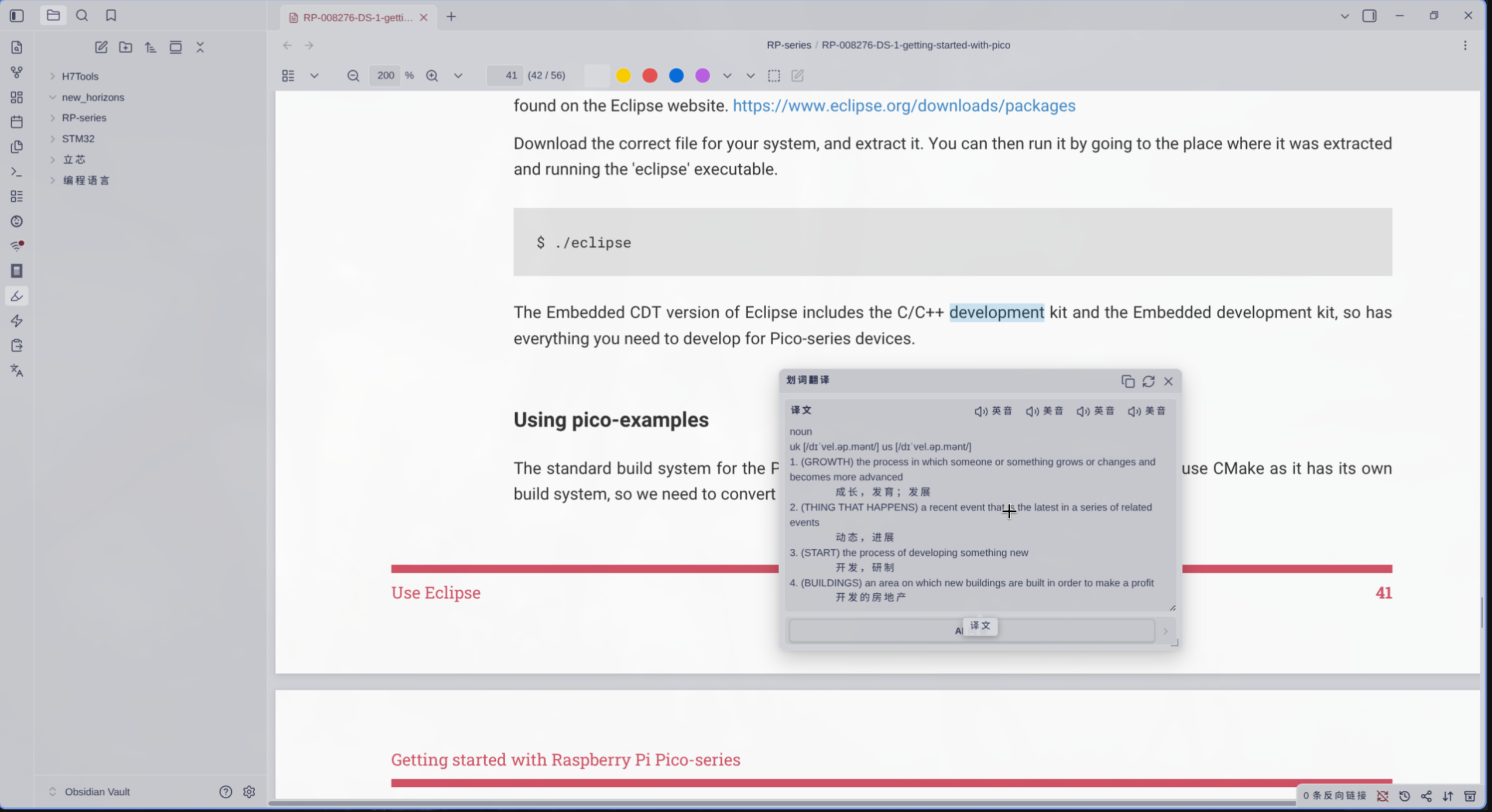
- Set default source and target languages in plugin settings.
- Use
Autoas the source language when you want a supported provider to detect the input language.
Popover Workflow
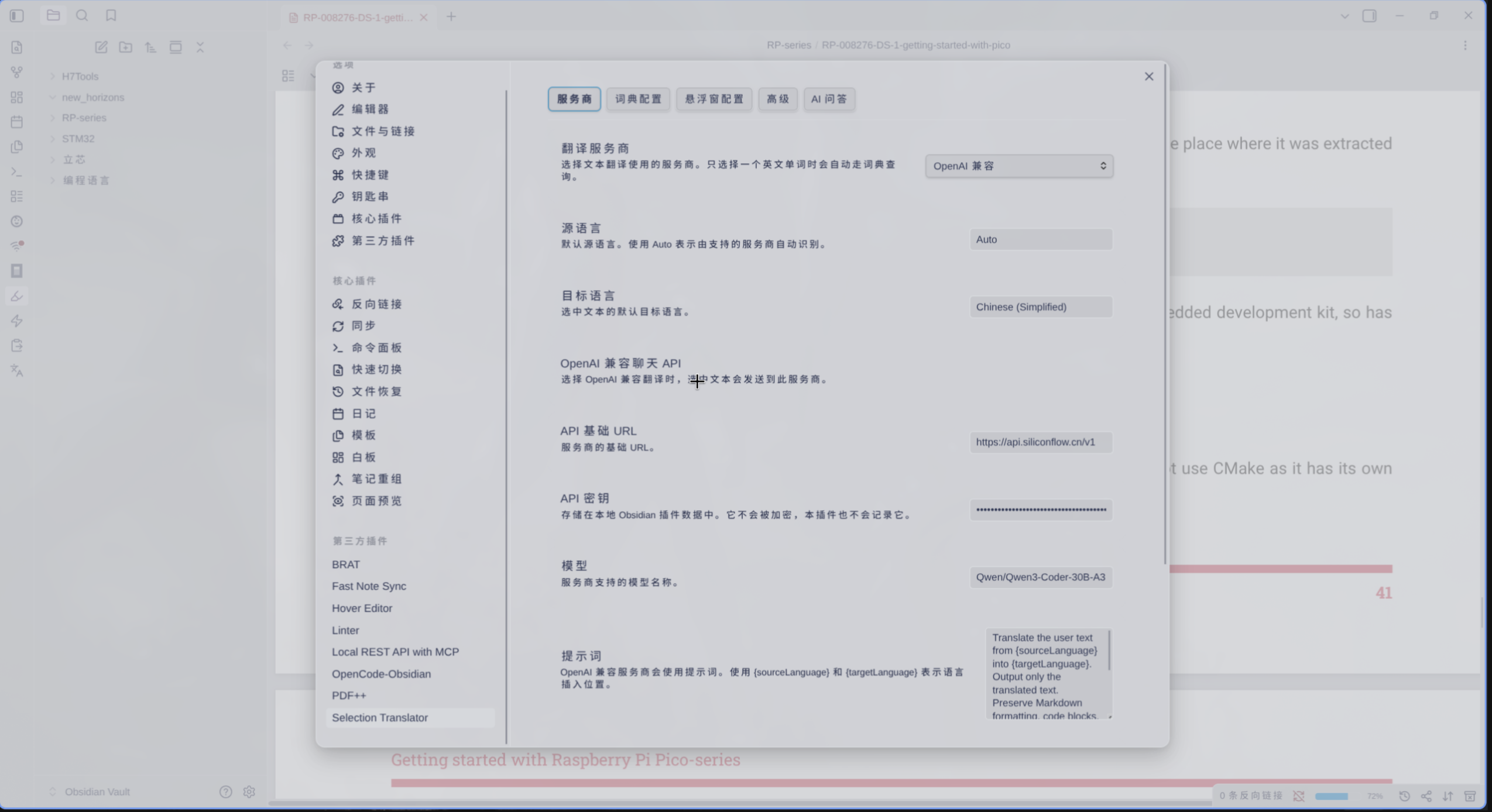
- Stream translation progress, errors, and results in a draggable and resizable popover.
- Use compact header buttons to copy the full result, retry translation, or close the popover.
- Select any part of the translation result and copy it with native keyboard or context-menu copy.
- Header layout is compact for desktop and narrow mobile screens.
Provider Support
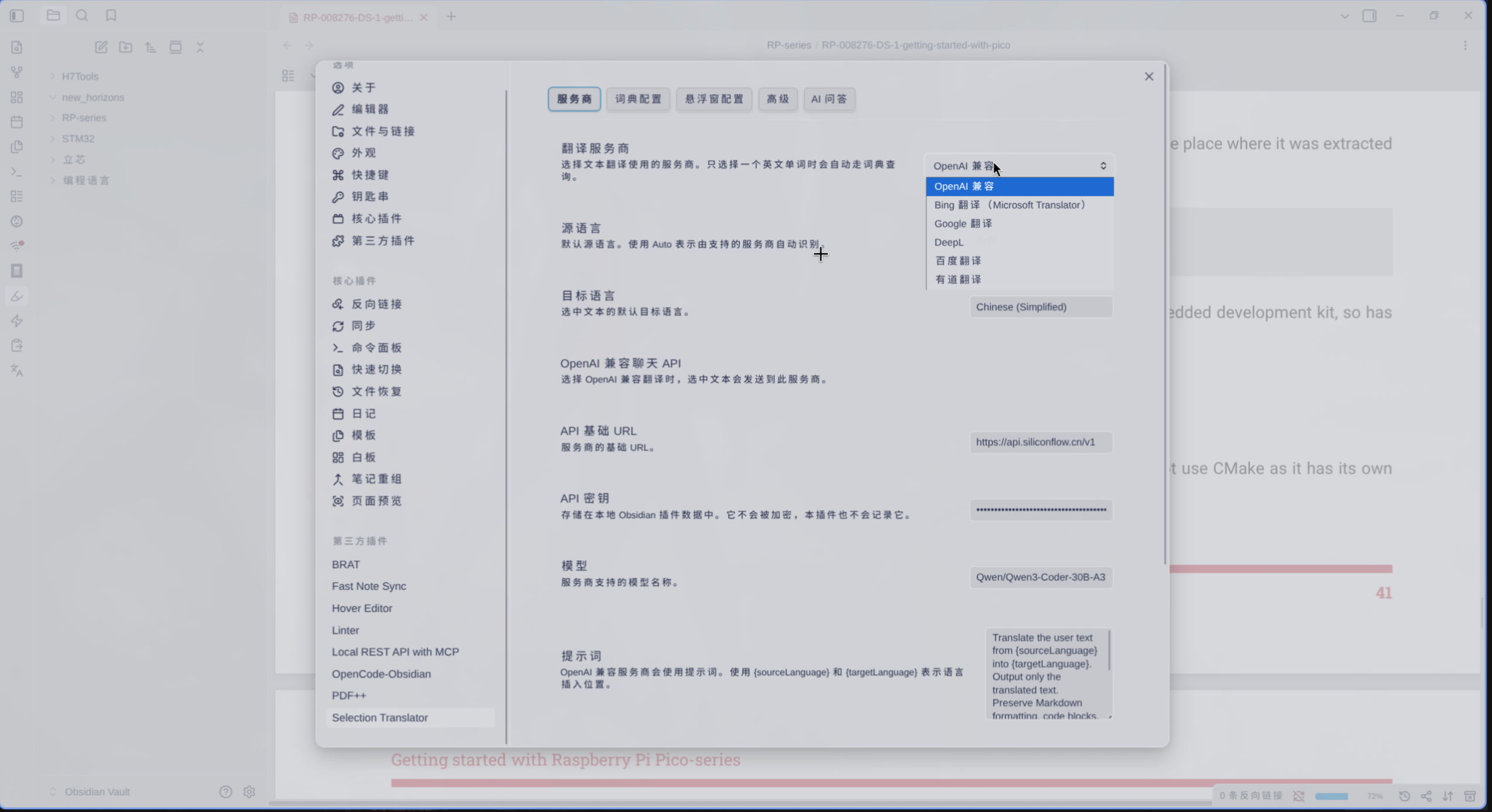
- Choose the text translation provider yourself. OpenAI-compatible providers, Bing Translate (Microsoft Translator), Google Cloud Translation, DeepL, Baidu Translate, and Youdao Translate are selectable options.
- Configure the credentials required by the selected provider.
- OpenAI-compatible providers support prompt, temperature, and streaming output. Traditional translation APIs return the translated result when the provider request completes.
- One selected English word automatically uses the configured dictionary provider. Youdao Dictionary, Bing Dictionary, and Cambridge Dictionary are selectable and do not require an API key.
- Test the provider configuration before translating.
- Plugin UI follows Obsidian's app language for English and Simplified Chinese.
AI Q&A Panel
- Off by default. Toggle Enable AI Q&A in the AI Q&A settings tab to show the Q&A entry in the translation popover.
- Uses its own OpenAI-compatible chat configuration (base URL / API key / model / temperature / system prompt), fully isolated from the translation provider — you can point translation at one endpoint and Q&A at another.
- Streams the answer in the popover. Multi-turn history is bounded to the most recent 6 user/assistant rounds; older turns are dropped automatically.
- Once streaming finishes, the answer is rendered as Markdown (headings, lists, bold,
inline code, code blocks, and links). Raw text is shown only while streaming; your own questions and error messages stay plain text. - The Q&A conversation resets automatically when you switch to a new selection.
AI Q&A Web Search (Agent Loop)
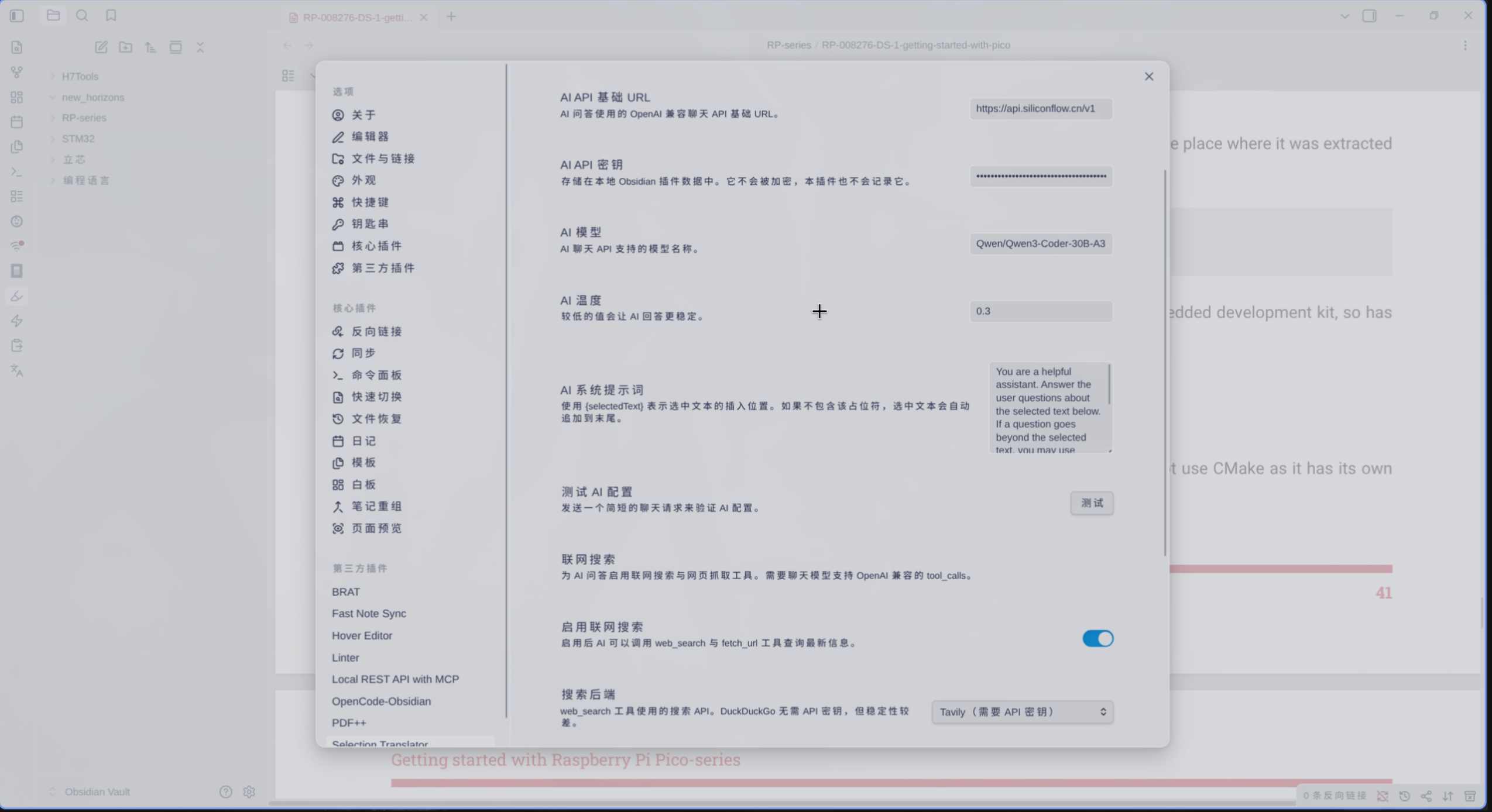
- Off by default. Toggle Enable web search in the AI Q&A tab to let the model call two tools before answering:
web_search— one of Tavily, Serper.dev, or DuckDuckGo (no API key).fetch_url— reads a public web page and returns its extracted text.
- Requires a chat model that supports OpenAI-compatible
tool_calls. When enabled the popover shows a "🔍 Searching …" / "📄 Reading …" line for each tool round, then streams the final answer. - Bounded by the Maximum tool call rounds setting (default
3). If the model still wants to keep searching after the cap, the plugin forces a final answer with tools disabled so you always get a reply.
Quick Start
- Install the plugin with BRAT or manual installation.
- Open Settings -> Community plugins -> Selection Translator.
- Choose a Translation provider.
- Choose a Dictionary provider if you want a provider other than Youdao Dictionary.
- Configure the credentials required by the translation provider.
- Set default Source language and Target language.
- Select Test to verify the translation provider configuration.
- Select text in a Markdown editor or selectable PDF text in Obsidian's PDF view.
- Run Translate selection from the command palette, a hotkey, the ribbon button, or the editor context menu.
The default prompt translates from Auto into Chinese (Simplified) and returns only the translated text.
Settings
The settings page is grouped into Provider, Dictionary config, Popover config, Advanced, and AI Q&A tabs.
Provider
| Setting | Default | Description |
|---|---|---|
| Translation provider | OpenAI-compatible | Selects which provider handles non-dictionary translation requests. |
| Source language | Auto | Default source language. Use Auto for provider-side detection when supported. |
| Target language | Chinese (Simplified) | Default target language. |
| OpenAI-compatible API base URL | https://api.openai.com/v1 | Provider base URL. The plugin appends /chat/completions when needed. |
| OpenAI-compatible API key | empty | Bearer token for the configured OpenAI-compatible provider. |
| OpenAI-compatible model | empty | Model name supported by your provider. |
| OpenAI-compatible prompt | built in | Translation instruction for OpenAI-compatible providers. Use {sourceLanguage} and {targetLanguage} for the configured languages. |
| OpenAI-compatible temperature | 0.2 | Lower values keep OpenAI-compatible translations more deterministic. |
| Maximum selection length | 4000 | Blocks accidental large sends. This setting is shown with OpenAI-compatible options but applies before every provider request. |
| Bing/Microsoft Translator key | empty | Subscription key for the Microsoft Translator resource used by Bing Translate. |
| Bing/Microsoft Translator region | empty | Resource region, such as eastasia or global. |
| Bing/Microsoft Translator endpoint | https://api.cognitive.microsofttranslator.com | Translator endpoint. |
| Google Cloud Translation API key | empty | API key for Google Cloud Translation Basic v2. |
| DeepL Auth Key | empty | Authentication key from your DeepL account. |
| DeepL API base URL | https://api-free.deepl.com | Use https://api.deepl.com for DeepL Pro. |
| Baidu Translate app ID | empty | App ID from Baidu Translate Open Platform. |
| Baidu Translate secret key | empty | Secret key from Baidu Translate Open Platform. |
| Youdao Translate app key | empty | App key from Youdao Zhiyun translation service. |
| Youdao Translate app secret | empty | App secret from Youdao Zhiyun translation service. |
| Test API configuration | - | Sends a short translation request to verify the selected provider configuration. |
The public Google Translate and Bing Translator websites can be free for manual use, but this plugin uses official provider APIs for those translation providers. API access requires provider credentials even when the provider offers a free quota or free tier. Dictionary lookup is automatic for one selected English word and uses the configured dictionary website without API credentials.
| Provider | API access note | Key setup | Pricing |
|---|---|---|---|
| Bing Translate (Microsoft Translator) | Azure Translator API has an F0 free tier, but it still requires an Azure Translator resource key, endpoint, and sometimes region. | Create a Translator resource | Azure Translator pricing |
| Google Cloud Translation | Cloud Translation has monthly free usage credits, but API calls require a Google Cloud project, billing, enabled API, and credentials. | Cloud Translation setup, Create API keys | Cloud Translation pricing |
| DeepL | Requires a DeepL API account and Auth Key. Use https://api-free.deepl.com for API Free and https://api.deepl.com for API Pro. | DeepL API authentication | DeepL API plans |
| Baidu Translate | Requires a Baidu Translate Open Platform App ID and secret key. | Baidu Translate API docs, Open Platform | Baidu Translate products |
| Youdao Translate | Requires a Youdao Zhiyun app key and app secret. | Youdao new user guide, App management, Text translation API docs | Youdao text translation pricing |
| Dictionary lookup | No API key is required. It sends one selected English word to the configured dictionary website and uses pronunciation audio URLs from that provider when available. | Youdao Dictionary, Bing Dictionary, Cambridge Dictionary | - |
Dictionary Config
| Setting | Default | Description |
|---|---|---|
| Dictionary provider | Youdao Dictionary | Selects which dictionary website handles one-word dictionary lookup. Options: Youdao Dictionary, Bing Dictionary, Cambridge Dictionary. |
Popover Config
| Setting | Default | Description |
|---|---|---|
| Show selected text in popover | enabled | Shows selected text as an editable field before retrying. |
Advanced
| Setting | Default | Description |
|---|---|---|
| Enable cache | enabled | When enabled, repeated translations of the same text within the cache TTL skip the network. |
| Cache TTL (seconds) | 600 | Time-to-live for a cache entry. 0 means no expiration. Otherwise 60-86400. |
| Cache max entries | 256 | Maximum cached translations. Oldest entry is dropped first (LRU). |
| Min interval (ms) | 1500 | Per-provider minimum delay between consecutive translation requests. 0 disables throttling. |
| Enable retry | enabled | Retries 429/5xx and known rate-limit errors using the backoff below. |
| Max attempts | 2 | Total attempts including the first one. 0 means no retries at all. |
| Base delay (ms) | 500 | Initial backoff delay. Subsequent delays double up to the max below. |
| Max delay (ms) | 3000 | Upper bound on the backoff delay. baseDelayMs * 2^attempt + jitter is clamped to this value. |
| Jitter ratio | 0.2 | Random jitter as a fraction of the exponential delay (0-0.5). |
Provider error responses now carry the HTTP status code as
error.cause.status. The retry loop checks this first (429 or 5xx ⇒ retry);
if absent, it falls back to the keyword whitelist (invalid access limit,
rate limit, etc.) and a numeric-code regex.
AI Q&A
The AI Q&A tab holds an OpenAI-compatible chat configuration that is fully isolated from the translation provider. Turn the feature off to hide the Q&A entry from the popover entirely.
| Setting | Default | Description |
|---|---|---|
| Enable AI Q&A | disabled | Shows the AI Q&A entry in the translation popover. |
| AI API base URL | https://api.openai.com/v1 | Base URL for the OpenAI-compatible chat API used by Q&A. |
| AI API key | empty | Bearer token for the chat endpoint. Stored locally in Obsidian plugin data. |
| AI model | empty | Model name your endpoint supports. |
| AI temperature | 0.2 | Lower values keep answers more deterministic. |
| AI system prompt | built in | Prompt template. Use {selectedText} where the selected text should be inserted; if omitted the selected text is appended automatically. |
| Test AI configuration | - | Sends a short chat request to verify the endpoint / key / model. |
Web Search
Below the AI Q&A settings is a Web search section that lets the Q&A
agent call web_search and fetch_url before answering. Requires a chat
model that supports OpenAI-compatible tool_calls. When disabled, no
tools field is sent — the wire format is identical to a plain chat
completion.
| Setting | Default | Description |
|---|---|---|
| Enable web search | disabled | Turns on the Agent Loop. When off, all fields below are hidden. |
| Search backend | DuckDuckGo (no API key) | Which search API the web_search tool uses. Options: Tavily, Serper.dev, DuckDuckGo. |
| Search API key | empty | Required for Tavily / Serper.dev. Hidden when DuckDuckGo is selected. |
| Maximum tool call rounds | 3 | Upper bound on tool-executing rounds. After the cap the plugin forces one final answer with tools disabled. Range 1-8. |
| Search results per query | 5 | How many results web_search returns to the model per call. Range 1-10. |
fetch_url max characters | 8000 | Cap on the extracted page text length passed back to the model. Longer pages are truncated with a marker. Range 1000-40000. |
| Search backend | API access note | Key setup | Pricing |
|---|---|---|---|
| Tavily | Purpose-built LLM search API. Free tier available; API key required. | Tavily docs | Tavily pricing |
| Serper.dev | Google search results via a REST API. Free tier available; API key required. | Serper.dev docs | Serper.dev pricing |
| DuckDuckGo | Parses the public HTML endpoint (https://html.duckduckgo.com/html/). No API key. Less reliable and may rate-limit heavy use. | - | - |
Usage Guide
Basic Translation
- Select text in Markdown or a selectable PDF text layer.
- Run Translate selection.
- Read the streaming result in the popover.
- Select part of the result if you only need to copy a specific phrase or paragraph.
Dictionary Lookup
- Select one English word in Markdown or a selectable PDF text layer.
- Run Translate selection.
- Use the pronunciation buttons in the result header to play UK or US audio.
Language Direction
- Open the plugin settings.
- Change Source language and Target language in the Provider tab.
- Run Translate selection again. Later translations use the saved language values.
Waiting For The Next Selection
Select the ribbon button before selecting text. The popover opens in a waiting state, then translates the next Markdown editor or PDF selection.
PDF support requires a selectable PDF text layer. Scanned pages without OCR text cannot be translated by selection.
AI Q&A About The Selection
- Enable AI Q&A in settings and fill in the API base URL, API key, and model.
- Translate a selection to open the popover.
- Open the AI Q&A entry, type a follow-up question about the selected text, and send.
- The answer streams in the popover. Continue asking to build a multi-turn conversation about the same selection; the most recent 6 rounds are retained as context.
- Switching to a new selection resets the conversation.
AI Q&A With Web Search
- In the AI Q&A tab, enable Web search and pick a Search backend (fill in the search API key if Tavily / Serper.dev).
- Ask a question that benefits from up-to-date information ("what did X announce today?").
- The popover shows one line per tool call —
🔍 Searching "…"or📄 Reading …— while the model runs the Agent Loop, then streams the final answer. - If the model keeps calling tools past Maximum tool call rounds, the plugin forces a final answer with tools disabled — you always get a reply.
Privacy
This plugin does not collect telemetry and does not scan your vault.
When you translate selected Markdown or PDF text, only the selected text is sent to the translation provider currently selected in plugin settings. When the selection is one English word, that word is sent to the configured dictionary provider instead and pronunciation audio is loaded from that provider when available. Do not translate sensitive content unless you trust that provider.
When you use AI Q&A, the selected text and the questions you type are sent to the AI chat endpoint configured in the AI Q&A tab (independent of the translation provider). When web search is enabled, your search queries are additionally sent to the selected search backend (Tavily / Serper.dev / DuckDuckGo), and if the model calls fetch_url the plugin issues an HTTP GET against that public URL from your Obsidian process. The plugin does not send anything from your vault beyond the selected text, your questions, and URLs the model chooses to fetch.
fetch_url refuses non-http(s) URLs and rejects a literal-string blocklist of private / local hostnames. It is a best-effort filter — Obsidian's plugin sandbox has no DNS resolution API, so it does not protect against DNS rebinding or decimal-encoded IPv4 literals. If your threat model requires strong egress control, run the plugin behind an outbound proxy that enforces policy at the network layer.
Provider credentials are stored locally in Obsidian plugin data through saveData(). Secret fields are rendered as password fields in settings, but Obsidian plugin data is local plaintext storage, not encrypted storage. The plugin does not log provider credentials.
Install
Install With BRAT
This plugin is distributed as a beta plugin through GitHub releases. Install it with the Obsidian BRAT plugin:
- Install and enable BRAT from Obsidian's community plugins.
- Open Settings -> BRAT -> Beta Plugin List.
- Select Add Beta plugin.
- Enter this repository URL:
https://github.com/Zhruoshui/obsidian-selection-translator
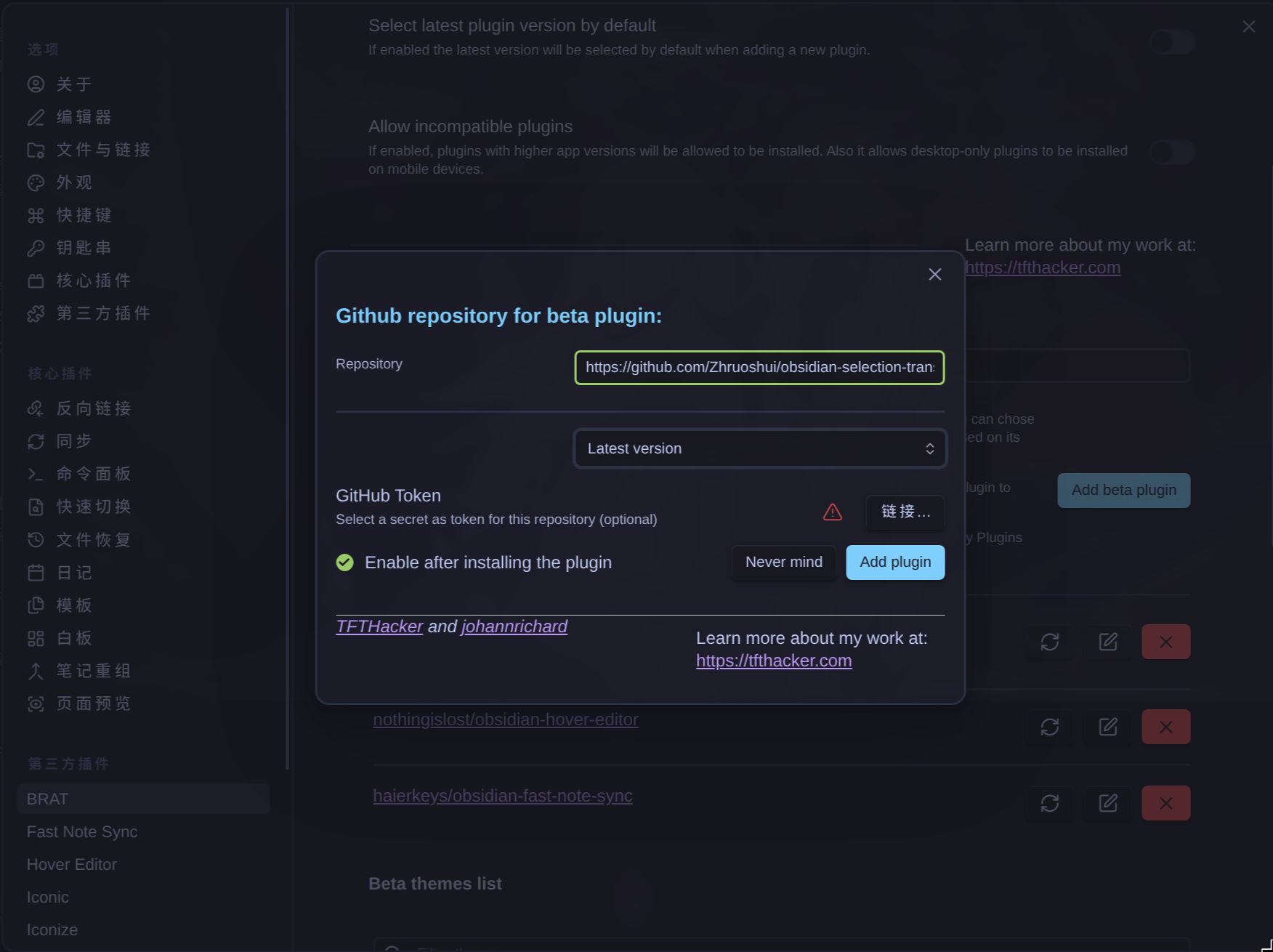
- Enable Selection Translator in Settings -> Community plugins.
BRAT installs the release assets from GitHub. Each release must include main.js, manifest.json, and styles.css.
Manual Installation
Download main.js, manifest.json, and styles.css from the latest GitHub release, then copy them to:
<Vault>/.obsidian/plugins/selection-translator/
Reload Obsidian and enable the plugin in Settings -> Community plugins.
FAQ
Configuration test failed
- Confirm the API base URL is correct and reachable.
- Confirm the credentials are valid for the selected provider.
- For OpenAI-compatible providers, confirm the model name exists on that provider.
Translation popup does not appear
- Confirm text is selected in the active Markdown editor or a selectable PDF text layer.
- Try the command palette command Translate selection.
- For PDF files, confirm the PDF has selectable text and is not only a scanned image.
Source language does not affect output
- Use the default prompt or include
{sourceLanguage}in your custom prompt. - The plugin also adds missing language direction context before custom prompts that omit a language placeholder.
Development
Symlink for Development
During development, symlink the repository into the vault's plugins directory so you can run npm run build and reload Obsidian without copying files manually.
Linux / macOS:
ln -s /path/to/obsidian-selection-translator "<Vault>/.obsidian/plugins/selection-translator"
Windows (requires administrator or Developer Mode):
mklink /D "<Vault>\.obsidian\plugins\selection-translator" "C:\path\to\obsidian-selection-translator"
You can also create a directory junction on Windows (no admin required):
mklink /J "<Vault>\.obsidian\plugins\selection-translator" "C:\path\to\obsidian-selection-translator"
After linking, npm run build compiles main.js into the plugin folder directly. Reload Obsidian or disable and re-enable the plugin to pick up changes.
Install dependencies:
npm install
Run a production build:
npm run build
Run lint:
npm run lint
License
This project is licensed under the MIT License. You are free to use, modify, and distribute it, provided you retain the original copyright notice and license statement.
Acknowledgments
Thanks to the LinuxDo community (https://linux.do) for their support.
For plugin developers
Search results and similarity scores are powered by semantic analysis of your plugin's README. If your plugin isn't appearing for searches you'd expect, try updating your README to clearly describe your plugin's purpose, features, and use cases.