by An Tran
Publish notes to Notion as a page tree that mirrors your vault, or as rows of a database, and keep them updated in place.
Vault to Notion
Publish your Obsidian notes to Notion — as a page tree that mirrors your vault, or as rows of a database — and keep them updated in place.




Your vault in Obsidian → the same structure in Notion (page tree mode):
| Obsidian vault | Notion sidebar |
|---|---|
📁 Projects
   📁 Website
      📝 Launch plan
      📝 SEO checklist
   📝 Ideas
📝 Reading list
|
📄 Obsidian Vault
   📁 Projects
      📁 Website
         📄 Launch plan
         📄 SEO checklist
      📄 Ideas
   📄 Reading list
|
Contents
- Features
- How it works
- Requirements
- Installation
- Configuration
- Usage
- What happens when…
- Markdown conversion
- Troubleshooting
- Limitations
- Network use and privacy
- Development
- License
Features
- Two publishing modes
- Page tree (default) — folders and notes become pages in the Notion sidebar, exactly like your vault. Needs a single Notion page link.
- Database — notes become rows of a Notion database with optional
TagsandFoldercolumns for filtering, sorting and grouping; optionally also a folder tree in which every folder page shows a filtered table of its notes.
- Updates in place. Publishing again updates the same Notion page, so its link and comments survive. A note moved to another folder has its page moved too (page tree mode).
- Whole-folder publishing. Right-click any folder. Unchanged notes are skipped without re-uploading, and pages deleted in Notion are recreated.
- Obsidian-aware conversion to Notion's own Markdown format: callouts, highlights, task
lists, tables, code, math — while
%% comments %%stay private. - Built on Notion's current API (
2026-03-11): the markdown content API, data sources, views and page moves, with rate-limit handling as Notion recommends. - Works on desktop and mobile, from the ribbon, the command palette or the file explorer's context menu.
How it works
flowchart LR
    A[Obsidian note] -->|strip frontmatter and private comments,<br/>convert to Notion-flavoured Markdown| B(Vault to Notion)
    B -->|no notion_id yet| C[Create page]
    B -->|notion_id in frontmatter| D[Update the same page]
    B -->|content unchanged and page still exists| E[Skip]
    C --> F[(Notion)]
    D --> F
    C -->|write notion_id + notion_url| A
The plugin talks to the Notion REST API
directly from Obsidian. Note content is sent with Notion's
markdown content API
in Notion-flavoured Markdown.
Which page belongs to which note is stored in the note itself (notion_id in the
frontmatter), so it travels with the note across devices.
Requirements
- Obsidian 1.13.0 or later (desktop or mobile).
- A Notion account, and a Notion API token — see step 1.
Installation
From Obsidian (once listed in the community directory): Settings → Community plugins → Browse, search for Vault to Notion, then Install and Enable.
With BRAT (beta versions): install the BRAT plugin, choose Add beta plugin, and enter this repository's URL.
Manually: download main.js and manifest.json from the
latest release into <your vault>/.obsidian/plugins/vault-to-notion/,
reload Obsidian, and enable Vault to Notion under Settings → Community plugins.
Configuration
Setup takes about five minutes. You only do it once per vault.
1. Create a Notion API token
Notion offers two kinds of tokens that work with this plugin. Both start with ntn_.
| Internal connection (recommended) | Personal access token | |
|---|---|---|
| Acts as | Its own bot user | You |
| Can reach | Only pages you share with it | Every page you can open |
| Sharing step | Required (step 3) | Not needed |
| Where to create it | Developer portal → Connections | Developer portal → Personal access tokens |
| Who can create it | Workspace owners | Any member (Business/Enterprise: if an owner allows it) |
| Free workspace with several members | Limited to 1,000 lifetime blocks (details) | Not limited |
| Official guide | Internal connections | Personal access tokens |
The internal connection is recommended because it can only see what you explicitly share with it — the least access the plugin needs.
Create an internal connection
-
Open the Developer portal and select the Connections tab ①.

-
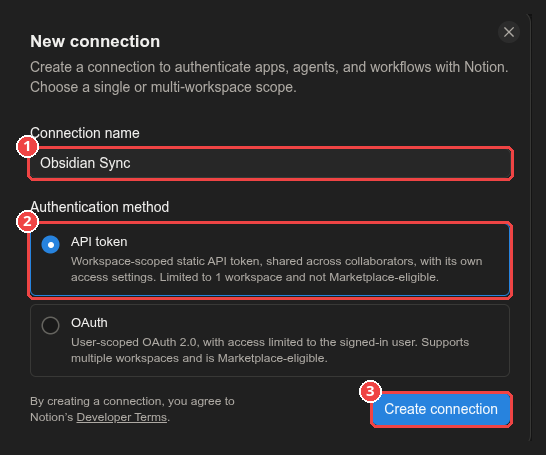
Create a new connection: enter a Connection name such as Obsidian Sync ①, keep API token as the authentication method ②, and click Create connection ③. OAuth is meant for apps used by other people's workspaces and is not needed here.
-
On the connection's Configuration tab:
- ① Copy the API token under Integration token with the copy button. Keep it secret: anyone with the token can act on behalf of the connection.
- ② Under Content capabilities, keep Read content, Update content and Insert content checked.
- ③ Under User capabilities, choose No user information — the plugin never reads user data, so it is best not to grant it.
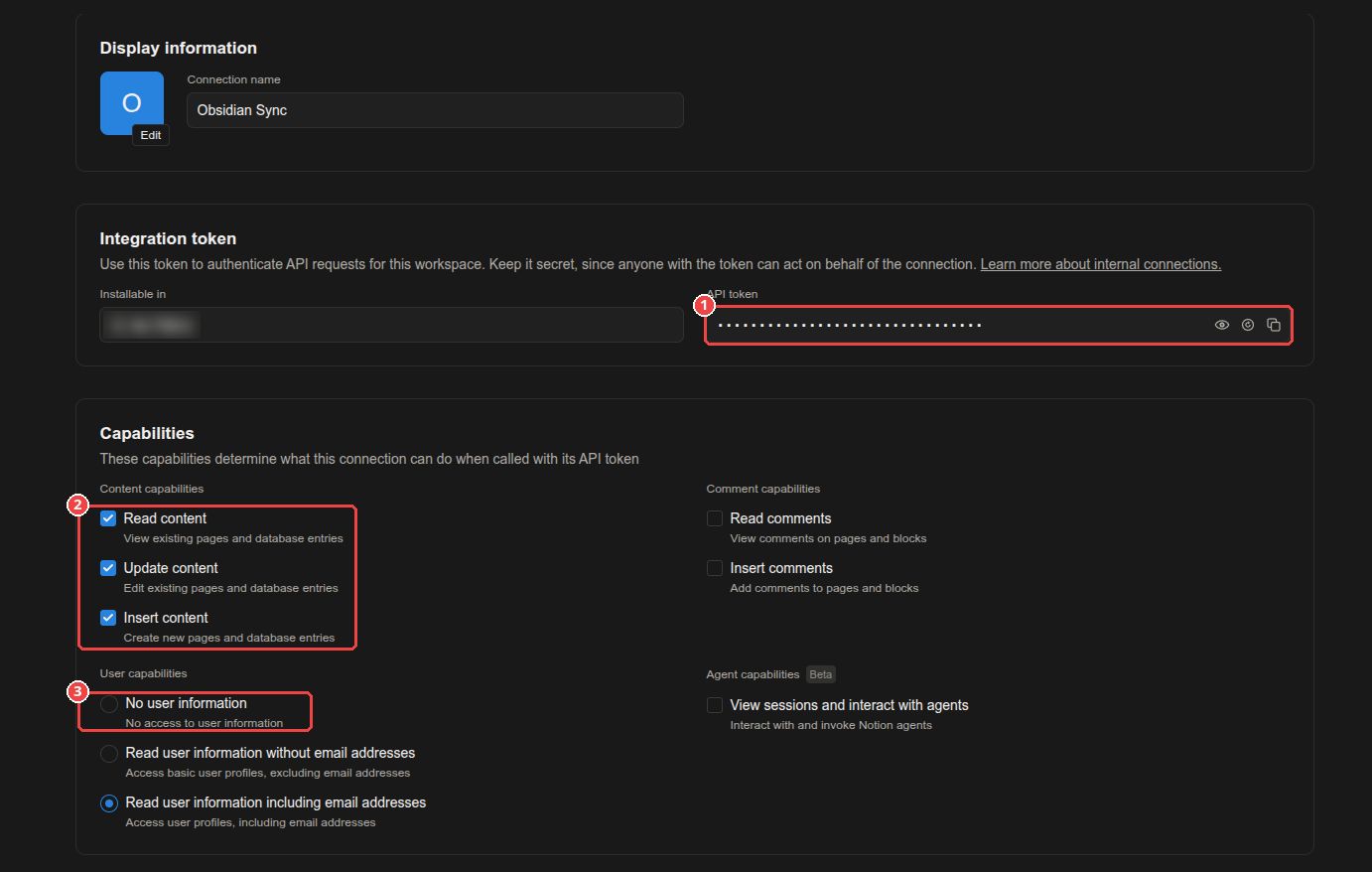
Why each capability is needed (see Notion's capabilities reference):
Capability Used to Read content Check that pages exist and read the database's columns Update content Update published pages and move them between folders Insert content Create pages, folder pages and folder tables
Or create a personal access token: in the same Developer portal, select the Personal access tokens tab, click New token, give it a name, select the Notion API capability, and create it. Copy the token right away — it is shown only once (guide).
2. Prepare the destination in Notion
Page tree (default)
Create an ordinary page that will hold your vault, for example Obsidian Vault. The plugin creates one page per folder and one page per note underneath it.
Database
Create a database, for example by typing /database on a page and choosing
Database – Full page. The title column is detected automatically. Optionally add:
| Column | Type | Used for |
|---|---|---|
Tags | Multi-select | The note's frontmatter tags |
Folder | Select (or Text) | The note's folder path, e.g. Projects/Website |
Column names can be changed in the settings. Options inside the columns are created automatically.
Use the original database, not a linked view of it — the Notion API does not support linked databases. Databases with several data sources are supported by pasting the data source ID instead of the link (••• → Manage data sources → Copy data source ID), as described in Notion's data sources upgrade guide.
Tip: put the database inside your "Obsidian Vault" page. Access given to a page also covers everything inside it, so you only share once.
3. Give your connection access
Skip to "Copy the link" if you use a personal access token.
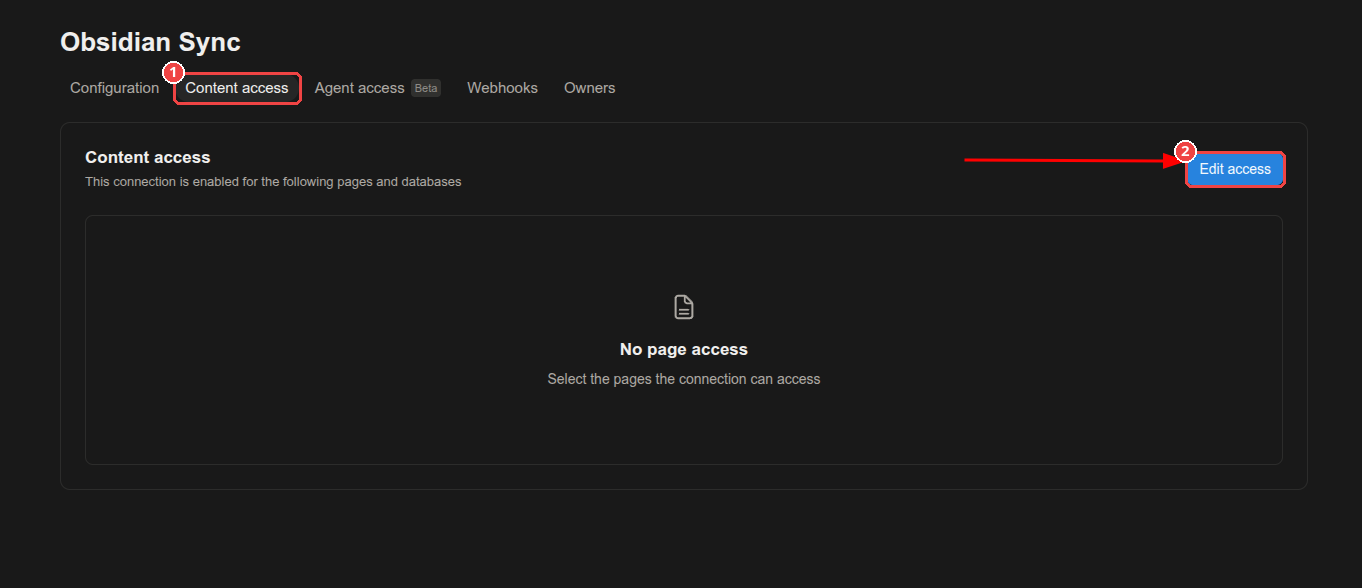
An internal connection cannot see anything until you give it access. Access to a page also covers everything inside it, as Notion's capabilities reference notes, so sharing your "Obsidian Vault" page once is enough.
In the Developer portal — open your connection, select the Content access tab ①, and click Edit access ②:
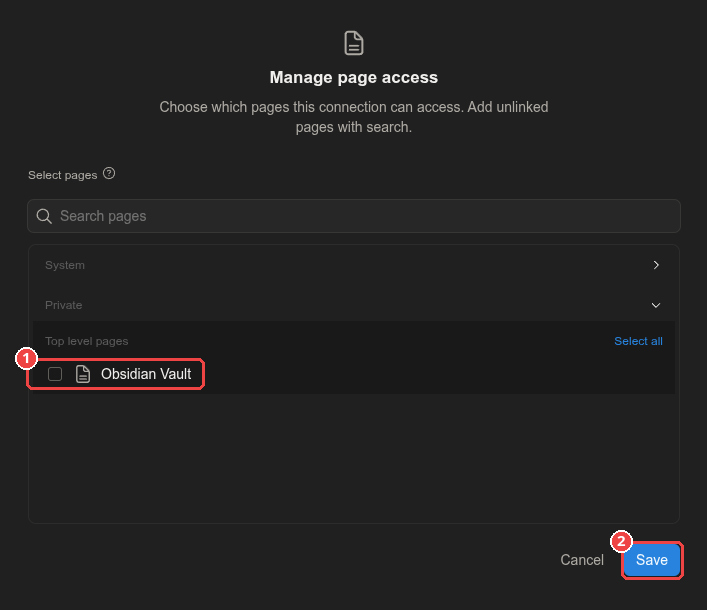
Tick the page from step 2 ① and click Save ②:
Or from Notion itself — open the page, click ••• → Connections → + Add connection, and choose your connection. Both ways are described in Notion's internal connections guide.
Copy the link — open the page (or database), click ••• ① → Copy link ②, or press Ctrl+Alt+L:
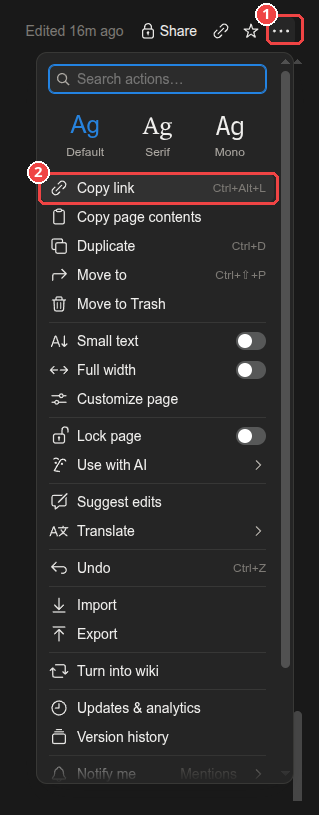
Links look like https://app.notion.com/p/Obsidian-Vault-3f31…. The plugin reads the ID from
any Notion link, including older notion.so links.
4. Configure the plugin
Open Settings → Vault to Notion:
- In API token ①, click Change and create a secret holding your token (or pick one you saved before). Obsidian keeps it in its secret storage, not in the plugin's settings file, and other plugins can reuse the same secret.
- Choose Publish as ②: Page tree or Database.
- Paste the link from step 3 into Root page ③ (page tree) or Database (database).
- Click Test ④. You should see Connected to "Obsidian Vault". If not, the message explains what to fix — see also Troubleshooting.
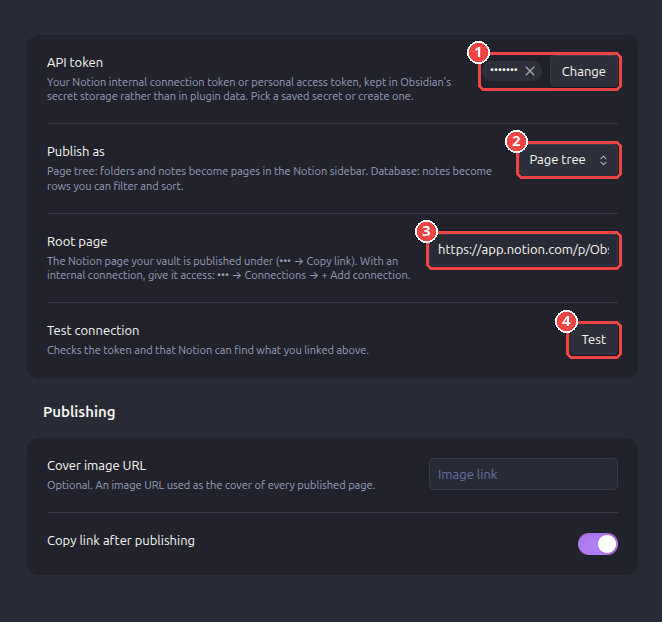
In Database mode, a Columns section with the tag and folder options appears below Test connection.
Settings reference
| Setting | Mode | Default | Description |
|---|---|---|---|
| API token | Both | — | The secret (in Obsidian's secret storage) that holds your internal connection token or personal access token (ntn_…). |
| Publish as | Both | Page tree | Page tree: pages in the sidebar. Database: rows of a database. |
| Root page | Page tree | — | The page your vault is published under. |
| Database | Database | — | Database link, or a data source ID. |
| Sync tags | Database | Off | Copy frontmatter tags into a multi-select column. |
| Tags column | Database | Tags | Name of that column. |
| Sync folder | Database | Off | Write the note's folder path into a select or text column. |
| Folder column | Database | Folder | Name of that column. |
| Folder pages | Database | — | Optional page under which a folder tree is built; each folder page shows a table of its notes. Requires Sync folder. |
| Cover image URL | Both | — | Optional image used as the cover of every published page. |
| Copy link after publishing | Both | On | Copy the page link to the clipboard after publishing one note. |
Usage
| Action | How |
|---|---|
| Publish the current note | Ribbon icon, command Vault to Notion: Publish current note, or right-click the note → Publish to Notion |
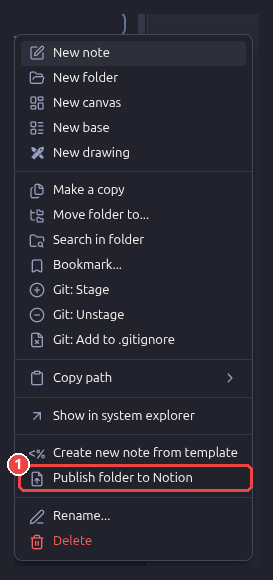
| Publish a folder (and its subfolders) | Right-click the folder → Publish folder to Notion, or command Vault to Notion: Publish folder… |
| Open the note's Notion page | Command Vault to Notion: Open current note in Notion |
To publish a whole folder, right-click it in the file explorer and choose Publish folder to Notion ①:
After the first publish, two properties are added to the note's frontmatter:
notion_id: 1a2b3c4d-5e6f-4a1b-9c2d-3e4f5a6b7c8d
notion_url: https://app.notion.com/p/My-note-1a2b3c4d5e6f4a1b9c2d3e4f5a6b7c8d
notion_id links the note to its page — keep it to update the same page next time, or delete
it to publish a fresh copy. Publishing a folder with more than 20 notes asks for confirmation
first, and ends with a summary such as 12 created, 3 updated, 85 unchanged.
What happens when…
| You… | Result in Notion |
|---|---|
| Publish a note for the first time | A page is created. |
| Edit the note and publish again | The same page is updated; its link stays the same. |
| Publish a folder in which nothing changed | Nothing is uploaded; notes are reported as unchanged. |
| Move a note to another folder | Page tree: the page moves to the new folder page. Database: the Folder column changes. |
| Rename a note | The page title changes. |
| Rename or move a folder | A new folder page is created; delete the old one in Notion. |
| Delete a note in Obsidian | The Notion page is kept. |
| Delete or trash a page in Notion | It is recreated on the next publish. |
| Edit a published page in Notion | Your edits are overwritten the next time the note changes. Obsidian is the source of truth. |
| Add sub-pages inside a published page in Notion | The update stops instead of deleting them. |
| Duplicate a note in Obsidian | The copy shares notion_id with the original — remove it from the copy first, or both will write to one page. |
Markdown conversion
Notes are converted to Notion-flavoured Markdown before upload.
| In Obsidian | In Notion |
|---|---|
Headings, bold, italic, code, links | Same |
| Nested lists (tabs or spaces) | Nested lists |
- [ ] / - [x] tasks | To-dos (custom statuses such as [/] stay unchecked) |
> [!tip] Title callouts | Callouts with a matching icon and colour |
> quote over several lines | One quote block |
==highlight==, <mark> | Yellow highlight |
Tables, code blocks, $$math$$ | Tables, code blocks, equations |
[[Note]], [[Note|alias]] | Plain text (Note, alias) |
[text](other-note.md) | Plain text |
![[image.png]], local images, embeds | Visible marker such as [image: image.png] |
%% comment %%, <!-- comment --> | Removed — never sent to Notion |
| Frontmatter | Not part of the page body |
Block IDs (^abc123) | Removed |
Troubleshooting
Click Test in the settings first — it checks the token and the destination without publishing anything.
| Message | Cause and fix |
|---|---|
| Choose the secret that holds your Notion API token first / Set the Notion API token… | No secret is selected in API token, or the selected secret is empty — for example on a new device, since secrets are not synced. Create or pick the secret again. |
| Notion could not find the root page / this database… + Add connection → "Obsidian" | The connection has no access. Share the page or database with it (step 3). |
| This link is a page, not a database | A page link was pasted in Database. Paste a database link, or switch Publish as to Page tree. |
| This database has 2 data sources | Paste the data source ID instead (••• → Manage data sources → Copy data source ID). |
| The database needs a multi-select column named "Tags" (or select column "Folder") | Add the column, rename it in the settings, or turn off Sync tags / Sync folder. |
| Folder pages need "Sync folder" to be turned on | Turn on Sync folder, or clear Folder pages. |
| The root page is in the Notion trash | Restore it from Notion's trash, or choose another page. |
| API token is invalid (HTTP 401) | The token was mistyped or revoked. Copy it again from the Developer portal. |
HTTP 403 restricted_resource | The connection lacks a capability (step 1), or a Free workspace with more than one member reached its 1,000-block limit. That limit does not apply to personal access tokens. |
| …would delete child pages or databases | You added sub-pages inside a published page in Notion. Move them elsewhere, then publish again. |
| …too large or too heavily formatted | Notion accepts at most 5,000 blocks per page (docs). Split the note. |
| The change may still have been saved; check Notion before trying again | Notion timed out while writing. Check the page in Notion before publishing again. |
| Publishing is slow on large folders | Notion limits each connection to a number of requests per minute (request limits); the plugin waits and retries automatically. |
Technical details of failures are written to the developer console
(View → Toggle Developer Tools), prefixed with [Vault to Notion].
Limitations
- Local images, attachments and embeds are not uploaded yet.
- Links between notes become plain text rather than links between Notion pages.
- Publishing is one-way: changes made in Notion are not brought back into Obsidian.
- Deleting notes or folders in Obsidian does not delete their Notion pages.
Network use and privacy
This plugin connects to one remote service: the Notion API at api.notion.com. It is used
to read the page or database you configure and to create, update and move pages there. The
plugin sends the content of the notes you publish — nothing else, and only when you publish.
There is no telemetry and no other server involved.
What the plugin accesses on your device:
- Notes: only the note you publish, or the notes inside the folder you publish. It does
not scan the rest of the vault. It writes
notion_idandnotion_urlinto the frontmatter of the notes it publishes. - Clipboard: after publishing a single note it writes the page's link to the clipboard. It never reads the clipboard. Turn off Copy link after publishing to disable this.
Your API token is kept in Obsidian's
secret storage on this device, not in
the plugin's data.json, so it does not end up in vault backups, sync or Git. Secret storage is
not synced between devices: on another device, add the token once more in the settings.
Tokens saved by earlier builds in data.json are moved into secret storage automatically.
Development
npm install
npm run dev     # rebuild main.js on every change
npm run build   # type-check and build for production
npm run lint    # Obsidian's official lint rules (eslint-plugin-obsidianmd)
Copy main.js and manifest.json into <vault>/.obsidian/plugins/vault-to-notion/ and reload
the plugin.
| Path | Purpose |
|---|---|
src/main.ts | Plugin entry: commands, menus, single-note and folder publishing |
src/publisher.ts | Resolves the destination; creates, updates and moves pages; folder pages |
src/notion-api.ts | Notion REST client: API version, retries, async tasks |
src/markdown.ts | Obsidian → Notion-flavoured Markdown conversion |
src/settings.ts | Settings and settings tab |
Releasing: run npm version <x.y.z> and push the tag. The GitHub workflow lints and builds
the plugin, signs build provenance attestations
for the release files, and attaches main.js and manifest.json to a release named after the
version. To check that a downloaded main.js was built from this repository:
gh attestation verify main.js --repo thanhan1997tr/vault-to-notion
License
MIT © 2026 An Tran Solutions — see LICENSE.
Inspired by Obsidian shared to Notion by EasyChris.
For plugin developers
Search results and similarity scores are powered by semantic analysis of your plugin's README. If your plugin isn't appearing for searches you'd expect, try updating your README to clearly describe your plugin's purpose, features, and use cases.