by imavinash
Forked from vschroeter/obsidian-virtual-linker
Automatically creates virtual links for text within your notes that match the titles or aliases of other notes in your vault. Create a glossary-like functionality, show unlinked mentions and transform them to real links.

[!NOTE] This project was originally forked from Obsidian Virtual Linker by Valentin Schröter, now maintained independently as Virtual Autolink.
Virtual Autolink
This plugin automatically generates virtual links for text within your notes that match with the titles or aliases of other notes in your vault.
Features:
- create a glossary like functionality
- works in edit mode and read mode
- created links are always up to date
- no manual linking necessary
- works with aliases of notes
- links do not appear in graph view & reference counting
- updates the links automatically while you expand your vault or type new text
- convert the virtual links to real links in the context menu
Usage demo (literally just typing text ;-):
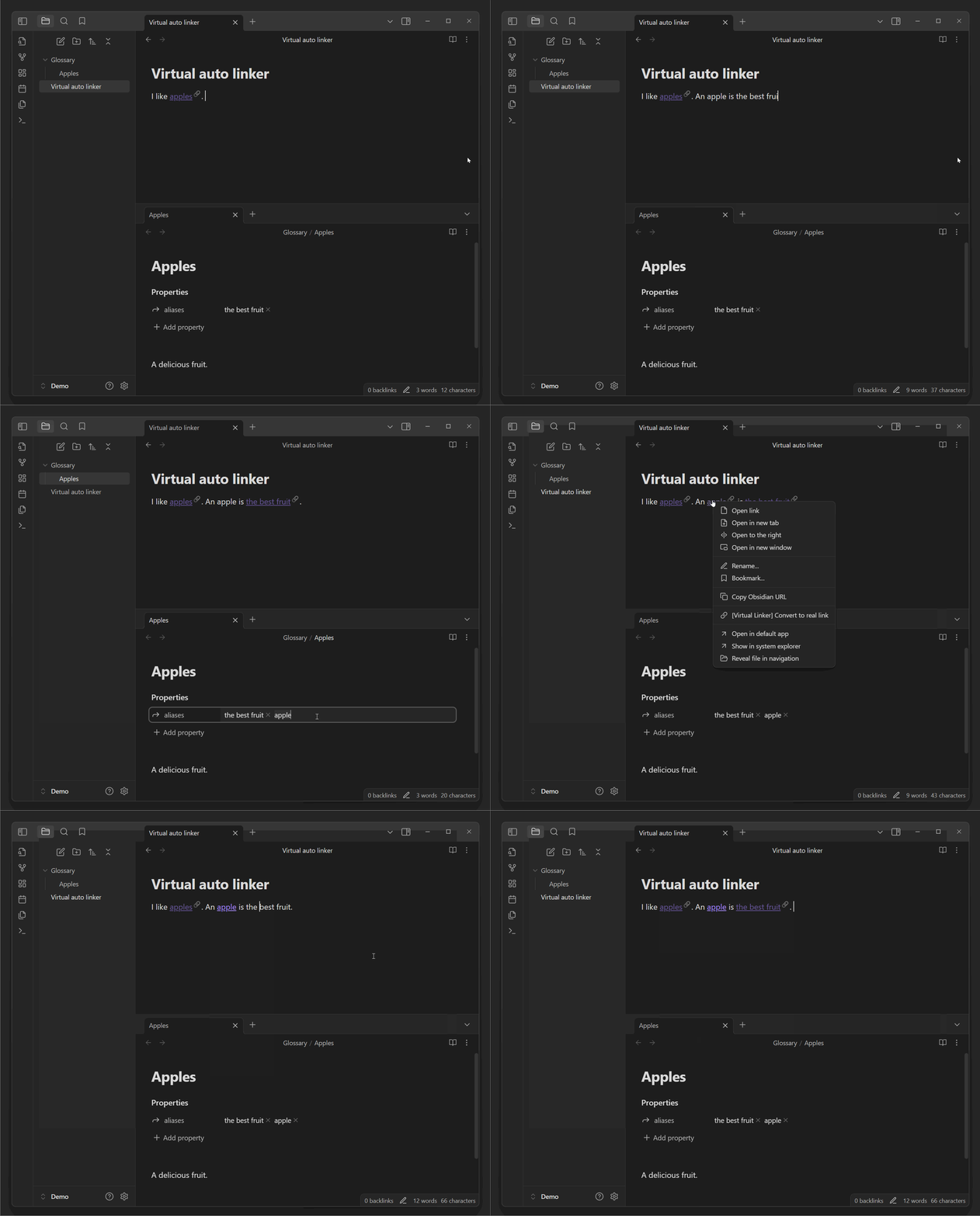
Usage
By default, the plugin will automatically link all notes of your vault. All occurrences of a note title or alias will be linked in your current note text. If you only want to include notes of a specific folder, you can define this folder in the settings.
[!Note] The auto generated links are post-processed, so they neither change your note text to hard-coded links enclosed in brackets not appear in the graph view or reference counting.
Vault access and privacy
Virtual Autolink uses Obsidian's vault.getMarkdownFiles() API to enumerate Markdown notes across your vault. Review tools may flag this as Vault Enumeration because it exposes note paths to the plugin. This access is required to discover link targets beyond the currently open note and keep virtual links up to date as notes change.
The matching index uses note names and paths, plus Obsidian's cached metadata for aliases, tags, and configured frontmatter fields. Enumerating notes does not mean reading every note's full contents, and this API does not enumerate non-Markdown attachments. The Highlights panel separately reads the contents of notes with active highlights to display matching occurrences.
Folder and tag inclusion/exclusion settings control which notes become link targets; they do not prevent vault-wide enumeration during index updates or act as file-access permissions. Matching and highlighting run locally; the plugin does not upload note paths, metadata, or contents to an external service.
Installing the plugin
Via BRAT (Recommended)
- Install the BRAT plugin in Obsidian
- In BRAT settings, add
avinashkanaujiya/obsidian-virtual-autolinkas a beta plugin - Enable "Virtual Autolink" in Community Plugins settings
Manual install
- Download
main.js&manifest.jsonfrom Releases - Copy them to
VaultFolder/.obsidian/plugins/virtual-autolink/ - Enable the plugin in settings
Settings
Version 3.1.3 and later require Obsidian 1.14.4 or newer and use its searchable declarative settings API. Advanced and conditional settings keep their existing visibility rules. Version 3.1.2 retains support for Obsidian 1.5.0.
Matched files
You can toggle the matching of files between:
- "Match all files": All files in your vault are matched.
- "Match only files in a specific folder": Only files in a specific folder are matched. You can specify the folder in the settings. This is useful if you want to only create virtual links to notes in a dedicated glossary directory.
Furthermore, you can explicitly include or exclude specific files from being matched, by adding a tag to the file. You can change the tag in the settings, by default it is:
linker-includeto explicitly include a filelinker-excludeto explicitly exclude a file
You can also exclude all files in a specific folder by adding the folder to the exclude list in the settings.
[!Note] To include / exclude a file or folder, you can use the context menu on virtual links or in the file explorer.
Case sensitivity
You can toggle the case sensitivity of the matching. By default, the matching is case insensitive.
Often there are words with mainly capitalized letters, that should be matched case sensitive. By default, words with 75% or more capitalized letters are matched case sensitive. You can change this threshold in the settings.
You can also explicitly change the case sensitivity of a specific file by adding a tag to the file. You can change the tag in the settings, by default it is:
linker-match-caseto make the matching case sensitivelinker-ignore-caseto make the matching case insensitive
If you want to define the case sensitivity for specific aliases, you can define the frontmatter property lists in a note:
linker-match-casewith a list of names that should be matched only case sensitivelinker-ignore-casewith a list of names that should be matched case insensitive These property names can be changed in the settings.
Matching mode
Suppress multiple matching and matching to real links
By default, the plugin will suppress several identical virtual link in the same note. Repeated identical matches on the same line are also collapsed to the first occurrence to reduce visual clutter. Furthermore, you can toggle to suppress the creation of virtual links to files, that are linked by real links in the current note.
Part matching
You can toggle the matching mode between:
- "Matching only whole words": Only whole words are matched. E.g. "book" will not match "Notebook".
- "Match also beginning of words": The beginning of a word is matched. E.g. "book" will not match "Notebook", but "Note" will match "Notebook".
- "Matching any part of a word": Any part of a word is matched. E.g. "book" will match "Notebook".
You furthermore have the option to suppress the link suffix for these matches to avoid cluttering your text.
Links to the note itself
By default, links to a note itself are suppressed. This link suppression might be a bit buggy and not work in all cases, e.g. in preview windows. If you like self-links to the note itself, you can toggle this behavior in the settings.
Link suppression in current line
By default, links are created directly as you type. You can disable links for the current line you are typing.
[!Note] Deactivating the link creation for the current line is recommended when using the plugin with IME (input method editor) for languages like Chinese or Japanese, as the plugin might otherwise interfere with the IME.
Styling of the links
Any created virtual link will be appended with this suffix. This is useful to distinguish between real and virtual links.
By default, the suffix is "🔗".
When a virtual link points to multiple candidate notes, clicking the virtual link itself now opens all matched notes in sequence. The numbered chooser also includes an oa entry first for the same action. Unless "Always show multiple references" is enabled, that chooser stays hidden until you hover the virtual link.
By default (and if the default styling is toggled on in the settings), virtual links add only a very faint underline-like rule while preserving bold, italic, highlights, strikethrough, and existing theme formatting. Editing view decorates the original text instead of replacing it with a plain-text widget; reading view keeps the surrounding formatting elements. The default styling inherits text color rather than applying Obsidian's link color. The multi-candidate chooser still waits for a short hover delay before appearing, which avoids flicker when the pointer only passes over a link. Display-text highlights still use the current theme accent. You can turn off this default styling in the settings.
To apply custom styling to the links, add a CSS snippet at VaultFolder/.obsidian/snippets/virtualLinks.css. Scoped anchor selectors override theme defaults without !important:
.virtual-link.virtual-link-span a.internal-link.virtual-link-a,
.virtual-link.virtual-link-span a.internal-link.virtual-link-open-all {
    color: inherit;
    font: inherit;
    text-decoration: inherit;
    box-shadow: inset 0 -1px 0 0 color-mix(in srgb, currentColor 10%, transparent);
}

.virtual-link.virtual-link-span a.internal-link.virtual-link-a:hover,
.virtual-link.virtual-link-span a.internal-link.virtual-link-open-all:hover {
    color: inherit;
    text-decoration: inherit;
}
[!Note] If you want to apply custom styling, don't forget to turn off the "Apply default link styling" in the settings.
Highlights panel
Clicking candidate links collects highlights for the opened notes without opening, selecting, or focusing the Highlights panel. Returning to an already-highlighted note also leaves the sidebar unchanged. To open the panel intentionally, run Virtual Autolink: Open highlights from the command palette or select its existing sidebar tab. The panel shows highlights for notes that are still open; closing a note removes its highlights from the list.
Commands
The plugin provides the following commands that you can use:
- Convert all virtual links in selection to real links: Converts all virtual links within the selected text to real links.
- Activate Virtual Linker: Activates Virtual Autolink if it is currently deactivated.
- Deactivate Virtual Linker: Deactivates Virtual Autolink if it is currently activated.
- Open highlights: Opens the Highlights panel intentionally; candidate-link navigation never opens or focuses it automatically.
You can access these commands from the command palette or assign custom hotkeys to them in the settings.
Context Menu Options
When right-clicking on a virtual link, the following options are available in the context menu:
- Convert to real link: Converts the selected virtual link to a real link.
- Exclude this file: Adds the
linker-excludetag to the file, preventing it from being matched by Virtual Autolink. - Include this file: Adds the
linker-includetag to the file, ensuring it is matched by Virtual Autolink.
How to use for development
- Clone this repo into
your-vault/.obsidian/plugins/. - Use Node.js 22.19 or newer and run
npm cito install the locked dependencies. - Run
npm run checkat the start of a coding session and after changes, before committing or handing off. npm run devstarts compilation in watch mode;npm run buildcreates the production bundle.
It is recommended to use the Hot Reload Plugin for development.
Quality checks
npm run check runs release-metadata validation, Obsidian's recommended type-aware lint rules for production TypeScript, basic linting for tests and Node scripts, CSS linting, the full Jest suite, and TypeScript checking plus the production build. Lint warnings fail the gate. Every stage runs even if an earlier stage fails; the command exits nonzero if any stage fails. Run npm run lint:css for CSS-only checks, including the ban on !important.
Use npm run lint:fix for supported ESLint autofixes, review its changes, then rerun npm run check. The default check does not rewrite source, install dependencies, commit, push, or deploy; the build updates the ignored main.js.
Checks are local-only for now. Repo AGENTS.md instructs coding agents to run and fix the gate each session; this is not a background watcher, and watch compilation alone does not run the full checks. Existing release automation is unchanged.
Automated checks do not replace smoke-testing changed behavior in an isolated Obsidian vault. They also do not query the registry for SDK updates or run a dependency-security audit. The SDK is pinned to Obsidian 1.14.4; changes to that target must keep manifest.json, versions.json, and the lockfile aligned.
TypeScript explicitly declares DOM and ES2019 APIs, including Object.fromEntries; this avoids depending on newer API types accidentally supplied by development dependencies. Production JavaScript bundling still targets ES2018 syntax. Declaring API types does not add runtime polyfills.
License
Licensed under Apache License 2.0. Original copyright: 2024 Valentin Schröter; the original attribution and license notice are preserved in NOTICE.
For plugin developers
Search results and similarity scores are powered by semantic analysis of your plugin's README. If your plugin isn't appearing for searches you'd expect, try updating your README to clearly describe your plugin's purpose, features, and use cases.