by Wren
Adds commands for each day of the week that open or create the next matching daily note.
Weekday Commands
Open the next occurrence of any weekday, or pick a date, from the command palette. If the daily note doesn't exist yet, it's created from your Daily Notes template.
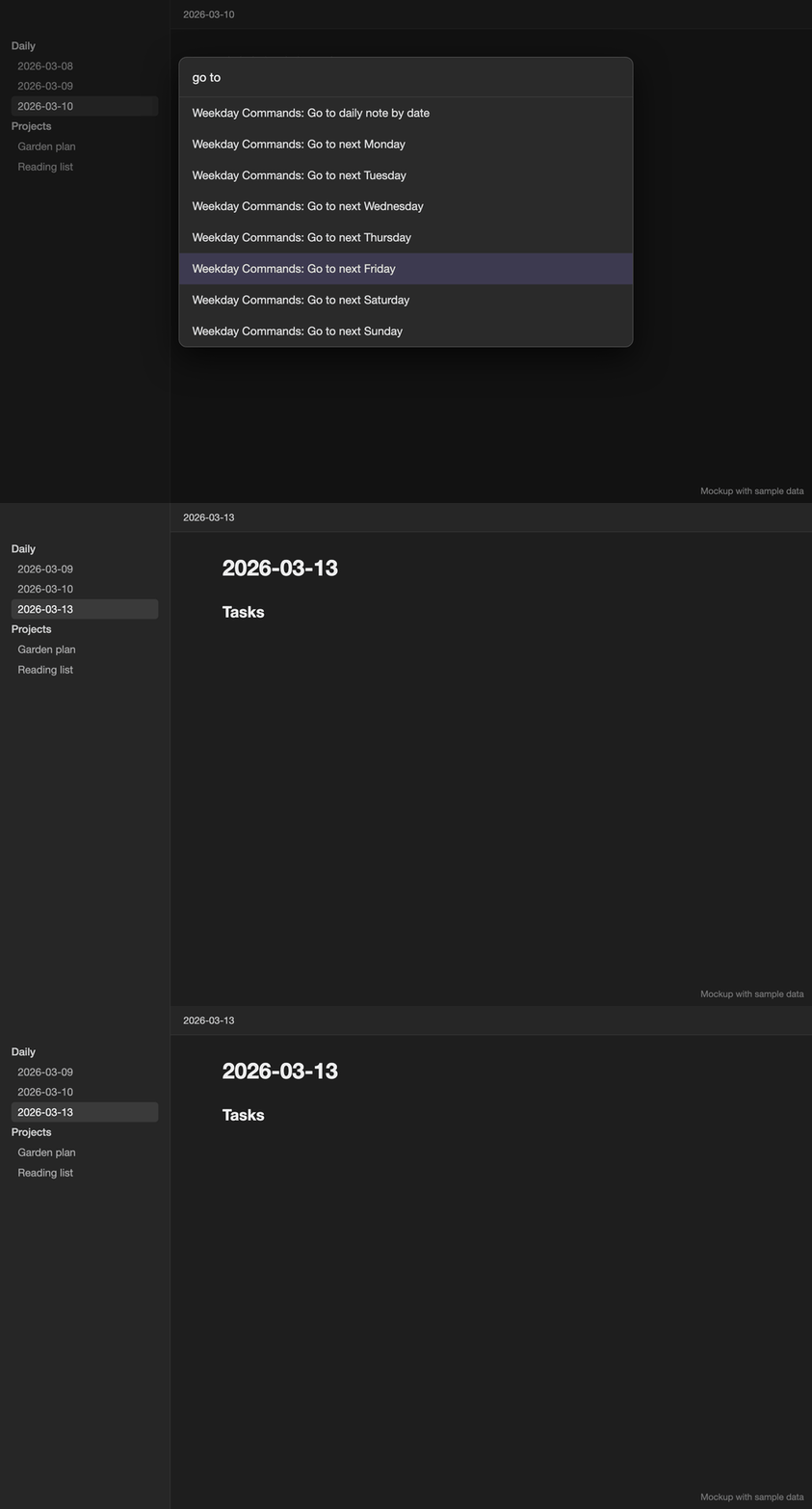
Mockup with sample data.
Commands
- Go to daily note by date opens a date picker. It accepts calendar dates, natural-language dates when Natural Language Dates is installed, and shortcuts to your three most recently edited daily notes. Press Enter or use Open note to open the date. If opening fails, the picker stays open so you can retry.
- Go to next Sunday through Go to next Saturday opens the next occurrence of that weekday.
Calendar dates are checked strictly, so invalid dates such as 2026-02-29 are rejected. Use YYYY-MM-DD to avoid ambiguity in numeric dates. Built-in relative phrases include in 3 days, next week, and next December.
Plain weekday entries such as Friday always mean the upcoming occurrence. Today, yesterday, and tomorrow are left out of the recent-note shortcuts.
Settings
- Integrate with Journal View (off by default): sends every Weekday Commands navigation to Journal View, with its normal nearby animation or distant snap. Missing notes are still created.
- Daily notes folder: optionally overrides the Daily Notes plugin folder for Weekday Commands. Edits save when you leave the field. Date formats containing folders, such as
YYYY/MM/YYYY-MM-DD, are supported.
Requirements
Configure your preferred date format, folder, and template in Obsidian's built-in Daily Notes plugin or in Periodic Notes (with daily notes enabled). Natural Language Dates and Journal View are optional integrations.
Privacy
Weekday Commands works locally in your vault, with no network services or telemetry. It has no recurring timers or vault watchers, and looks up recent notes only when the picker opens, using the configured folder. Pointer presses use a short CSS transition that respects reduced-motion preferences.
Development
Run npm ci and npm run check for lint, type checking, the release build, and regression tests. Tests use the built plugin with an in-memory Obsidian API substitute and do not access a real vault.
For plugin developers
Search results and similarity scores are powered by semantic analysis of your plugin's README. If your plugin isn't appearing for searches you'd expect, try updating your README to clearly describe your plugin's purpose, features, and use cases.