WuCai highlights Official
approvedby makediff
Sync WuCai highlights into your notes.
WuCai Highlights Official
The official WuCai Highlight (五彩) plugin for Obsidian. It automatically syncs your web highlights, annotations, page notes and full-text clips from WuCai into your Obsidian vault as Markdown files.
WuCai Highlight is a browser extension for highlighting and annotating any web page, available on Chrome, Edge, Firefox and Safari, with sync across desktop and mobile. Learn more in What is WuCai.
Note: Sync is a PRO feature and requires an active WuCai membership (new accounts get a 7-day PRO trial). WuCai runs three independent regions — Asia, Europe and North America — whose accounts and data are isolated; choose the region that matches your account. See region selection and login.
Features
- Automatic, one-way sync — data flows from WuCai to Obsidian. Highlights, thoughts (annotations), page notes and full-text clips are written as Markdown; deleting a file in Obsidian never affects your WuCai data.
- Customizable notes — choose the destination folder (default
WuCai), the title format, and a Nunjucks template that controls YAML front matter, tags, highlight styling and more. See the template variables. - Flexible scheduling — sync manually, on a timer, or automatically every time Obsidian opens.
- Incremental sync — after the first run, only new and updated notes are fetched.
Installation
- In Obsidian, open Settings → Community plugins and browse the plugin marketplace.
- Search for
wucaior五彩, install WuCai highlights Official and enable it. - If you use an in-app browser plugin such as Obsidian Surfing, disable it while authorizing, then re-enable it afterwards — it can block the login flow.
Connect your account
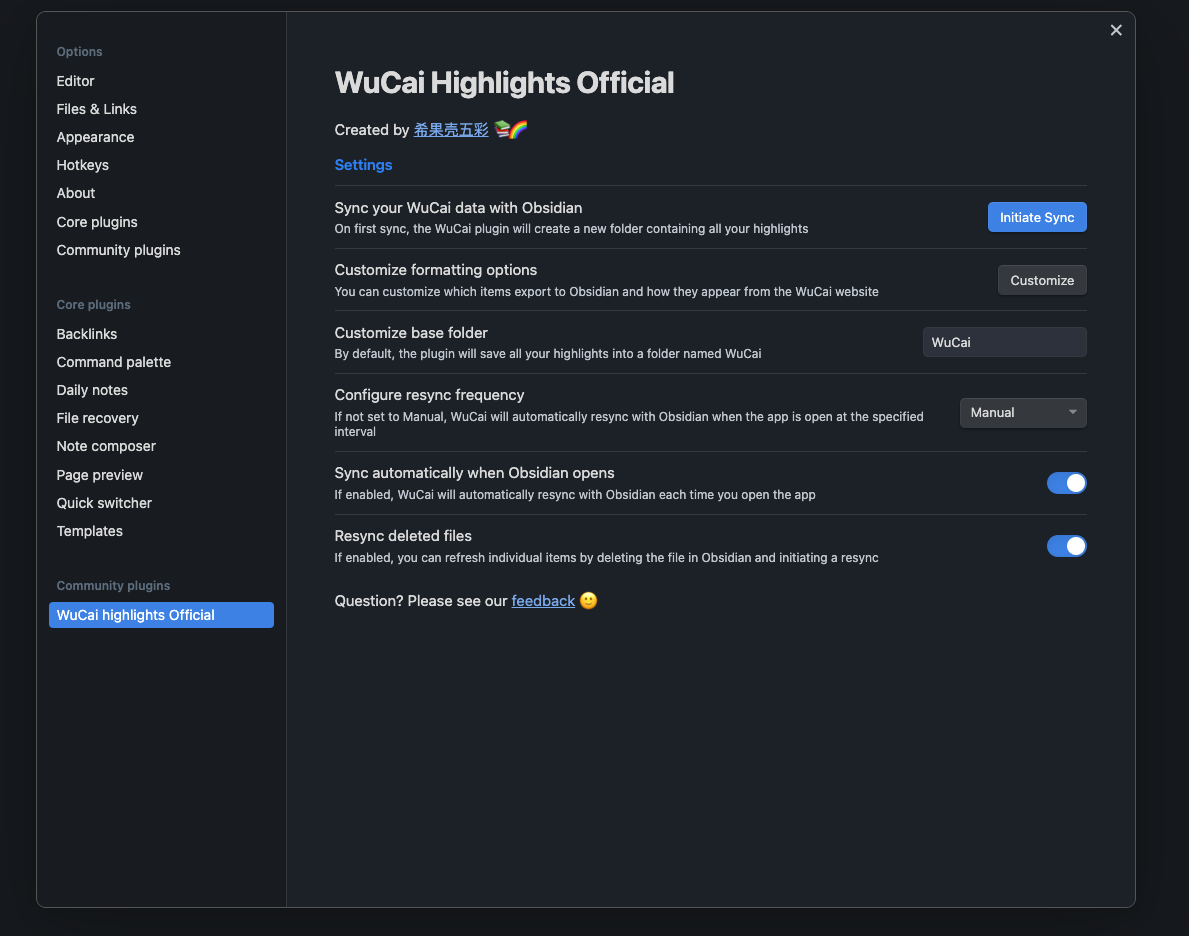
- Open the plugin settings and pick your Region (Asia / Europe / North America). It must match the region of your WuCai account.
- Click Get your WuCai Sync Token to open the sync-token page for that region, and copy the token.
- Paste it into Paste your Token and click Login.
- Set a Customize base folder — use a dedicated folder (default
WuCai) so synced notes don't mix with your other files. - Run Sync your data now from the command palette for the first sync. Afterwards, set Configure resync frequency or enable Sync automatically when Obsidian opens.
Which items are exported and how they are formatted is configured on the WuCai website and picked up by the plugin.
Documentation
- Obsidian sync guide (English)
- Obsidian 同步教程(中文)
- Template variables · Template functions
- Sync & export overview
- Chinese docs · English docs
- WuCai website · Changelog
Support
For plugin developers
Search results and similarity scores are powered by semantic analysis of your plugin's README. If your plugin isn't appearing for searches you'd expect, try updating your README to clearly describe your plugin's purpose, features, and use cases.