Abyss Tasks



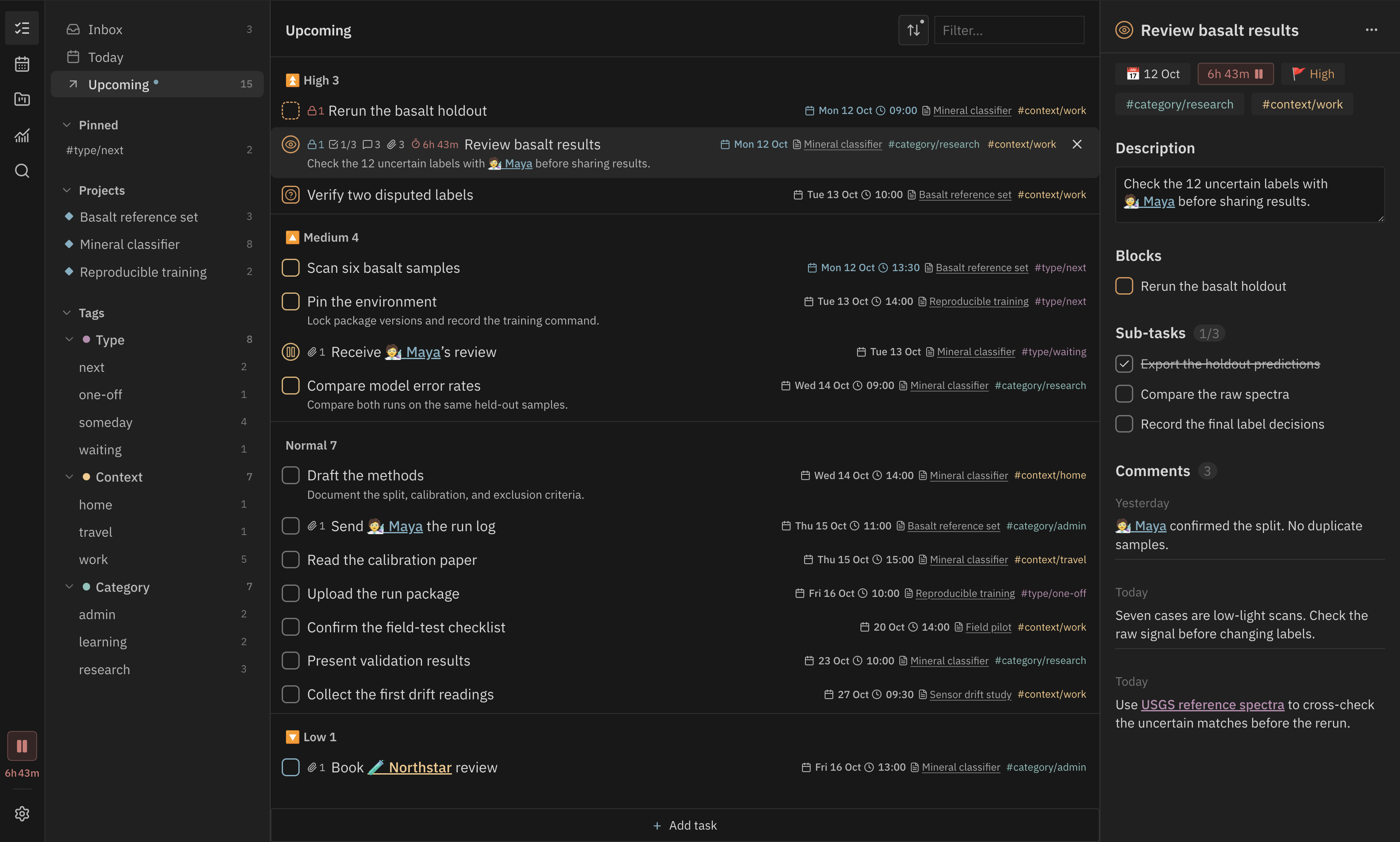
Manage Markdown tasks in Obsidian with Tasks-compatible syntax. Plan work with nested tags, note-based projects and a calendar, then review where your time went.
Quick start
- Install Abyss Tasks and enable it.
- Run Abyss Tasks: Open view from the command palette.
- Click Inbox, press
Q, type your first task and pressEnter.
Start without changing any settings. Untagged tasks go to Inbox. For a small GTD-style setup, add the groups below as you need them. A task only needs the tags that help you choose what to do next.
| Group | Examples |
|---|---|
| Type | #type/next, #type/one-off, #type/waiting, #type/someday |
| Context | #context/work, #context/home, #context/travel |
| Category | #category/research, #category/admin, #category/learning |
The sidebar picks up these tags from your tasks. Select a group or tag to focus your list.
Features
Click a feature name to see it in use.
- Task details. Edit dates, priorities and tags, add subtasks and comments, and link to notes, people or external references. Set repeat rules for recurring work. Tasks stay in your Markdown files.
- Custom statuses. Define statuses such as Review, Waiting or Approved, with their own checkbox symbols and icons.
- Filtering and grouping. Group by priority, date or tag, sort the list and choose which statuses to show. Each list remembers its view.
- Calendar and time blocks. Plan your day, week or month. Drag a task to a time slot, then move or resize its block to adjust the plan.
- Projects. Click New project to create a note in
projects/. Keep its description and properties in the note, with tasks below. Switch between the table, kanban and timeline to compare progress, change statuses or adjust dates. - Dependencies. Link tasks to their prerequisites. See what is blocked and what becomes available when you finish a task.
- Search. Find tasks across your vault with fuzzy matching, including text in descriptions and subtasks.
- Time tracking. Start or pause a timer on a task and review its recorded sessions.
With the panel focused, use Q to capture, T for Today, U for Upcoming, C for
Calendar, P for Projects, A for Analysis and S for Search. Change these in the shortcut settings.
The screenshots use Base16 Default Dark, IBM Plex fonts through Local Fonts, and Supercharged Links for note icons and colours.
Analysis
Review task flow, project health and recorded time across your vault or within a project.
- Timeline. See recorded sessions across each day and compare weekly totals.
- Allocation. Compare time spent by project, tag or priority, then open a group to inspect its daily totals.
- Patterns. See when you work in a heatmap of recorded time by weekday and hour.
Other views cover completion, deadlines, project aging and dependencies.
Roadmap
- Optimize the mobile interface.
- Add AI integration and voice input.
- Add hybrid search alongside fuzzy search.
Contributing
Bug reports, ideas and pull requests are welcome. See Contributing for setup and checks.
License
For plugin developers
Search results and similarity scores are powered by semantic analysis of your plugin's README. If your plugin isn't appearing for searches you'd expect, try updating your README to clearly describe your plugin's purpose, features, and use cases.