Notes Bridge
approvedby Cheng
Copy notes as portable Markdown and bridge with Bear, WPS Cloud Note, and Youdao Note. - This plugin has not been manually reviewed by Obsidian staff.
 Notes Bridge
An Obsidian plugin that exports notes as portable Markdown and bridges your vault with Bear, WPS Cloud Note, Youdao Note, Flomo, Yinxiang (印象笔记), WeKnora, and IMA (Tencent). Each integration is an independently enabled, independently configured first-class client.
Desktop only (
isDesktopOnly: true) — several providers drive CLI subprocesses.
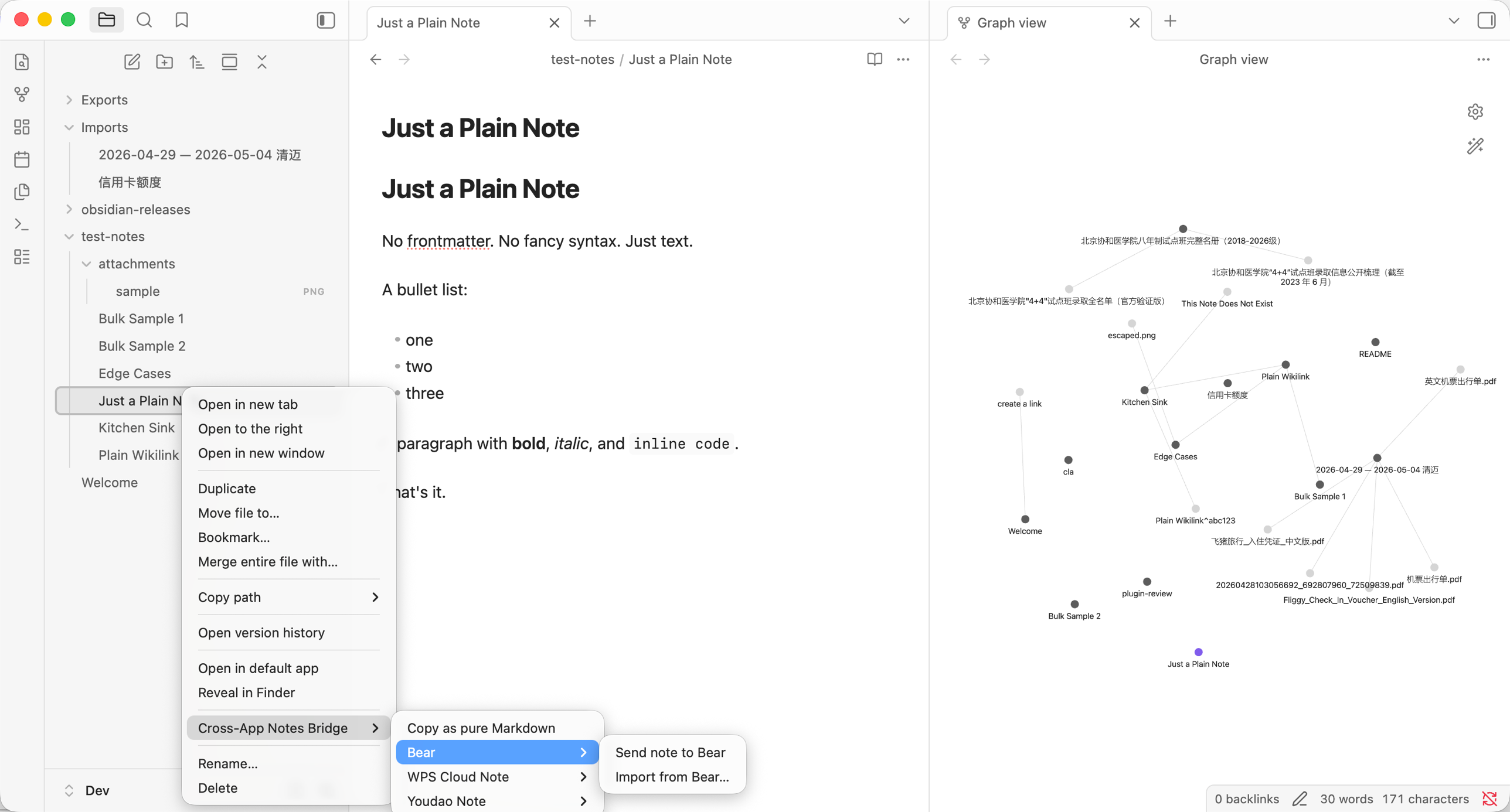
Why one plugin
These integrations share the same pipeline — selection → Markdown transforms → provider dispatch — and most people who care about Markdown portability use more than one of these apps. Bundling them avoids duplicating the transform layer and keeps the right-click menu unified. Each provider can be enabled, configured, and trusted independently in settings, so you only ever see what you've set up.
The plugin is intentionally scoped to first-class clients for a curated set of apps, rather than a generic "add any MCP server" surface. New providers land as first-class clients over time.
Features
Export as pure Markdown
Transform Obsidian-specific syntax into portable Markdown that works anywhere:
- Copy as pure Markdown — transform the active note and copy to clipboard.
- Export to folder — write transformed notes to a configurable export directory.
Transform options
| Option | Description | Default |
|---|---|---|
Resolve [[wikilinks]] | Convert wikilinks to standard Markdown links | On |
| Embed handling | What to do with ![[embeds]] | Replace with link |
| Flatten callouts | Convert > [!note] callouts to blockquotes | On |
| Drop frontmatter | Remove YAML frontmatter from output | Off |
| Rewrite attachments | How to handle image/attachment paths | Vault-relative |
Supported apps
Each provider below can be enabled and configured independently in Settings → Community plugins → Notes Bridge.
- Bear — export and import via the
bear://x-callback-url scheme (local IPC, no network). - WPS Cloud Note — export via the WPS Note CLI or an MCP server endpoint you configure.
- Youdao Note — export and import via the official
youdaonoteCLI, which calls Youdao's API with your API key. - Flomo — export (push-only) to Flomo's official streamable-HTTP MCP server.
- Yinxiang (印象笔记) — export and import via the Yinxiang REST API.
- WeKnora — export (push-only) to a self-hosted or cloud WeKnora instance via its REST API.
- IMA (Tencent) — export (push-only) to Tencent IMA via its official OpenAPI.
Unified target picker
IMA, Yinxiang, WeKnora, and Youdao share one FuzzySuggestModal picker for choosing a target notebook, folder, or knowledge base — no more pasting raw IDs. Click Choose… to load the list from the server or CLI, pick a target, and the plugin stores both its ID and display name. Use Clear to go back to the default location.
Quality of life in settings
- Header enabled toggle — enable or disable a provider straight from the card header, without expanding it.
- "Configuration incomplete" badge — enabled-but-unconfigured providers show a warning explaining why they're absent from the export menu. Turning on an unconfigured provider auto-expands its card with a guidance notice.
- Overflow-safe layout — long target names truncate with a tooltip, and action buttons never clip on narrow panels.
Context menu and commands
Right-click any file in the file explorer (or select multiple files) to find the Notes Bridge submenu with all available actions. Only providers that are enabled and fully configured appear.
| Command | Description |
|---|---|
| Copy as pure Markdown | Transform and copy the active note to clipboard |
| Export current note as pure Markdown | Export the active note to folder |
| Send active note to Bear | Dispatch the active note to Bear |
| Import from Bear | Import a Bear note via UUID or URL |
| Send active note to WPS Cloud Note | Dispatch the active note to a configured WPS provider |
| Send active note to Youdao Note | Dispatch the active note to a configured Youdao provider |
| Send active note to Flomo | Dispatch the active note as a memo to a configured Flomo provider |
| Send active note to Yinxiang | Dispatch the active note to a configured Yinxiang provider |
| Send active note to WeKnora | Dispatch the active note to a configured WeKnora provider |
| Send active note to IMA | Dispatch the active note to a configured IMA provider |
Settings
Configure via Settings → Community plugins → Notes Bridge.
- Export folder — directory for exported notes (default:
Exports). - Import folder — directory for imported notes (default:
Imports). - Concurrency — parallel export workers (default: 4).
- Transform options — configure Markdown output format.
- Providers — enable, configure, and test each provider on its own collapsible card. The card header carries the enabled toggle; an "incomplete configuration" indicator appears under the title when a provider is enabled but not yet ready for the menu.
Installation
Via BRAT (recommended for beta testing)
The plugin isn't in the official community catalogue yet. The easiest way to install and stay up to date is through BRAT (Beta Reviewers Auto-update Tool):
- Install BRAT from Settings → Community plugins → Browse, then enable it.
- Open Settings → BRAT → Add Beta plugin and paste
huangcheng/obsidian-notes-bridge. - BRAT downloads the latest release into your vault and tracks new versions automatically.
See the BRAT plugin docs for details on auto-updates and pinning to a specific version.
From GitHub release
- Download
main.js,manifest.json, andstyles.cssfrom the latest release. - Copy them into
<vault>/.obsidian/plugins/advanced-import-export/. - Enable the plugin in Settings → Community plugins.
Build from source
git clone https://github.com/huangcheng/obsidian-notes-bridge.git
cd obsidian-notes-bridge
npm install
npm run build
Copy the output files (main.js, manifest.json, styles.css) into your vault's plugin directory.
Privacy
- No telemetry. The plugin calls no analytics, tracking, or "phone home" endpoint.
- Credentials stay local. API keys and provider configuration are stored in your vault's plugin data file (
.obsidian/plugins/advanced-import-export/data.json) and never leave your machine, except for the explicit calls you trigger to a configured provider. - Network calls are scoped to the providers you configure. Disabling a provider stops all of its calls.
- No vault contents are uploaded beyond the notes you explicitly export to a provider.
Outbound endpoints
| Provider | Direction | Where data goes |
|---|---|---|
| Bear | Export + import | bear:// URL scheme — local IPC, no network |
| WPS Cloud Note | Export | The server URL or CLI binary you configure |
| Youdao Note | Export + import | Local youdaonote CLI → Youdao API (mopen.163.com) using your API key |
| Flomo | Export (push-only) | https://flomoapp.com/mcp with Authorization: Bearer <token> |
| Yinxiang (印象笔记) | Export + import | https://app.yinxiang.com with auth: <token> |
| WeKnora | Export (push-only) | Your configured base URL with an X-API-Key header |
| IMA (Tencent) | Export (push-only) | https://ima.qq.com with ima-openapi-clientid + ima-openapi-apikey headers |
Capabilities and permissions
To be transparent about the warnings some reviewers surface:
- Shell execution. The plugin spawns CLI subprocesses for the providers that need them — Youdao (
youdaonote), Bear (bearcli), and WPS when configured for the CLI transport. It only ever runs the binaries you configure. - Filesystem access outside the vault. Exported notes are written to the configured export folder, and short-lived temp files are used while handing content to CLIs. Provider credentials and settings live in the plugin's own data file inside the vault.
- Clipboard. Copy as pure Markdown writes the transformed note to the system clipboard.
- Dynamic code execution notice. The bundled MCP SDK (
@modelcontextprotocol/sdk, used for the Flomo and WPS MCP transports) depends on Ajv, which compiles JSON Schemas into validator functions usingnew Function(...). This compiles trusted, schema-defined code — not remote or user-supplied scripts — and is inherent to JSON-Schema validation; it cannot be removed without dropping MCP support. The plugin never fetches or executes remote code.
Development
npm install        # install dependencies
npm run dev        # watch mode — auto-rebuild on changes
npm run build      # type-check + production build
npm run lint       # run ESLint
npm run test       # run the test suite
See CONTRIBUTING.md for the project layout and how to add a provider.
Contributing
Contributions are welcome! Please read CONTRIBUTING.md and follow our Code of Conduct.
Changelog
See CHANGELOG.md.
License
Licensed under the 0-BSD License.
For plugin developers
Search results and similarity scores are powered by semantic analysis of your plugin's README. If your plugin isn't appearing for searches you'd expect, try updating your README to clearly describe your plugin's purpose, features, and use cases.