Notes Exporter
approvedby anton
Decorate exported Apple Notes and Bear Notes with native app icons. Open notes in their source app. - This plugin has not been manually reviewed by Obsidian staff.
Notes Exporter
Capture in Apple Notes, think in Obsidian.
This plugin connects Notes Exporter with Obsidian. Export your Apple Notes, Bear, and Logseq notes as markdown, open the folder as an Obsidian vault, and get sync status and native app integration right inside Obsidian.
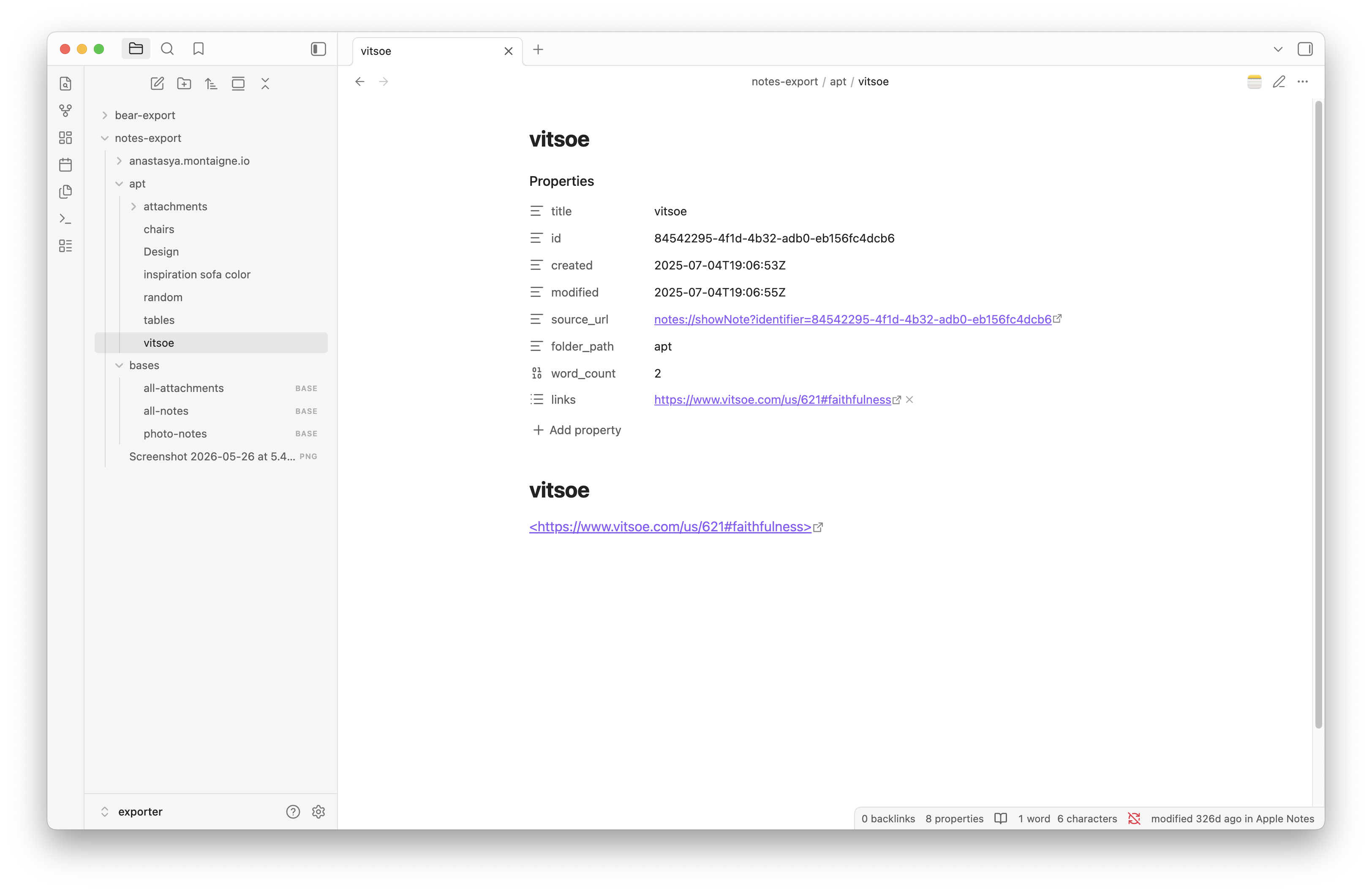
Why this exists
Apple Notes is great for quick capture -- Siri, share sheets, handwriting, instant sync. But it's a closed system. You can't query your notes, link them, or build on top of them.
Obsidian is great for thinking -- backlinks, Dataview, templates, plugins. But it can't read Apple Notes.
This plugin bridges them. Export your notes once or on a schedule, and Obsidian treats them as first-class citizens with deep links back to the source app.
How it works
- Export notes with Notes Exporter (select folders or tags, pick a destination folder)
- Open that folder as an Obsidian vault
- Install this plugin -- it reads
source_urlfrom frontmatter and adds native app integration
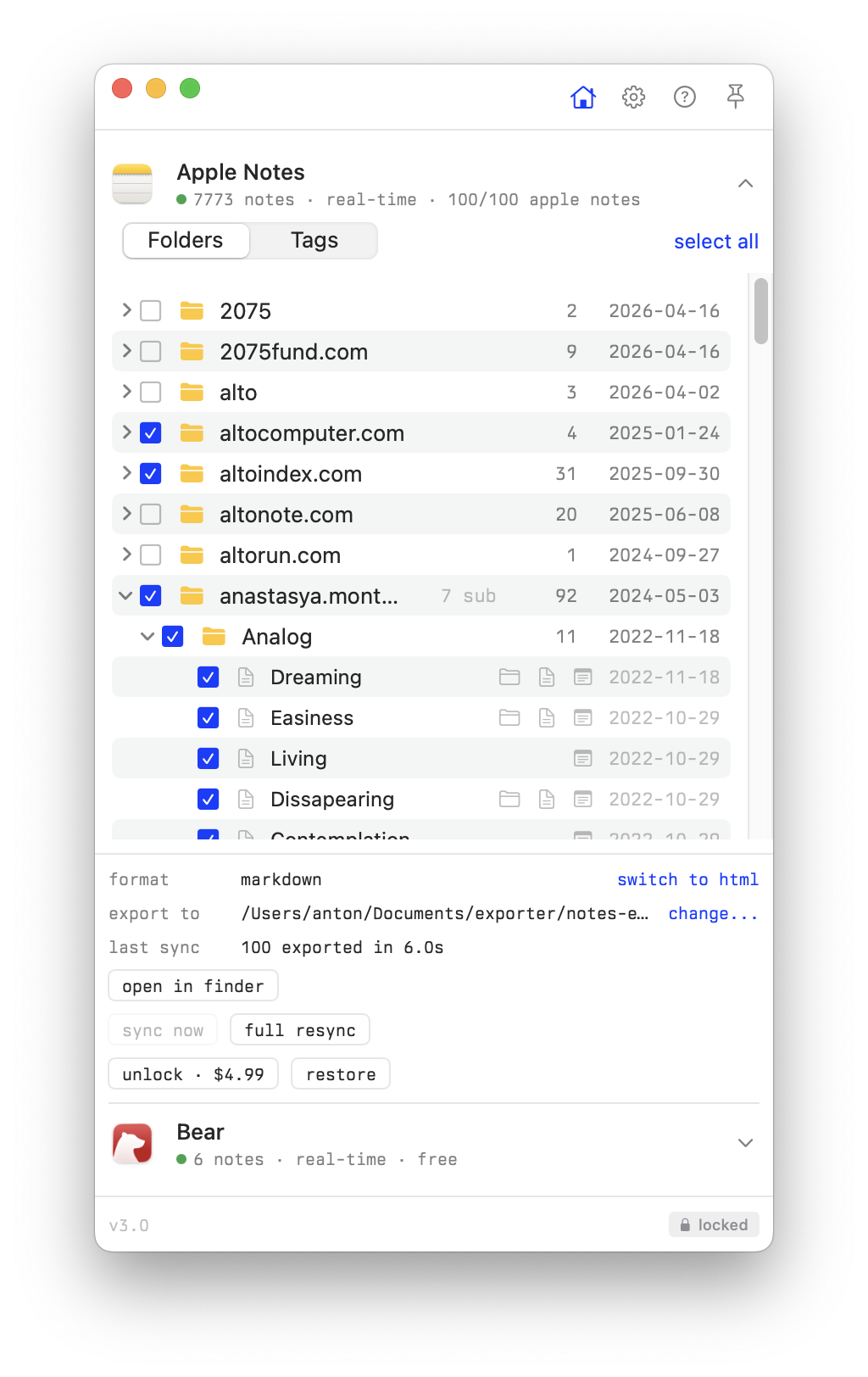
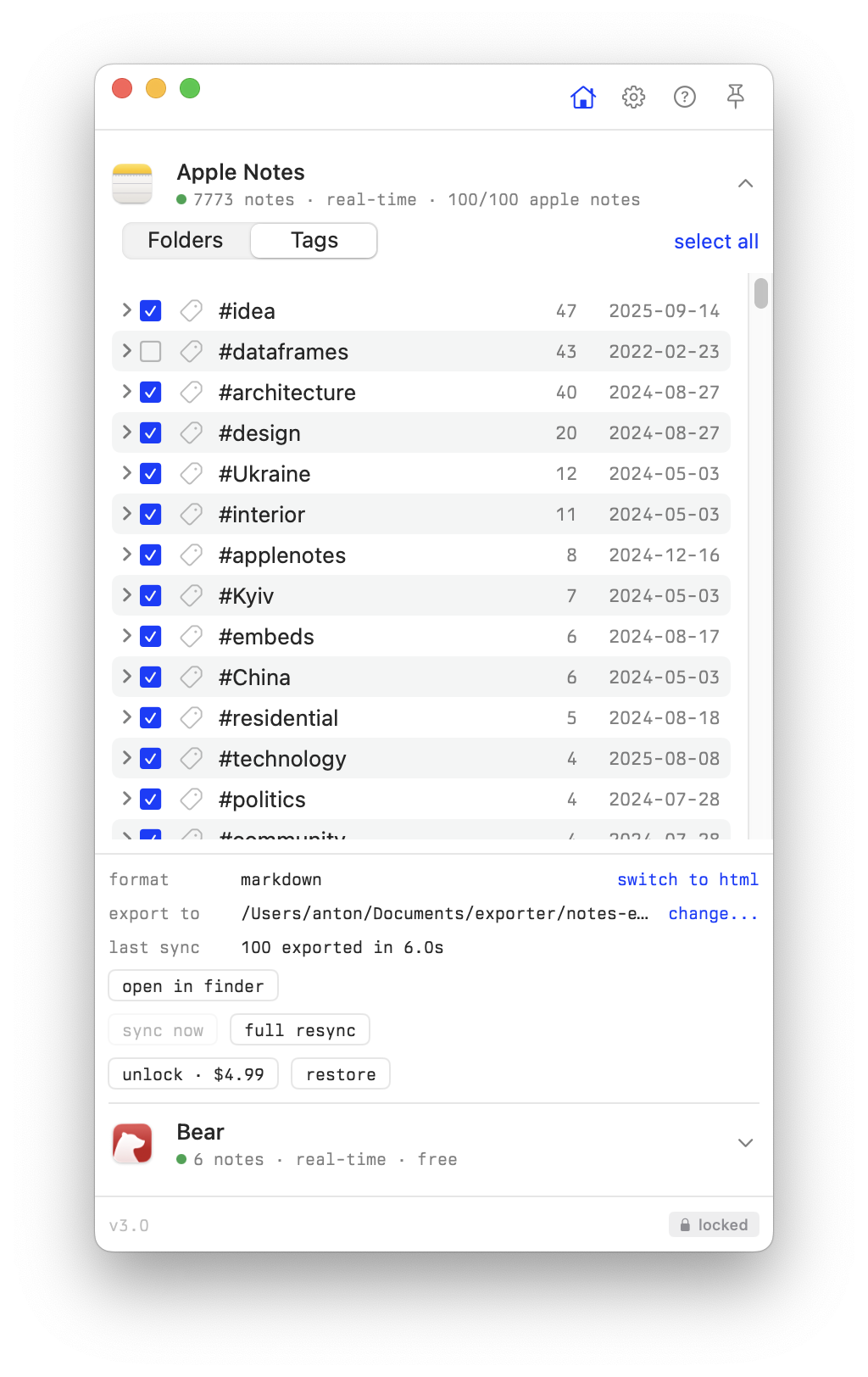
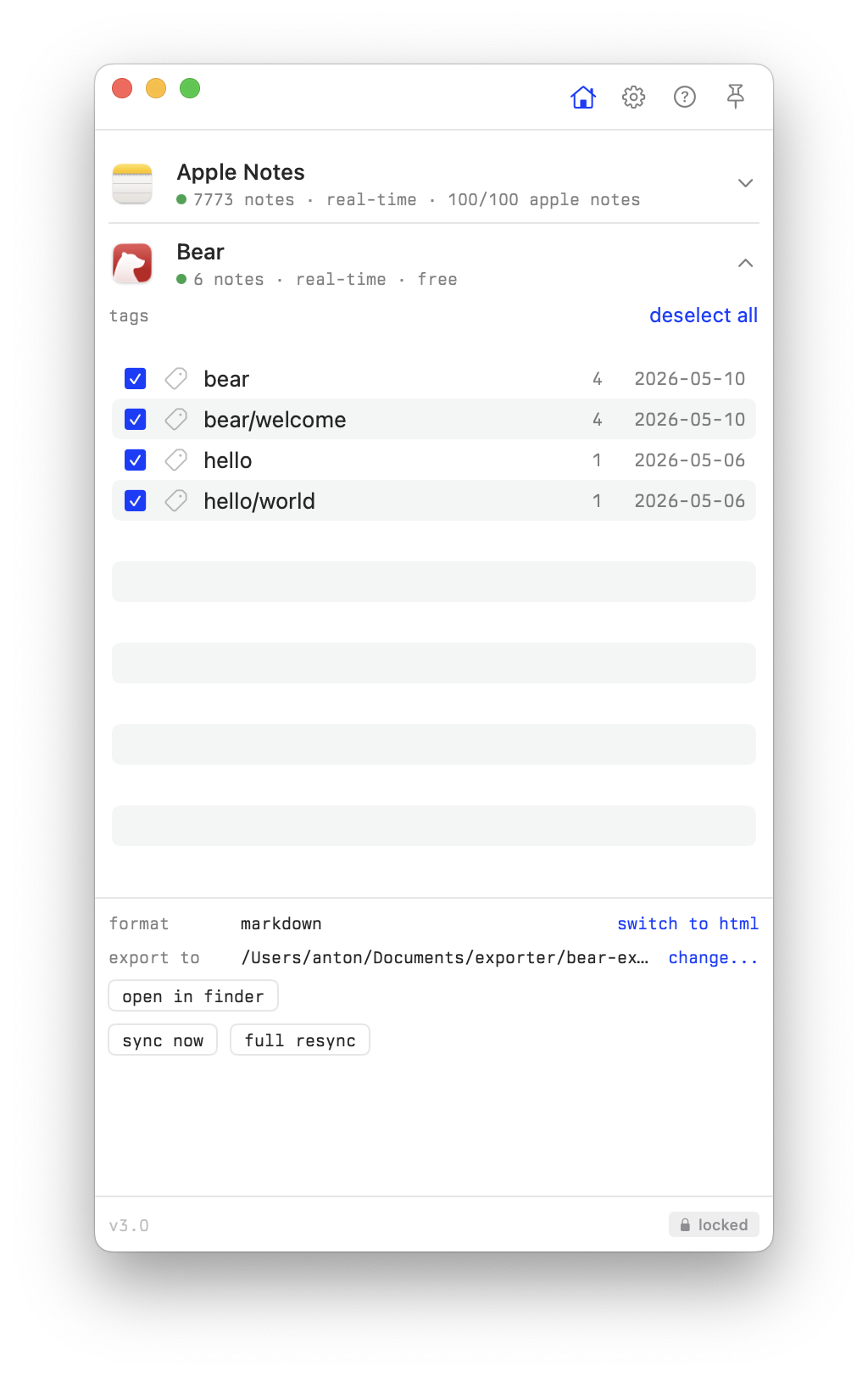
Features
- sync status panel in the right sidebar: last export per source, notes exported, failures with links to the affected files, attachment issues
- app icons on
notes://,bear://, andlogseq://links in reading view, live preview, and properties panel - "Open in Apple Notes" / "Open in Bear" / "Open in Logseq" in file and editor context menus
- app icon button in the tab header bar
- status bar showing source app and last modified time
- command palette: "Open in native app", "Show sync status"
Sync status panel
Notes Exporter writes a run report into each export folder (.exporter/last-export.json). The plugin finds these reports — whether the export root is the vault itself or a subfolder — and shows a card per source: how many notes were exported, when, in which format, and which notes or attachments failed (failed notes link to the exported file when it exists). The panel refreshes automatically every 30 seconds while open.
Open it from the ribbon icon or the "Show sync status" command. If no export has landed in the vault yet, the panel shows a short setup guide instead.
Frontmatter fields
Notes Exporter produces rich YAML frontmatter that works with Obsidian core features and Dataview:
| field | example | notes |
|---|---|---|
title | "Meeting notes" | note title |
id | "A1B2C3..." | Apple Notes identifier |
aliases | ["Meeting notes"] | searchable via Obsidian alias |
created | 2025-01-15T10:30:00 | ISO 8601, local time |
modified | 2025-01-15T14:22:00 | ISO 8601, local time |
source_url | "notes://showNote?identifier=..." | deep link to source app (notes://, bear://, or logseq://) |
tags | ["work", "meetings"] | Obsidian-compatible tags |
reading_time | 3 | estimated minutes (200 wpm) |
pinned | true | only if pinned |
shared | true | only if shared |
collaborators | ["email@example.com"] | shared note participants |
folder_path | "Work/Projects" | original folder hierarchy |
cover | "[[path/to/image.jpg]]" | cover image wikilink |
word_count | 642 | body text word count |
attachment_count | 3 | images, PDFs, etc |
attachment_types | ["image", "pdf"] | types present |
has_checklist | true | contains checklist items |
checklist_done | 4 | completed items |
checklist_total | 7 | total items |
links | ["https://example.com"] | URLs found in note |
Example Dataview queries:
TABLE reading_time, word_count, modified
FROM ""
WHERE source_url
SORT modified DESC
LIST
FROM #work
WHERE has_checklist AND checklist_done < checklist_total
Compared to Obsidian Importer
Obsidian Importer is a one-time migration tool. This plugin + Notes Exporter is for ongoing use:
- re-export anytime to pick up changes (Importer is one-shot)
- proper tag extraction from Apple Notes folders and hashtags (Importer often loses tags)
source_urldeep links back to the original note (Importer has no source tracking)- attachments copied alongside notes with correct references (Importer can break attachment links)
- rich frontmatter with word count, reading time, checklist stats, collaborators (Importer produces minimal metadata)
- works with Apple Notes, Bear, and Logseq (Importer handles neither Bear nor Logseq)
- sync status panel showing what was exported and what failed (Importer gives no ongoing visibility)
If you've already left Apple Notes and just need a one-time import, Obsidian Importer works fine. If you still capture in Apple Notes and want your notes available in Obsidian, use this.
Install
From Obsidian community plugins
Search for "Notes Exporter" in Settings > Community plugins > Browse, or visit community.obsidian.md/plugins/notes-exporter.
Manual
Copy main.js, manifest.json, and styles.css to your vault at .obsidian/plugins/notes-exporter/.
Development
npm install
npm run build       # build main.js
npm run dev         # watch mode
npm run typecheck   # type check
License
MIT
For plugin developers
Search results and similarity scores are powered by semantic analysis of your plugin's README. If your plugin isn't appearing for searches you'd expect, try updating your README to clearly describe your plugin's purpose, features, and use cases.