agentNote
approvedby Xinxin
Share local notes and files with AI agents through a private HTTP service. - This plugin has not been manually reviewed by Obsidian staff.
agentNote
Share local Obsidian notes and files with AI agents through a private, local-only HTTP service.
中文说明:README.zh-CN.md
agentNote is an Obsidian desktop plugin that connects your vault with agents such as Claude Code, Codex, and WorkBuddy. You choose what an agent can read, and the plugin creates a live local URL that always resolves to the current content.
Local knowledge activity and agent connections, inside Obsidian.
Features
- Share a note, file, folder, or selected text with an agent.
- Include background context so the agent understands what the shared material is and why it matters.
- Let an agent create and update Markdown notes in your vault through natural language.
- Keep share links live: updated files resolve to their latest content.
- Show Claude Code, Codex, and WorkBuddy in the connection panel even when they are not installed.
- Open the official website for an agent that is not detected locally.
- Explore a local knowledge profile with reuse rankings, contribution history, activity, and archive suggestions.
- Generate a privacy-aware PNG summary of your knowledge activity for sharing.
Start in 3 minutes
Read the illustrated How to Use guide for the complete first workflow. The short version is:
- Open the agentNote connection panel and confirm that the local service is running.
- Connect one detected agent, then restart that agent once.
- Right-click a vault file or folder, choose agentNote: Share with agent, and paste the copied link into the conversation.
- Ask the connected agent to read the link, or simply say “Write this to Obsidian.”
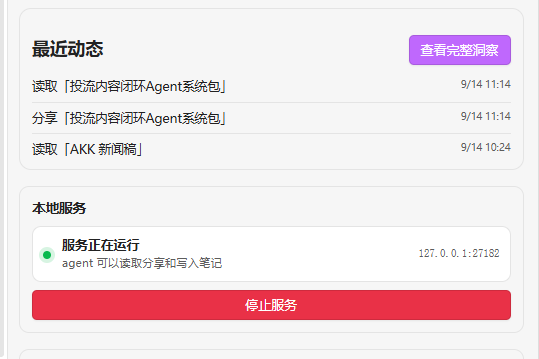
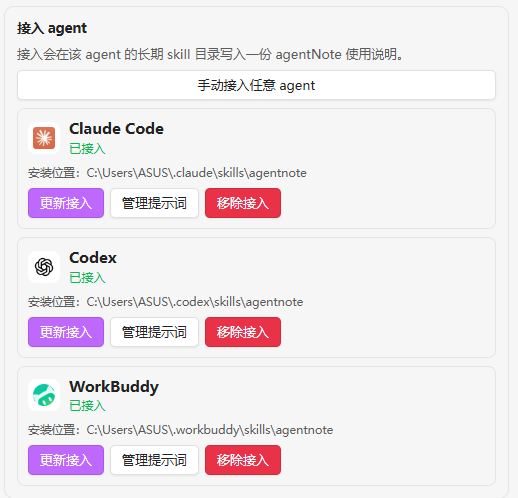
Start the local service, connect one agent, then share a file from Obsidian.
Installation
From the Obsidian Community Plugins directory
- Open Settings → Community plugins in Obsidian.
- Search for
agentNote. - Install and enable the plugin.
- Open the agentNote connection panel and confirm that the local service is running.
Manual installation
- Download
main.js,manifest.json, andstyles.cssfrom the latest GitHub release. - Create
.obsidian/plugins/agentnote/inside your vault. - Copy the three files into that folder.
- Restart Obsidian or reload the plugin from Settings → Community plugins.
Basic usage
Share content with an agent
- Right-click a file or folder and choose agentNote: Share with agent.
- Select text in the editor and use agentNote: Share selected content.
- Send the copied local URL to your agent.
The response includes the current content, its background, the local file path, and instructions for reading or editing the original file.
Write notes from an agent
After connecting an agent, say one of the following:
- “Write this to Obsidian.”
- “Save this to my agent notes.”
- “Remember this in my notes.”
The agentNote skill asks the agent to create a title, body, background, and tags, then write the result to the vault. The agent receives a permanent local link that can be used for later updates.
Connect an agent
Open the agentNote connection panel. Detected agents can be connected or updated directly. If an agent is not installed, use Open official website to install it first. You can also use Connect any agent manually for an agent that is not listed.
Local service and privacy
- The service listens on
127.0.0.1by default, usually athttp://127.0.0.1:27182. - It is available only while Obsidian is running.
- Vault contents are not uploaded to agentNote's servers.
- There is no account, cloud sync, telemetry service, or public sharing layer.
- The plugin uses local filesystem access and the system clipboard for its sharing and agent integration features.
- This is a desktop-only plugin because it uses Node.js, Electron, and a local HTTP server.
Documentation
Development
npm install
npm run typecheck
npm run build
node test/e2e.mjs
The build produces the Obsidian plugin bundle in main.js and the Node-compatible core test bundle in test/core-bundle.cjs.
License
agentNote is released under the MIT License.
Author
Evan · GitHub
For plugin developers
Search results and similarity scores are powered by semantic analysis of your plugin's README. If your plugin isn't appearing for searches you'd expect, try updating your README to clearly describe your plugin's purpose, features, and use cases.