by Caoshengzhao
Lightweight translation plugin supporting DeepSeek, Tongyi Qianwen, Doubao, Google Gemini, and arbitrary custom models. Select English text and translate with one click, inserting below the original.
AI Translation for Obsidian
English
Introduction
AI Translation is a lightweight, multi-model AI translation plugin designed specifically for Obsidian. It natively connects to major global and domestic LLM providers as well as any OpenAI-compatible API endpoints, allowing you to translate selected text with one click and automatically insert the translated result directly below the original text.
✨ Key Features
- Multi-Model Support: Native integrations with DeepSeek, Tongyi Qianwen (Qwen), Doubao, Google Gemini, OpenAI, Anthropic Claude, SiliconFlow, Moonshot (Kimi), Zhipu (GLM), OpenRouter, Groq, and custom API endpoints.
- One-Click Translation & Insertion: Select any text in your note, right-click or press a hotkey, and the translation is inserted neatly beneath the selection.
- Custom System Prompts: Customize translation tone, academic style, and context with full control over the system prompt.
- Multi-Language Targeting: Supports translating into Chinese, English, Japanese, French, German, and any other target languages.
- Zero Heavy Dependencies: Pure Obsidian native implementation using
requestUrl— lightweight, fast, and fully cross-platform (desktop & mobile).
📥 Installation
From Obsidian Community Plugins (Recommended once listed)
- In Obsidian, open Settings > Community plugins.
- Click Browse and search for AI Translation.
- Click Install, then Enable.
Via BRAT (Beta Reviewers Auto-update Tester)
- Install the BRAT plugin in Obsidian.
- In BRAT settings, choose Add Beta plugin.
- Enter repository URL:
https://github.com/Wolframscs/obsidian-AI-Translation - BRAT will automatically download the plugin and keep it updated.
Manual Installation
- Download
main.js,manifest.json, andstyles.cssfrom the latest GitHub Release. - Create a folder named
ai-translationinside your vault's.obsidian/plugins/directory. - Place the downloaded files into that folder.
- Reload plugins in Obsidian settings and toggle on AI Translation.
⚙️ Configuration & Supported Providers
In Obsidian Settings > AI Translation:
- AI Provider: Choose your preferred AI service.
- API Key: Enter your API key for the chosen provider.
- Model Selection: Choose from preset models or enter any custom model ID.
- Target Language: Specify the output language (e.g.,
Chinese,English,Japanese). - System Prompt: Customize translation instructions or use the built-in translation prompt.
- Test Connection: Click the Test Connection button to verify network and credentials.
Custom API / Local Ollama Support
Compatible with any OpenAI-standard endpoint:
- Provider:
Custom API - URL: e.g.,
http://localhost:11434/v1/chat/completions(for local Ollama) orhttps://api.your-proxy.com/v1/chat/completions - Model: e.g.,
llama3,deepseek-r1, etc.
🚀 Usage
- Context Menu: Select text in editor -> right click -> Translate Selection.
- Command Palette: Select text ->
Ctrl/Cmd + P-> runTranslate Selection (Insert Below). - Hotkey: Assign a custom shortcut (e.g.
Alt + TorCtrl + T) under Settings > Hotkeys > searchTranslate Selection.
Obsidian - Translation 插件说明文档
本插件是一款为 Obsidian 开发的轻量级多模型翻译辅助工具。支持对接国内外主流大语言模型服务及符合 OpenAI 规范的自定义 API 接口,可实现选中文本的一键翻译与自动插入对照。
📥 安装与启用
安装
- 下载本插件的最新发布版本。
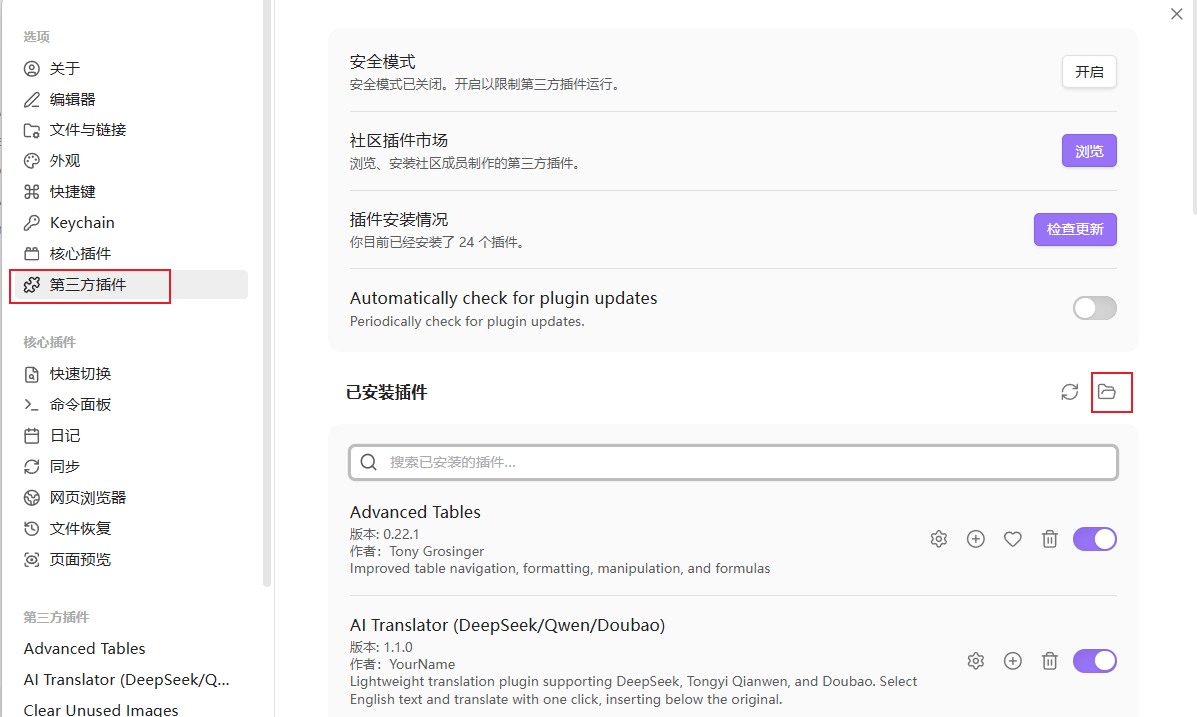
- 打开 Obsidian,进入 设置 -> 第三方插件,点击 打开插件文件夹 按钮。
- 将解压后的插件文件夹放入您的 Obsidian 库的
.obsidian/plugins/目录下。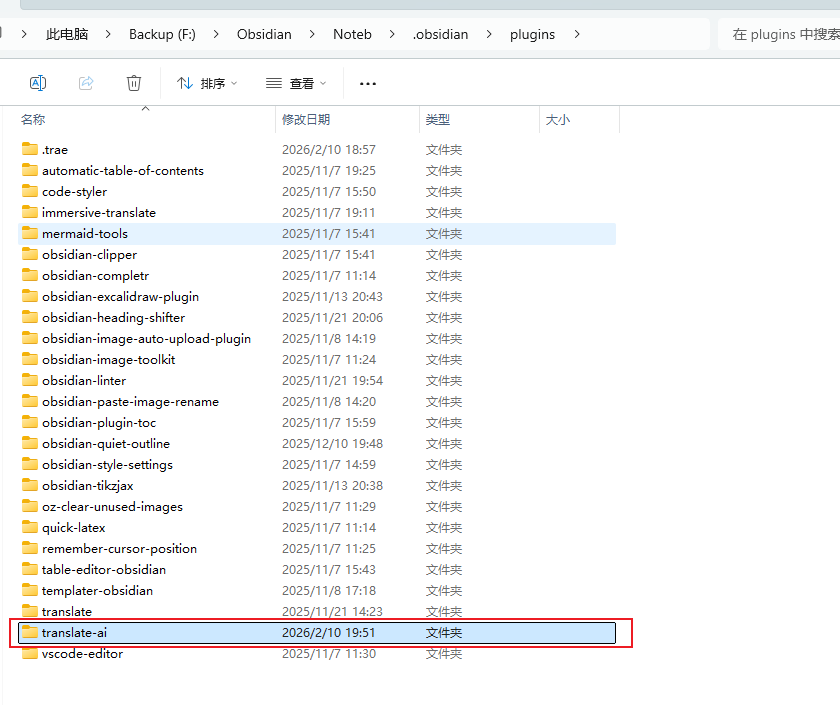
- 重启 Obsidian,或在 第三方插件 配置页中点击 重新加载插件。
启用
- 打开 Obsidian 设置。
- 进入 第三方插件 选项卡。
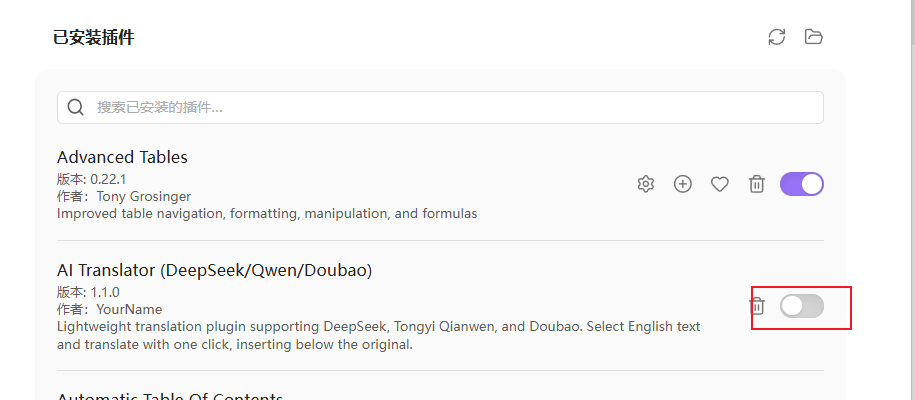
- 找到 Obsidian - Translation (显示为 AI Translator) 并开启启用开关。

⚙️ 配置与 API 接入
启用插件后,在 Obsidian 设置 -> Obsidian - Translation (或 AI Translator) 界面选择所需的翻译服务商并配置参数。
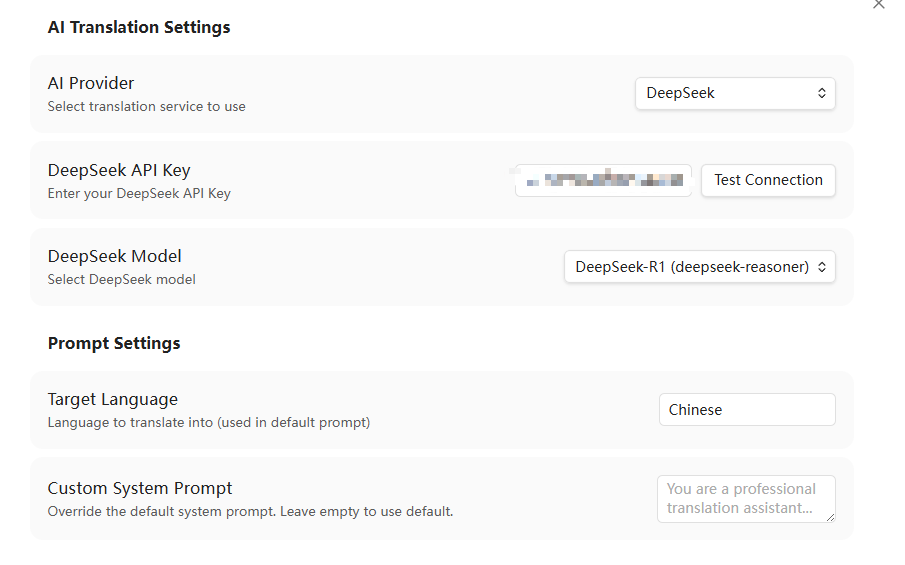
1. DeepSeek 配置
- AI Provider: 选择
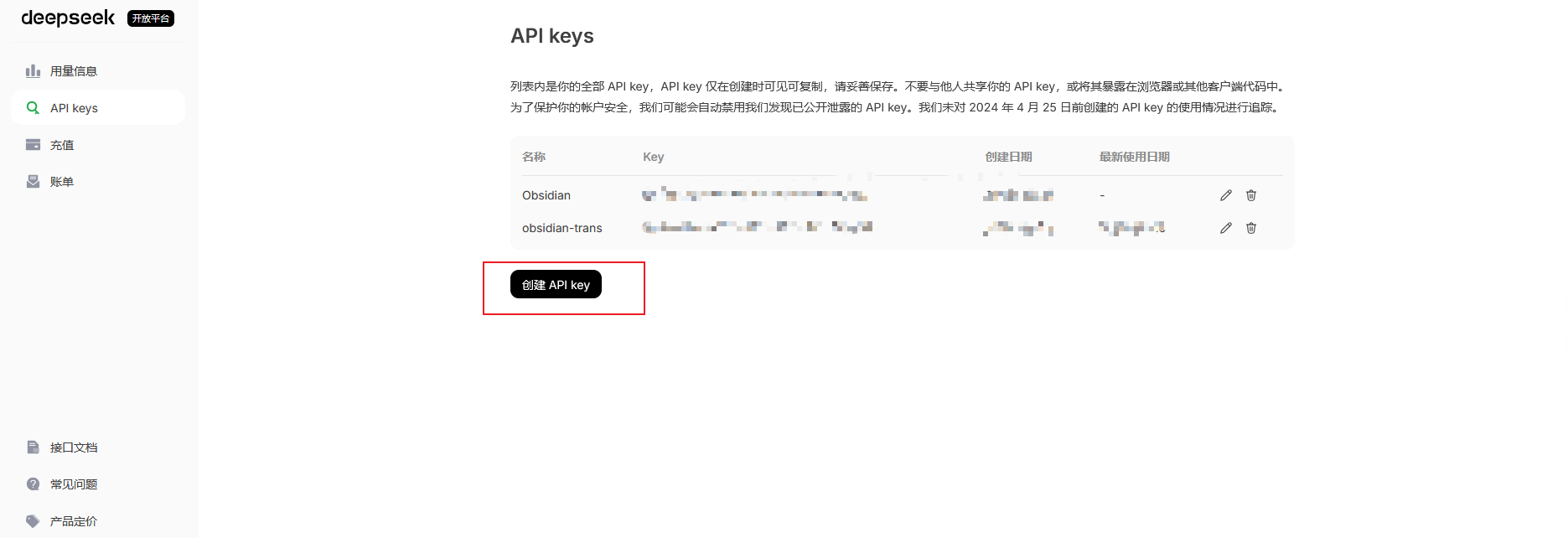
DeepSeek。 - API Key: 输入您的 DeepSeek API Key(可在 DeepSeek 开放平台 获取)。
- Model: 选择所需的预设模型(例如
deepseek-chat)。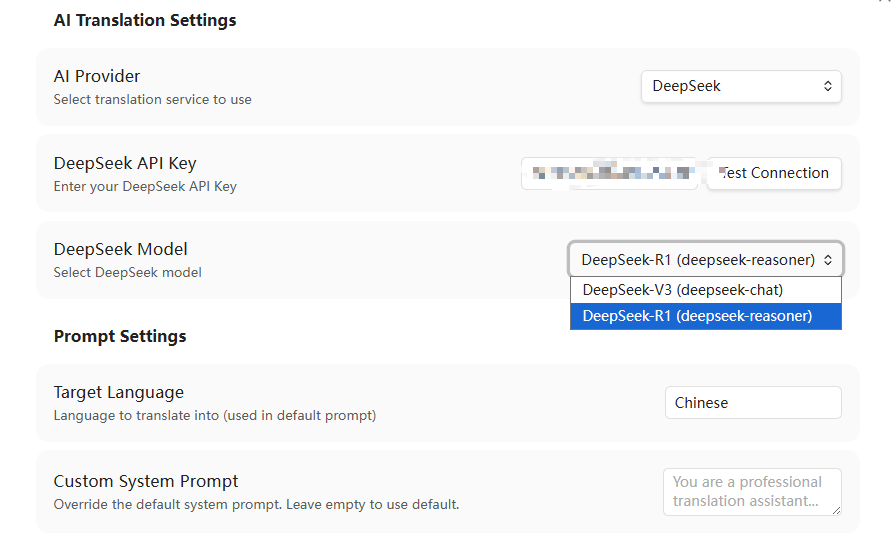
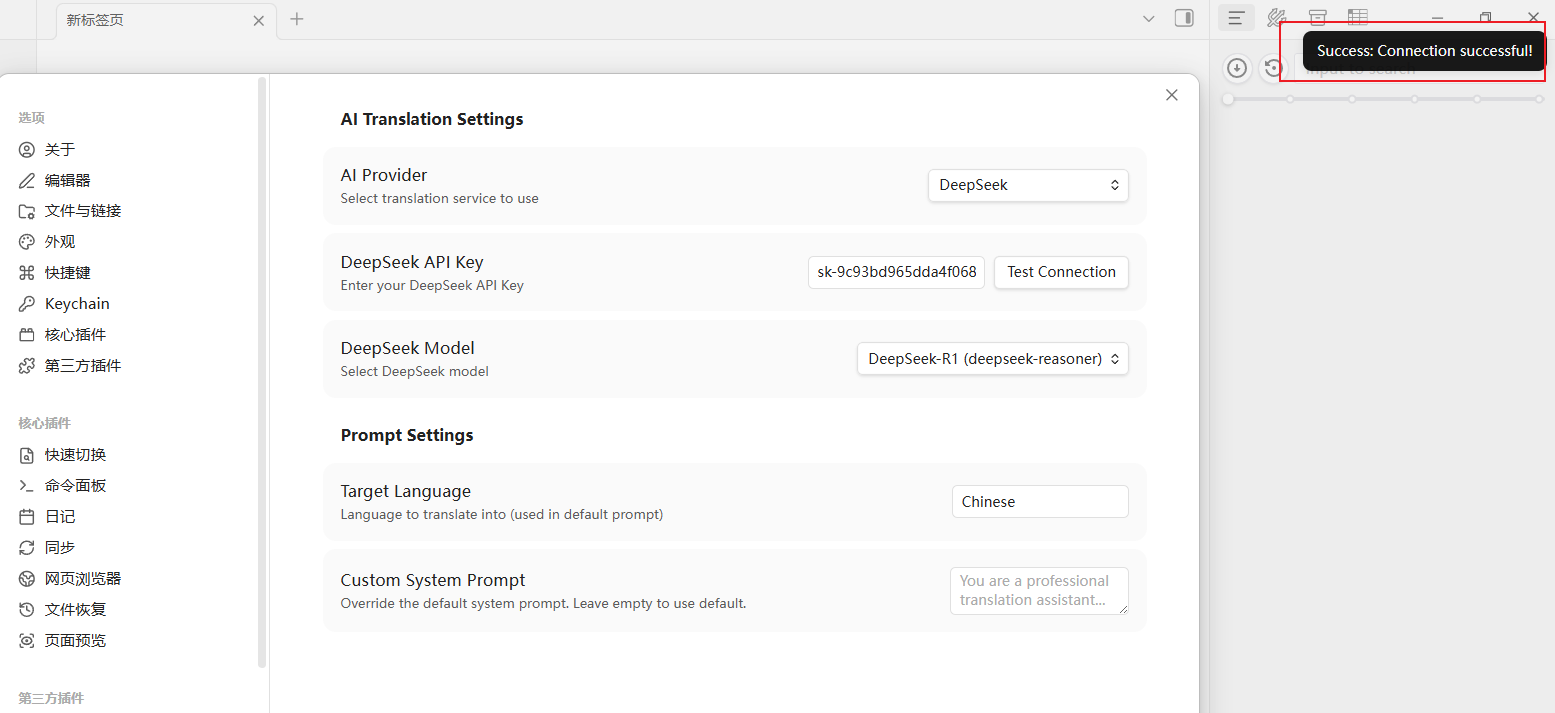
- 测试连接: 点击 Test Connection 按钮,若连接成功,会弹出 Success 提示。
2. 通义千问 (Qwen) 配置
- AI Provider: 选择
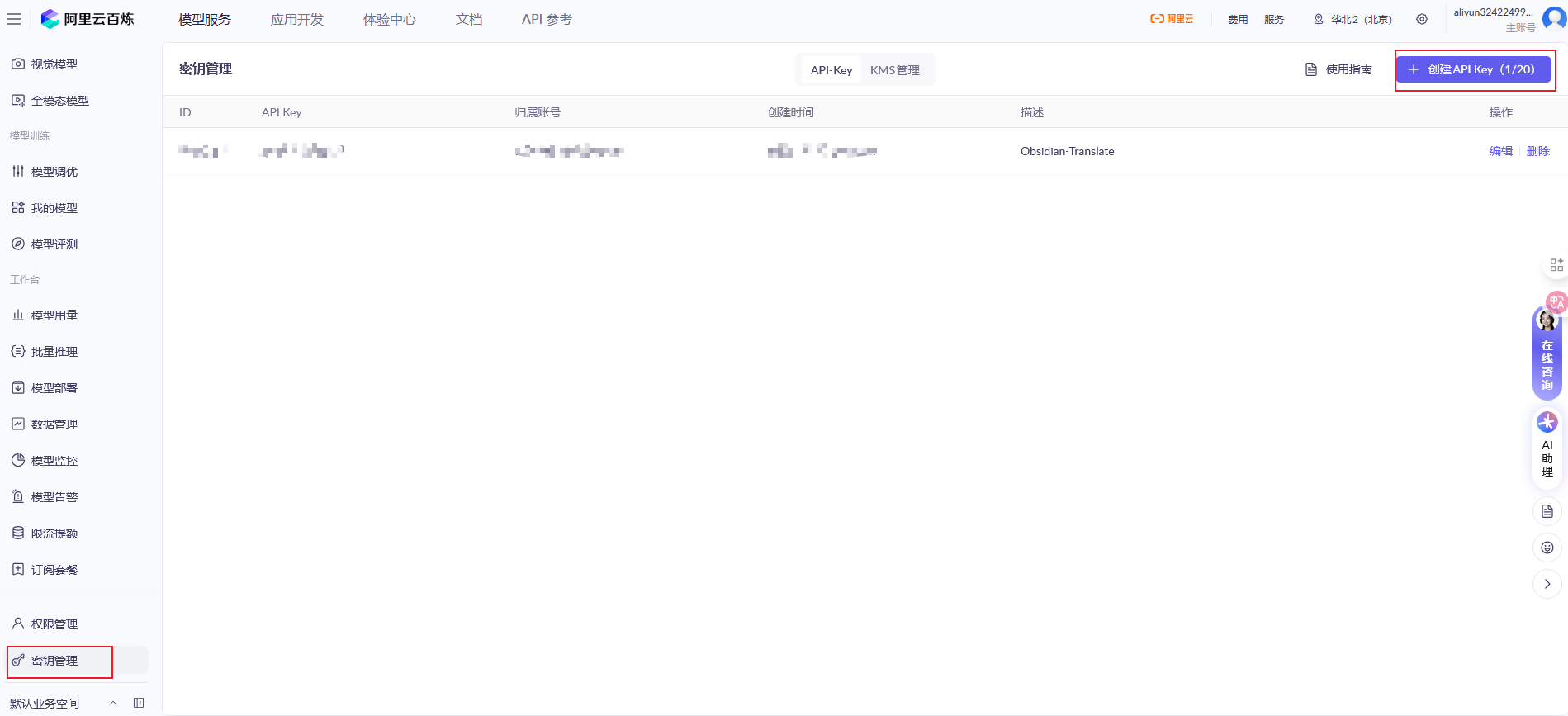
Tongyi Qianwen (Qwen)。 - API Key: 输入阿里云 DashScope API Key(可在 阿里云百炼平台 获取)。
- Model: 选择预设模型(如
qwen-plus)。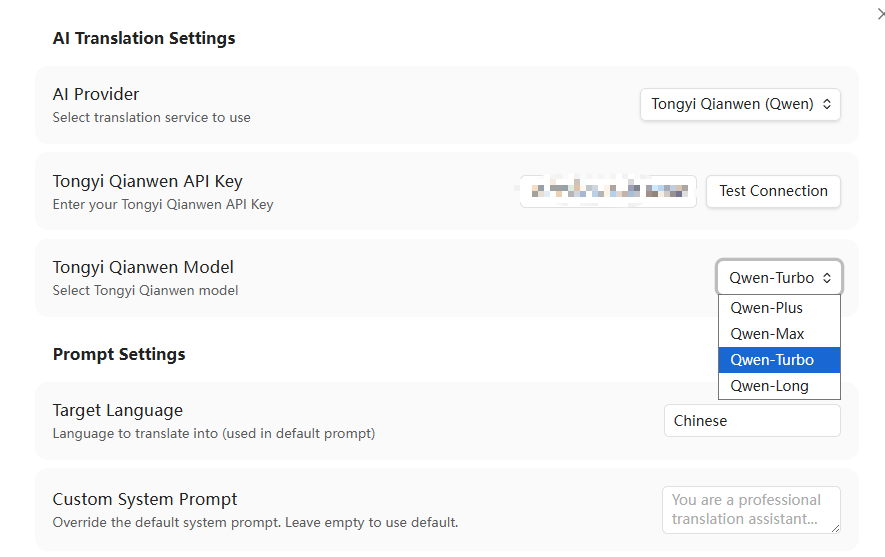
- 测试连接: 点击 Test Connection 验证接口可用性。
3. 豆包 (Doubao) 配置
- AI Provider: 选择
Doubao。 - API Key: 输入火山引擎方舟平台的 API Key。
- Model: 填入在火山引擎控制台创建的 终端节点 ID (Endpoint ID,格式类似于
ep-202406xxxxxxxxxx)。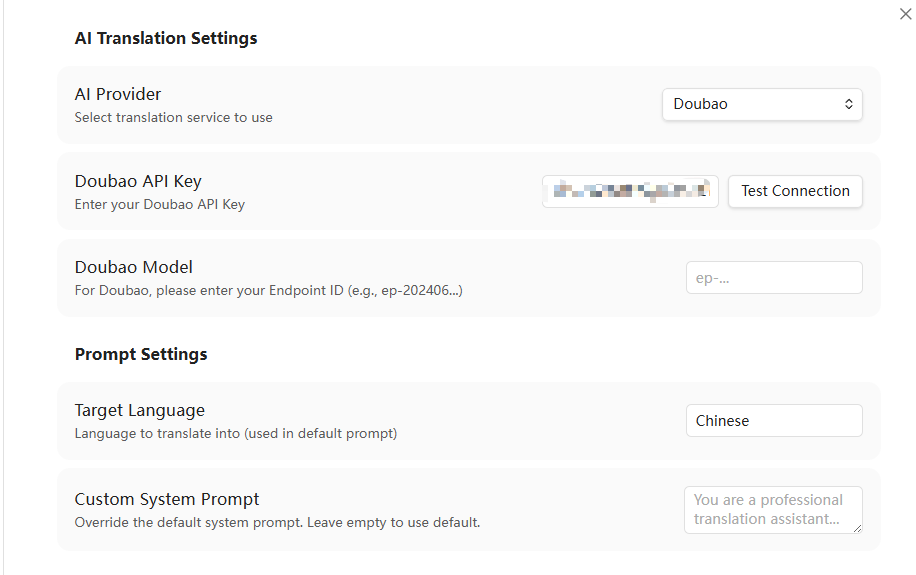
- 测试连接: 点击 Test Connection 验证可用性。
4. 其他预设大模型配置
对于以下预设模型,请输入对应的 API Key 并选择或指定模型:
- OpenAI: 支持
gpt-4o、gpt-4o-mini等模型。 - Anthropic Claude: 支持
claude-3-5-sonnet-latest等模型(支持 Claude 独有的 API 规范和系统提示词格式)。 - Google Gemini: 支持
gemini-2.5-flash、gemini-2.5-pro等模型。 - 硅基流动 (SiliconFlow): 支持
deepseek-ai/DeepSeek-V3、deepseek-ai/DeepSeek-R1等。 - 月之暗面 (Kimi): 支持
moonshot-v1-8k等。 - 智谱清言 (GLM): 支持
glm-4-flash等。 - OpenRouter: 支持多种聚合模型。
- Groq: 提供极速推理服务,支持 Llama 3.3 等。
5. 自定义接口 (Custom API) 配置示例
本插件支持任意兼容 OpenAI 规范的自定义接口(如本地部署的 Ollama 或第三方中转代理)。
本地 Ollama 部署
- AI Provider:
Custom API (自定义 API) - Custom API URL:
http://localhost:11434/v1/chat/completions - Custom API Key: 留空
- Custom Model ID:
llama3(或本地已下载的其他模型名称)
第三方兼容代理
- AI Provider:
Custom API (自定义 API) - Custom API URL: 填写您的代理 API 完整端点地址(例如
https://api.example.com/v1/chat/completions) - Custom API Key: 填写对应的 API 密钥
- Custom Model ID: 填写对应模型的 ID(如
gpt-4o)
🚀 使用方法
配置完成后,您可以通过以下任一方式使用翻译功能:
1. 右键菜单
- 在 Obsidian 编辑器中选中需要翻译的文本。
- 点击鼠标右键,在弹出的菜单中选择 Translate Selection。
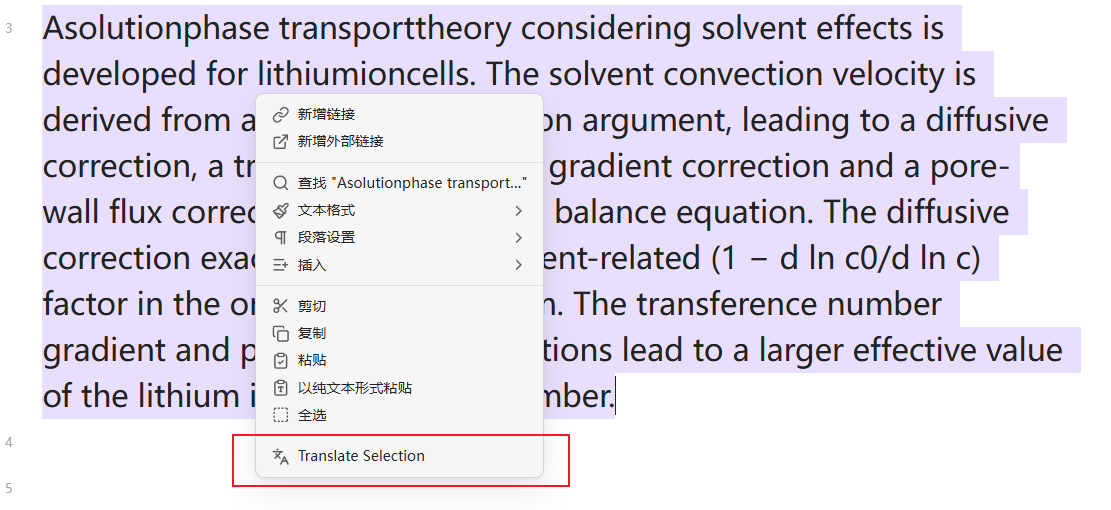
- 状态栏将显示 “Translating...”,翻译完成后,结果会自动插入到选中文本的下方。
2. 命令面板
- 选中需要翻译的文本。
- 按下
Ctrl/Cmd + P打开命令面板。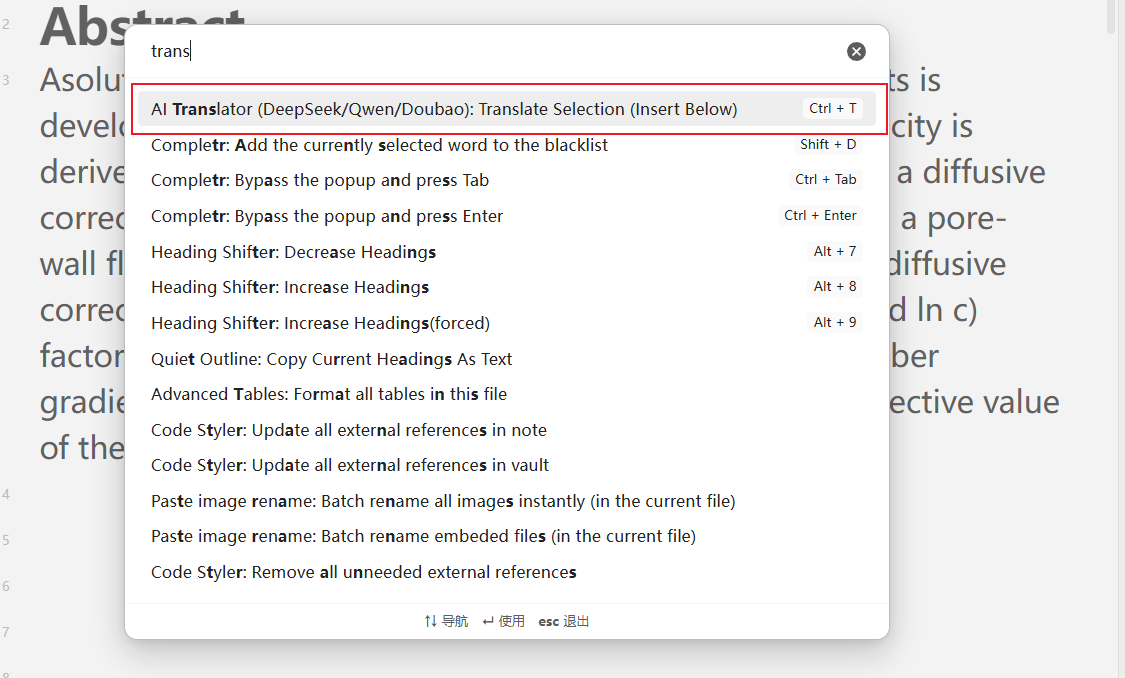
- 输入
Translate并选择Translator: Translate Selection (Insert Below)。
3. 自定义快捷键
- 进入 Obsidian 设置 -> 快捷键。
- 搜索
Translate Selection。 - 为
Translator: Translate Selection (Insert Below)命令设置一个快捷键(例如Ctrl + T)。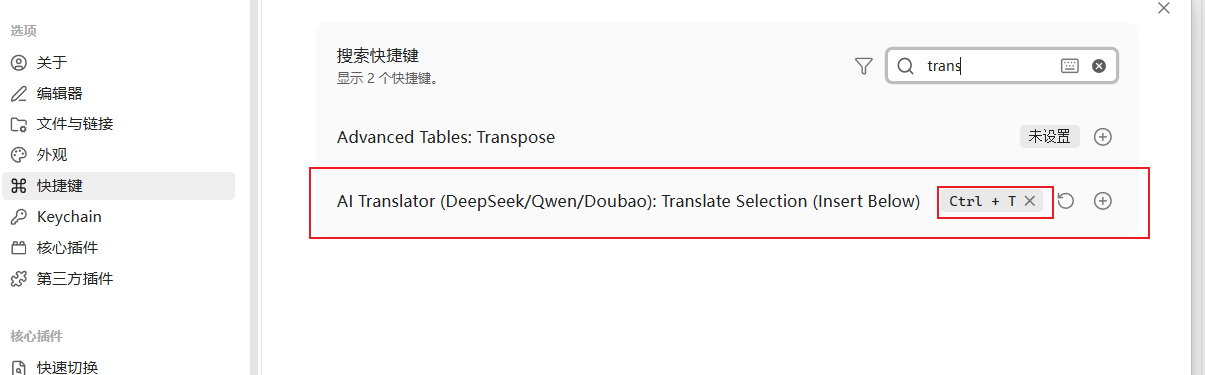
- 选中文本后,按下设置的快捷键即可直接触发翻译。
🔧 进阶配置与疑难解答
修改目标语言
- 默认翻译目标语言为中文 (
Chinese)。如需翻译成其他语言(如英文、日文等),请在插件设置的 Target Language 字段中直接修改(例如输入English,Japanese等)。
自定义系统提示词 (System Prompt)
- 您可以在 Custom System Prompt 输入框中填写专属的系统提示词,以改变翻译的语气或场景(如“请将以下文本翻译为严谨的学术中文,保持专业词汇准确”)。
- 当此输入框为空时,插件将默认使用内置的翻译提示词。输入框的 Placeholder 中会动态显示当前默认提示词的内容。
常见问题排查
若翻译失败,请检查以下内容:
- API Key: 确保填写的 API Key 正确无误且未超出账单限额。
- 网络连通性: 确保您的网络能够正常请求对应服务商的 API 端点。
- 火山引擎豆包: 确认填写的 Model 字段是有效的 终端节点 ID (Endpoint ID),而不是模型通用名称。
- 自定义端点: 使用自定义 API 时,请确保填写的 URL 是包含路径的完整地址(例如必须以
/chat/completions结尾)。
For plugin developers
Search results and similarity scores are powered by semantic analysis of your plugin's README. If your plugin isn't appearing for searches you'd expect, try updating your README to clearly describe your plugin's purpose, features, and use cases.