Alias Management
approvedby withmarcel
Identify duplicate notes based on similar aliases and filenames.
Alias Management for Obsidian
Identify duplicate notes based on similar aliases and filenames.
This plugin dynamically expands aliases and filenames at runtime, preserving the integrity of files.
Features
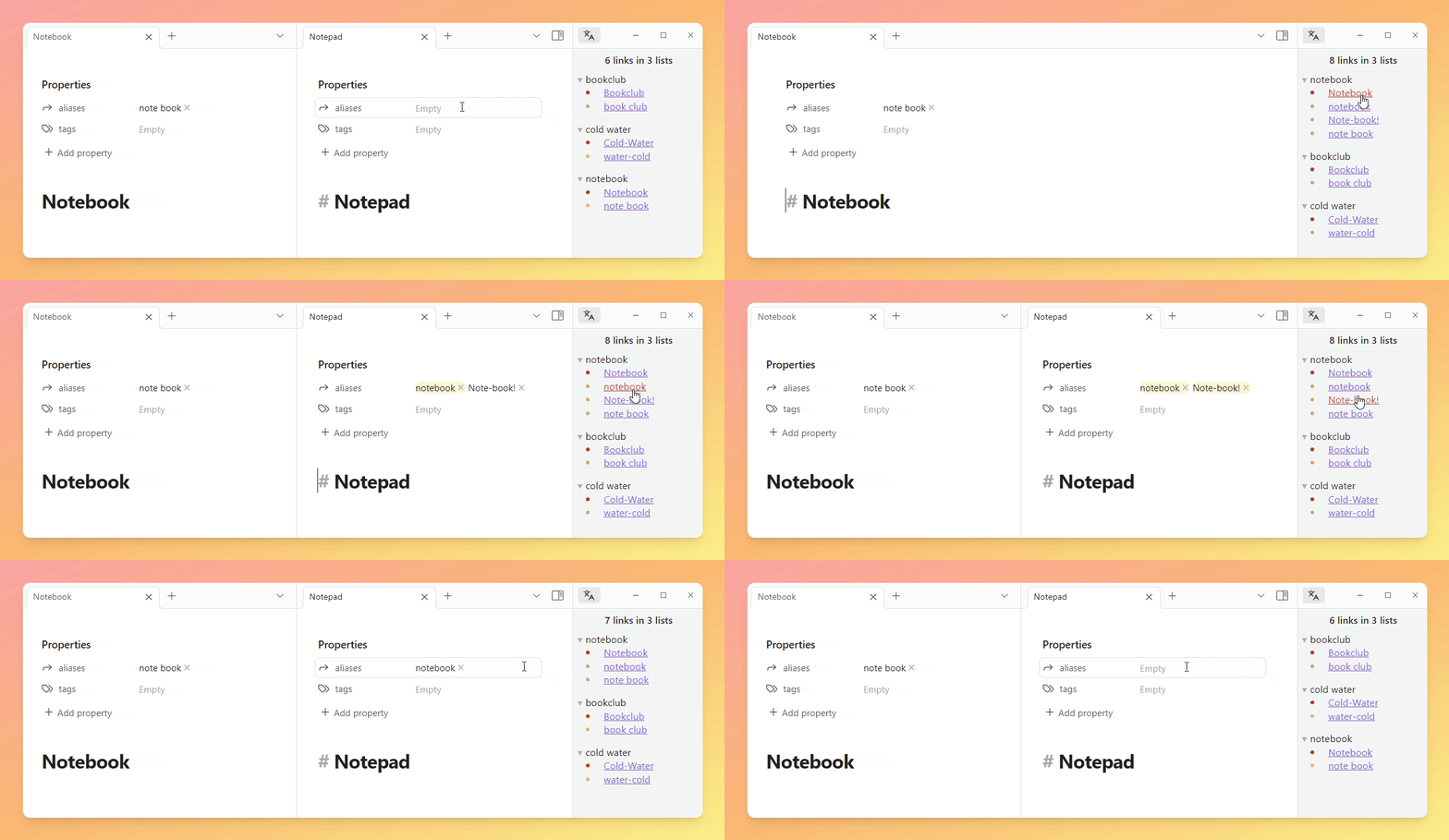
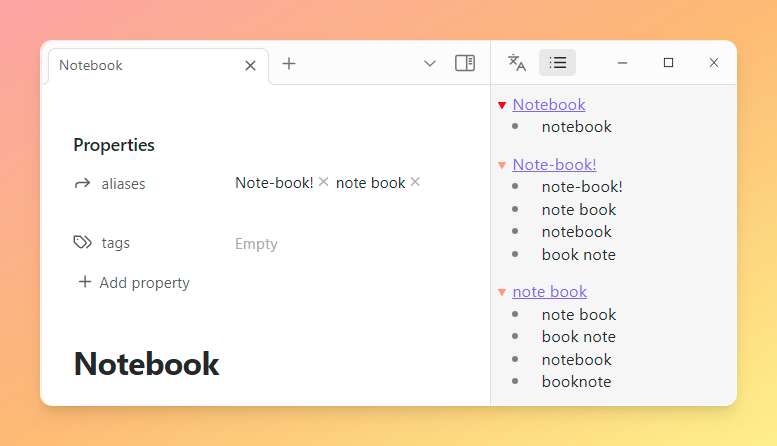
View duplicate aliases
Easily identify aliases appearing in multiple files, organized into lists. Aliases originate either from filenames or from aliases within files.
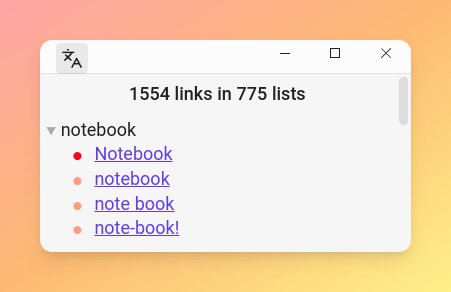
Header Overview
The header displays the number of links to aliases along with the number of lists. Hovering over it reveals the count of unique lists.
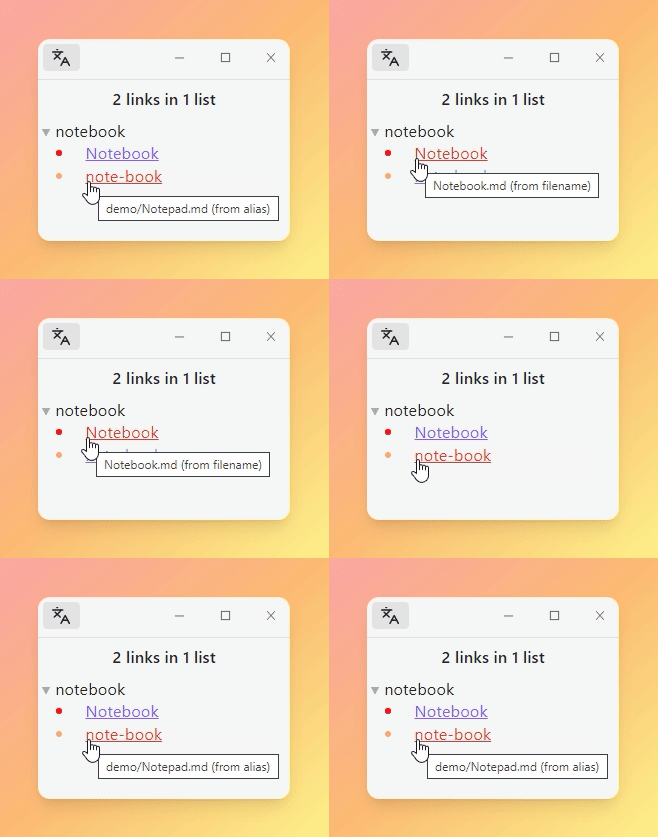
Color-coded Origins
Alias origins are color-coded for clarity.
- Red: Alias derived from the filename.
- Light red: Alias derived from aliases within a file.
Hovering over an alias reveals its source file and origin.
Interactive Links
Clicking on an alias opens the corresponding file, streamlining navigation and editing. This feature facilitates quick file renaming with a single shortcut, especially for filename-derived aliases.
Reading Mode
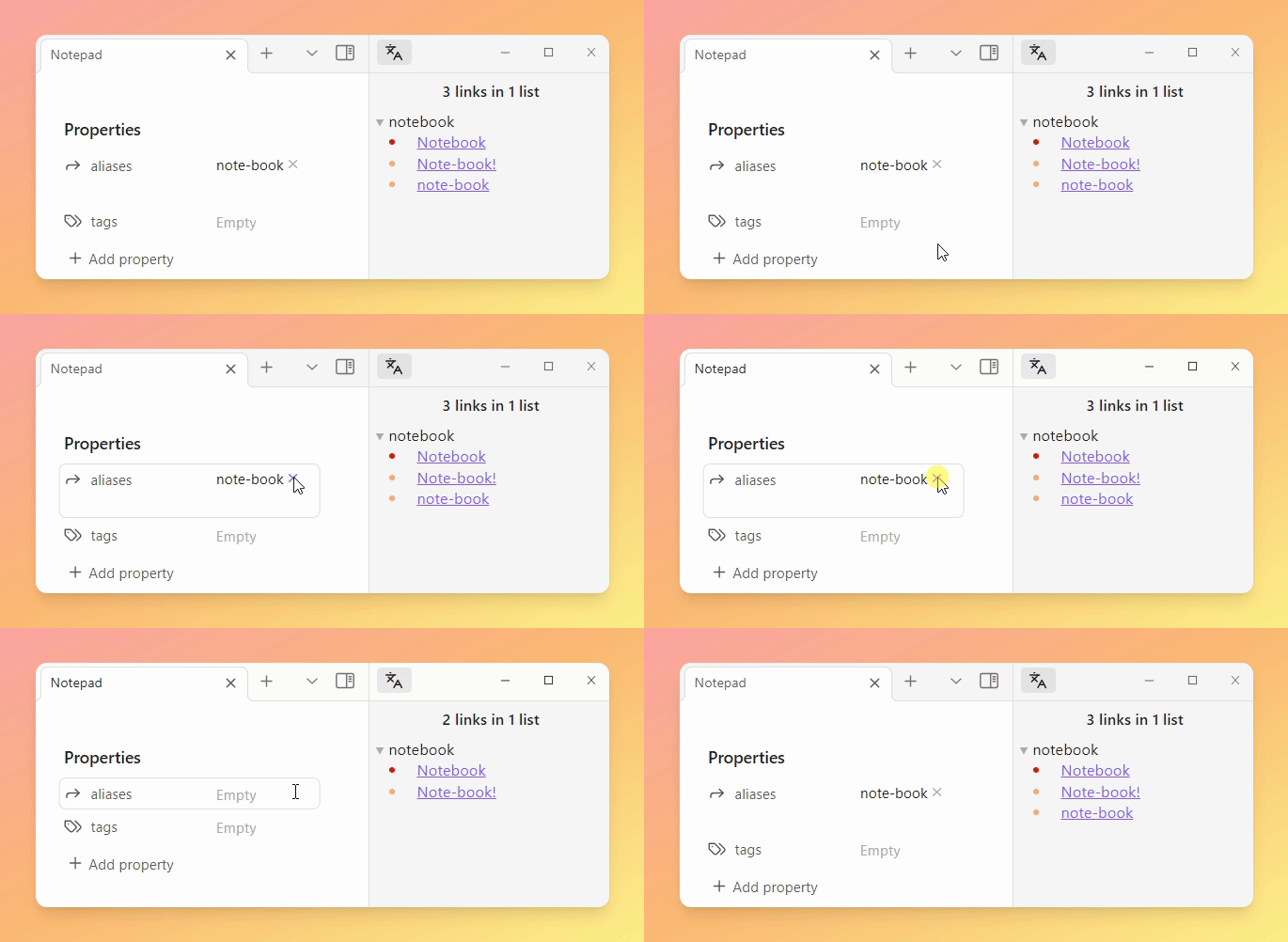
Highlighted aliases enable quick identification and removal with a single mouse click if necessary.
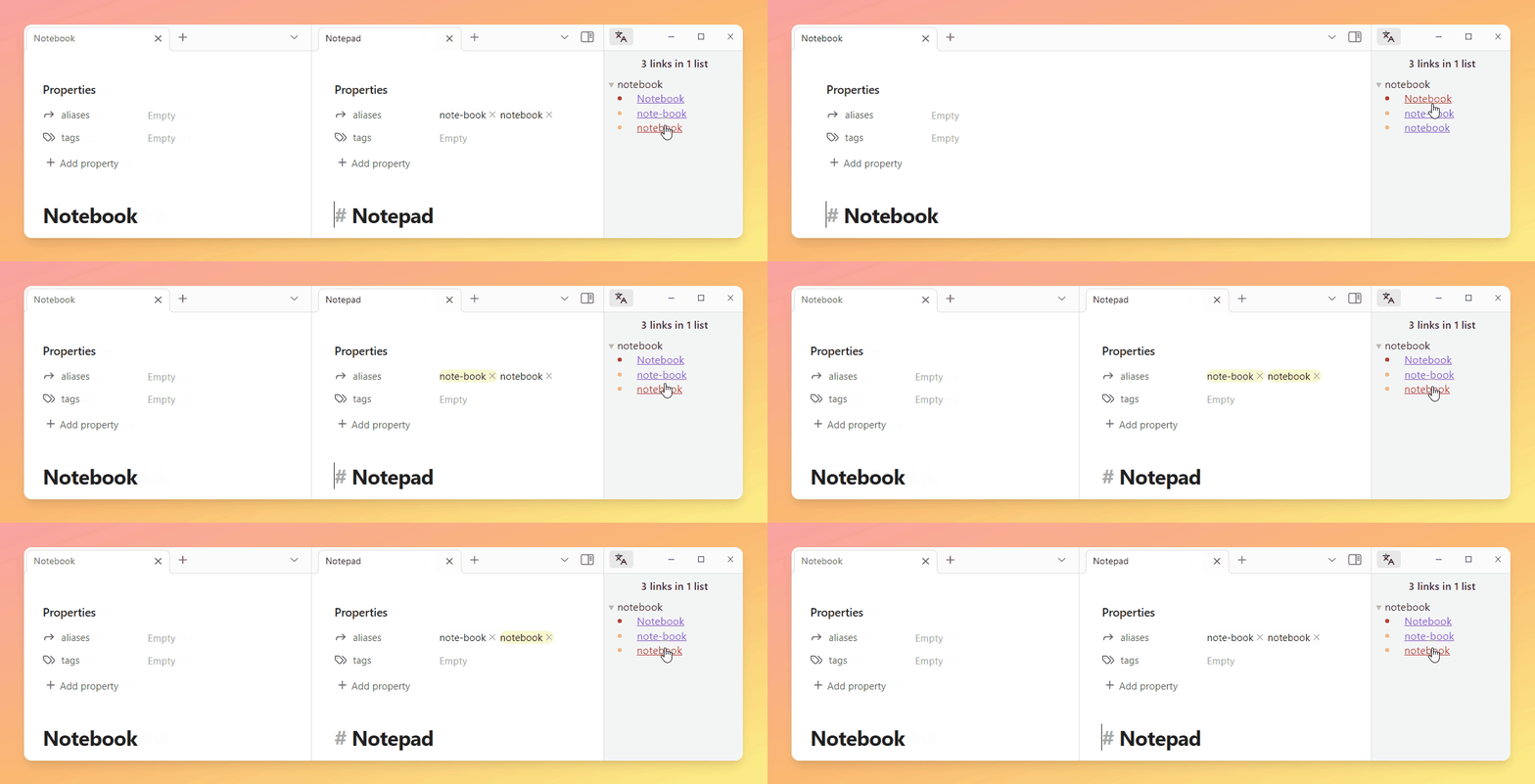
Source Mode
Pre-selected aliases with a leading or trailing comma (if available) allow easy removal by pressing backspace.
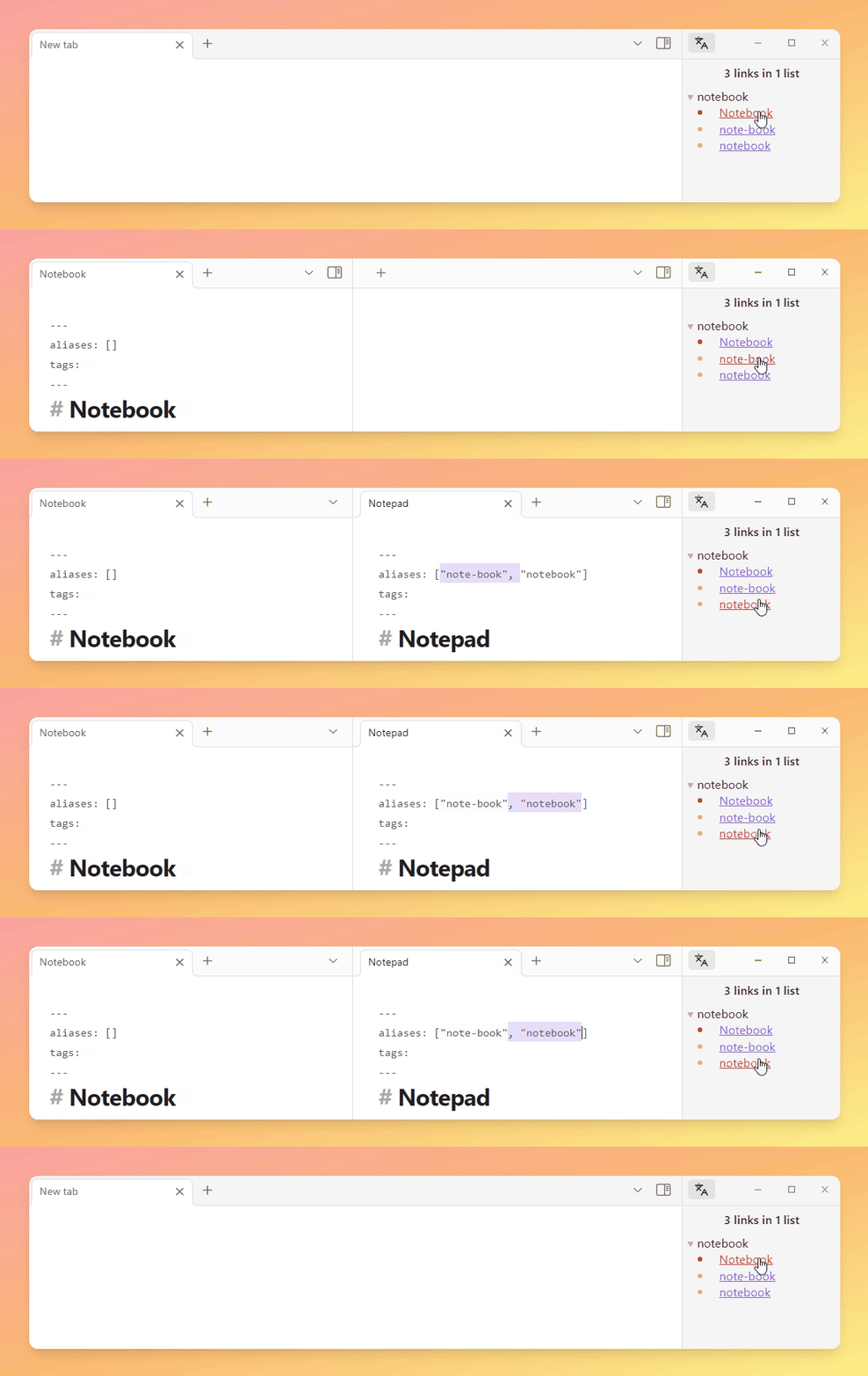
Auto update
View updates in real-time as aliases or filenames change, ensuring current data representation.
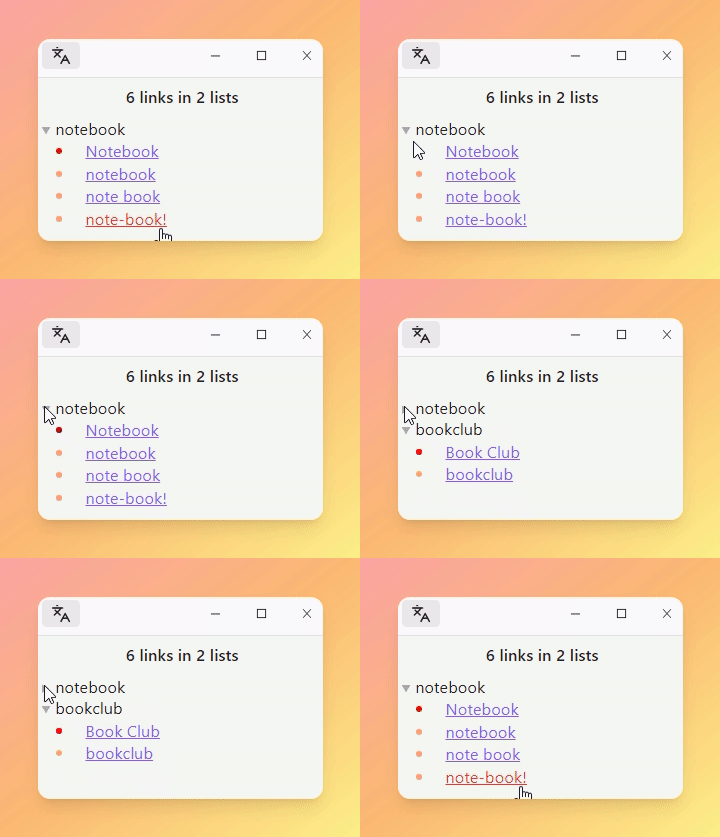
Disclosure Widgets
Minimize distractions by hiding or showing lists of aliases with a click on the triangle.
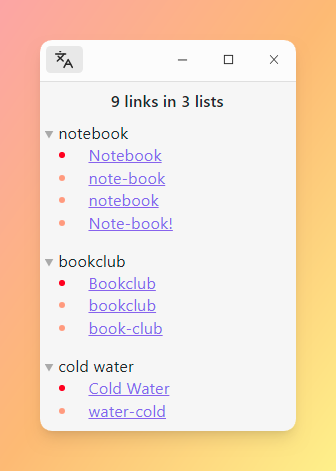
Sort order
Lists are sorted by the number of entries, with filename-derived aliases prioritized.
View aliases per file
Open a dedicated view to see aliases generated for individual files.
Settings
- Add filenames to aliases: Toggle to include filenames as aliases.
- Default: True
- Sort multi-word filenames alphabetically: Arrange filenames with multiple words alphabetically. For example,
to gobecomesgo to.- Default: True
- Sort multi-word aliases alphabetically: Arrange aliases with multiple words alphabetically.
- Default: True
- Ignore capitalization: Toggle to disregard capitalization differences in aliases and filenames. For example,
NOTEis treated asnote.- Default: True
- Exclude files: Exclude files located within specified folder paths. Paths should be comma-separated and relative to the root.
- Default:
assets,images
- Default:
- Replace aliases: Define regular expressions to replace specific patterns within aliases. For instance, special characters can be replaced with spaces.
- Default:
s/[^\\w\\s]|_/ /g: Replace special characters with spacess/ //g: Remove spaces
- Default:
- Exclude aliases: Define regular expressions to exclude specific aliases. This can be useful for filtering out common or irrelevant aliases.
- Default:
^readme$/i,^general$/i
- Default:
- Descending order: Sort the lists of duplicate aliases in descending order based on the number of occurrences.
- Default: True
- Open notes side by side: Enable to open notes side by side, facilitating easier comparison between files.
- Default: True
Feature Pipeline
- Search for aliases
Disclaimer
Use this plugin at your own risk. The author takes no responsibility for any damages or loss of data that may occur from using this plugin.
For plugin developers
Search results and similarity scores are powered by semantic analysis of your plugin's README. If your plugin isn't appearing for searches you'd expect, try updating your README to clearly describe your plugin's purpose, features, and use cases.