Title As Link Text
approvedby lextoumbourou
Automatically updates link text to use note titles instead of filenames.
Title As Link Text

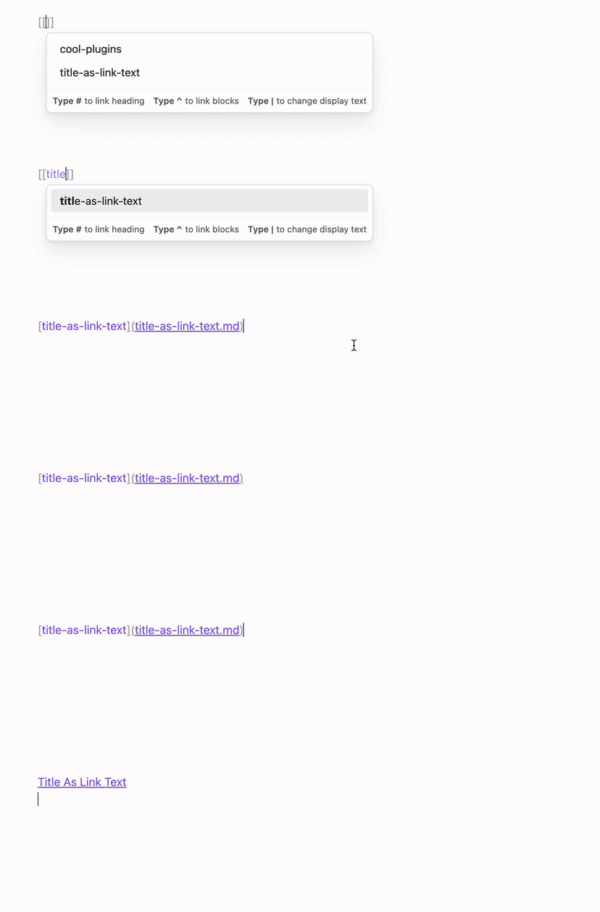
Transform your Obsidian links from plain filenames into meaningful titles automatically! 🔄
✨ What It Does
Title As Link Text is an Obsidian plugin that intelligently transforms your links to use note titles instead of filenames, whether you're using Markdown-style links or Wikilinks.
Before:
[[20230408102501]]
[document-name](./complex-topic.md)
After:
[[20230408102501|My Awesome Note]]
[Understanding Complex Topics](./complex-topic.md)
⚡ Key Features
-
Smart Title Detection: Automatically finds the best title from frontmatter, H1 headers, or filenames
-
Multiple Link Styles:
- Wikilinks:
[[file-name|Note Title]] - Markdown:
[Note Title](./file-name.md)
- Wikilinks:
-
Alias Support: Respects your custom aliases with smart matching
-
Per-Link Overrides: Preserve intentional custom link text with a hidden comment directive or note property
-
Automatic Updates: Links update automatically when you save or rename files
⚠️ WARNING
This plugin can modify multiple files when notes with backlinks are changed. Please backup your vault before using.
🚀 Installation
Title As Link Text is available as a Community Plugin.
- Open Settings > Community Plugins > Browse
- Search for Title As Link Text
- Click Install
🔧 How It Works
Title Inference Logic
- Frontmatter First: Checks for a configured property in frontmatter (default:
title)
---
title: My Note
---
- H1 Headers: Falls back to first # heading
# My Note
- Filename Fallback: Uses filename if no other title is found
Smart Alias Matching
- Substring Detection: Matches partial aliases (e.g., "Project" → "My Project Name")
- Fuzzy Matching: Finds close matches when no exact match exists
- Preserves Intentional Variations: Respects your custom aliases
Preserve Custom Link Text
To preserve one link's custom display text, add the ignore directive immediately after it. Horizontal whitespace between the link and directive is allowed. Obsidian hides the directive in Reading view.
[[project-phoenix|the original proposal]]%%talt:ignore%%
[the original proposal](project-phoenix.md) %%talt:ignore%%
You can also place the cursor inside a link and run
Toggle link text updates from the Command palette. Run it again to
remove the directive.
To preserve every link to selected targets within a note, list those targets in
the note's title-as-link-text-ignore property. Entries can be wikilinks,
Markdown links, or link paths. Quote wikilinks when using them in properties.
---
title-as-link-text-ignore:
  - "[[project-phoenix]]"
  - "reference/design-notes"
  - "[[project-orion|the fallback plan]]"
---
A bare wikilink or link path excludes every link to that target within the note. An aliased wikilink excludes only that exact target and display text. Both forms match wikilinks and Markdown links in the article. Links to the same target in other notes are unaffected.
🤝 Recommended Companion Plugins
For Markdown-style users:
- Wikilinks To Markdown: Convert existing Wikilinks
- Front Matter Title: Consistent title display
⚙️ Settings
- Auto-update: Automatically update links when notes are saved or renamed (enabled by default). When disabled, links will only update when you run the update commands manually.
Title Source
- Title from frontmatter: Use the title field from frontmatter as the link text (enabled by default)
- Frontmatter property: The frontmatter property to use for getting the title (default:
title). This allows you to use custom properties likename,heading, or any other field in your frontmatter. - Title from first heading: Use the first heading in the note as the link text (enabled by default)
- Use aliases: Match link text against frontmatter aliases (enabled by default). When disabled, only the title will be used for link text, ignoring any aliases defined in frontmatter.
Both title source options can be toggled independently. When disabled, the plugin falls back to the next available source, ultimately defaulting to the filename.
Advanced
- Debounce delay: How long to wait (in milliseconds) before updating links after a change (default: 1000ms)
- Similarity threshold: Minimum similarity score (0.0 to 1.0) required for alias matching. Higher values require closer matches (default: 0.65)
- Reset to defaults: Button to quickly reset all settings to their default values
🛠️ Commands
Update all links: One-click update for all existing links in your vaultUpdate links for current file: Update links only in the currently active noteToggle link text updates: Add or remove%%talt:ignore%%for the link under the cursor
👩💻 Development
Ensure you have nvm (or some Node version manager).
Clone the repository and run the following to build the plugin:
nvm use 16
npm install
npm run build
Or to run dev server:
npm run dev
Run tests:
npm test
📄 License
MIT
For plugin developers
Search results and similarity scores are powered by semantic analysis of your plugin's README. If your plugin isn't appearing for searches you'd expect, try updating your README to clearly describe your plugin's purpose, features, and use cases.