Article Info Inserter
approvedby gbt777
在笔记正文、Frontmatter一键追加"文章信息":字数、阅读时间、图片数、创建/修改时间、自定义链接与图片等……appends configurable article-info lines (word count, reading time, images, timestamps, custom links/images…) to your note and Frontmatter - This plugin has not been manually reviewed by Obsidian staff.
Article Info Inserter 文章信息追加器
简要描述(Brief): 在 Obsidian 笔记正文自动追加"文章信息行"——字数、阅读时间、图片数、创建/修改时间、自定义链接与图片等,支持 Frontmatter 属性组合与灵活排版。
English Overview
Article Info Inserter is an Obsidian community plugin that automatically appends configurable article-info lines to your Markdown notes. It helps you keep consistent metadata — word count, reading time, image count (local/network), created/modified time, custom links/images, and more — without manually maintaining footers.
What it does
- Counts words, characters, reading time, pages, images (local & network), embeds, footnotes, code lines, and links;
- Reads specified Frontmatter properties (title, category, tags, etc.) and displays them alongside body stats;
- Inserts one or more info lines at the beginning or end of the note via configurable slots;
- Supports custom labels, alignment, indentation, colors, links, and images;
- Provides one-click refresh — the plugin auto-detects and replaces its own
data-aii="marker"block, so your body content is never duplicated or corrupted.
Installation
- Install from the Obsidian Community Plugins store (once approved), or download
main.jsandmanifest.jsonfrom GitHub Releases; - Place the files in your vault's
.obsidian/plugins/article-info-inserter/folder; - Enable the plugin under Community Plugins and restart Obsidian if needed.
Basic usage
- Open any Markdown note;
- Run "Update article info" from the command palette (Ctrl/Cmd+P);
- The plugin inserts/updates the info lines at your configured positions;
- Adjust settings (metrics, alignment, slots, links/images) and re-run the command to refresh.
Desktop only: The plugin relies on Node
cryptoandfsfor image MD5 deduplication and local file handling, so it is markedisDesktopOnly: trueand does not support mobile Obsidian.
一、功能简介
Article Info Inserter(文章信息追加器)是一款 Obsidian 社区插件,用于在 Markdown 笔记中自动生成并维护一段"文章信息"。你可以把它理解为"为每篇文章自动贴一个信息脚注":
- 统计当前笔记的字数、字符数、阅读时间、页数、图片数(本地/网络)、嵌入数、脚注数、代码行数、链接数等;
- 读取并展示笔记 Frontmatter(属性区) 中的指定字段(如标题、分类、标签等);
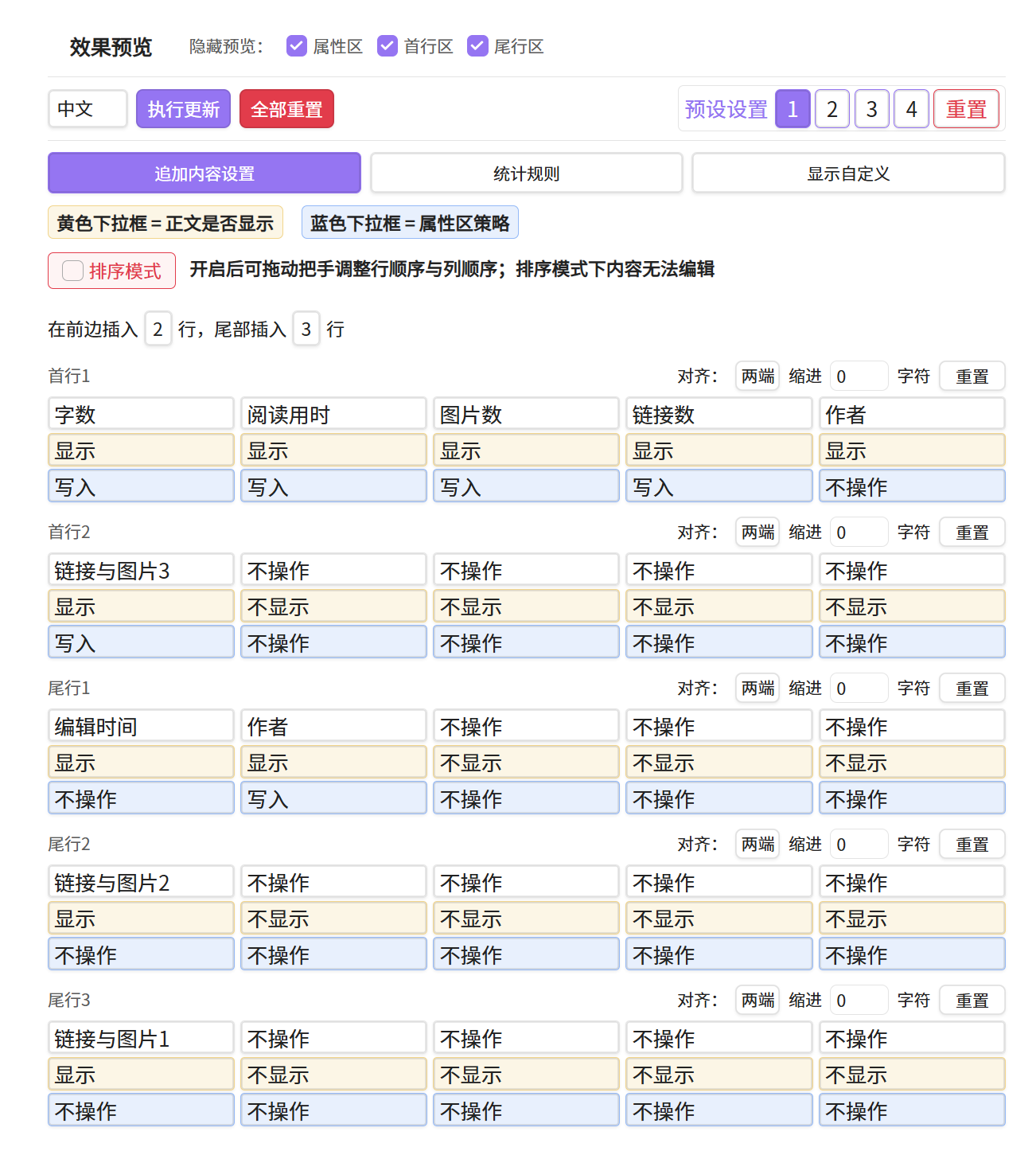
- 在正文开头或末尾以可配置的"标签位"形式插入一行或多行信息;
- 支持自定义显示内容、对齐方式、缩进、链接/图片嵌入;
- 每次编辑后一键"更新文章信息",插件自动去重、增量更新,不会重复插入。
插件以 data-aii="marker" 的 HTML 块标记写入信息行,更新时只替换该区块内容,不破坏你的正文。
二、核心特性
| 特性 | 说明 |
|---|---|
| 多维度统计 | 字数、字符数、阅读时间、页数、图片(本地/网络)、嵌入、脚注、代码、链接等 13+ 指标 |
| Frontmatter 组合 | 自由组合正文标签位与 Frontmatter 属性,统一展示 |
| 灵活排版 | 首行/尾行可分别配置,支持对齐(左/中/右/两端)与缩进 |
| 链接与图片 | 可插入自定义链接或网络/本地图片,自动去重与路径规范化 |
| 一键更新 | 命令面板"更新文章信息",自动识别并替换旧标记,不重复插入 |
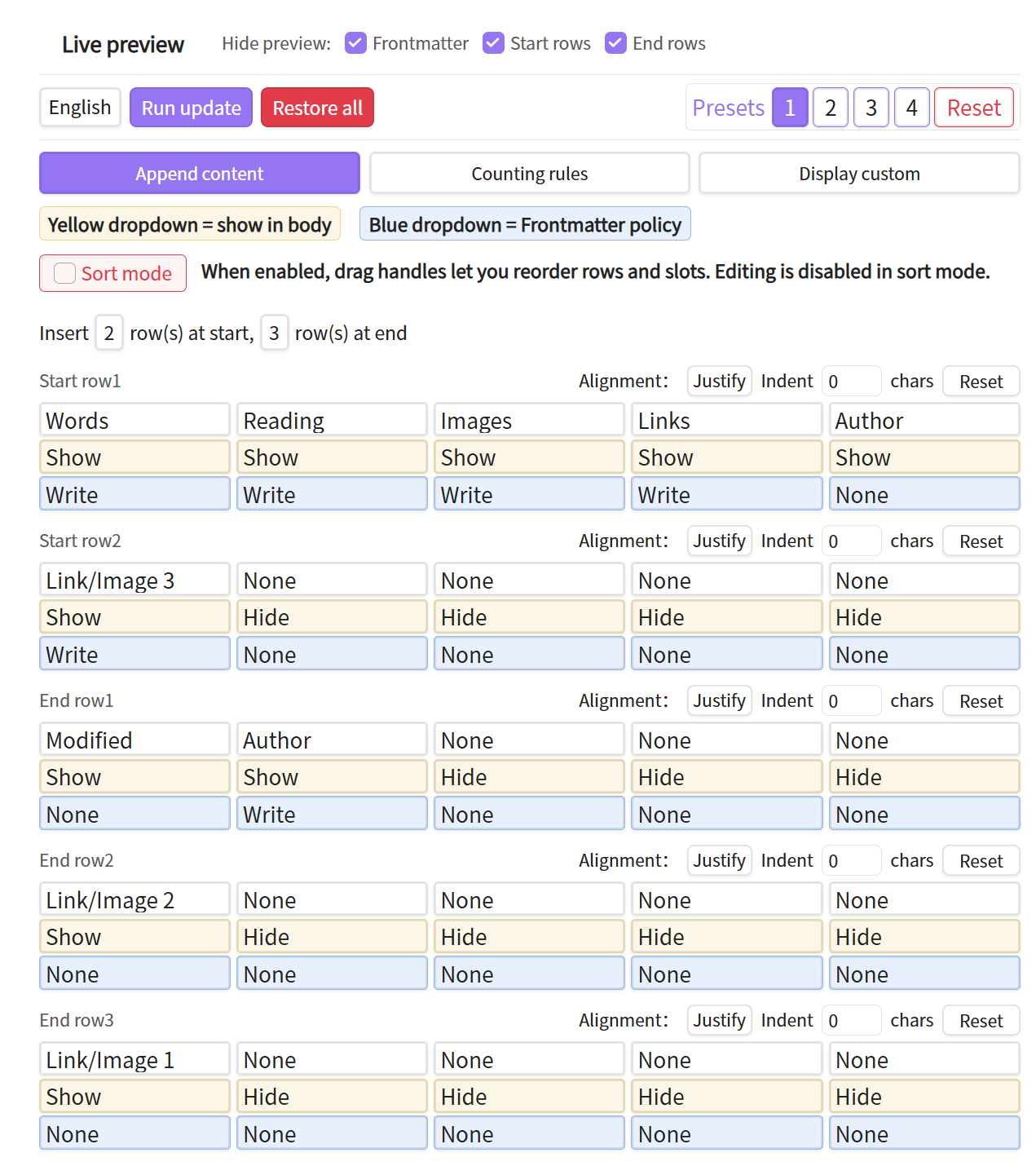
| 双语界面 | 设置界面完整中英文,随系统/手动切换 |
| 桌面端 | 当前版本依赖 Node crypto/fs,仅支持桌面端 Obsidian(isDesktopOnly: true) |
三、安装
方式一:社区插件市场(待审核上架后)
- Obsidian 设置 → 社区插件 → 浏览;
- 搜索 Article Info Inserter;
- 安装并启用。
方式二:手动安装(BRAT 或手动放置)
- 从 GitHub Releases 下载
main.js与manifest.json; - 放入 vault 的
.obsidian/plugins/article-info-inserter/目录; - 在"社区插件"中启用(若未显示在列表,重启 Obsidian)。
四、使用步骤
- 启用插件后,打开任意 Markdown 笔记;
- 命令面板(Ctrl/Cmd+P)执行 "更新文章信息";
- 插件会在正文开头/末尾插入信息行;
- 进入设置可调整:统计规则、显示内容、对齐、缩进、链接/图片等;
- 修改设置后再次执行"更新文章信息"即可刷新。
五、设置项说明
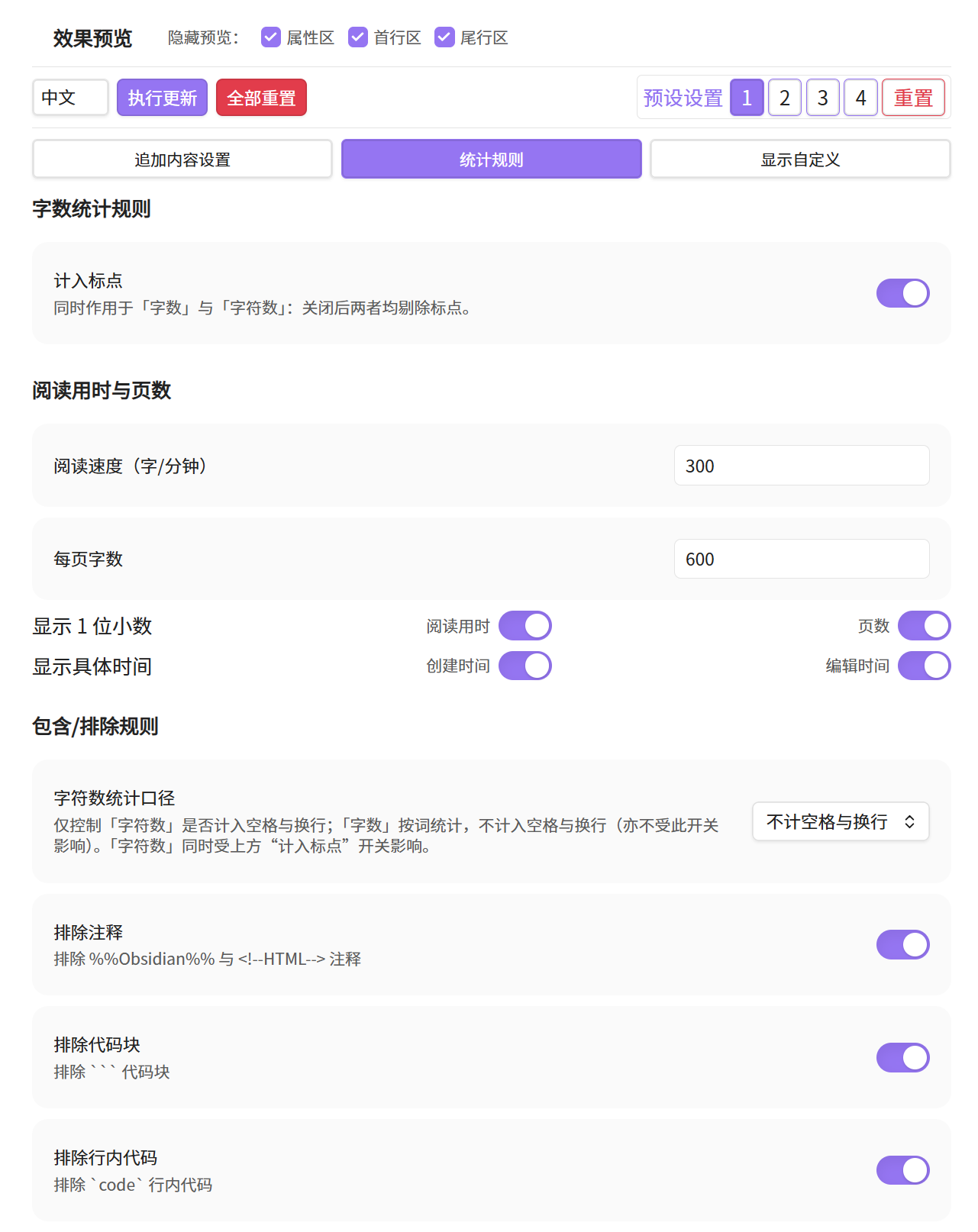
- 统计规则:是否计入标点、阅读速度(字/分钟)、是否计入空格与换行等。
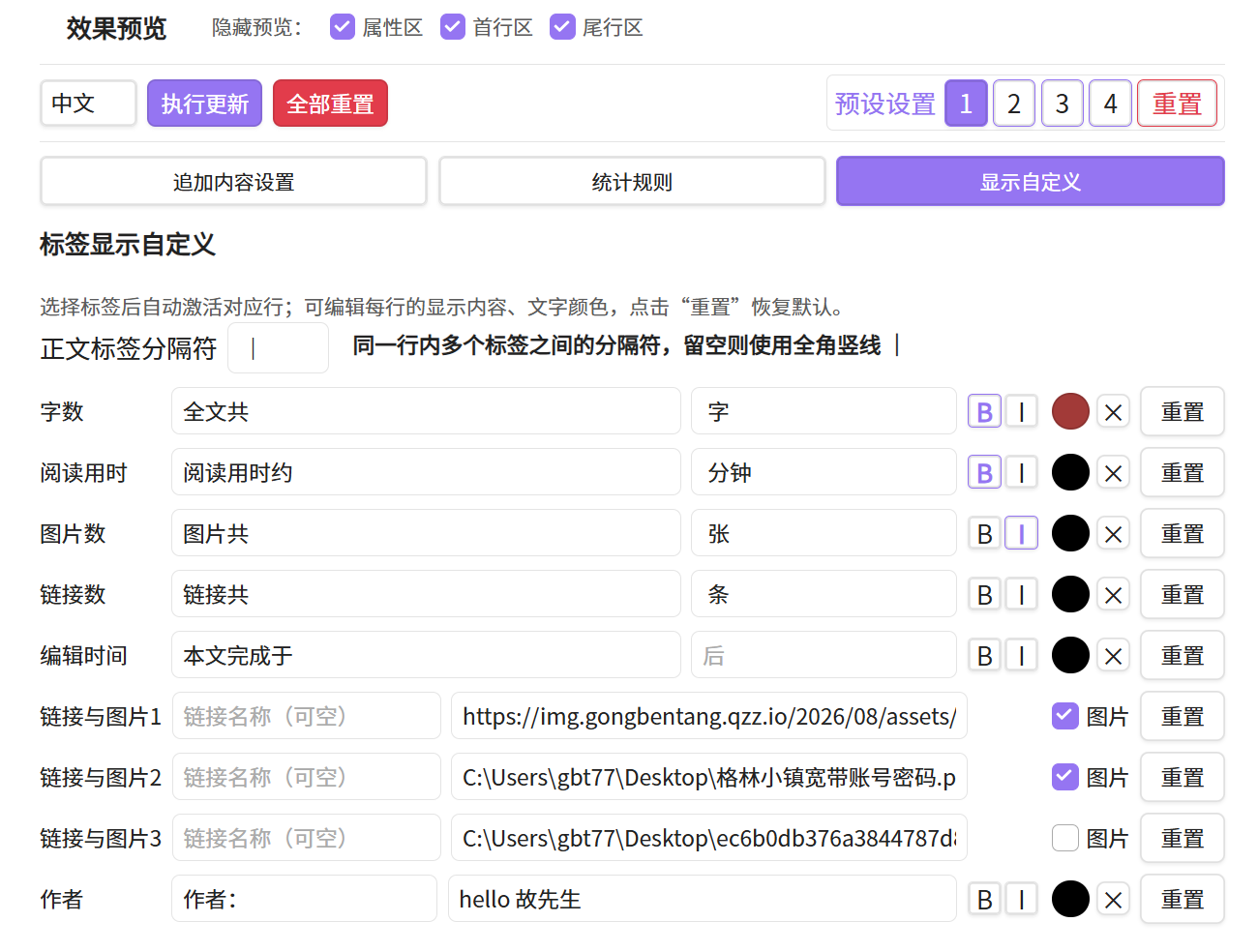
- 显示自定义:选择哪些指标显示、排序、每行对齐与缩进。
- 追加内容设置:配置首行/尾行标签位、Frontmatter 属性策略(写入/删除/清空/不操作)、链接与图片。
六、⚠️ 1.0 → 2.0 升级注意事项(重要)
1.0 版本使用 *[...] 行内标记框定信息区域,由于 Obsidian 的样式渲染限制,该方式容易出错(如主题将 *** 渲染为多彩字、标记被误识别等)。
2.0 版本改用 <div data-aii="marker"> HTML 块方式,更稳定、兼容性好。
⚠️ 样式不兼容声明:2.0 与 1.0 的信息标记完全不兼容。如果你此前使用过 1.0 版本,升级到 2.0 后:
- 必须手动删除旧的
*[...]标记行,否则旧标记不会被 2.0 识别或清理;- 删除旧标记后,重新执行"更新文章信息"即可生成新的
div格式信息行。
七、🔧 可选:Word / DOCX 导出增强(进阶)
插件写入的是带 data-aii="marker" 的 HTML 块。若需通过 Pandoc 导出 Word/DOCX 并保留追加文字的加粗、斜体、颜色等样式,可搭配可选的 Lua 过滤器包(见仓库 optional/word-export/ 目录,含 aii-docx.lua 与 aii-image-center.lua 及用法文档)。
注意:导出 PDF 无此问题——Pandoc 对 PDF(LaTeX)路径原生支持 HTML 行内样式,无需额外过滤器。仅 DOCX 输出需要本可选包。
详见:可选功能包说明
八、常见问题
Q:为什么只支持桌面端?
A:插件使用 Node crypto(图片 MD5 去重)与 fs(文件操作),移动端 Obsidian 受限环境无法运行,故标记 isDesktopOnly: true。
Q:插件为什么要直接访问文件系统(Node fs)?
A:fs 仅用于插件功能必需的文件操作:① 将用户配置的本地/网络图片复制到当前笔记所在 vault 的附件目录;② 计算图片内容 MD5 用于去重;③ 读取/写入本插件自身的数据文件(如 data.json)。不会访问或修改 vault 外的用户文件。
Q:信息行会破坏我的正文吗? A:不会。插件以独立 HTML 块标记写入,更新时只替换该区块,正文原样保留。
Q:如何彻底移除插件写入的信息?
A:执行"更新文章信息"前,手动删除 <div data-aii="marker">…</div> 区块即可;或禁用插件后清理。
九、运行截图
| 设置面板(中文) | 设置面板(英文) | 正文信息行效果 | Word 导出效果 |
|---|---|---|---|
 |  |  |  |
十、许可证
MIT
For plugin developers
Search results and similarity scores are powered by semantic analysis of your plugin's README. If your plugin isn't appearing for searches you'd expect, try updating your README to clearly describe your plugin's purpose, features, and use cases.