autoLiterature
approvedby hucorz
Assist you in taking notes for your literature.
Obsidian AutoLiterature
An Obsidian plugin that streamlines academic literature management by automatically fetching paper information and downloading PDFs. Adapted from this repository.
这是一个 Obsidian 插件,通过自动获取论文信息和下载 PDF 来简化学术文献管理。改编自 repository。
Features
- 🔍 Automatic Paper Detection: Detects paper IDs in your notes using customizable patterns
- 📝 Rich Metadata Fetching: Retrieves comprehensive paper information including title, authors, journal, and publication date
- 📥 Smart PDF Management: Automatically downloads and organizes PDF files with flexible naming and storage options
- 🎯 Multiple ID Support: Works with various paper identifiers:
- arXiv ID (e.g., 2310.12567)
- DOI (e.g., 10.1038/s41586-021-03819-2)
- medRxiv/bioRxiv ID (e.g., 10.1101/2023.01.01.12345)
Installation
From Obsidian Community Plugins
- Open Obsidian Settings
- Navigate to Community Plugins and enable them
- Search for "AutoLiterature" and click Install
- Enable the plugin
From Source Code
- Clone this repository to your vault's
.obsidian/pluginsdirectory - Enable Community Plugins in Obsidian settings
- Enable AutoLiterature
Usage
Basic Usage
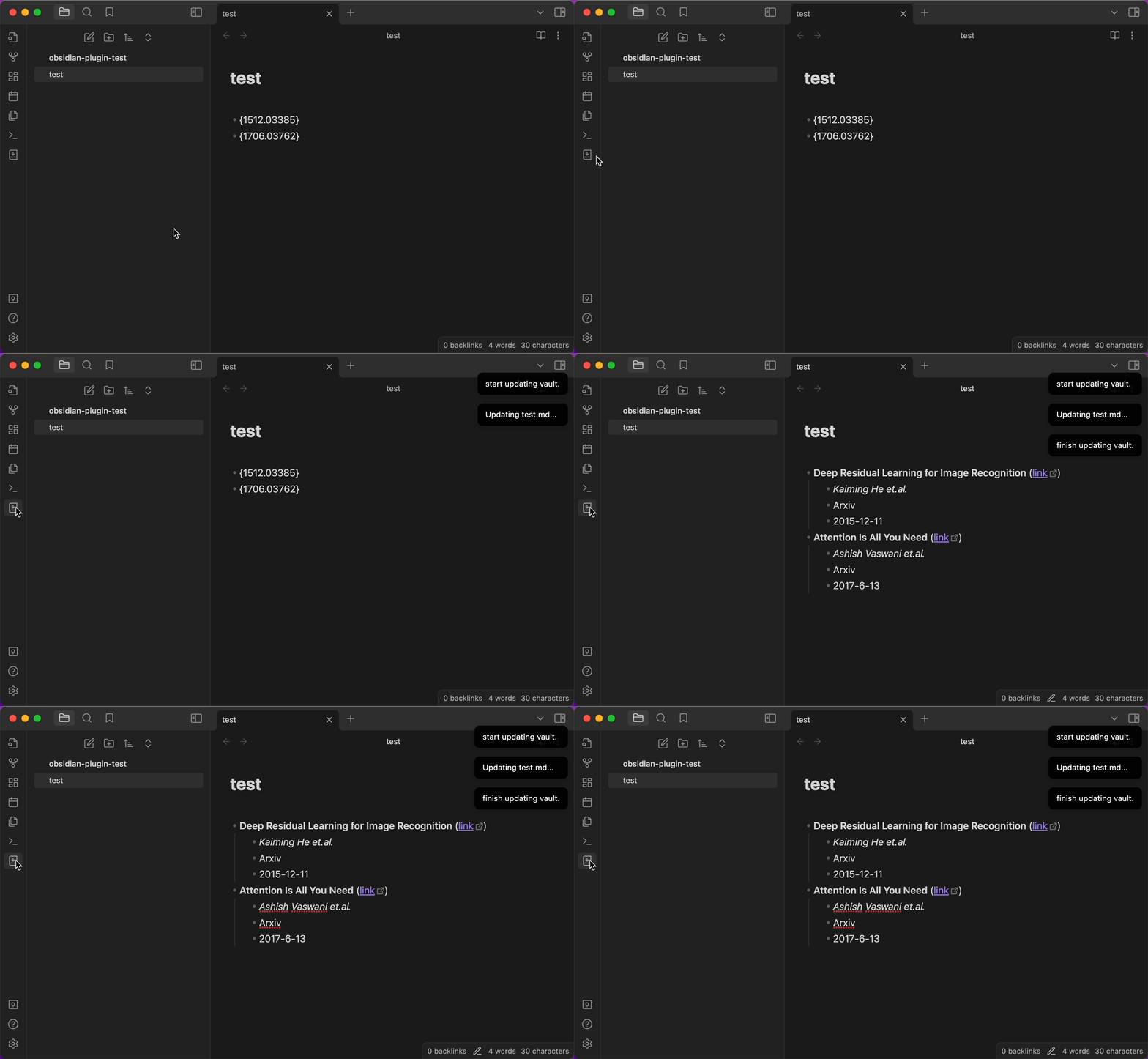
- Write a paper ID in your note using the pattern:
- {paperID} - Click the AutoLiter icon in the left ribbon or use the command
- The plugin will:
- Replace the ID with formatted paper information
- Download the PDF file (if enabled)
Demo
Configuration
Literature Detection
Regular Expression
- Default:
- \{.{3,}\} - Customizable to match your note-taking style
- The plugin uses this pattern to find paper IDs in your notes
Output Format
- Customize how paper information is displayed
- Available variables:
${title}: Paper title${url}: Paper URL${author}: First author${journal}: Journal name${pubDate}: Publication date
- Supports markdown formatting
- Use
\nfor new lines and\tfor tabs
Example formats:
-
Default format:
- **${title}** ([link](${url}))
    - *${author} et.al.*
    - ${journal}
    - ${pubDate}
-
Alternative format:
------
**${title}** ([link](${url}))
    - *${author} et.al.*
    - ${journal}
    - ${pubDate}
------
PDF Management
Auto Download PDF
- Enable to automatically download PDFs when updating literature information
- Papers must have accessible PDF links
PDF Storage Path Base
vault: Store PDFs relative to your vault rootmdFile: Store PDFs relative to the current markdown file
PDF Storage Path Examples:
- Base:
vault, Path:pdfs→vault/pdfs/paper.pdf - Base:
mdFile, Path:pdfs→current_folder/pdfs/paper.pdf
PDF File Name Format
Paper Title: Use the paper's title (default)Paper ID: Use the paper's identifier (e.g., arXiv ID, DOI)Custom: Create custom names using variables
Custom PDF Name Format Available variables:
${title}: Paper title${id}: Paper ID${author}: First author${journal}: Journal name${pubDate}: Publication date
Notes:
- Different themes will affect how the formatted text appears in your notes. The same output format may look different with different Obsidian themes
- When trying to add tabs (
\t) in the output format settings, note that pressing Tab in Obsidian's settings will switch focus to the next setting. To add tabs, copy the format from a text editor first- PDF filenames:
- Illegal characters are replaced with "-"
- Names are limited to 100 characters
- The .pdf extension is added automatically
Commands
The plugin provides three ways to update literature information:
-
Left Ribbon Icon: Click the AutoLiter icon in the left ribbon to update the active note
-
Update Selection: Process only selected text
- Select the text containing paper IDs with your cursor
- Press
Command/Ctrl + Pto open command palette - Type and select "AutoLiterature: Update selected text"
-
Update Vault: Process all markdown files in the vault
- Press
Command/Ctrl + Pto open command palette - Type and select "AutoLiterature: Update the whole vault"
- Press
Contributing
Suggestions and contributions are welcome! Feel free to:
- Report bugs
- Suggest new features
- Submit pull requests
License
MIT License
For plugin developers
Search results and similarity scores are powered by semantic analysis of your plugin's README. If your plugin isn't appearing for searches you'd expect, try updating your README to clearly describe your plugin's purpose, features, and use cases.