Auto Note Importer
approvedby uppinote20
Two-way sync between Obsidian and your databases — Airtable, SeaTable, Supabase, Notion. Multi-config, conflict resolution, computed fields, Notion page-body pull.
Auto Note Importer



Two-way sync between your databases and your Obsidian vault. Point it at Airtable, SeaTable, Supabase, or Notion — it pulls rows in as notes, pushes your edits back, and keeps computed fields fresh.
| Provider | Pull → notes | Push edits back | Computed fields | Page body |
|---|---|---|---|---|
| Airtable | ✅ | ✅ | ✅ formula / rollup / lookup | — |
| SeaTable | ✅ | ✅ | ✅ formula / link-formula | — |
| Supabase | ✅ | ✅ | ✅ generated columns | — |
| Notion | ✅ | ✅ page properties | ✅ formula / rollup | ✅ blocks → Markdown (pull) |
Built on a provider-agnostic core — every provider gets the same multi-config, conflict-resolution, and safety machinery.
✨ Highlights
- Sync your way — manual commands, scheduled intervals, or auto-sync on file change; several configurations (different bases / tables / folders) run side-by-side
- Bidirectional & conflict-aware — push frontmatter edits back, resolve collisions with
Manual/Obsidian wins/Remote wins, and auto-refetch server-computed values after a push - Safe by default — read-only and object-shaped fields never get clobbered; filename/subfolder pickers only offer types that make valid names; unknown types fail closed
- Notes that feel native —
{{field}}templates (incl.{{body}}for Notion page content), subfolder organization by field value, Bases-friendly YAML frontmatter
📦 Installation
- Settings → Community plugins → Browse → search "Auto Note Importer" → Install & Enable
- Add a credential for your provider (below), then create a sync configuration
🚀 Quick Start
The 3-step shape is the same for every provider: get a token → add a credential → pick table & folder. Expand yours:
Airtable — Personal Access Token
- Visit the Airtable Tokens page → Create new token
- Scopes:
data.records:read(import) ·data.records:write(bidirectional) ·schema.bases:read(field pickers) - Choose your bases → Create token → copy the PAT
- In the plugin: Add credential → Airtable → paste → then pick Base → Table → View (optional) → Filename / Subfolder fields
SeaTable — base API token
- Open your SeaTable base → ⋯ → Advanced settings → API Tokens → Add API Token with Read and write
- Copy the token (it is base-specific — one token per base) and note your server URL (
https://cloud.seatable.iounless self-hosted) - In the plugin: Add credential → SeaTable → paste token + server URL → pick Table → View (optional) → Filename / Subfolder columns
Supabase — project URL + API key
- Project Settings → API: copy the Project URL and an API key — Publishable (
sb_publishable_…) recommended; legacyanonJWT also works; secret/service_role bypasses RLS (the plugin auto-detects and warns) - Make sure your schema is listed under Settings → API → Exposed schemas (
publicalready is) - In the plugin: Add credential → Supabase → paste → pick Schema → Table → View (optional) → Primary key column → Filename / Subfolder columns (dropdowns auto-populate from your project's OpenAPI spec)
- Publishable-key users: Supabase blocks schema introspection for publishable keys, so a one-time setup banner appears with a
SECURITY DEFINERSQL function — Copy SQL → run it in the Supabase SQL Editor → Verify. Saving is blocked until verified (fail-closed);anon/secret keys skip this entirely.
Notion — internal integration token
- Create an internal integration at notion.so/profile/integrations and copy the token (
ntn_…) - Share your database with the integration: open the database in Notion → ⋯ → Connections → add your integration (without this, the plugin sees zero data sources)
- In the plugin: Add credential → Notion → paste the token (Test connection reports how many data sources are shared) → pick a data source — the filename field auto-fills from the title property
- Optional: enable Sync page body (pull-only) to bring the page content below the properties into the note body as Markdown. ⚠️ The body is pull-only — Notion is the source of truth, and local body edits are overwritten on the next pull (follows Allow overwrite).
Then set the destination folder, an optional template, and toggle bidirectional sync if you want edits flowing back. Multiple configurations switch via the tab bar at the top of the settings panel.
🕹 Commands
Every command is labeled with the active config's provider (Ctrl/Cmd + P):
| Command | Description |
|---|---|
| Sync current note from {provider} | Refresh the active note from the remote |
| Sync all notes from {provider} | Import / update everything |
| Sync current / modified / all to {provider} * | Push local frontmatter edits |
| Bidirectional sync current / modified / all * | Push → wait for formulas → pull computed values |
* Hidden unless Enable bidirectional sync is on. Scheduling: Sync interval (minutes, 0 = manual) and Watch for changes (queue a sync when a note is edited).
⚙️ Settings Guide
Per-configuration basics
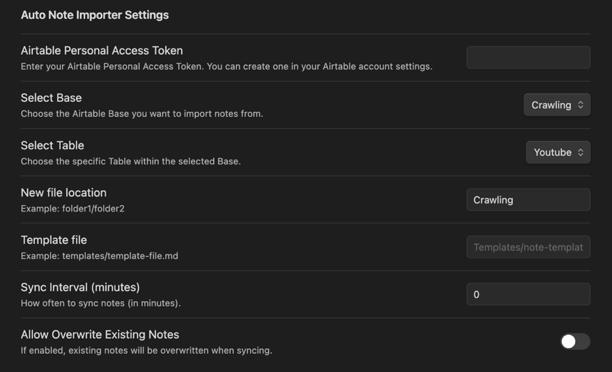
| Setting | Description |
|---|---|
| Credential | Pick a registered credential (any provider) |
| Base / Table / View | Provider-aware pickers (Airtable Meta API · SeaTable metadata · Supabase OpenAPI · Notion data sources) |
| Filename field | Field used for note filenames — only name-safe types are offered |
| Subfolder field | Optional — organize notes into destination/value/ subfolders |
| New file location | Destination folder in your vault |
| Template file | Optional {{field}} template |
| Sync interval | Auto-sync frequency in minutes (0 = disabled) |
| Allow overwrite | Update existing notes vs skip duplicates |
| Sync page body (Notion) | Pull the page's block content into the note body — pull-only, overwrites local body edits |
Bidirectional sync
| Setting | Description |
|---|---|
| Enable bidirectional sync | Allow Obsidian → remote pushes |
| Conflict resolution | Manual (notify & skip) · Obsidian wins · Remote wins |
| Watch for file changes | Auto-queue a push when a synced note is edited |
| Auto-sync computed fields | After pushing, pull back formulas / rollups / generated columns |
| Computed-field sync delay | ms to wait for the remote to recompute (default 1500) |
Supported field types per provider
Each provider's native types map to a normalized taxonomy (text / number / date / boolean / single-select / multi-select / attachment / link / computed / system). Read-only and object-shaped types are excluded from pushes automatically — fail-closed for anything unknown.
Airtable — filename-safe: singleLineText, singleSelect, number, formula · read-only: formula, rollup, count, lookup, externalSyncSource, aiText, button, createdTime, lastModifiedTime, createdBy, lastModifiedBy, autoNumber · full reference →
SeaTable — filename-safe: text, single-select, number, auto-number, formula · read-only: formula, link-formula, button, ctime, mtime, creator, last-modifier, auto-number · never pushed (object-shaped): collaborator, geolocation, file, digital-sign, link
Supabase — filename-safe: string, string:uuid, integer (+ :readonly variants) · read-only: anything the PostgREST spec flags readOnly (generated columns, view columns) · mapping: text/uuid → text, integer/numeric → number, boolean → boolean, date/timestamptz → date, json(b) → text, arrays → multi-select
Notion — filename-safe: title, select, status, number, email, phone_number, unique_id · read-only: formula, rollup, created_time/by, last_edited_time/by, unique_id, button · pushable: title, rich_text, number, checkbox, select, status, multi_select, date, url, email, phone_number (object-valued ones are rebuilt into the API shape on push) · never pushed: people, files, relation
🔄 How It Works
flowchart LR
    O[Obsidian notes] -- "push writable fields" --> R[(Remote DB)]
    R -- "computes formulas / rollups" --> R
    R -- "pull rows + computed values" --> O
    R -- "Notion blocks → Markdown body (pull-only)" --> O
- Identity: every note carries the remote record id in
primaryFieldfrontmatter — the immutable handle for matching - Filenames: your chosen field → fallback to record id → sanitized for every OS
- Subfolders:
destination/field-value/note.md, nested paths supported, duplicates detected recursively - Conflicts: when the same field changed on both sides, your chosen mode decides (
Manualnotifies and skips the field) - Notion body: fetched per page through a rate-limit budget, converted block-by-block (headings, lists, toggles → callouts, tables, code, equations…) — attachments and media arrive as links
📝 Templates
---
title: "{{Title}}"
status: "{{Status}}"
created: "{{Created time}}"
---

# {{Title}}

{{body}}          <!-- Notion page content (when Sync page body is on) -->

## Attachments
{{Attachment.0.url}}
- Nested access:
{{Attachment.0.url}},{{User.name}}·{{body}}: the fetched Notion page body (a real field namedbodywins, for backward compatibility) - Multi-line values become YAML block scalars automatically; without a template, the plugin builds a sensible default note
- Template examples & best practices →
🔗 Obsidian Bases
Frontmatter is emitted with Bases-friendly YAML types — import a folder, point the Bases plugin at it, and edit your database in table/card views.
🔐 Permissions & Disclosures
Nothing is sent anywhere except the database APIs you configure; there is no telemetry.
Full list of API usage and why
- Vault file enumeration (
vault.getAllLoadedFiles,getAbstractFileByPath) — find notes to sync and power folder/file autocomplete. Paths only; contents are read on demand by the sync flow. - Vault read & write (
read,create,modify,createFolder,adapter.exists) — import records to.md, parse frontmatter for pushes, write computed values. Scoped to your configured destination folders. - Vault change events (
vault.on) — detect edits for Watch for changes; the handler filters to your destination folder before queuing. - Clipboard write (
navigator.clipboard.writeText) — only the Supabase "Copy SQL" button; clipboard is never read. - Base64 decode (
atob) — locally decodes the pasted Supabase key's JWT payload to auto-detect its kind and show the right RLS warning; never stored or transmitted. - Network requests (Obsidian
requestUrl) — REST calls to Airtable / SeaTable / Supabase / Notion only, using credentials you registered. No third-party services, no analytics, no update checks.
🛠️ Troubleshooting
| Symptom | Check |
|---|---|
| No fields in dropdowns | Token permissions/scopes; base & table selection |
| Notion: "0 data sources shared" | Share the database with your integration: ⋯ → Connections in Notion |
| Bidirectional not working | Write permission (Airtable data.records:write · SeaTable "Read and write" token) |
| Formulas not updating after push | Increase Computed-field sync delay |
| Supabase: empty results / RLS denial | Your key respects RLS — add SELECT/INSERT/UPDATE policies for the table |
| Notion body slow on big pages | Body fetching is rate-limited (~3 req/s) with a per-note request budget; very deep pages get a truncation marker |
| Filename errors | The chosen field's type must be in the provider's name-safe list |
| Local body edits disappear (Notion) | By design in v1 — body is pull-only and Notion wins; keep local prose outside synced folders |
Contributor docs (e2e suites, Supabase demo schema, Notion test setup): tests/e2e/README.md
☕ Support
If this plugin is useful to you:


📄 License
MIT
For plugin developers
Search results and similarity scores are powered by semantic analysis of your plugin's README. If your plugin isn't appearing for searches you'd expect, try updating your README to clearly describe your plugin's purpose, features, and use cases.