by PassengerC07
Import, organize, and install AI agent skills from an Obsidian vault.
Banshan Skill Hub
[!IMPORTANT] Skill Hub is now available through the Obsidian command line, so your agent can install skills for you. Switch on Enable Skill Hub command line actions in the settings once, then say what you want in plain language: which skills you have, install one into a project, link one, what is installed there now, clear them out. The agent runs the
banshan-skillhubactions throughobsidianand reports what landed, so nothing has to be installed by hand from the sidebar. The prompts and the commands behind them are in Ask An Agent To Do It.
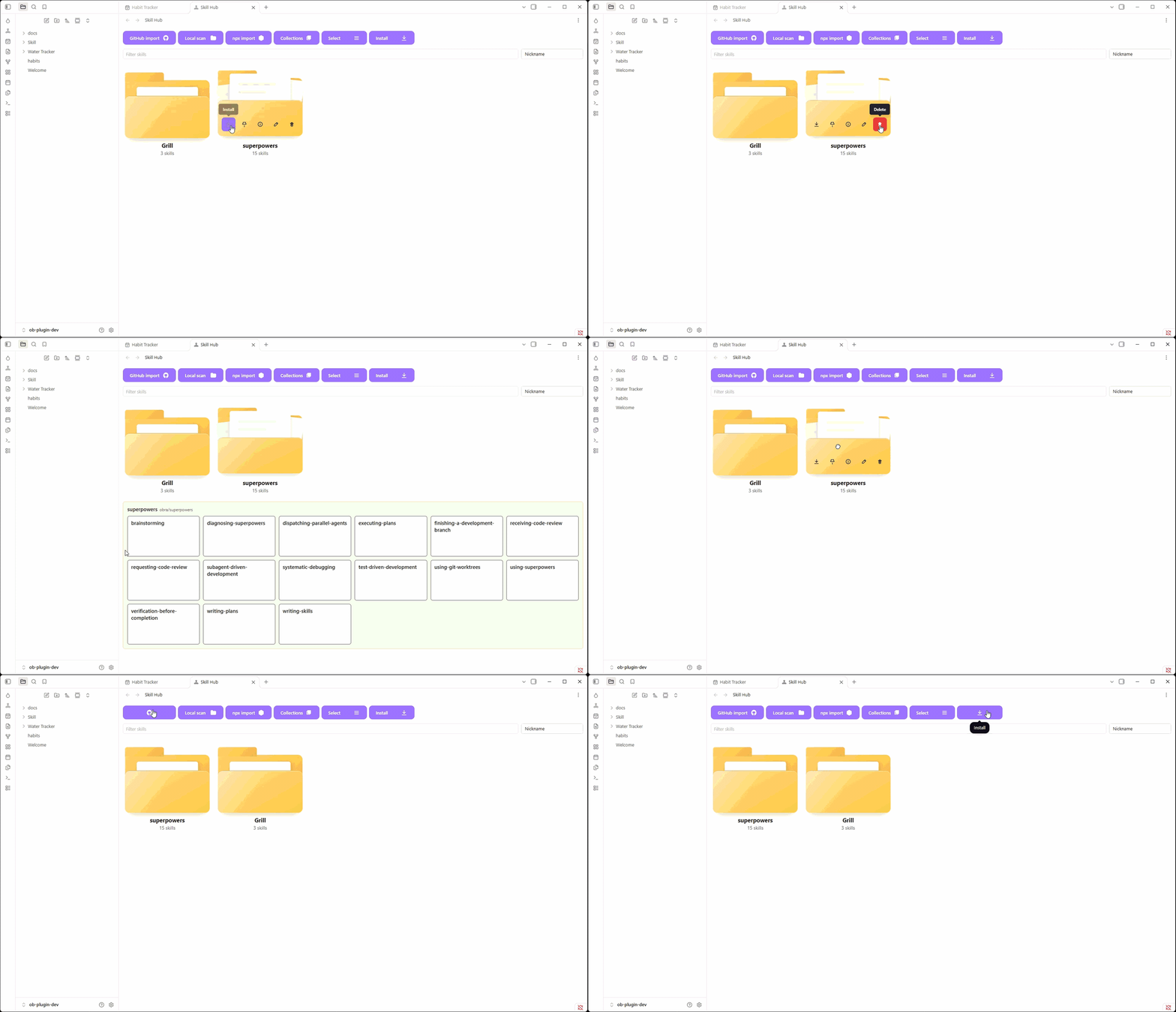
The library in the sidebar: imported skills as blocks carrying emojis, tags, and colours.
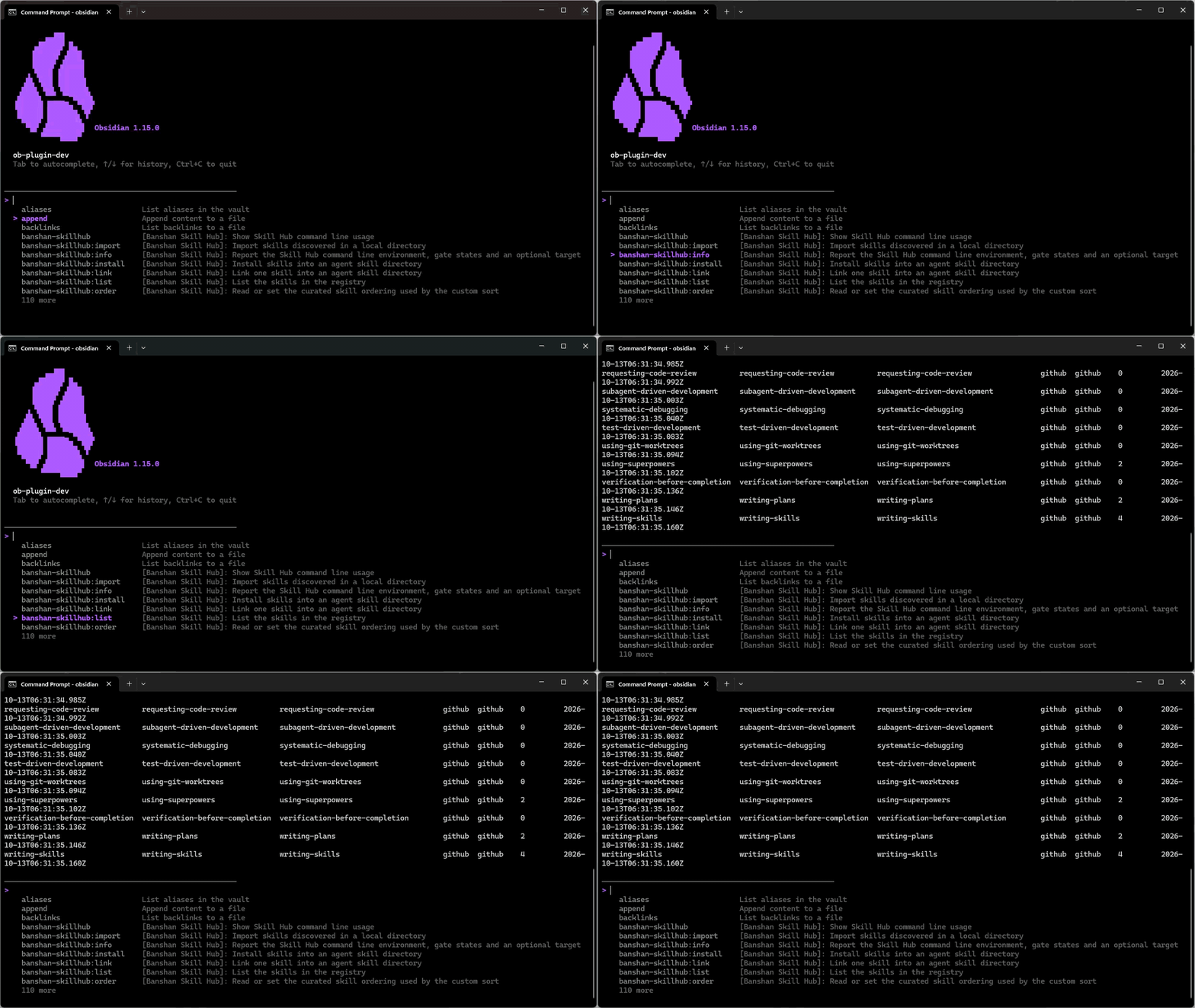
The same library driven from a terminal: list, install, link, and the checks that show what landed.
Banshan Skill Hub is a desktop plugin for importing, organizing, and installing AI agent skills from a vault-managed library.
Use it when you collect reusable agent skills from GitHub, local folders, or npx skills add ..., and want a visual place to manage them before installing selected skills into an agent workspace.
The plugin can also be driven from a shell, without opening a window. Switching on Enable Skill Hub command line actions in the settings publishes the banshan-skillhub command to Obsidian's command line, where thirteen actions cover listing, search, install, link, uninstall, import, ordering, and settings. Scripts and CI jobs use the same surface. The command line interface section below lists the actions, the flags, and the guardrails.
Who It Is For
- People who maintain a personal or team library of AI agent skills.
- Codex and agent users who frequently install skills into
.agents/skills. - Skill authors who want to test, group, and reuse skill folders across projects.
- Workflow builders who want curated collections of skills for coding, research, writing, debugging, or other recurring tasks.
- People who would rather tell an agent what to install than click through a dialog, and agents that have to prepare a workspace without a window open.
What It Can Do
Import Skills
Skill Hub can import skills from three sources:
- GitHub import: Enter a GitHub URL that points to a directory containing a
skills/folder. Skill Hub lists the skills it finds there and lets you choose which ones to import. Skills grouped one level deeper, atskills/<category>/<skill>/SKILL.md, are listed on their own rather than as their category. Listings normally come from the GitHub api, which allows sixty anonymous requests an hour to every machine behind one address; when that allowance is spent, the import reads the repository archive fromcodeload.github.cominstead, one request that the api quota does not cover. An archive over 256 MB unpacked is refused with a message pointing at thenpxroute. - Local scan: Choose a local folder and scan for either
skills/or.agents/skills/. If neither exists, Skill Hub shows a notice instead of guessing. - npx import: Paste a command such as:
npx skills add https://github.com/vercel-labs/skills --skill find-skills
Automatic npx execution is controlled by plugin settings. When execution is disabled or unavailable, Skill Hub can still show the command path so you can run it yourself.
Imported skills are copied into the vault skill folder, which defaults to Skill/ and can be changed in settings. If a folder name already exists, Skill Hub creates a collision-safe name instead of overwriting existing files.
Manage Skills
The Skill Hub view presents imported skills as visual blocks. You can:
- Rename skills with a local nickname.
- Choose an emoji.
- Assign tags and tag colors.
- Pick a block color.
- View details, history, warnings, and source information.
- Delete skills with confirmation.
- Select multiple skills with a purple glow state instead of checkboxes.
Organize Collections
Collections are workflow groups for related skills. You can:
- Create named collections with descriptions and colors.
- Drag skills into collections.
- Reorder skills inside a collection for workflow order.
- Remove skills from a collection by dragging them out or from the collection edit window.
- Install, edit, view, or delete collections from the collection block actions.
- Include collections in bulk selection and install flows.
Install Skills Into Agent Workspaces
Skill Hub installs selected skills into a target workspace under:
.agents/skills/
When needed, it creates .agents/skills in the chosen target directory.
You can install by:
- Clicking the install action on one skill.
- Clicking the install action on one collection.
- Selecting multiple skills and collections.
- Clicking install with no active selection, then choosing from a checklist.
The install method is configurable:
- Copy: Copies skill folders into
.agents/skills. - Symlink: Links installed skills back to the vault copy, so updates in the vault are reflected in the target workspace.
Symlink creation depends on OS permissions. On Windows, Developer Mode or elevated permissions may be required. When a machine refuses the symlink, Skill Hub falls back to a Windows junction, which needs no elevated privileges and points at the vault copy the same way.
Command Line Interface
Turn on Enable Skill Hub command line actions in the Skill Hub settings (it ships switched off), with Obsidian's own Settings -> General -> Command line interface already enabled on the 1.13.0 or newer installer. The plugin then publishes its actions to the Obsidian command line, and every one of them runs without opening a view or a modal, which is what scripts, CI jobs, and agent CLIs need.
obsidian banshan-skillhub
obsidian vault=MyVault banshan-skillhub:info
obsidian banshan-skillhub:list tag=writer sort=updated limit=20
obsidian banshan-skillhub:show skill=find-skills format=json
obsidian banshan-skillhub:search query=frontmatter
obsidian banshan-skillhub:scan path=C:\work\skills
obsidian banshan-skillhub:install skill=find-skills target=C:\work\agent method=symlink
obsidian banshan-skillhub:install skill=all collection=research target=C:\work\agent
obsidian banshan-skillhub:link skill=find-skills target=C:\work\agent
obsidian banshan-skillhub:uninstall target=C:\work\agent confirm=1
obsidian banshan-skillhub:import path=C:\work\skills
obsidian banshan-skillhub:order list=find-skills,writer confirm=1
obsidian banshan-skillhub:settings key=defaultSort value=updatedAt confirm=1
obsidian banshan-skillhub:refresh
The bare command prints the full action list with every flag.
| Action | Purpose |
|---|---|
info | Reports the plugin version, vault, counts, and settings state, including whether the interface is switched on |
list | Lists skills, optionally narrowed by filter= against the name, tags or description, and by source=local, source=github or source=npx |
show | Prints one skill: files, metadata, tags, collections, source, install count |
search | Ranks matches across name, description, tags, and nickname |
scan | Discovers skills in a directory, with the skills/ fallback, without importing anything |
install | Installs skill=a,b, a whole collection with skill=all collection=<name>, or everything with skill=all, into <target>\.agents\skills using method=symlink or method=copy |
link | Links one skill, with a junction fallback, and force=1 replaces an existing link |
uninstall | Removes installs the activity log proves Skill Hub made: links are unlinked, copies are deleted |
import | Discovers and imports skills from a local directory |
order | Reads the curated ordering, or sets it with list=a,b,c |
settings | Reads any setting, and writes ordinary ones with the same validation the settings tab applies |
refresh | Redraws every open Skill Hub view |
probe | Echoes the parameters that reached the plugin, for diagnosing how a command line is being handed over |
A few rules hold across the whole interface:
- Arguments are always
key=valuepairs, so a value that begins with a dash is never mistaken for an option. Avault=selector, if you need one, has to come before the command:obsidian vault=MyVault banshan-skillhub:list. --format=json, or the shorter--json, prints one machine readable object instead of the aligned tables, anddryrun=1reports what an action would do while leaving the filesystem alone.- Actions that delete or rewrite shared state (
uninstall,order,settings) refuse to run until you addconfirm=1, both here and in the user interface. uninstallonly touches what an install recorded: a link is removed without disturbing the vault copy it pointed at, and a copied folder is deleted only when the record shows it arrived as a copy. Anything else is reported and left alone.- A target that is a drive root, your home directory, or anywhere inside the vault is refused, so an install can never nest
.agentsinside the vault. Enable Skill Hub command line actionsandEnable npx executioncannot be changed from the command line; they are switched on in settings so a person always grants those permissions.- A refused command prints a line starting with
ERROR:; underformat=jsonthe object carriesok: falseand amessage. - The settings tab shows the two commands worth running first, filled in for the vault you have open, underneath the switch that enables them.
Ask An Agent To Do It
The actions were written for a person at a keyboard and for an agent in the same breath, so once the switches are on, a sentence is usually enough. These are the commands an agent ends up running for ordinary requests:
| You say | The agent runs |
|---|---|
| "What skills do I have tagged research?" | obsidian vault=MyVault banshan-skillhub:list tag=research |
| "What is actually inside find-skills?" | obsidian banshan-skillhub:show skill=find-skills format=json |
| "Install grill-me and code-review into C:\work\agent, symlinked." | obsidian banshan-skillhub:install skill=grill-me,code-review target=C:\work\agent method=symlink |
| "Import every skill from C:\work\skills." | obsidian banshan-skillhub:import path=C:\work\skills |
| "What is installed in that workspace right now?" | obsidian banshan-skillhub:info target=C:\work\agent |
| "Undo the installs Skill Hub made there." | obsidian banshan-skillhub:uninstall target=C:\work\agent confirm=1 |
Five things are worth putting in front of an agent before it starts:
- Ask for
format=jsonwhenever the agent needs to read the answer rather than show it to you. The aligned tables are meant for people; the json object carriesok,message, and the rows. - Have it run
dryrun=1and report its plan before a write you care about.uninstall,order, andsettingsadditionally refuse withoutconfirm=1, which is what stops an agent that misread a sentence from quietly emptying a workspace. - Every argument is a
key=valuepair, and avault=selector goes before the command. A value containing://can be swallowed on the way to the plugin, so an agent that reports an empty argument should tryprobeand see what arrived. - An agent running from a bash-like shell on Windows gets a silent empty reply and exit code
127for any action whose name carries a colon, before the plugin is involved. See Running from Git Bash or MSYS for the two forms that work there. - An agent cannot turn on
Enable Skill Hub command line actionsorEnable npx executionfor itself. Those two stay in the settings tab, so a person is always the one who grants them.
Running From Git Bash Or MSYS
On Windows, Obsidian's console entry point is Obsidian.com, a redirector that sits beside Obsidian.exe and wires up standard output. A bash-like shell finds it through PATHEXT and launches it through cmd, and that launch loses the arguments following a command name that contains a colon, which is the shape every action in this plugin has. The client exits 127 and prints nothing at all: no ERROR: line, no json object, because the plugin was never called. The same command with no arguments answers normally, which makes it look like the plugin stopped responding to anything parameterised.
| Shell | banshan-skillhub:list filter=skill |
|---|---|
| PowerShell | answers |
cmd.exe | answers |
Git Bash, bare obsidian | exits 127, no output |
Git Bash, wrapped in cmd //c | answers |
Git Bash, full path to Obsidian.com | answers |
The two forms that work from a bash-like shell:
cmd //c "obsidian vault=MyVault banshan-skillhub:list filter=skill"
"$LOCALAPPDATA/Programs/Obsidian/Obsidian.com" vault=MyVault banshan-skillhub:list filter=skill
Actions with no arguments are unaffected, so obsidian vault=MyVault banshan-skillhub:info answers from Git Bash, and built-in Obsidian commands whose name has no colon answer with their parameters intact. An agent that reports an empty reply with exit 127 has hit the launcher rather than failed the action, and running the same line through cmd //c settles it. The test.cmd harness runs under cmd, so it is never affected.
How To Use
- Install and enable Banshan Skill Hub.
- Open the Skill Hub view from the ribbon or command palette.
- Import skills from GitHub, a local folder, or an
npx skills add ...command. - Edit skill names, colors, emojis, and tags as needed.
- Create collections for workflows or skill types.
- Select skills or collections, then click Install.
- Choose the target project folder in the native folder picker.
- Skill Hub installs the chosen skills into
.agents/skills. - With the command line interface switched on, drive the same flows from a shell:
obsidian banshan-skillhub:list,install,link,uninstall,import.
Settings
Skill Hub settings include:
- Skill folder: Vault folder used for imported skill copies. Default:
Skill/. - Install method: Copy or symlink.
- Default sort: Nickname, original name, recently updated, or custom drag order.
- Enable npx execution: Controls whether Skill Hub can run
npx skills add ...directly. - Enable Skill Hub command line actions: Publishes the
banshan-skillhubcommand so scripts and agent CLIs can import, install, and inspect without opening a window. Off by default, and never switched on from the command line itself. - Symlink conflict behavior: Skip or overwrite existing symlinks.
Notes And Limitations
- Skill Hub is desktop-only because it uses local filesystem access and native folder picking.
- GitHub import expects a
skills/folder at the directory pointed to by the URL, or aSKILL.mdat that directory itself. A folder below the skills root that has noSKILL.mdof its own is read as a grouping, and its children are the skills. - Local scan expects either
skills/or.agents/skills/under the chosen directory. - Empty folders may not be selectable through the native folder picker because the browser-style directory input needs at least one file to expose a path.
- The target workspace must allow Skill Hub to create
.agents/skillsand copy or link skill files. - The command line interface needs Obsidian's command line interface, a desktop feature. The manifest asks for version 1.13.0 or newer, so the plugin will not load below that.
- Deleting an installed skill clears its links in agent workspaces, because a link points back into the vault.
Release Notes
0.3.0
Published October 14, 2026. Supersedes 0.2.0, which predates the subject of this whole entry.
New, the command line interface. Thirteen actions, registered with Obsidian's own command line handler and gated behind a settings switch that ships switched off. Everything runs headless: no view, no modal, no notice. A refused command prints a line starting with ERROR:, or carries ok: false with a message under format=json.
obsidian vault=MyVault banshan-skillhub:info
obsidian banshan-skillhub:install skill=find-skills target=C:\work\agent method=symlink
Guardrails arrived with it. Every argument is a key=value pair, so a value may begin with a dash. Actions that delete or rewrite shared state need confirm=1, and dryrun=1 reports a plan while leaving the filesystem alone. A target that is a drive root, your home directory, or anywhere inside the vault is refused. uninstall removes only what an install recorded, so a link comes away without disturbing the vault copy it pointed at.
Install method on Windows. A symlink the system refuses now falls back to a junction rather than failing the install, so links work without Developer Mode or an elevated terminal.
Install by copy. The destination is checked before anything is written and skipped when something already occupies it, so a copy install never merges into an existing folder. Entries are written exclusively, which also leaves a destination that appears partway through a copy untouched.
Settings tab. Under the command line switch sit the two commands worth running first, filled in for the vault you have open and ready to copy out.
Testing. test.cmd drives all thirteen actions through the obsidian client and judges the replies, the filesystem, or both, over 76 checks. It detects the vault from Obsidian's own registry. Two stand in clients under tools/cli-harness run the same suite with no live app.
Release automation. Tagging a version runs the official Obsidian release action, which validates, builds, attests the artifacts, and opens a draft release carrying main.js, manifest.json, and styles.css. A separate review job runs the community directory's own lint rulesets over the folder.
Needs Obsidian 1.13.0 or newer, desktop only.
Development
Install dependencies:
npm install
Run tests:
npm test
Build the plugin:
npm run build
The build writes the plugin to:
.obsidian/plugins/banshan-skillhub/
It also syncs the root main.js bundle for release tracking.
Testing the command line actions
test.cmd at the repo root drives every registered action through the obsidian client and judges
each reply, the filesystem, or both, over 76 checks. Keep Obsidian open with the vault loaded
and run it. The report lands under %TEMP%\skillhub-cli-test and the exit code is the number of
checks that failed.
test.cmd                              detect the vault and run every check
test.cmd vault=D:\MyVault              test against a particular vault, the folder holding .obsidian
test.cmd --vault=D:\MyVault            the same thing
test.cmd vault D:\MyVault              the same thing, for a folder whose name has a space
test.cmd --list                       list the vaults Obsidian knows about and which are ready
test.cmd --open                       open the report in notepad when the run ends
test.cmd --help                       show this
Nothing is hard wired to one vault. With none named, the harness asks Obsidian's own registry for the
vaults that have banshan-skillhub installed and takes the most recently opened of those; when
several qualify, or when none has the plugin, it says so and names the alternatives. vaultsel.cjs
performs that lookup and also prints the vault= selector the client needs, since the client reads a
vault before it reads the command. Passing a vault on the command line, in the VAULT environment
variable, or on the VAULT line in the file's EDIT block all work, in that order of precedence, and
the header of every run prints which one was used.
The same commands the harness starts with are shown under Settings -> Community plugins -> Banshan Skill Hub, underneath the command line switch, already filled in with the vault you have open and ready to copy out.
The harness can be exercised without a live Obsidian, by pointing OBSIDIAN_CMD at a stand in client.
tools/cli-harness holds two: one that answers each action and performs the side effects the
filesystem assertions need, and one that reports commands as not found so the early exit path gets
covered. Each has a run script that sets the environment and calls test.cmd, and both forward any
arguments you add, so tools\cli-harness\run-stub-test.cmd vault=D:\MyVault runs the same suite against
a named vault.
Roadmap
Planned future directions:
- Skill graph: Visualize skill coverage, relationships, workflow inclusion, and duplicates.
- Analytics dashboard: Track skill usage, install frequency, and per-skill history.
- Capability suggestions: Suggest missing skills or combinations of existing skills for new workflows.
- Skill update workflow: Detect and apply upstream changes safely.
- Private GitHub support: Use tokens for private repositories when needed.
- Sidecar metadata: Store richer metadata alongside imported skills.
- Collection templates: Share reusable workflow bundles across vaults or projects.
For plugin developers
Search results and similarity scores are powered by semantic analysis of your plugin's README. If your plugin isn't appearing for searches you'd expect, try updating your README to clearly describe your plugin's purpose, features, and use cases.