by theluckystrike
Compare notes in columns and edit simple properties in rows.
Bases Transpose Table
Compare a few notes with many properties. Bases Transpose Table places note names across the top and properties down the left. Read costs, review states, and checkboxes side by side. Edit existing simple frontmatter values in the same view.
The free view shows up to five notes from a base. It uses the property order from the Bases properties menu. It reads query results from Obsidian, so you choose notes with the native filters and sort controls. Pro adds named comparison sets, equal and different row marks, and export to a Markdown note.
Features
Compare notes in columns
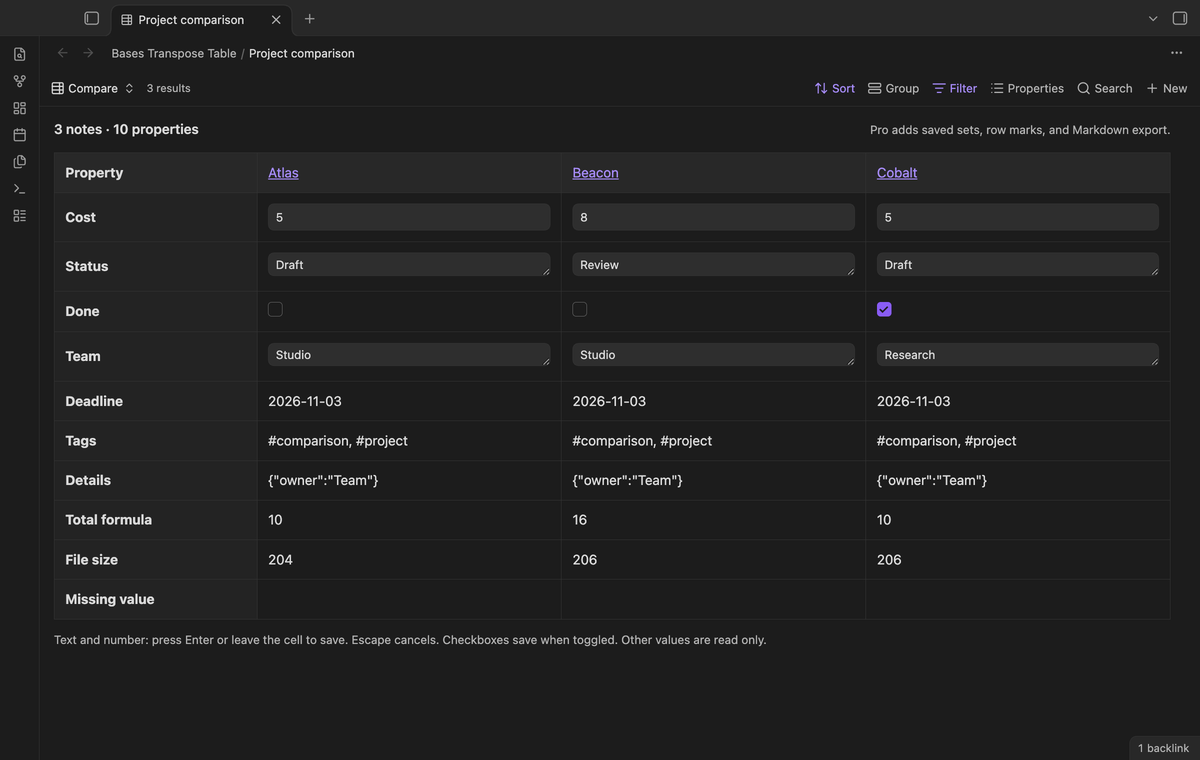
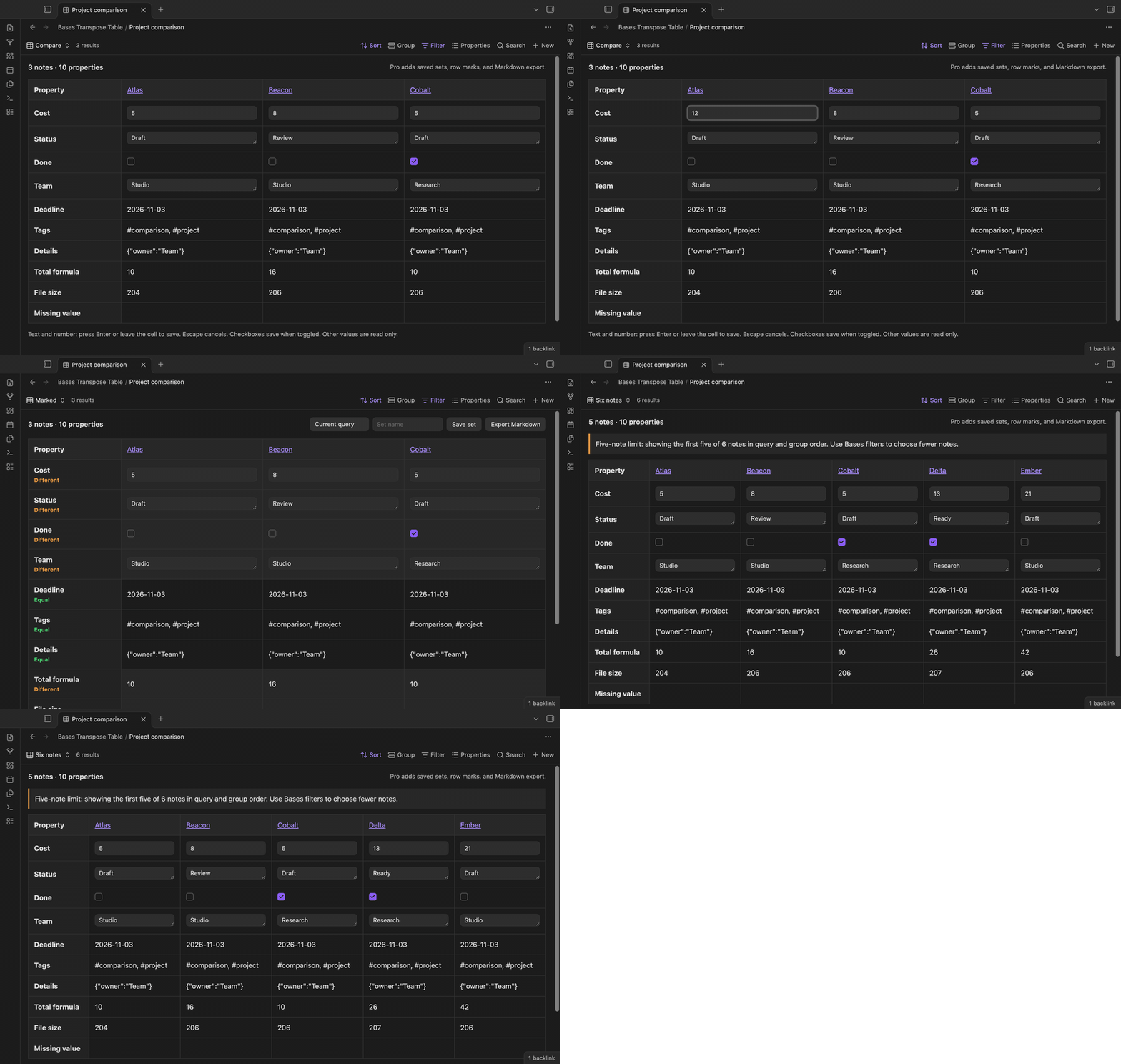
Choose Transpose as the view type in a base. The column headings link to the source notes. Each row has one property name and a value for each displayed note. The sample below compares Atlas, Beacon, and Cobalt. Their cost values are 5, 8, and 5. You can see the review state beside the cost without opening three source notes.
Edit existing simple properties
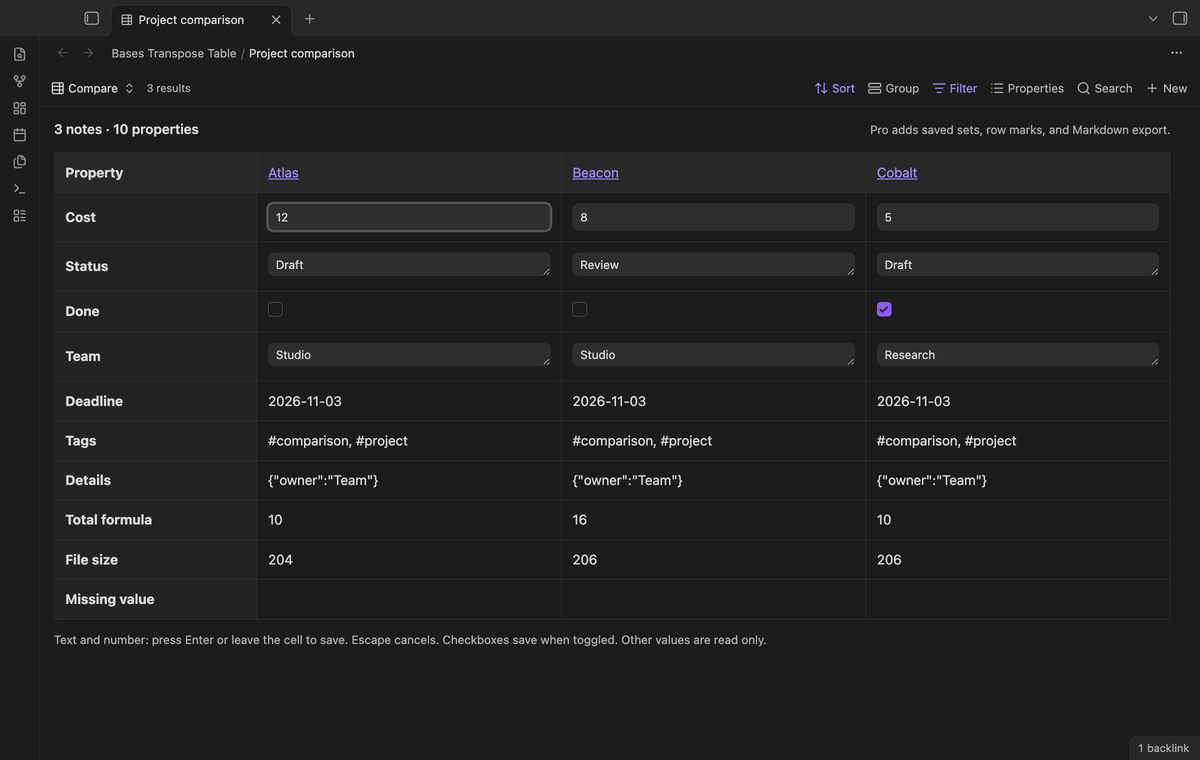
Existing text, number, and boolean frontmatter values can have edit controls. Enter a value in a text or number cell, then press Enter or leave the cell to save. Toggle a checkbox to save its boolean value. Escape cancels a text or number draft. A number such as 12 is stored as a number. Invalid numeric text is refused, and the old value stays in the note.
Read other value types
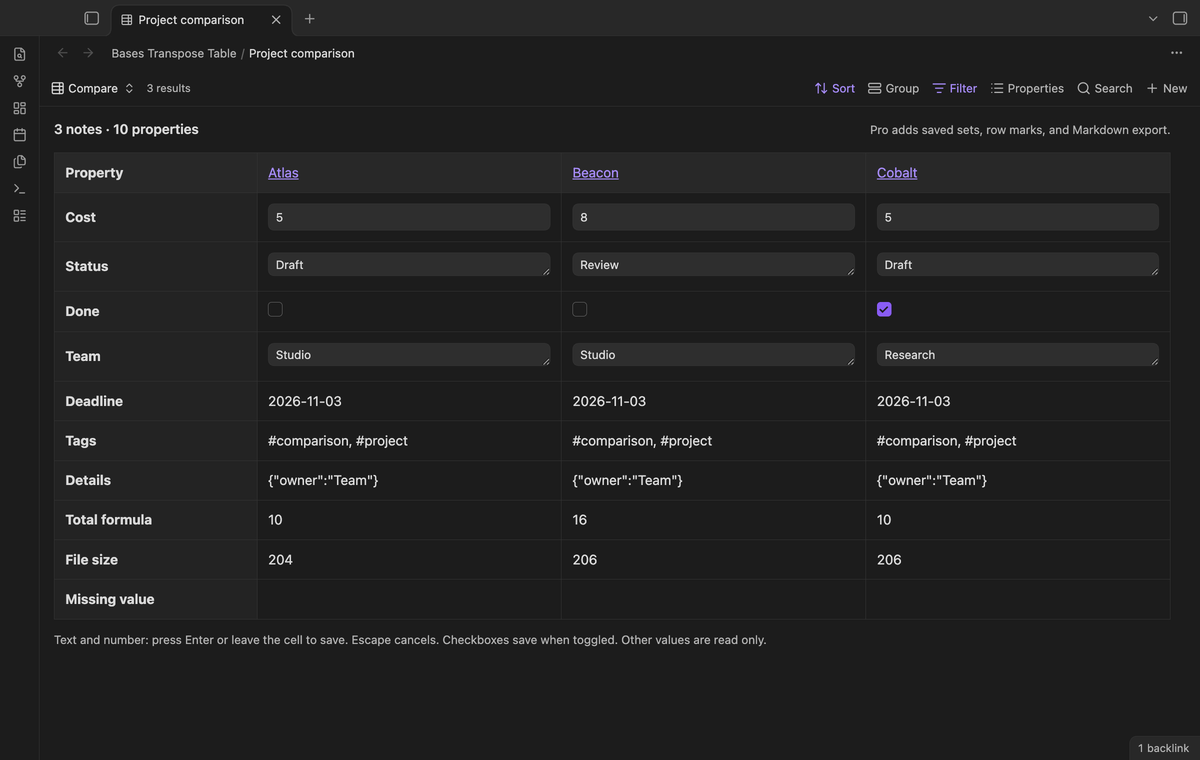
Formulas, file fields, lists, dates, objects, links, and unknown display types remain read only. An absent property has an empty cell with no edit control. The plugin checks the stored type as well as the Bases display type. Date-shaped strings and text containing wiki links are also read only. This keeps the comparison from converting those values during an edit.
Keep the comparison small
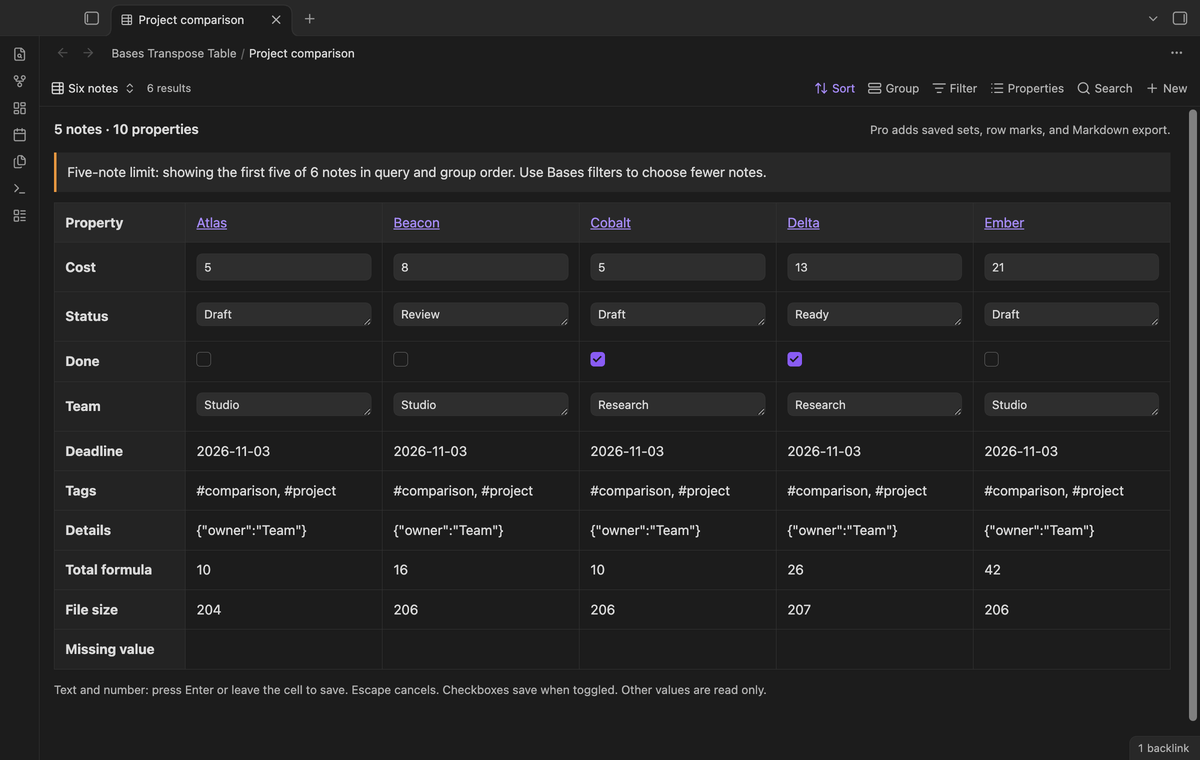
A query with six notes shows its first five notes and a visible limit message. This limit also applies to Pro. Narrow the native filter to compare a different set. Grouped results follow the grouped query order, with the group label below the note name. The table has horizontal scrolling when its columns exceed the available width.
Mark equal and different rows (Pro)
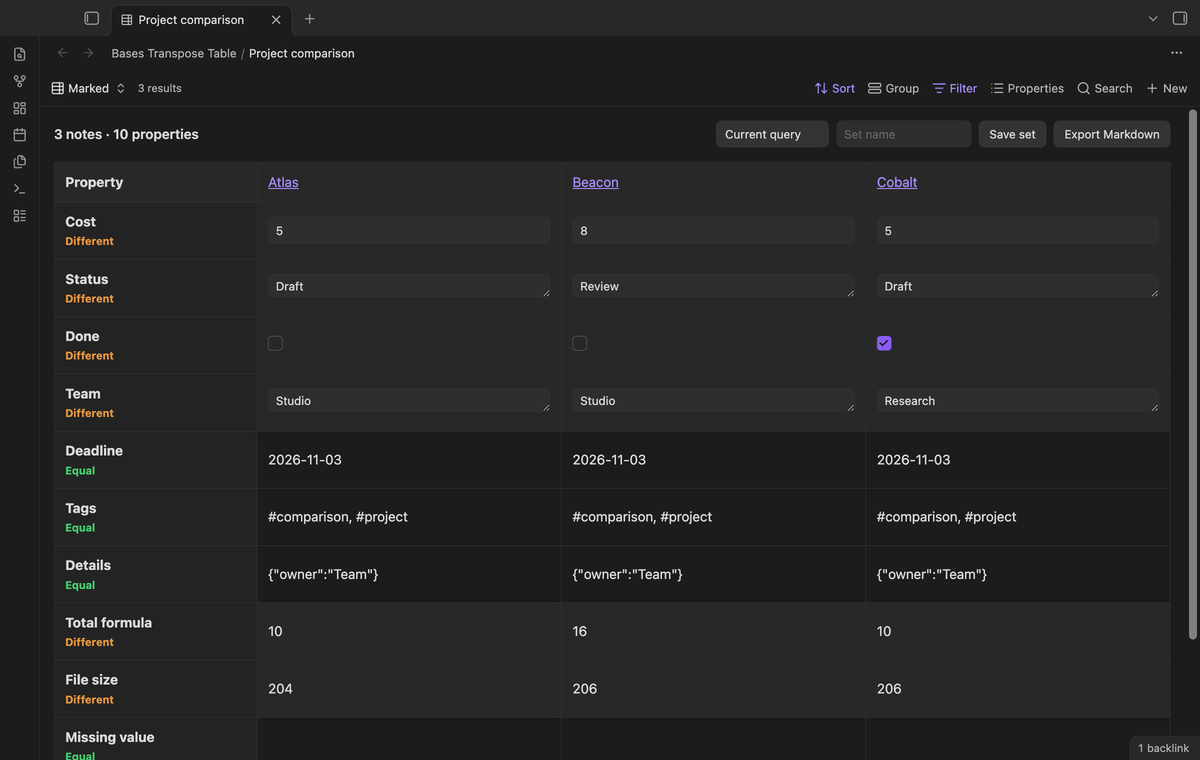
Turn on Mark equal and different rows in the view options. With Pro active and two or more notes, each property row receives an Equal or Different label. Equality uses the Bases value comparison, including type information. The words give meaning to the marks without requiring the reader to identify a color. The option is ignored when Pro is off.
Save named sets (Pro)
Enter a set name and select Save set. The view stores the visible note paths in that base view. Choose a saved name from the menu to compare those paths within the current query. The notes retain query order. A message gives the number of saved paths absent from the query. Select Current query to return to the query results. Delete set removes the selected saved set.
Export Markdown (Pro)
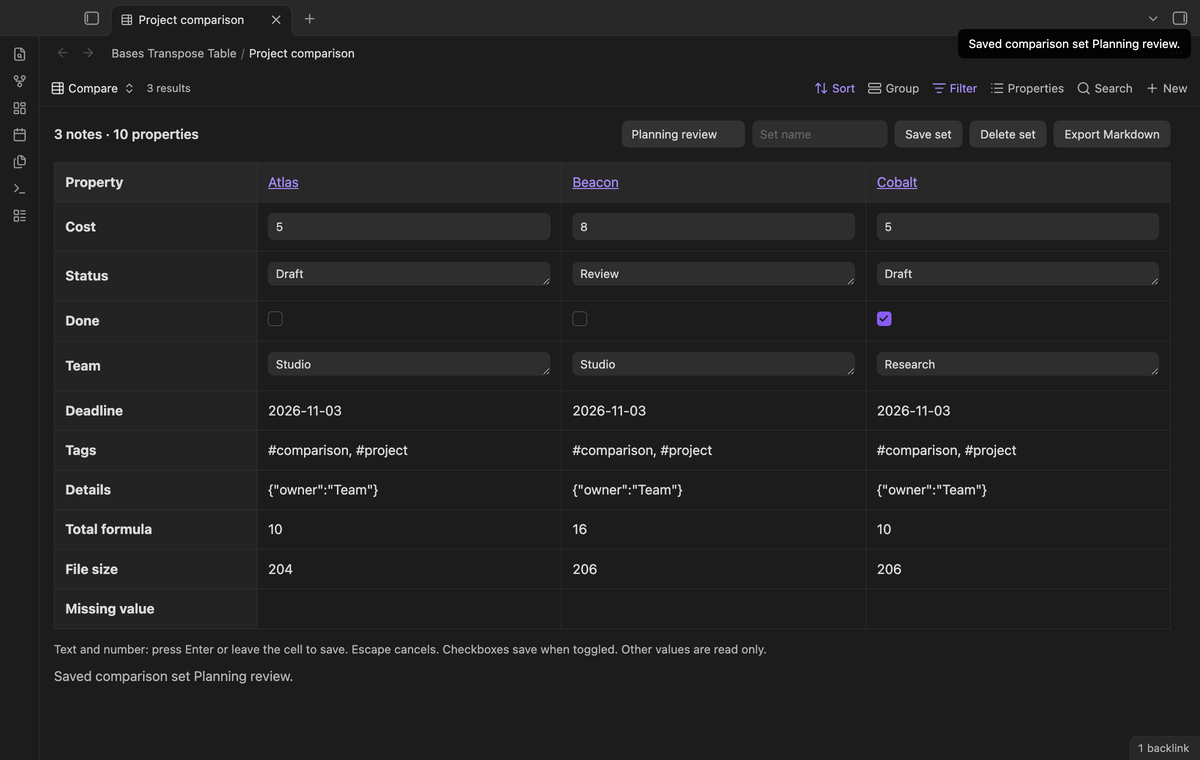
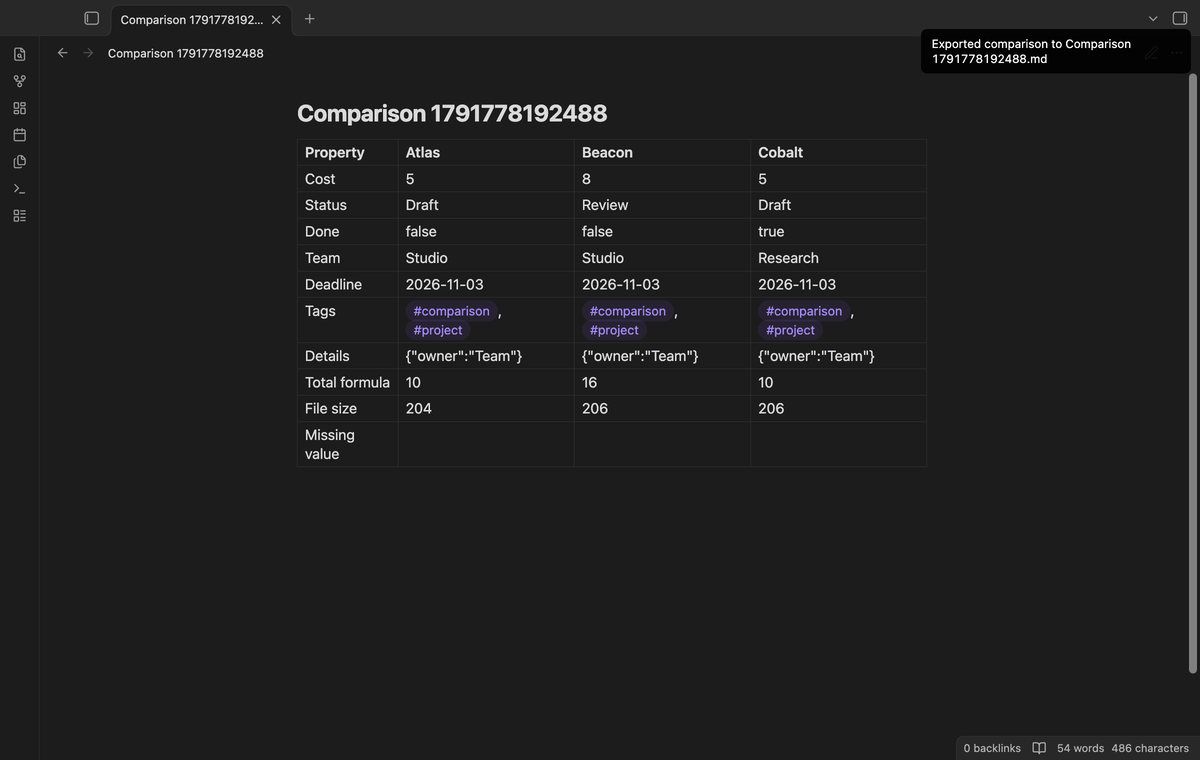
Select Export Markdown to create a new comparison note in the vault. The export contains the displayed note names, property labels, and value text. It is a snapshot, with no connection back to the source properties. Pipes, line breaks, and Markdown formatting marks are escaped for the table. The command palette also has Export comparison to Markdown when the active pane contains one visible comparison view. If a note has several embedded comparisons, use the Export Markdown button in the required comparison.
Install
Use Obsidian 1.13.4 or a later public version. Enable the Bases core plugin. For a manual install, place main.js, manifest.json, and styles.css in the vault folder .obsidian/plugins/bases-transpose-table. Reload Obsidian, then enable Bases Transpose Table in Community plugins. The publisher is theluckystrike. This source is licensed under MIT.
Usage
Start with a base that selects your project notes. Open its view menu and select the Transpose type. Use the properties menu to select rows and change their order. A display name configured in the base becomes the row label. Use the sort menu to arrange the note columns. Add a filter when you need a smaller comparison.
Try an existing number first. Change a cost from 5 to 12, press Enter, and open the note from its column heading to inspect the result. The write affects that note's property. It does not copy the value to neighboring columns. Add missing properties in the source note before you try to edit them in this view.
Settings
The plugin settings explain the view and contain the GitHub Sponsors controls. Row order, filters, sorting, and grouping are native Bases controls. The row marks toggle belongs to each Transpose view. Named sets are stored with the view configuration in the base file, rather than in a separate online account. A view can hold up to 50 sets, each with up to five paths.
FAQ
What happens if another action changes a cell?
The plugin compares the original stored value with the current frontmatter value inside the write callback. A mismatch reports a conflict and preserves the newer value. While a text or number control has focus, a query update does not remove the draft. Leave the cell to resolve the edit and refresh the display.
Does a saved set bypass the base filter?
No. A saved set is restricted to the current query. A moved or deleted note can leave an absent saved path. The plugin reports absent paths but does not repair them. Create a new set after you change note paths.
What has not been tested?
Linux and Windows app runs, physical phones and tablets, third-party themes, screen readers, detached windows, large property counts, and concurrent writes from sync services were not tested. The code uses public Obsidian and browser APIs without Node or Electron imports. A mobile device test is still required. The Sponsors tests use local replies; a real paid account and a live payment were not tested.
Payment, account and network
The core features are free. Pro features need a GitHub Sponsors sponsorship of theluckystrike: $5 a month or more, or $15 once. A total payment of $15 meets the payment requirement for Pro without further payment. Sign-in and the checks below still apply. Your notes stay readable and editable with or without Pro.
GitHub handles the payment. Sponsor at https://github.com/sponsors/theluckystrike. You need no account for the free features. Pro needs the GitHub account that sponsors.
Until you select "Sign in with GitHub" in the settings, Bases Transpose Table makes no network requests. Sign in uses the GitHub device flow. Bases Transpose Table sends its public client ID and the scope read:user to https://github.com/login/device/code and shows you a code. While you enter the code at https://github.com/login/device, it asks https://github.com/login/oauth/access_token every few seconds to check the sign-in status. The scope permits profile reads only. GitHub needs this access to show the sponsorship tier. It grants no repository scope and no write access.
After sign in, Bases Transpose Table sends one query to https://api.github.com/graphql. It checks if the signed-in account sponsors theluckystrike. It asks for the tier and the total payment to theluckystrike. The plugin reuses a successful check for 7 days. Failed checks can retry after 6 hours. Select Refresh to request an earlier check. It sends no note content, file names or other vault data, and it has no telemetry.
After a successful check, Pro can work offline for up to 14 days. Sign out or a negative sponsorship answer turns Pro off. The plugin stores the GitHub token through the secret storage API of Obsidian. It does not put the token in its saved settings or its local sponsorship data. The local storage of this device keeps your GitHub login, the tier and the time of the last check. Sign out clears the token. You can also revoke the access in your GitHub settings, under Applications.
Support
Report a reproducible problem in the GitHub issue tracker for this product. Include the Obsidian version, the view configuration, the property type, and the steps that caused the problem. Use sample values in place of private note content. For an edit conflict, include which other action changed the property. For a missing saved path, include whether the note moved or the base filter changed.
For plugin developers
Search results and similarity scores are powered by semantic analysis of your plugin's README. If your plugin isn't appearing for searches you'd expect, try updating your README to clearly describe your plugin's purpose, features, and use cases.