by onelasthuman
Canvas enhancements, mind-map workflows, and configurable AI assistance in one plugin.
Better Canvas
Turn scattered ideas into a map, inside Obsidian.
Capture ideas · Map workflows · Annotate reading · Connect AI


中文 · Website · Install · Canvas themes · Getting started · Feature guide · Documentation index
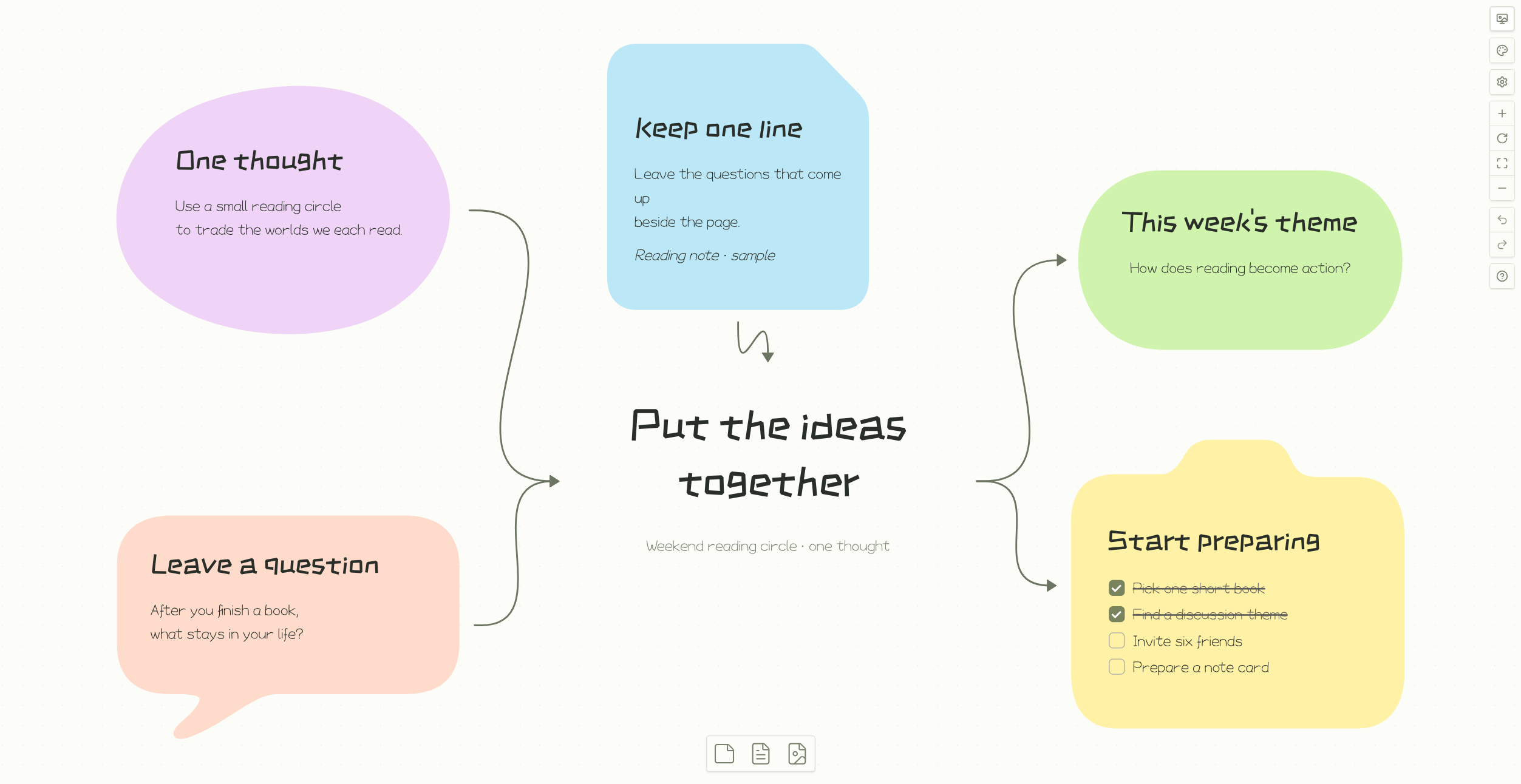
Better Canvas is an enhancement plugin for Obsidian Canvas. Collect loose ideas on cards, express relationships with connections, then shape the content into a mind map, flowchart, or reading workspace. When you need to keep analyzing, ask AI and keep the answer next to its source.
Canvas editing and themes need no AI configuration. Content stays in your vault's .canvas files.
The interface follows Obsidian's language: English by default, Chinese when Obsidian uses a Chinese locale.
Screenshots come from the real Obsidian 1.15.0 interface on Linux (light default theme, default interface scale). The English example content is available in the sample canvases; capture and verification scope are documented in the screenshot notes.
Choose a canvas theme that fits your content
Each canvas can choose its own theme. Click Canvas theme on the right side of the canvas, then pick a matching preset under Node style. Switching themes keeps existing content and positions, and the theme choice is saved with the canvas.
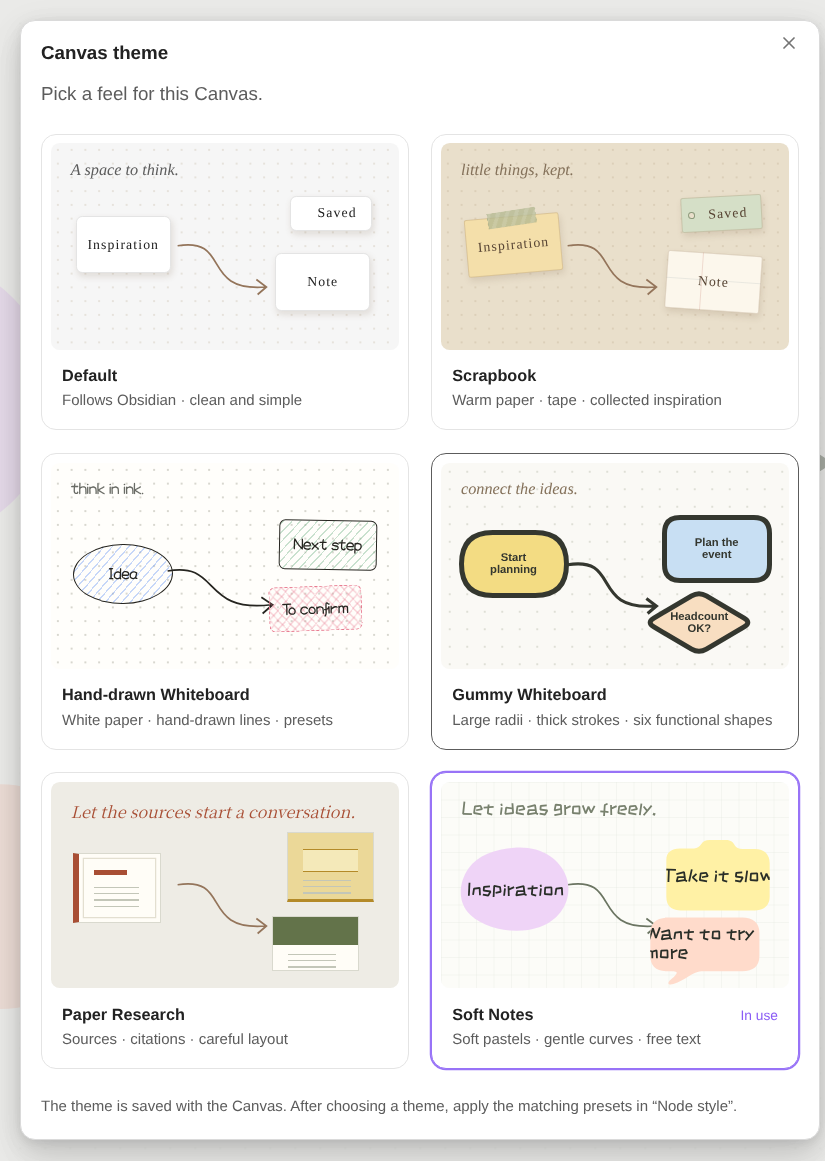
The hero image uses Soft Notes: light colored curves distinguish inspiration, excerpts, concepts, actions, and questions. Free text works well for headings, and action cards can use Markdown task lists directly.
Gummy Whiteboard · Plan a processUse capsules for start and end, diamonds for decisions, and document cards to collect results. 
|
Paper Research · From sources to argumentsKeep the original text, key quotations, reading annotations, and your own arguments side by side. 
|
Hand-drawn Whiteboard · Think through an ideaUse hand-drawn outlines, hatching, and margin notes to express concepts, steps, and open questions. 
|
Scrapbook · Keep a reading momentPlace images, excerpts, and lists on tape-backed notes, ruled paper, and photo frames. 
|
If you like Obsidian's original look, keep using the Default theme. There are six themes in total, suited to different kinds of content and expression. Click an image to view it full size.
Follow your ideas as you type
With cards selected, press Tab to create a child node and Enter to create a sibling. While editing text, use Shift + Tab and Shift + Enter instead to keep expanding the current idea.
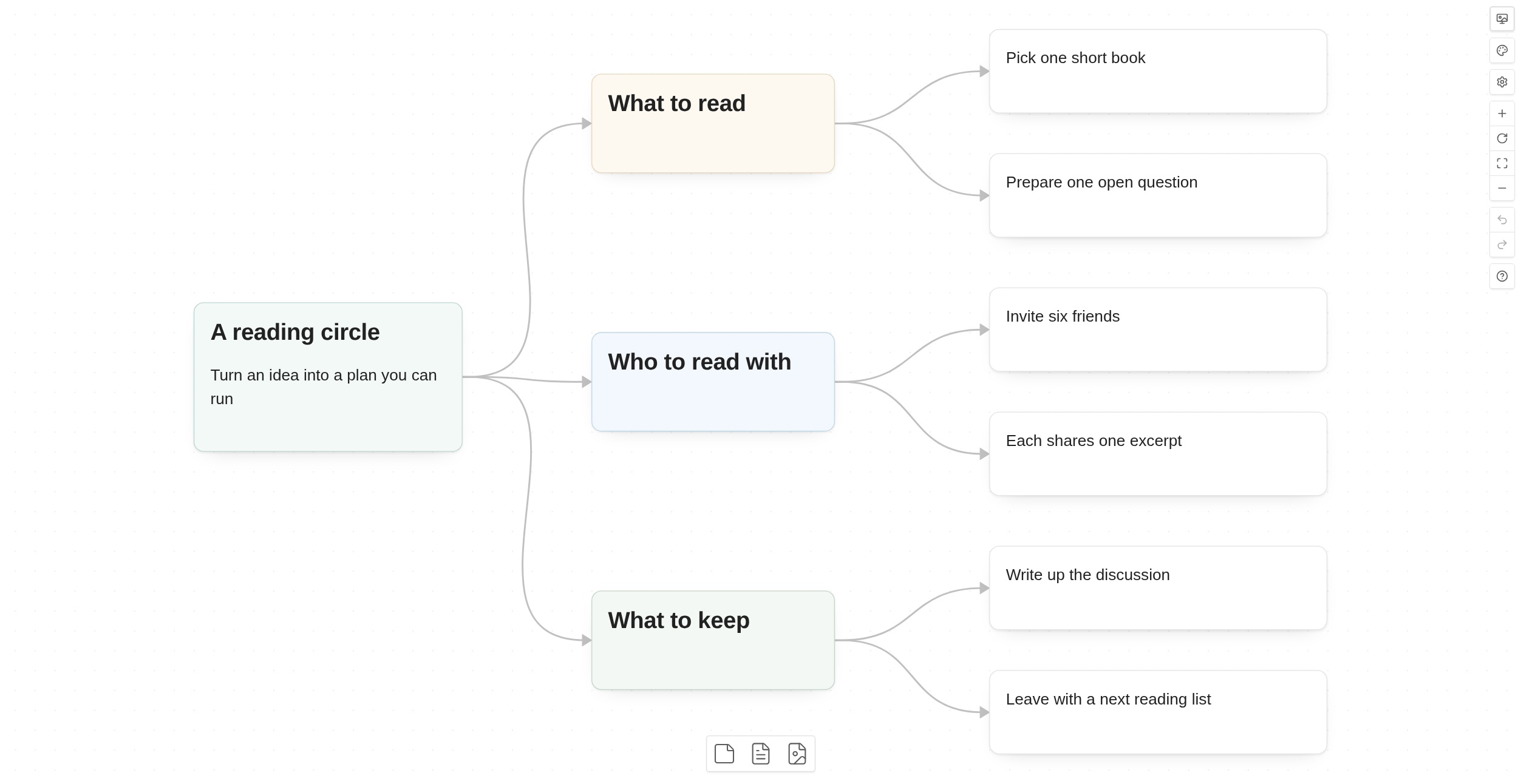
- Shape the structure: Run Auto-arrange mind map to lay nodes out to the left, right, top, and bottom.
- Make fewer manual adjustments: New text cards resize to fit their content by default; after you drag a corner manually, auto-sizing stops.
- Start from a note: Split a Markdown file's first-level headings into nodes, then keep adding to them.
- Browse by relationship: Use
Alt + arrow keysto select adjacent cards, or focus mode to highlight the current content.
Give cards different meanings
Select one or more nodes, then click the Node style palette button on the right side of the canvas.
- Pick a combination preset first, then adjust color, shape, and border as needed.
- Text can be aligned left, center, or right.
- Apply styles to multiple selected cards at once; presets do not replace the body text.
- Connections can be given color, line type, arrows, and routing to describe relationships between cards.
Options differ by theme. For example, Soft Notes stays borderless, and Paper Research offers paper color intensity. See the node styling guide for details.
Keep asking AI alongside your notes
Select a node and open Ask AI about selected nodes from the context menu or command palette. The plugin sends the selected nodes and related context to the configured service, then saves the answer as a new node connected to its source.
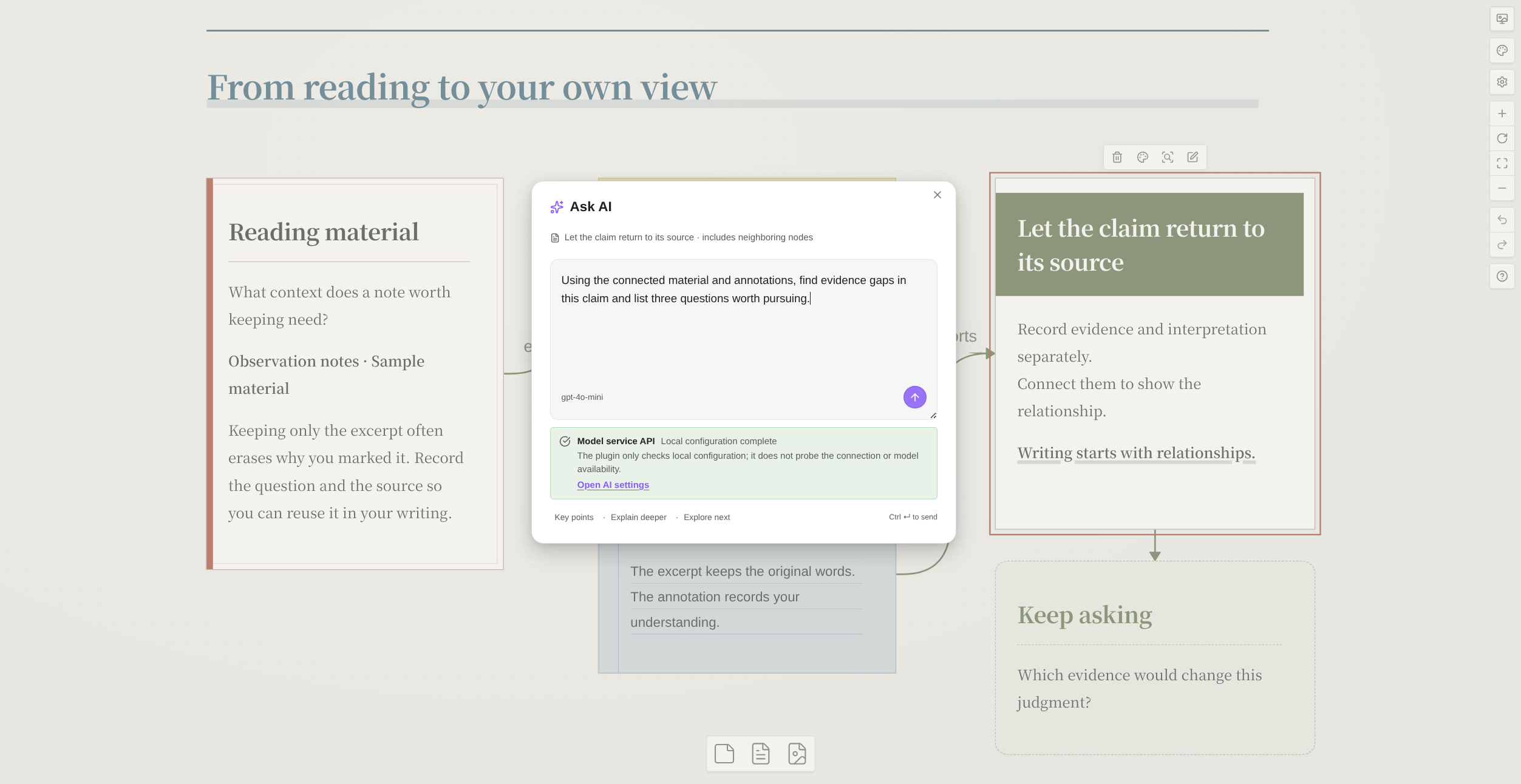
The image shows the entry point only; no request was submitted and no model answer was generated.
- Keep refining: Summarize sources, compare viewpoints, and look for gaps, with streaming answers, stop, and regenerate.
- Support learning: Generate flashcards, or export a Spaced Repetition-compatible deck.
- Work with source material: Import web page text, or use a model with the relevant capability to analyze PDF pages and generate images.
- Choose a service: Supports OpenAI-compatible, Anthropic, and Gemini. On desktop you can also use installed and signed-in Codex CLI, OpenCode ACP, Claude Code, Cursor Agent, Gemini CLI, GitHub Copilot CLI, Qwen Coder, Aider, or IBM Bob. Model discovery and forwarding for Codex and OpenCode are covered by mock tests; the full desktop model-selection flow and real CLI generation for all local agents still need verification.
- Connect external tools: Configure MCP tools, resources, and prompt templates as needed.
AI features are optional, may connect to paid providers, and require separate configuration; capabilities depend on the service and model. Prompts and the context they need are sent to the configured service; local CLI agents may also call remote models. Importing web page text or using a remote MCP server makes network requests. A local MCP stdio server runs as a child process with your operating-system user permissions; connect only services you trust and check tool arguments before execution. Review each provider's data-handling policy before sending private content. See the AI and MCP setup guide.
Keep using the canvas after organizing
| What you want to do | Feature |
|---|---|
| Put away content you are not using right now | Groups and collapsing, focus mode |
| Split a large canvas into topics | Wrap a selection into a new Canvas; reference another canvas with a Portal |
| Connect notes and canvases | Node links, Canvas links, and backlink browsing |
| Take notes while reading a PDF | Pin pages, extract excerpts, pen and highlighter; recognize text by page range (AI OCR) |
| Explain your thinking to others | Presentation mode; export JSON Canvas, or the whole canvas, current viewport, or selection as PNG / SVG |
The static export of a theme may look different from the editing view. Scrapbook paper textures and tape decorations are not currently reproduced in whole-canvas or selection static exports. See the feature guide and known limitations for the exact scope.
Installation
Install from the Obsidian community directory
Better Canvas is listed in the official Obsidian community directory. In Obsidian, open Settings → Community plugins, search for Better Canvas, and install it. You can also use the manual installation below.
Download a release
- Open GitHub Releases.
- Download
better-canvas.zip. - Extract the archive into your vault's
.obsidian/plugins/directory. - In Obsidian, open Settings → Community plugins and reload the plugin list.
- Enable Better Canvas.
The plugin folder should contain the following files:
<Vault>/.obsidian/plugins/better-canvas/
├── main.js
├── manifest.json
└── styles.css
Try the main-branch build
This page describes features in the current source, and a release may not include every update yet. To try the main-branch build, place the following 3 files in the plugin folder above and reload the plugin:
release/ is synchronized automatically by successful Build workflows on the main branch. For the difference between main-branch builds and releases, and for building from source, see the installation guide.
Start with your first card
On first enable, a one-time welcome entry appears. You can create a built-in sample canvas or open the built-in quick start; after you close it or choose the skip option, it will not appear again on every launch. Later, run Open onboarding from the command palette. The sample canvas is written to Better Canvas/快速入门.canvas; if that name is already taken, a numbered name is used and existing files are never overwritten. The first empty canvas also shows a dismissible quick-create hint once.
- Create or open an Obsidian Canvas.
- Click Canvas theme on the right and choose a theme that fits the content.
- Add a text card and write down an idea.
- Select the card and choose a preset under Node style.
- Press
Tabto add a child node and keep expanding.
You can also copy the sample canvases into your vault and edit the content shown in the screenshots directly.
Plugin settings are grouped into 4 categories: Canvas, Interaction, AI assistant, Files. You can configure layout spacing, shortcuts, model services, and export options. Click Save changes to apply them, or Discard changes to restore the saved settings.
Keyboard shortcuts
| Shortcut | Action |
|---|---|
Tab / Enter | While not editing text: create a child / sibling node |
Shift + Tab / Shift + Enter | While editing text: create a child / sibling node |
Alt + ↑ / ↓ / ← / → | Select the node adjacent in that direction |
Ctrl/Cmd + Shift + arrow keys | Create a child node in the specified direction |
Shortcuts can be turned off by group in Settings → Better Canvas → Actions.
Compatibility and data
- Version: Requires Obsidian 1.14.4 or newer. Some features depend on internal APIs; real-device verification mainly covers 1.14.4 and does not mean every version has been verified.
- Devices and appearance: This plugin supports desktop Obsidian only. Behavior with third-party Obsidian themes and complex canvases still needs verification. For non-rectangular cards, connection endpoints, selection, and zoom still follow the native rectangular bounds.
- Portal and PDF: Portal mainly supports one-level synchronization. PDF annotations are saved in the Canvas; full native PDF highlight editing and multi-page annotation management are not complete yet.
- AI and tools: Check the service's data-handling policy before use. Local MCP stdio servers run with the current user's permissions; connect only trusted services and check tool arguments before execution.
- HTML preview: Uses a sandboxed iframe; preview only trusted or reviewed code.
Vault and clipboard permissions
Better Canvas works inside your vault through Obsidian's Vault API. It does not request operating-system file permissions directly.
| Access | When it is used |
|---|---|
| Vault read/write | Reading and updating canvas content, PDF annotations stored in the Canvas, linked notes and files, and writing plugin-created content. This includes AI answer and image nodes, imported material, flashcards, exports, and the optional onboarding sample canvas. The onboarding sample is written to Better Canvas/快速入门.canvas only when you choose to create it, and an existing file is never overwritten. |
| Clipboard (write) | The copy-node-link command writes the selected node's Obsidian wikilink to the system clipboard. If clipboard access is unavailable, the plugin opens a manual-copy dialog instead. |
| Network | Requests to the AI service or MCP server you configure, and web imports you start. Local CLI agents may also contact their configured model services. |
| Local processes (desktop) | Only when you configure a local CLI agent or a local MCP stdio server. |
Implementation and verification status for each item is tracked in the feature integration matrix. Configuration, limitations, custom styles, and other topics are listed in the documentation index.
Development
Development requires Node.js 22 and npm. From the repository root:
npm ci
npm run lint
npm run validate:metadata
npm run typecheck
npm test
npm run build
Copy the generated main.js, manifest.json, and styles.css into the plugin folder. npm run dev starts a development build.
See the testing guide for test layers and desktop verification requirements, repository governance for contribution and review conventions, and the release process for version releases.
Acknowledgements and license
Some feature directions were inspired by Advanced Canvas, Canvas MindMap, and Obsidian AI Canvas.
Better Canvas is licensed under GPL-3.0-or-later. Upstream sources and third-party resources are documented in the acknowledgements.
For plugin developers
Search results and similarity scores are powered by semantic analysis of your plugin's README. If your plugin isn't appearing for searches you'd expect, try updating your README to clearly describe your plugin's purpose, features, and use cases.