by Caleb Smith
Write a novel in ordered folders: chapters and scenes on a corkboard of index cards, in an outliner, or as one editable manuscript. Word count targets, snapshots, export to EPUB, Word and PDF.
Binders for Obsidian
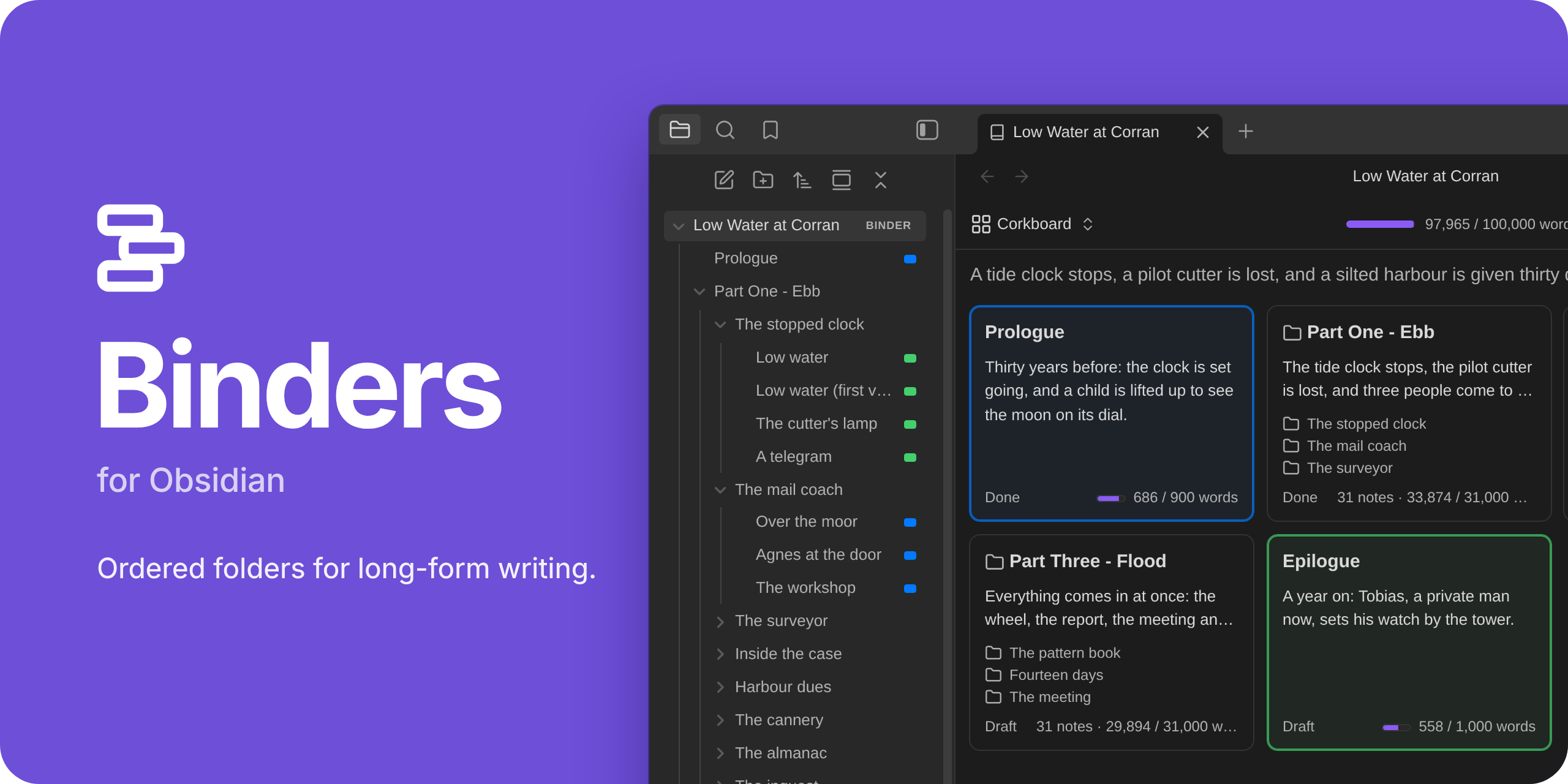
A binder in the file explorer · a corkboard · an outliner · the whole manuscript as one editable page
Folders in Obsidian list their notes by name. Books don't work that way. Binders turns a folder into a binder: its chapters and scenes keep the order you give them, in Obsidian's own file explorer. Open a binder to see the same notes as a corkboard, an outliner, or one continuous manuscript you can edit.
Everything stays plain Markdown. A binder is a folder plus one note that holds its order, and everything about a scene is in that scene's own properties. Turn Binders off and your notes are still ordinary notes.
Public beta. Binders is in public beta. Phone and tablet support is new and has had little testing on real devices. Report what you find in the issue tracker.
What it does
- Order. Notes and folders keep the order you give them, in the file explorer and everywhere else.
- Three views of one binder. A corkboard of index cards, an outliner with columns you pick, and the whole manuscript as one page you can edit.
- Scrivener-style tools. Labels, statuses and word count targets; an inspector; split, merge, duplicate and group scenes; snapshots of a scene, a folder or the whole binder, so you can rewrite without losing the old text; undo of moves.
- Export. A submission manuscript in standard manuscript format (Word or PDF), an ebook (EPUB) for Kindle, Apple Books and Kobo, a print-ready paperback PDF, the binder itself as a Scrivener project, or the whole binder as one note. Book styles you can change, with the real pages beside them.
- Import from Scrivener. A Scrivener 3 project, or a zipped backup of one, as a new binder: you see it before it is made.
- Find and replace. Search every note of a binder; replace one or all, after a review and a snapshot, with Undo.
- Focus mode. The text and nothing else, with typewriter scrolling.
- Longform. Longform projects open as binders, and convert to them.
- Phones and tablets. The same views, by touch, on iOS and Android.
The manual covers all of it.
Installation
Binders needs Obsidian 1.13.4 or later, on a computer, a phone or a tablet.
- From Obsidian: open Settings → Community plugins → Browse, search for Binders, then Install and Enable. Binders is in Obsidian's community plugin directory.
- With BRAT, to try versions as they come out: install BRAT from Settings → Community plugins → Browse, run its command Plugins: Add a
beta plugin for testing, give it
fyresmith/bindersand choose the newest version. BRAT installs Binders and can keep it up to date. - By hand: download
main.js,manifest.jsonandstyles.cssfrom the newest release, put them in<your vault>/.obsidian/plugins/binders/, and enable Binders under Settings → Community plugins. - From source:
npm install, thennpm run build; see Development.
More in Installation.
Getting started
- Make a folder a binder. Right-click a folder in the file explorer and choose Make this folder a binder. Its notes and subfolders keep the order they show in now.
- Arrange its scenes. Click the folder. The binder view opens on it as a corkboard. Drag the cards into the order you want.
- Switch to Manuscript and write. Click Corkboard at the top left of the view and choose Manuscript. The whole binder is one page, and each section is the note itself.
The walkthrough goes on from here to a first exported file.
Three views
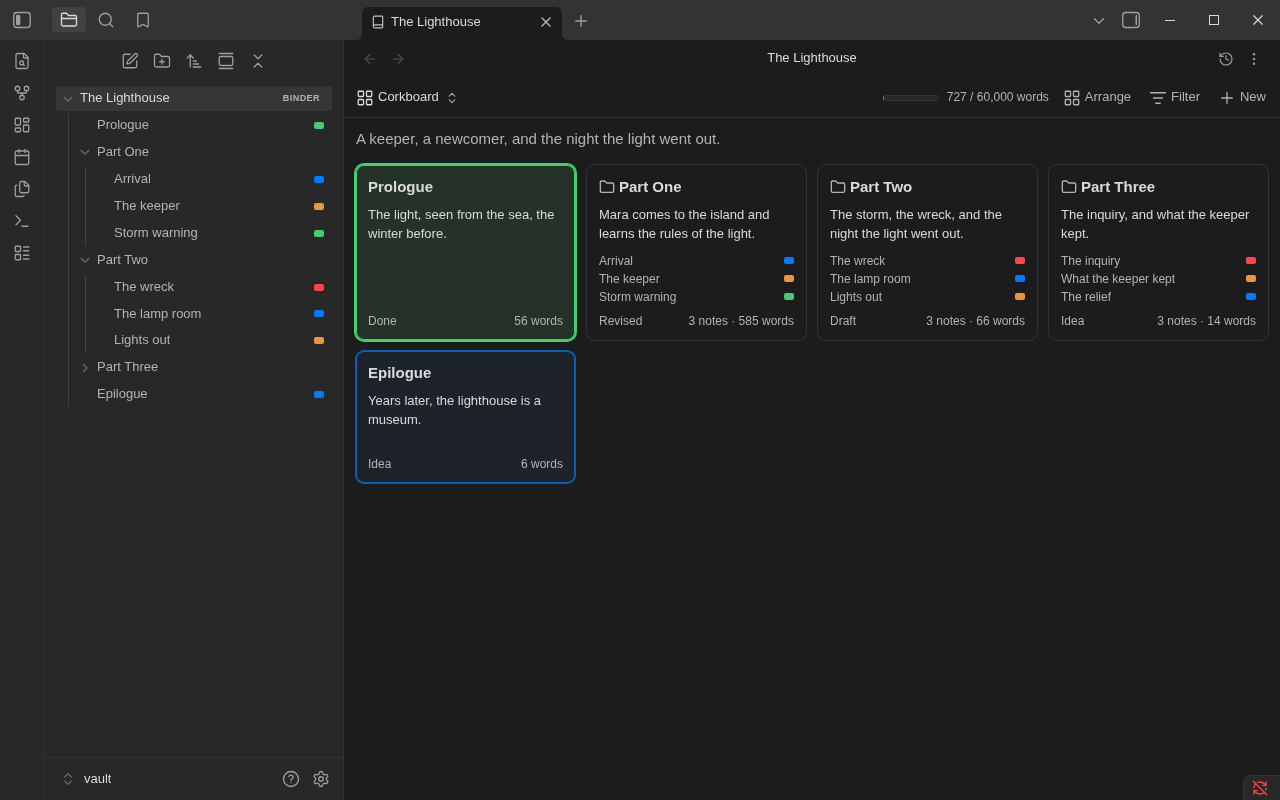
Corkboard
One index card per note, with its title, synopsis, status, label color and word count. Drag cards to reorder them, or lay them out by label to see how a book's threads take turns. More
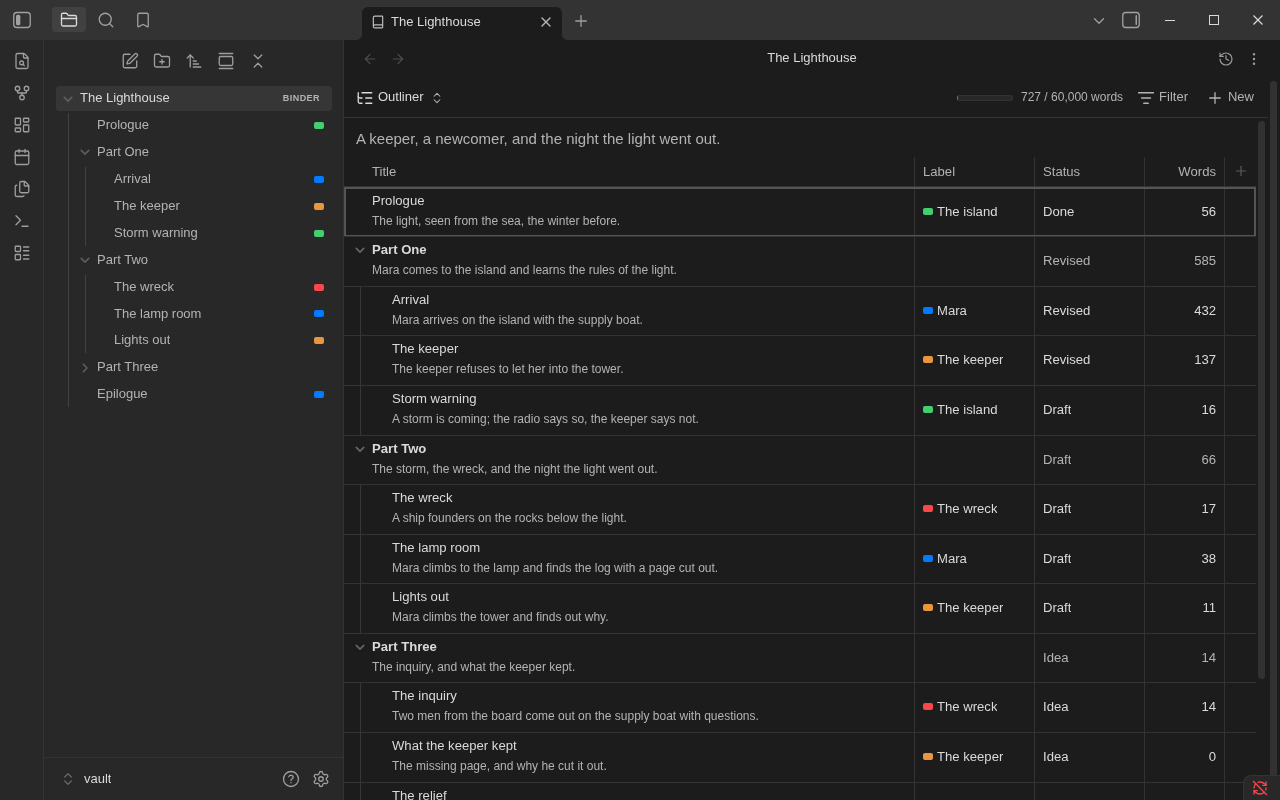
Outliner
The same notes as rows of a table, folders with their notes under them, with columns you pick: label, status, words, target, progress, or any property of your notes. More
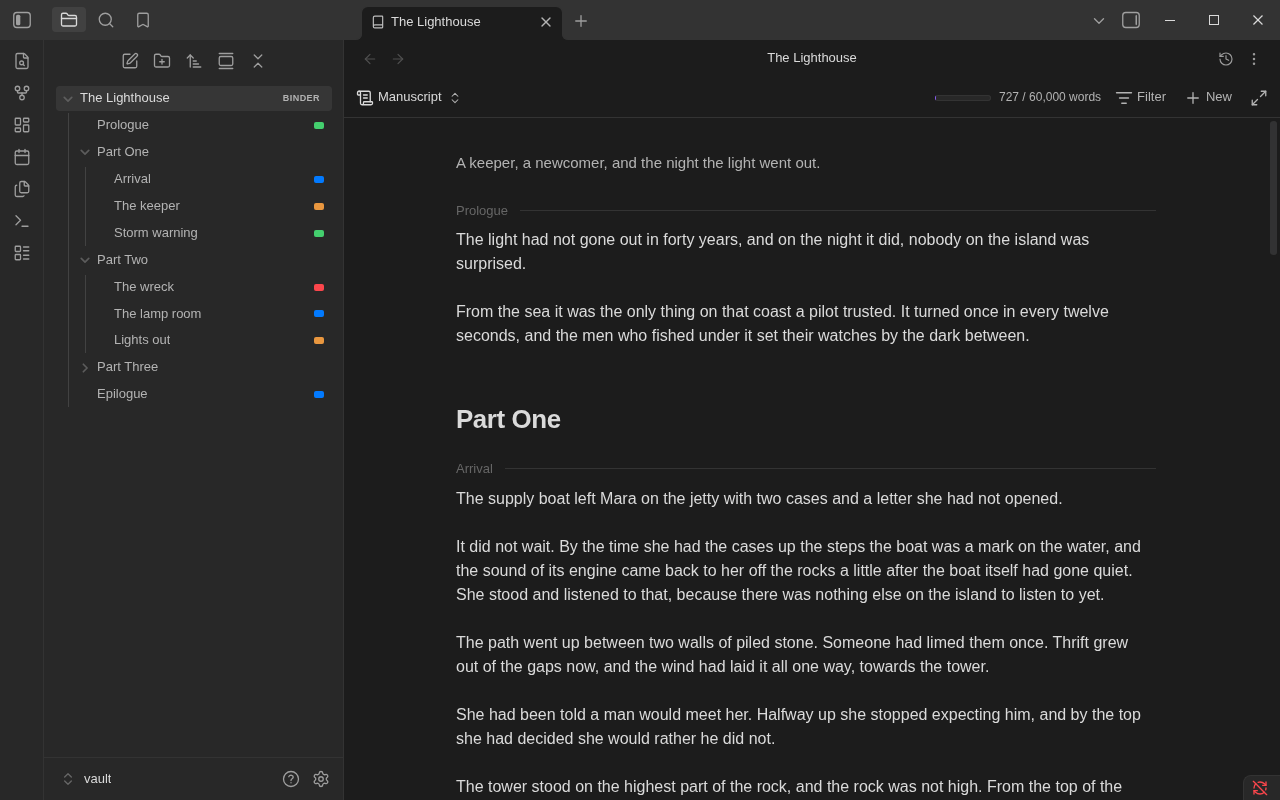
Manuscript
Every note in order as one page. Each section is a real Obsidian editor on that note, so typing, undo, links and formatting work as they do in the note itself. More
Find and replace
Press Ctrl+F in a binder view to search every note of the binder, in binder order: in the manuscript as one page, on the corkboard and in the outliner by lighting the cards and rows that match. A link's target and a tag are not touched unless you type them, and Replace all shows every change in context first, takes a snapshot, and can be undone. More
Import from Scrivener
Run Import from Scrivener... from the command palette and choose a project, or a zipped backup of one. The dialog shows the binder as it will be, and any note of it as it will read, before anything is made. The order, synopses, notes, labels, statuses, targets and snapshots come across; Research can be left behind. The project itself is never changed, and every original file is kept beside the notes. More
Your files
A binder is a folder with a binder note, named like the folder, whose contents property is the order:
---
binder: 1
contents:
  - Prologue
  - Part One/
  - Part One/Arrival
  - Epilogue
---
Each scene is an ordinary note, and what its card shows (synopsis, status, label, target) are its
properties. Binders writes only its own properties and the ones you edit through its views. It doesn't rewrite a
note's text unless you type there or ask it to: split, merge, bring back a snapshot, replace.
How your files look has the whole account.
Limitations
- Public beta. Phone and tablet support has had little testing on real devices, and Binders has not yet been tried on macOS or Windows. What hasn't been tried is listed in full.
- Other file explorers. Plugins that replace the file explorer, such as Notebook Navigator, don't show binder order. The binder view works either way.
- Obsidian internals. Binder order in the file explorer and the editable manuscript rely on parts of Obsidian outside its plugin API. If an update changes one, Binders falls back (name order, a read-only manuscript) and says so.
- Snapshots, export styles and Obsidian Sync. Sync carries them only with "Sync all other types" turned on.
- PDF on a computer. A paperback, or a manuscript as a PDF, is made on a computer. A phone or tablet shows its pages.
The full list is in Known limitations.
Privacy
Binders makes no network requests and has no telemetry. Nothing is downloaded: the typefaces and hyphenation patterns export uses are inside the plugin.
It reads and writes outside your vault in two cases, on a computer, and only where you say in your system's own dialog:
- Export writes the file you export (a Word file, an EPUB, a PDF, a Scrivener project, a copy of a style to share) to the place you choose in the save dialog, and to that place again when you export again.
- Import from Scrivener reads the Scrivener project you choose. It never changes it.
Documentation
| Manual | Everything Binders does, a page per topic |
| Getting started | From an empty folder to a first exported file |
| The binder view | Corkboard, outliner, manuscript, the inspector |
| Export · Styles | Manuscript, ebook, paperback, Scrivener project, one note |
| Import from Scrivener | A Scrivener 3 project as a new binder |
| Snapshots · Focus mode | Rewriting safely, and writing with nothing else on the screen |
| Find and replace | Searching the binder, and changing a word in every note |
| Coming from Scrivener · Coming from Longform | Where each thing you know is |
| Commands · Settings | Reference |
| Troubleshooting · Questions and answers | When something isn't as you expect |
| Roadmap · Changelog | What's planned, and what changed |
| Contributing · Design and architecture | For contributors |
| Issues | Report a problem or ask for something |
License
MIT. The hyphenation patterns, typefaces and libraries inside the plugin are others' work, under their own licences: third-party notices.
For plugin developers
Search results and similarity scores are powered by semantic analysis of your plugin's README. If your plugin isn't appearing for searches you'd expect, try updating your README to clearly describe your plugin's purpose, features, and use cases.