Browser History
approvedby noy4
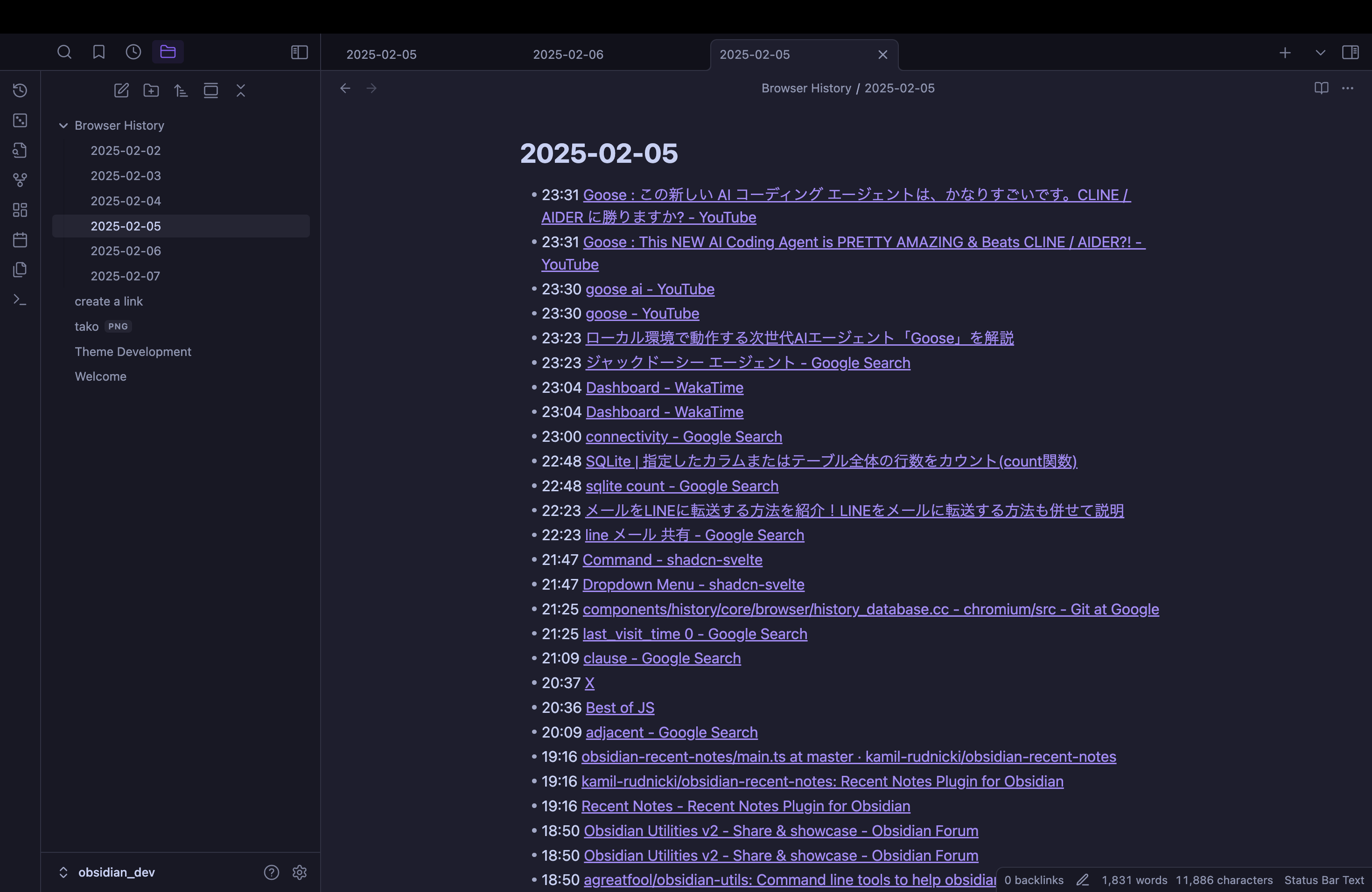
Sync your browser history to notes.
Browser History Plugin for Obsidian
Sync your browser history to notes.
Usage
- Install and enable the plugin.
- Go to the plugin settings.
- Configure the database location, and click
Checkbutton to verify database access.
- Click "Open today's browser history" in the ribbon.

- Optionally enable auto sync features
!!Caution!!
- Do not publish history notes. The URLs in the notes may contain authentication information.
- Some antivirus software may flag this plugin as suspicious due to its access to browser data. This is a false positive as the plugin only reads the browser's history database file.
Settings
Database Location
Path to your browser history database file. Select your browser to automatically set the database path.
Check Connection
Test the connection to your browser history database.
New File Location
Directory where your browser history notes will be saved. Warning: Please select a different folder than your daily notes to avoid any conflicts. Default: Browser History
File Name Format
Examples:
YYYY-MM-DD(default) →2025-06-16.md[Browser History] YYYY-MM-DD→Browser History 2025-06-16.md
For more syntax, refer to format reference
Start Date
Starting date for history note creation. This automatically updates to today after each sync.
Sync
Manually trigger the creation or update of history notes from the specified start date.
Sync on Startup
Enable automatic synchronization when Obsidian starts.
Auto Sync
Set an interval for automatic history note synchronization. Available options:
- Disabled
- 1 minute
- 5 minutes
- 10 minutes
- 30 minutes
- 5 seconds (for testing)
For plugin developers
Search results and similarity scores are powered by semantic analysis of your plugin's README. If your plugin isn't appearing for searches you'd expect, try updating your README to clearly describe your plugin's purpose, features, and use cases.