Calendar Hub
approvedby HWY1dot0
Find every note created on a given day from one calendar view, no matter which folder it lives in. - This plugin has not been manually reviewed by Obsidian staff.
English | 简体中文
Calendar Hub
One calendar, every note from that day — and a List view to browse them all by week, month, quarter, or year.
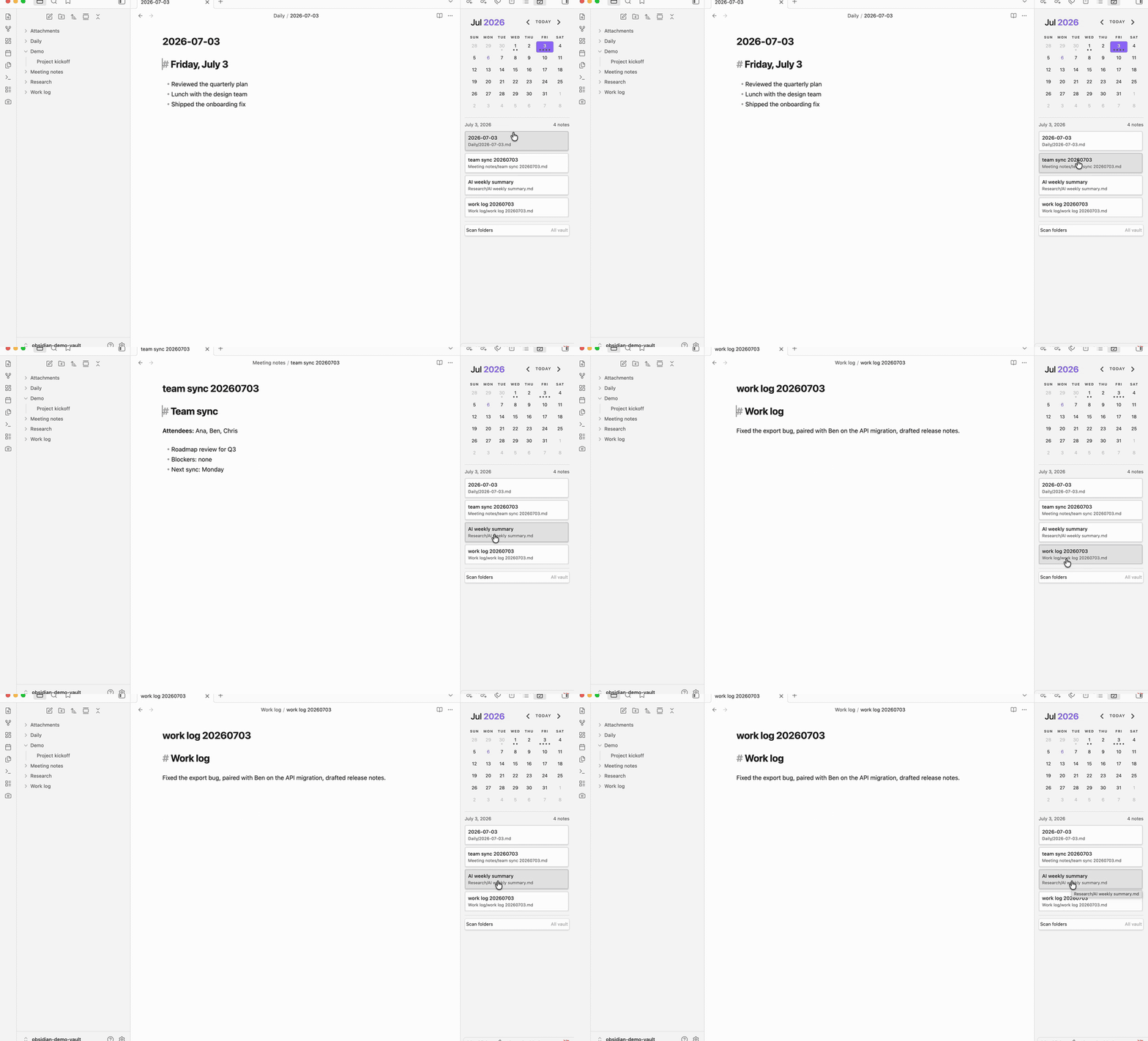
Most calendar plugins map one note per day. Calendar Hub doesn't: click a date and it surfaces every note dated to that day — by its frontmatter, its filename, or (optionally) its creation date — wherever it lives in your vault. And when you want the bigger picture, flip the same pane into a List view and browse everything by period, filtered to just the folders you care about.
Why Calendar Hub?
If you generate a lot of notes — daily logs, meeting notes, AI-generated summaries — they scatter across folders and get hard to track down. A normal calendar only knows about your one configured Daily Note, so everything else stays invisible.
Calendar Hub groups notes by the day they belong to, so a single date can surface many notes at once:
Daily/2026-05-29.mdWork log/work log 20260529.mdMeeting notes/team sync 20260529.md
Click the day, see all three. Or open the List view and read through everything from that week, that month, that quarter — one area of the vault at a time.
Calendar Hub vs. the original Calendar
Calendar Hub is a fork of Liam Cain's Calendar, so everything you expect still works — the monthly view, daily and weekly notes, note-count dots, and "reveal active note." It adds what Calendar was missing:
| Calendar | Calendar Hub | |
|---|---|---|
| Notes per day | One configured Daily Note | Every matching note, in any folder |
| Browsing | Month grid only | List view by year / quarter / month / week |
| Folder scope | Daily Notes folder only | Whole vault, or rule-based folder filters with exclusions |
| Date detection | Daily Notes filename | Frontmatter + filename (extra formats) + creation date |
| Weekly notes · dots · theming | ✓ | ✓ |
It uses its own plugin id (calendar-hub), so you can run it alongside Calendar and switch only
once you are happy.
The calendar
- Click a day to list every note dated to it, whatever folder it lives in; open any of them, or manage them from the panel below the calendar.
- Note-count dots show how many matching notes each day has, at a glance.
- Daily and weekly notes keep working exactly as in the original Calendar.
The List view
The List view shows every indexed note as a collapsible tree — Year, Year › Quarter, Year › Month, or Year › Week — newest or oldest first, with note counts on every group header. Today's branch starts expanded, and clicking a note opens it.
It has two homes:
- In the sidebar: the button row at the top of the calendar pane flips the same pane into the list and back (the row is styled like the file explorer's buttons — some themes reveal it when you hover the top of the pane). The mode you choose is remembered.
- As its own tab: run the Open list view command and drag the tab anywhere — including the main workspace for full-height browsing.
The list also carries its own Filter folders lens: the same checkbox tree as the scan scope,
applied instantly and cleared with one click. Focus the list on 30 Macro for a quarter-by-
quarter read-through without touching what the calendar indexes.
Folder filtering
Two layers, two jobs:
- Scan scope (Settings → Folders to scan for daily notes) decides what the calendar
indexes. It is a rule list: plain entries include a subtree,
-prefixed entries exclude one, and deeper rules win — so30 Macro, -30 Macro/Archivescans 30 Macro except its Archive. A collapsible checkbox tree below the text field writes the rules for you: selecting a folder covers its subtree, unchecking a covered subfolder writes the exclusion, and a dash marks branches that mix included and excluded folders. - The list's Filter folders lens narrows what the list shows, within the scan scope. It never changes the calendar.
Date matching
Calendar Hub maps Markdown files to calendar dates in this order:
- Frontmatter date fields (when enabled) — a note's declared date always wins.
- Exact Daily Notes filename match using your configured Daily Notes format.
- Date embedded in the filename using the Daily Notes format.
- Date embedded in the filename using any extra formats you configure.
- File creation date fallback (optional), only when nothing above yields a date.
Frontmatter dates take priority over filename dates, and both take priority over the creation-date fallback — creation times are set by your device and can change when files are copied or re-synced, which is why declared dates always win. Folder filters apply to every matching source.
Datetime formats work too: YYYYMMDDTHHmmssZZ matches timestamps like 20260709T143025Z or
20260709T143025+0800, and a timestamp with a UTC offset maps to the calendar day written in
the name, not converted to your local timezone — the same vault buckets identically on machines
in different timezones.
Settings
- Detect daily notes in all folders: Scan Markdown files outside the configured Daily Notes folder.
- Folders to scan for daily notes: Limit matching to comma-separated folder paths. Leave blank to scan the whole vault. Prefix a path with
-to exclude its subtree (e.g.30 Macro, -30 Macro/Archive); deeper rules win. - Use frontmatter dates: Read configured frontmatter fields first; the filename is used when no frontmatter date matches.
- Frontmatter date fields: Choose fields such as
date,daily_date, orcalendar.date. When a note has several date fields, they are tried in the order you list them and the first valid date wins — put the field you trust most first. - Date format inside daily note filenames: Pick common formats from the dropdown, or add comma-separated formats by hand, such as
YYYYMMDDorYYYYMMDDTHHmmssZZ. - Use file creation date fallback: Map notes without any declared date to the day the file was created on disk.
- Note count dots: Solid dots show how many matching notes exist for the day, up to 5 dots.
- Confirm before creating new note: Ask before creating a new Daily Note.
- Show week number: Show week numbers and keep legacy weekly-note behavior.
Installation
Calendar Hub is available in the Obsidian Community Plugins directory:
- Open Settings → Community plugins → Browse.
- Search for Calendar Hub and install it.
- Enable it, then open the view from the ribbon icon or the Open calendar view command.
Manual or beta install
Install the latest commit with BRAT using the
repository HWY1dot0/calendar-hub, or download main.js, manifest.json, and styles.css from
a release and copy them into
.obsidian/plugins/calendar-hub/ inside your vault, then reload Obsidian and enable the plugin.
Commands
- Open calendar view: Opens the Calendar Hub sidebar view.
- Open list view: Opens the standalone List view (right sidebar by default; drag it anywhere).
- Reveal active note in calendar: Moves the calendar to the month for the active date-based note (flips the pane back to the calendar first if it is showing the list).
- Open weekly note: Opens or creates the current weekly note when legacy weekly-note support is enabled.
Compatibility
Calendar Hub requires Obsidian 1.7.2 or newer.
The plugin uses Obsidian theme variables and should follow light and dark themes without custom CSS.
Relationship To Calendar
This plugin is based on Liam Cain's original Calendar plugin for Obsidian:
https://github.com/liamcain/obsidian-calendar-plugin
The original project is MIT licensed. The original copyright notice remains in LICENSE, alongside copyright for this fork's modifications.
Calendar Hub uses its own plugin id, calendar-hub, so it can be installed separately from the original Calendar plugin.
Two of Liam Cain's MIT-licensed libraries are vendored unmodified (published build artifacts) under vendor/, each with its license and provenance header: obsidian-calendar-ui 0.3.12 and obsidian-daily-notes-interface 0.9.0. Vendoring keeps the plugin free of runtime npm dependencies.
Development
npm install
npm run build
More plugins by HWY1dot0
- Screenshot Selection — capture selected note content as a theme-faithful PNG.
- Copy for Email — copy notes as rich text that survives pasting into Gmail, Outlook and Apple Mail.
Say Thanks
If Calendar Hub helps your workflow, you can buy me a coffee:
For plugin developers
Search results and similarity scores are powered by semantic analysis of your plugin's README. If your plugin isn't appearing for searches you'd expect, try updating your README to clearly describe your plugin's purpose, features, and use cases.