CalendarPlanner
approvedby lykaunn
Calendar Planner that reads from a master file to plan ahead. - This plugin has not been manually reviewed by Obsidian staff.
Obsidian Calendar Planner
A modified version of the Obsidian Calendar Plugin that reads from a single master planner file instead of individual daily notes.
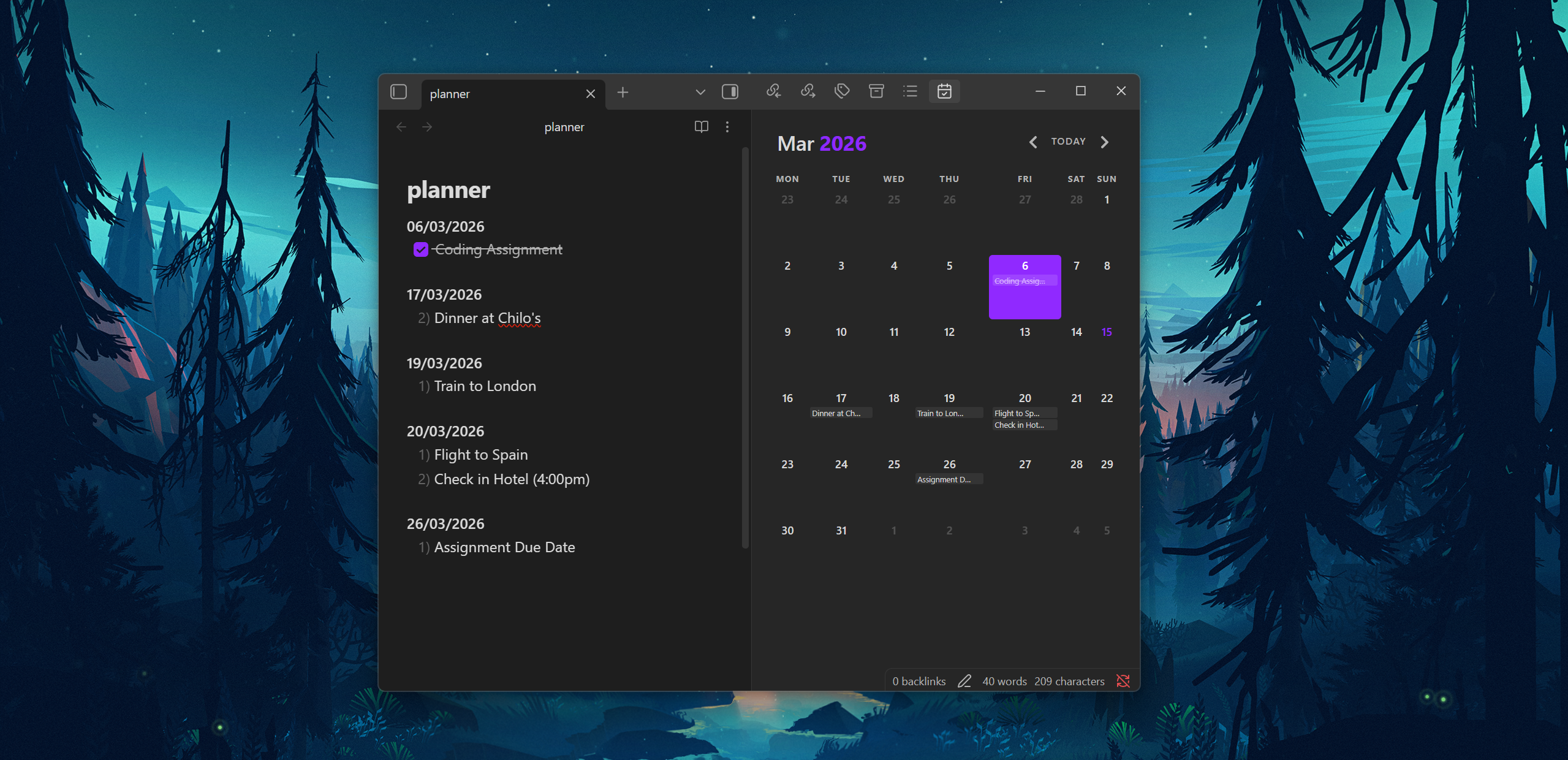
Features
- Single Planner File: All your tasks and events in one
planner.mdfile - Calendar View: Visual calendar showing your entries for each day
- Entry Preview: See actual entry text on calendar days (not just dots)
- Task Management: Click to view, add, and complete tasks
- Checkbox Support: Toggle task completion with
[ ]and[x]syntax - Multi-Day Events: Create entries that span multiple days with date ranges
- Quick Navigation: Jump directly to any date in your planner file
- Flexible Date Formats: Supports
DD/MM/YYYYandYYYY-MM-DDformats
Installation
-
Navigate to your Obsidian plugins folder:
<vault>/.obsidian/plugins/calendar/ -
Replace the existing
main.jswith the modified version -
Reload Obsidian (Ctrl/Cmd + R) or restart the app
-
Enable the Calendar plugin in Settings → Community Plugins
Planner File Format
Create a planner.md file in your vault root (or configure a custom path in settings).
Date Headers
Dates can be formatted in several ways:
**21/03/2026**

**2026-03-21**

## 21/03/2026

### 2026-03-21
Entry Types
The plugin supports multiple entry formats:
**21/03/2026**
1) Numbered list item
2) Another numbered item
- Bullet point item
* Another bullet style
- [ ] Incomplete task
- [x] Completed task
[x] Checkbox without bullet
Just plain text (treated as a note)

**22/03/2026**
- [ ] Submit report
- [x] Call dentist
- Meeting at 3pm
1) Review documents
2) Send emails
Multi-Day Events (Date Ranges)
You can create entries that span multiple days using the [from - to] format:
**21/03/2026**
- [ ] Conference trip [21/03 - 23/03]
- [ ] Project deadline [21/03/2026 - 25/03/2026]
1) Holiday [15/03 - 20/03]
Format options:
[DD/MM - DD/MM]— Uses the current year[DD/MM/YYYY - DD/MM/YYYY]— Explicit year
Multi-day events will:
- Appear on all days within the range
- Show with a highlighted background on the calendar
- Display a date badge in the modal view
Usage
Viewing the Calendar
- Click the calendar icon in the left sidebar, or
- Use the command palette: "Open calendar planner"
Interacting with Days
- Click a day to open the day modal with all entries
- Right-click for context menu options
- Add new entries directly from the modal
- Click checkboxes to mark tasks complete
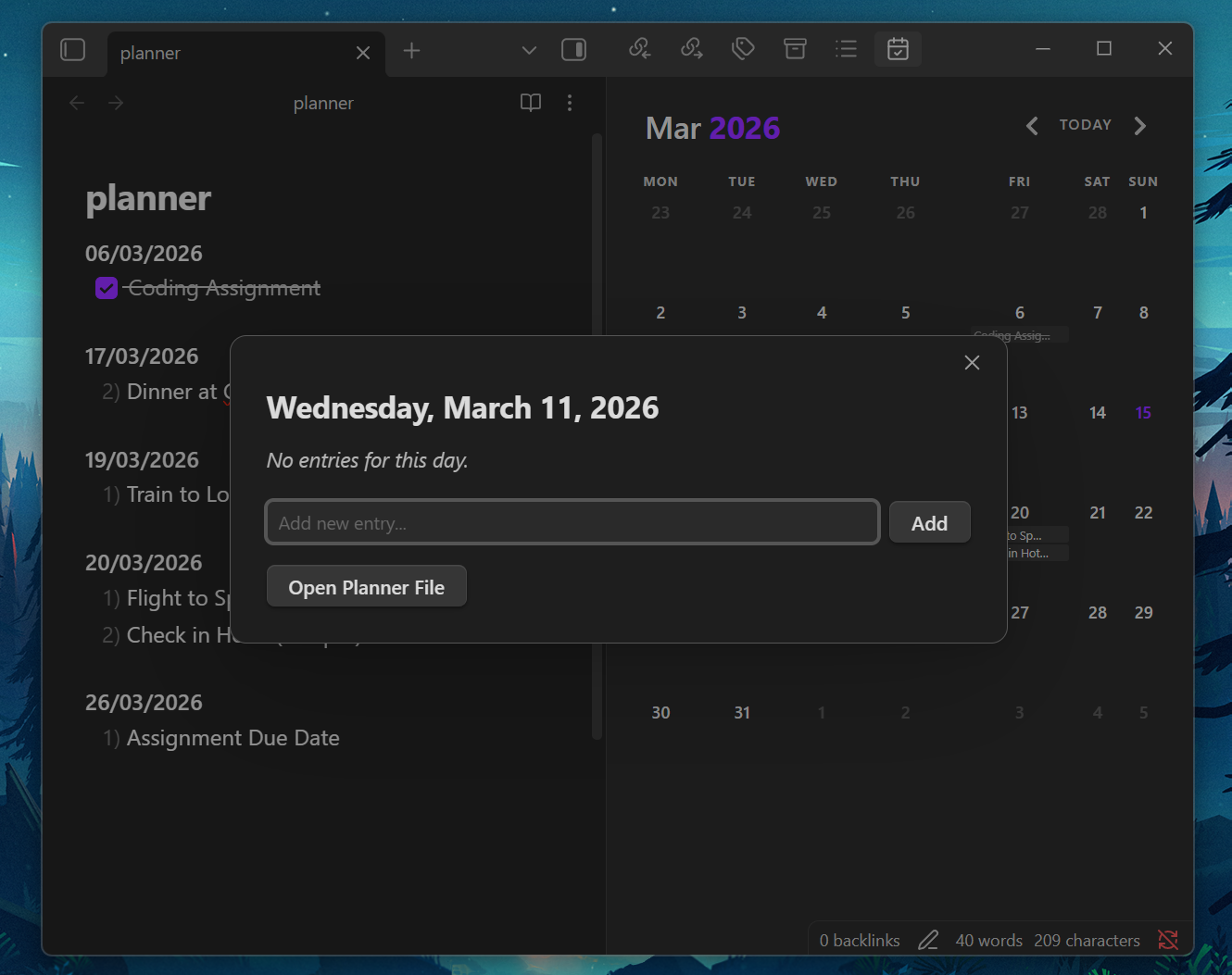
Day Modal Features
- View all entries for the selected day
- Checkbox: Click to mark incomplete tasks as done
- Checkmark (✓): Indicates completed tasks (click to uncheck)
- Add new entry: Type and press Enter or click Add
- Multi-day event: Check the box to add from/to dates
- Date range badge: Shows the span for multi-day events
- Open Planner File: Jump to that date's section in your planner
Settings
Access via Settings → Calendar Planner
| Setting | Description | Default |
|---|---|---|
| Planner file path | Path to your master planner file | planner.md |
| Date format | Format for dates in your planner | DD/MM/YYYY |
| Max entries per day | Number of entries shown on calendar (1-6) | 3 |
| Start week on | First day of the week | Locale default |
| Show week number | Display week numbers column | Off |
Commands
Available in the command palette (Ctrl/Cmd + P):
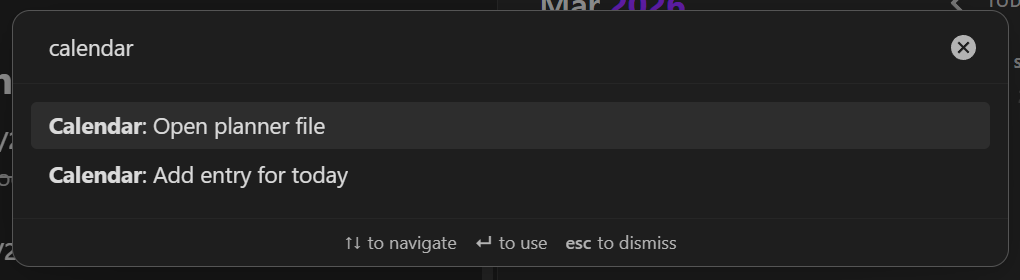
- Open calendar planner - Opens the calendar view
- Open planner file - Opens your planner.md directly
- Add entry for today - Quick add via modal
Calendar Display
Each day cell shows:
- The day number
- Up to N entries (configurable)
- Entry text truncated to fit
- Completed tasks with strikethrough
- "+N more" indicator if there are additional entries
Example Workflow
- Create
planner.mdin your vault root:
**15/03/2026**
- [ ] Morning standup
- [ ] Review PRs
- Lunch with team
- [ ] Deploy to staging

**16/03/2026**
1) Doctor appointment 10am
2) Pick up groceries
- [x] Pay rent
-
Open the calendar view from the sidebar
-
Click on any day to see full details and manage tasks
-
Check off tasks as you complete them - they'll update in your planner file
Differences from Original Plugin
| Feature | Original | This Version |
|---|---|---|
| Data source | Individual daily note files | Single planner.md file |
| Day display | Dots indicating content | Actual entry text preview |
| Task completion | Via daily note | Direct checkbox toggle |
| Navigation | Creates/opens daily notes | Opens planner at date section |
Troubleshooting
Entries not showing
- Ensure your date format matches the setting (DD/MM/YYYY vs YYYY-MM-DD)
- Check that date headers use the correct syntax (
**date**or## date) - Verify the planner file path in settings
Checkboxes not detected
Supported formats:
- [ ] taskor- [x] task* [ ] taskor* [x] task[ ] taskor[x] task1) [ ] taskor1) [x] task
Calendar not refreshing
- Close and reopen the calendar view
- Reload Obsidian (Ctrl/Cmd + R)
Credits
Based on the Obsidian Calendar Plugin by Liam Cain.
License
MIT License - See original plugin for full license details.
For plugin developers
Search results and similarity scores are powered by semantic analysis of your plugin's README. If your plugin isn't appearing for searches you'd expect, try updating your README to clearly describe your plugin's purpose, features, and use cases.