Schedule Calendar
approvedby seonggoos
Visual drag-and-drop calendar for daily and weekly schedule notes. - This plugin has not been manually reviewed by Obsidian staff.
Schedule Calendar
A visual interactive calendar for Obsidian — turn your daily note schedules into a drag-and-drop timeline, just like Notion Calendar.
Features
Views
- Daily view — 24-hour timeline with full drag, resize, and edit support
- Weekly view — side-by-side 7-day overview
- Monthly view — grid calendar with event chips per day, click to jump to daily view
Interactions
- Drag to move — drag events up/down to reschedule (snaps to 15-minute intervals)
- Move between days — drag a timed event horizontally to another day in weekly view
- Resize — drag the bottom or top edge of an event to adjust end or start time
- Click to edit — click any event to open a popup and edit title or time
- Delete — remove an event directly from the edit popup
- Double-click to add — double-click any empty time slot to create a new event; a ghost preview shows the time range before you confirm
- Mobile-friendly add — use the
+ 일정 추가button on touch devices; missing daily notes can be created in one click - Undo — press
Cmd/Ctrl+Zto revert the last change (up to 20 steps) - Safe auto-sync — atomic note updates preserve concurrent edits; undo stops if the note changed elsewhere
- Completion and all-day events — use Markdown checkboxes to track completion and create events without a time
Daily Notes integration
- Automatic settings — uses the core Daily Notes folder, date format, and template when the plugin is enabled
- Template-aware creation — creates missing notes through the core Daily Notes workflow, then safely adds the schedule section
- Manual fallback — configure a folder and Moment.js date format when Daily Notes is disabled or manual mode is preferred
Overlapping events
Events that overlap in daily or weekly view are laid out side by side instead of covering one another.
Drag tooltip
A floating HH:MM – HH:MM label follows your cursor during any drag or resize so you always know exactly where an event will land.
Tag colors
Add a #tag anywhere in an event title to apply a unique accent color. The same color appears on monthly chips and in the daily stats bar.
- 09:00 - 10:00 Morning standup #work
- 10:00 - 12:00 Deep work session #work
- 13:00 - 14:00 Lunch #life
- 18:00 - 19:00 Gym #health
Daily stats bar
The bottom of the daily view shows the total scheduled time and a per-tag breakdown.
Zoom
Use the − / + buttons in the header to scale the timeline density (0.75× / 1× / 1.5× / 2×).
Note links
If an event title contains a [[wiki link]], the edit popup shows an ↗ button to open that note directly.
Other
- Now line — red indicator showing the current time
- Configurable — section name, note folder, and default event duration are all customizable
- Localized UI — automatically follows Obsidian in Korean or English; other languages fall back to English
Screenshots
| Daily | Weekly | Monthly |
|---|---|---|
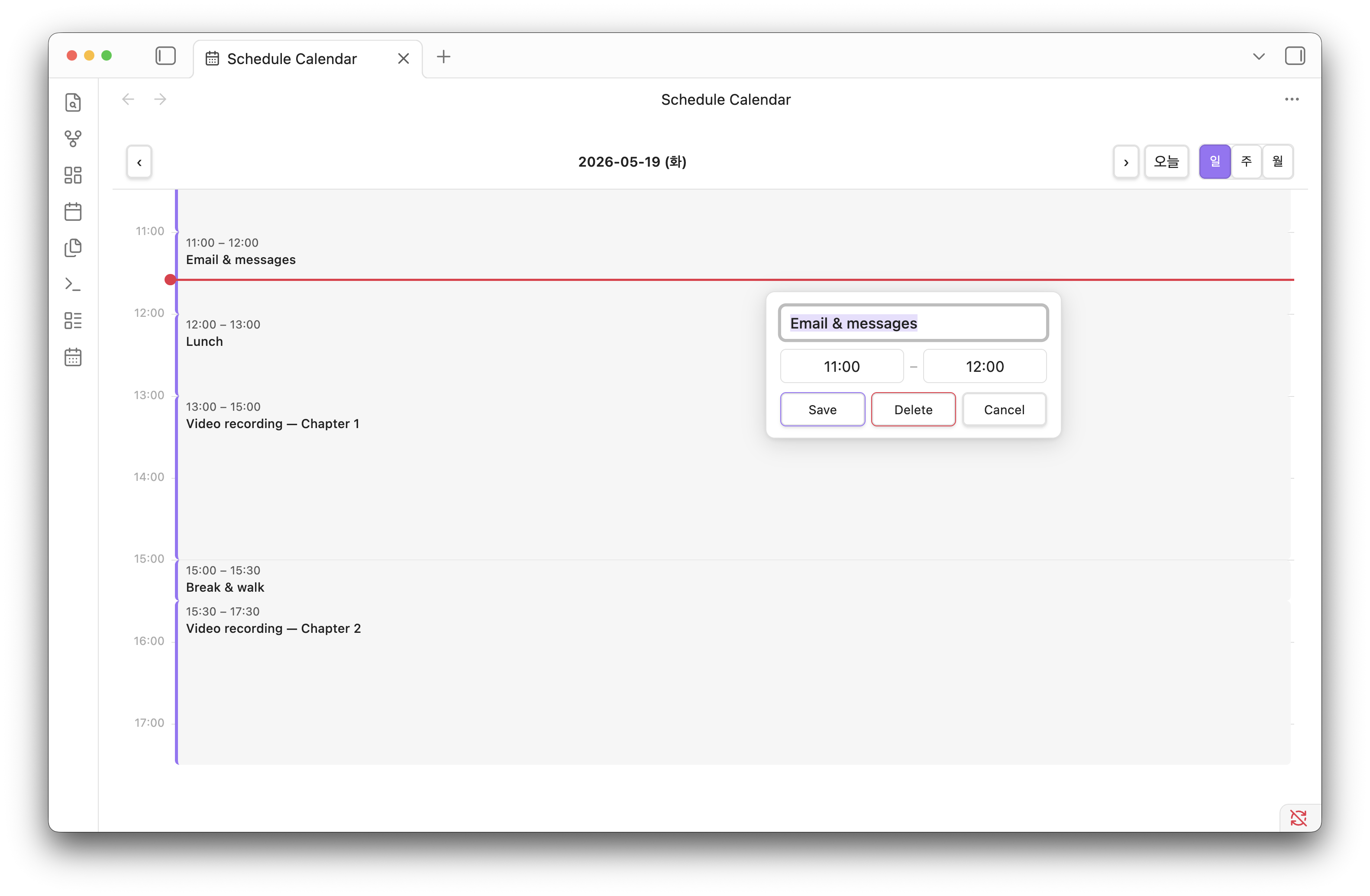 | 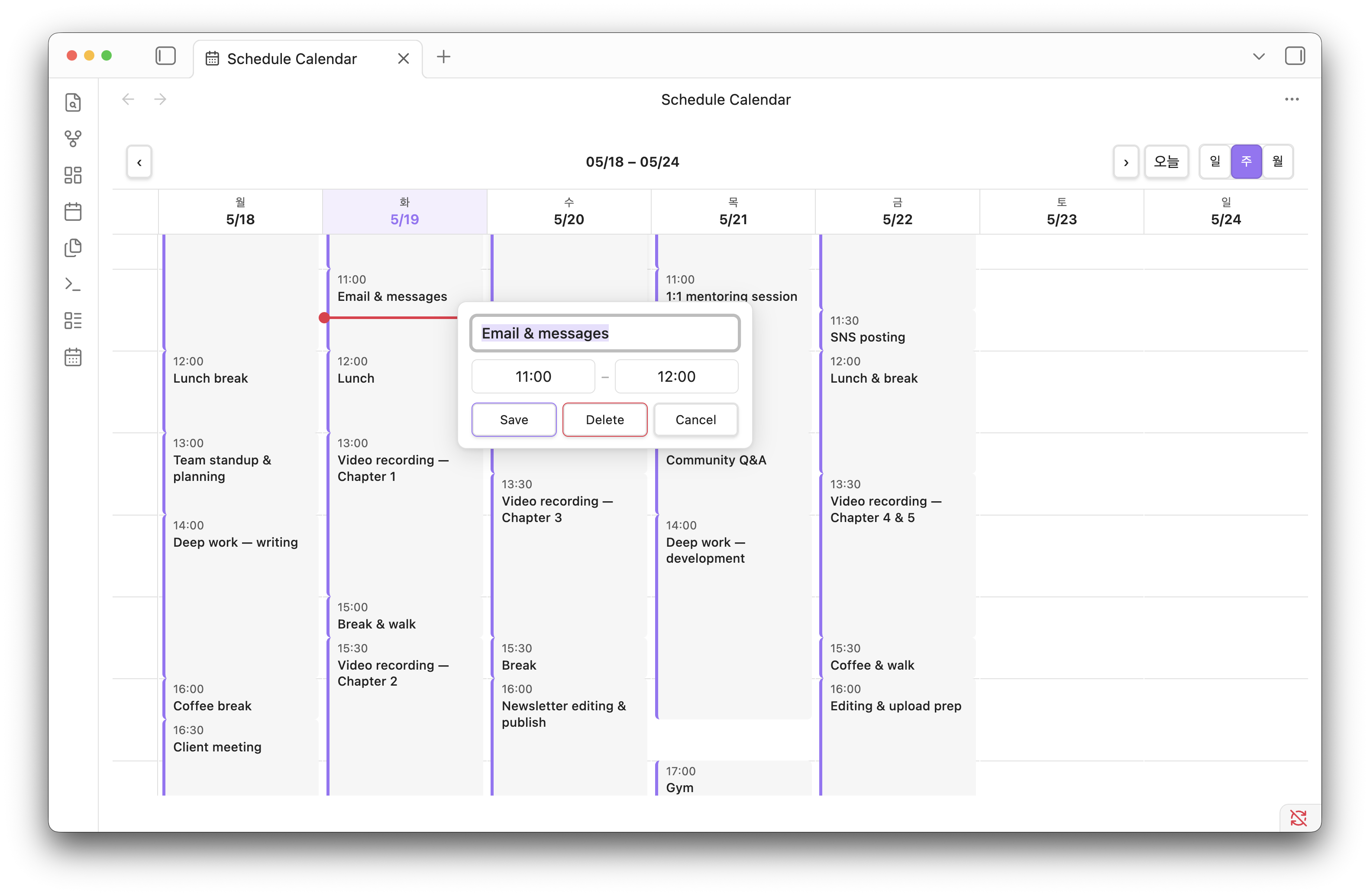 | 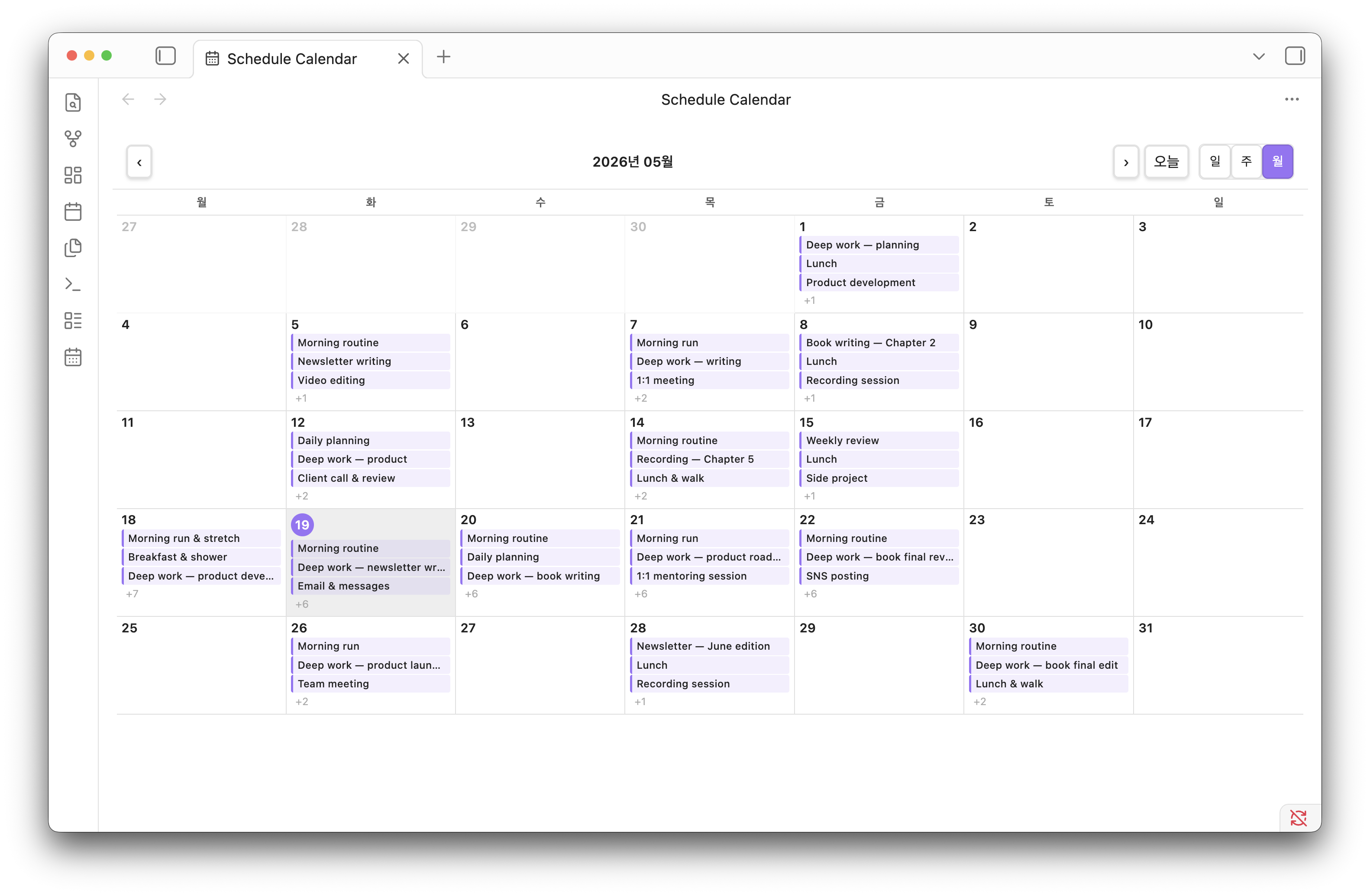 |
How It Works
Schedule Calendar reads schedule entries from your daily notes and renders them as interactive blocks on a timeline. Any changes made in the calendar are written back to the note file automatically — no separate database.
Schedule Format
Your daily note must contain a ### Schedule section with entries in this format:
### Schedule
- [ ] All-day preparation #work
- [x] 08:30 - 09:00 Completed routine
- 09:00 - 10:00 Morning routine
- 10:00 - 13:00 Deep work #work
- 13:00 - 14:00 Lunch #life
- 14:00 - 18:00 Meetings #work
The section name (Schedule) is configurable in settings. A checkbox without a time is treated as an all-day event. Timed entries may use a checkbox to track completion. Legacy timed entries without checkboxes remain supported and keep their original format when edited. Adding #tag is optional — events without a tag use the default accent color.
Installation
From Community Plugins
The plugin is being prepared for the Obsidian Community directory. Until it is approved, install it with BRAT or manually from GitHub Releases.
Manual Installation
- Download
main.js,manifest.json,styles.cssfrom the latest release - Create a folder:
<vault>/.obsidian/plugins/schedule-calendar/ - Copy the three files into that folder
- Open Obsidian → Settings → Community plugins → enable Schedule Calendar
BRAT (Beta)
- Install the BRAT plugin
- Add
seonggoos/obsidian-schedule-calendaras a beta plugin
This is currently the recommended installation method for automatic updates.
Usage
- Click the 📅 calendar icon in the left ribbon, or
- Open the command palette and run Open Schedule Calendar
- Use the 일 / 주 / 월 (Day / Week / Month) toggle in the header to switch views
- Use ‹ › arrows to navigate, and 오늘 (Today) to jump back to today
- In weekly/monthly view, click a day to open it in daily view
- Press
Cmd/Ctrl+Zto undo the last change
Settings
Go to Settings → Schedule Calendar to configure:
| Setting | Default | Description |
|---|---|---|
| Daily note settings | Automatic | Uses the core Daily Notes configuration, or switches to manual settings |
| Schedule section | Schedule | The ### heading to parse schedules from |
| Daily note folder | 30.Calendar/31.Daily/ | Manual-mode folder where daily notes are stored |
| Date format | YYYY-MM-DD | Manual-mode Moment.js format used for daily note file names |
| Default event duration | 30 min | Default event duration when adding via double-click (15 / 30 / 60 / 90 / 120 min) |
Compatibility
- Obsidian v1.8.7+
- Works with Daily Notes core plugin
- Other daily-note layouts can be configured with manual folder and date-format settings
License
For plugin developers
Search results and similarity scores are powered by semantic analysis of your plugin's README. If your plugin isn't appearing for searches you'd expect, try updating your README to clearly describe your plugin's purpose, features, and use cases.