Canvas HTML Exporter
approvedby hkohlhoff
Export canvas files as portable interactive HTML package or standalone page. - This plugin has not been manually reviewed by Obsidian staff.
Canvas HTML Exporter
Export your Obsidian canvas as an interactive HTML page that can be opened in any modern browser.
Requires Obsidian 1.13.0 or later.
Tested platforms
The current plugin has been manually tested on:
- Windows 11;
- macOS.
The exported HTML was checked in current desktop browsers on those systems. Advanced Canvas compatibility was additionally checked with the Standard, Minimal, and AnuPpuccin themes.
If Canvas HTML Exporter is useful to you, you can support its continued development by buying me a coffee.

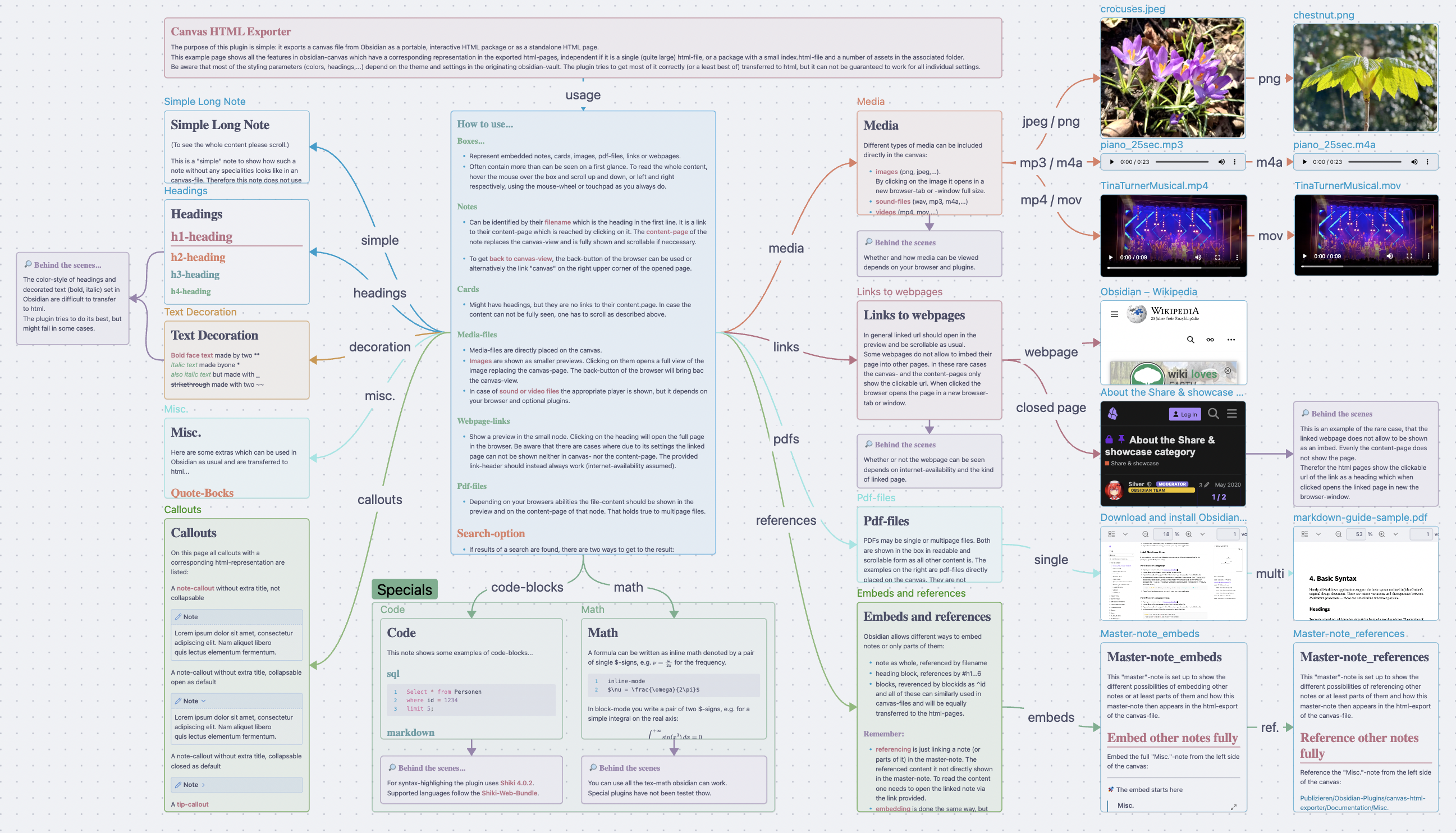
The canvas showing the documentation of this plugin, seen in Obsidian...
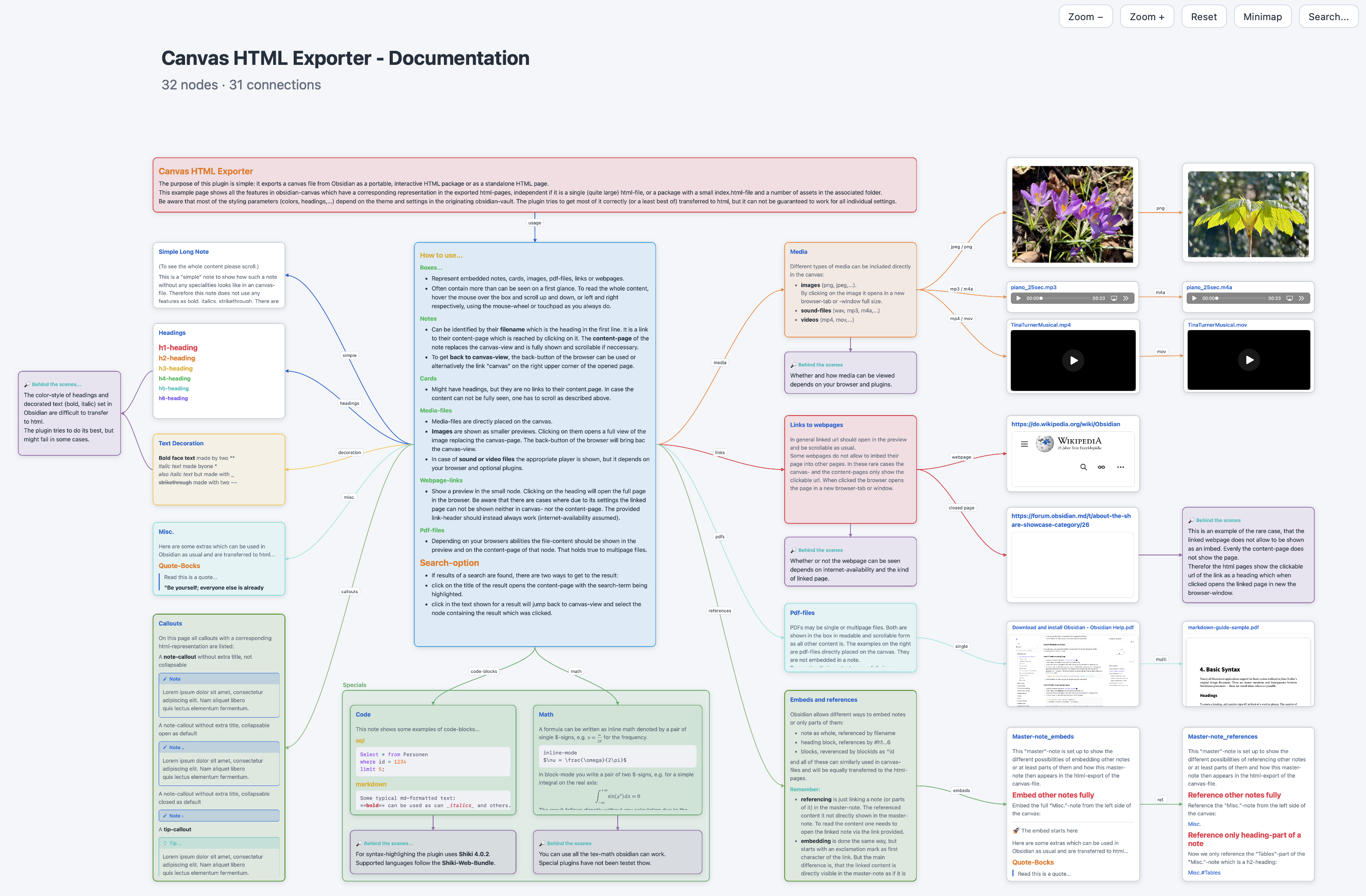
looks (nearly) the same in the exported interactive HTML page...
The plugin supports two export formats:
Package folder: creates a portable folder containingindex.html, copied assets, and optional HTML subpages. This is the recommended format for large or media-heavy Canvases because the browser opens a small HTML document and loads assets separately.Single HTML file: creates one self-contained HTML document with inline assets and virtual subpages. It is easiest to share as one file, but large embedded assets can delay initial browser interactivity.
You can choose the export format and other options in the plugin settings.
An interactive export example of the Canvas shown above is available as a single HTML file. It is a large file of about 19.3 MB and was refreshed for version 1.3.2. This README contains the current feature documentation.
A demo-vault with the complete content showcase can be downloaded from the
examples/demo-vault folder.
Features
- Export the active
.canvasfile as an interactive HTML package or a single self-contained HTML file - Preserve canvas layout, node styling, groups, connection labels, line styles, and markers
- Preserve supported Advanced Canvas shapes, borders, text alignment, edge paths, edge heads, and saved colors
- Add independent collapse controls for Advanced Canvas groups in the exported page
- Render text nodes and Markdown file nodes with Markdown formatting
- Show Markdown file nodes with a preview and export them as standalone HTML pages or embedded single-file pages
- Rewrite internal Markdown links, wiki links, heading links, section embeds, and block references
- Copy assets into package exports or inline them into single HTML exports
- Support image, PDF, audio, video, and generic file nodes
- Render LaTeX math with KaTeX
- Highlight fenced code blocks with Shiki and selectable themes
- Support link nodes with preview pages and offline/blocking fallbacks
- Include zoom controls, visibility-aware reset/fit, an optional minimap, and an optional search overlay
- Add interactive branch folding, level views, branch focus, and global folding actions to exported pages
- Optionally start the exported page with the current Canvas Folding state
- Keep folding available in exported HTML even when Canvas Folding is not installed
- Show hidden node and group counts separately in the exported page header
- Highlight selected search results with a strong yellow pulse
- Preserve light/dark mode and selected Obsidian theme colors where possible
Interactive Canvas Controls
Every exported Canvas page keeps its original node positions and adds browser controls above the Canvas:
Zoom −andZoom +change the current scale without moving nodes.- Area zoom is always available: drag a rectangle with the left mouse button
over a non-interactive part of the Canvas and release it to fit that area.
A short click remains unchanged; press
Escto cancel the current drag. Resetfits the currently relevant graph into the available browser area. Hidden nodes are excluded; while a branch is focused, the dimmed surrounding context is excluded as well. The fit calculation uses the actual remaining height below the toolbar, heading, and information line, including in short browser windows.Minimapshows the Canvas overview, hidden/focused state, and current viewport. It can be moved and used for navigation.Search...opens keyboard- and mouse-accessible node search. Selecting a result reveals it when necessary, scrolls it into view, and marks it briefly with a prominent yellow pulse highlight. Tab and Shift+Tab stay inside the open search dialog; closing it returns focus to the control used to open it.
Folding menu
Canvases with nodes or groups receive a Folding menu in every initial folding
mode:
No foldingexpands the complete Canvas and hides node folding/focus controls.Enable foldingturns the controls back on.Hide/Show folding controlschanges only the visibility of the branch controls on nodes; the current folded state remains unchanged.Expand allreveals all branches.Collapse allcollapses every rooted branch while safely handling multiple roots, shared descendants, cross-links, and cycles.Level Nshows nodes through the selected shortest root level. Nodes in rootless directed cycles remain available rather than being assigned an arbitrary level.Restore foldingrestores the unchanged state imported during export. If no state was imported, it restores the initial fully expanded view. This action remains available even inNo foldingmode.- A separator introduces the focus section.
Hide/Show focus controlschanges the visibility of focus controls without ending an active focus. Exit focusends the active branch focus and deliberately appears last in the menu because it is a focus action rather than a folding action.
Every node and group receives a focus control. Nodes and groups with directed descendants additionally receive a branch control:
- the
−control collapses that branch recursively. An expandable branch displays the number of its currently hidden descendant nodes instead of+; the focus control is hidden until the branch is expanded again, leaving the complete control area to the folding count. The control grows for multi-digit counts as needed. Shared descendants remain visible while they are still reachable through another open parent branch. In that case the collapsed branch connection is hidden,+remains, and its tooltip reports the hidden connections; - if every descendant of a visible item is unavailable behind a folded group, its branch control stays in place but is disabled with Branch hidden by folded group. Expanding the group restores the control without changing that branch's previous state;
- the focus icon shows the selected node and, when present, its descendants at
full opacity while keeping the rest of the Canvas visible as context at 20%
opacity. Focusing a group also keeps every item geometrically contained by
that group at full opacity. A node or empty group can therefore be focused on
its own;
Resetfits the focused area to the available viewport. Selecting the same focus icon again exits focus.
Folding is non-destructive. It changes only the browser representation:
visible nodes retain their original positions, and the source .canvas file
is never changed. An edge and its label are hidden whenever at least one of its
endpoints is hidden. The information line reports hidden content nodes and
hidden Canvas groups separately.
Connected groups follow their own directed branch. Folding a group also hides nodes geometrically contained by it, even when those nodes have no separate edge from the group. Folding a separate node branch inside that group hides only that node branch and does not indirectly hide the connected group frame.
Optional Canvas Folding Integration
Canvas Folding is an optional
companion plugin, not a dependency. In the Folding setting, choose:
No foldingto start fully expanded with node folding/focus controls switched off; this is the default. The Folding menu remains available, andEnable foldingactivates the controls in the exported page;Fully expandedto include the controls while starting with every node visible;Current Canvas Folding stateto start the exported page with the same folded branches that are currently shown in Obsidian.
If Canvas Folding is not available while Current Canvas Folding state is
selected, export continues normally and the page starts fully expanded with
browser folding controls.
The generated page is self-contained: its folding controls work in a normal browser regardless of whether Canvas Folding is installed in the Obsidian Vault that later opens or shares the export.
Update Description
After a new plugin version is loaded in Obsidian, the plugin opens a Markdown-
rendered What's new view once. It summarizes the new controls and how to use
them. Closing the view removes it completely; no release-note file is created
in the Vault.
The update description is marked as read only after you close it. It is shown
once per plugin version, including maintenance updates, and does not reappear
on every Obsidian start. Use Show last update at the bottom of the plugin settings to
open it again at any time. Use Show readme beside it to open this complete
documentation locally inside Obsidian. The repository keeps the same text in
Last Update.md.
Supported Content
Canvas nodes:
- text nodes
- group nodes
- link nodes
- Markdown file nodes
- image, PDF, audio, video, and generic file nodes
Markdown content:
- headings, lists, tables, blockquotes, callouts, code fences, and horizontal rules
- LaTeX math
- internal links, wiki links, section links, embeds, and block references
Advanced Canvas compatibility
Canvas HTML Exporter reads supported Advanced Canvas attributes directly from
the saved .canvas file. Advanced Canvas does not need to be installed or
enabled when you export or view the generated HTML. Disabling Advanced Canvas
does not remove these stored attributes. Standard Obsidian does not render all
of them, so the generated HTML can intentionally retain an Advanced Canvas
appearance that is not currently visible in Obsidian.
The exporter preserves the built-in node shapes, border styles, text alignment, edge path styles, edge heads, the six numbered Canvas palette colors, and custom colors. For items without an explicitly saved color, it samples the active Canvas appearance at export time. Theme CSS, Style Settings values, and active CSS snippets can therefore influence the exported default edge color.
Advanced Canvas groups receive their own browser control. Collapsing a group keeps its title row and connected edges available while hiding its frame and geometrically contained content. Nested groups, search, minimap, fit/reset, restore, and the normal Canvas Folding controls continue to work with this separate group state.
Open
Advanced Canvas Attributes.canvas
from the included demo vault to see the supported visual attributes and group
behavior in one self-contained example.
Export Formats
Package folder
Each package export creates a dedicated folder inside the configured output directory (here: "Canvas-Exports"):
Canvas-Exports/
  Canvas_Name/
    index.html
    assets/
      images/
      files/
Depending on the canvas contents, the export may also include additional HTML pages for Markdown and link nodes which will then reside in the files folder.
For large or media-heavy Canvases, this is usually the better-performing
format. Keep the complete package folder together when moving, publishing, or
sharing it. As a concrete example, the documentation Canvas used during
development produced a package index.html of about 252 KB, while the
equivalent single HTML file was about 19.3 MB. Actual sizes depend on the Canvas
and its embedded assets.
Obsidian can hide generated .html files in its file tree even though the
export completed successfully and the files are present on disk. Enable
Obsidian Settings → Files and links → Detect all file extensions for the
current Vault when you want index.html and single HTML exports to appear in
Obsidian's file tree. This is an Obsidian Vault setting, not a Canvas HTML
Exporter setting, and can therefore differ between Vaults.
Single HTML file
Single HTML exports create one file in the configured output location (here: "Canvas-Exports"):
Canvas-Exports/
  Canvas_Name.html
Because assets are embedded, the file can grow to several MB for large canvases and/or many assets.
The browser must parse the embedded content before the page becomes fully
interactive, so initial controls may respond later than in a package export.
If quick startup matters more than distributing one file, use Package folder.
How to Use
- Open a canvas in Obsidian. The active file must be a
.canvasfile. - Run the command
Export active canvas as HTMLfrom the command palette. - Open the generated export:
index.htmlforPackage folderCanvas_Name.htmlforSingle HTML file
- Use the
Foldingmenu to enable or disable node controls, collapse branches, choose a level, focus a branch, or restore the imported state.
You can also use the ribbon icon to trigger the export.
For a quick tour of the Advanced Canvas support, open Advanced Canvas Attributes.canvas in the included demo vault and export it once in either
format. The Canvas contains the supported shapes, borders, alignments, colors,
edge paths, edge heads, and nested groups.
Demo-Vault
This repository includes a small demo vault with the complete content showcase
in examples/demo-vault.
To use it:
- Download this repository as a ZIP file from GitHub and extract it.
- Open
examples/demo-vaultas a vault in Obsidian. - Install and enable Canvas HTML Exporter:
- from Obsidian Community Plugins, or
- manually by copying
manifest.json,main.js, andstyles.cssinto.obsidian/plugins/canvas-html-exporter/.
- Open the plugin settings and choose the export format and output folder.
- Open one of the included examples:
documentation/Canvas HTML Exporter - Documentation.canvasfor the full content showcase;Advanced Canvas Attributes.canvasfor the supported Advanced Canvas appearance and interactive group behavior.
- Run
Export active canvas as HTML.
Installation
Install from Obsidian Community Plugins, or copy manifest.json, main.js, and
styles.css into your Vault plugin folder.
Plugin Settings
Export format: use a package for faster startup on large or media-heavy Canvases, or a single HTML file for easier one-file sharingDark default theme: use a dark default theme for exported HTMLShow minimap: include a minimap on the exported canvas pageShow search: include a search overlay on the exported canvas pageFolding: start with folding switched off (default), start enabled with a fully expanded Canvas, or import the current effective state from the optional Canvas Folding plugin; folding can still be switched on or off at any time in the exported HTMLSyntax highlighting: choose the Shiki theme family for code blocksOutput folder: enter a folder inside the vault or an absolute filesystem folder on desktopChoose vault folder: browse for a folder inside the current vaultChoose system folder: browse for an absolute filesystem folder
Notes and Limitations
- External websites may refuse to load inside an embedded frame because of their own security headers.
- Exported HTML is designed to be portable, but remote website previews still need an internet connection.
- The plugin is desktop-only because exports can use local filesystem access and desktop folder selection.
Single HTML fileis convenient for sharing, but very large canvases and/or many embedded files can make the output file quite large.- Browser behavior around very large inline assets, PDF rendering, and history can vary more in
Single HTML filemode than in thePackage folderexport. Remember the presentation of the HTML files and their content always depends on the browser used and optional add-ons which may be installed in your system. - Markdown rendering covers common Obsidian syntax, but plugin-specific Markdown extensions may not render exactly like they do inside Obsidian.
- Canvas is treated as a directed graph rather than assumed to be a strict tree. Multiple parents can keep a shared descendant visible through another expanded branch, and traversal of directed cycles is deterministic and finite.
- Folding version 1 uses stable layout. It does not compact or automatically rearrange the remaining visible nodes.
- Advanced Canvas floating edges, portals, presentation mode, custom CSS
styles, and the
direct,square, anda-starpathfinding modes are not reproduced by this compatibility layer.
Development
Install dependencies and run the checks:
npm ci
npm test
npm run build:prod
Development workflows:
npm run dev
npm run build:prod
To deploy a local development build directly into an Obsidian vault, set OBSIDIAN_PLUGINS_DIR and use one of the deploy scripts:
export OBSIDIAN_PLUGINS_DIR="/path/to/.obsidian/plugins"
npm run build:deploy
npm run dev:deploy
See CONTRIBUTING.md for the project structure and development expectations. Release preparation is documented in docs/release-checklist.md, and notable changes are listed in CHANGELOG.md.
License
Canvas HTML Exporter is licensed under the GNU General Public License (GPL) v3.0 or later. Exported HTML files and package folders generated by the plugin may be used, published, distributed, and licensed independently from the plugin under the output exception in COPYING_EXCEPTION.
Privacy and data handling
Canvas HTML Exporter runs entirely locally on your computer and does not send data anywhere.
The plugin reads the active Canvas and its referenced local files to create the export. It does not modify the source Canvas or source notes. Exported files are created or updated only in the output folder you explicitly choose. If you select an absolute folder outside the Vault, filesystem access is limited to creating and updating the export and its assets in that folder.
The Ko-fi image in this README is documentation content and is not loaded or contacted by the installed plugin.
The bundled plugin code may contain static-analysis matches for fetch(), request(), atob(), or btoa(). These are not used for network communication or obfuscation:
fetch()andrequest()matches come from bundled syntax-highlighting and math-rendering dependencies, where they are internal parser or grammar terms.atob()andbtoa()are used only for local asset handling in standalone HTML exports, where embedded files are represented asdata:URLs and materialized as browser blobs.
Support
Please report bugs via the GitHub repository. I will try to respond to confirmed bugs and issues as quickly as possible.
For plugin developers
Search results and similarity scores are powered by semantic analysis of your plugin's README. If your plugin isn't appearing for searches you'd expect, try updating your README to clearly describe your plugin's purpose, features, and use cases.