by menomemo
Keep original card layouts visible when zooming out on a canvas.
Canvas in Flow
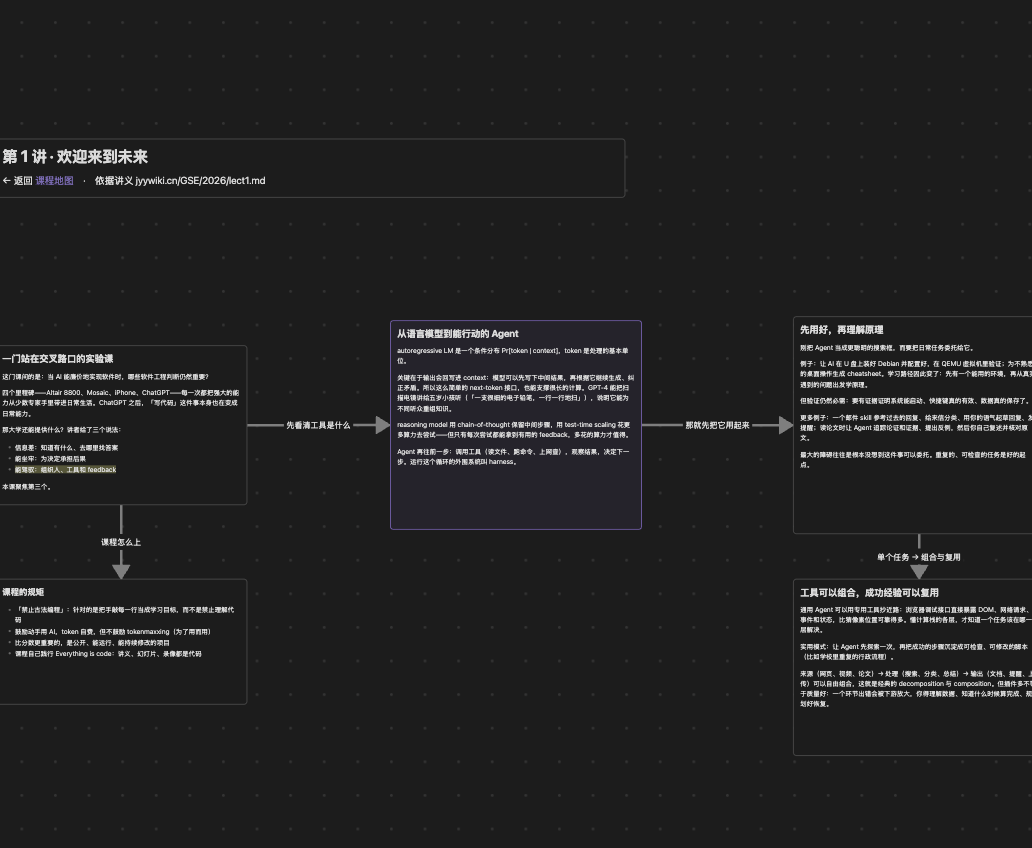
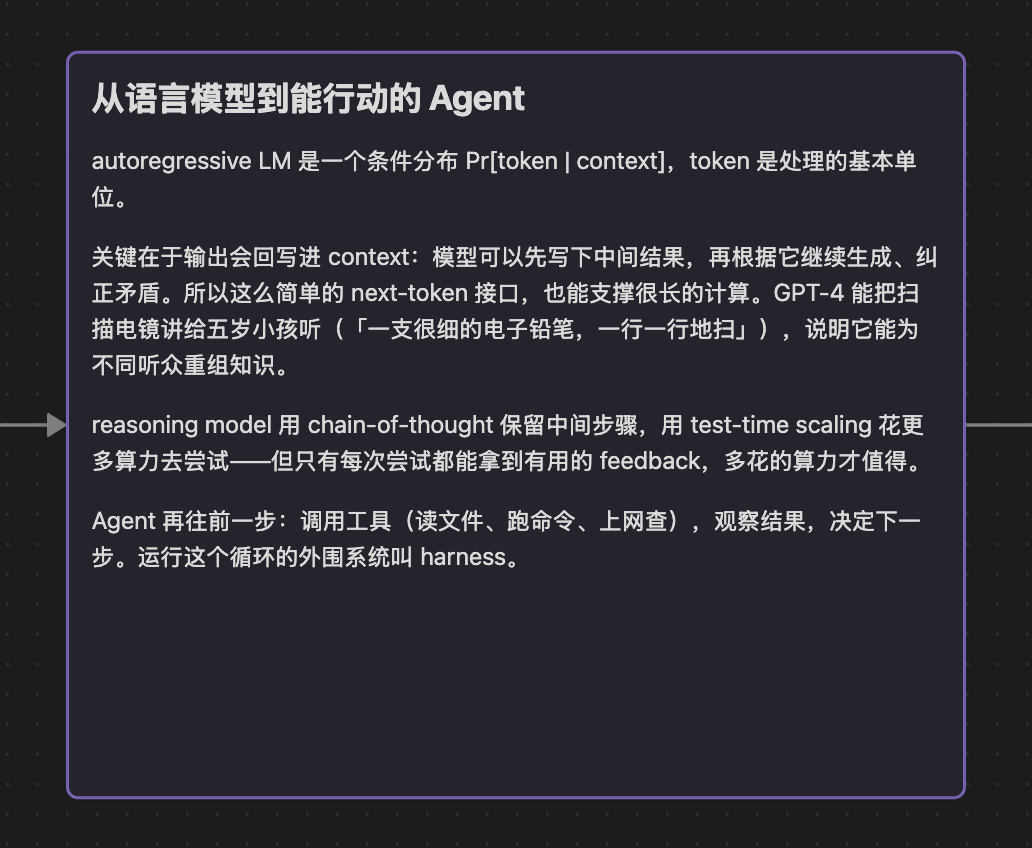
Read, edit, and draw on the same Obsidian canvas. Zoom out to see how your cards fit together, then zoom back in and pick up the sentence you were writing. You can draw right on the text, and your marks follow the words as you edit.
| The board at 21% zoom | The selected card up close |
|---|---|
 |  |
Try it on one card
- Open a canvas and type the first draft on a text card.
- Click the pen on the Canvas toolbar, underline first draft, then press Esc to put the pen away.
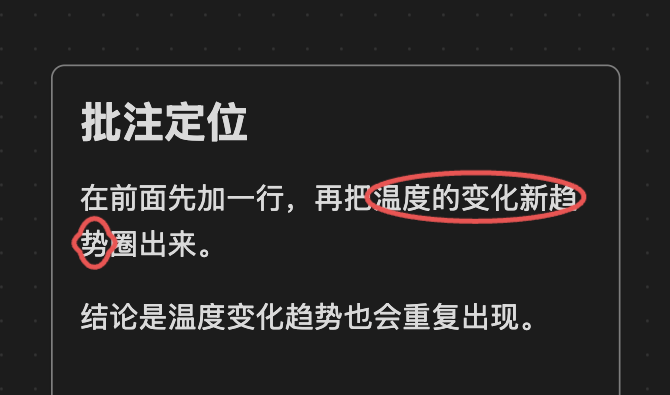
- Edit the phrase to read first rough draft. The underline stretches to include rough. Make the card narrow enough to wrap the phrase and the underline splits across the two lines.
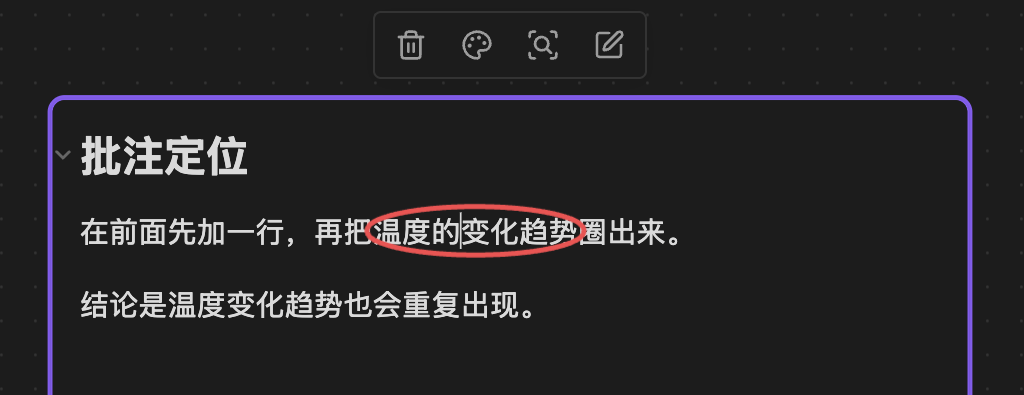
Circles follow text the same way. You can also sketch in a card margin or on the canvas between cards. A sketch on a card travels with it. A sketch in the space between cards stays where you drew it. These strokes are saved in the canvas file. To remove one, use the eraser. Canvas undo brings it back.
| After inserting a character inside a circle | After narrowing the card |
|---|---|
 |  |
Read across cards
Zoom out and each card keeps its layout, including headings, lists, links, and images. Short notes and long notes use the same body size at the same zoom. Double-click into a card to edit at that size.
When the whole board fits on screen but the text is too small, open the command palette and run Zoom to a readable text size. It zooms the view around its center, keeping the spacing between cards.
Add an Excalidraw drawing
The pen works on its own. For diagrams you want to edit as shapes, enable the Excalidraw community plugin and click the shapes button on the Canvas toolbar.
- Inside a card: Select a text card or Markdown file card first. When you click Done, the drawing is embedded at the end of its text.
- On the canvas: Clear the selection first. Saving creates a separate drawing card in the center of your view.
Select the card and click the shapes button again to keep drawing.
The release follows your Obsidian language. Chinese interfaces use Chinese labels, and other languages use English.
Install from source
Requires Obsidian 1.8.7 or later on desktop, plus Node.js and npm to build the plugin.
- From the project directory, run
npm ci, thennpm run build. - In your vault, create the folder
.obsidian/plugins/canvas-lod/and from the generateddist/folder copymain.js,manifest.json, andstyles.cssinto it. - Restart Obsidian and enable Canvas in Flow under Settings → Community plugins.
Development
npm run build produces the bilingual release. For the original command labels, run npm run build:personal and use the three plugin files in dist/personal/.
Run npm run dev to rebuild on save, npm test to run the tests, and npm run lint to check formatting and style. When reporting a zoom issue, run Probe the open canvas from the command palette to copy the current zoom and visible card details.
To publish a release, update the version in manifest.json and package.json, add the version and its minimum Obsidian version to versions.json, then push a matching annotated Git tag. The release workflow tests, builds, and publishes the plugin.
For plugin developers
Search results and similarity scores are powered by semantic analysis of your plugin's README. If your plugin isn't appearing for searches you'd expect, try updating your README to clearly describe your plugin's purpose, features, and use cases.