CanvasDraw
approvedby Raushan Kumar
Seamless inline Excalidraw integration with full drawing tools, library management, and custom canvas controls. - This plugin has not been manually reviewed by Obsidian staff.
🎨 CanvasDraw
Seamless, lightweight, and powerful Excalidraw integration for Obsidian.
Embed interactive drawings, system architecture diagrams, mind maps, and sketches directly inside your markdown notes with zero friction.





|
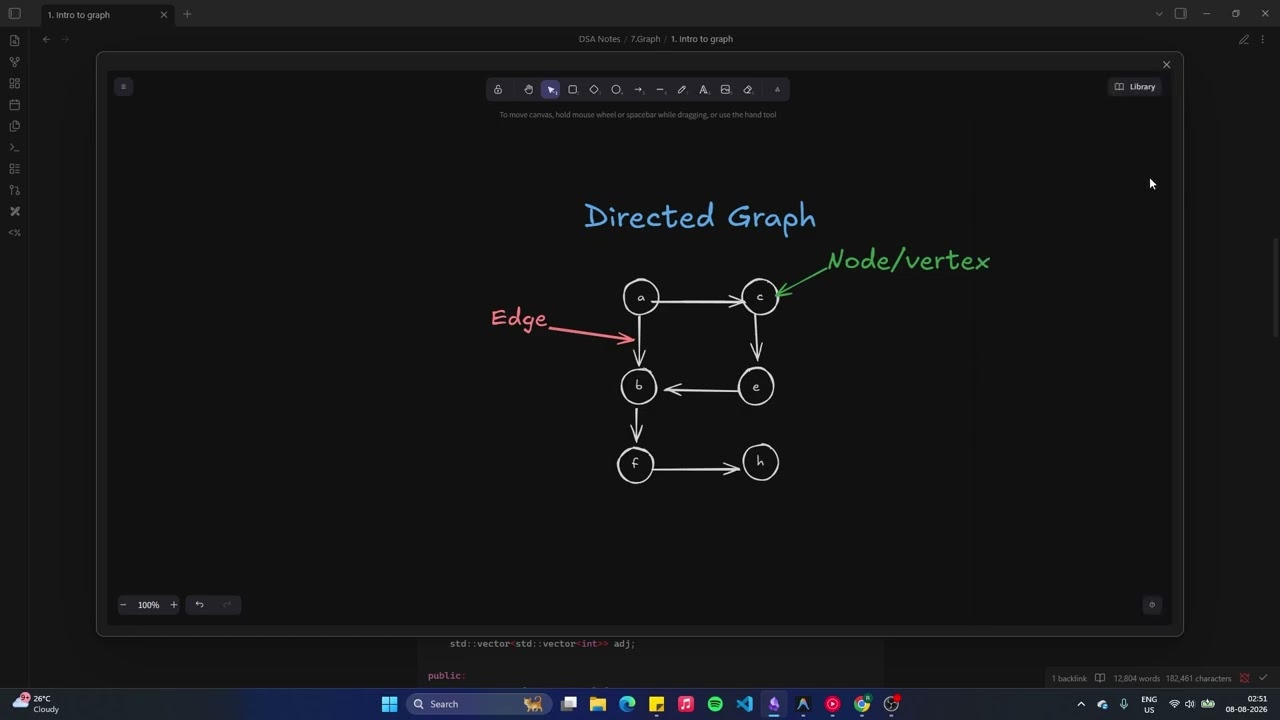
|

|
✨ Features at a Glance
- 📝 Native Markdown Code Blocks — Diagrams stored directly inside
```excalidrawcode blocks in your note files. - ⚡ Instant Click-to-Edit Modal — Click any drawing thumbnail to open the full-screen Excalidraw editor.
- 🖼️ Image & Asset Support — Paste or drag images into your drawing; assets are saved automatically in your vault's
content/folder. - 📚 Library Panel & Custom Imports — Import
.excalidrawlibfiles and browse pre-built elements from the Library sidebar. - 🔍 Interactive Canvas & Zoom Controls — Hover to reveal
+/−zoom buttons and a corner resize handle. - 💾 Per-Block Layout Persistence — Canvas height and zoom level saved inside each block's JSON, preserving your exact viewport.
- 🌗 Automatic Theme Sync — Adapts to Obsidian's Light and Dark themes seamlessly.
- 🪟 Transparent Background Mode — Render diagrams with a transparent background for seamless note blending.
- ⌨️ Command Palette Integration — Fast commands to insert, edit, clear, and delete drawing blocks.

📸 Feature Tour
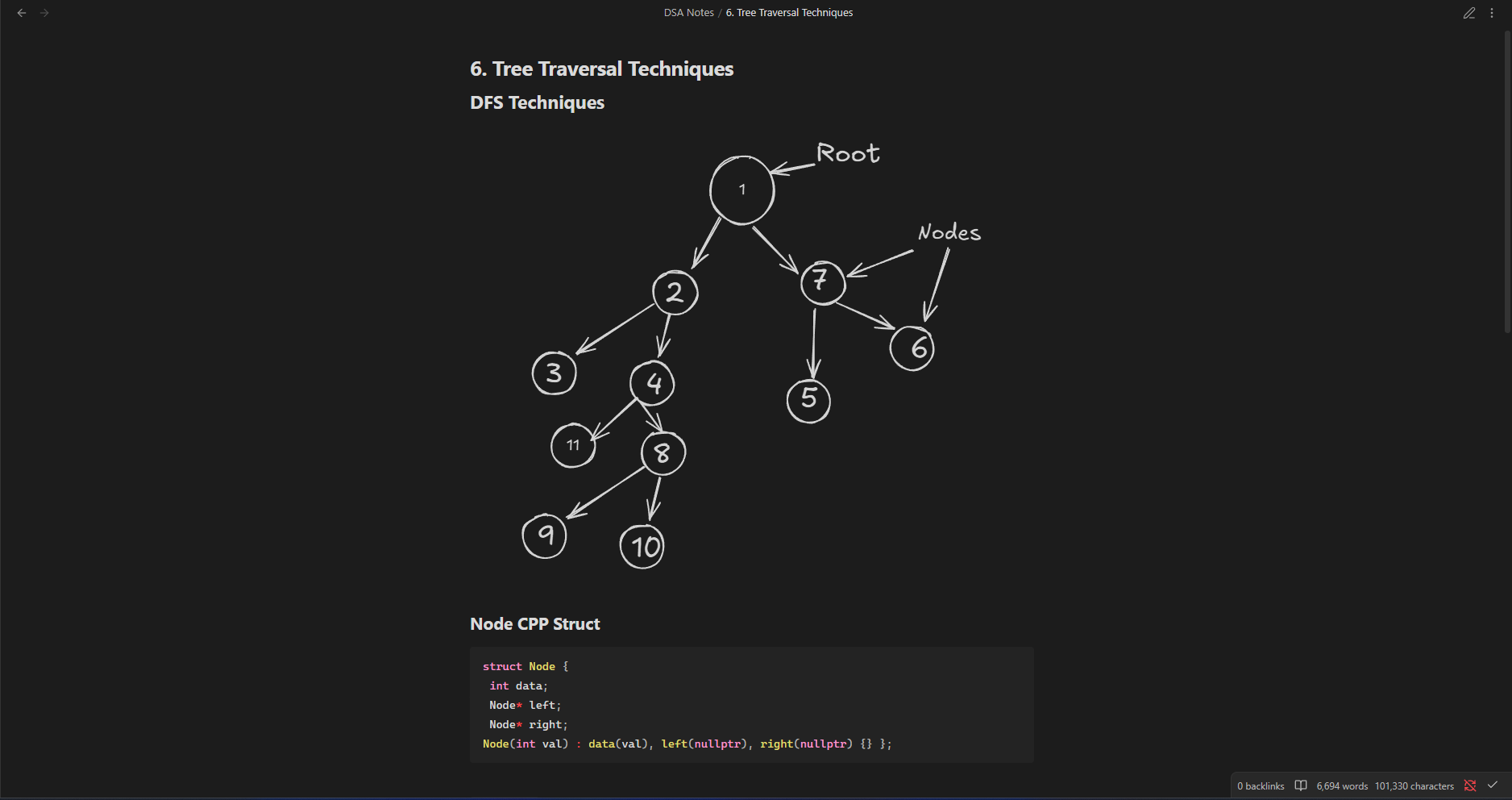
1. Inline Previews in Reading View
Your drawings render as crisp inline previews inside your notes. Click on any canvas to open the full editor modal instantly.
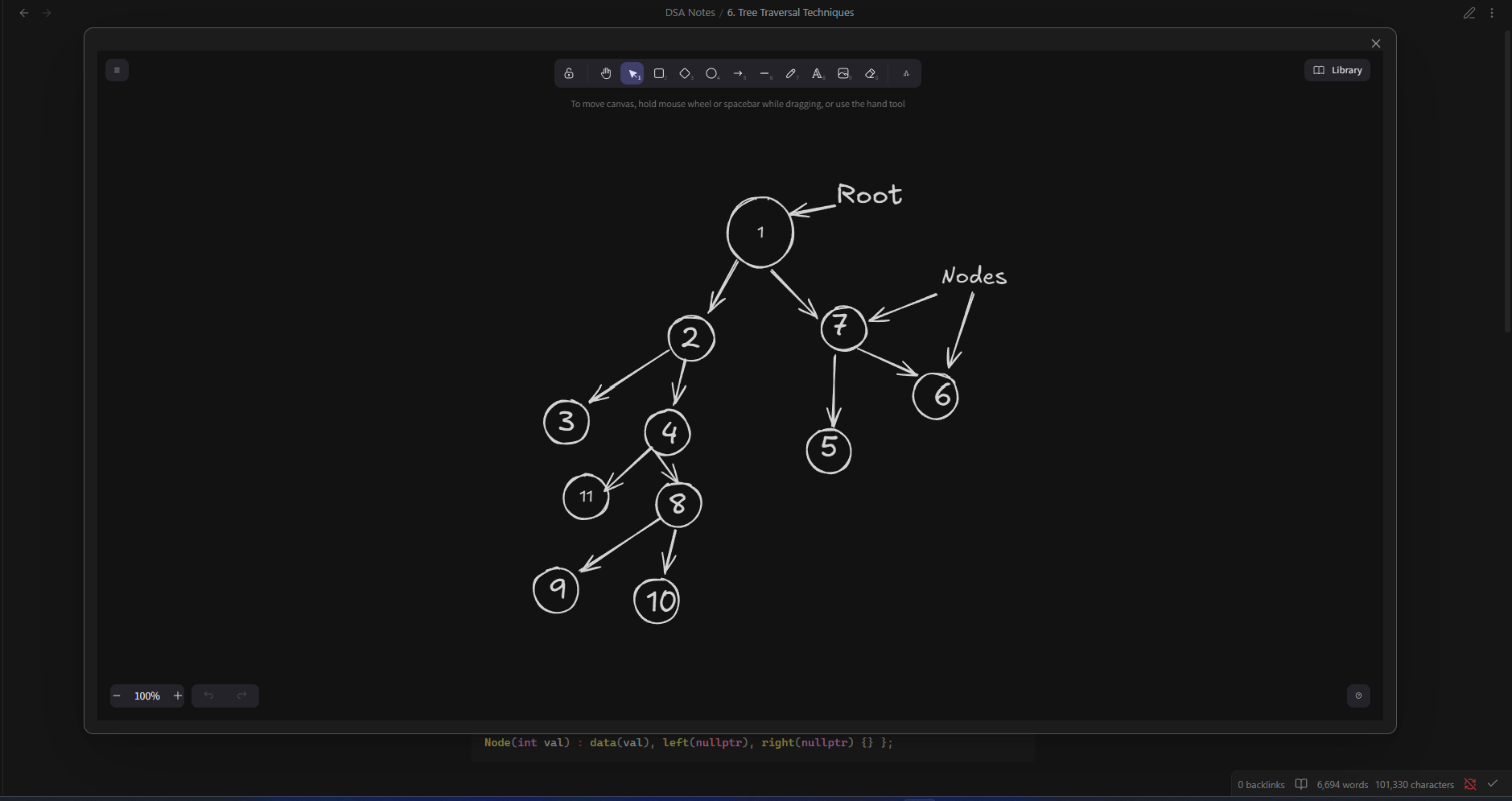
2. Full-Featured Drawing Editor
Open any canvas into the complete Excalidraw workspace — shapes, arrows, colors, roughness settings, and handwriting fonts, all in a clean full-screen modal.
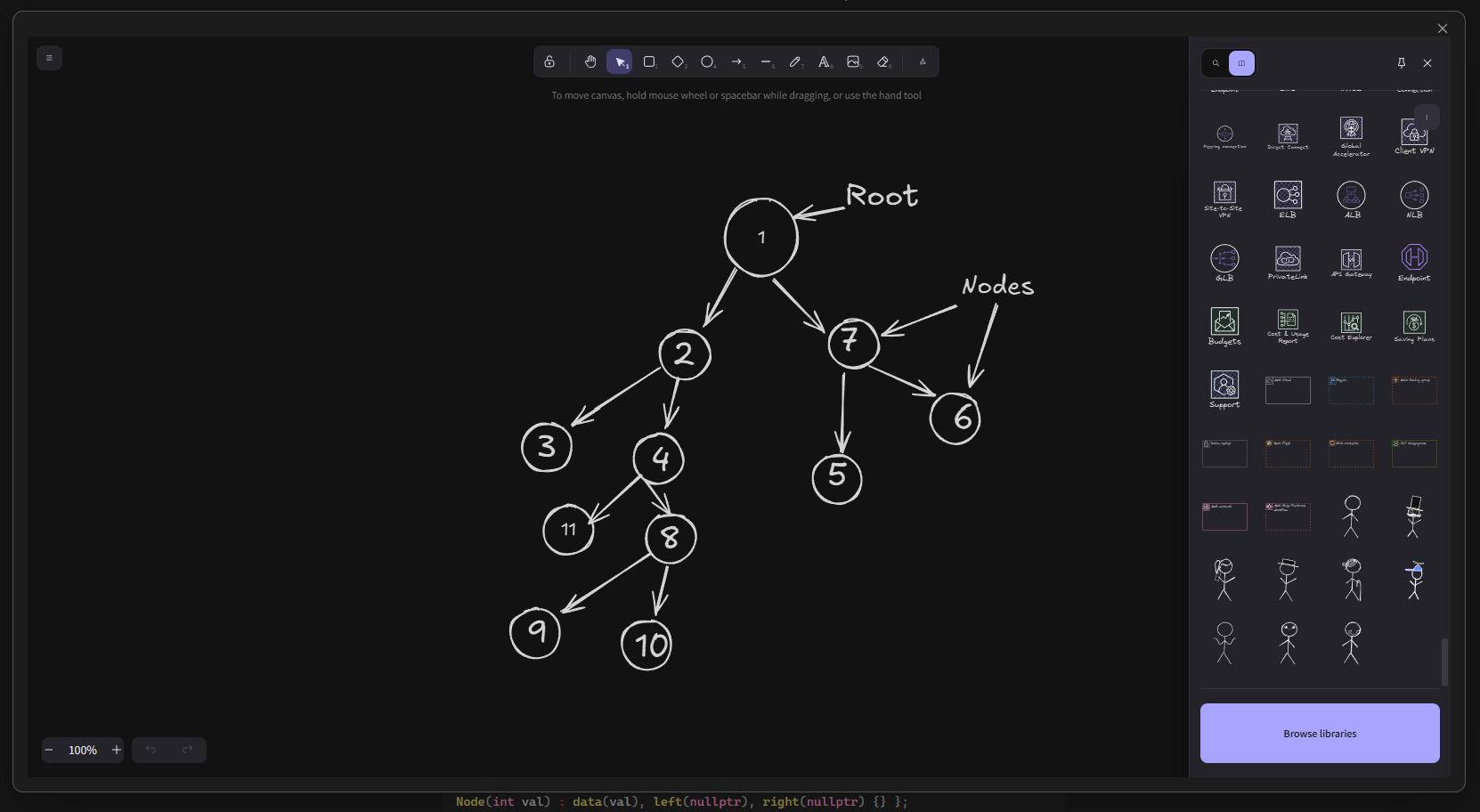
3. Library Panel & Element Browser
Click Library in the editor toolbar to open the side panel. Browse pre-built shape libraries or click Browse libraries to discover more.
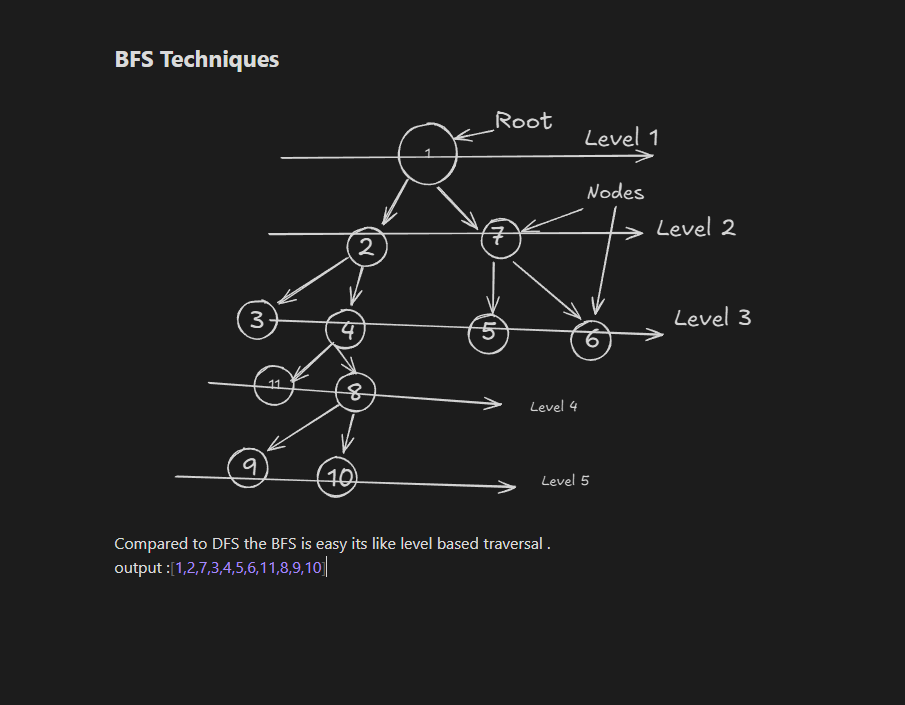
4. Static Image Previews (BFS / Complex Diagrams)
Complex diagrams like BFS trees render as crisp static image previews in your notes, keeping reading view fast and lightweight.
5. Command Palette Quick Actions
Access all drawing actions instantly via Ctrl+P / Cmd+P:
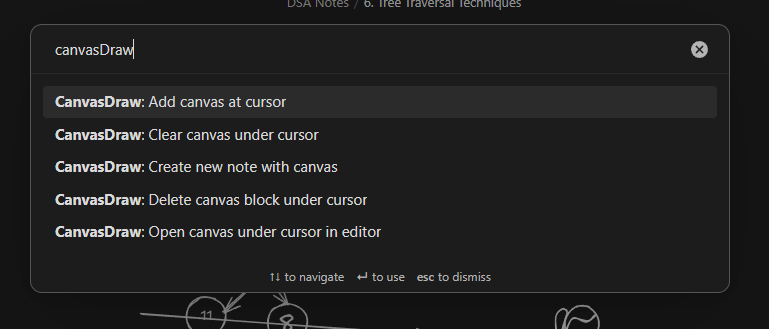
| Command | Description |
|---|---|
| CanvasDraw: Add canvas at cursor | Inserts a new Excalidraw block at the current cursor position. |
| CanvasDraw: Open canvas under cursor in editor | Opens the drawing under the cursor in the full-screen editor. |
| CanvasDraw: Create new note with canvas | Creates a new markdown note pre-populated with a canvas block. |
| CanvasDraw: Clear canvas under cursor | Resets the drawing under cursor to a blank canvas. |
| CanvasDraw: Delete canvas block under cursor | Removes the entire Excalidraw block under cursor from the note. |
6. Customization & Library Settings
Configure your drawing preferences in Settings → Community plugins → CanvasDraw:
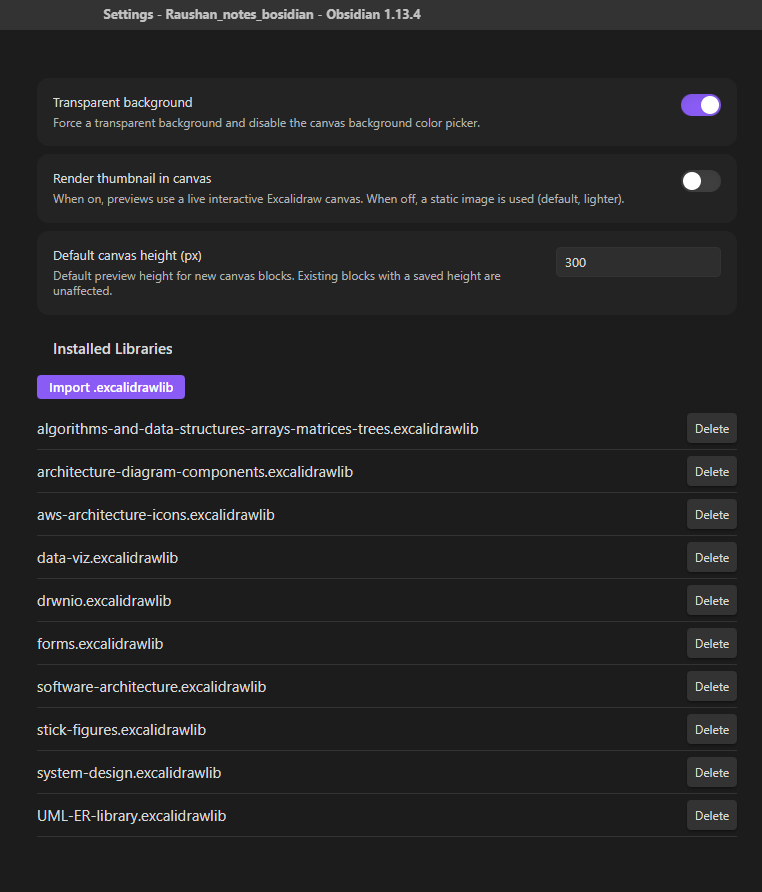
- Transparent Background: Toggle transparent background mode for seamless note blending.
- Render Thumbnail in Canvas: Switch between static image previews and live interactive canvas containers.
- Default Canvas Height: Set the default initial height (px) for newly created drawing blocks.
- Installed Libraries: View active
.excalidrawlibfiles, import new ones, or delete unwanted ones.
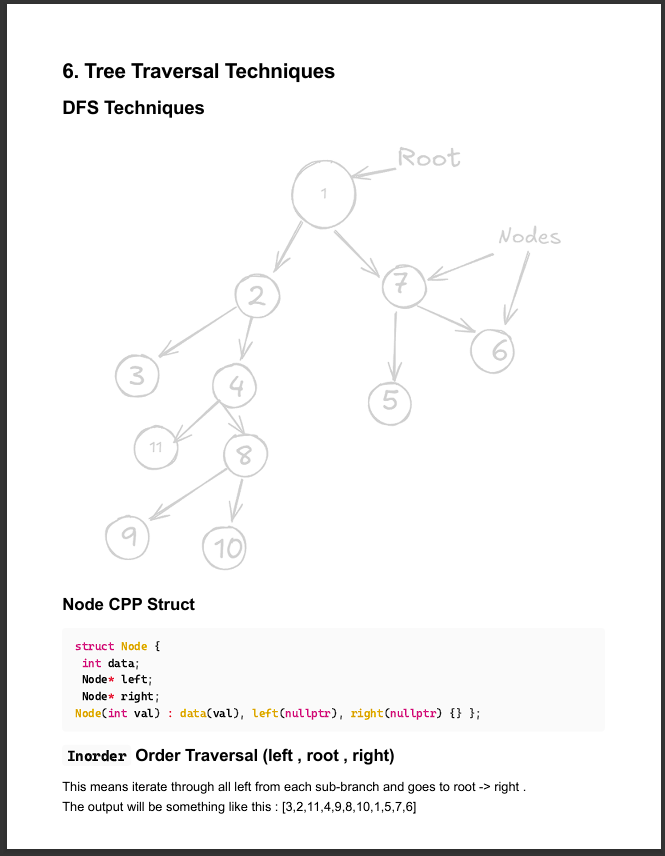
7. PDF & Print Export
With Transparent Background mode enabled, your drawings render with a white/clean background in Obsidian's PDF exports and print output — no dark canvas, just the drawing itself.
🚀 Getting Started
Creating a Drawing
- Open any note in Obsidian.
- Run
CanvasDraw: Add canvas at cursorfrom the command palette (Ctrl+P/Cmd+P), or insert a code block manually:```excalidraw { "elements": [] } ``` - Click the canvas thumbnail to open the Excalidraw editor and start drawing!
- Close the modal when finished — your changes save automatically back to the note.
📦 Manual Installation
- Download
main.js,manifest.json, andstyles.cssfrom the latest release. - In your Obsidian vault, navigate to
.obsidian/plugins/and create a folder namedcanvas-draw. - Copy the three files into
.obsidian/plugins/canvas-draw/. - Open Settings → Community plugins, click Refresh, and enable CanvasDraw.
🛠️ Development
# Clone the repository
git clone https://github.com/Raushan-kumar-yadav/obsidianDraw.git

# Install dependencies
npm install

# Start development build (watch mode)
npm run dev

# Build production bundle
npm run build
📄 License
This project is licensed under the MIT License.
For plugin developers
Search results and similarity scores are powered by semantic analysis of your plugin's README. If your plugin isn't appearing for searches you'd expect, try updating your README to clearly describe your plugin's purpose, features, and use cases.