cashlog
approvedby uuq007
A personal finance plugin with multi-account, transfers, tag categorization, query syntax, budgets, goals, and chart visualization. - This plugin has not been manually reviewed by Obsidian staff.
Cashlog
A personal finance tracking plugin for Obsidian. Record income and expenses directly in your Markdown notes with an emoji-based syntax, then query, visualize, and analyze your data — all within your vault.
Features
- Markdown-native bookkeeping — Record transactions as plain list items using emoji markers (
💴 ➕ ⏰) - Tag categorization — Classify entries with hierarchical tags like
#expense/food,#income/salary - Query language — Filter, sort, group, and summarize entries in
cashlogcode blocks - Chart visualization — Bar charts, line charts, pie charts, and custom tables via
cashlog-chartblocks - Dashboard panel — Interactive side panel with summary cards, account balances, budgets, and goals
- Multi-account support — Track multiple accounts (WeChat, Alipay, bank cards), transfers, and balance adjustments
- Budgets & goals — Set spending budgets and income goals with period-aware progress tracking
- Attachments — Attach receipt photos to entries, stored in your vault
- i18n — English and Chinese UI
- Natural language dates —
date today,date last month,date 14 days ago, etc.
Quick Start
Record a transaction
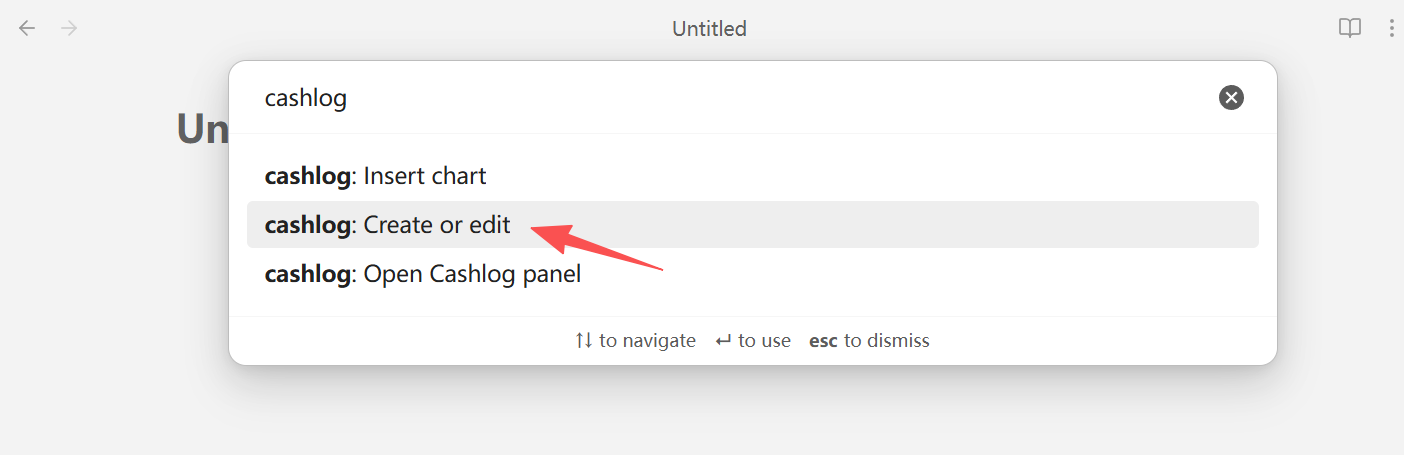
Use the command palette (Ctrl+P) → Create or edit cashlog, or write manually:
- #expense/transport train ticket 💴-100 ➕2026-04-25 ⏰17:30
- #income/salary monthly pay 💴10000 ➕2026-04-25
| Symbol | Meaning | Format |
|---|---|---|
💴 | Amount | 💴 + number (negative = expense) |
➕ | Date | ➕ + YYYY-MM-DD |
⏰ | Time | ⏰ + HH:mm |
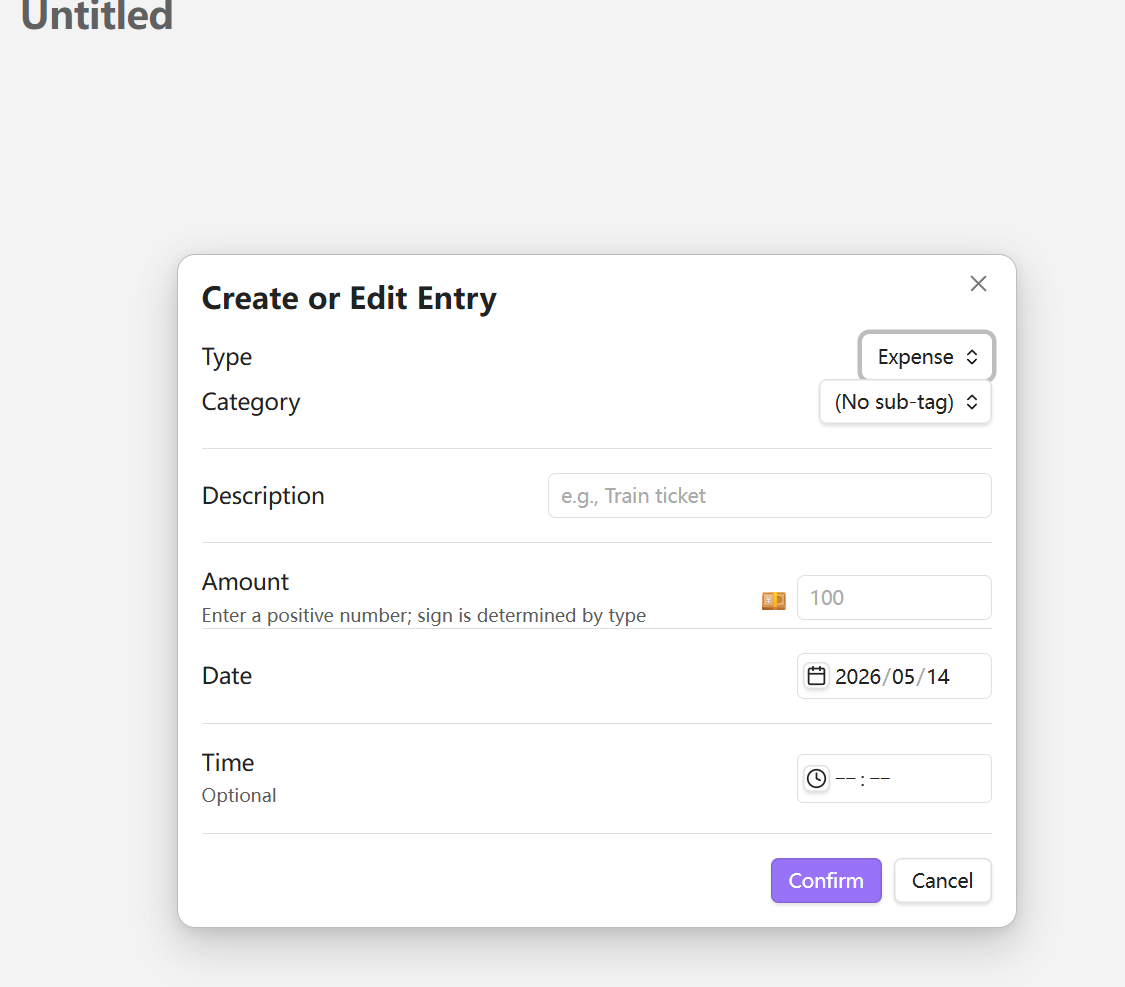
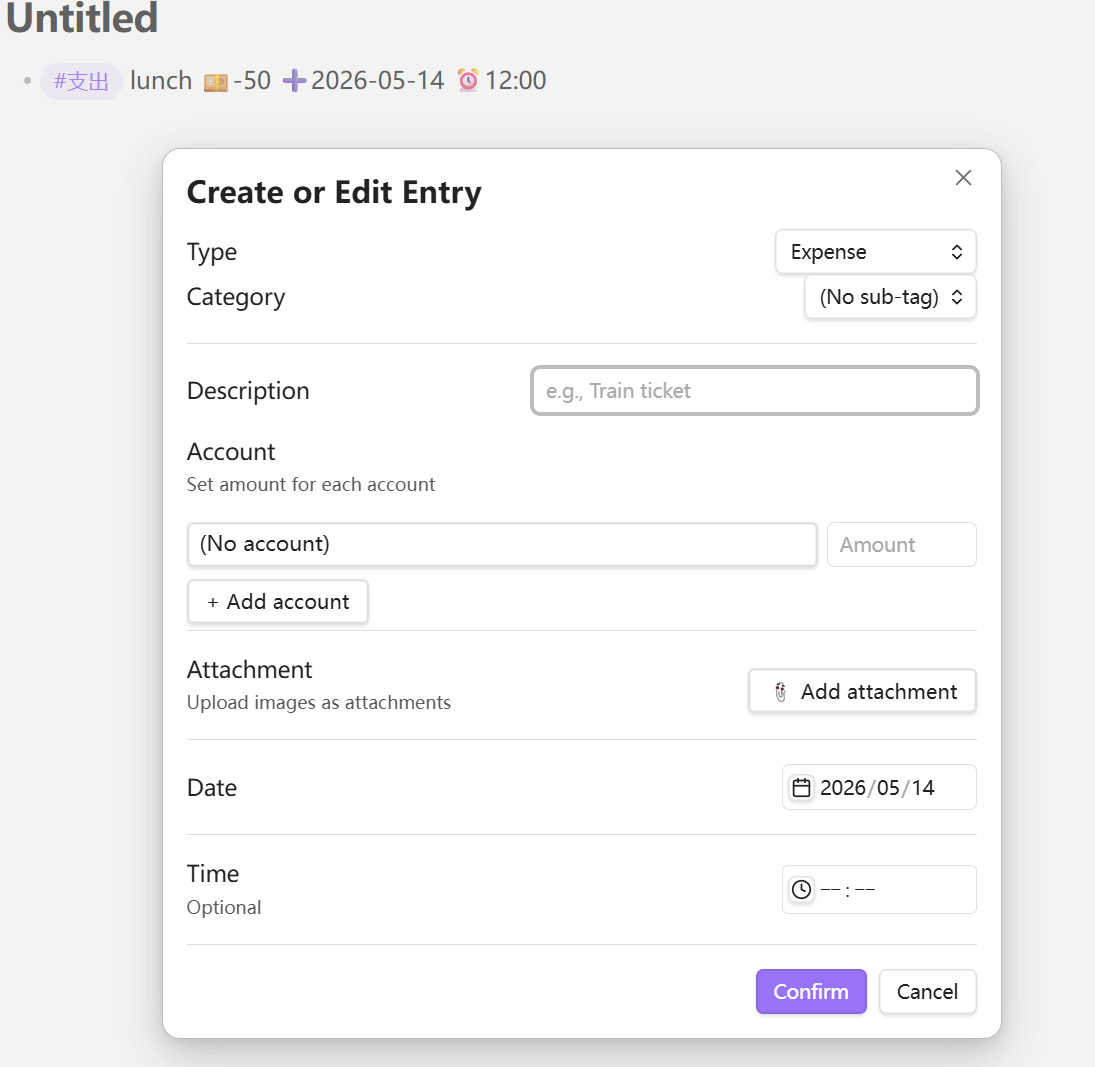
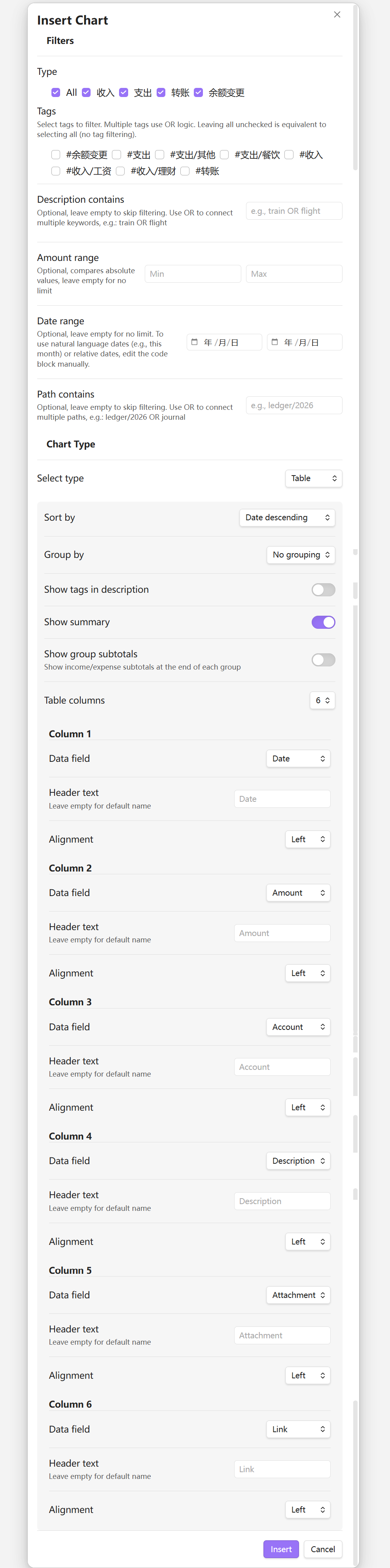
After enabling the account and attachment features in the plugin settings, the full create/edit menu looks like this:
Dashboard Panel
Open via command palette → Open Cashlog Panel. The panel provides:
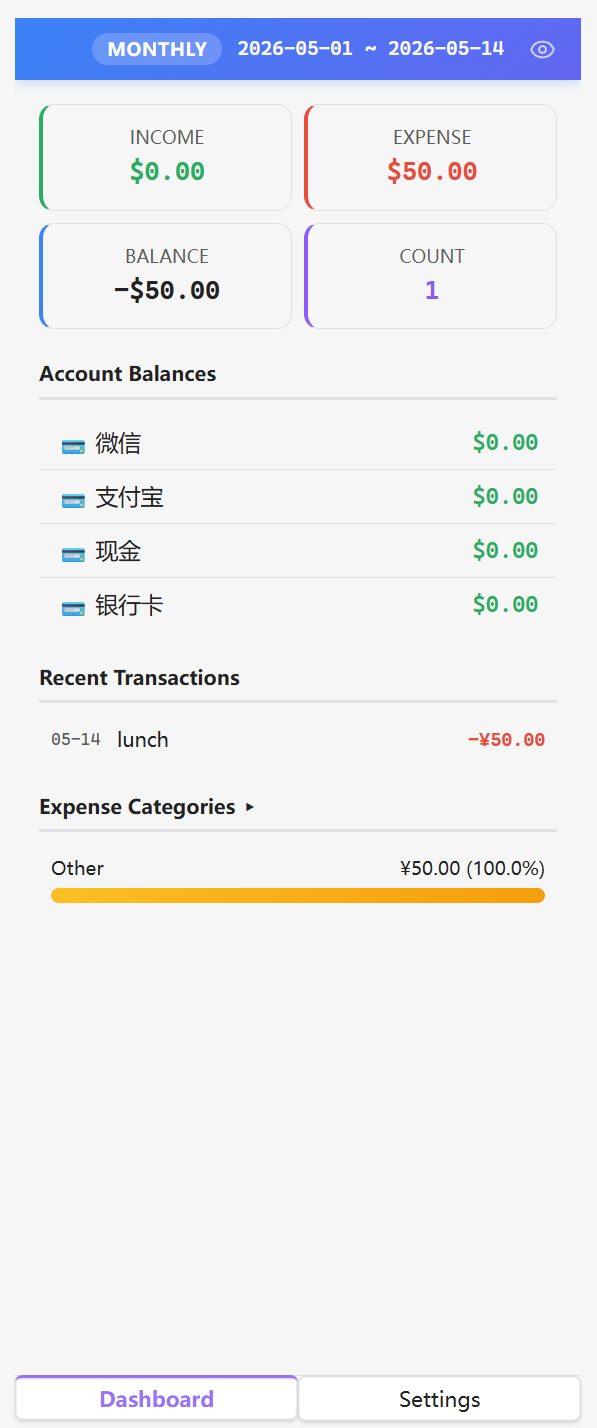
- Summary cards — Income, expense, balance, count for the current period
- Account balances — Real-time balance for each account with drill-down details
- Budget progress — Spending vs. budget with period-aware tracking
- Goal progress — Income achievement vs. target
- Recent transactions — Last 10 entries with hover details
- Category ranking — Top 5 expense categories with percentage
All dashboard areas are clickable for drill-down navigation.
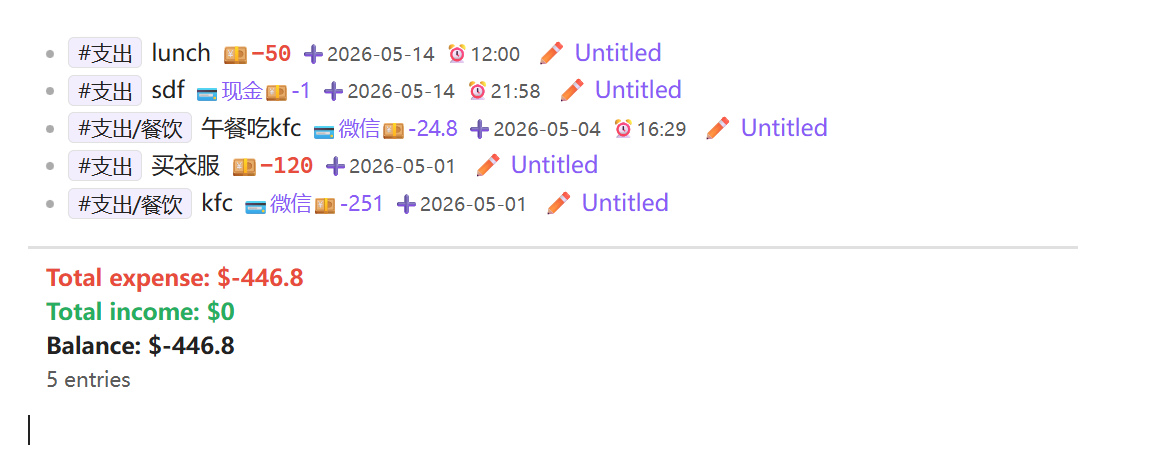
Query your data
```cashlog
is expense
date this month
sort by date descending
show total expense
```
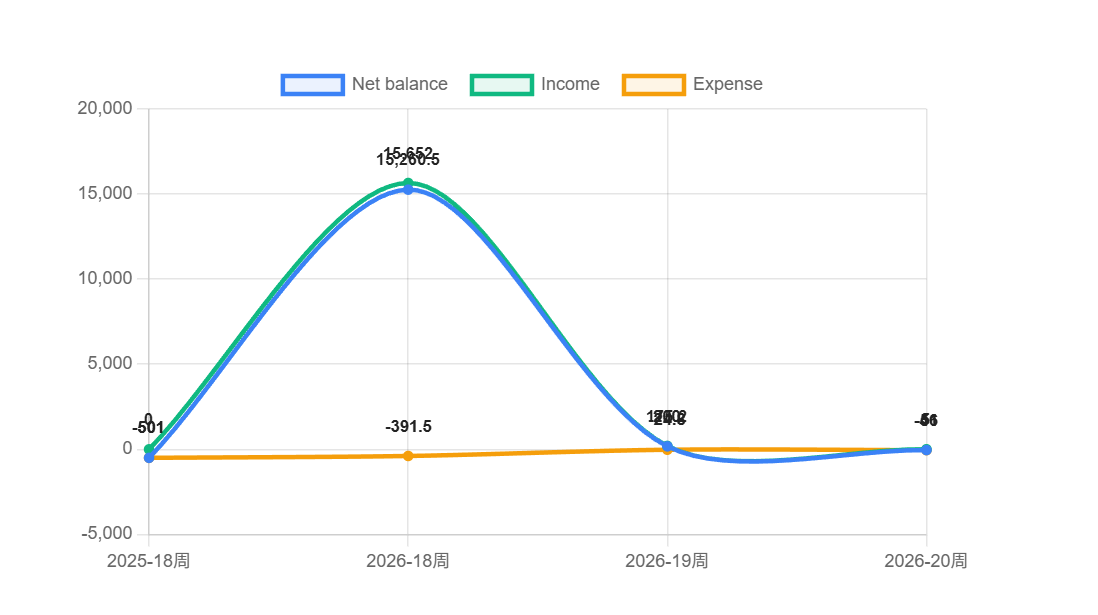
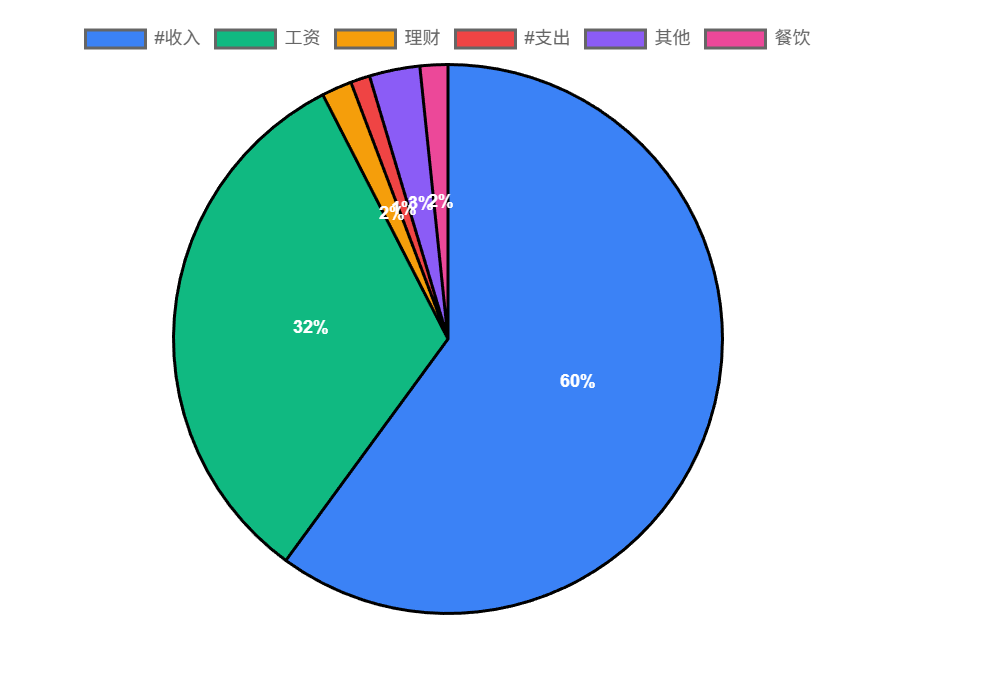
Visualize with charts
Use the command palette (Ctrl+P) → Insert chart, or write manually:
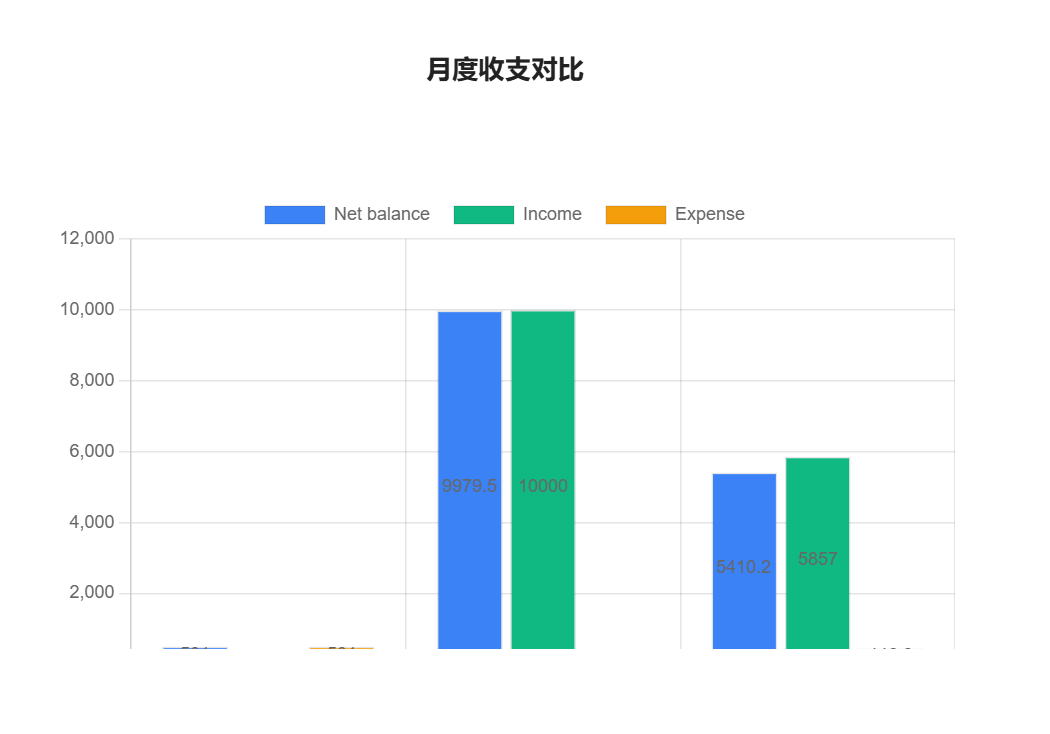
```cashlog-chart
group by month
chart type bar
chart title "Monthly Overview"
chart bar split by valueType
chart legend true
```
Entry Format
Basic
- #expense/food lunch 💴-25 ➕2026-04-25 ⏰12:00
With account
- #expense/shopping clothes 💳WeChat💴-200 ➕2026-04-25
Transfer
- #transfer pay credit card 💳Alipay💴-500 💳ICBC Card💴500 ➕2026-04-25
Balance adjustment
- #balance-change adjust balance 💳Alipay💴50 ➕2026-04-25
With attachments
- #expense/shopping clothes 💳WeChat💴-200 🧷[[cashlog-2026042517303050|receipt]] ➕2026-04-25
Query Syntax
Use ```cashlog code blocks to query entries across your entire vault.
Filters
| Instruction | Description |
|---|---|
is income / is expense / is transfer | Filter by type |
tag includes #expense/food | Tag contains (supports OR) |
description includes lunch | Description contains text (supports OR) |
amount above 100 | Amount absolute value comparisons |
date this month | Date filtering (natural language, ranges, etc.) |
account is WeChat | Account filtering (supports OR) |
path includes journal/ | File path filtering |
has attachment | Only entries with attachments |
Sorting
| Instruction | Description |
|---|---|
sort by date descending | Sort by date |
sort by amount descending | Sort by amount |
sort by description ascending | Sort by description |
Grouping
| Instruction | Description |
|---|---|
group by tag | Group by tag |
group by month | Group by month |
group by account | Group by account |
group by type | Group by entry type |
Summaries
| Instruction | Description |
|---|---|
show total | Total income, expense, balance, count |
show total expense | Total expense only |
show balance | Balance only |
show count | Entry count only |
Date formats
date 2026-04-25              # specific date
date today                   # natural language
date this month              # relative range
date 2026                    # full year
date 2026-04                 # full month
date 2026-W15                # ISO week
date 2026-Q2                 # quarter
date 2026-01-01 2026-03-31   # absolute range
Charts
Use ```cashlog-chart code blocks to render visualizations powered by Chart.js.
| Type | Instruction |
|---|---|
| Bar chart | chart type bar |
| Line chart | chart type line |
| Pie chart | chart type pie |
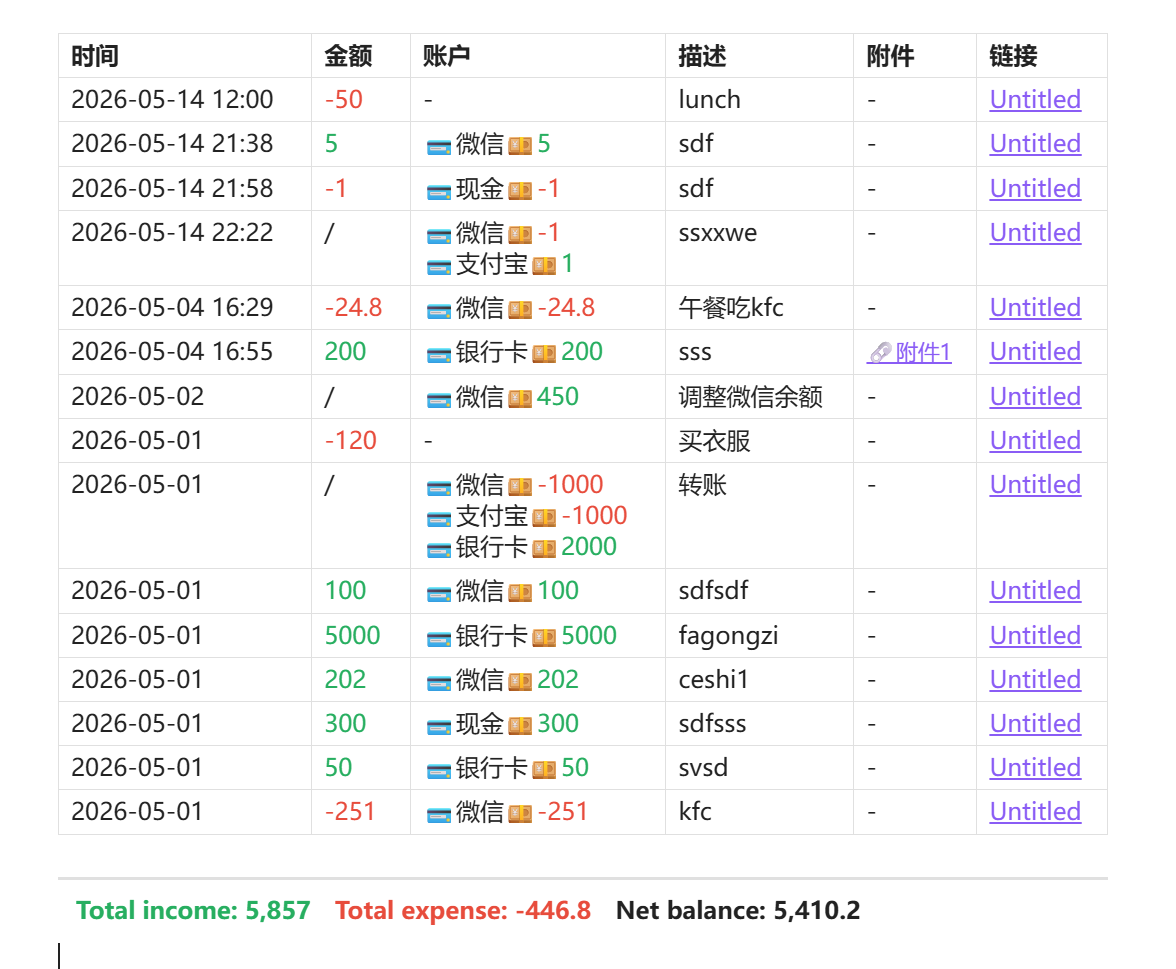
| Table | table columns N + colN field "header" alignment |
Chart options
| Instruction | Description |
|---|---|
chart title "Title" | Chart title |
chart width 800 | Width in pixels |
chart height 400 | Height in pixels |
chart legend true | Show legend |
chart labels true | Show data labels |
chart bar split by valueType | Split bars by value type |
chart line split by tag | Split lines by tag |
chart value income | Pie chart value mode |
Installation
Manual
- Download
main.js,manifest.json, andstyles.cssfrom the latest release - Copy them to
.obsidian/plugins/obsidian-cashlog/in your vault - Enable the plugin in Obsidian Settings → Community Plugins
Build from source
git clone https://github.com/uuq007/obsidian-cashlog.git
cd obsidian-cashlog
npm install
npm run build
Settings
| Category | Options |
|---|---|
| Tags | Customize income/expense/transfer/balance-change tag names; auto-migration on rename |
| Sub-tags | Add, rename, merge, or delete sub-tags; auto-discovered from vault |
| Accounts | Enable multi-account, add/rename/delete accounts, set initial balances |
| Attachments | Enable file uploads, configure storage directory |
| Budgets | Set spending limits with period (weekly/monthly/yearly/custom) and tag filters |
| Goals | Set income targets with period and tag filters |
| Statistics | Period mode (daily/weekly/monthly/yearly), custom start dates |
| Paths | Include/exclude vault paths from indexing |
Requirements
- Obsidian v1.7.2+
License
MIT
For plugin developers
Search results and similarity scores are powered by semantic analysis of your plugin's README. If your plugin isn't appearing for searches you'd expect, try updating your README to clearly describe your plugin's purpose, features, and use cases.