Coin Memo
approvedby fengshuzi
Automatic identification and statistical analysis of accounting records. - This plugin has not been manually reviewed by Obsidian staff.
Coin Memo — Obsidian Expense Tracker
A daily expense tracking plugin for Obsidian that automatically recognizes and tallies accounting records from your daily notes. Supports one-tap bill import via screenshot OCR.
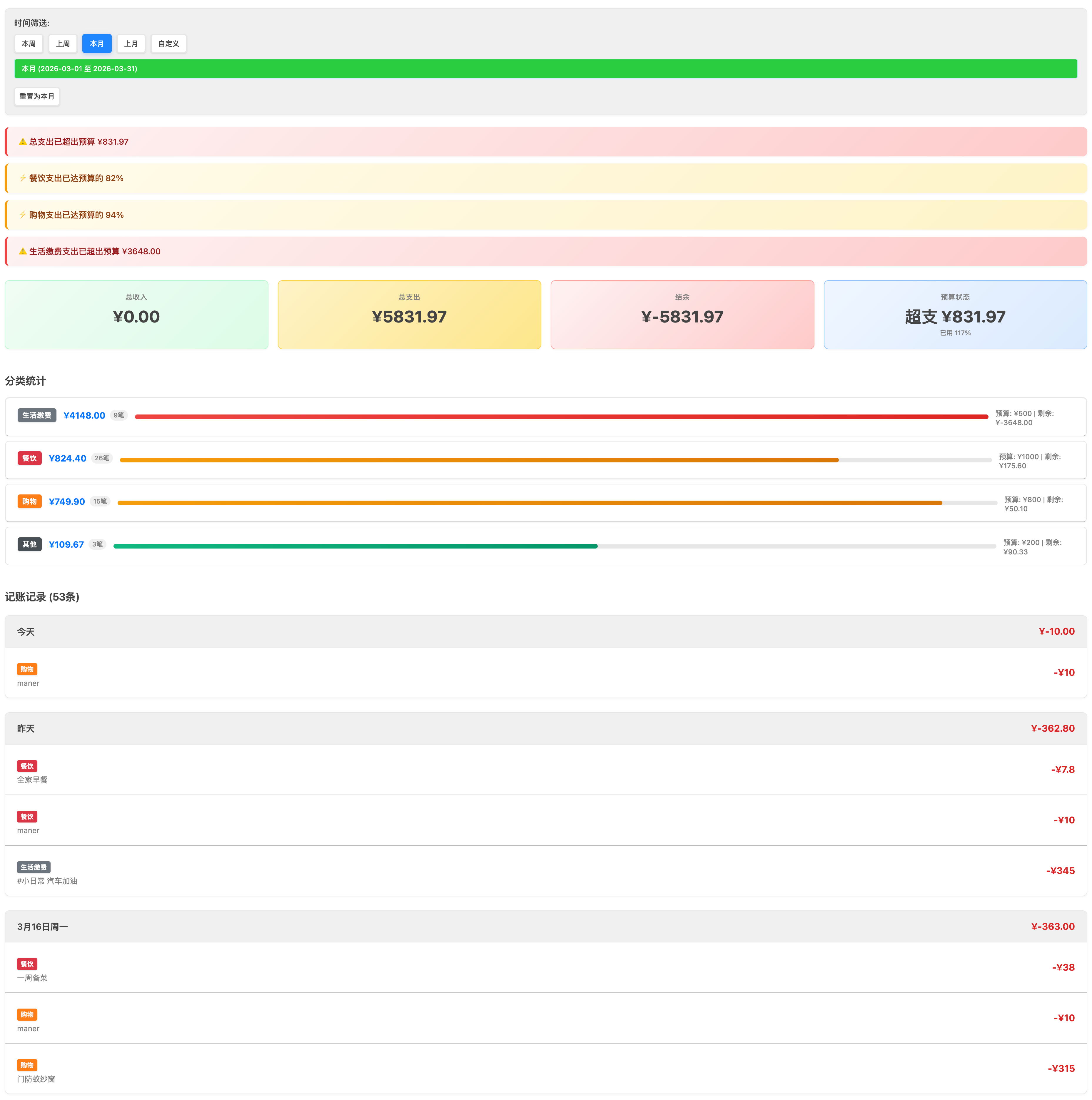
Features
| Feature | Description |
|---|---|
| 🔍 Auto-detection | Parses expense records from daily notes automatically |
| 📊 Statistics | Income/expense summaries, category breakdowns, date-range queries |
| 🏷️ Category management | Custom keyword-to-category mapping |
| 📅 Date filter | View records by date range |
| 💰 Income & expenses | Track income and spending separately, calculate balance |
| 📋 Quick copy | Copy a past record to today with one tap |
| 🧾 Bill screenshot import | OCR text written to bill.md, auto-parsed into records |
| 📄 Export | Export to PDF or Markdown |
| 🔄 Batch reclassify | Bulk-correct categories by note keyword, with auto-run support |
Installation
Option 1: From Obsidian Community Plugins (Recommended)
Open Obsidian Settings → Community Plugins → Browse, and search for Coin Memo or fengshuzi to install directly.
Option 2: From GitHub Release (recommended)
- Go to the Releases page and download the latest version.
- Download
main.js,manifest.json,styles.css, andconfig.json. - Create the plugin folder in your vault:
.obsidian/plugins/coin-memo/. - Copy the downloaded files into that folder.
- Restart Obsidian and enable Coin Memo in Settings → Community plugins.
Option 3: Build from source
cd /path/to/your/vault/.obsidian/plugins
git clone https://github.com/fengshuzi/coin-memo.git
cd coin-memo
npm install && npm run build
Quick Start
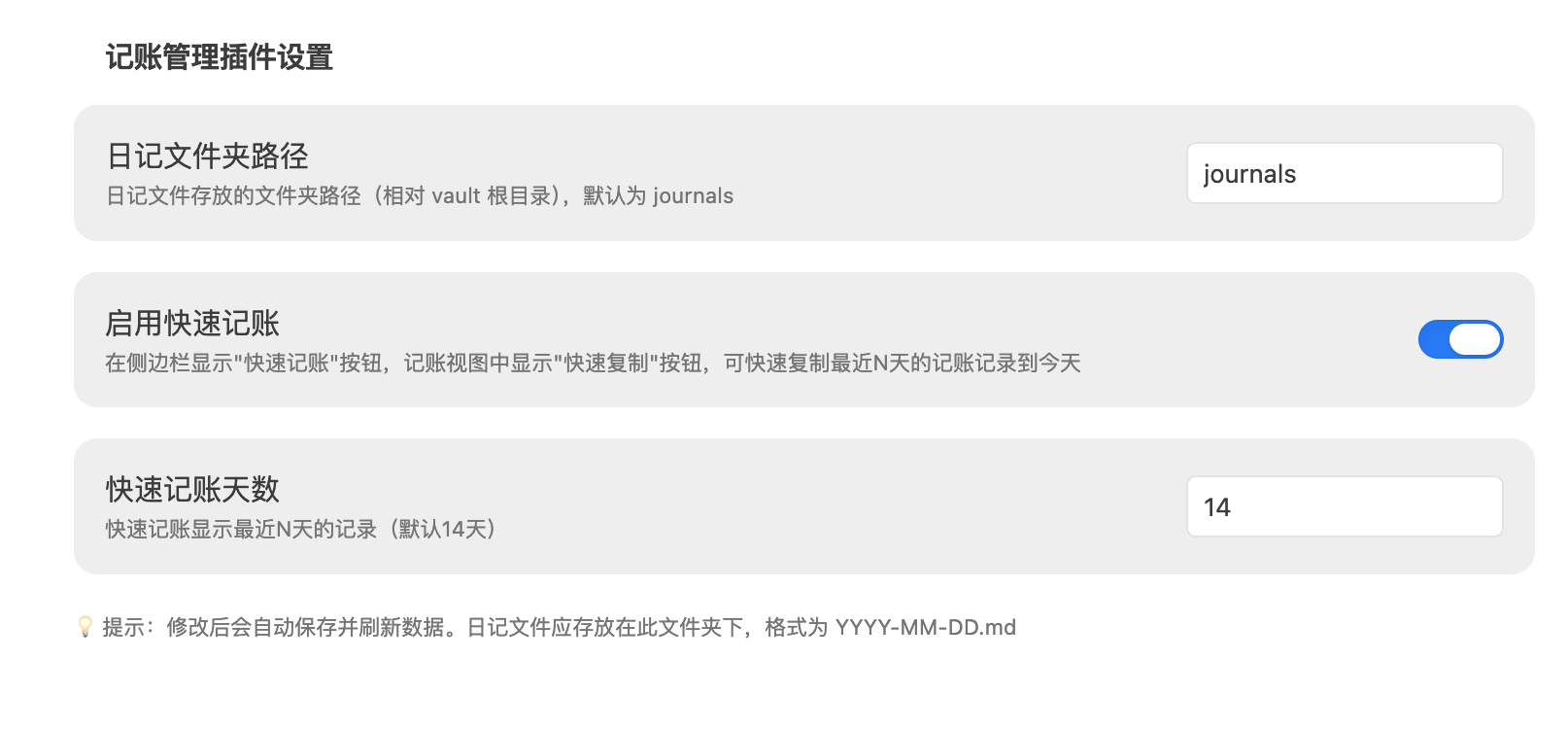
Step 1: Configure the journal folder
Open Settings → Community plugins → Coin Memo, and set the journal folder path (default: journals).
Step 2: Add records in your daily note
In journals/2024-01-10.md:
- #cy Tofu 15.5
- #cy Spicy hotpot 45
- #gw Supermarket 128
- #sr Salary 8500
Step 3: View statistics
Click the calculator icon in the left sidebar to open the expense tracker view.
Record Format
Basic syntax
#keyword description amount
Format rules
- ✅ Description first, amount last (recommended)
- ✅ Amount can also come first
- ✅ Currency symbols (¥, 元, 块) are ignored automatically
- ✅ When a line contains multiple numbers, the first number is used as the amount
Default keywords
| Keyword | Category | Note |
|---|---|---|
cy | Dining | Food & drinks |
gw | Shopping | Online & in-store |
dk | Loans | Mortgage, auto loans |
jf | Utilities | Water, electricity, gas, internet |
qt | Other | Uncategorized expenses |
sr | Income ⭐ | Special keyword — marks income |
Quick Copy
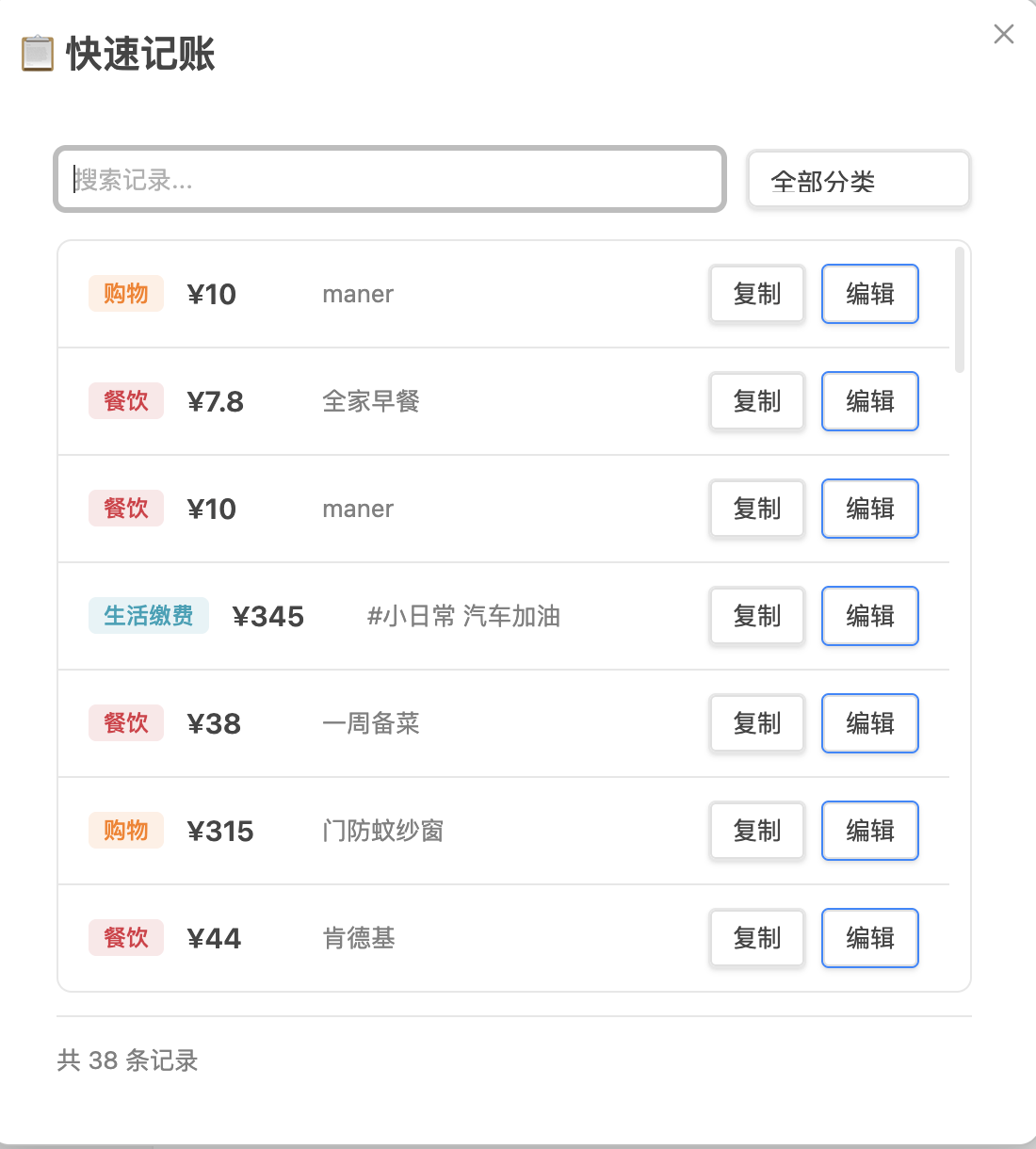
Quick Copy lets you duplicate a past record to today — handy for recurring expenses.
How to open
| Method | Instructions |
|---|---|
| Sidebar icon | Click the 📋 icon |
| Command palette | Cmd/Ctrl + P → "Quick Copy" |
| Advanced URI | obsidian://advanced-uri?vault=VaultName&commandid=coin-memo:quick-copy |
Workflow
- A modal opens showing records from the last 14 days (auto-deduplicated).
- Search or filter by category.
- Click "Copy" to write the record to today's note as-is, or "Edit" to modify first.
- Your today's daily note opens automatically.
iOS: Back Tap shortcut
- Install the community plugin Obsidian Advanced URI.
- Create a Shortcuts action that opens:
obsidian://advanced-uri?vault=VaultName&commandid=coin-memo:quick-copy - Go to Settings → Accessibility → Touch → Back Tap and assign the shortcut.
Bill Screenshot Import
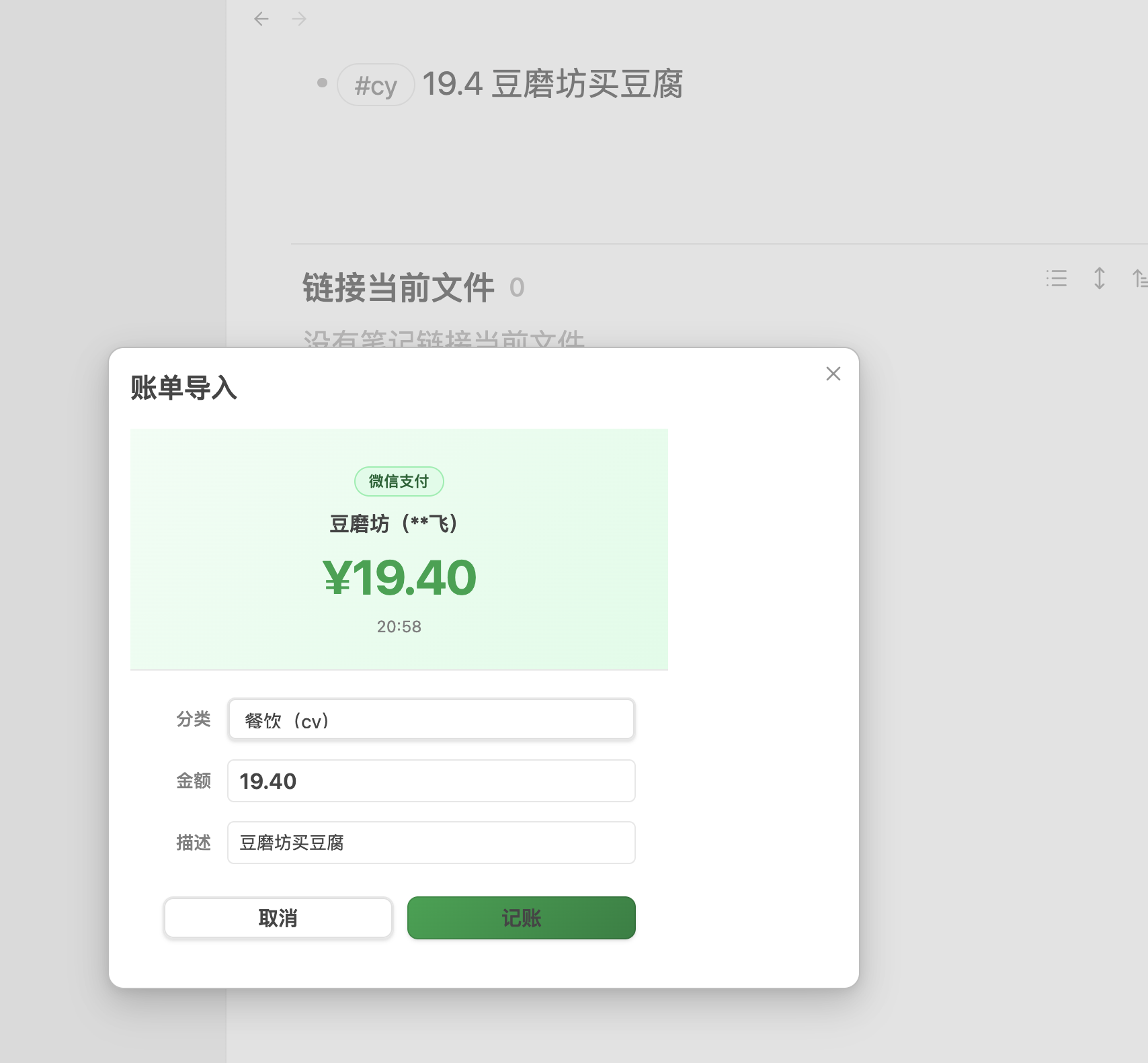
Screenshot from WeChat / bank app → Shortcuts OCR → write to bill.md → run command to auto-import
Workflow
Payment screenshot
  ↓ iOS Shortcuts (OCR)
journals/bill.md
  ↓ Command "Import from Bill"
Auto-parse → confirmation dialog → write to today's note → delete bill.md
bill.md format
Multiple records separated by ###. The plugin only parses the last section:
20:58
5G
豆磨坊(**飞)
·19.40
完成
###
12:42
Manner
使用建设银行储蓄卡(0511)支付
·10.00
完成
Supported screenshot types
| Type | Detection pattern |
|---|---|
| 💚 WeChat Pay success page | Contains "支付成功" or "返回商家" |
| 💚 WeChat Pay bill page | Contains "我的账单" + "支付服务" |
| 💙 Alipay success page | Contains "完成" + "付款方式" |
| 🟡 CCB transaction alert | Contains "动账提醒" or "变动提醒" |
Merchant auto-classification
Open Settings → Bill Import — Merchant Auto-Classification. One rule per line:
merchant_keyword=category_keyword=description
Example:
豆磨坊=cy=买豆腐
麦当劳=cy=麦当劳
盒马=gw=买菜
物业=jf=物业费
- Merchant keyword: matched via substring (no exact match needed).
- Description: optional; if omitted, the description field in the dialog is left blank.
💡 Run an import once without configuring mappings first — the dialog shows the actual OCR merchant text, which you can then use as the key.
Triggering the import
| Method | Action |
|---|---|
| Command palette | Cmd/Ctrl + P → "Import from Bill" |
| Advanced URI | obsidian://advanced-uri?vault=VaultName&commandid=coin-memo:bill-import |
Commands
Open the command palette with Cmd/Ctrl + P:
| Command | Command ID | Description |
|---|---|---|
| Open Daily Accounting | open-accounting | Open the expense tracker view |
| Refresh Accounting Data | refresh-accounting | Re-scan daily notes |
| New Entry | quick-entry | Open the new-entry dialog |
| Quick Copy | quick-copy | Open the quick-copy dialog |
| Import from Bill | bill-import | Parse bill.md and show confirmation |
| Export PDF | export-pdf | Export the current view as PDF |
| Export Markdown | export-markdown | Export the current view as Markdown |
| Batch Reclassify | reclassify | Open the batch reclassify page |
Advanced URI format:
obsidian://advanced-uri?vault=VaultName&commandid=coin-memo:<command-id>
Batch Reclassify
Use case: many records are imported via screenshot OCR and default to
#cy. You need to bulk-correct categories based on the description text.
How to open
Click the "Batch Reclassify" button in the tracker view toolbar, or run the command from the palette. It opens in a new tab so it doesn't disrupt the current view.
Workflow
- Add a rule: Click "+ Add Rule" and fill in the note keyword and target category.
- Preview: Click "Preview" to scan all daily notes and show matching records grouped by rule.
- Select: All records are selected by default; uncheck any you don't want to change.
- Execute: Click "Execute" and confirm — changes are written to the files.
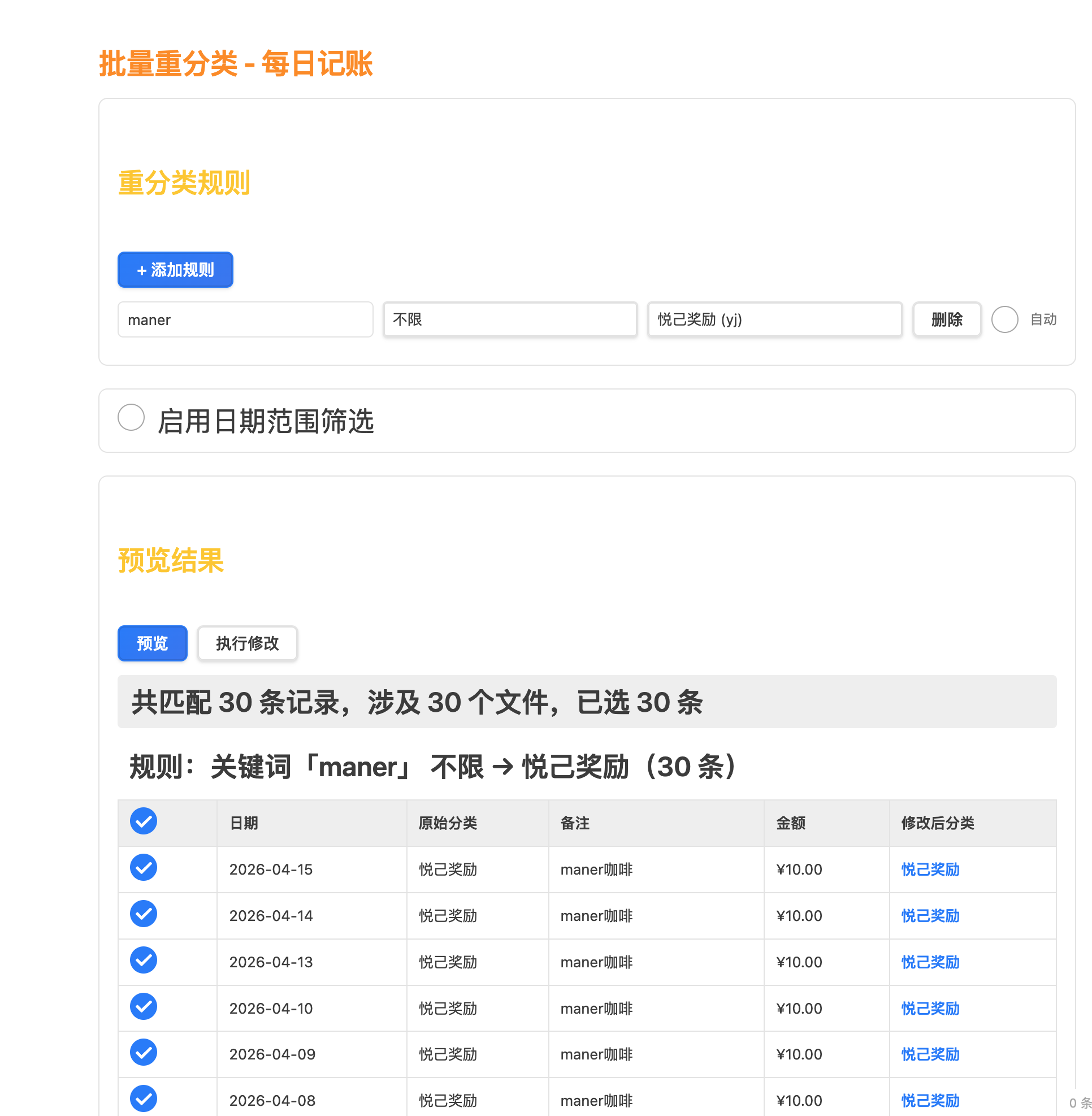
Rule fields
| Field | Description |
|---|---|
| Note keyword | If the note contains this keyword (case-insensitive), the rule matches |
| Target category | The category to change to |
| Auto | When checked, the rule runs silently each time the tracker view opens (only affects the last 7 days) |
Example: note contains maner → change category to 悦己奖励 (yj)
Auto-classify
When the "Auto" checkbox is enabled, the rule runs silently every time you open the tracker view:
- Only processes records from the last 7 days, so historical data is untouched.
- If the target category is already correct, the file is not modified (preserves timestamps).
- Shows a notification: "Auto-classify complete: X records updated."
Date range filter
Enable "Date range filter" to limit manual preview/execution to a specific date range, preventing accidental changes to older records.
Export
Export PDF
Click "Export PDF" in the tracker view, choose a date range, and export. The PDF includes a summary, category totals, and detailed records.
Export Markdown
Click "Export MD" to generate a Markdown-formatted expense report.
FAQ
Q: No records showing up?
Check that your daily notes are in the configured folder, filenames follow YYYY-MM-DD.md, and the record format is correct.
Q: How do I add a new category? Click the "Configure Categories" button in the tracker view.
Q: Where is my data stored? All data lives in your Obsidian notes (daily note files + config.json) — fully local.
Q: What if bill.md gets deleted accidentally?
It is only deleted after you confirm the import or when parsing fails. Check the developer console (Cmd+Option+I) for [bill-import] logs if needed.
Q: OCR merchant name doesn't match the actual name? Use the text shown in the import dialog to configure your merchant keyword — OCR may produce slight errors.
Development
npm run dev      # Watch mode with sourcemaps
npm run build    # Production build
npm run deploy   # Deploy to local vaults
npm run release  # Publish to GitHub
License
MIT
☕ Support the author
If this plugin helps you, consider buying me a coffee!

Scan with WeChat to donate
💡 Tip: The hardest part of tracking expenses isn't the method — it's consistency. By integrating bookkeeping into your daily notes, recording spending becomes a natural extension of journaling.
For plugin developers
Search results and similarity scores are powered by semantic analysis of your plugin's README. If your plugin isn't appearing for searches you'd expect, try updating your README to clearly describe your plugin's purpose, features, and use cases.