by Benature
Multiple customizable calendar views to visualize daily notes across different folders.
Co Notes
Co Notes is an Obsidian plugin that lets you visualize notes from multiple folders on a calendar.
Instead of being limited to a single daily note location, you can define multiple note sources, group them into different calendar views, and see at a glance which notes already exist for each day. Clicking a source indicator opens the note if it exists, or creates it if it does not.
Features
- Multiple calendar views for different workflows
- Multiple note sources per view
- Color-coded source indicators
- Support for notes stored across different folders
- Click to open existing notes or create missing notes
- Configurable note path templates with brace-wrapped moment-style date formats
- Adjustable source indicator height and day cell minimum height
- Chinese and English UI support
- Export and import settings as JSON backups
My Story: Collaborating with AI notes without blurring authorship
I keep my own Daily Notes and AI-generated notes in separate folders. My notes capture first-hand experiences, decisions, and feelings; AI notes help organize information, summarize processes, and offer another perspective for reflection. The two kinds of notes complement each other, but they should not become one indistinguishable record.
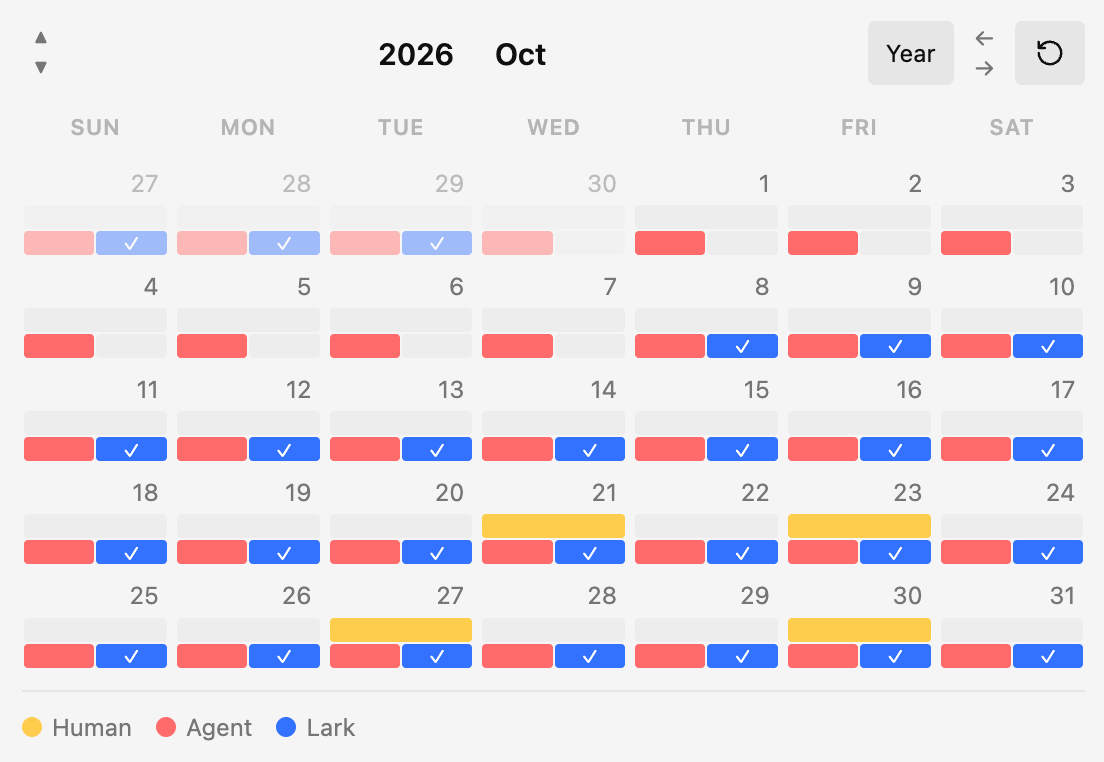
Keeping them together would blur which parts came from me and which came from AI. Keeping them completely separate, however, makes same-day comparison inconvenient. Co Notes grew out of this tension. I add both folders as sources in the same calendar and give them different colors, so I can immediately see which days have my own notes, which have AI notes, and which have both. Each source opens independently, making the two records easy to compare without mixing them.
Co Notes does not generate AI content or decide which record is more valuable. It keeps each note's source and authorship clear while letting the two timelines appear side by side.
How it works
Each calendar view contains one or more note sources.
Each source has:
- A name
- A color
- A path template
For every day in the month, Co Notes checks whether the note for each source exists. If it exists, the source indicator is filled with the configured color. If it is missing, the indicator stays empty. Clicking the indicator opens the note or creates it for you.
Example use cases
- Track personal and work daily notes in separate folders
- Compare notes from multiple journals in one calendar
- Build different calendar views for different projects or time horizons
- Keep parallel note systems without changing your folder structure
Path templates
Path templates parse only moment-style date formats inside braces, such as {YYYY}, {MM}, {DD}, {ddd}, and {dddd}. Formats can also be combined within one pair of braces, such as {YYYY-MM-DD}.
Examples:
daily/{YYYY}/{MM}/{YYYY-MM-DD}work-log/{YYYY}/{YYYY-MM-DD}journal/{YYYY}/{MM}/{YYYY-MM-DD}_{ddd}
Co Notes keeps normal path text outside braces as-is, so the ss in business/{YYYY-MM-DD} is not parsed as seconds. It automatically appends .md if it is missing.
Usage
- Open Settings -> Community plugins -> Co Notes.
- Create or edit a calendar view.
- Add one or more note sources to that view.
- Set the path template for each source.
- Open the view from the settings page, command palette, or ribbon icon.
- Click any source indicator in the calendar to open or create the target note.
Settings
Co Notes currently supports:
- Plugin UI language: system, Chinese, or English
- Optional gray weekend highlighting (enabled by default)
- Holiday country/region (disabled by default)
- Confirm before creating a missing note
- Global source indicator height
- Global day cell minimum height
- Multiple calendar views
- Multiple note sources per calendar view
- JSON settings export and import
When holidays are enabled, Co Notes fetches and caches them by year. China uses holiday-cn, including public holidays and adjusted workdays. Other countries use nationwide public holidays from Nager.Date. Failed requests fall back to regular weekend rules without affecting calendar or note features.
Commands
Co Notes registers one command per calendar view:
Open calendar: <view name>
This makes it easy to open specific views from the command palette.
Installation for development
npm install
Start watch mode:
npm run dev
Create a production build:
npm run build
Run lint checks:
npm run lint
Manual installation
Copy the release files into:
<your-vault>/.obsidian/plugins/co-notes/
Required files:
main.jsmanifest.jsonstyles.css
Then reload Obsidian and enable Co Notes in Settings -> Community plugins.
Release notes
When publishing a new version:
- Update
manifest.json. - Update
versions.json. - Create a GitHub release tagged with the exact plugin version, without a
vprefix. - Upload
main.js,manifest.json, andstyles.cssas release assets.
License
0-BSD
For plugin developers
Search results and similarity scores are powered by semantic analysis of your plugin's README. If your plugin isn't appearing for searches you'd expect, try updating your README to clearly describe your plugin's purpose, features, and use cases.