Connections
approvedby evancleve
Define and view named connections between your notes.
Connections Plugin
This plugin allows you to define and view named connections between your notes.
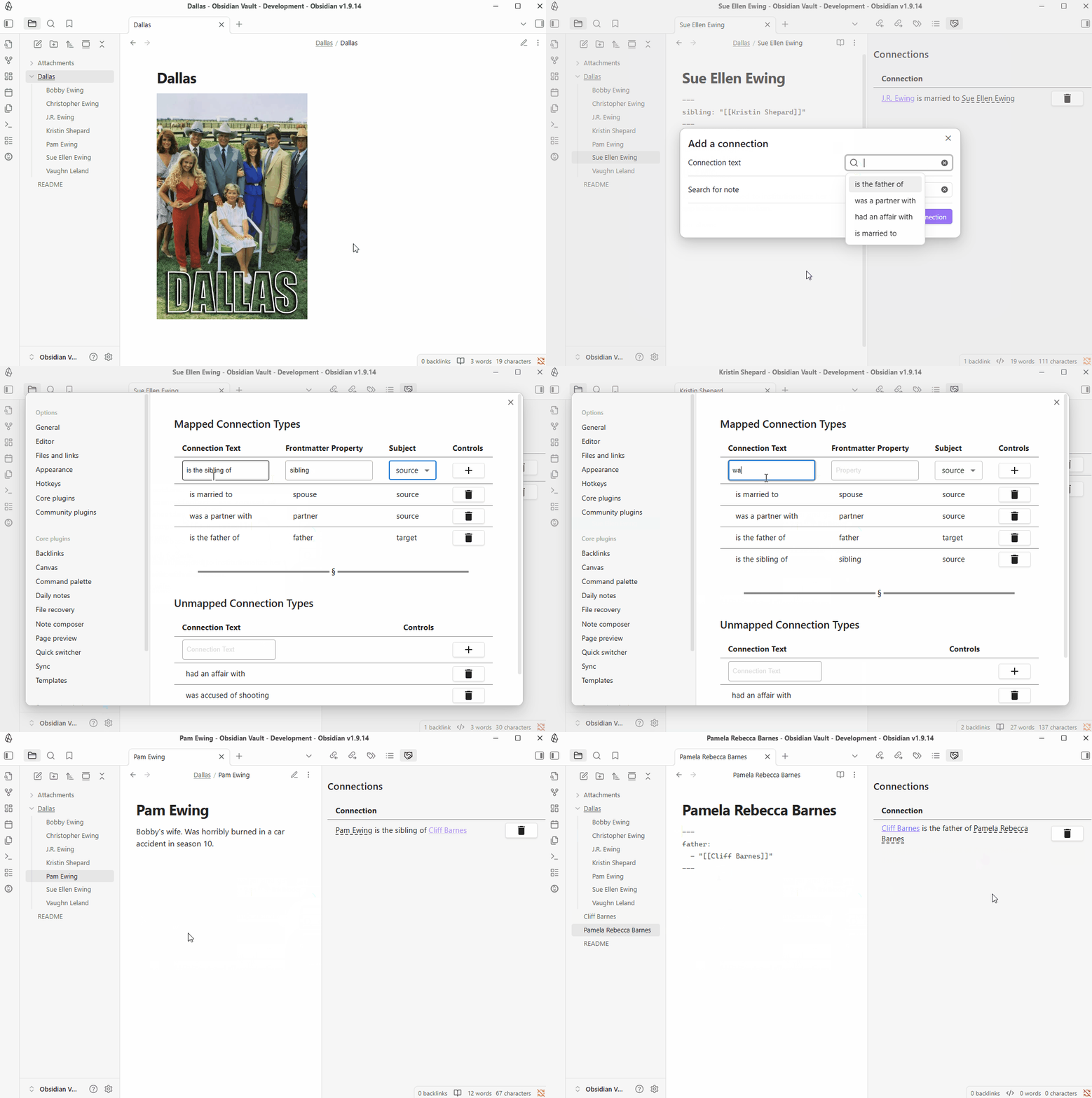
To add a connection, use the "Connections: Add a connection to another note" command.
In the resulting modal, select or enter in the connection type you want to define between the notes and select the target note. Once added, all connections will be displayed in the Connections pane in the right sidebar.
If you want to delete a connection, click on the trash icon beside the connection you want to remove.
You can also define mapped connection types, which allow you to use pre-existing properties to create connections. For example, you could define connection text of "is married to" for the spouse property.
After defining the connection type above, to create a connection of "Fred Flintstone is married to Wilma Flintstone" you'd add the following frontmatter to "Fred Flintstone.md".
---
spouse: "[[Wilma Flintstone]]"
---
Mapped connections' grammatical subject defaults to their source (the file containing the frontmatter property). For LTR-SVO languages like English, this means the source display text will be on the left, followed by the connection text, followed by the target display text.
However, you can also create mapped connections with subjects as their targets. For instance, you could create a mapped connection type with connection text of "is the father of" for the father property, and select "Target" as the subject.
Then, inside Pebbles Flintstone.md, you'd add the following frontmatter:
---
father: "[[Fred Flintstone]]"
---
This would cause "Fred Flintstone is the father of Pebbles Flintstone" to appear in the Connections pane.
This plugin plays nicely with the Folder Notes plugin.
Demo
Support
If you have any suggestions on features I could, add please let me know via my GitHub! If you feel like donating some spare change, feel free to do that here: https://buymeacoffee.com/envancleve.
For plugin developers
Search results and similarity scores are powered by semantic analysis of your plugin's README. If your plugin isn't appearing for searches you'd expect, try updating your README to clearly describe your plugin's purpose, features, and use cases.