by theluckystrike
Group selected conventional commit subjects into a new release draft.
Conventional Commit Draft
Group selected conventional commit subjects into a new release draft. Start with subjects in a Markdown note, check a local preview, and save a separate report. The source note stays unchanged. You do not need a Git repository, a terminal command, or a release service for this job.
The free workflow accepts up to 2,000 nonblank lines. It groups recognized types and keeps uncertain text visible for review. It does not choose a version number or publish a release. Treat the output as a working draft that a maintainer checks before publication.
Features
Selected subjects and grouped drafts
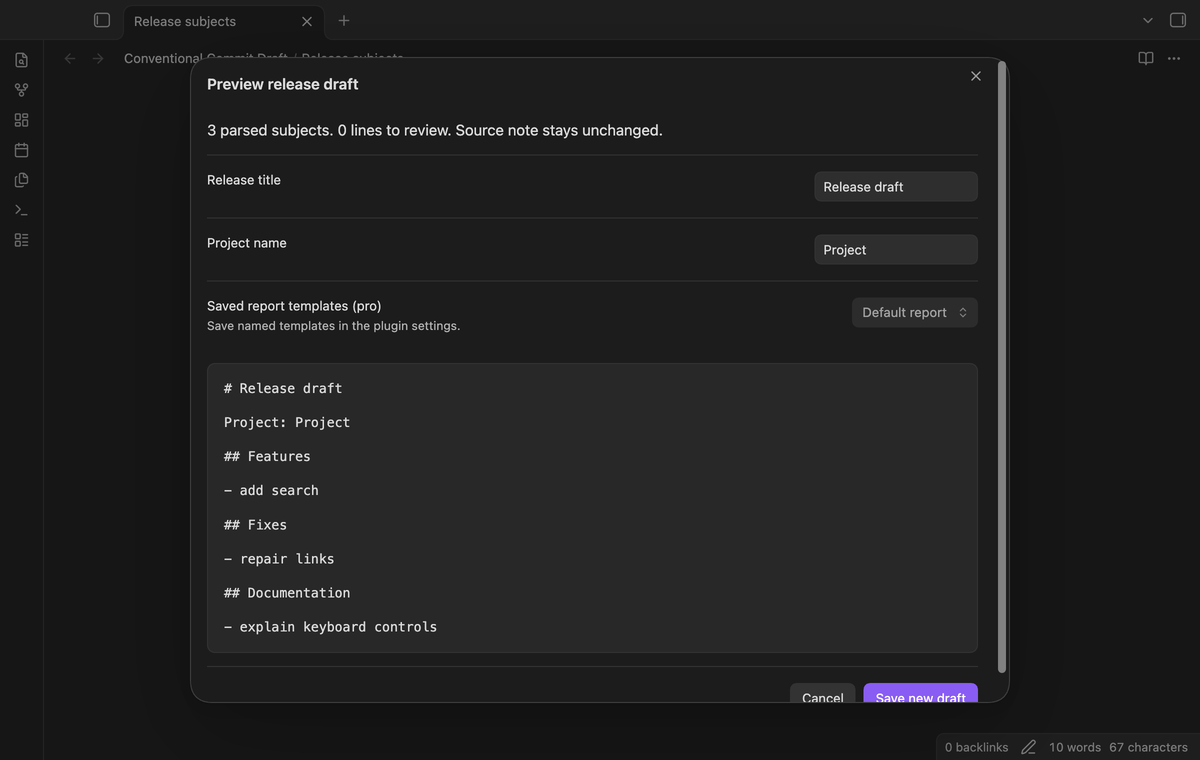
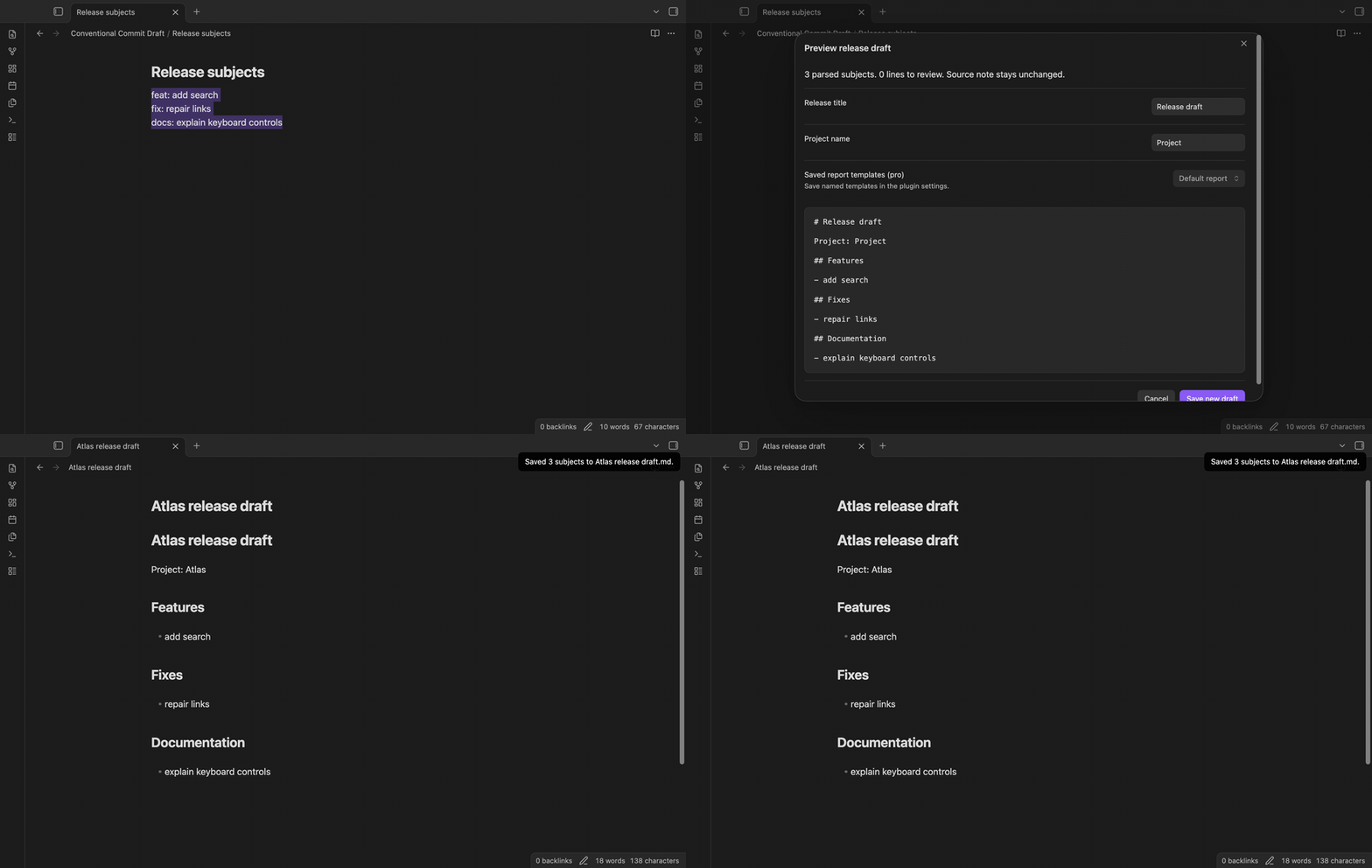
Select the lines that belong to the release in the active Markdown editor. Use one subject per line. The command reads that selection, so text outside it does not enter the report. Blank lines do not count toward the input limit.
The default headings are Features, Fixes, Documentation, Style, Refactoring, Performance, Tests, Build, Continuous integration, Chores, and Reverts. Empty groups are omitted. Entries within a type keep their input order, including duplicate subjects. Type matching uses lowercase names after parsing.
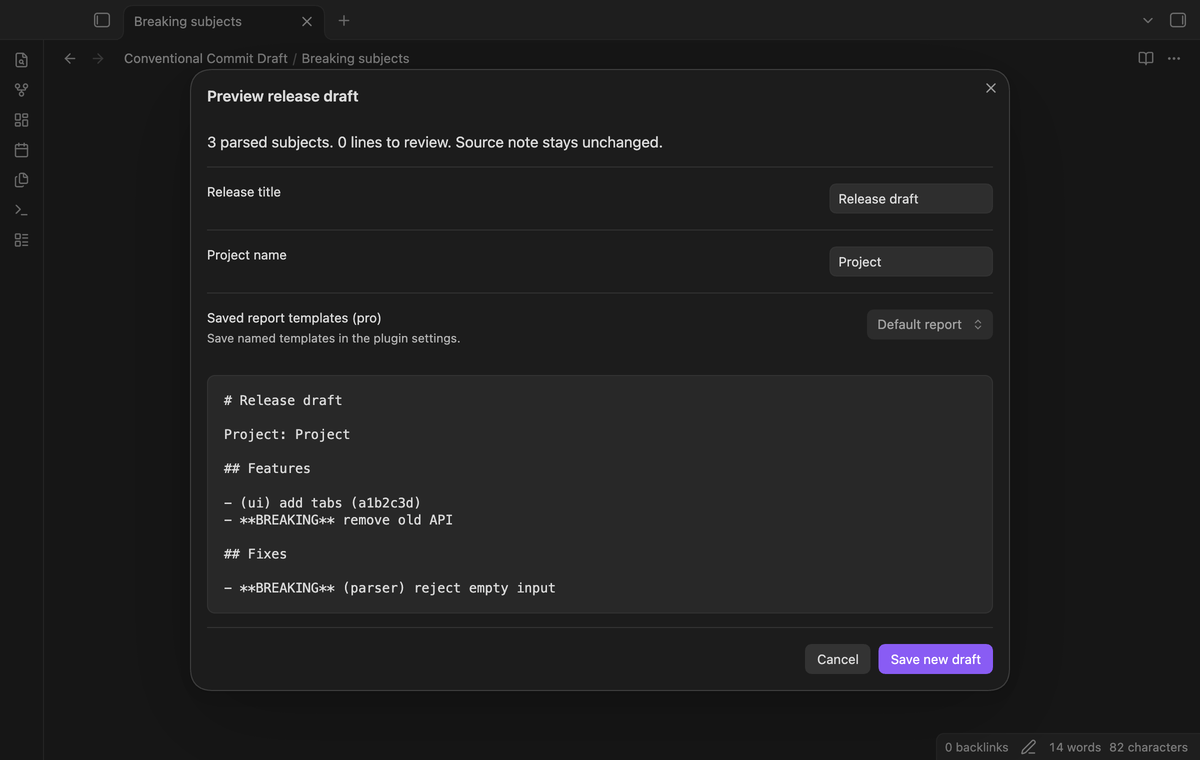
Hashes, scopes, and breaking subjects
A subject can start with a hexadecimal hash of 7 to 40 characters. The report keeps that hash next to the entry. A scope such as ui or parser stays with the subject. An exclamation mark after the type or scope adds a bold BREAKING label.
The parser requires a colon followed by whitespace and nonempty subject text. It accepts a tab after the colon. A breaking change recorded only in a commit body cannot be inferred from this input. Check the original change before you describe compatibility effects in release notes.
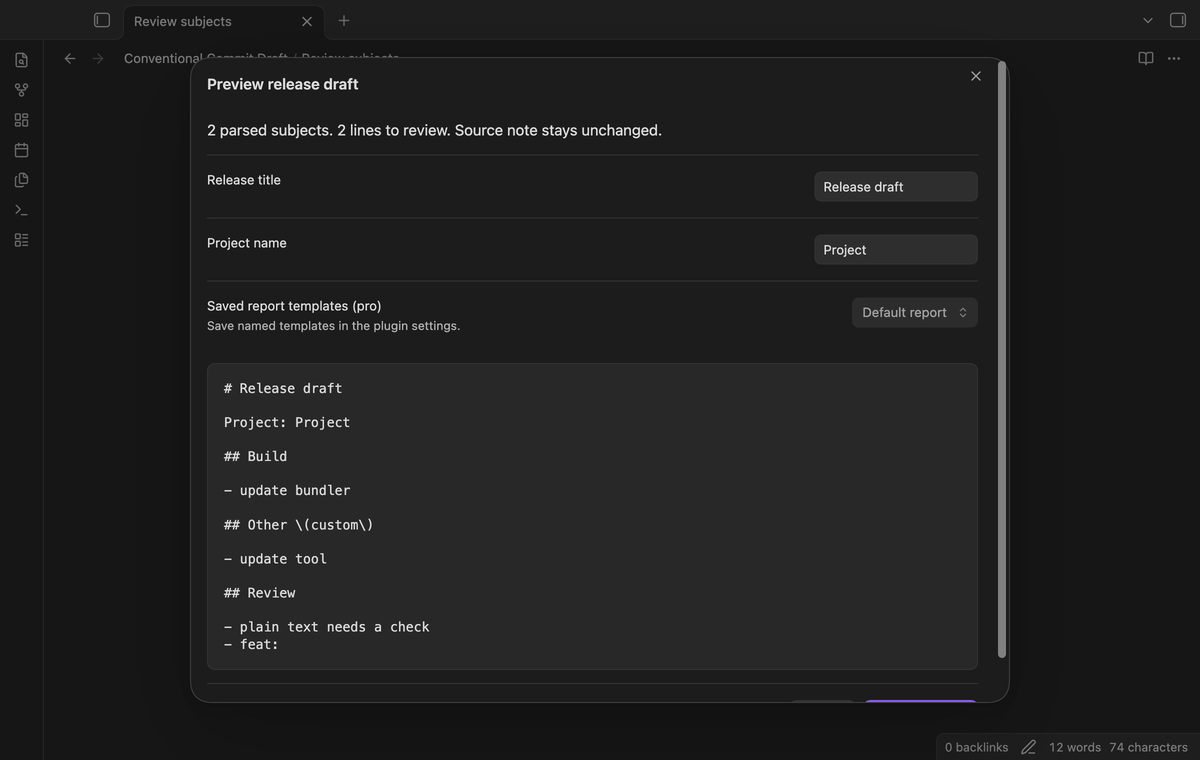
Other types and Review
A parsed type outside the default set gets a visible Other heading with its type name. A nonblank line that does not parse goes to Review. Plain text, an incomplete subject, and a commit body trailer remain available for a human check. The plugin does not discard those lines because their format is uncertain.
Review is also useful when pasted text includes log decorations or bullets. These prefixes are not stripped as commit syntax. Remove them in the source selection if you want those lines parsed, or keep them in the report for later editing.
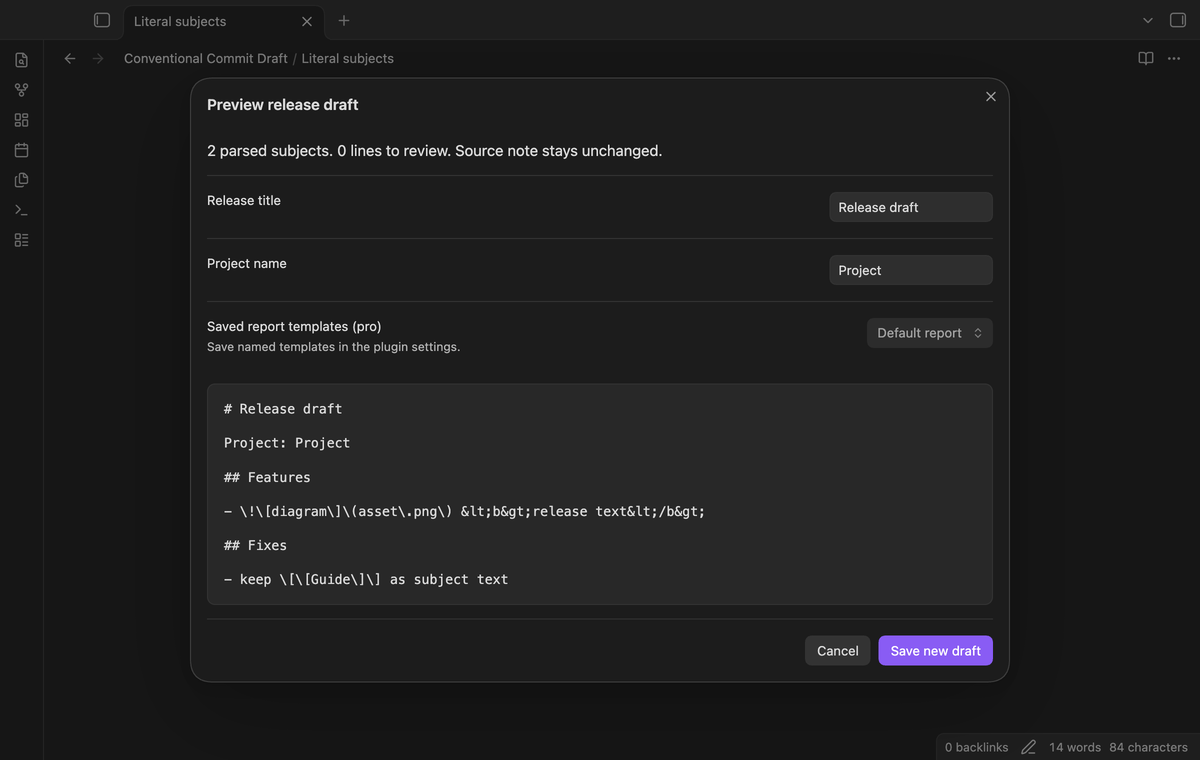
Literal text and separate local saves
The preview shows Markdown source as text. Subject image syntax, HTML, wiki links, and formatting punctuation are escaped in the report. Backslashes and HTML entities are visible in the preview because they protect the saved text when Obsidian reads the Markdown note.
Save new draft creates a note at the vault root. The release title supplies the file name after reserved characters are removed. If the path exists, the plugin tries a numbered name such as Release draft 2.md. It does not replace the existing report. A write error leaves the preview open so you can retry.
Project type names and heading order (Pro)
Save type names and their order in the plugin settings. Use one type=heading line per group. Put Fixes first, rename a heading, or give a project type its own section. Types absent from your saved list still get an Other label. Review remains a separate section after the parsed groups.
These headings apply to reports while Pro is active. Signing out restores the free headings for previews and saves. Saved project choices remain in local plugin data for later use.
Named report templates (Pro)
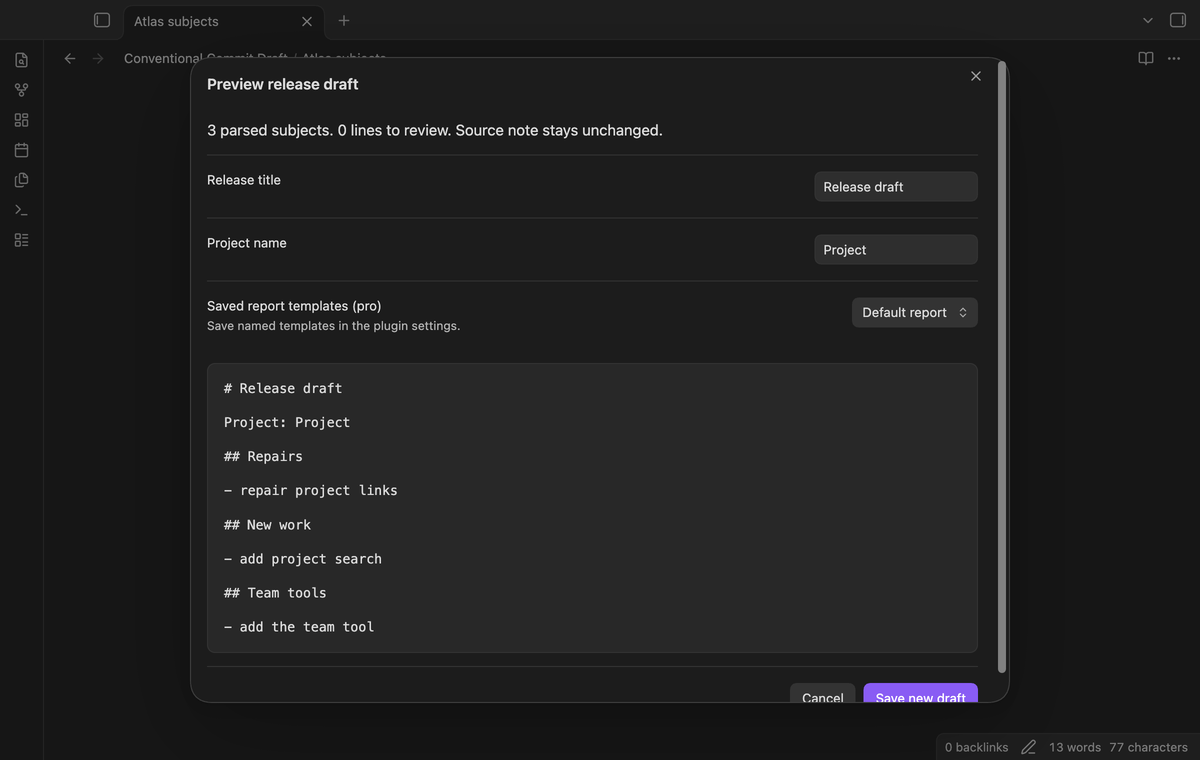
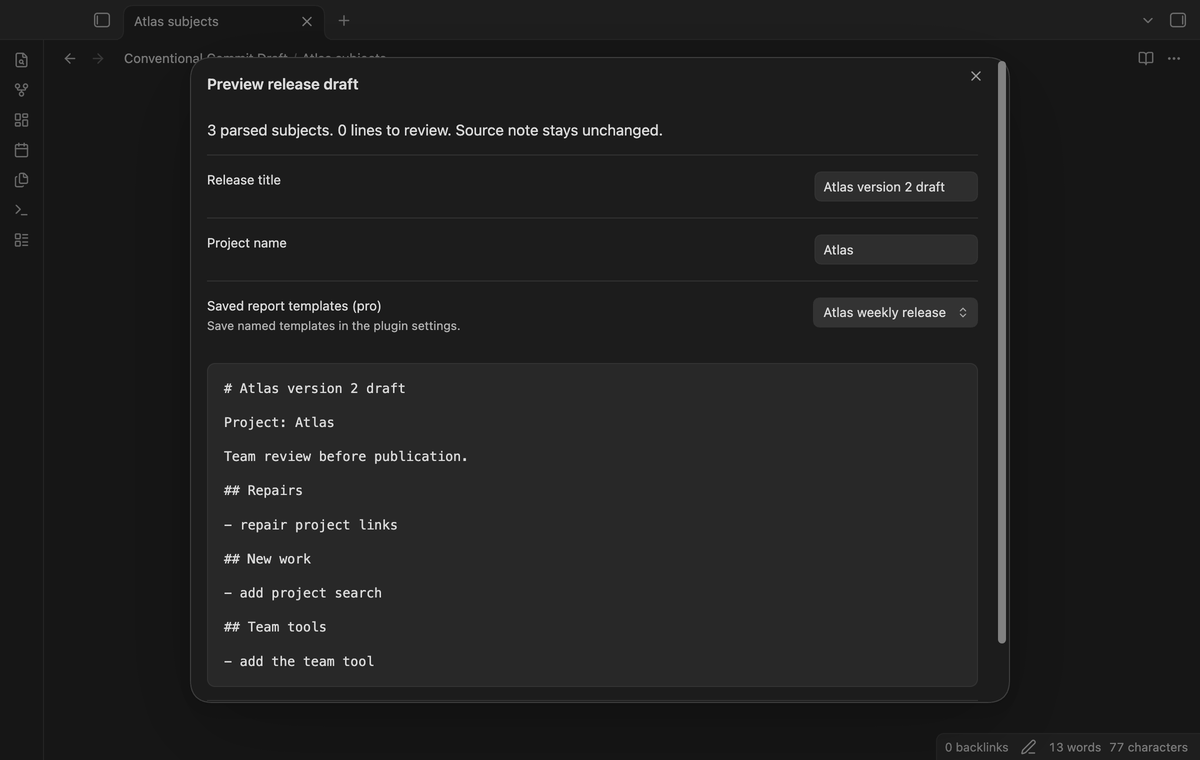
Save up to 20 named templates with a release title and project name. Choose a saved template in the preview to load those values. You can change the title and project for the current report. Reuse a template name in settings to replace its saved values.
A template must contain one sections slot. This requirement keeps the grouped subjects and Review section in the output. Title and project slots receive escaped text. The template itself is Markdown that you supply, so check its links or embeds before using it.
Install
Use the community plugin directory when a release is listed. Search for Conventional Commit Draft, install it, and enable it. For a manual installation, copy main.js, manifest.json, and styles.css from a release into the conventional-commit-draft folder under your vault's .obsidian/plugins directory. Reload Obsidian and enable the plugin.
The minimum supported app version is 1.13.4. The plugin uses public editor and vault APIs without Node or Electron calls. Real iOS and Android device checks are still required; the desktop tests do not establish mobile compatibility.
Usage
- Open a Markdown note in an editable view and select commit subjects.
- Run Conventional Commit Draft: Preview release draft from selection from the command palette.
- Check the groups, scopes, BREAKING labels, and Review lines.
- Set a release title and project name. These fields are free for the current draft.
- Select Save new draft, then open the new note from the file explorer.
Cancel closes the preview without a write. An empty selection gives a notice. A selection above the limit also gives a notice and creates no partial report. Split a larger list into selections before you run the command.
Settings
The free workflow needs no saved configuration. Optional Pro controls are in the plugin settings, below the GitHub account section. Heading lists accept 1 to 30 unique lowercase types with nonempty names. Template text has a 10,000-character limit. Saved names are limited to 80 characters; saved titles and project names are limited to 200 characters.
Use the sections, title, and project slots as shown below. Save the template, reopen the draft preview, and choose its name. Templates and headings are stored in plugin data in the vault. They are not sent to the sponsorship check.
# {{title}}

Project: {{project}}

{{sections}}
FAQ
The plugin reads selected editor text and writes a Markdown note. It does not run Git or determine the next release version.
A line enters Review when it does not match the supported form: type, optional scope, optional breaking mark, colon, whitespace, and subject. An optional hexadecimal hash can precede it. Commit bodies and trailers are outside this parser's scope.
Real mobile devices, Windows, and Linux app sessions were not tested in this build. A live GitHub payment and a live OAuth sign-in were not tested. Sponsors tests use a mock answer. The Node 24 and npm 11 release environment was not tested locally. Custom themes, other plugins, and sync conflicts require separate checks.
Payment, account and network
The core features are free. Pro features need a GitHub Sponsors sponsorship of theluckystrike: $5 a month or more, or $15 once. A total payment of $15 meets the payment requirement for Pro without further payment. Sign-in and the checks below still apply. Your notes stay readable and editable with or without Pro.
GitHub handles the payment. Sponsor at https://github.com/sponsors/theluckystrike. You need no account for the free features. Pro needs the GitHub account that sponsors.
Until you select "Sign in with GitHub" in the settings, Conventional Commit Draft makes no network requests. Sign in uses the GitHub device flow. Conventional Commit Draft sends its public client ID and the scope read:user to https://github.com/login/device/code and shows you a code. While you enter the code at https://github.com/login/device, it asks https://github.com/login/oauth/access_token every few seconds to check the sign-in status. The scope permits profile reads only. GitHub needs this access to show the sponsorship tier. It grants no repository scope and no write access.
After sign in, Conventional Commit Draft sends one query to https://api.github.com/graphql. It checks if the signed-in account sponsors theluckystrike. It asks for the tier and the total payment to theluckystrike. The plugin reuses a successful check for 7 days. Failed checks can retry after 6 hours. Select Refresh to request an earlier check. It sends no note content, file names or other vault data, and it has no telemetry.
After a successful check, Pro can work offline for up to 14 days. Sign out or a negative sponsorship answer turns Pro off. The plugin stores the GitHub token through the secret storage API of Obsidian. It does not put the token in its saved settings or its local sponsorship data. The local storage of this device keeps your GitHub login, the tier and the time of the last check. Sign out clears the token. You can also revoke the access in your GitHub settings, under Applications.
Support
Report a problem in the plugin repository with the app version, plugin version, and a short sample selection. Remove private project text before you share it. Include the expected heading and the actual output for parser issues. For a save error, include the notice text and whether a report with that title exists.
The source code uses the MIT license. The publisher is theluckystrike. This plugin is an independent community tool.
For plugin developers
Search results and similarity scores are powered by semantic analysis of your plugin's README. If your plugin isn't appearing for searches you'd expect, try updating your README to clearly describe your plugin's purpose, features, and use cases.