Copy for Email and Chat
approvedby HWY1dot0
Copy selections or whole notes as email-ready rich text plus chat-ready plain text. Tables, callouts and Mermaid diagrams survive Gmail, Outlook, Apple Mail; WeChat and Slack get structured text. - This plugin has not been manually reviewed by Obsidian staff.
English | 简体中文
Copy for Email and Chat
Copy a selection or a whole note as email-ready rich text. Paste it into Gmail, Outlook, Apple Mail, Word or a WeChat official-account editor and the formatting survives — headings, tables, callouts, highlighted code, task lists, and even Mermaid diagrams and math (converted to images). The same copy also carries a chat-ready plain-text flavor, so pasting into WeChat, Slack or iMessage gives clean structured text instead of raw markdown.
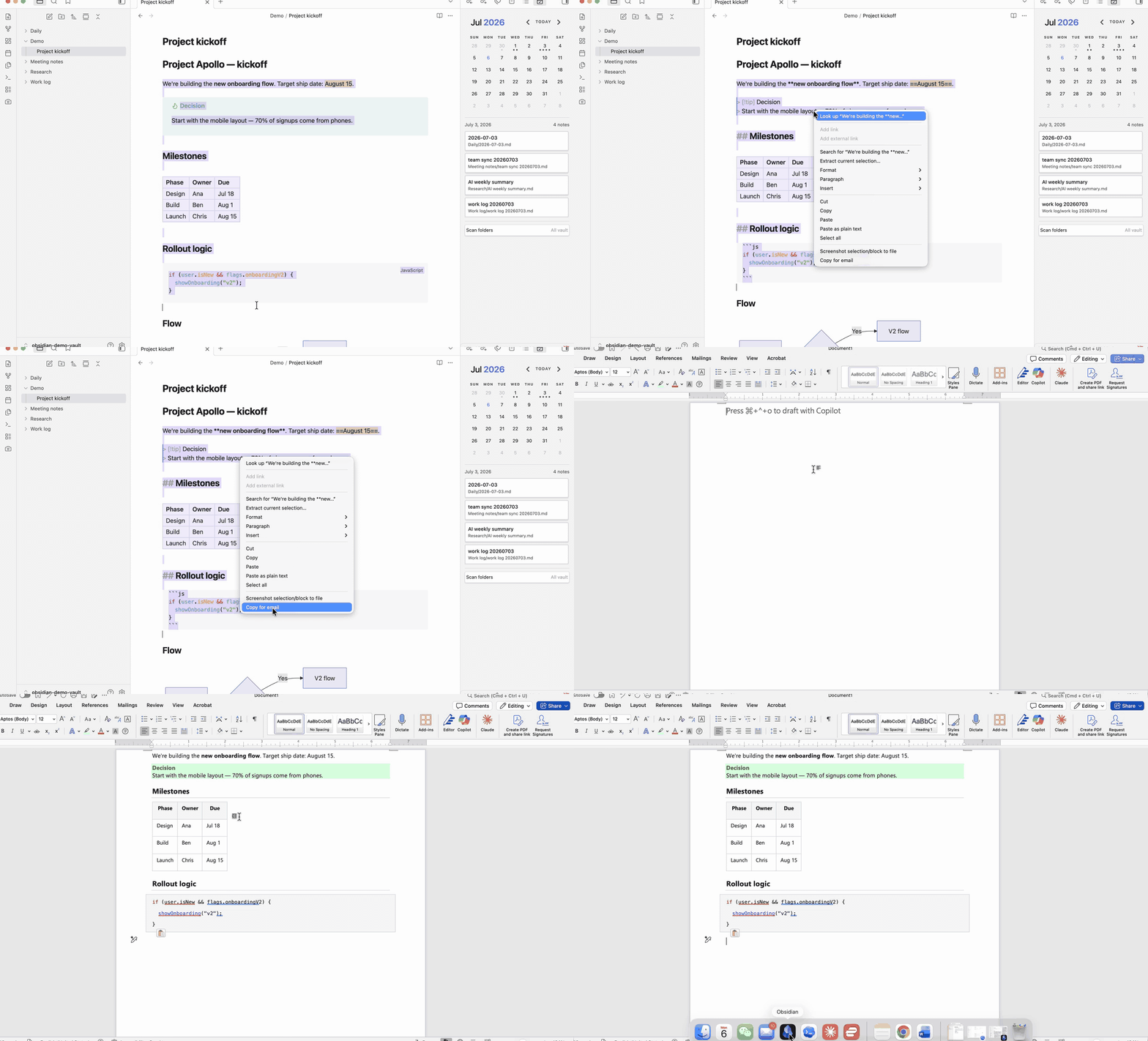
Plain markdown copied out of Obsidian pastes as raw syntax (**bold**, # heading, | tables |). Existing "copy as HTML" approaches rely on classes and <style> blocks, which mail clients strip on paste. This plugin instead:
- Inlines every style on every element — the only formatting mail clients reliably keep.
- Rasterizes what mail can't render: Mermaid diagrams, charts, MathJax formulas and SVGs become embedded PNG images.
- Embeds vault images as data URIs so they paste along with the text.
- Uses a fixed light palette so text stays readable in a white email body even if you run a dark Obsidian theme.
- Writes a chat-styled plain-text flavor too: chat apps (WeChat, Slack, iMessage) that ignore rich text get clean text whose structure survives in glyphs —
【Heading】,「emphasis」,① ② ③lists,▏quote bars — with every marker customizable in settings.
Usage
- Copy selection — command palette, or right-click a selection → Copy for email and chat (editing view). Works in reading view too: select rendered text, then run the command.
- Copy note — copies the active note (frontmatter excluded; optionally prepends the title).
- Ribbon button — the mail icon in the left ribbon copies the current selection, or the whole note when nothing is selected.
Then paste into your mail compose window.
[!note] A plain
Cmd/Ctrl+Cis still Obsidian's native copy (markdown text, or theme-styled HTML from reading view, which mail clients render poorly). Use the plugin command or menu item to get the email-ready version.
What maps to what
| In Obsidian | In the email |
|---|---|
| Headings, bold/italic, highlight | Styled text (GitHub-light palette) |
| Tables (with column alignment) | Bordered tables |
| Callouts | Tinted boxes with colored left border |
| Code blocks | Boxed monospace with syntax colors |
| Task lists | ☑ / ☐ |
| Mermaid / charts / math / SVG | PNG images |
| Vault image embeds | Embedded images (data URIs) |
| Internal links & tags | Plain text |
| External links | Real links |
Chat plain text
Chat apps ignore the rich-text flavor entirely — WeChat, for example, supports no formatting in messages at all. So the same copy also writes a plain-text version where structure is redrawn with glyphs chat apps render fine:
【Note title】

■ Section

「Key point」 survives as visible emphasis.

▍Subsection

① First
② Second
 • nested item

▏ Quoted line

※ Callout title
▏ Callout body
Every marker is configurable under Settings → Copy for Email and Chat → Plain text: swap any glyph, or switch the style to Minimal for undecorated plain text. Tables stay as a | b rows — proportional chat fonts can't align columns, so for tables a screenshot is still the honest answer.
Notes & limitations
- Pasted data-URI images work in Gmail, Apple Mail, Outlook for Mac and new Outlook. Classic Outlook for Windows may not display them while composing; recipients are unaffected when sending from the supported clients.
- Diagrams are rasterized against your current Obsidian background, so they always stay readable; for light-styled diagrams in email, use a light theme.
- On mobile, diagrams/math degrade to a
[diagram]placeholder (iOS cannot reliably rasterize off-screen renders); text, tables and images copy fine.
Install
Copy for Email and Chat is available in the Obsidian Community Plugins directory:
- Open Settings → Community plugins → Browse.
- Search for Copy for Email and Chat and install it.
- Enable it — the commands and the right-click menu item appear immediately.
Manual install
Download main.js, manifest.json, styles.css from the latest release into <vault>/.obsidian/plugins/copy-for-email/, then enable it in Settings → Community plugins.
More plugins by HWY1dot0
- Calendar Hub — one calendar that surfaces every note from a given day, in any folder.
- Screenshot Selection — capture selected note content as a theme-faithful PNG.
If this plugin helps your workflow, you can buy me a coffee.
License
MIT
For plugin developers
Search results and similarity scores are powered by semantic analysis of your plugin's README. If your plugin isn't appearing for searches you'd expect, try updating your README to clearly describe your plugin's purpose, features, and use cases.