by nani-31
Copy notes or selections to clipboard as HTML with math formulas rendered as MathML/KaTeX for Microsoft Word, Google Docs, Anki, and Web.
Copy as HTML with Math (Obsidian Plugin)
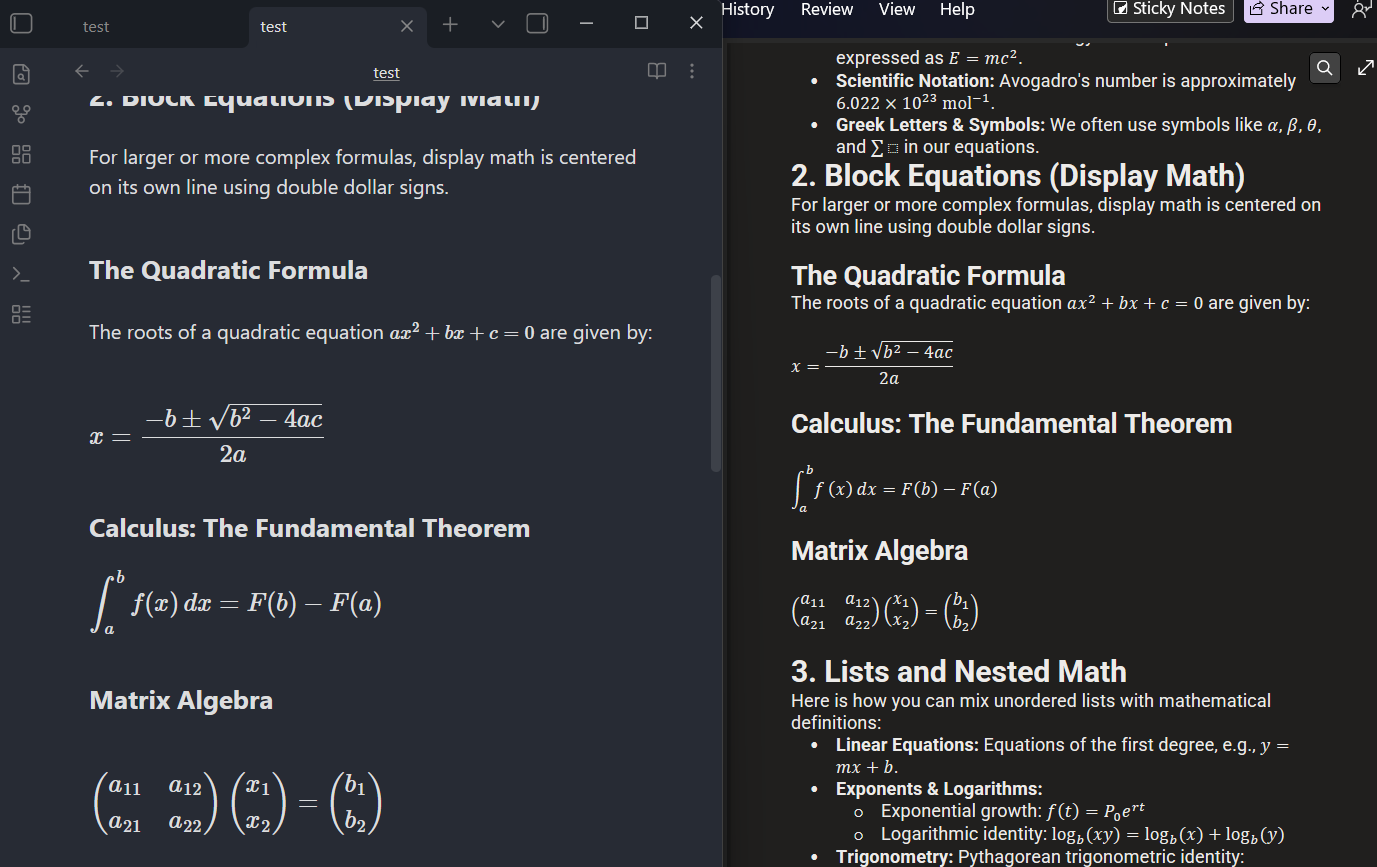
An Obsidian plugin that copies notes or text selections to your system clipboard as rich HTML, with mathematical formulas rendered as native MathML or KaTeX representations for seamless pasting into Microsoft Word, Google Docs, Apple Pages, LibreOffice, Gmail, and Anki.
It also features smart paste cleanup for ChatGPT & web formulas (Ctrl + V), eliminating duplicated text and automatically formatting math as clean Obsidian LaTeX.
🌟 Key Features
📐 1. Full Mathematical Formula Copying
Standard copy plugins and Obsidian's default copy leave math formulas inside $...$ or $$...$$ as raw LaTeX text. This plugin automatically parses and converts them into:
- MathML (
<math>): Pastes directly into Microsoft Word and converts into native, editable Office Math equations! Also fully supported in Google Docs, Apple Pages, and LibreOffice. - HTML + MathML (KaTeX): Full visual HTML equation rendering with MathML fallback for web browsers, Gmail, Notion, Anki, and blogs.
- Direct MathML Copy: Select any equation and copy directly as pure MathML code.
🤖 2. Smart Paste: Auto-Format Math from ChatGPT & Web (Ctrl + V)
Copying responses with math from ChatGPT, Claude, or Wikipedia usually causes ugly duplication issues when pasting with Ctrl + V into Obsidian (e.g. pip_i, ii, nn, or formulas glued together without $ signs).
This plugin intercepts Ctrl + V and automatically:
- ✅ Removes duplicate text artifacts caused by dual KaTeX HTML + MathML layers.
- ✅ Extracts high-fidelity LaTeX from the underlying formula annotations.
- ✅ Wraps formulas in proper Obsidian syntax:
$...$for inline math and$$...$$for block display equations. - ✅ Converts LaTeX brackets: Translates
\[...\]and\(...\)into standard Obsidian$$...$$and$...$.
💻 3. Clean Code Blocks for Notion, Google Docs & Word
- Unified Boxed Containers: Code blocks are cleanly formatted as table containers so Notion and Google Docs render them as single, enclosed boxes rather than fragmented lines.
- Transparent Background by Default: Code blocks feature a transparent background that naturally adapts to light and dark themes in your destination app.
- Optional Background Shading: Toggle on a
#f5f5f5shaded background if you prefer traditional gray code boxes.
🎨 4. Rich Media & Formatting Support
- ✅ Math Formulas (Inline
$E = mc^2$and display$$\sum_{i=1}^n x_i$$) - ✅ Images & Diagrams (Embedded as Base64 Data URIs so pasted documents don't have broken links)
- ✅ Mermaid Diagrams & PlantUML
- ✅ Excalidraw drawings
- ✅ Tables & Callouts (Optional conversion to HTML tables for enhanced Google Docs pasting)
- ✅ Code blocks with syntax highlighting
- ✅ Obsidian Dataview & Tasks
⌨️ Commands & Shortcuts
You can trigger these commands from the Command Palette (Ctrl + P / Cmd + P) or assign custom hotkeys:
| Command | Suggested Hotkey | Action Details |
|---|---|---|
| Copy selection or document to clipboard | Ctrl + Shift + C | Copies selection with rendered math; if nothing is selected, copies the whole note. |
| Copy entire document to clipboard | — | Copies the entire note as rich HTML with math. |
| Copy current selection to clipboard | — | Copies only the selected text with rendered math. |
| Copy current selection directly as MathML | — | Copies the selected LaTeX formula directly as pure MathML. |
⚙️ Settings
Go to Settings → Copy as HTML with Math:
- Math formula handling:
MathML (Recommended): Converts to standard MathML. Pastes as native, editable Word equations.HTML + MathML (KaTeX): Full KaTeX rich HTML structure for web and email.Leave as raw code: Copies the literal$ ... $text.
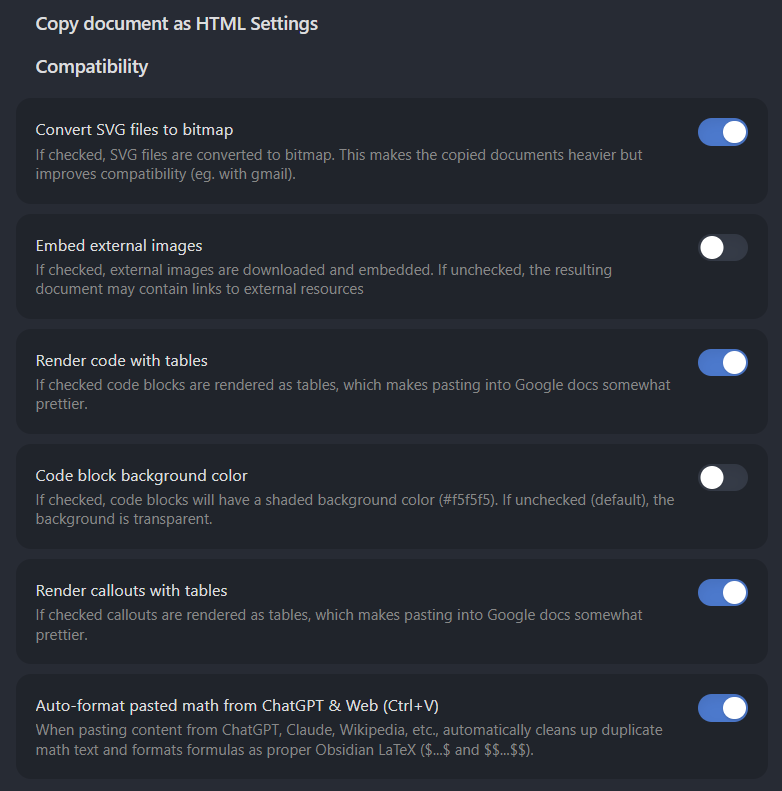
- Auto-format pasted math from ChatGPT & Web (Ctrl+V): Automatically cleans duplicate math text and formats formulas from ChatGPT, Claude, and Wikipedia into clean Obsidian LaTeX (enabled by default).
- Render code with tables: Formats code blocks as tables so they paste as unified boxed containers in Notion and Google Docs.
- Code block background color: Toggles between transparent background (default) and shaded
#f5f5f5background. - Include filename as header: Automatically inserts the document title as an
<h1>header when copying the full document. - Convert SVG to bitmap: Converts SVG diagrams to PNG bitmaps for compatibility with Gmail.
- Embed external images: Downloads and embeds remote images directly into clipboard HTML.
- Copy HTML fragment only: Excludes
<head>and<html>wrapper when only snippet pasting is needed. - Custom Stylesheet & Template: Provide custom CSS to control table borders, fonts, and colors.
📥 Installation
Method 1: Obsidian Community Plugins (Coming Soon)
Search for Copy as HTML with Math in Obsidian's in-app Community Plugins browser (Settings → Community Plugins → Browse).
Method 2: Via BRAT (Beta Reviewer's Auto-update Tester)
- Install the BRAT community plugin in Obsidian.
- In BRAT settings, click Add Beta Plugin.
- Enter repository URL:
https://github.com/NANI-31/obsidian-copy-html-with-math - BRAT will automatically download the plugin and keep it up to date!
Method 3: Manual Installation
- Download
main.js,manifest.json, andstyles.cssfrom the Releases page. - Create a folder in your vault:
your-vault/.obsidian/plugins/copy-html-with-math/. - Copy the 3 files into that folder.
- In Obsidian, go to Settings → Community Plugins, reload, and enable Copy as HTML with Math.
🛠️ Development & Building
# Clone the repository
git clone https://github.com/NANI-31/obsidian-copy-html-with-math.git
cd obsidian-copy-html-with-math

# Install dependencies
npm install

# Build production bundle
npm run build

# Start live dev watcher
npm run dev
📜 Credits & License
- Developed and maintained by NANI-31.
- Based on the original obsidian-copy-as-html by mvdkwast.
- Mathematical typesetting powered by KaTeX.
- Licensed under the MIT License.
For plugin developers
Search results and similarity scores are powered by semantic analysis of your plugin's README. If your plugin isn't appearing for searches you'd expect, try updating your README to clearly describe your plugin's purpose, features, and use cases.