by WallWay
Plan your meals for the week, scale recipes to the number of eaters and turn them into a grocery list.
Cupboard
Plan the week's meals, scale recipes to the people who are eating, keep track of what is in the house, and walk into the shop with a list that is already sorted by shelf. Everything lives in plain Markdown notes in your vault: recipes, products, shops, weekly plans and shopping lists. No accounts, no servers, no network requests.
What it does
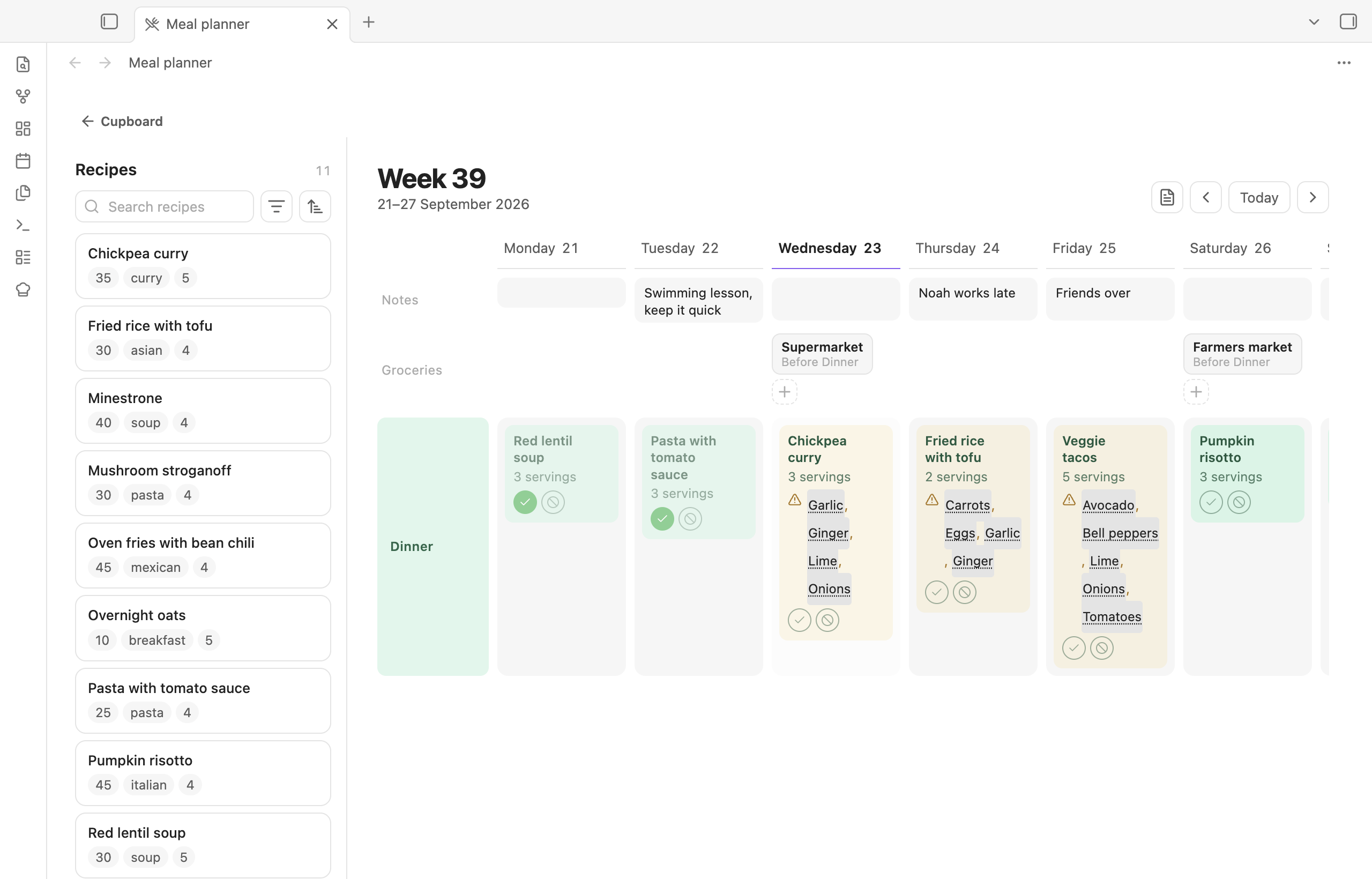
Plan the week. Drag recipes onto the days. Tick who is eating, and Cupboard works out the servings: a child can count as half an adult portion, guests count as a full one. A note per day holds what the calendar says, and grocery stops mark when a shop's goods arrive.
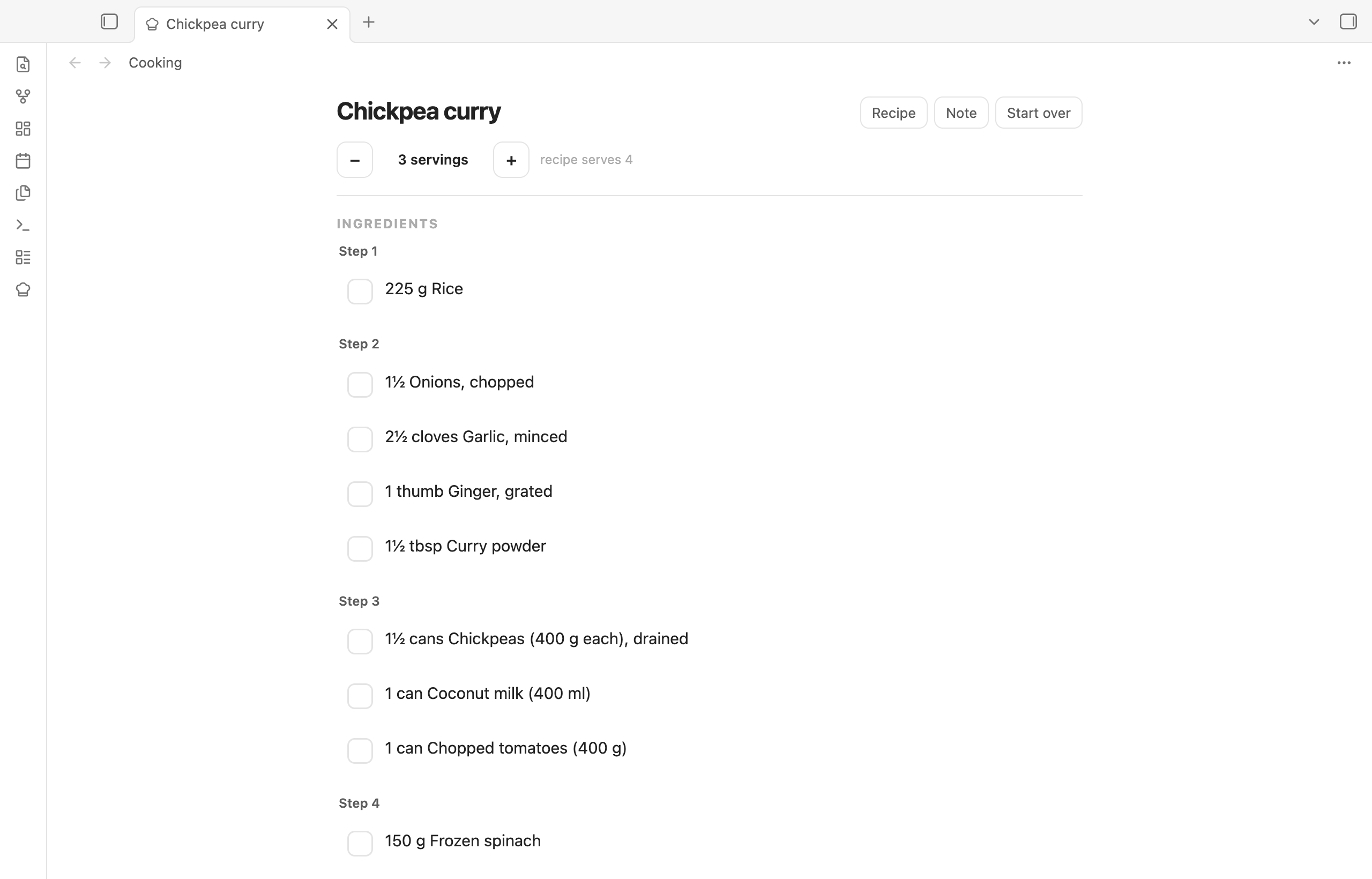
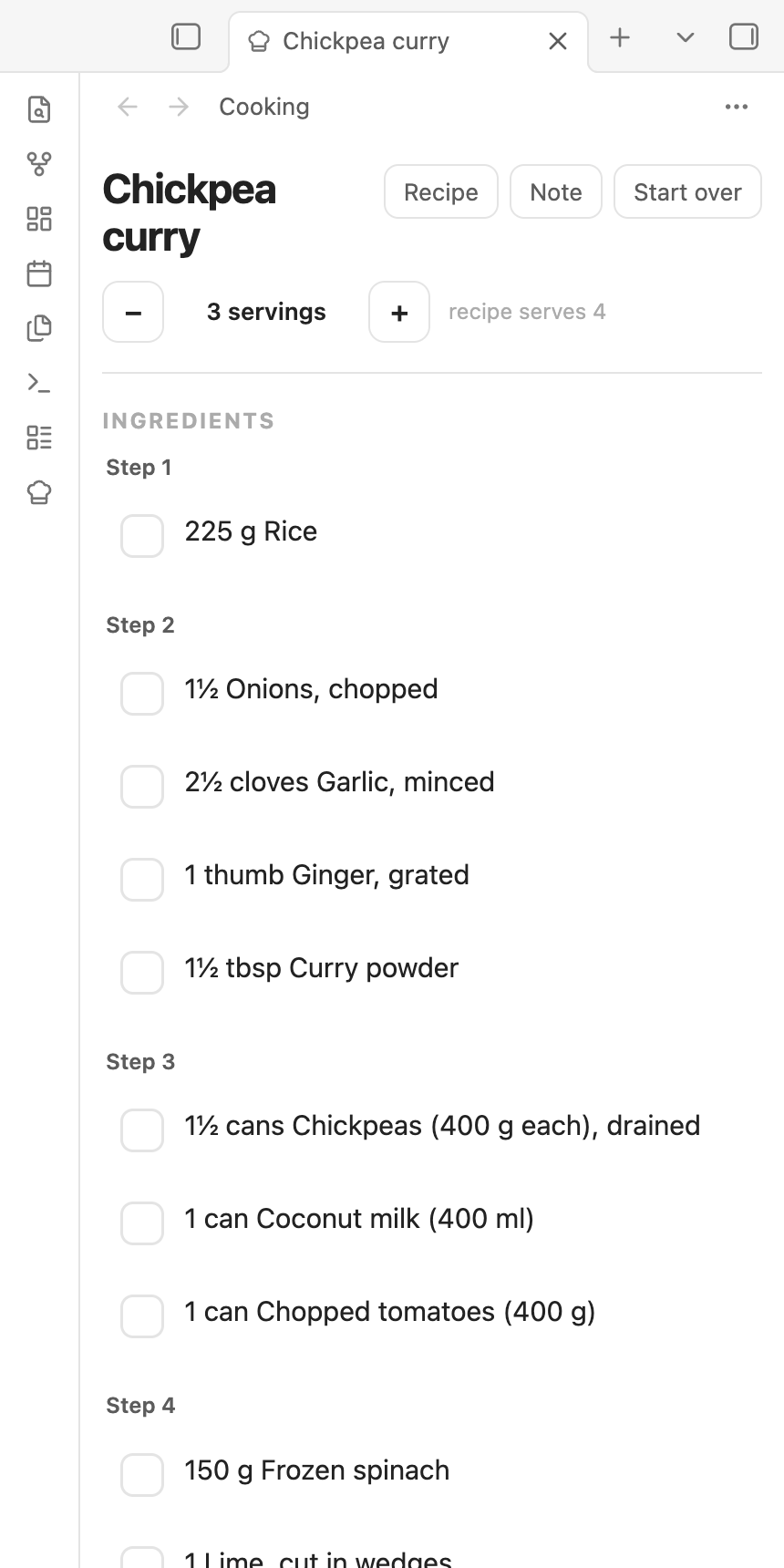
Cook from the note. Cook mode shows the ingredients scaled to tonight's servings, step by step, with checkboxes and timers. Each cooking session is a note, so it survives a restart and syncs to the phone.
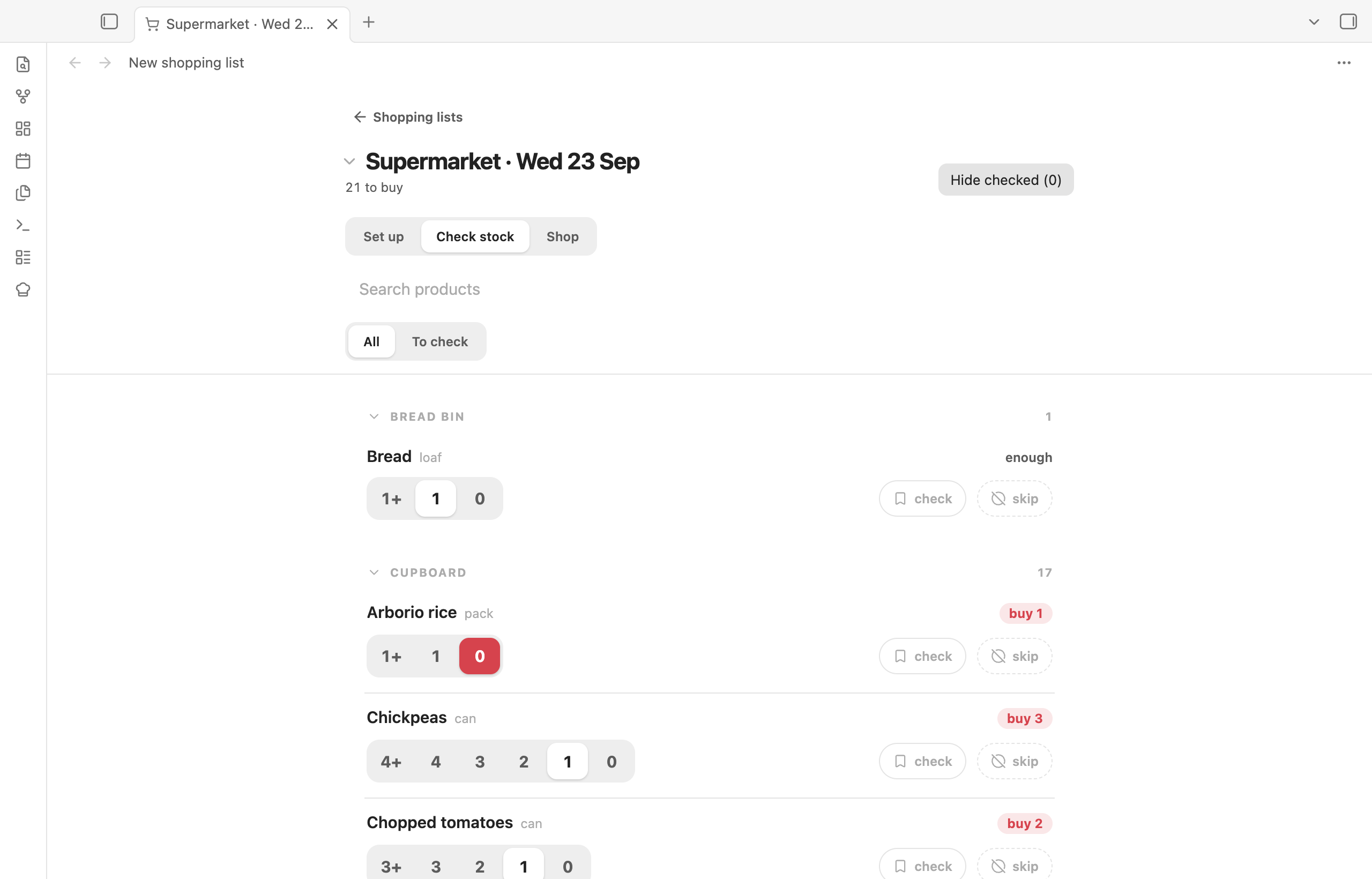
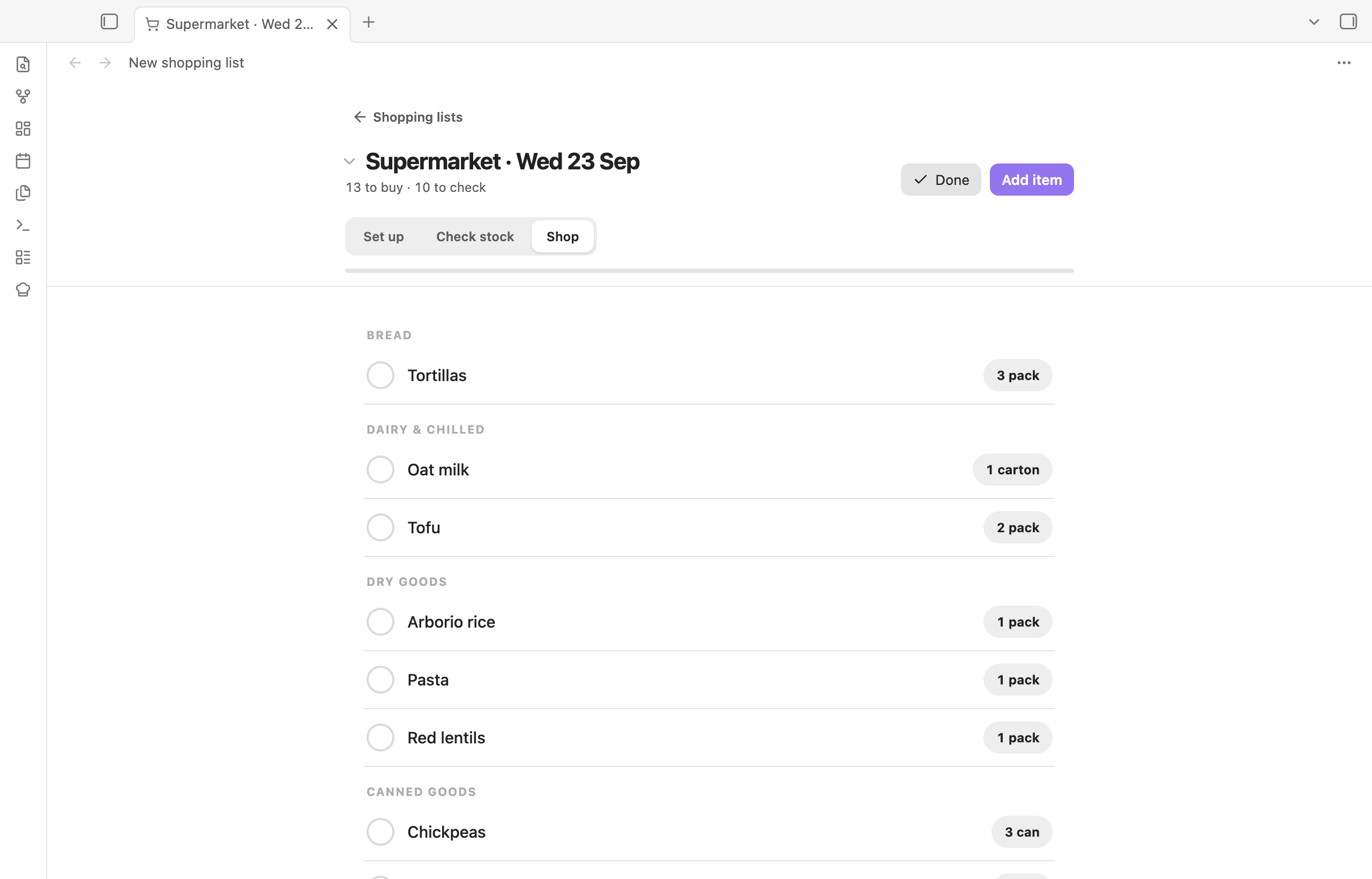
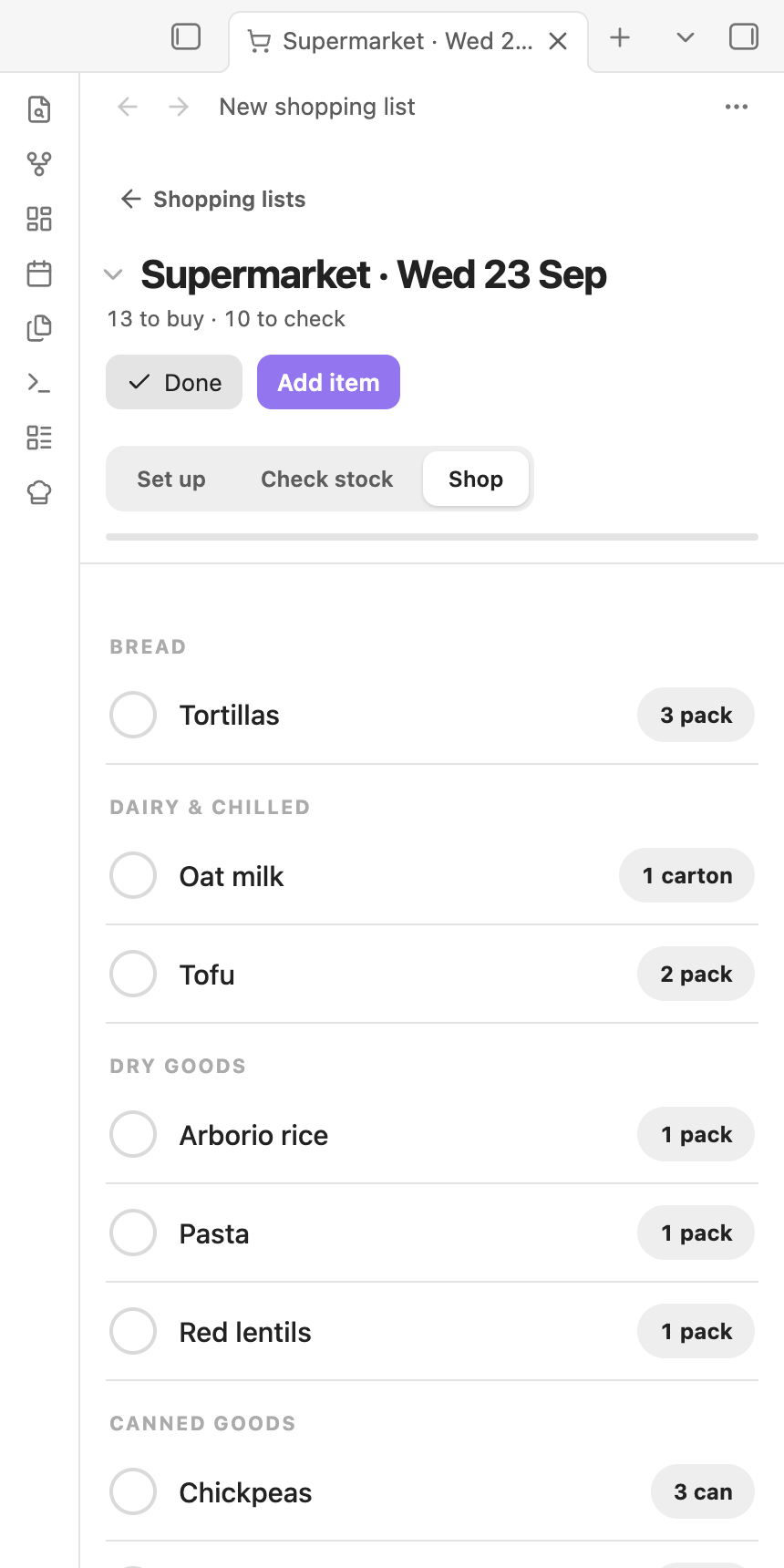
Shop per trip. A shopping list is one trip to one or more shops. Pick the day and the meals it covers, check what is in the house, then shop. The list is sorted in the order you walk through the shop.
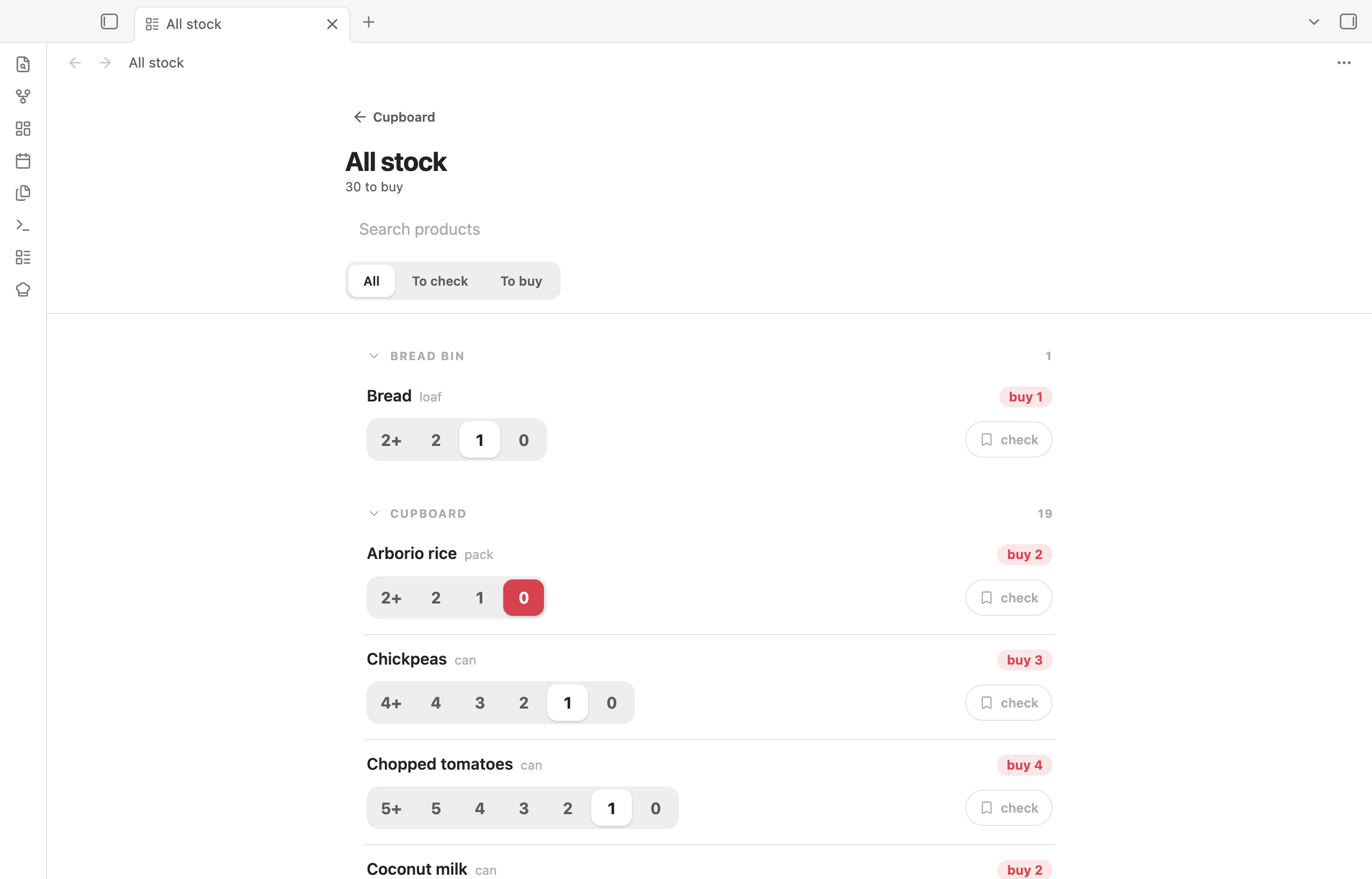
Know what is in the house. Each product is a note: how it is bought, where it lives, how many to keep in stock. Counting is a tap. Tick a meal as eaten and the stock goes down by what the recipe used.
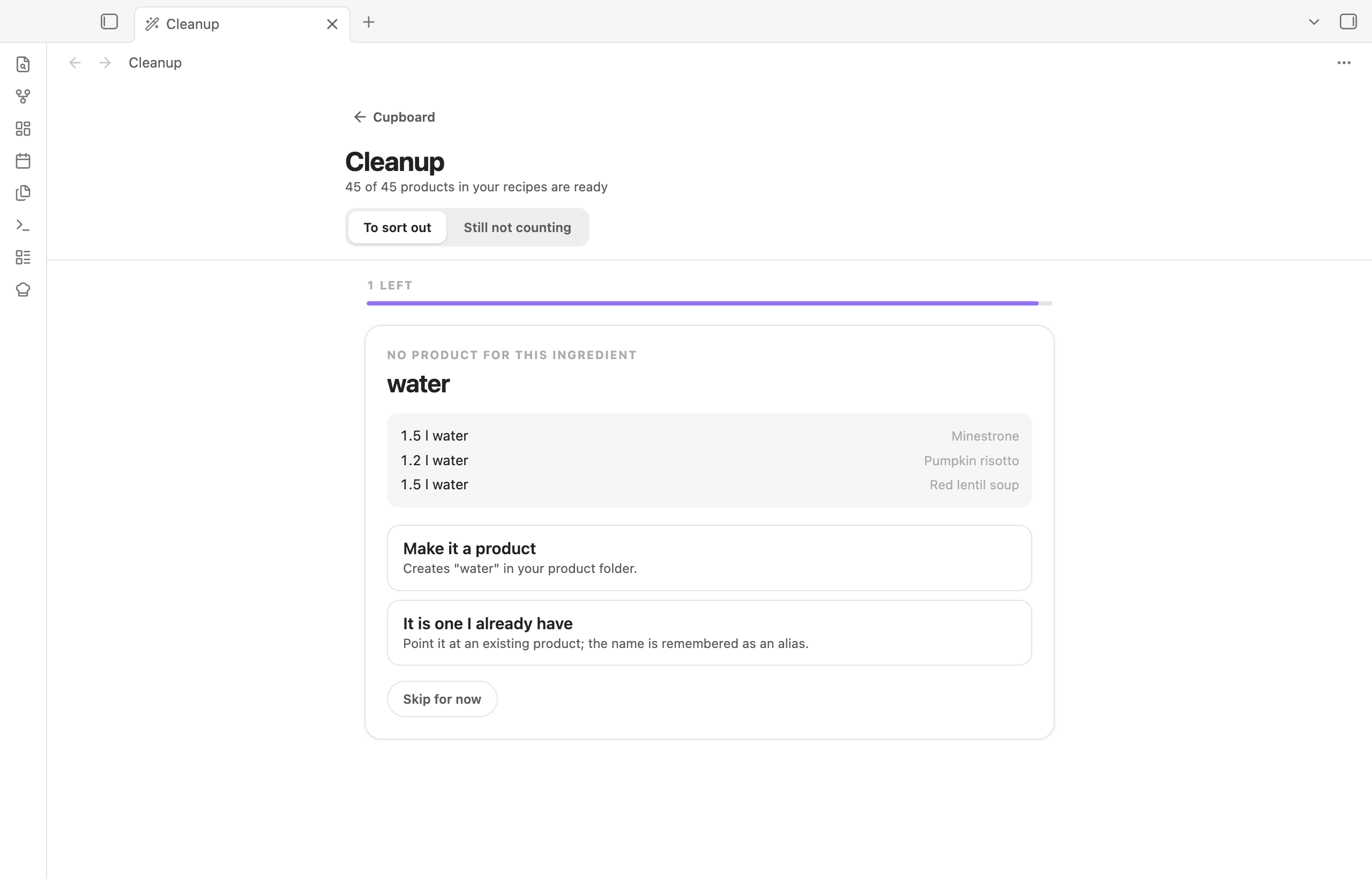
Keep recipes and products in step. The cleanup screen shows every recipe line that does not yet point at a product and helps you fix it in one place.
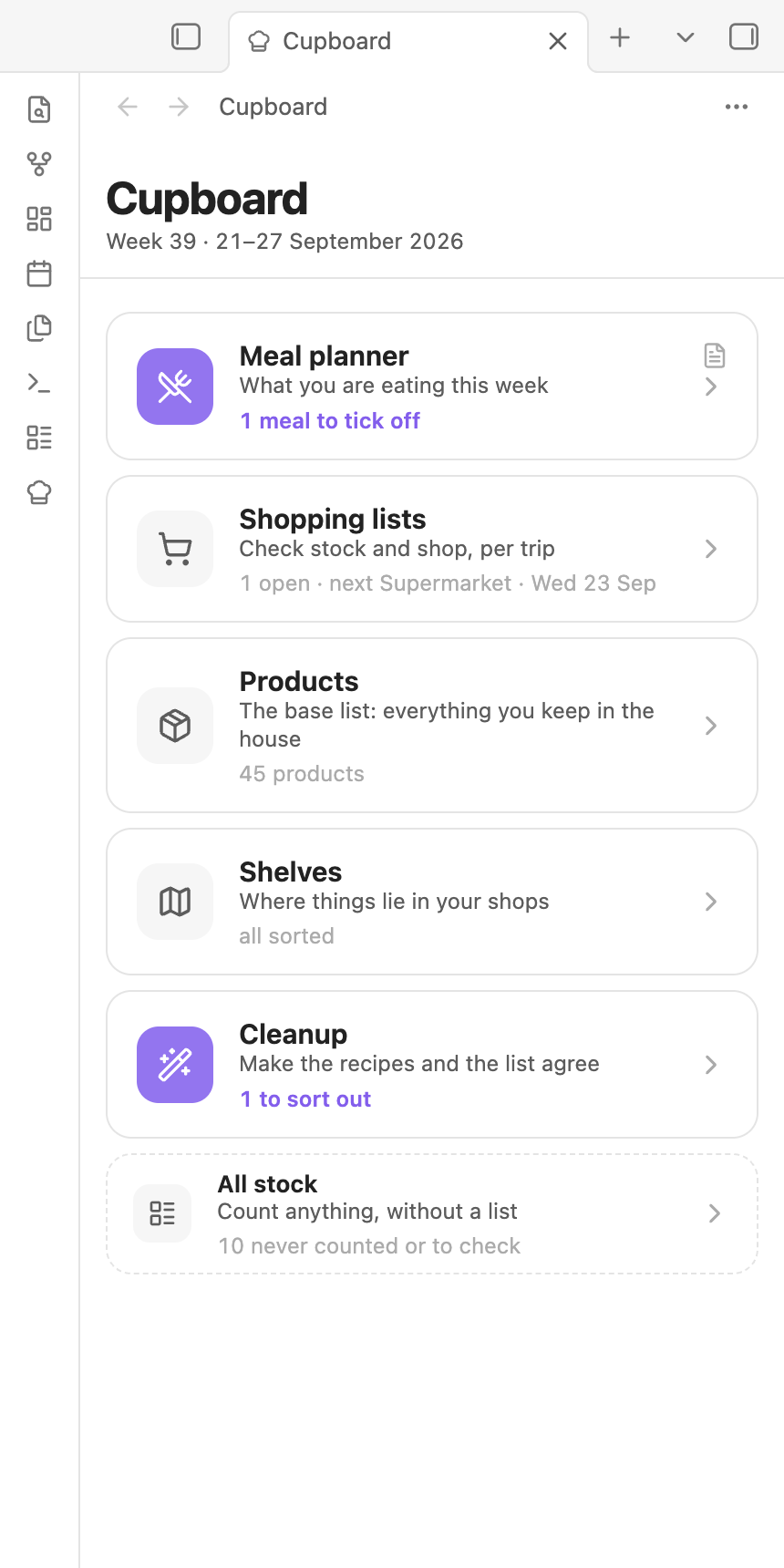
Works on the phone. Every screen fits a narrow window, so the list you made on the desktop is the one you tick off in the shop. In the shop, tapping a row ticks it off and holding it opens the product; the tick boxes can move to the right edge for a one-handed thumb.
Your notes stay yours
Cupboard reads and writes ordinary Markdown. Nothing is stored anywhere else, and you can edit every note by hand.
-
Recipes are notes in a folder you choose; New recipe (in the recipe list or the command palette) starts one with the right headings. Ingredients are a bulleted list under an
## Ingredientsheading; a[[wikilink]]in a line points it at a product. Aservingsfield in the frontmatter says how many the recipe is written for. Any other frontmatter field can be shown on the recipe card and used as a filter.--- servings: 4 time: 35 type: [curry] --- # Chickpea curry ## Ingredients - 2 cans [[Chickpeas]] (400 g each), drained - 1 can [[Coconut milk]] (400 ml) - 2 [[Onions]], chopped - 300 g [[Rice]] ## Method 1. ... -
Products are notes too, one per thing you keep in the house. The frontmatter says how it is bought and where it lives; the body is yours.
minimum: 2        # keep at least this many
unit: can
size: 400 g
shop: Supermarket
storage: Cupboard
shelf: Canned goods
count: 1
counted: 2026-09-21
Something you never run out of and never measure, such as salt, gets
amount: anyinstead of a size. -
Shops are notes with
pantry: shopand a list of shelves in the order you walk past them. Add one with + Shop on the Shelves screen or the New shop command. -
Weekly plans are one note per week. The plan is a
meal-plancode block in the note, and the block renders as the planner itself, so the note and the planner tab are the same thing.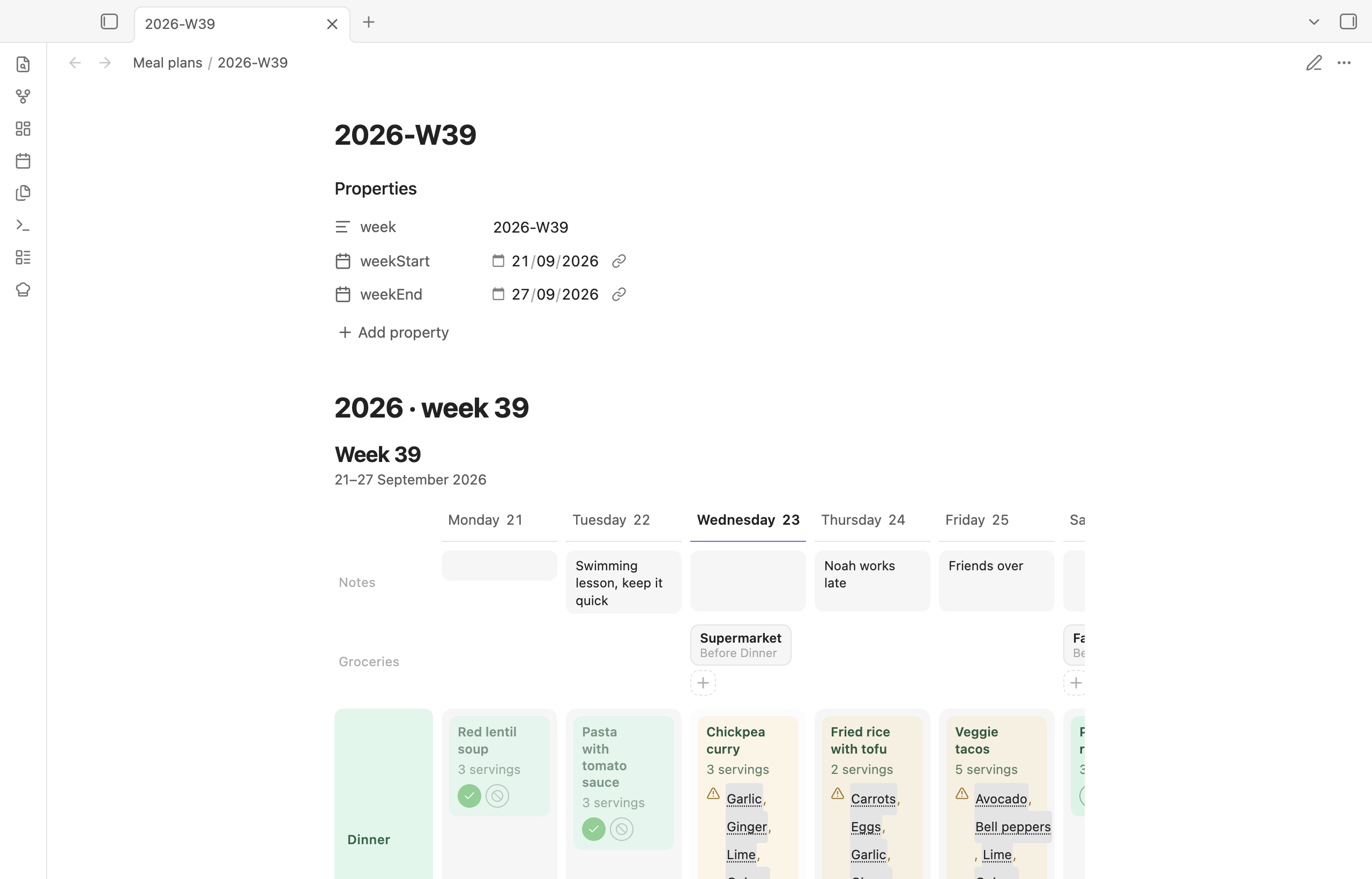
-
Shopping lists are one note per trip in
Cupboard/Shopping/. The choices go in the frontmatter; the body is the checklist, kept in step with the product notes. Tick a box in the note and the product counts as full again.
Every note Cupboard writes carries a format number. A device running an older
build reads newer notes but never overwrites them, so two devices on
different versions cannot lose each other's work.
Getting started
- Install the plugin and enable it.
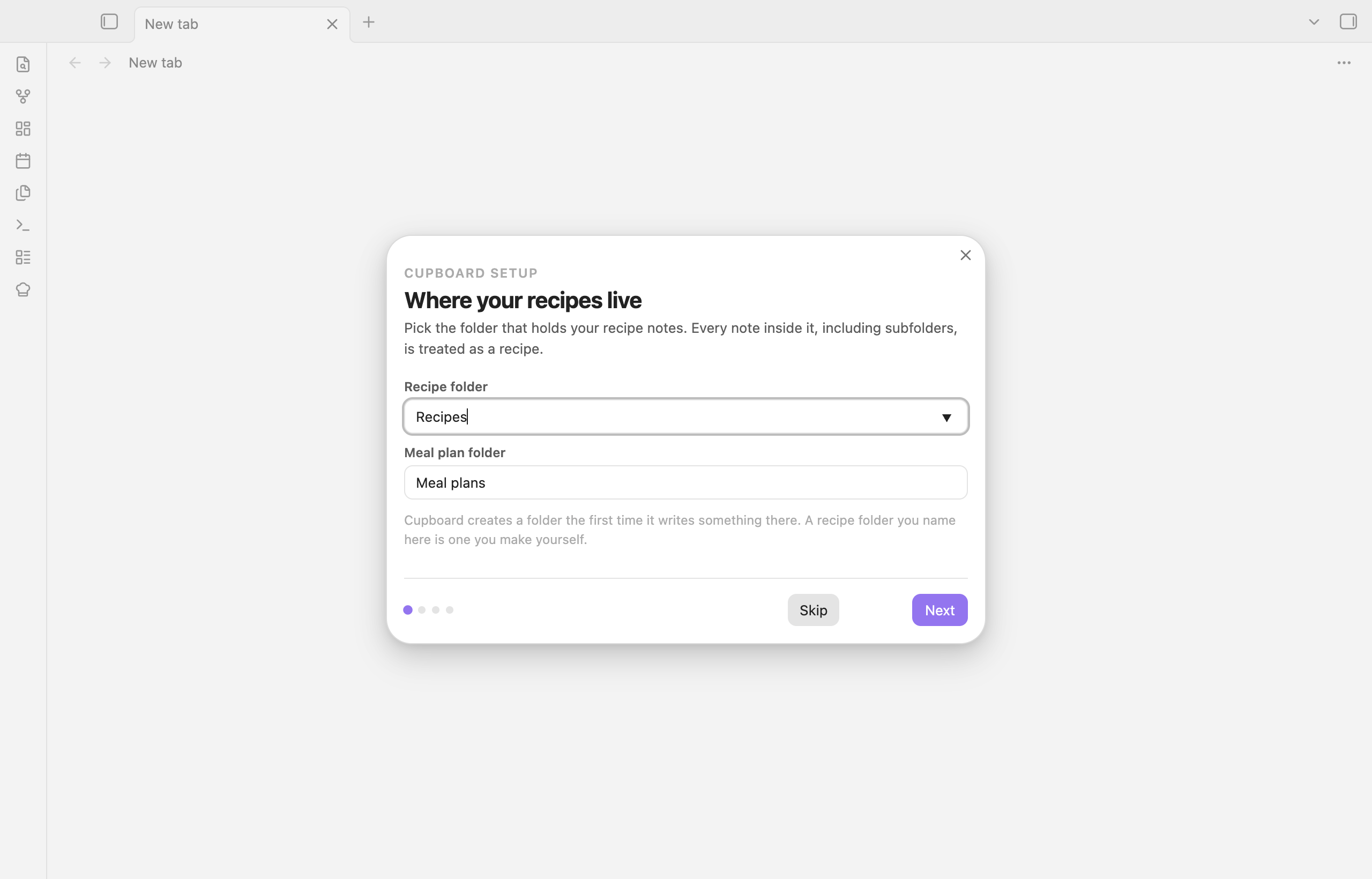
- Click the chef's hat in the ribbon, or run Cupboard: Open home. The setup walks you through the recipe folder, the meals you plan (dinner only, or breakfast, lunch and dinner), and who eats along.
- Put recipes in the recipe folder. Link ingredients to products with
[[wikilinks]], or run Create products from recipes to make a product note for every linked ingredient at once. - Open the meal planner and drag a recipe onto a day.
Commands
| Command | What it does |
|---|---|
| Open home | The overview with the week and every other screen |
| Open meal planner | This week's plan |
| Open shopping lists | Every open list |
| New shopping list | Start a trip |
| Open all stock | Count anything, without a list |
| Open products | The base list of what you keep in the house |
| Open shop shelves | Sort products onto shelves, per shop |
| Open cleanup | Recipe lines that do not yet point at a product |
| New product | Add a product |
| New recipe | A recipe note with the headings Cupboard reads |
| New shop | A shop note with the usual shelves |
| Create products from recipes | A product note for every linked ingredient that has none |
| Cook this recipe | Cook mode for the open recipe note |
| Continue this cooking session | Pick up an open session note |
| Run setup | The first-run walkthrough, again |
Settings
Folders for recipes, plans, products, shops, shopping lists and cooking sessions; the day the week starts; how many days ahead a shopping list looks; the meals you plan; the household and each person's portion factor; which recipe fields to show on the cards; how long finished cooking sessions and shopping lists are kept; and which side of a shopping row the tick box sits on.
Development
npm install
npm run dev            # watch build
npm run build          # tests, type check, minified main.js
npm run lint
node scripts/screenshots.mjs   # README screenshots from the demo vault (macOS)
The demo/ folder holds a small sample vault: a household of four, eleven
recipes, the products they use, two shops and a planned week. The screenshot
script copies it into a throwaway vault and drives Obsidian to take the
pictures, so no real vault is ever photographed.
License
MIT
For plugin developers
Search results and similarity scores are powered by semantic analysis of your plugin's README. If your plugin isn't appearing for searches you'd expect, try updating your README to clearly describe your plugin's purpose, features, and use cases.