Current View
approvedby Lucas Ostmann
Automatically set the view mode (Reading, Live Preview, Source) for notes using folder rules, file patterns, or frontmatter
Current View for Obsidian
Automatically control view modes (Reading, Live Preview, Source) for your notes based on smart rules and patterns.


✨ Features
📖 Automatic View Mode Control
Automatically applies the right view mode when opening notes based on your rules:
- Reading mode for documentation and finished content
- Live Preview for active note-taking
- Source mode for templates and technical notes
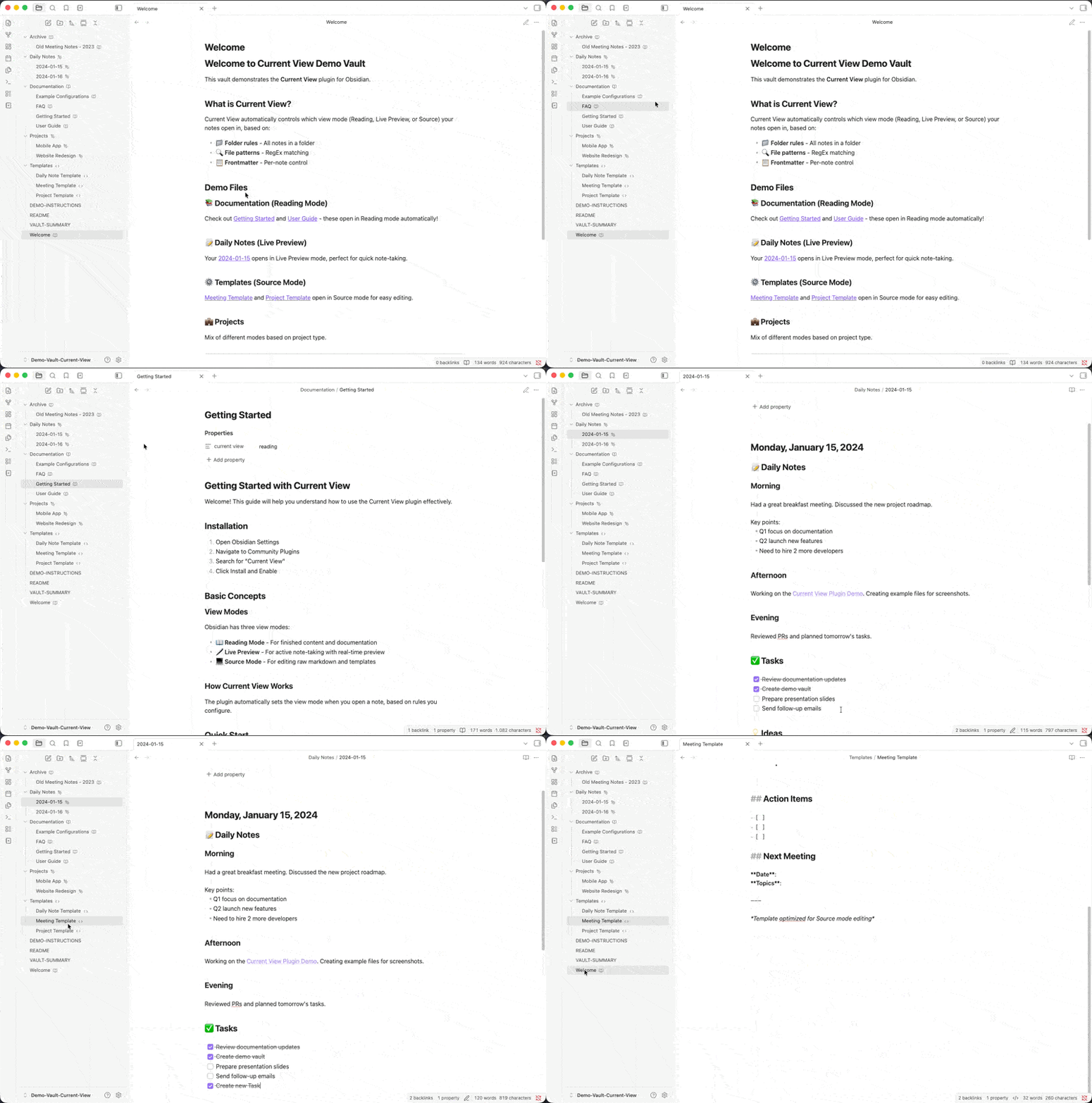
🎯 Flexible Rule System
Configure view modes based on:
- 📁 Folder paths – All notes in
Templates/open in Source mode - 🔍 File patterns – Match files using RegEx (e.g., all daily notes)
- 🏷️ Tag rules – Match notes by Obsidian tags (e.g., all notes tagged
sentopen in Reading mode) - 📋 Frontmatter – Per-note control with custom metadata field
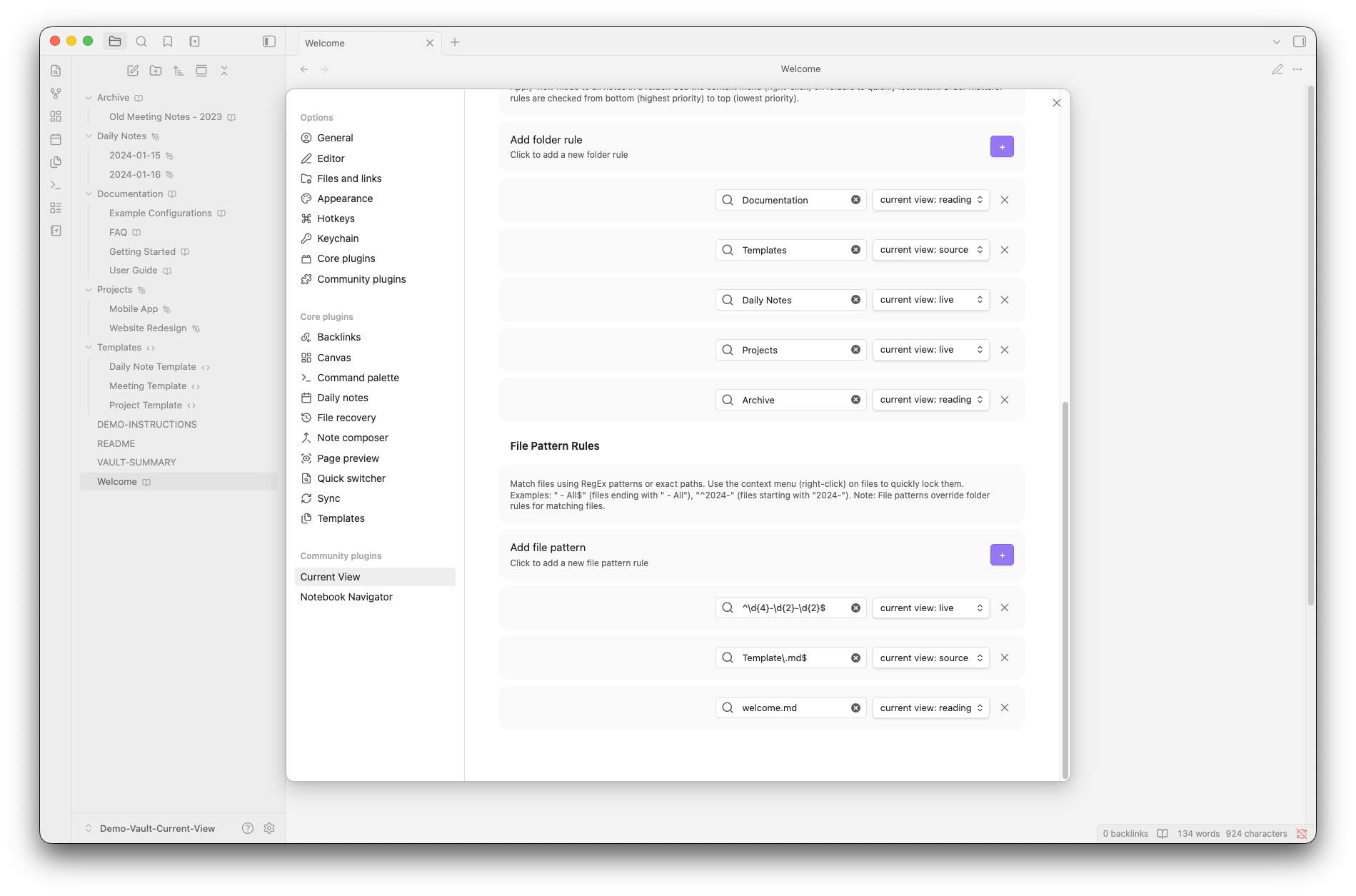
🔒 Quick Lock from Context Menu
Right-click any file or folder in the File Explorer or Notebook Navigator to instantly lock it to a specific view mode.
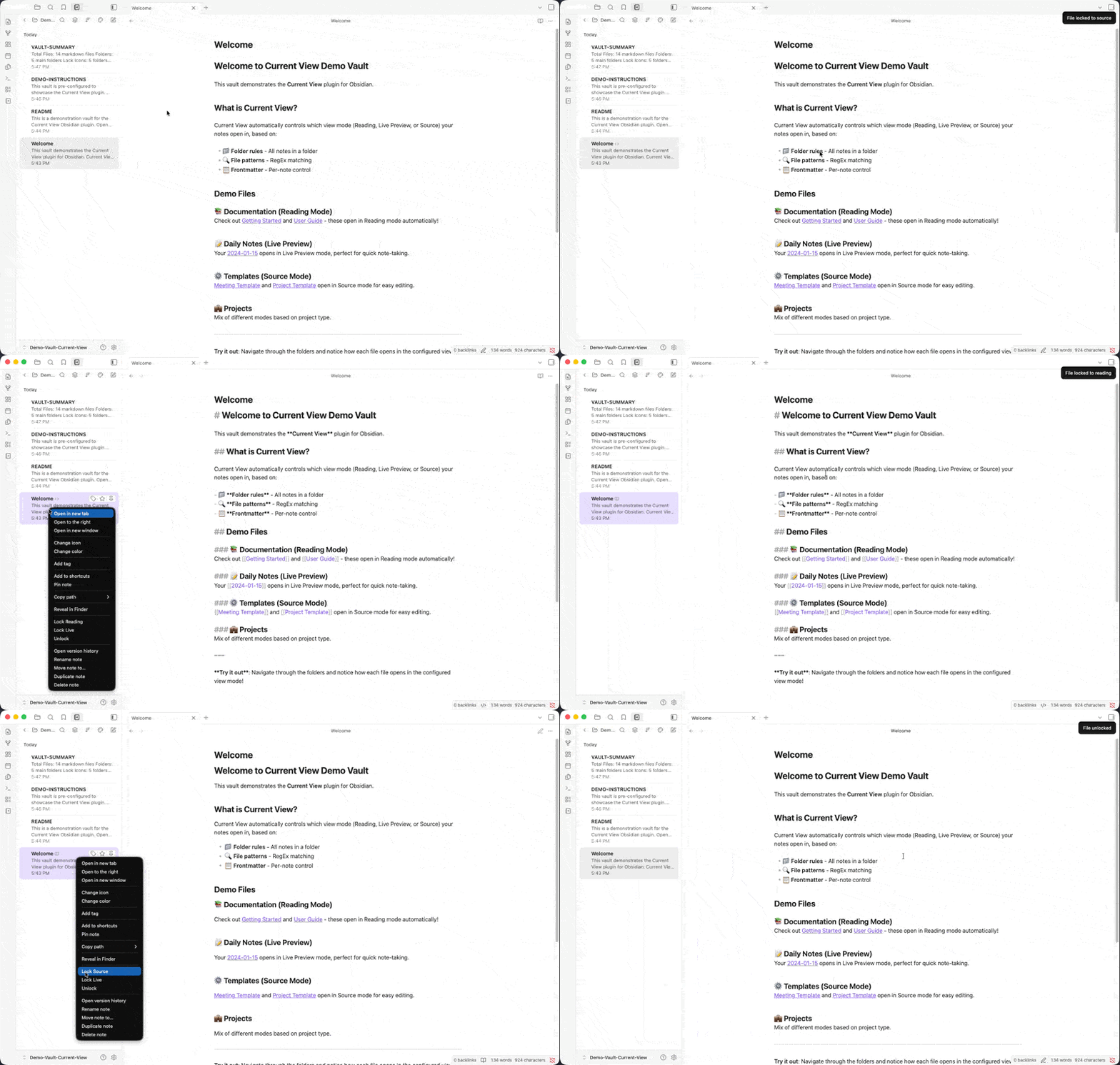
🏷️ Visual Lock Indicators
See at a glance which files and folders are locked with inline icon badges:
- 📖 Book icon – Locked to Reading mode
- 🖊️ Pen icon – Locked to Live Preview
- 💻 Code icon – Locked to Source mode
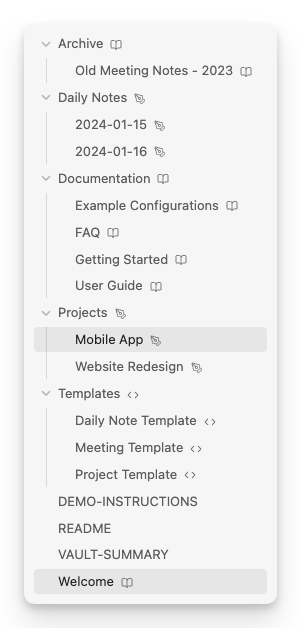
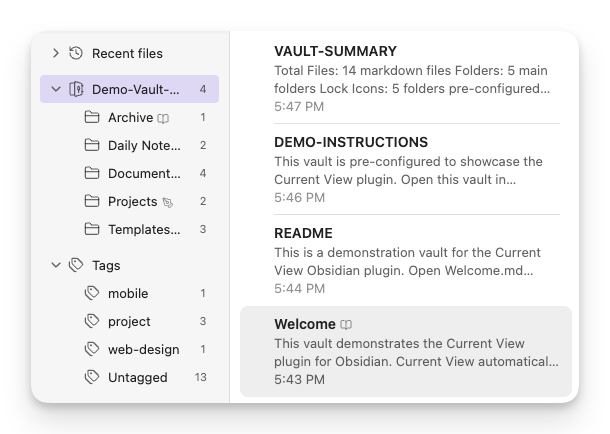
Lock icons in File Explorer (left) and Notebook Navigator (right)
🔌 Notebook Navigator Integration
Full support for Notebook Navigator plugin:
- ✅ Context menu integration using official API (v1.2.0+)
- ✅ Lock icons in both navigation pane and file list
- ✅ Real-time updates when locking/unlocking
🧠 How It Works
View Mode Priority
When you open a note, Current View checks for view mode rules in this order:
1. Frontmatter         →  Per-note override
2. File Pattern Rules  →  Exact path match or RegEx pattern
3. Tag Rules           →  Any matching tag in frontmatter
4. Folder Rules        →  Deepest matching folder wins
5. Obsidian Default    →  Your global Obsidian setting
Example:
- You have a folder rule:
Templates/→ Source mode - You open
Templates/meeting-note.md - The note has frontmatter:
current view: reading - Result: Opens in Reading mode (frontmatter wins)
Example with tag rule:
- You have a tag rule:
sent→ Reading mode - You open a note with
tags: [sent]in its frontmatter - Result: Opens in Reading mode (tag rule applies automatically)
📑 Usage Examples
Frontmatter Control
Add a frontmatter field to any note for per-note control:
---
current view: reading     # Options: reading, source, live
---
You can customize the frontmatter key in plugin settings (e.g., change it to view-mode or display).
Common Use Cases
📚 Documentation vault:
# Lock all files in Docs/ to Reading mode
Folder: Docs/
Mode: reading
🗓️ Daily notes:
# Match pattern like "2024-01-15.md"
Pattern: ^\d{4}-\d{2}-\d{2}\.md$
Mode: live
⚙️ Templates:
# All templates open in Source mode for editing
Folder: Templates/
Mode: source
📬 Published/sent notes:
# Notes tagged with 'sent' or 'published' open in Reading mode
Tag: sent
Mode: reading
Any note with tags: [sent] in its frontmatter will automatically open in Reading mode.
⚙️ Settings
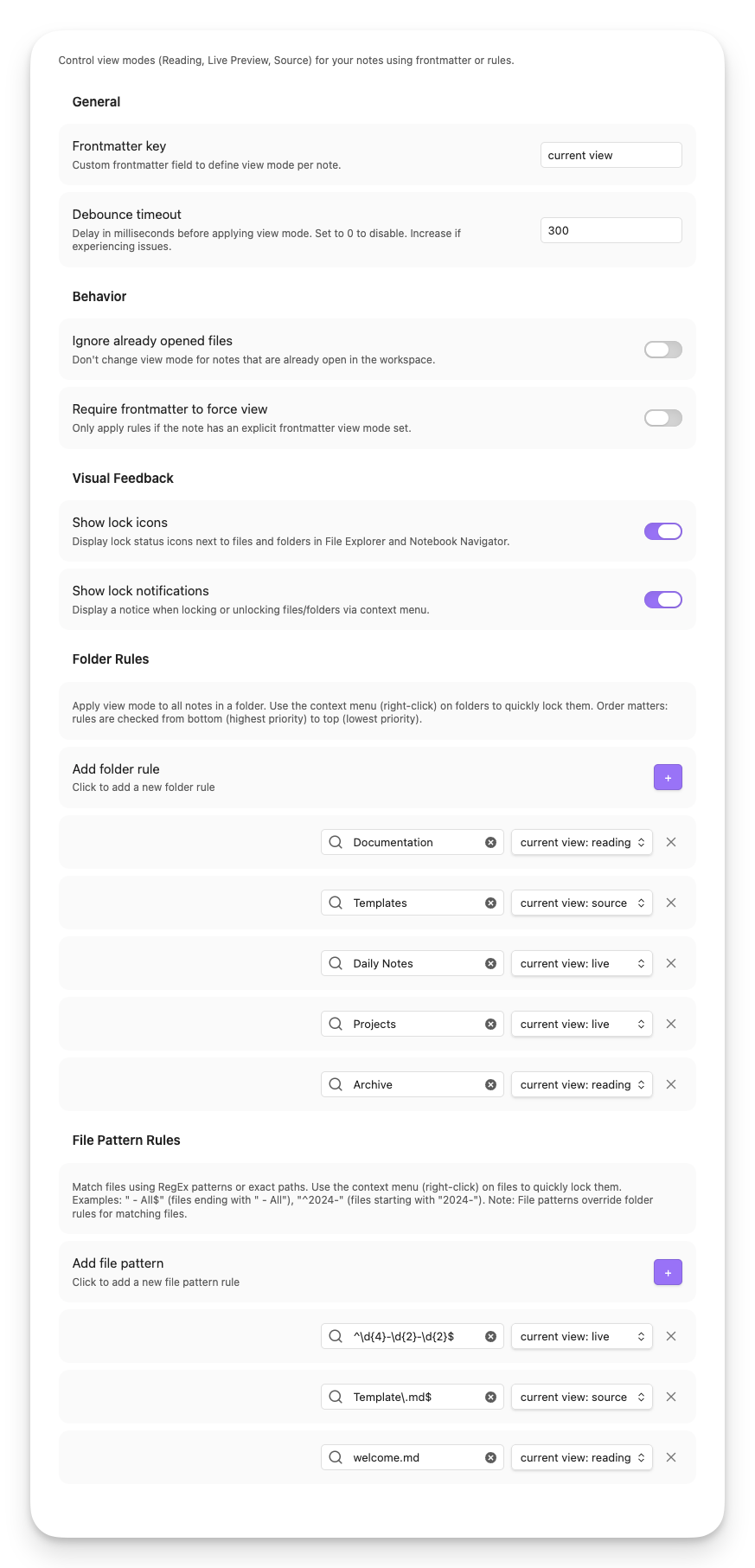
Core Settings
| Setting | Description | Default |
|---|---|---|
| Frontmatter key | Which frontmatter field to read for view mode | current view |
| Debounce timeout | Delay (ms) before applying view mode to prevent rapid switching | 0 |
Behavior Options
| Setting | Description | Default |
|---|---|---|
| Ignore opened files | Don't change view mode for notes already open in workspace | false |
| Ignore force view when not in frontmatter | Only apply rules if frontmatter explicitly sets a view mode | false |
Visual Feedback
| Setting | Description | Default |
|---|---|---|
| Show explorer icons | Display lock icons next to files/folders in File Explorer and Notebook Navigator | true |
| Show lock notifications | Show notice when locking/unlocking via context menu | true |
Rules Configuration
- Folder Rules: Apply view mode to all notes in a folder (context menu locks write here)
- Tag Rules: Apply view mode to notes that have a specific tag
- File Patterns: RegEx patterns or exact file paths (context menu file locks write here)
📦 Installation
From Obsidian Community Plugins (Recommended)
- Open Settings → Community Plugins in Obsidian
- Click Browse and search for "Current View"
- Click Install, then Enable
Via BRAT
Use BRAT only if you want to test beta builds before they are released in the Obsidian Community Plugins directory.
- Install BRAT plugin
- In BRAT settings, click Add Beta Plugin
- Enter:
LucEast/obsidian-current-view - In BRAT, choose the latest beta release (for example
1.6.3-beta.1) - Enable the plugin in Community Plugins
Beta Channel Notes
- Stable releases use plain versions like
1.6.3and are distributed through the Obsidian Community Plugins directory. - Beta releases use versions like
1.6.3-beta.1and are distributed through GitHub Releases for BRAT testers. - Obsidian does not fully support semantic version pre-release handling for community plugins. If you install
1.6.3-beta.1via BRAT, Obsidian may not automatically switch you to the stable1.6.3release later. - If you test beta builds, treat BRAT as a separate release channel.
Return From Beta To Stable
If you want to leave the beta channel and go back to the normal Community Plugins release track:
- Open BRAT and switch this plugin to the stable release if available there
- Or uninstall the BRAT-managed beta version
- Reinstall Current View from Settings → Community Plugins
- Future stable updates should continue normally from the Community Plugins directory
Manual Installation
- Download the latest
main.js,manifest.json, andstyles.cssfrom Releases - Create folder:
<vault>/.obsidian/plugins/obsidian-current-view/ - Copy the downloaded files into this folder
- Reload Obsidian and enable the plugin in Settings → Community Plugins
🔗 Compatibility
Supported Plugins
- Notebook Navigator (v1.2.0+) – Full integration with context menus and lock icons
- File Explorer – Native Obsidian file explorer support
Requirements
- Obsidian v1.0.0 or higher
🛠 Development
Setup
git clone https://github.com/LucEast/obsidian-current-view.git
cd obsidian-current-view
npm install
Build Commands
npm run dev          # Watch mode - auto-rebuild on changes
npm run build        # Production build
Testing
npm run test         # Run unit tests once
npm run test:watch   # Watch mode during development
npm run coverage     # Generate V8 coverage report
Architecture
See CLAUDE.md for development guidelines and architecture overview.
🤝 Contributing
Contributions are welcome! Please feel free to submit a Pull Request.
- Fork the repository
- Create your feature branch (
git checkout -b feature/amazing-feature) - Commit your changes using conventional commits (
git commit -m 'feat: add amazing feature') - Push to the branch (
git push origin feature/amazing-feature) - Open a Pull Request
💡 Support
If you encounter issues or have feature requests:
🙏 Acknowledgments
- Built for Obsidian
- Integrated with Notebook Navigator by Johan Sanneblad
- Inspired by the Obsidian community's need for better view mode control
📝 License
MIT – Free to use and modify.
For plugin developers
Search results and similarity scores are powered by semantic analysis of your plugin's README. If your plugin isn't appearing for searches you'd expect, try updating your README to clearly describe your plugin's purpose, features, and use cases.