Custom list character
approvedby lilian-pouliquen
Choose the character to use when creating a bullet list between '-', '*' and '+'.
Custom list character
Table of content
1. Introduction
Custom list character is a simple plugin allowing you to choose which character to use when making bullet lists in Obsidian.
It adds the following features:
- new settings to choose the wanted charater between
-(default),*and+ - new hotkey to bind to use the selected character to make or format your bullet lists
2. Demo
-
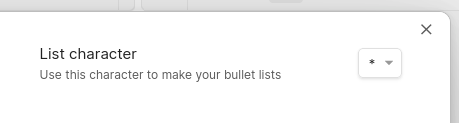
Choose your character!
-
Set your hotkeys:

-
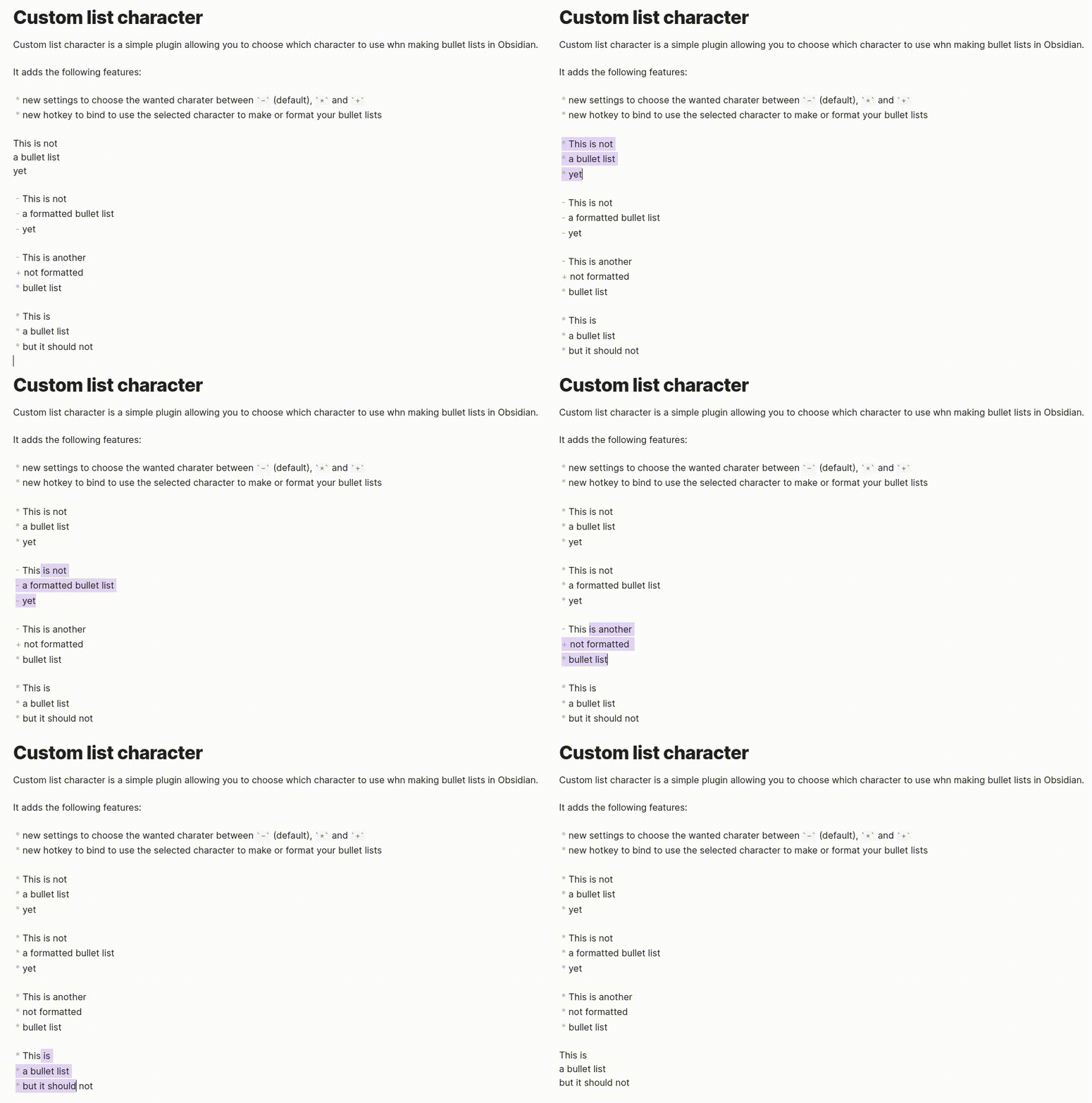
Use the new hotkey to make and format your bullet lists like so:
3. Install the plugin
3.1. Installatin through Obsidian
To install the plugin from Obsidian, follow these steps:
- Open Obsidian
- Go to
Settings > Community plugins - Click on
BrownseinCommunity pluginssection - Search
Custom list character - Click on the plugin
- Click on
Install - Come back to
Settings > Community plugins - Refresh you plugins and activate
Custom list character
3.2. Manual installation
To install the plugin, follow these steps:
- Download the
main.jsand themanifest.jsonfrom the latest release of the project- Alternatively, you can download the
custom-list-character.zipthat contains the two above files
- Alternatively, you can download the
- Place the files in
<your_vault_path>/.obsidian/plugins/custom-list-character/ - Open Obsidian
- Go to
Settings > Community plugins - Refresh you plugins and activate
Custom list character
3.3. Mobile set up
You can also use Custom list character on mobile! To do so, here are the ewtra steps to follow:
- Install and activate
Custom list character - Choose the character you want to use in the settings
- While editing a document:
- In your toolbar, click on the icon to edit it (
 )
) - Click configure and search for
Custom list character - Select
Custom list character: Toggle or format bullet list, it will add the command to the toolbar icons - Remove the
Toggle bullet listicon ( ) from the toolbar
 - Add the
Custom list character: Toggle or format bullet listicon () to the toolbar
- In your toolbar, click on the icon to edit it (
4. Help on the project
Any help is welcome!
If you want to help me improve the plugin, please fork the project and make a pull request. Do not hesitate to ask features.
5. Author
- Lilian POULIQUEN – @lilian-pouliquen on GitHub
For plugin developers
Search results and similarity scores are powered by semantic analysis of your plugin's README. If your plugin isn't appearing for searches you'd expect, try updating your README to clearly describe your plugin's purpose, features, and use cases.