Deep Sit
approvedby bassio
Focused study and research tool that allows citing and reviewing primary sources through a Zotero integration.
Deep Sit plugin for Obsidian
Deep Sit
Deep Sit is an Obsidian plugin that allows you to easily cite and refer to the literature stored in your Reference Manager Library (Zotero) during your note-taking. This integration enhances the use of Obsidian as a focused study and research tool.
Requirements
- Zotero (version 7). (https://www.zotero.org/download/)
- Zotero's Better BibTeX plugin. (https://retorque.re/zotero-better-bibtex/index.html)
- Note: Zotero, with Better BibTeX installed, must be running while you are using this plugin.
Screenshots
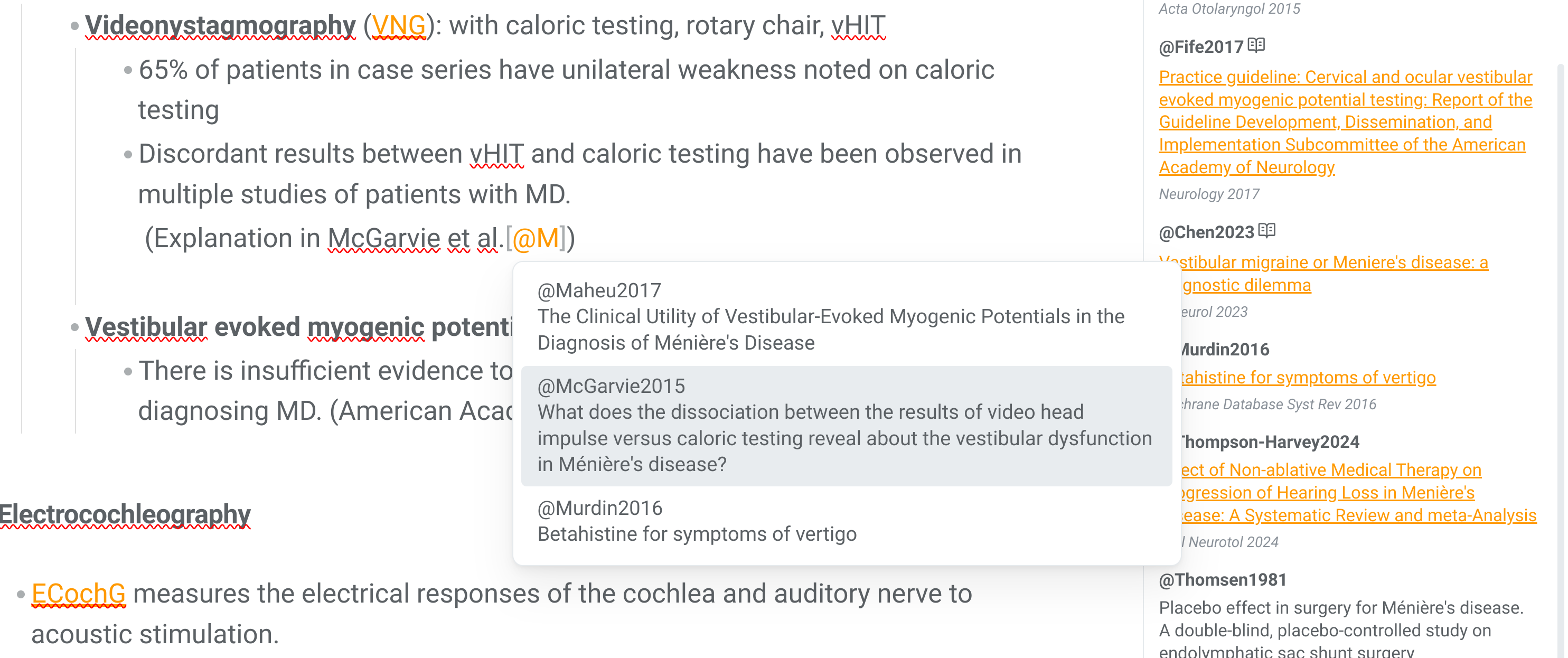
- Cite as you write
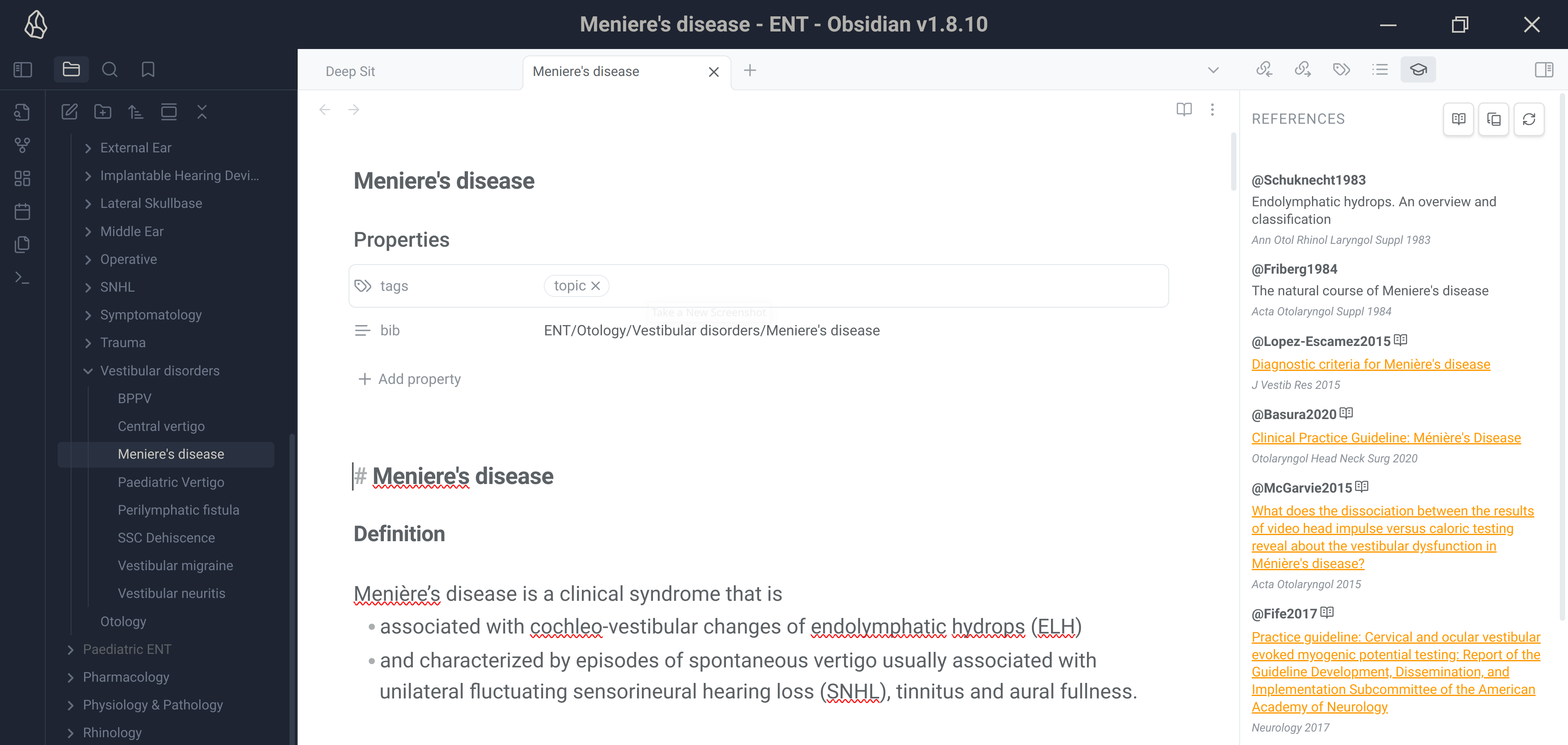
- References
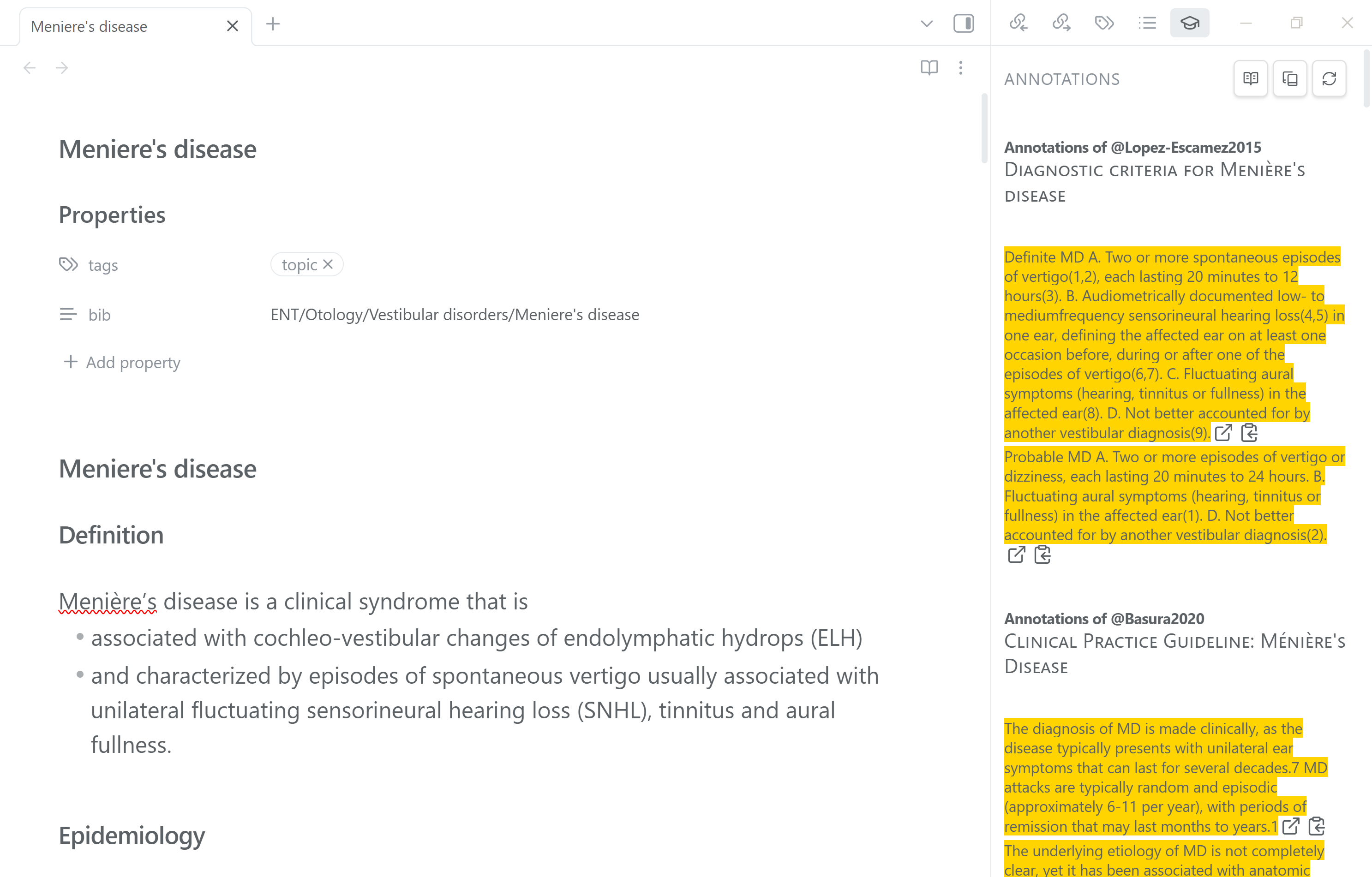
- Annotations
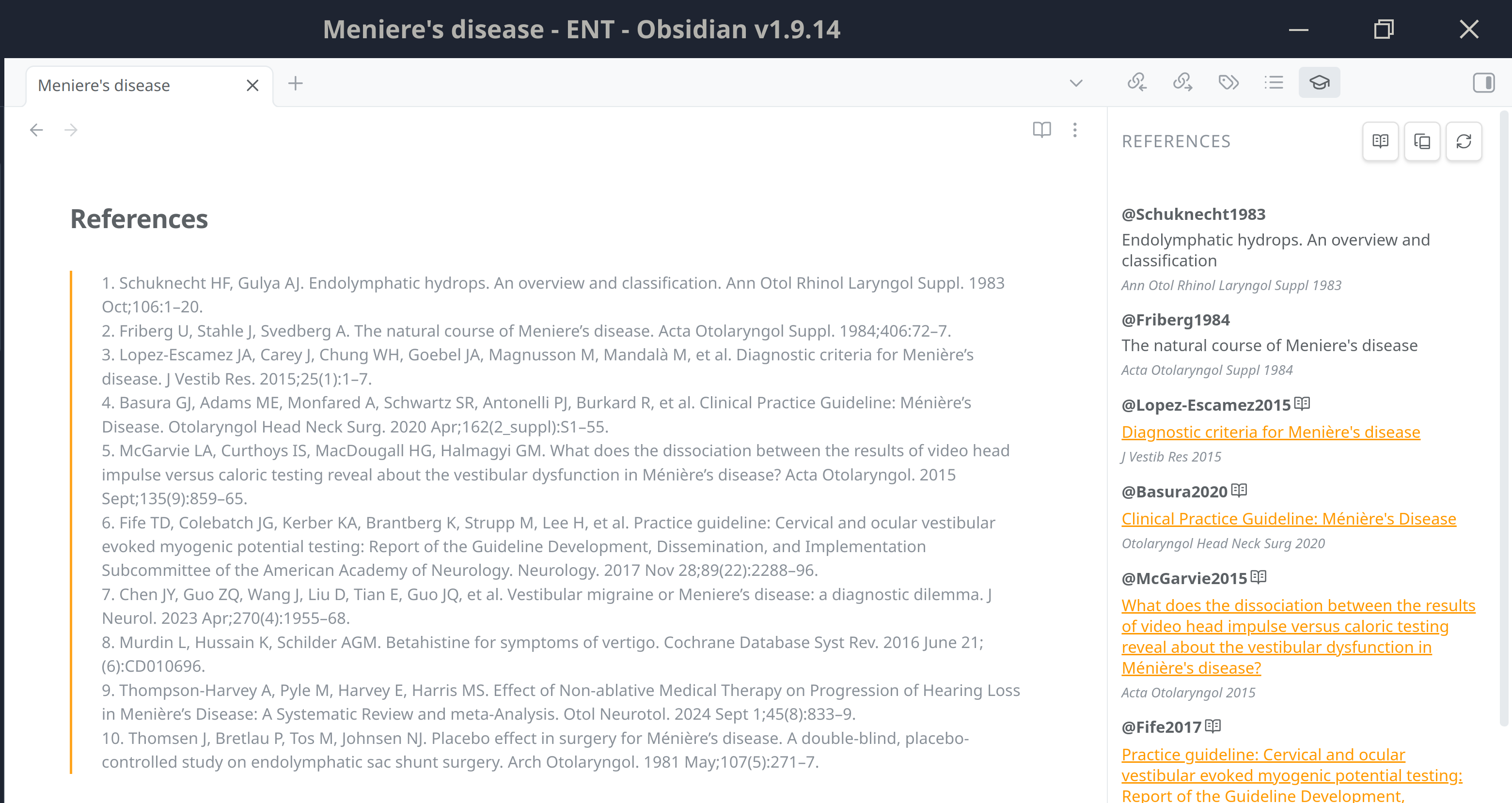
- Insert References Section
Installation
Installation through Obsidian's official Community plugins channel (Recommended)
Deep Sit has been accepted to Obsidian's official Community plugins channel in December 2025.
Please install according to the Obsidian Help documentation: https://help.obsidian.md/community-plugins
Manual installation
- Go to the Releases page of the plugin https://github.com/bassio/obsidian-deepsit/releases and choose a release to download.
- Download main.js, styles.css, manifest.json files from the "Assets" of the release.
- Open your vault's plugins folder (VaultFolder/.obsidian/plugins) and create a new folder there named obsidian-deepsit.
- Copy over main.js, styles.css, manifest.json to the newly-created folder "VaultFolder/.obsidian/plugins/obsidien-deepsit/".
BRAT
- Another option for installation is to trial the the Beta Reviewers Auto-update Tester (BRAT) plugin (https://github.com/TfTHacker/obsidian42-brat), which is available through the Obsidian Community plugins and enable it.
- Go to the BRAT plugin settings and select the Add beta plugin button.
- Add Deep Sit via pasting its repository link: https://github.com/bassio/obsidian-deepsit and click the Add Plugin button.
Use case
This plugin's would fit optimally within your research workflow, if you operate using the following assumptions:
- You use zotero as your main reference manager.
- You have a large zotero library with potentially many hundreds of pdf articles, and you use zotero for in-pdf annotations/highlights.
- You aim to write your own study and/or research notes / articles (e.g. a "Zettelkasten" or a "Second Brain" system, or alternatively exam study curriculum)
- You would have wished to keep your notes and study and/or research writings within Zotero as well for optimal integration, but unfortunately you find that you need a more powerful and flexible tool for your note-taking (i.e. Obsidian).
- You want to be able to, in your notes, to easily and quickly reference / cite the relevant literature.
- You want to be able to easily review or peek into your highlighted or annotated source references.
Features
Citation features
- Tie a markdown note to a "Zotero collection" of references using the "bib" keyword in the yaml frontmatter.
- In-text citations using the gold-standard "[@reference]" pandoc citation syntax. See https://pandoc.org/demo/example33/8.20-citation-syntax.html#citation-syntax
- Automatic reference selection pop-up dropbox for easy citations.
Reference list features
- Keep track of your cited references, in an ordered Reference List, easily visible on the right side of your workspace (References mode).
- A "Refresh button" to allow you to refresh your References list as you add new / delete citations within your markdown or for when you add new items to Zotero.
- The "Bibliography mode" allows you to alternatively list all the References in the accompanying Zotero collection for quick reference.
- Choose a default of References View Mode versus Bibliography View Mode (via Plugin Settings).
- Automatic highlighting of references with pdf attachments and One-click jump to the pdf in your Zotero Library.
- Insert "References" in the note's text via context menu.
Annotation features
- Easily keep track of which references in your Bibliography has annotations.
- Efficient "Multi-annotation" feature: View all annotations for all pdf files within a Zotero collection in one view pane.
- Review Annotations within a pop-up modal or within the plugin view pane. (via Plugin Settings)
- Icons for quick-jump to the annotation in Zotero and for quick-copy the appropriately-referenced annotation to clipboard.
- Annotations view also includes Zotero "area" pdf annotations viewed as in-line pictures.
Usage
- Once the plugin is installed and enabled, an icon (a graduation cap icon) will appear on the right sided leaf (sidebar) in Obsidian's workspace.
- Clicking on the icon will bring Deep Sit's references into view in the right sidebar.
- To start citing references from your Zotero in an Obsidian note, add to the note's YAML frontmatter (also called in Obsidian note "Properties") a property called bib, and enter the path to the Zotero collection you want to be referencing as the underlying bibliography for this note.
- The path to the Zotero collection should include the name of the Zotero library first, then use forward slashes for every subcollection. For example: My Library/My Papers/paper1.
- Please make sure that Zotero is running with the Better Bibtex plugin activated for active communication with the Obsidian Deep Sit plugin.
- Click the refresh button in Deep Sit's View to refresh the note's bibliography.
- Cite while you write, using the "[@citekey]" pandoc citation syntax, and an autocomplete pop-up should appear to help you choose your reference, based on the item's Citation key in Zotero. (Refer to Zotero Better Bibtex documentation if you are not sure what is an item's citekey is.)
- Click the refresh button to refresh the reference list in Deep Sit's View.
Disclosures
As of October 2025, this plugin does not contain:
- payments
- account requirements
- network use
- external file access
- ads
- telemetry with privacy policy
- closed source code
Acknowledgements
- Emiliano Heyns for the excellent Zotero Better BibTeX plugin. (https://retorque.re/zotero-better-bibtex/index.html)
- CSS only spinner obtained from https://github.com/vineethtrv/css-loader (MIT © 2020 Vineeth.TR).
- Flexoki colour scheme (MIT © Steph Ango; https://stephango.com/flexoki)
For plugin developers
Search results and similarity scores are powered by semantic analysis of your plugin's README. If your plugin isn't appearing for searches you'd expect, try updating your README to clearly describe your plugin's purpose, features, and use cases.