Zotero Citations
approvedby westerngua
Zotero citation management with Word export via Pandoc. - This plugin has not been manually reviewed by Obsidian staff.
Zotero Citations
Manage Zotero citations in Obsidian with footnote/endnote modes, Word-style display, and one-click export to Word with live Zotero citation fields.
Highlights
- Insert citations — Invokes Zotero's native citation picker or an in-plugin search modal, with support for page/paragraph locators
- Footnote / endnote / in-text — Freely switch between footnote mode (
^[citation text]), endnote mode ([^1]+ endnote definitions), and in-text mode (plain-text author-year citations) - Word-style display — Footnote markers render as superscript numbers in the editor; hover to preview the full citation and edit locators
- Zotero-only CSL styles — Shows and uses only styles currently installed in Zotero; there are no built-in or approximate fallback styles
- Matching CSL output — Uses Zotero's style files and locale rules, including dependent styles, bibliography sorting, and citation clusters
- Bibliography — Auto-generates a formatted reference list from all citations in the current document
- Export to Word — Uses Pandoc and a bundled Better BibTeX Lua filter to create
.docxfiles whose footnote, endnote, and in-text citations remain live Zotero fields that can be refreshed and restyled - Bilingual UI — Switch between Chinese and English in settings
Prerequisites
| Component | Description |
|---|---|
| Obsidian Desktop 1.5.7+ | Desktop-only plugin (isDesktopOnly: true) |
| Zotero | Reference manager; should be running |
| Better BibTeX | Zotero plugin that provides the API layer |
| Pandoc (optional) | Required only for Word export |
Installation
- Download the following files from the GitHub Releases page:
main.js— plugin runtimemanifest.json— plugin manifeststyles.css— plugin styles
- Place the files into your vault's
.obsidian/plugins/zotero-citations/directory (create it if it does not exist) - Enable Zotero Citations in Obsidian Settings → Community plugins
- Make sure Zotero is running and Better BibTeX is installed
- (For Word export) Install Pandoc and ensure it is on your system PATH
Compatibility Note
This version has been developed and tested primarily on macOS. Linux and Windows have not yet been fully validated, so UI rendering, window focus behavior, native dialogs, and export-related workflows may behave differently and are not guaranteed to be perfectly compatible at this stage.
Disclosures
- Network use: the plugin talks to Zotero / Better BibTeX over the local loopback address
127.0.0.1; it does not rely on a plugin-operated remote server. - External files and executables: the plugin reads the local Zotero styles directory; in fallback scenarios it may copy and read the local Zotero database in the system temp directory; for Word export it invokes the local
pandocexecutable; for database fallback parsing it may invoke the localsqlite3executable; on macOS it may invoke the systemosascriptcommand to return focus to Obsidian after the Zotero picker closes. - Local data storage: the plugin stores settings and citation cache data in Obsidian's plugin data storage.
- Accounts / payments / ads / telemetry: the plugin does not require an account, does not include ads, does not include in-app payments, and does not intentionally collect telemetry.
- Source availability: the plugin source code is published on GitHub under the MIT license: https://github.com/WesternGua/obsidian-zotero-citations
Quick Start
1. Insert a Citation
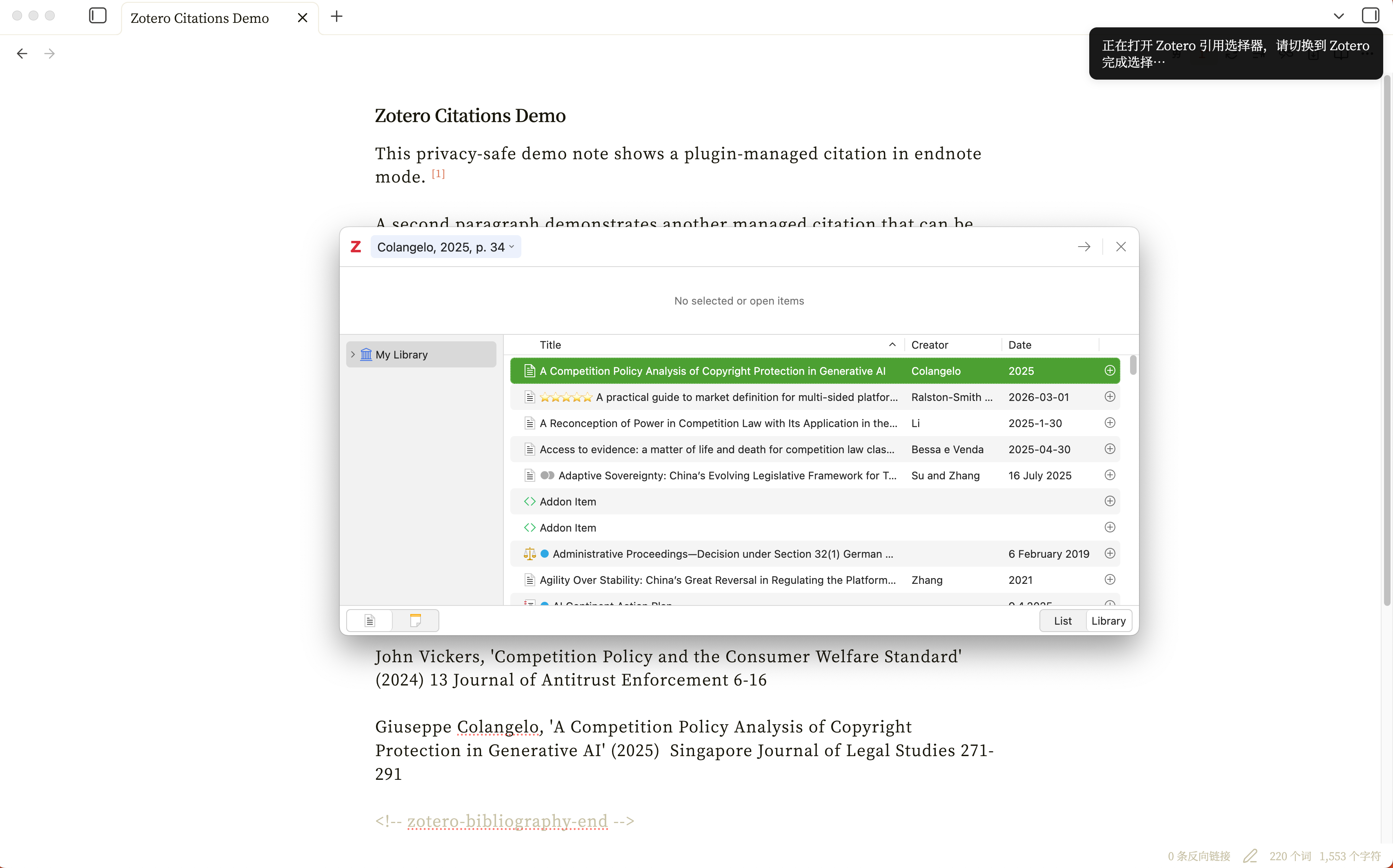
Search for Insert citation in the command palette, or click the citation icon in the title bar.
The plugin will first try to open Zotero's native citation picker — search for items, add a page number or other locator, and confirm with the checkmark button.
Inserted citations follow your current citation mode setting (footnote, endnote, or in-text).
Note:
- The plugin writes hidden metadata (
<!-- zotero:ITEMKEY:locator -->) at the beginning of each note. Do not remove it manually, or the plugin will not be able to track the citation.- When you are ready to finalize, run
Unlink citations(irreversible) to strip the hidden metadata while keeping the visible citation text.
2. Hover to Edit Locators
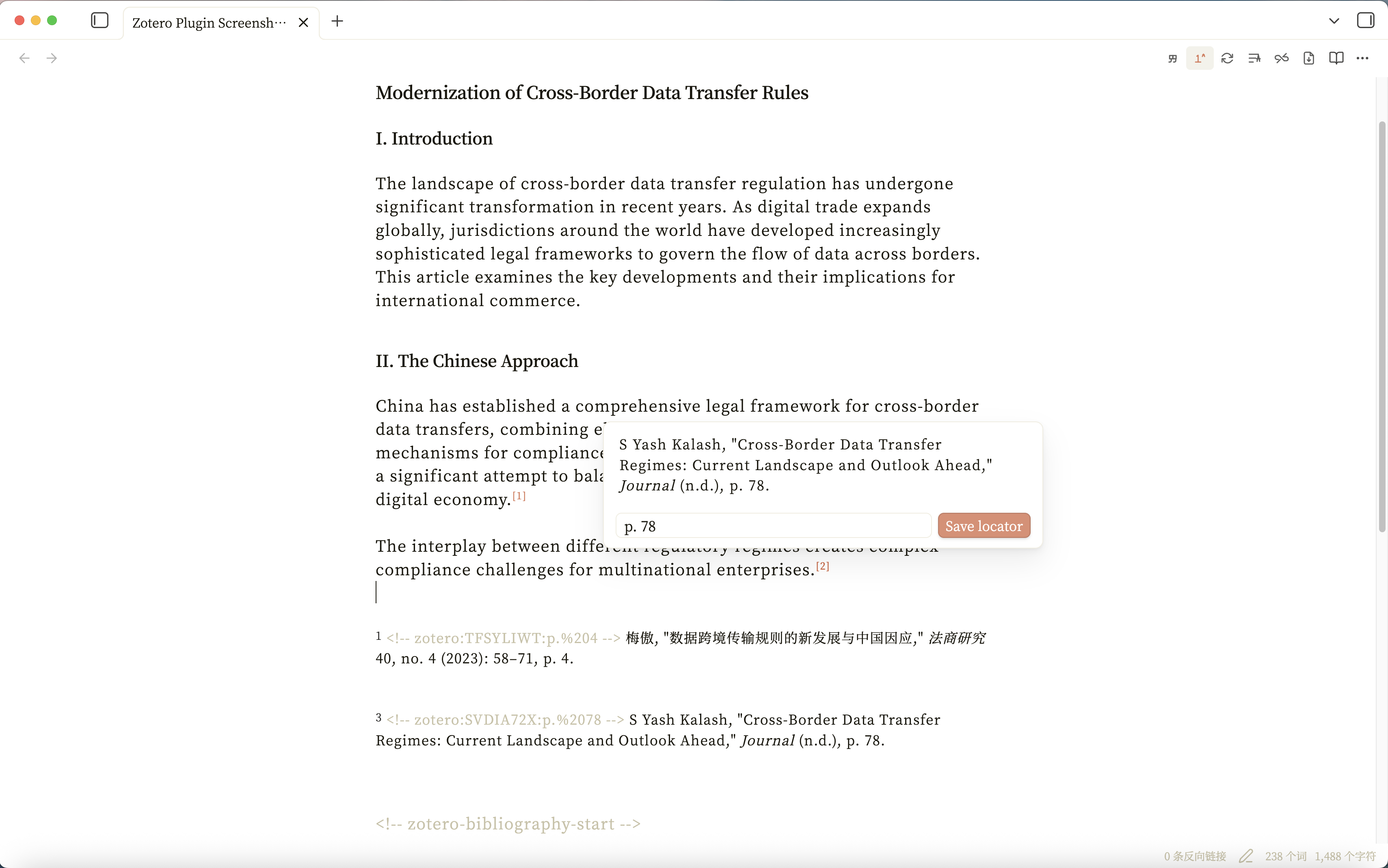
With Word-style footnote display enabled, hover over a superscript number to preview the full citation and edit the page/paragraph locator directly:
3. Switch Citation Style
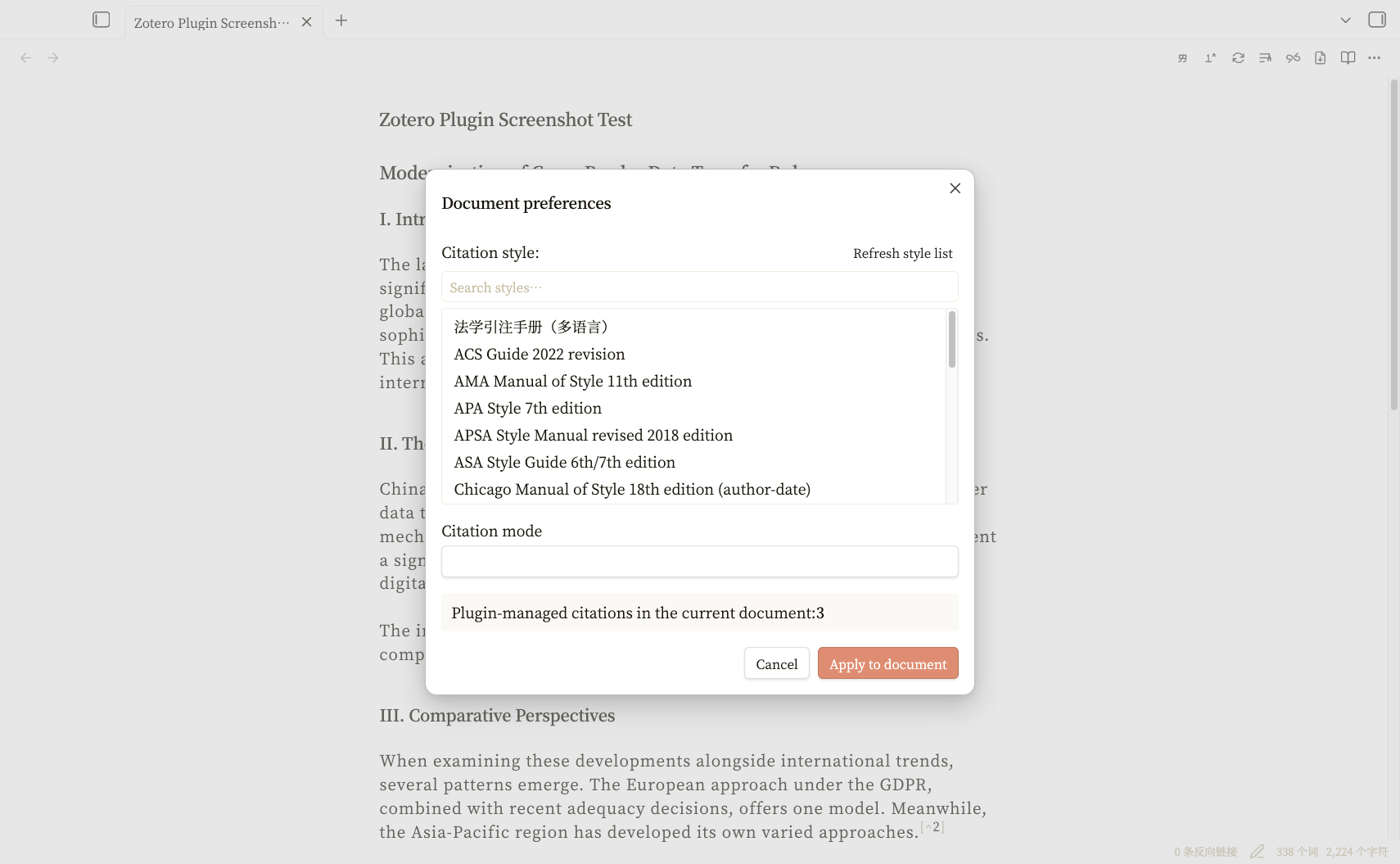
Run Document preferences to open the preferences panel. The plugin dynamically reads all CSL styles installed in your Zotero and presents them in a searchable list. Pick a style, optionally switch between footnote/endnote/in-text mode, and apply the change to all citations in the current document at once:
4. Insert a Bibliography
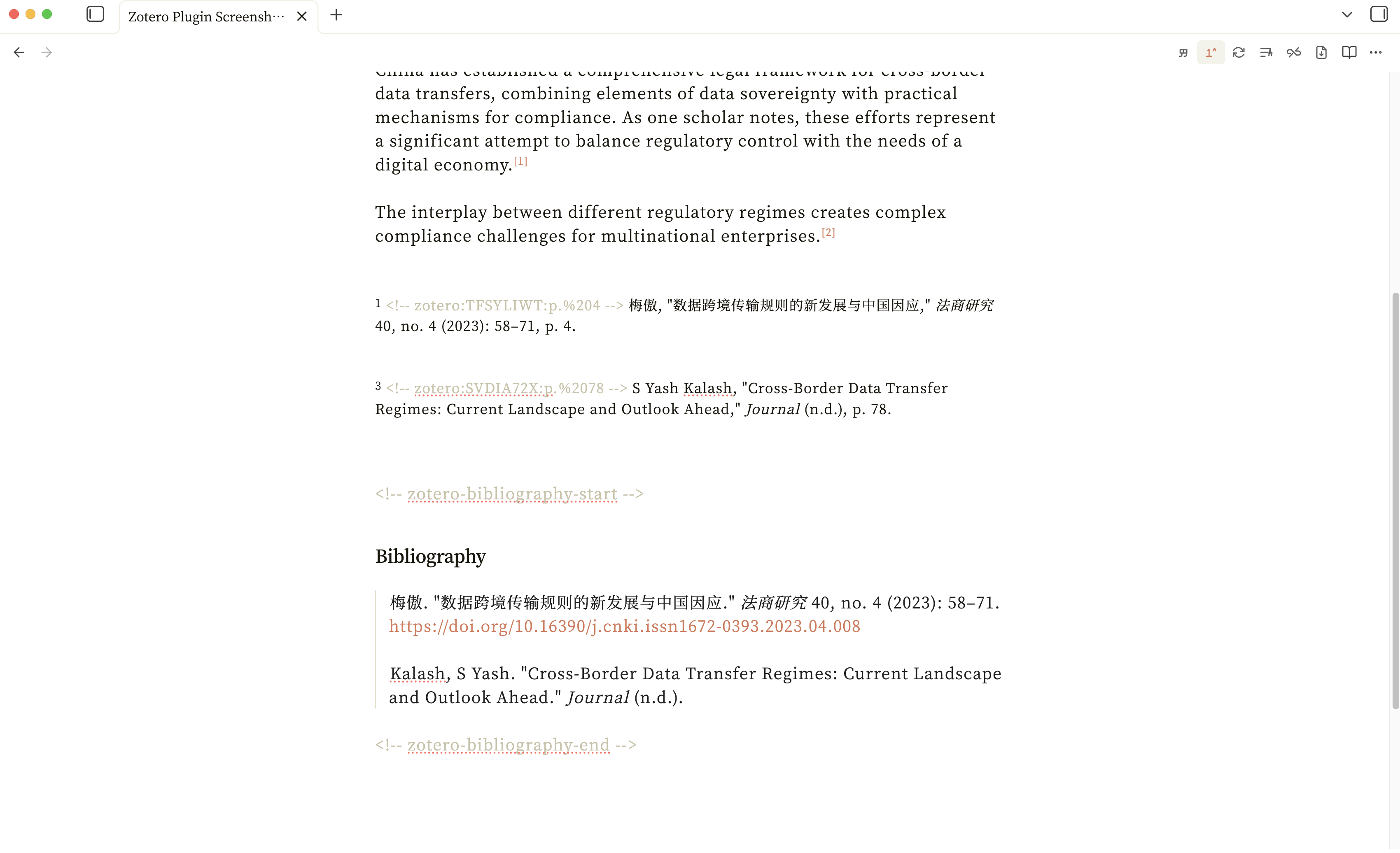
Run Insert bibliography to generate a formatted reference list at the cursor position. On Word export, this managed bibliography is converted to a live Zotero bibliography field.
5. Export to Word
- Make sure Zotero is running and Better BibTeX is enabled.
- Run
Check whether Pandoc is availableto confirm Pandoc is working. - Run
Export to Word (.docx).
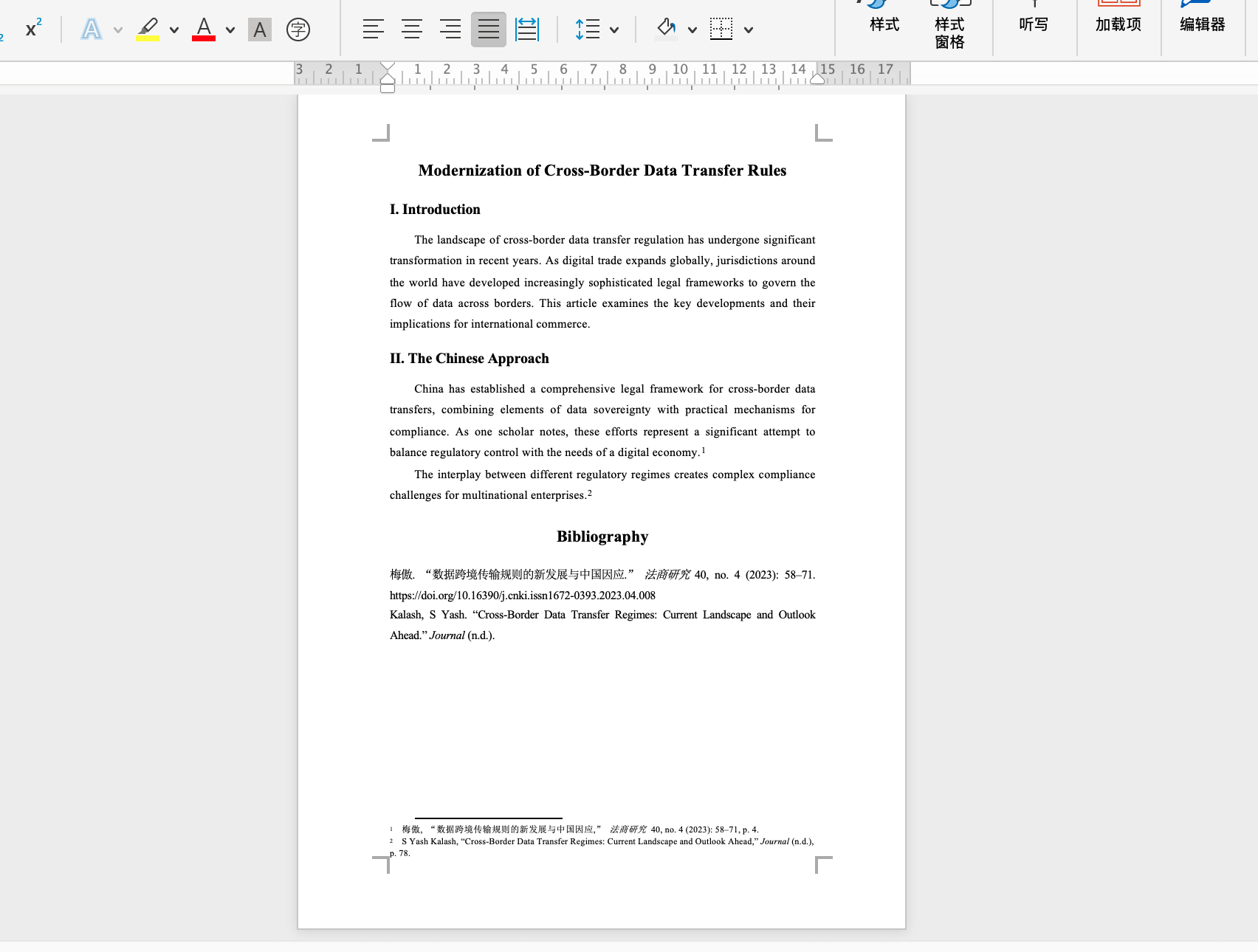
The plugin converts managed citations to Pandoc [@citationKey] syntax only in a system temporary copy; it never rewrites the source Markdown note. Footnote, endnote, and in-text citations in the resulting document contain live ZOTERO_ITEM CSL_CITATION fields. The DOCX stores the exact URI of the CSL style installed in Zotero, including custom styles hosted outside the official Zotero style domain, together with Zotero's locale and the appropriate note type. If Better BibTeX cannot resolve a style or citation key, export stops with an error instead of producing a document containing plain citation-key text. Open the document and click Zotero Refresh directly, or use Document Preferences to switch to another Zotero style.
Body text is SimSun 12pt, 1.5 line spacing, justified alignment, first-line indent, and headings in SimHei.
Settings
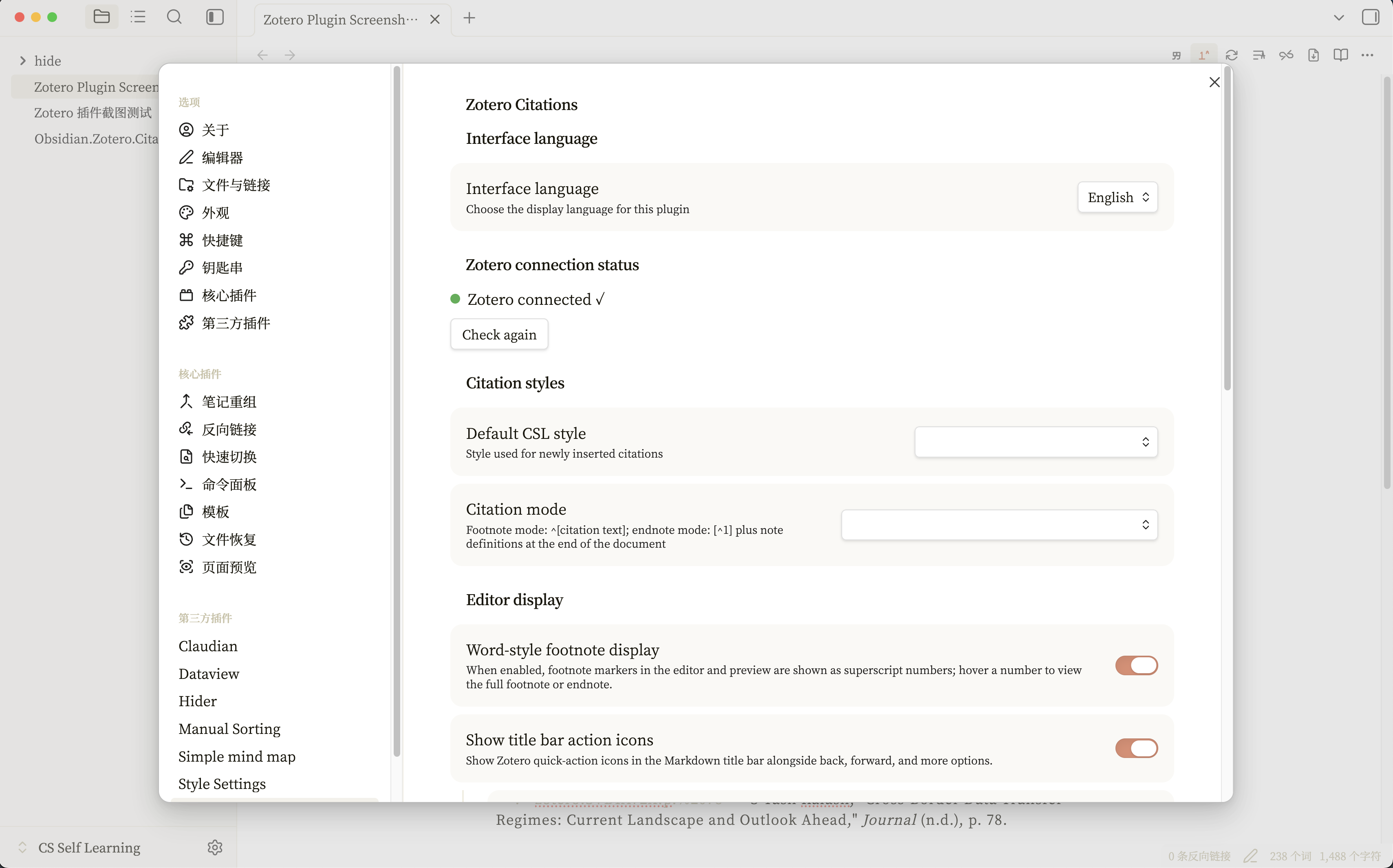
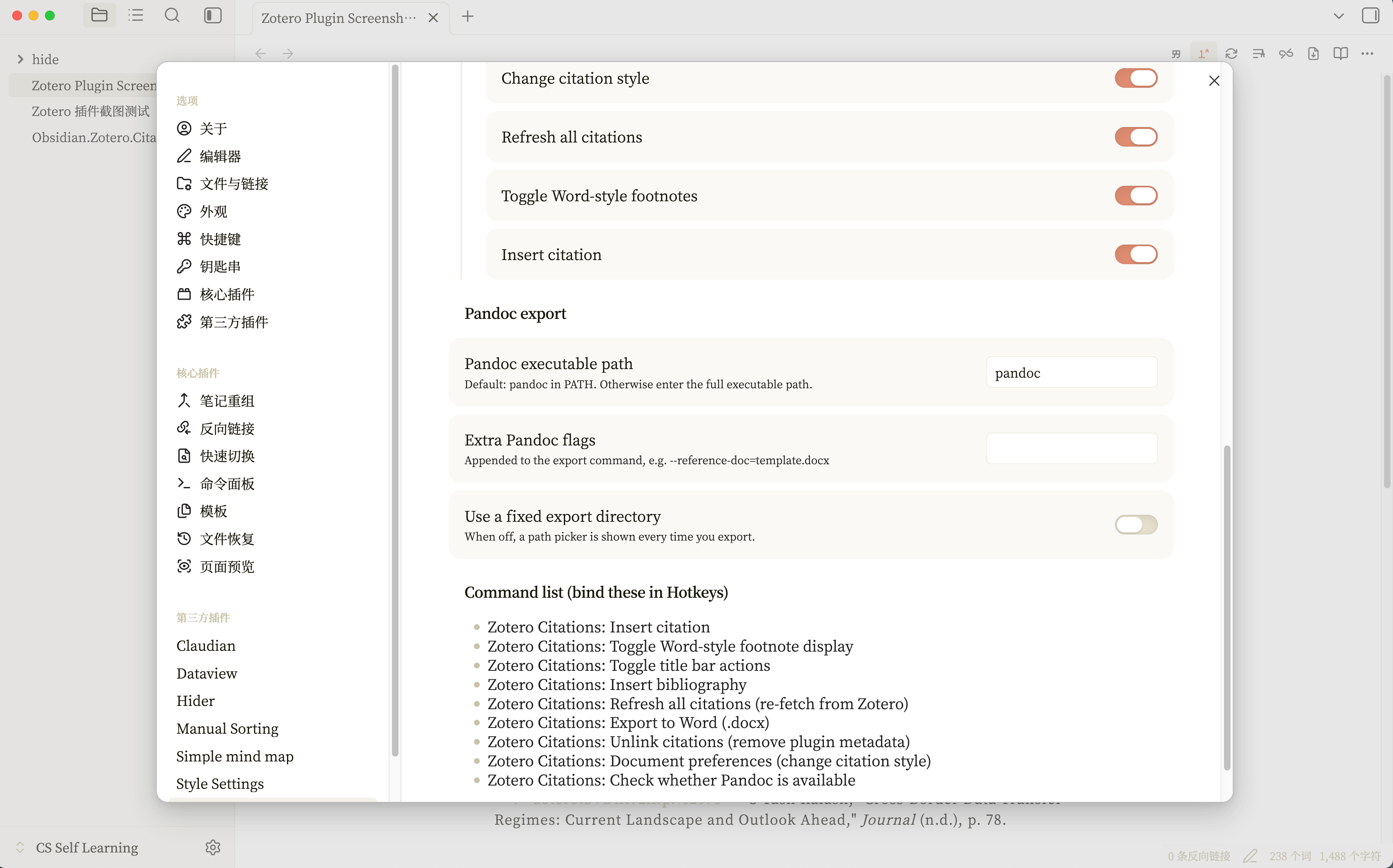
Main Settings
| Setting | Description |
|---|---|
| Interface language | Chinese / English |
| Default CSL style | Format used for newly inserted citations |
| Citation mode | Footnote / Endnote / In-text |
| Word-style footnote display | Superscript numbers + hover preview |
| Title bar buttons | Master toggle + 6 individual toggles (Insert citation, Toggle Word-style footnote display, Refresh all citations, Change citation style, Unlink citations, Export to Word), each controllable independently in settings |
| Pandoc path | Defaults to pandoc; accepts full paths |
| Extra Pandoc arguments | e.g. --reference-doc=template.docx |
| Fixed export directory | If unset, prompts for output location each time |
| Default export directory | Shown only when fixed export directory is enabled; if blank, uses the current note's folder |
Command List
The plugin provides the following commands; you can search for them directly by name in the command palette:
| Command | Description |
|---|---|
| Insert citation | Open the Zotero citation picker |
| Insert bibliography | Generate a reference list at the cursor |
| Refresh all citations | Re-fetch item data from Zotero and update |
| Document preferences | Switch CSL style and citation mode |
| Export to Word (.docx) | Convert to Word via Pandoc |
| Unlink citations | Remove plugin metadata (irreversible) |
| Toggle Word-style footnote display | Enable/disable superscript markers |
| Toggle title bar actions | Show/hide the title bar icons |
| Check whether Pandoc is available | Verify Pandoc installation |
License
MIT
For plugin developers
Search results and similarity scores are powered by semantic analysis of your plugin's README. If your plugin isn't appearing for searches you'd expect, try updating your README to clearly describe your plugin's purpose, features, and use cases.