by zhongli liu
Connect your vault to the DevMate local-first MCP workspace gateway.
DevMate




DevMate lets the model in your chat window work directly on your own computer: read, search and edit project files, run commands and tests, use Git, see the errors your editor already reports, and hand whole tasks to the coding agents installed on your machine. It is a local runtime that offers these capabilities through the Model Context Protocol (MCP).
The main use is connecting the chat window you already use (ChatGPT on the web, Claude) to your machine and developing from there. It is not tied to one of them: every MCP client connects to the same runtime. What your plan allows says which ChatGPT and Claude plans can change files and run commands through a connector, and which can only read.
- Your machine, your route. Nothing is relayed through a service of ours. Cloud clients reach you through a tunnel you own (Cloudflare, OpenAI's official tunnel, your reverse proxy, or SSH), and DevMate proves the route end to end.
- You decide what is shared, at your computer. Which folders, read only or read and write, credential files protected. A connected client can narrow these and never widen them.
- One runtime for every entry. Any number of VS Code windows, Obsidian and the command line share one runtime per machine, guaranteed by the operating system.
- It knows what your editor knows. Compiler, type and lint errors come straight from VS Code, without running a build.
 ChatGPT web · Claude.ai                    Claude Code · Codex · any local MCP client
          │  HTTPS through your own tunnel                 │  http://127.0.0.1:8788/mcp
          ▼                                                ▼          or `devmate mcp` (stdio)
   ingress port 8789 ───────────────┐      ┌─────────────── control port 8788
   MCP and OAuth only               ▼      ▼                owner only: CLI, editors, workbench
                              ┌──────────────────┐
                              │  DevMate runtime │  one per instance directory
                              │  every call is   │  files · search · Git · shell
                              │  authorised here │  editor diagnostics · agents
                              └──────────────────┘
                                 ▲      ▲      ▲
                         VS Code windows · Obsidian · `devmate` command line
Install
Requirements: Node.js 24 or newer, and Git 2.41 or newer (the Git that ships with the macOS developer tools is older: brew install git). The command line and Obsidian also need rg (ripgrep); the VS Code extension brings its own.
| Entry | Install |
|---|---|
| VS Code extension | Search for DevMate in the Extensions view, or run ext install kukutx.devmate-agent. Offline: download devmate-<version>.vsix from Releases and run code --install-extension devmate-<version>.vsix |
| Obsidian plugin | Settings → Community plugins → Browse → DevMate. Manually: unpack devmate-obsidian-<version>.zip from Releases into <vault>/.obsidian/plugins/devmate/ and enable it. Desktop only |
| Command line | Download devmate-cli-<version>.tgz from Releases and run npm install -g ./devmate-cli-<version>.tgz. It has no dependencies and installs offline. Remove it with npm uninstall -g devmate-agent |
devmate doctor (or DevMate: Doctor in an editor) checks everything this installation needs and prints the exact command to fix each item for your system.
The first five minutes
With VS Code:
- Open a project folder and run DevMate: Start DevMate Runtime from the Command Palette. The folder is shared, read and write, and the window tells you so once.
- Run DevMate: Copy MCP URL. For a client on the same computer that is all:
claude mcp add --transport http devmate http://127.0.0.1:8788/mcp. - For ChatGPT on the web or Claude.ai, run DevMate: Configure Connection once (see Connecting a client), then add the copied address as a custom MCP connector.
- Ask the model for "an overview of my project". It calls
project_overviewand you are working.
With the command line only:
devmate start                          # start the background runtime, or join the one that runs
devmate project add C:\Projects\Example
devmate doctor
devmate mcp-url                        # the address to give a client
devmate ui --open                      # the workbench in your browser
Three entries, one runtime
| Entry | For | Adds |
|---|---|---|
devmate command line | Working without an editor | Everything: start, share folders, configure the connection, open the workbench, call any operation. devmate mcp serves MCP on standard input and output for clients that start their servers as a program |
| VS Code extension | Everyday development | The editor's diagnostics, active file and selection; a status bar item |
| Obsidian plugin | A knowledge base | Note search, properties, graph and vault operations |
One instance directory (default ~/.devmate/runtime) has exactly one runtime process at a time.
- Several VS Code windows, Obsidian and the command line can run together. Pressing Start in all of them starts one runtime; the others join it.
- Each editor window works on its own folders. Closing a window affects neither the runtime nor the other windows.
- The runtime keeps running after you close the editor, with its public connection if you configured one, until you stop it:
devmate stop, or Stop DevMate Runtime in an editor. Stopping affects every entry, so the editors ask first. - After a crash the next start simply works. VS Code with
devMate.autoStartbrings a crashed runtime back; one you stopped stays stopped.
Command line
| Command | Purpose |
|---|---|
devmate start / stop / restart / status | The background runtime |
devmate serve | Run in the foreground until Ctrl+C |
devmate doctor | Check the installation. Works when nothing is running and says what to do next |
| Start at sign-in, without an editor | Have your system run devmate start when you sign in: a Task Scheduler task on Windows, a systemd user unit on Linux, a launchd agent on macOS |
devmate logs [--lines N] | Recent runtime log |
devmate project add [directory] [--name N] [--read-only] / list / remove | What is shared. Without a directory, the current one |
devmate access [guarded | full] | The permission profile: what a connected client may decide (see Who may do what) |
devmate mcp-url | The address for a client |
devmate mcp | MCP over standard input and output; starts the runtime when needed |
devmate connect local | quick | cloudflare | openai-tunnel | https | ssh … | How cloud clients reach this computer. --auth oauth requires sign-in |
devmate secret set <NAME> / list / remove <NAME> | Connection credentials. The value is read from standard input and never appears in shell history |
devmate login-code | A one-time sign-in code (when sign-in is on) |
devmate ui [--open] | A single-use link to the workbench |
devmate operations / help <operation> | Every operation, and one with its exact input |
devmate <operation> --json '{…}' | Call any operation; also --file or --stdin |
Every command accepts --instance <directory> to use another instance. The command line can do everything the workbench and the extensions can.
Commands run in PowerShell on Windows: PowerShell 7 when it is installed, otherwise the built-in 5.1. Version 5.1 has no && and ||, which models use by habit, so installing PowerShell 7 is recommended (winget install Microsoft.PowerShell). On macOS and Linux commands run in bash, or sh when there is no bash.
VS Code extension
Commands (all under DevMate: in the Command Palette):
| Command | Does |
|---|---|
| Start / Stop / Restart DevMate Runtime | The shared runtime |
| Change Folder Sharing | Read and write, read only, or not shared, per folder |
| Select This Window Workspace | Which shared folder this window works in, when it shares several |
| Configure Connection | The guided setup for cloud clients, and whether they must sign in |
| Copy MCP URL · Copy One-Time Sign-In Code | What a client needs |
| Open Workbench · Doctor · Show Menu · Show Runtime Status | Seeing what is going on |
| Discover Operations · Call Operation | Looking into a problem |
Settings (user settings only: a repository's .vscode/settings.json cannot change them):
| Setting | Default | Meaning |
|---|---|---|
devMate.shareFolders | readWrite | What connected clients may do in a trusted folder you open: readWrite, readOnly, ask, never. Folders of an untrusted workspace are never shared |
devMate.shareEditorContext | true | Whether clients see the active file, selection, open files and diagnostics |
devMate.autoStart | true | Start the runtime with the editor, and again after a crash. One you stopped stays stopped |
devMate.runtimePort | 8788 | The local port when this editor starts the runtime |
devMate.nodeCommandPath | empty | A Node.js 24+ executable, when it is not found on its own |
devMate.runtimeInstanceDirectory | empty | Another instance directory than ~/.devmate/runtime |
- An opened folder is shared read and write by default, and the window says so once with a Change… button. A folder you take out stays out until you share it again.
- No separate ripgrep is needed: when PATH has no
rg, the runtime uses the copy VS Code ships and remembers it for use without the editor. - Editors with built-in MCP support discover the local endpoint on their own.
- The extension needs VS Code 1.101 or newer and is tested in a real editor on 1.101 and 1.133.
- Remote windows (SSH, WSL, Dev Containers): the extension runs on the remote side, so DevMate, Node.js and the shared folders are those of the remote computer, and "local" addresses are local to it. This setup is not tested yet.
Obsidian plugin
- DevMate: Start runtime starts the runtime; the status bar shows its state and opens the sidebar.
- DevMate: Attach this vault shares the vault and offers the note tools (search, properties, graph, move, trash). The first time it asks: read and write, read only, or not now. The whole vault folder is shared, so connected clients also reach it with the file tools.
- DevMate: Change how this vault is shared changes that at any time. Detach only stops the note tools; sharing is unchanged.
- DevMate: Stop shared runtime and Restart shared runtime ask first, because they affect every entry.
- When an agent waits for your approval or an answer, Obsidian tells you; DevMate: Open workbench is where you answer.
Disclosures. The plugin is desktop only and needs Node.js 24 installed separately (set its path in the plugin settings when it is not found; ripgrep must be installed too). It starts the DevMate runtime as a background process that keeps running after Obsidian closes, until you run Stop shared runtime. The runtime listens on 127.0.0.1 only (ports 8788 and 8789, and one more loopback port for vault operations). Its state, credentials and its own program files are kept in ~/.devmate/runtime, outside the vault. The plugin carries those program files inside main.js as plain, readable text (nothing is encoded), writes them there and checks each against its hash on every start. It makes no network connection unless you configure a public connection (Cloudflare Tunnel, OpenAI Secure MCP Tunnel, SSH or your own HTTPS proxy). No telemetry, no account, no payment.
The plugin has been loaded and driven in a real Obsidian 1.12.7 on Windows: loading, starting the runtime, sharing the vault read only and read and write, the note tools, stopping and disabling. Obsidian on macOS and Linux has not been tried. Please report what you find.
Connecting a client
On the same computer
No tunnel and no sign-in:
http://127.0.0.1:8788/mcp
| Client | Setup |
|---|---|
| Claude Code | claude mcp add --transport http devmate http://127.0.0.1:8788/mcp |
| Codex CLI | codex mcp add devmate --url http://127.0.0.1:8788/mcp |
| VS Code's own MCP support | Found automatically once the extension is installed |
| A client that only starts programs | Command devmate, argument mcp, for example { "command": "devmate", "args": ["mcp"] } |
Any other client: add an HTTP (Streamable HTTP) MCP server with this address. A browser-based client on another origin is refused until you add its origin to allowedOrigins in the DevMate configuration; add only clients you run yourself.
ChatGPT on the web and Claude.ai
They reach your MCP server from the cloud, so they need a route from outside to your machine. DevMate offers five:
| Route | For | Notes |
|---|---|---|
quick | Any client | A Cloudflare quick tunnel, for trying DevMate out. No account, no domain, nothing to set up; the address changes whenever it starts again |
openai-tunnel | ChatGPT, Codex | OpenAI's official tunnel. Outbound only, no public address, no domain |
cloudflare | ChatGPT, Claude, any client | A named Cloudflare tunnel on your own domain; DevMate runs cloudflared. Free |
https | Any client | A reverse proxy you already run |
ssh | Any client | OpenSSH reverse forwarding to a server of yours that provides HTTPS |
Quick tunnel: connected in a minute
With cloudflared installed (Windows: winget install Cloudflare.cloudflared; macOS: brew install cloudflared), three commands give you an address for ChatGPT or Claude:
devmate connect quick
devmate restart
devmate mcp-url
Nothing is registered anywhere: Cloudflare hands out a random trycloudflare.com host name while the tunnel runs, and DevMate checks that it reaches this runtime. There is no sign-in. The address ends in a key that DevMate makes anew at every start (https://<name>.trycloudflare.com/mcp/<key>), and only the whole address opens anything: the host name alone, which anyone watching DNS can see, answers "not found". Whoever has the whole address can do what you can, so give it to your own client only and do not paste it anywhere else; devmate doctor prints it without the key. It changes whenever DevMate or the tunnel starts again; the client then gets the new one from devmate mcp-url.
A quick tunnel is what Cloudflare offers for testing and development: no uptime guarantee, at most 200 requests at once, and no event streams. DevMate therefore answers through it in plain JSON, without progress messages while a call runs. For daily use take an address that stays, with one of the routes below.
Cloudflare tunnel
- In Cloudflare Zero Trust create a tunnel with a public hostname such as
devmate.example.com, and set its service tohttp://127.0.0.1:8789. - Configure it and store the token:
devmate connect cloudflare --url https://devmate.example.com/mcp --executable "C:\Program Files (x86)\cloudflared\cloudflared.exe"
devmate secret set CLOUDFLARE_TUNNEL_TOKEN      # paste the token and press Enter, or pipe it in
devmate restart
devmate doctor
- Give the address printed by
devmate mcp-urlto ChatGPT or Claude as a custom MCP connector.
OpenAI tunnel
Create a tunnel in the organisation settings of the OpenAI Platform and download the official tunnel-client:
devmate connect openai-tunnel --tunnel-id tunnel_xxxxxxxx --executable C:\Tools\OpenAI\tunnel-client.exe
devmate secret set CONTROL_PLANE_API_KEY
devmate restart
devmate mcp-url prints the tunnel ID; choose the Tunnel connection type in ChatGPT and enter it.
Is it really connected?
A running tunnel process is not a working route. DevMate connects back through the public address as a real MCP client, lists the tools and calls one, and the answer must come from this very runtime; it repeats the check periodically and says so when the route breaks. The route works when connection.public is ok in devmate doctor. The OpenAI tunnel has no public address to probe: confirm it by calling a tool from ChatGPT.
A connector that cannot start does not take local work down and is never hidden: doctor and connection.status give the reason. After storing a new credential, restart only the connector: devmate connection.restart.
What your plan allows
Whether a chat product lets a connector you add yourself change things is decided by that product and your plan, not by DevMate. As their own documentation states it:
| Product | Custom MCP connectors |
|---|---|
| ChatGPT Business, Enterprise, Edu | Read and write, in developer mode on the web (a beta). An admin or owner switches developer mode on |
| ChatGPT Pro | Read only, in developer mode. DevMate marks its reading tools as read-only (files, search, Git, diagnostics, operations_query, capability_query); editing, commands and delegation need a plan that allows writing. Not tried with a Pro account |
| ChatGPT Plus, Go, Free | Not named in OpenAI's documentation for custom MCP connectors |
| Claude (claude.ai, desktop, mobile) | Custom connectors by URL; a tool call may take 240 seconds and return about 150,000 characters |
| Claude Code, Codex and other local clients | No plan limits of this kind: they connect on this computer |
Sources: Developer mode and MCP apps in ChatGPT, Build an MCP server for Claude. Both change; check them for your plan. DevMate's own tools stay inside the tighter of these limits: a command or a delegated task is waited for at most 50 seconds per call (it keeps running and is asked about again), and a text result stays under 140,000 characters. A capability that runs longer by nature (a browser navigation, a game-engine run) is better started as a job with job.start and read later.
Who may do what
- Two ports, two levels of trust. The control port (default
127.0.0.1:8788) is yours alone: workbench, command line, editors, MCP clients on this computer. The ingress port (default8789) serves only MCP and OAuth and is the only thing a tunnel or proxy points at; the control port refuses anything that arrived through a proxy. - What is shared is decided at your computer. Folders are shared from an editor, with
devmate project add, or in the local workbench. A connected client cannot share a folder, widen read-only access, lift the protection of credential files or bring back a folder you took out; it can only narrow. - Write access is full access. In a writable project a client can run commands, and commands run as your operating-system account. With at least one writable project the limits on other folders keep a well-behaved model in place; they are not a wall against a hostile one. For a client you do not fully trust, share read only: then there are no commands and the limits hold. DevMate is not a sandbox.
auth.modeisnoneby default. Whoever reaches the MCP address is you. Treat a public address like a password, or require sign-in.- Optional sign-in (OAuth).
devmate connect … --auth oauthmakes clients of the public address sign in: on first connection they are sent to DevMate's authorisation page, where you enter a one-time code fromdevmate login-code. Withauth.member.createyou can issue read-only or read-write identities limited to named projects. A client that publishes no description of itself (a client metadata document) is registered by you underauth.clientsin the configuration, with its name and redirect addresses. Clients on your own computer never need to sign in. - Approvals and questions are answered by you, at your computer. When an agent asks for permission, you answer in the editor or the local workbench. No connected client can answer, including the model that started the agent.
- Full access, when you want none of that in your way. The default profile is guarded: everything above. If you drive your work from a chat client and do not want to walk to the computer, switch on full access there:
devmate access full, DevMate: Change Permission Profile in VS Code, or Permissions… in Obsidian. A client connected as you can then share folders, widen access, read credential files, set up capability engines, answer what an agent asks and run the doctor, and what an agent you delegated to asks permission for is granted automatically (each grant stays on record). It takes effect at once and only you, at your computer, can switch it on;devmate access guardedtakes it back. With full access, whoever reaches your MCP address acts as you without asking: keep the address private or require sign-in. Signed-in members keep exactly their grants. - Credential files are protected by default.
.env, key files,.npmrcand the like are not read or listed by the file tools; Git status names them, marked "do not commit". You can switch that off for one project, at your computer. - Secrets in command lines are not shown. Process lists and activity records replace inline tokens and passwords with
[redacted]; the command that runs is unchanged. This recognises common forms and is no guarantee. - The workbench session stays in its browser tab. It is entered through a single-use link, and its session is never a cookie that other local services would receive.
- File contents, command output and web pages the model reads are data, never instructions to it.
SECURITY.md has the full policy and the known limits.
Tools the model gets
| Area | Tools | Notes |
|---|---|---|
| Orientation | project_overview project_list | Git branch and changes, the project's own agent instructions (AGENTS.md and similar), runnable scripts, top-level layout and the editor's error count, in one call |
| Editor | editor_diagnostics editor_context | The compiler, type and lint errors VS Code already computed; your active file, selection and open files |
| Finding code | workspace_files workspace_find workspace_search | Directory listing, glob find, ripgrep content search. Honours .gitignore; fast on large repositories |
| Reading | workspace_read | With line numbers, paged for large files (up to 32 MiB). UTF-16 and the computer's own encoding (GBK and the like) can be read, not rewritten |
| Changing | workspace_edit workspace_write workspace_mkdir workspace_move workspace_delete | Exact text replacement, several edits applied atomically. Overwriting needs the hash that was read, so nothing is written blind |
| Undo | workspace_history workspace_restore | Every file changed, overwritten or deleted through DevMate can be restored, kept 30 days by default |
| Running | shell_run process_read process_write process_stop process_list | Real shell semantics (npm test, git commit). Output is paged by cursor; long commands keep running and can be read, fed input and stopped as a whole process tree |
| Git | git_status git_diff git_log git_show git_blame git_branches | Read only, and never run a program the repository configures. Writes go through shell_run |
| Delegation | agents_delegate agents_result providers_list | Hand a whole task to a coding agent on this machine |
| Domain capabilities | capability_list capability_call | Browser control and QA, Godot, reverse engineering, Obsidian, and external MCP servers you configure |
| Everything else | operations_list operations_call connection_status | Workflows, tasks, messages between agents, jobs, artifacts and references, called by name |
projectIdis a project id, a project's root directory or a unique project name, and can be left out when only one project is shared. With several, read-only tools follow the editor window you are working in; a change must name its project.- There is no tool for sharing a folder. That is yours to do; the model is told to ask you.
- The model carries 38 tool definitions; the rest costs no context.
- Tools carry accurate hints (read only, write, destructive, open world), so clients ask for confirmation only where it matters.
- A cancelled or timed-out call only stops waiting: the command or agent task it started continues and stays reachable.
- The server speaks MCP 2026-07-28 and the 2025 revisions.
- The reverse-engineering engine includes tools that read, and can write, the memory of another process on Windows. Both are off until you switch them on at your computer (
allowProcessAccess,allowMemoryWrite); a connected client cannot. See docs/CAPABILITIES.md for all engines.
Delegating to coding agents on this machine
One call hands a task to Codex, Claude Code, Gemini CLI or Grok CLI installed here:
{ "projectId": "Example", "provider": "claude", "prompt": "Fix the failing case in tests/login.test.ts and say why it failed" }
- A task that finishes within the wait returns its result and the list of changed files; otherwise it returns an
agentIdto follow withagents_result. - Passing the same
agentIdagain continues that session with its context. - The agent works in the project folder with its own account, quota and tools. What it asks you (approvals, questions) appears in the workbench and as a notification in VS Code and Obsidian, and you answer it at your computer.
- Collaboration inside one vendor (Claude Code sessions messaging each other, Codex sub-agents) is done natively by them. DevMate covers the part between clients, for example handing a task from ChatGPT on the web to Claude Code on your machine.
For several agents exchanging messages and tasks in one workflow, use the finer workflow.*, agents.*, message.* and task.* operations, or the workbench.
Workbench
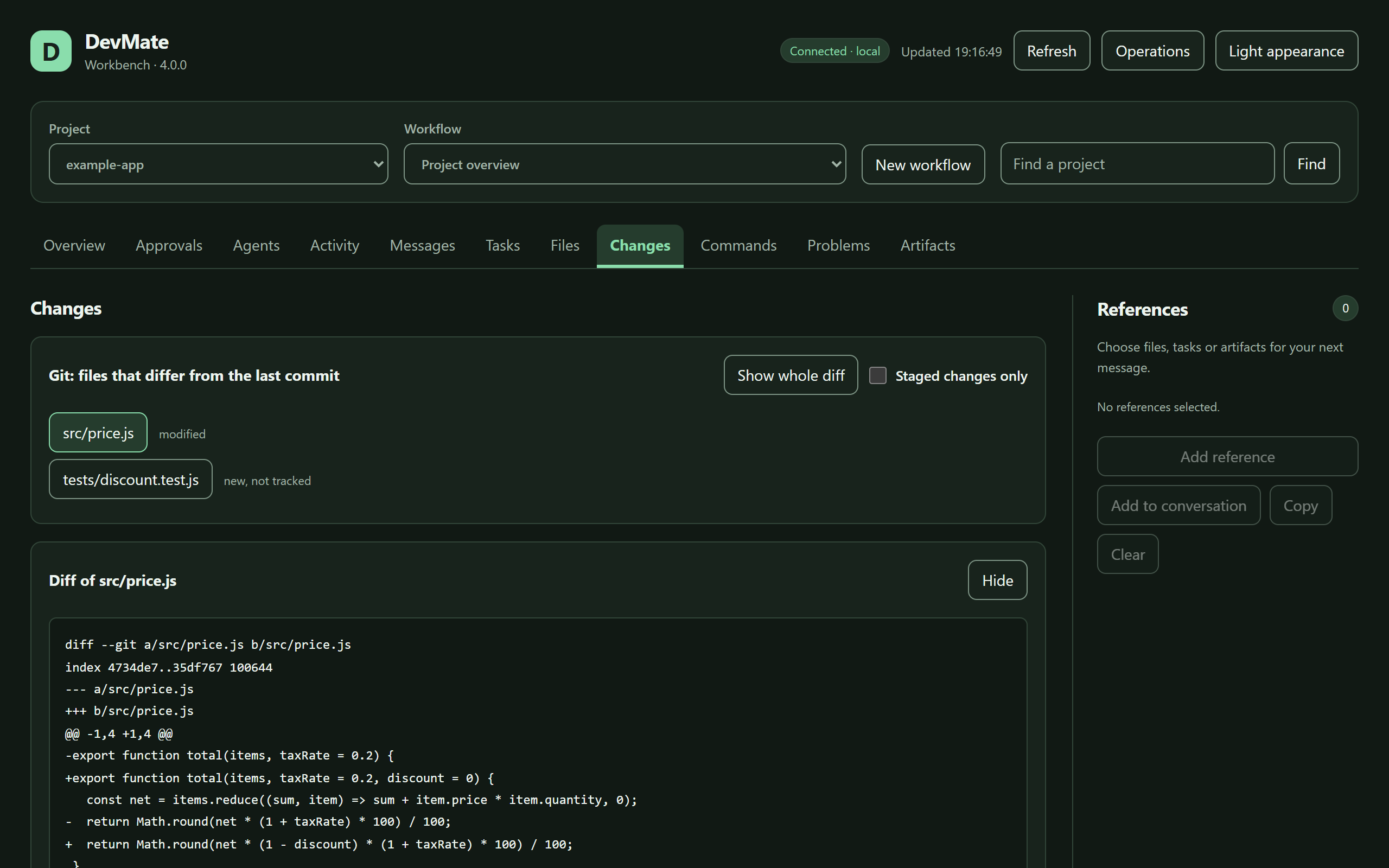
devmate ui --open opens the workbench in your browser: projects, files, changes, commands, editor problems, agents and their activity, messages, tasks, approvals, artifacts and references. open_devmate_workbench opens the same interface inside clients that support MCP Apps (ChatGPT, Claude and others); there it shows everything, while sharing a folder and answering an agent stay at your computer.
Troubleshooting
Run devmate doctor first. It names the item that is wrong and how to fix it.
| What you see | Cause and remedy |
|---|---|
DevMate runtime is not running | devmate start, or start it in an editor |
Port 8788 … is already used by another program | Another port: devmate start --port 8790, or the setting devMate.runtimePort |
DevMate needs Node.js 24 or newer | Install Node.js 24+, or set the path of its executable in the DevMate settings of the editor |
Git … is too old | Update to Git 2.41 or newer, then restart DevMate |
A note that PowerShell 5.1 has no && | Have the model use ; and if ($?) { … }, or install PowerShell 7 and restart DevMate |
| The model says folders are "shared by the owner on their own computer" | Share the folder yourself: open it in an editor with DevMate, or devmate project add <folder>. To let your client do such things itself: devmate access full |
| The model says a project is read only, or a folder was taken out of sharing | That was your decision at this computer. Change it there: Change Folder Sharing in the editor, devmate project add, or the local workbench |
| "Answer this on your computer" in an embedded workbench, or an agent that keeps waiting for approval | Approvals are answered locally: devmate ui --open, or the notification in your editor. With devmate access full they are granted automatically |
rg was not found on PATH | Install ripgrep as the message says, then devmate restart; or open DevMate once in VS Code, whose copy is then used |
The origin … is not allowed | A browser-based client: add its origin to allowedOrigins in the configuration if you run that client yourself |
| A cloud client cannot connect | The connection.* items of doctor; devmate logs shows the connector's output |
| Start fails | The message has the reason; the full log is runtime.log in the instance directory |
Uninstalling
Removing the extension or the plugin does not stop the runtime, because other entries may be using it. Stop it first (Stop DevMate Runtime, or devmate stop), then uninstall. Everything DevMate keeps is in the instance directory (~/.devmate/runtime by default): delete it to remove the state, the credentials and the restorable file versions. Your project files are never touched by this.
Data and retention
State lives in one SQLite database in the instance directory. The event journal, operation receipts, finished jobs and approvals, and restorable file versions are pruned after retentionDays (default 30). Projects, workflows, messages and tasks are not pruned.
Compatibility
These are treated as public: the names and parameters of the tools above, operation names, configuration keys, command-line commands and the workbench resource ui://devmate/workbench/v1. A change to any of them is listed in the changelog. A test pins the tool names and parameters, so none changes by accident. The stored state carries a format number: a release never touches state written by a newer one and says which versions are involved.
Development
npm ci
npm run lint               # mistakes only: undefined names, unreachable code and the like
npm run check              # manifest, versions, pinned workflow actions, syntax
npm run test:unit          # the whole test suite
npm run test:vscode-host   # the extension in a real VS Code: two editors and a third window on one runtime
npm run candidate          # build once, smoke-test that build as packaged, write what a release publishes to dist/release/
Pushing a tag X.Y.Z that matches the package version (no v) verifies that commit and publishes the GitHub release and the VS Code Marketplace version. CONTRIBUTING.md describes the release steps.
| Directory | Contents |
|---|---|
runtime/ | The runtime: the one entry and authorisation of every call (service.mjs), all operations (operations/), SQLite state (store.mjs), the MCP layer (mcp.mjs), HTTP (main.mjs), the instance lock, commands and processes, files and Git, connections, agent adapters (agents/) |
runtime/engines/ | Browser, Godot, reverse engineering and other domain capabilities |
runtime/platform/ | Process trees, paths, tools and other low-level helpers |
workbench/ | The workbench, shared by the MCP App and the local page |
vscode-host/ obsidian-plugin/ | The two hosts |
tests/ scripts/ | Tests; build, check, smoke and packaging scripts |
Every operation is defined once in runtime/operations/ and authorised by the registry in runtime/service.mjs. MCP, the command line and the workbench all get it from there.
Documentation
- Capabilities: browser, Godot, reverse engineering, Obsidian
- Security policy and its known limits
- Changelog
- Contributing and releasing · Support · Code of conduct
- Status (in Chinese): what is not done yet, what could not be verified, and measured performance
License
For plugin developers
Search results and similarity scores are powered by semantic analysis of your plugin's README. If your plugin isn't appearing for searches you'd expect, try updating your README to clearly describe your plugin's purpose, features, and use cases.