DocFlow
approvedby HJ
Render IT project artifacts — ERD, API specs, WBS, architecture diagrams, requirements, manuals, and meeting notes — with purpose-built type-aware views. - This plugin has not been manually reviewed by Obsidian staff.
DocFlow
Render IT project artifacts with type-aware views inside Obsidian.
DocFlow automatically detects the type of your IT documents — ERD, API specifications, WBS, architecture diagrams, requirements, manuals, and meeting notes — and renders them with purpose-built views, all within your Obsidian vault.
Supports English and Korean UI and templates out of the box.
Screenshots
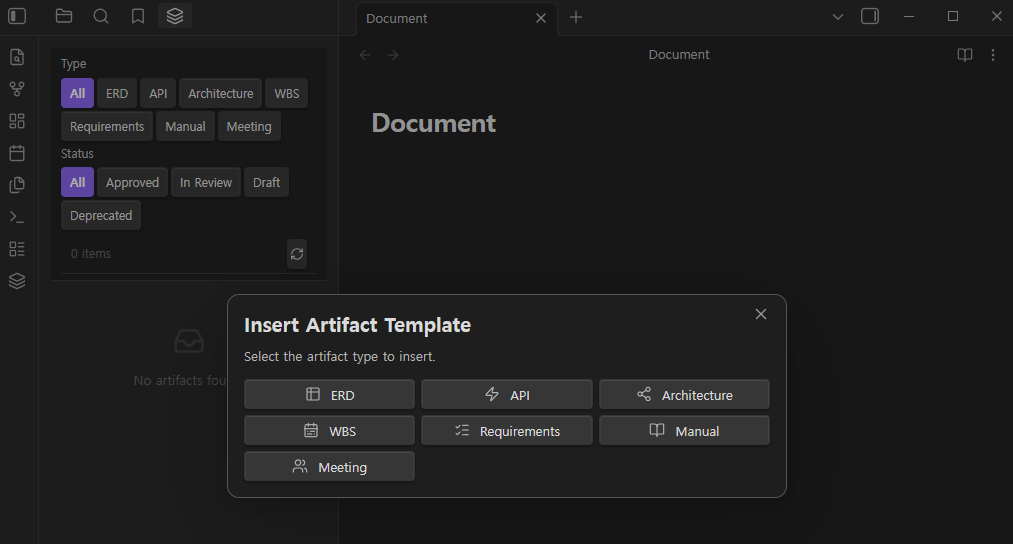
Artifact Explorer (left) with type/status filters, and the Insert Artifact Template modal
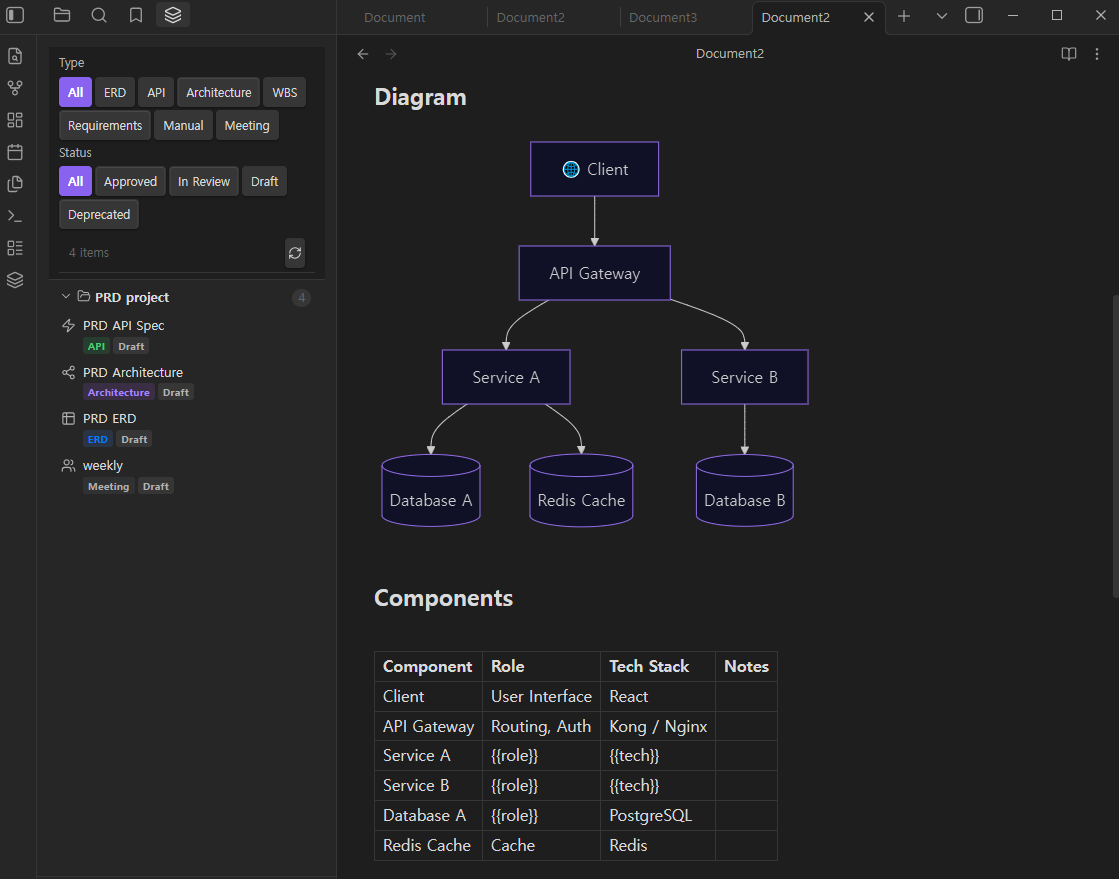
Architecture diagram rendered from a Mermaid flowchart block, with the Artifact Explorer showing project artifacts grouped by project
Features
ERD Renderer
Renders erDiagram Mermaid blocks as interactive entity-relationship diagrams.
- Diagram view with pinch-to-zoom and drag pan
- Table view — structured column list with PK / FK / UK badges
- Export to SVG or PNG with one click
- Auto-syncs with Obsidian's light / dark theme
API Spec Renderer (Swagger UI)
Renders OpenAPI 3.x and Swagger 2.x specs written in yaml or json code blocks.
- Full Swagger UI embedded in the reading view
- Version badge (OAS 3 / OAS 2)
- Try it out mode — toggle in settings (off by default)
Artifact Explorer (Left Sidebar)
Lists all IT artifact files in your vault in one panel.
- Filter by type (ERD, API, Architecture, WBS, Requirements, Manual, Meeting)
- Filter by status (Approved, In Review, Draft, Deprecated)
- Grouped by
projectfrontmatter field - Click any item to open the file
Metadata Panel (Right Sidebar)
Shows frontmatter metadata for the currently open artifact file.
- Status badge with color coding (green / orange / gray / red)
- Version, author, last modified date
- Tag list
- Related document links — click to open
Template Inserter
Insert a pre-filled artifact template from the command palette.
- Command:
DocFlow: Insert Artifact Template - Supports all 7 artifact types
- Prompts for title, project, author — leaves content placeholders for you to fill in
- Templates are provided in English and Korean
Language Support
All UI labels, status badges, filter buttons, and artifact templates are fully localized.
- Auto — follows your system/browser locale
- English — always use English UI and templates
- 한국어 — always use Korean UI and templates
Change the language in Settings → DocFlow → Language. Command names update after re-enabling the plugin.
Supported Artifact Types
| Type | Frontmatter type | Rendered As |
|---|---|---|
| ERD | erd | Interactive ERD diagram + table |
| API Spec | api | Swagger UI |
| Architecture | architecture | Mermaid flowchart (passthrough) |
| WBS | wbs | Mermaid Gantt chart (passthrough) |
| Requirements | requirements | Structured markdown |
| Manual | manual | Structured markdown |
| Meeting Notes | meeting | Structured markdown |
Installation
From Community Plugins (Recommended)
- Open Obsidian Settings → Community Plugins → Browse
- Search for DocFlow
- Click Install, then Enable
Manual Installation
- Download
main.js,manifest.json,styles.cssfrom the latest release - Copy all three files to
<your-vault>/.obsidian/plugins/docflow/ - Reload Obsidian and enable the plugin under Settings → Community Plugins
Usage
Rendering an ERD
Create a markdown file with the following frontmatter and a mermaid code block:
---
title: User Management ERD
type: erd
project: my-app
version: 1.0.0
status: approved
author: Your Name
tags: [database]
related: []
---

```mermaid
erDiagram
  USER {
    int id PK
    string email UK
    string name
    datetime created_at
  }
  ORDER {
    int id PK
    int user_id FK
    string status
  }
  USER ||--o{ ORDER : "places"
```
Switch between the Diagram and Table views using the tab buttons above the diagram. Export to PNG or SVG with the download button.
Rendering an API Spec
---
title: Auth API
type: api
project: my-app
version: 1.0.0
status: draft
author: Your Name
---

```yaml
openapi: 3.0.0
info:
  title: Auth API
  version: 1.0.0
paths:
  /login:
    post:
      summary: Login
      responses:
        '200':
          description: Success
```
Inserting a Template
- Open or create a new empty note
- Open the command palette (
Ctrl+P/Cmd+P) - Run DocFlow: Insert Artifact Template
- Select an artifact type
- Fill in the title, project, and author fields
- Click Insert Template
The template language matches the current language setting (English or Korean).
Auto-detection
If a file has no type in its frontmatter, DocFlow can detect the type automatically:
| Signal | Detected Type |
|---|---|
erDiagram keyword in a mermaid block | erd |
gantt keyword in a mermaid block | wbs |
flowchart / graph keyword in a mermaid block | architecture |
File path contains /api/ and ends in .yaml / .json | api |
File path contains /meeting | meeting |
Auto-detection can be disabled in Settings if you prefer to set types explicitly.
Frontmatter Fields
| Field | Type | Required | Default | Description |
|---|---|---|---|---|
type | string | Yes | — | Artifact type (erd, api, architecture, wbs, requirements, manual, meeting) |
title | string | No | File name | Display title |
project | string | No | — | Project name (used for grouping in the Explorer) |
version | string | No | 1.0.0 | Semantic version |
status | string | No | draft | draft | review | approved | deprecated |
author | string | No | — | Author name |
tags | list | No | [] | Tag list |
related | list | No | [] | Related files as wiki links, e.g. [[auth-api]] |
Settings
| Setting | Default | Description |
|---|---|---|
| Language | Auto | UI language and template language. Auto follows your system locale · English · 한국어 |
| Auto Type Detection | ON | Detect artifact type from file content and path when type is not set in frontmatter |
| Swagger Try it out | OFF | Enable live HTTP requests in the API renderer |
| Diagram Theme | Auto | Auto follows Obsidian's theme · Light · Dark |
| Auto-open Metadata Panel | ON | Automatically open the metadata panel when entering Reading View for an artifact file |
| Scan Paths | (all) | Comma-separated folder paths to scan. Leave empty to scan the entire vault |
Requirements
- Obsidian 1.4.0 or later
- Works on desktop and mobile
License
For plugin developers
Search results and similarity scores are powered by semantic analysis of your plugin's README. If your plugin isn't appearing for searches you'd expect, try updating your README to clearly describe your plugin's purpose, features, and use cases.