Diagrammo Diagrams
approvedby diagrammo
40+ diagram types in your notes from one plain-text language. Process, architecture, data, project, hierarchy — diffable, searchable, mobile-friendly, with live preview and themed palettes. - This plugin has not been manually reviewed by Obsidian staff.
Diagrammo Diagrams for Obsidian
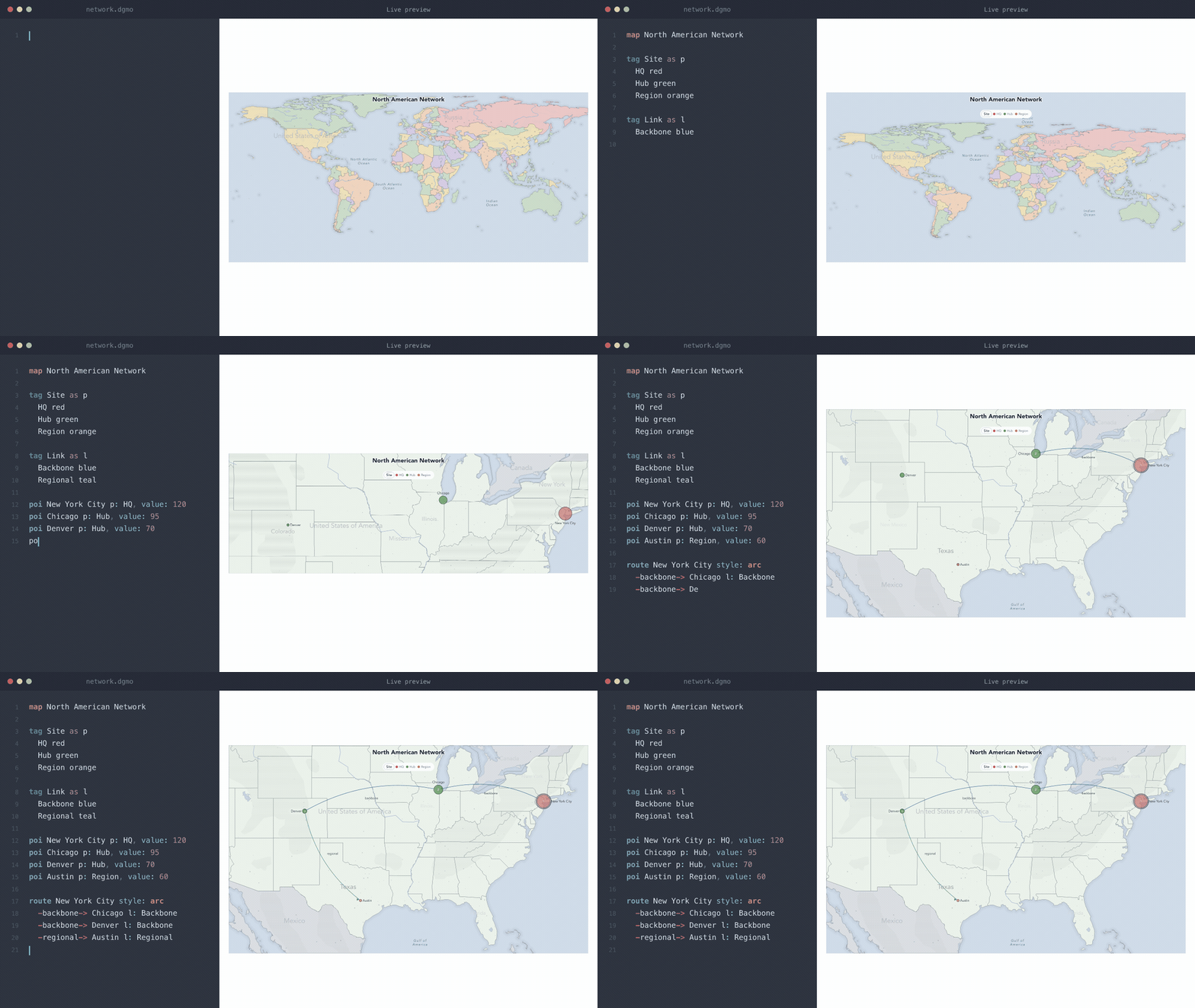
Write a dgmo code block and it renders as a diagram inline in your notes — reading mode and live preview, desktop and mobile.
Diagrammo gives you 50+ chart types from one small plain-text language: data viz, software architecture, project planning, hierarchies, geographic maps, and more. Because the diagrams are plain text, they're searchable in Obsidian, diffable in git or Sync history, and never go stale the way an exported image does.
📖 Setup guide: diagrammo.app/embed#obsidian
Supported chart types
Every drawing chart type in @diagrammo/dgmo renders in Obsidian:
| Category | Types |
|---|---|
| Data & charts | arc, bar, function, funnel, goal, heatmap, line, pie, polar-area, radar, sankey, scatter, slope, treemap, wordcloud |
| Software & architecture | block, boxes-and-lines, c4, class, er, flowchart, infra, mindmap, sequence, sitemap, sketch, state, version-control, wireframe |
| Project & process | bracket, countdown, event-line, gantt, kanban, pert, raci (also rasci and daci), swimlane, timeline |
| Business & strategy | cycle, journey-map, pyramid, quadrant, ring, tech-radar, venn |
| People, places & bodies | body, clock, family, map, org |
countdown and clock tick live in the note — a launch date counts itself down, a world-clock board keeps real time.
Run Diagrammo Diagrams: Create example note with all chart types from the command palette to see every chart type rendered with working sample data. Full language reference at diagrammo.app/reference. Variants of a chart type are reached with directives rather than their own keyword — line + fill for an area chart, line + a series block for multiple lines, pie + hole for a doughnut, arc + layout chord for a chord diagram.
Usage
Write a fenced code block with the dgmo language tag:
```dgmo
bar Quarterly Revenue
x-label Quarter
y-label Revenue ($M)

Q1 4.2
Q2 4.8
Q3 5.1
Q4 5.9
```
The diagram renders inline in reading mode and live preview. Hover any rendered diagram to reveal a slim icon toolbar below it, with five things on it: view source, expand to full screen, copy source, documentation for that chart type, and open in the online editor with this note's palette and theme already applied.
Live links — a diagram somebody else keeps up to date
A live link is a dgmo block that names a diagram published to Diagrammo Cloud instead of carrying its own source, so you see the author's current version rather than a copy that was true the day you pasted it:
```dgmo
live-link dgm_01KYRFCJZ2BHS18XRBEAZ0Y120
```
A share link pasted into the fence works the same way.
There is also a shorter spelling for a note, written on its own line outside any fence, alongside Obsidian's other embeds:
![[live-link:dgm_01KYRFCJZ2BHS18XRBEAZ0Y120]]
That one is Obsidian's own transclusion syntax, so it belongs in the note body — not inside a dgmo block, where the content is diagram source rather than markdown.
The diagram you already have appears immediately and quietly updates if the author has changed it, so opening a note never waits on the network. With no connection you keep seeing your last copy, with one dimmed line saying so. If the author unshares the diagram, the copy is discarded rather than shown — you should not still be reading something someone took back.
This is the only feature that uses the network; see Network use.
Editing a diagram in place
View source doesn't just show the text — it opens a real editor, inside the note, with DGMO syntax highlighting and (if your vault runs Vim mode) Vim keybindings. Type, and the diagram redraws as you go. There's no save button: the edit writes back into the note on blur, on closing the panel, and when the block scrolls away. Escape reverts, unless Vim owns it.
Commands
Open the command palette and search "Diagrammo":
| Command | What it does |
|---|---|
| New diagram: pick a chart type | Fuzzy-search every chart type and insert a starter block at the cursor. The fast everyday path. |
| New diagram: browse the gallery | Visual picker with categories and live thumbnails. Click a tile to insert at the cursor; ⌘/Ctrl-click to create a new note instead. |
| Open diagram under cursor in the online editor | Opens the block your cursor is in at online.diagrammo.app. |
| Create example note with all chart types | Generates the "Diagrammo Examples" note. |
None of them claim a hotkey — assign your own under Settings → Hotkeys.
Author in the Diagrammo app
This plugin renders the exact same DGMO that powers the Diagrammo desktop app (native macOS, offline, auto-updating) and the online editor (any browser, nothing to install). When you want a heavier authoring session, open a diagram there for live preview, autocomplete, optional vim keybindings, every palette in light, dark and transparent, and one-click PNG/SVG export plus shareable links — then paste the text straight back into your note. Same language, same palettes, everywhere. There's even an MCP server so AI assistants can draft diagrams for you.
Example note
Open the command palette (Cmd/Ctrl + P) and run:
Diagrammo Diagrams: Create example note with all chart types
This creates a Diagrammo Examples.md file in your vault with working examples of every supported chart type.
Settings
| Setting | Description | Default |
|---|---|---|
| Palette | Colour palette used for all diagrams — every dgmo palette is offered (Slate, Atlas, Blueprint, Tidewater, Nord, Catppuccin, Tokyo Night) | Slate |
| Theme | Auto follows Obsidian's light/dark mode; override to force one | Auto |
| Transparent background | Let diagrams blend into the note background instead of painting their own | On |
| Alignment | Where diagrams sit within the note's width — left or centre | Left |
| Maximum width | Cap how wide a diagram can grow: full width, comfortable (720px), or compact (560px) | Full width |
| Keep live links up to date | Fetch the current version of a diagram a live link points at. Turn it off and a live link shows a card naming the diagram instead — see Network use | On |
The settings tab also renders a live diagram with the toolbar pinned open, so the icons are explained against the real thing.
Network use
Everything except live links works entirely offline, and that is the plugin's normal state — parsing, layout, rendering, fonts and map data are all bundled and local.
The one exception is the live links feature. When you open a note containing a live link, the plugin requests that diagram's current source from api.diagrammo.app, the Diagrammo Cloud API, so it can draw the author's latest version.
- Only the diagram's public id is sent. It is a plain
GETand there is no request body. - Nothing about you is sent, and nothing is counted. No analytics, no telemetry, no identifiers — this plugin reports nothing anywhere, ever.
- A request happens only for notes that contain a live link, and only when such a note is opened. A vault with no live links makes no requests at all.
- Only diagrams their author has published are reachable this way; private diagrams cannot be pointed at.
- The last copy is kept in this plugin's own folder so the diagram still draws offline. Nothing is written into your vault.
Turn it off with Settings > Diagrammo Diagrams > Live links > Keep live links up to date. With it off, the plugin makes no network requests whatsoever.
Install
- Open Settings > Community Plugins > Browse in Obsidian
- Search for "Diagrammo Diagrams"
- Click Install, then Enable
Or install directly from community.obsidian.md/plugins/dgmo.
Development
Prerequisites
- Node.js — the floor is the
engines.noderange inpackage.json - pnpm (the repo has a
pnpm-lock.yaml; npm and yarn will resolve a different tree)
Setup
pnpm install
Commands
pnpm build       # One-shot build → main.js (esbuild, CJS bundle)
pnpm dev         # Watch mode (rebuilds on save, inline sourcemaps)
pnpm test        # Vitest + jsdom
pnpm typecheck   # tsc --noEmit
pnpm lint        # eslint
pnpm audit       # dependency advisories — must be clean before a release
Install also regenerates four committed artifacts (pnpm gen:assets): the vendored map JSON, the example note and template gallery from the sibling dgmo-content repo, and the root styles.css. Edit src/styles.css, never the root one.
The build bundles @diagrammo/dgmo and its rendering dependencies into a single main.js in the repo root, which Obsidian loads directly. obsidian, electron, CodeMirror and Node builtins are externalized — Electron supplies the builtins at runtime.
Project structure
src/
├── main.ts              # Plugin lifecycle, code-block processor, commands, settings glue
├── render/
│   ├── index.ts         # Renders a block: SVG, hover toolbar, source panel, lightbox
│   ├── embed.ts         # ![[foo.dgmo]] transclusion
│   ├── map-data.ts      # Vendored geo data (maps bypass dgmo's Node file loader)
│   └── fonts.ts         # Registers the bundled Inter faces, and takes them back on unload
├── ui/
│   ├── settings.ts      # Settings tab
│   ├── new-diagram.ts   # Fuzzy picker + gallery modal, insert-at-cursor, new note
│   ├── edit.ts          # The in-place CodeMirror editor and its write-back guard
│   └── templates.ts     # Starter snippets behind the picker and gallery
├── styles.css           # Hand-maintained styles; the root styles.css is generated from it
├── examples.ts          # The generated example note, as a string
├── example-note.md      # generated from the sibling dgmo-content repo
└── templates.gen.json   # generated from the sibling dgmo-content repo
The four generated artifacts sit at the src/ root because scripts/*.mjs writes to those exact paths — move one and you edit its generator too.
Dependencies
@diagrammo/dgmo— diagram parsing and rendering, bundled intomain.js. CI installs with--frozen-lockfile, so the lockfile decides which renderer version ships, not the range inpackage.json. A dgmo bump is therefore a plugin releaseobsidian— the plugin API (dev only, externalized)
The floor in manifest.json (minAppVersion) is load-bearing: the plugin calls Vault#getFileByPath, which arrived in Obsidian 1.5.7. Raise the floor rather than adding a version guard.
Testing locally
- Run
pnpm dev(watch mode) - Symlink or copy the repo into your vault's
.obsidian/plugins/dgmo/folder - Enable the plugin in Obsidian settings
- Edit a note with a
dgmocode block — changes rebuild automatically
Releasing
GitHub release
scripts/release.sh obsidian-dgmo <version> from the workspace root does the whole thing — it bumps package.json and manifest.json together, commits, tags and pushes, and CI builds the release. By hand it is:
- Bump
versionin bothpackage.jsonandmanifest.json(they must match) - Build:
pnpm build - Commit and push
- Tag
<version>— novprefix (1.0.1, notv1.0.1). The community store and BRAT read the manifest from the release at that exact tag, and CI fails the job on a mismatch - Attach these three files to the release:
main.jsmanifest.jsonstyles.css
Obsidian Community Plugins
The plugin is listed in the Obsidian Community Plugins registry. New versions are picked up automatically from GitHub releases — just publish a new release with the required files attached.
Links
- community.obsidian.md/plugins/dgmo — official Obsidian plugin page
- diagrammo.app — full desktop editor
- @diagrammo/dgmo — the dgmo markup library and CLI
- dgmo syntax reference
License
MIT
For plugin developers
Search results and similarity scores are powered by semantic analysis of your plugin's README. If your plugin isn't appearing for searches you'd expect, try updating your README to clearly describe your plugin's purpose, features, and use cases.