by nexsis
Draw and mark up right on top of your notes, margins included, with a pen, a highlighter and an eraser.
Draw on Notes
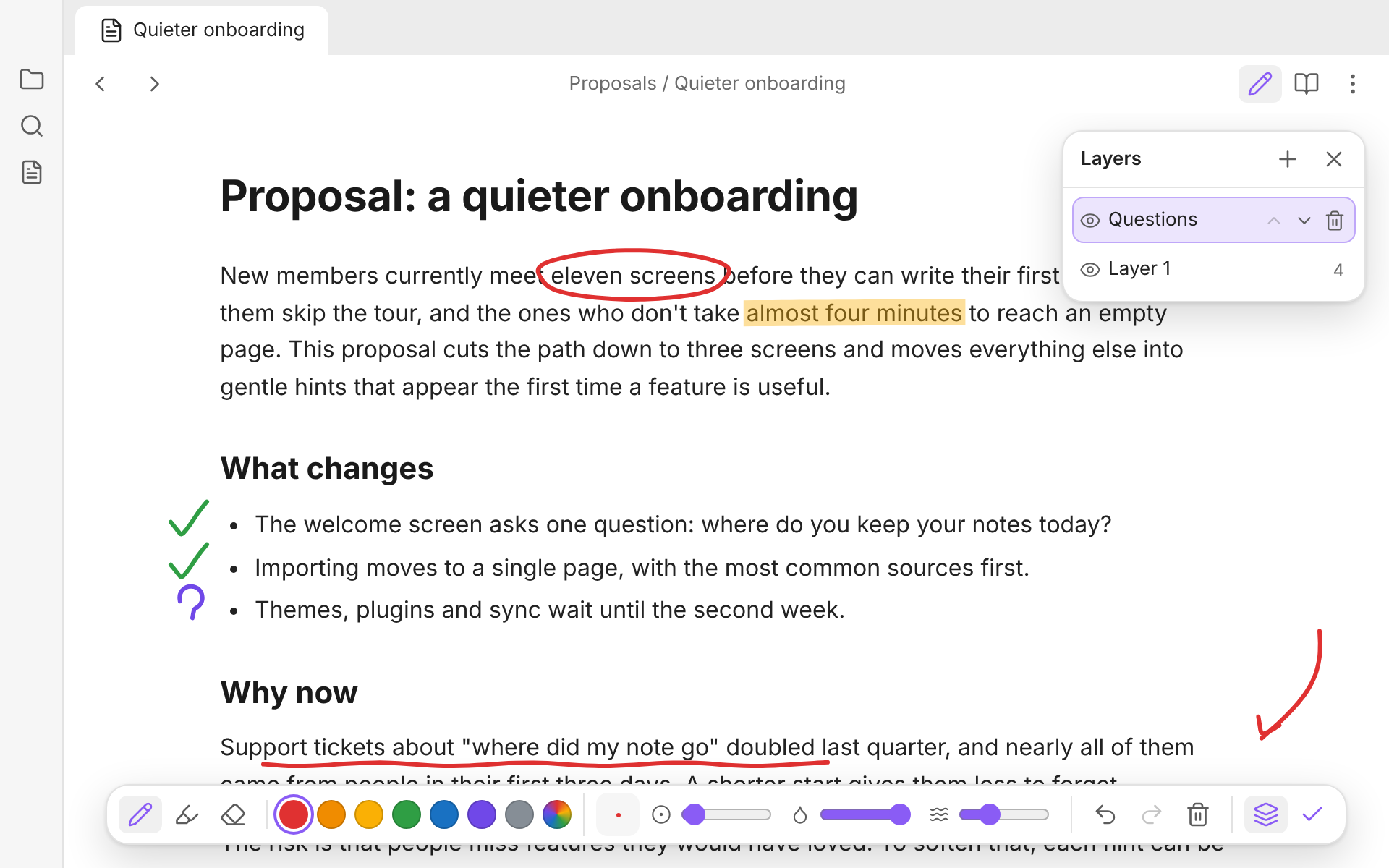
Mark up your notes by hand, right where you read them. Click the pen, draw over the page, and keep reading.
How it works
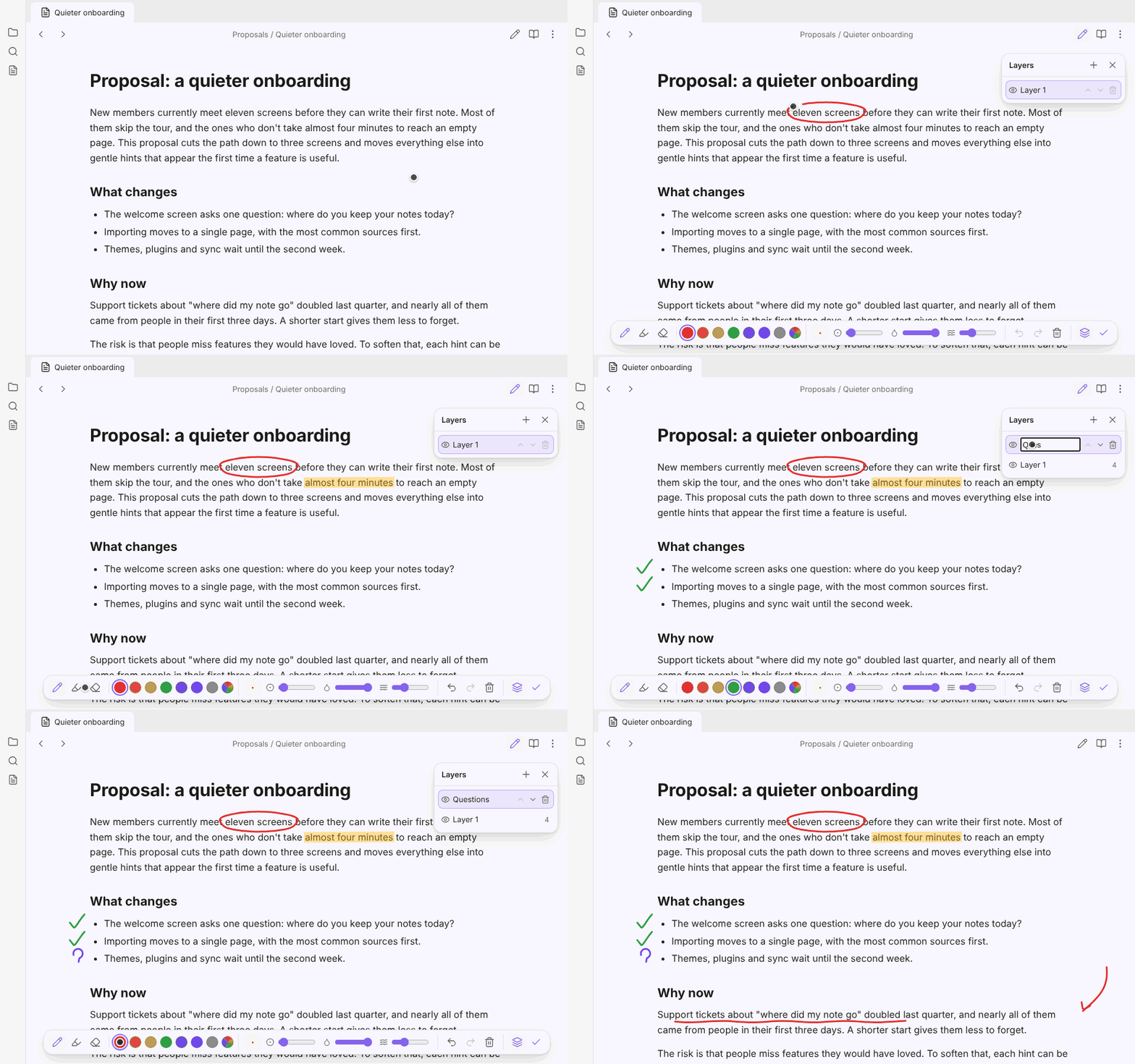
- A pen on every note. Click the pen icon at the top of a note to start drawing, and click it again, or press Esc, to go back to reading.
- The whole page is yours. Your drawing sits on top of the note and reaches into the margins, so you can circle a line, underline a word, or scribble beside a paragraph.
- Quick marks while you review. Tick off what's done, flag what needs another look, or draw an arrow, without leaving the note.
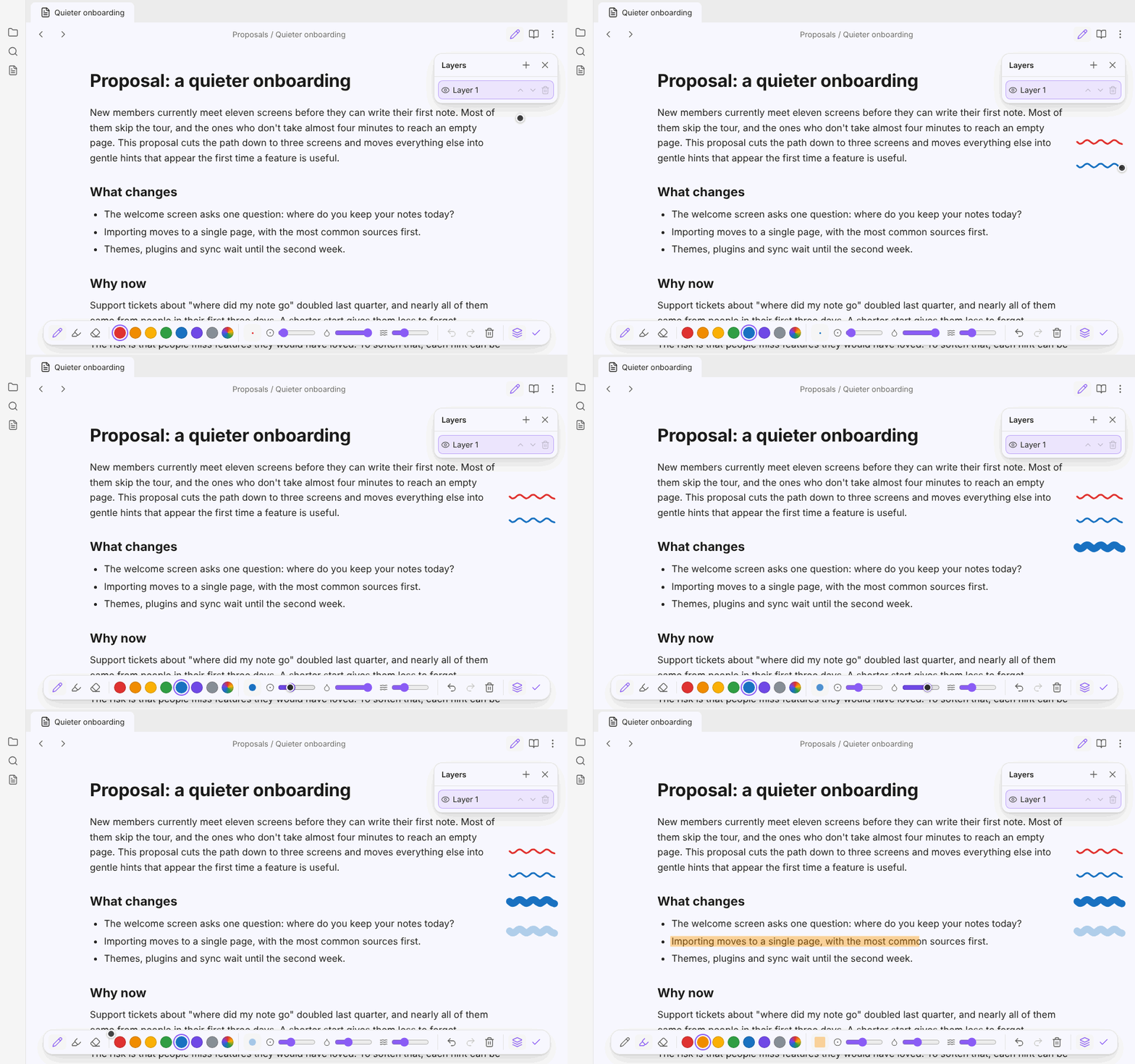
- A pen, a highlighter and an eraser. The highlighter has a flat tip and lets the text show through crisply, in light and dark themes. The eraser lifts off any stroke it touches, and so does the eraser end of a stylus.
- Make the pen your own. Seven colours, or any colour from the picker, and a size and opacity for each tool, with a preview of your brush. Draw on Notes remembers them.
- Smoothing steadies a shaky hand, from none at all to silky curves.
- Straight lines. Hold Shift while you draw for a straight line. It snaps level, upright or diagonal when you're close, for neat underlines.
- Layers. A panel on the right lists your layers: add one, pick the one to draw on, hide it, rename it with a double-click, move it up or down, or delete it. The eraser and Clear work on the picked layer.
- Undo anything. Undo and redo every stroke, erase, clear and layer change.
- Keep scrolling. The mouse wheel still scrolls the note while you draw, and your marks scroll with it.
- Out of the way. When you're not drawing, your marks stay on the page and clicks go through to the note as usual. You can hide them in the settings.
Shortcuts
While drawing:
| Key | |
|---|---|
| P H E | Pen, highlighter, eraser |
| [ ] | Smaller or bigger |
| L | Show or hide layers |
| Hold Shift | Straight line |
| Ctrl+Z | Undo |
| Ctrl+Shift+Z | Redo |
| Esc | Stop drawing |
On a Mac, use Cmd for Ctrl. To start drawing from the keyboard, give Start or stop drawing on this note a hotkey in Obsidian's settings.
Where your drawings are kept
Your notes are never changed. Drawings are saved in the plugin's own data.json, by note, and they follow a note when you rename or move it.
Reading view and Editing view each keep their own drawings, since the same note is laid out differently in each. Marks stay where you drew them on the page, so if you later add or remove text above a mark, the text moves and the mark does not.
Install
Draw on Notes isn't in the community plugin list yet. Until it is:
- In your vault, make the folder
.obsidian/plugins/draw-on-notes. - Put
main.js,manifest.jsonandstyles.cssfrom this repository in it. - In Obsidian, open Settings → Community plugins, and turn on Draw on Notes.
Support
Draw on Notes is made by one person in their spare time. If it saves you a printout or two, you can buy me a coffee, from the button at the top of the plugin's settings or here:

License
Draw on Notes is under the MIT license.
For plugin developers
Search results and similarity scores are powered by semantic analysis of your plugin's README. If your plugin isn't appearing for searches you'd expect, try updating your README to clearly describe your plugin's purpose, features, and use cases.