Dualyze Notes
approvedby DualyzeAI
Find similar notes and create safe merge drafts in Obsidian. - This plugin has not been manually reviewed by Obsidian staff.
Dualyze Notes
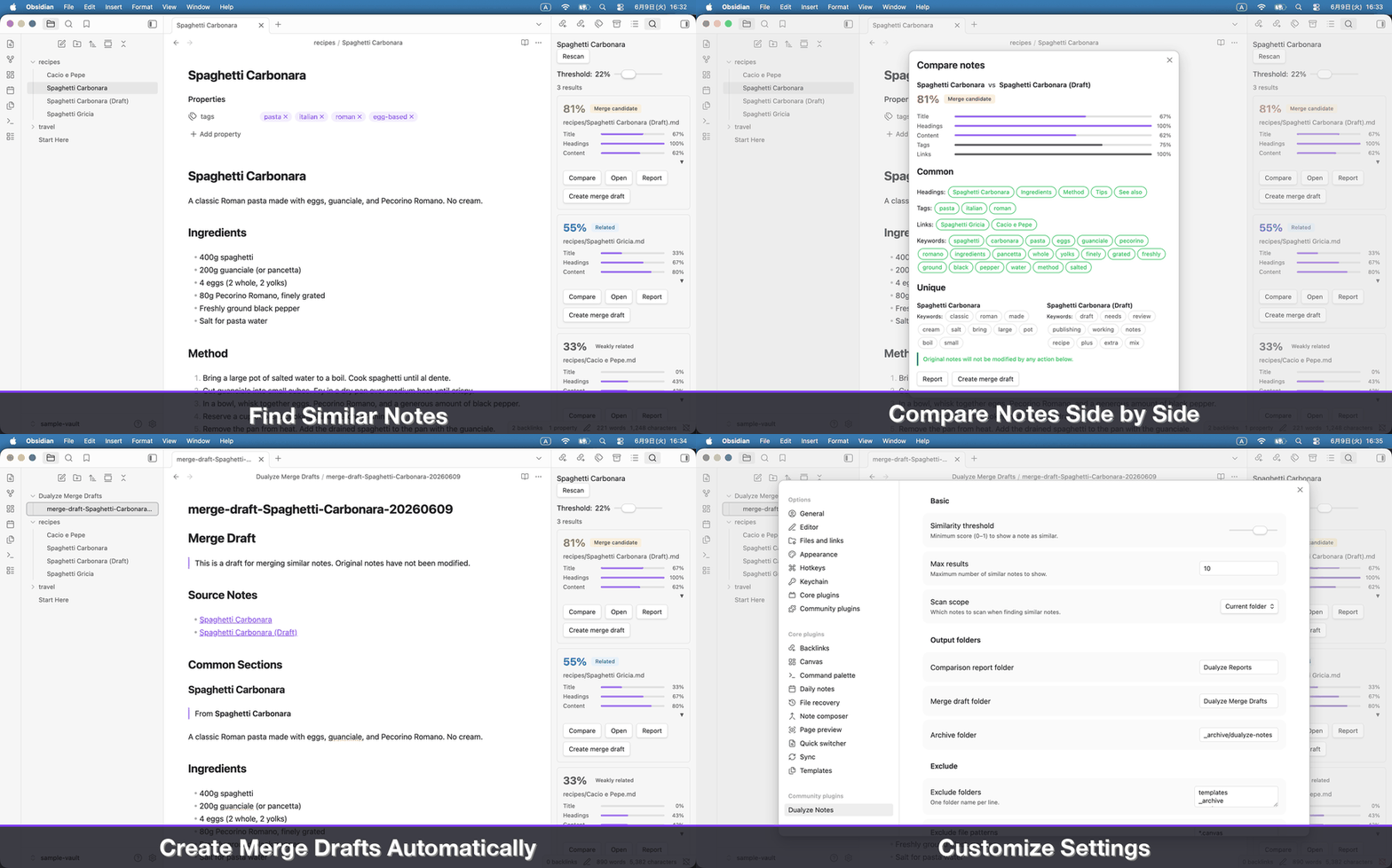
Find overlapping notes, compare them side by side, and create safe merge drafts in Obsidian.
Obsidian vaults naturally accumulate similar notes: drafts, copied ideas, research fragments, and near-duplicates.
Dualyze Notes scans your vault for overlap in titles, headings, tags, links, and content. It helps you compare notes, understand what they share, identify what is unique, and create merge drafts without modifying the originals.
Dualyze Notes uses local similarity scoring. It does not send your notes to an external AI service.
📖 Step-by-step Tutorial
See how Alice discovers that two habit notes are 78% similar and safely generates a Merge Draft.
Learn how to:
- Find overlapping notes
- Compare similarities
- Preserve originals
- Create merge drafts
→ Read the complete tutorial: How Alice Discovered Her Two Habit Notes Were 78% the Same
When to use Dualyze Notes
- Find duplicate or near-duplicate notes
- Compare an old draft with a newer version
- Review similar research notes before consolidating
- Merge scattered ideas safely
- Clean up a growing vault without losing unique content
Features
- Find similar notes — scan the current folder or entire vault and display results in a persistent side panel
- Compare notes side by side — see a score breakdown across five dimensions with common and unique keyword chips
- Understand why notes match — shared headings, tags, links, and keywords shown at a glance
- Create safe merge drafts — generate a merge scaffold in
Dualyze Merge Drafts/; originals are never modified - Save comparison reports — export a structured Markdown comparison to
Dualyze Reports/ - Tune similarity settings — adjust threshold, scan scope, and per-dimension weights to match your workflow
Installation
Community plugins (recommended)
- Open Settings → Community plugins → Browse
- Search for Dualyze Notes
- Install and enable
Manual
Download main.js, styles.css, and manifest.json from the latest release and copy them to .obsidian/plugins/dualyze-notes/ in your vault.
Tutorial: try it with the sample vault
The repository includes a ready-made vault in sample-vault/. It contains two topic folders — pasta recipes and travel plans — designed to show the full range of similarity labels. No setup is needed — just open the folder and follow the steps below.
Step 1 — Open the sample vault in Obsidian
In Obsidian, choose Open folder as vault and select the sample-vault/ folder from this repository. You will see:
sample-vault/
  Start Here.md
  recipes/
    Spaghetti Carbonara.md
    Spaghetti Carbonara (Draft).md
    Spaghetti Gricia.md
    Cacio e Pepe.md
  travel/
    Tokyo Travel Plan.md
    Tokyo Travel Plan (Draft).md
    Osaka Travel Plan.md
    Kyoto Travel Plan.md
    Kyoto Day Trip.md
    Seoul Travel Notes.md
Make sure the Dualyze Notes plugin is installed and enabled before continuing.
Step 2 — Find similar notes
Open Spaghetti Carbonara.md from the recipes/ folder. Then do one of the following:
- Right-click the note tab or the file in the explorer → Find similar notes
- Open the command palette (
Ctrl/Cmd + P) → Find similar notes
The Similar Notes panel opens on the right side. At the default threshold of 70%, only notes that score 70% or above are shown. The Draft scores ~81%, so it appears immediately.
Simplified text representation:
Similar notes
━━━━━━━━━━━━━━━━━━━━━━━━━━━━━━━━━━━
Spaghetti Carbonara
[Rescan]  Threshold: ●━━━━━━━━  70%
───────────────────────────────────
~81%  Merge candidate
Spaghetti Carbonara (Draft)
[Compare]  [Open]  [Report]  [Create merge draft]
━━━━━━━━━━━━━━━━━━━━━━━━━━━━━━━━━━━
Now lower the threshold slider to about 30%. The other two notes come into view:
Simplified text representation:
Similar notes
━━━━━━━━━━━━━━━━━━━━━━━━━━━━━━━━━━━
Spaghetti Carbonara
[Rescan]  Threshold: ━━━━━━━━●━  30%
───────────────────────────────────
~81%  Merge candidate
Spaghetti Carbonara (Draft)
[Compare]  [Open]  [Report]  [Create merge draft]

~50%  Related
Spaghetti Gricia
[Compare]  [Open]  [Report]  [Create merge draft]

~33%  Weakly related
Cacio e Pepe
[Compare]  [Open]  [Report]  [Create merge draft]
━━━━━━━━━━━━━━━━━━━━━━━━━━━━━━━━━━━
Exact scores vary slightly depending on your settings. The labels (Merge candidate, Related, Weakly related) are the reliable signal.
The threshold slider is a real-time filter — it does not rescan. Drag it to narrow or widen the results without reanalysing the notes.
Step 3 — Compare two notes
Click Compare on the Spaghetti Carbonara (Draft) card. The Compare Notes modal opens.
Simplified text representation:
Spaghetti Carbonara  vs  Spaghetti Carbonara (Draft)

~81%   [Merge candidate]

Title      ██████████████████████░░░░░░░  ~67%
Headings   █████████████████████████████  100%
Content    ████████████████████░░░░░░░░░  ~62%
Tags       ██████████████████████████░░░  ~75%
Links      █████████████████████████████  100%

Common
  Headings: Ingredients  Method  Tips  See also
  Tags: pasta  italian  roman
  Keywords: spaghetti  guanciale  eggs  Pecorino  Romano  pasta  water  black  pepper

Unique to Spaghetti Carbonara      Unique to Spaghetti Carbonara (Draft)
  Keywords: cream  authentic          Keywords: rigatoni  parmigiano
Reading this modal:
- Score bars — Title scores ~67% because both titles share "spaghetti" and "carbonara" but the Draft filename has an extra word. Headings score 100% because all headings now match exactly. Links score 100% because both notes point to the same two notes. Content scores ~62% because the two notes describe the same dish in similar but not identical words.
- Common section — shows exactly what the two notes already agree on.
- Unique section — shows keywords found only in each note. Use this to spot content that the draft will not capture automatically. When headings are 100%, no unique headings appear here.
Step 4 — Create a draft
Click Create merge draft at the bottom of the modal. Dualyze Notes creates a new note in Dualyze Merge Drafts/ and opens it automatically. The original notes are untouched.
The draft contains:
- Links back to both source notes
- Each shared heading with its content pulled from both notes
- Common keywords listed for reference
For each shared heading, the draft shows:
- Identical content — shown once
- Different content — both versions shown side by side, labelled with the source note name
- Missing from one note — only the available version is shown
Use this as your working document. Decide which version to keep for each section, then decide whether to keep, archive, or delete the originals once you are satisfied.
Step 5 — Create a report
Go back to the panel and click Report on the Spaghetti Gricia card. A report note is saved in Dualyze Reports/ and opened. Reports are permanent notes — link to them from your own notes, include them in a review workflow, or just delete them when done.
Step 6 — Compare with a note from a different folder
Use the command palette → Compare current note with another note. A search modal appears. Type the name of any note in the vault, select it, and the same Compare modal opens — regardless of which folder the note is in.
Try the travel folder
The same steps work with the travel/ folder. Open Tokyo Travel Plan.md and repeat the scan. At 70% threshold you will see the Draft. Lower the threshold to about 30% to see all five results:
| Note | Expected label |
|---|---|
| Tokyo Travel Plan (Draft) | Merge candidate (~84%) |
| Osaka Travel Plan | Related (~54%) |
| Kyoto Travel Plan | Related (~54%) |
| Kyoto Day Trip | Weakly related (~33%) |
| Seoul Travel Notes | Not similar |
Notes from different folders do not affect each other. Scan scope defaults to the current folder, so scanning inside
recipes/only compares recipe notes, and scanning insidetravel/only compares travel notes.
Usage
Finding similar notes
There are two ways to start a scan:
Right-click menu Right-click any note in the file explorer or editor tab and choose Find similar notes. The Similar Notes panel opens on the right side and immediately shows results for that note.
Command palette
Open the command palette (Ctrl/Cmd + P), search for Find similar notes, and run it while a Markdown note is active.
Example
See a real-world comparison workflow:
Similar Notes panel
The panel stays open alongside your notes. It shows all notes in the same folder that meet the similarity threshold, sorted by score from highest to lowest.
Simplified text representation:
┌─────────────────────────────────────────┐
│ Spaghetti Carbonara                     │  ← source note
│ [Rescan]  Threshold: [━━━━●━━━] 70%    │
├─────────────────────────────────────────┤
│ 76%  Merge candidate                    │
│ Spaghetti Carbonara (Draft)             │
│ [Compare] [Open] [Report] [Create merge draft] │
├─────────────────────────────────────────┤
│ 54%  Related                            │
│ Pasta Basics                            │
│ [Compare] [Open] [Report] [Create merge draft] │
└─────────────────────────────────────────┘
Threshold slider — drag the slider to raise or lower the minimum score displayed. Changes take effect immediately without rescanning. The default is 70%.
Rescan — re-runs the scan against the current folder. Use this after editing notes.
Per-card actions:
| Button | What it does |
|---|---|
| Compare | Opens the Compare Notes modal for a detailed breakdown |
| Open | Opens the target note in a new tab |
| Report | Saves a comparison report to Dualyze Reports/ and opens it |
| Create merge draft | Saves a merge draft to Dualyze Merge Drafts/ and opens it |
Comparing two notes
From the Similar Notes panel: click the Compare button on any result card.
From the command palette: search for Compare current note with another note. A search modal appears — type to filter and select the second note.
From the right-click menu: right-click a note and choose Compare with....
Compare Notes modal
The modal shows the full breakdown of how two notes relate to each other.
Simplified text representation:
┌──────────────────────────────────────────────────────┐
│  Spaghetti Carbonara  vs  Spaghetti Carbonara (Draft)│
│                                                      │
│  76%   [Merge candidate]                             │
│                                                      │
│  Title    ████████████████████████████░░░░░  85%    │
│  Headings ████████████████░░░░░░░░░░░░░░░░  60%    │
│  Content  ████████████░░░░░░░░░░░░░░░░░░░░  45%    │
│  Tags     ████████████████████░░░░░░░░░░░░  70%    │
│  Links    ░░░░░░░░░░░░░░░░░░░░░░░░░░░░░░░░   0%    │
│                                                      │
│  Common                                              │
│  Headings: `Ingredients` `Method`                   │
│  Tags: `pasta` `italian`                             │
│  Keywords: `carbonara` `egg` `guanciale`             │
│                                                      │
│  Unique to Note A         Unique to Note B           │
│  Headings: `History`      Headings: `Variations`     │
│  Keywords: `origin`       Keywords: `cream`          │
│                                                      │
│  Original notes will not be modified.                │
│  [Report]  [Create merge draft]                      │
└──────────────────────────────────────────────────────┘
Score bars — five horizontal bars show per-dimension scores. The overall score is the weighted sum.
Badge — a label summarises the relationship at a glance:
| Score | Badge | Meaning |
|---|---|---|
| 90% and above | Duplicate | Near-identical notes; likely safe to merge |
| 70–89% | Merge candidate | Significant overlap; worth reviewing |
| 50–69% | Related | Partially related; may share a theme |
| 30–49% | Weakly related | Minor overlap |
| Below 30% | Not similar | Essentially unrelated |
Common section — headings, tags, links, and keywords that appear in both notes.
Unique section — headings and keywords found only in each respective note. Use this to spot what would be lost if one note were deleted.
Creating a report
Click Report (in the panel or modal). A Markdown file is created in Dualyze Reports/ and opened automatically. The report contains:
- Overall score and label
- Score breakdown table (Title / Headings / Tags / Links / Content)
- Common headings, tags, links, and keywords
- Unique headings and keywords per note
- Wiki-links back to both source notes
The report folder is configurable in Settings. Reports are standalone notes — you can keep, link, or delete them freely.
Creating a merge draft
Click Create merge draft (in the panel or modal). A new note is created in Dualyze Merge Drafts/ and opened automatically.
The draft contains:
- Links to both source notes
- Each shared heading with its content pulled from both notes
- Common keywords listed for reference
For each shared heading, the content is resolved as follows:
| Situation | What appears in the draft |
|---|---|
| Both notes have identical content | Shown once |
| Both notes have different content | Both versions shown with > From **Note Name** labels |
| Only one note has content | That version shown without a label |
The original notes are not modified. The draft is a new file; deleting it has no effect on the sources.
Learn by Example
See how Merge Drafts preserve original notes while combining related knowledge:
Settings
Open Settings → Dualyze Notes to configure the plugin.
Basic
| Setting | Default | Description |
|---|---|---|
| Similarity threshold | 0.70 | Minimum score (0–1) for a note to appear as similar. Notes below this value are hidden. |
| Max results | 10 | Maximum number of similar notes shown in the panel per scan. |
| Scan scope | Current folder | Where to look for candidates. Current folder scans only notes in the same folder as the source. Entire vault searches everywhere (slower on large vaults). |
Output folders
| Setting | Default | Description |
|---|---|---|
| Comparison report folder | Dualyze Reports | Where report notes are saved. Created automatically if it does not exist. |
| Merge draft folder | Dualyze Merge Drafts | Where draft notes are saved. Created automatically if it does not exist. |
| Archive folder | _archive/dualyze-notes | Where notes are moved when using the archive action (disabled by default). |
Exclude
Exclude folders — folder names to skip during scanning, one per line. Default list: templates, _archive, .trash, node_modules, attachments.
Exclude file patterns — glob-style patterns for files to skip, one per line. Default: *.canvas, *.excalidraw.md.
Similarity weights
The overall score is a weighted average of five dimensions. All five weights should add up to 1.0 (100%). A warning appears in Settings if they do not.
| Dimension | Default weight | What it measures |
|---|---|---|
| Title | 30% | Overlap between the two note titles using character n-grams |
| Headings | 25% | Jaccard similarity of the heading lists |
| Tags | 15% | Jaccard similarity of the tag lists |
| Links | 15% | Jaccard similarity of internal wiki-links |
| Content | 15% | Token overlap across the note body |
Increase Title weight to find duplicates with similar names more aggressively. Increase Content weight to surface notes that cover the same material regardless of how they are titled.
Markdown parsing
| Setting | Default | Description |
|---|---|---|
| Include code blocks | Off | When off, content inside fenced code blocks is excluded from similarity analysis. Turn on if your notes contain meaningful code you want compared. |
| Include frontmatter in content | Off | When off, YAML frontmatter is not counted as body content. Turn on if your frontmatter contains topic-relevant text. |
| N-gram size | 2 | Character n-gram size used when tokenising text. The default of 2 works well for CJK text and mixed-language vaults. Lower values make matching more permissive; higher values make it stricter. |
Safety
| Setting | Default | Description |
|---|---|---|
| Enable archive action | Off | Adds an Archive button to result cards. Clicking it moves the note to the archive folder. Off by default so notes cannot be moved accidentally. |
| Confirm before moving files | On | Shows a confirmation dialog before any file move. Recommended to leave on. |
How similarity is calculated
Dualyze Notes works entirely locally inside your vault. No notes are sent to an external service.
Each note is parsed into five feature sets: title tokens, heading list, tag list, link list, and body tokens.
For structured lists (headings, tags, links), the score is the Jaccard similarity: the size of the intersection divided by the size of the union.
For body content, token overlap is measured using a normalised intersection count.
Title matching uses character n-grams rather than whole words, so partial-word overlaps (useful for CJK text) are captured.
The five dimension scores are combined as a weighted sum to produce the final overall score (0.0–1.0).
Documentation
Tutorials
Related tools
Dualyze Notes is part of the DualyzeAI workflow.
- DualyzeAI — compare two websites with AI and save structured analysis to Obsidian
- AI Context Pack — turn organised notes into AI-ready context packs for ChatGPT, Claude, Gemini, NotebookLM, and more
License
MIT
For plugin developers
Search results and similarity scores are powered by semantic analysis of your plugin's README. If your plugin isn't appearing for searches you'd expect, try updating your README to clearly describe your plugin's purpose, features, and use cases.