by paipa03
Notion-style block dragging, toggle lists, context-menu polish, scroll-position memory, and mobile table link navigation. Every feature group can be toggled independently.
Editor Enhancer
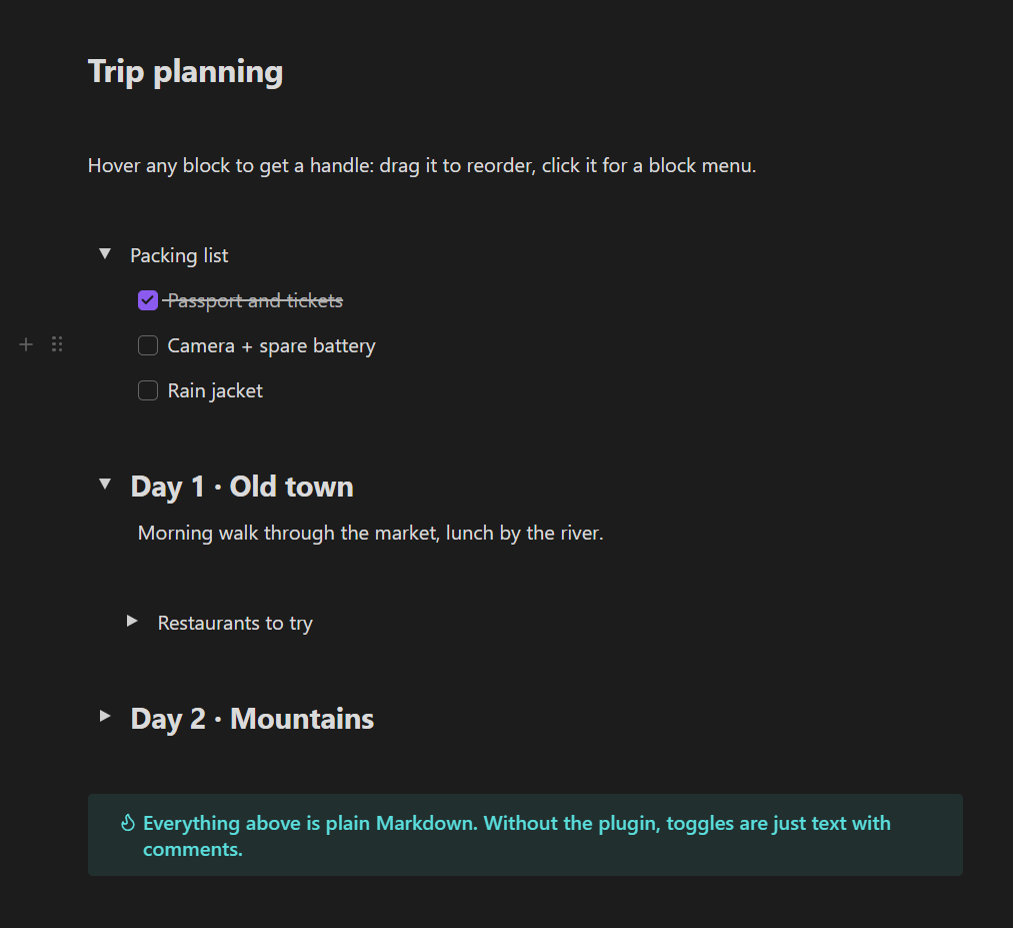
Notion-style editing for Obsidian's Live Preview: drag blocks around, fold sections into toggle lists, and stop fighting the editor.
Is this for you?
- You moved from Notion and miss grabbing a paragraph by its ⋮⋮ handle and dropping it somewhere else.
- Your notes get long and you want toggle lists: a title you can click to hide or show everything under it, nested as deep as you like.
- You are tired of cut-and-paste just to move a list item, a callout or an image three lines up.
- You right-click a word and Obsidian selects the whole line. You wish it didn't.
- You jump between notes and lose your scroll position every time.
What you get
| Feature | What it does |
|---|---|
| Block handles | Hover any block (paragraph, heading, list item, callout, code block, image, embed) to see ⋮⋮ and +. Drag ⋮⋮ to move the block; click it for a menu: duplicate, cut, delete, turn into toggle list. + inserts an empty line below. |
| Toggle lists | Click ▸ to fold. Titles can be plain text or headings, toggles can be nested, Enter / Backspace behave like in Notion. |
| List markers as one unit | The -, 1. or - [ ] prefix of a list line acts like one character: the caret never lands inside it and one Backspace removes it. |
| Right-click that behaves | Right-click keeps your cursor where it is; related menu items are grouped together. |
| Scroll memory | Come back to a note and you are where you left off. |
| Tables on mobile | Tap a link inside a table and it opens, instead of starting to edit the cell. |
Every feature group has its own switch in Settings → Editor Enhancer, plus spacing and icon size controls.
Your notes stay plain Markdown
A toggle list is stored as an ordinary line with an invisible comment:
Packing list %% nsb-toggle {"id":"tgl-pack","open":true,"v":2} %%
- Passport
- Camera
%% /nsb-toggle %%
Uninstall the plugin, open the note in another app, or sync it to a phone without the plugin: you still see the title and the list. Nothing is locked in.
Quick start
- Install and enable the plugin.
- Open any note in Live Preview (the default editing mode).
- Move the mouse over a paragraph: drag the ⋮⋮ handle up or down.
- Click ⋮⋮ → Toggle list to turn a line into a foldable title.
Works on
Windows, macOS, Linux, iPhone / iPad and Android. Block dragging is built for a mouse or trackpad. Toggle lists, list markers, scroll memory and table links work the same on phones and tablets.
Works well with
All optional. Each plugin works on its own.
- Expiring Blocks: toggle lists that clean themselves up after a few days.
- Paipa Gallery: image and video galleries you can drag like any block.
- Section Blocks and Web Bookmark join the same block menu.
Notes
- Interface in English and Chinese: follows Obsidian's language by default, or pick one under the plugin's Language setting.
- Reading view is not changed. Everything happens in Live Preview.
Install
Settings → Community plugins → Browse, search Editor Enhancer, then Install and Enable.
License
MIT
For plugin developers
Search results and similarity scores are powered by semantic analysis of your plugin's README. If your plugin isn't appearing for searches you'd expect, try updating your README to clearly describe your plugin's purpose, features, and use cases.