by PixelAnay
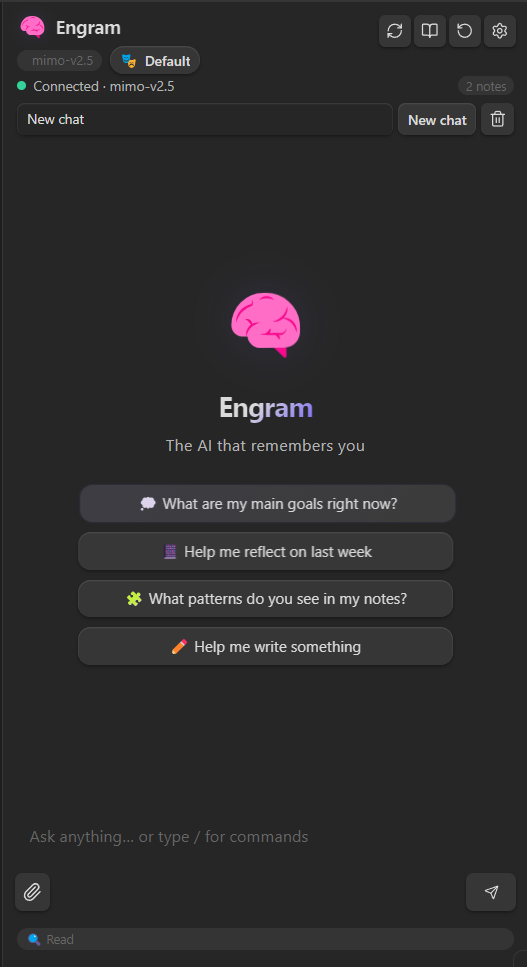
The AI that remembers you. A personal intelligence with persistent memory, multi-provider AI, and full vault access.
🧠 Engram for Obsidian
The AI that remembers you.
A sidebar chat for Obsidian with long-term memory, semantic vault search, and safe, scoped access to your notes.





Features • How it works • Installation • Quick start • Commands • Troubleshooting
✨ Features
| Feature | What you get | |
|---|---|---|
| 🧠 | Long-term memory | Engram keeps a plain Markdown memory file of facts about you and your projects, and brings it into every chat. |
| 🔍 | Semantic search | Finds notes by meaning, not just keywords. Ask about "times I felt disconnected" and it surfaces entries about numbness or withdrawal. |
| 🔌 | Any model | Works with local models (Ollama, LM Studio, llama.cpp) and cloud providers (OpenAI, Claude, Gemini, and more). |
| 🛠️ | Works with your vault | The AI can search, read, create, edit, move, and organize notes using built-in tools. |
| 🔒 | You stay in control | Limit which folders it sees, choose its edit permission, confirm risky changes, and undo AI edits. |
| 📄 | PDF and image attachments | Attach images or PDFs. PDF pages are rendered locally, with no external servers. |
| 💬 | Chat history that syncs | Each chat is saved as a file in your vault, so it syncs with Obsidian Sync, iCloud, Git, or Dropbox. |
See all features
Memory
- Memory lives in
Intelligence/Memory.mdby default. It's a normal note you can read and edit. - Run
/memoryto pull key facts from the current chat. You review them before they're saved. - Automatic saving after each reply is off by default (it costs one extra model call per reply). You can turn it on under Advanced settings → Auto-extract memories.
- The AI can add (
save_memory), change (update_memory) or delete (delete_memory) a single entry. Only that entry's line is touched; everything else in the file, including your own headings and text, stays exactly as it is. - The memory file is never trimmed. The Max memory tokens setting (4,000 by default) only limits how much memory is sent to the model with each message. When it is exceeded, the oldest entries are left out of the prompt, not out of the file.
- Safety: if the memory file goes missing (for example while a sync is still running), Engram does not create a blank one. New facts are queued and added when the file is back. Before every change a local backup is saved in the plugin folder (the last 20 are kept). Use the command Restore memory from backup, or the button in settings, to recover.
- Changing the memory path in settings moves your existing file to the new path after you confirm.
Semantic search
- Embedding providers: Ollama, OpenAI, or any OpenAI-compatible
/v1/embeddingsendpoint (for example, llama.cpp). - Click Index Vault in settings to build the index, with live progress.
- Notes used as context show up as clickable chips under your message.
- Changing the embedding model, provider, or URL clears the old index so stale vectors are never mixed in.
Providers
- Local: Ollama, LM Studio, llama.cpp
- Cloud: OpenAI, Anthropic Claude, Google Gemini, DeepSeek, Groq, Mistral, xAI (Grok)
- Aggregator: OpenRouter (one key, many models)
- Custom: any OpenAI-compatible API
- Replies stream in. Each provider has its own API key; a key is only ever sent to the provider it was entered for. Claude is called directly using Anthropic's browser-access header. The reply length limit is set in Advanced settings (Max reply length).
- Connection tests only list models; they never send a billable chat request.
- Tool calling can be native, prompt-based (for models without tool support), or turned off.
Safety
- Scope: an allowlist or denylist of folders, plus exclude patterns (
Private/**,*.secret.mdby default). Excluded files are never indexed, searched, or sent to the model. - Permissions: one click on the chat footer badge switches between:
🔍 Read: search and read only✏️ Append: can only add text to the end of notes⚠️ Full edit: can create, edit, overwrite, move, rename, and delete
- Protected files: the AI's tools can never change, move, rename, copy or delete the memory file, the chat history folder, or any folder that contains them. This holds even when memory is switched off.
- Confirmation: destructive actions open a confirmation dialog first.
- Undo panel: review and revert changes the AI made.
Interface
- Type
/for commands and@to insert a link to a note ([[Note]]) into your message. The AI can then open it with its read tools. - A token budget bar shows how much of the model's context window is in use.
- Personas let you switch between saved system prompts.
⚙️ How it works
 You ask a question
        │
        ▼
 ┌──────────────────────────────────────────────┐
 │ 1. Load your memory file                     │
 │ 2. Find related notes (semantic search)      │
 │ 3. Add @-mentioned notes and attachments     │
 └──────────────────────────────────────────────┘
        │
        ▼
   Your chosen model replies, and can use tools
   (search, read, edit…) within your permissions
        │
        ▼
 Answer streams in · used notes shown as chips · new facts saved to memory
Note content is wrapped in [VAULT DATA START] / [VAULT DATA END] markers, and the model is told to treat it as data, not instructions. This reduces the risk of prompt injection from text inside your notes.
📦 Installation
Option 1: BRAT (recommended)
- Install BRAT from Obsidian's Community Plugins.
- Open BRAT settings → Add Beta plugin.
- Paste
https://github.com/PixelAnay/Engram. - Enable Engram Chat in Community Plugins.
Option 2: Manual
- Download
main.js,manifest.json, andstyles.cssfrom the latest release. - Put them in
<YourVault>/.obsidian/plugins/engram-chat/. - Reload Obsidian and enable Engram Chat.
🚀 Quick start
1. Connect a model
Go to Settings → Engram, pick a provider, and enter a model name (plus an API key for cloud providers).
💡 Free and local: install Ollama, run
ollama pull llama3, and pick Local — Ollama.
2. Turn on semantic search (optional, recommended)
Pick an embedding provider:
Ollama (easiest, free, local)
ollama pull nomic-embed-text
Ollama runs at http://localhost:11434 by default.
llama.cpp (full control, GPU)
Download a GGUF embedding model, then start the server in embedding mode:
.\llama-server.exe -m "C:\path\to\model.gguf" --port 8080 --embedding
Check that it's running at http://localhost:8080/v1/models.
OpenAI
Use text-embedding-3-small with your OpenAI API key.
Then fill in Settings → Engram → Semantic Search:
| Setting | Example |
|---|---|
| Provider | Ollama, OpenAI, or Custom |
| Model | nomic-embed-text |
| Base URL | http://localhost:11434 (Ollama) or http://localhost:8080 (llama.cpp) |
| API key | OpenAI only |
3. Index your vault
Click Index Vault and wait for the "Indexed N files" notice. Run it again after adding many notes.
4. Chat
Click the 🧠 icon in the left ribbon and start talking. Semantic search runs automatically once the index is ready.
⌨️ Commands
Slash commands (type in the chat box)
| Command | Action |
|---|---|
/memory | Propose key facts from this chat; you tick the ones to save |
/forget | Open the memory file to review or delete entries |
/persona | Switch the active persona |
/export | Export this chat to a vault note |
/clear | Clear the current chat |
/scope | Show which folders the AI can access |
Command palette
| Command | Action |
|---|---|
| Open Engram sidebar | Open the chat panel |
| Re-index vault | Rebuild the note list (titles, tags). For semantic search, use Index Vault in settings |
| Restore memory from backup | Pick a local backup and restore the memory file |
| Open memory file | Open your memory note |
| Sync chat history from vault | Reload chats saved in the vault |
🔐 Privacy
- With local models and local embeddings, nothing leaves your machine.
- With cloud providers, only the chat, your memory, and the matched notes are sent to that provider.
- Embeddings and settings are stored in
.obsidian/plugins/engram-chat/data.json.
⚠️ API keys are stored in
data.json. Don't commit your.obsidianfolder to a public Git repository.
🩺 Troubleshooting
The AI doesn't seem to use my notes
- Make sure indexing finished (check the file count in settings).
- Your embedding server must be running while you chat, not just while indexing.
- Look for note chips under your message. If they're there, the notes were sent to the model.
Indexing fails
Check the Base URL and that the embedding server is running. Engram tests the connection before indexing and shows an error if it can't connect.
llama-server is not recognized (Windows)
Run .\llama-server.exe (with .\ and .exe) from the folder that contains it, or add that folder to your PATH.
"model output must contain either output text or tool calls"
The model returned an empty reply. Try another model or a simpler question. For local models, check that the model is fully loaded and has enough VRAM.
My index disappeared after a restart
The index is saved between restarts. If it's gone, the embedding model, provider, or URL probably changed, which clears the index on purpose. Re-index once.
🧑💻 Development
git clone https://github.com/PixelAnay/Engram.git
cd Engram
npm install
npm run build      # type-check and bundle to main.js
To build and copy the plugin into a test vault:
setx OBSIDIAN_VAULT_PATH "C:\Path\To\Your\Vault"   # once, then open a new terminal
npm run deploy
📄 License
MIT © PixelAnay
For plugin developers
Search results and similarity scores are powered by semantic analysis of your plugin's README. If your plugin isn't appearing for searches you'd expect, try updating your README to clearly describe your plugin's purpose, features, and use cases.