Evernote Decryptor
approvedby rcmdnk
Manage encrypted data imported from Evernote.
Evernote Decryptor Plugin for Obsidian
When you import notes from Evernote by importer plugin, encrypted data in Evernote is imported as a text.
This plugin provides commands to decrypt the encrypted data in the imported notes.
You can format the encrypted data as an the Evernote Secret button format, which can be decrypted by clicking the button.
It also provides a command to encrypt the selected text as the Evernote secret format.
If you plan to import notes from Evernote, try obsidian-importer-for-evernote-decryptor, which is forked version of importer plugin and formats the encrypted data as the Evernote secret format directly. About obsidian-importer-for-evernote-decryptor, see below.
This plugin is inspired by the inline-encrypter.
[!NOTE] A decryption method is based on the article: Decoding the Evernote en-crypt field payload.
[!WARNING] This plugin support the method using AES-128bit, which was introduced in 2014 (What type of encryption does Evernote use? – Evernote Help & Learning). Old encrypted data with RC2 encryption is not supported.
Features
Following commands will be added:
- Decrypt Evernote encrypted data: Decrypt the selected encrypted text by entering the password and show the decrypted text.
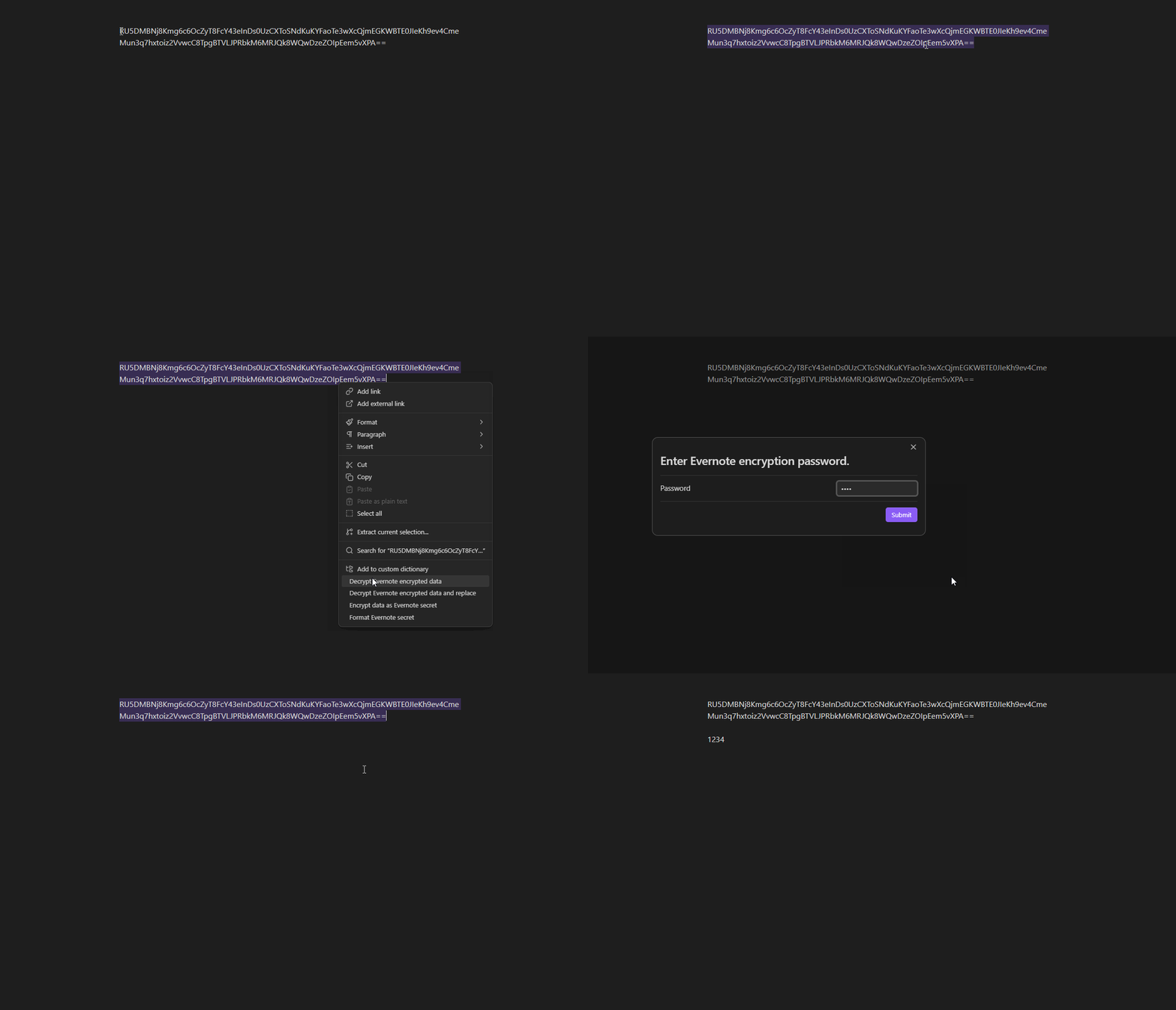
- Decrypt Evernote encrypted data and replace: Decrypt the selected encrypted text and replace the text with the decrypted text.
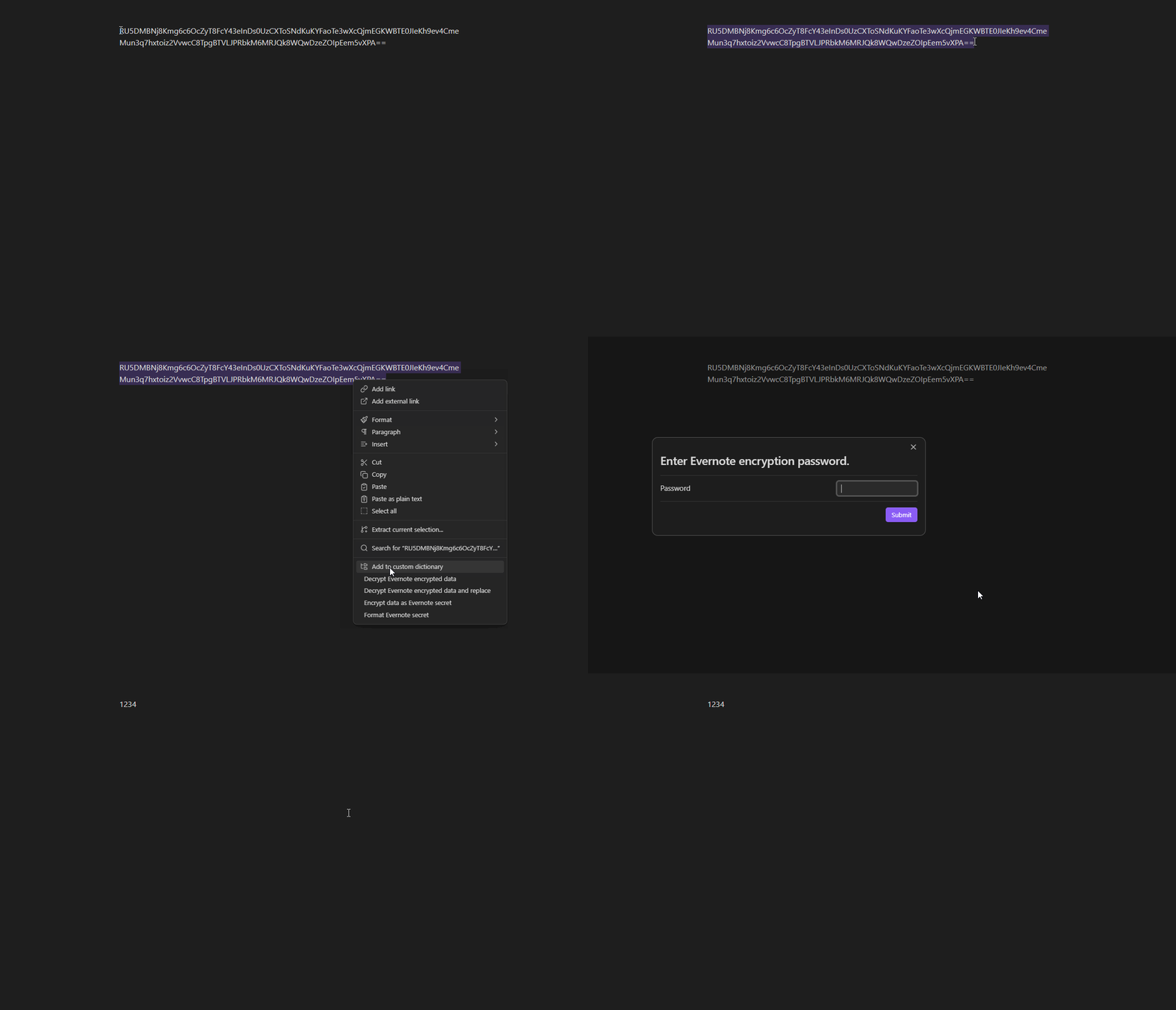
- Encrypt data as Evernote secret: Encrypt the selected text using a password and replace the text with the encrypted data.

- Format Evernote secret: Format the selected encrypted text as the Evernote secret format.
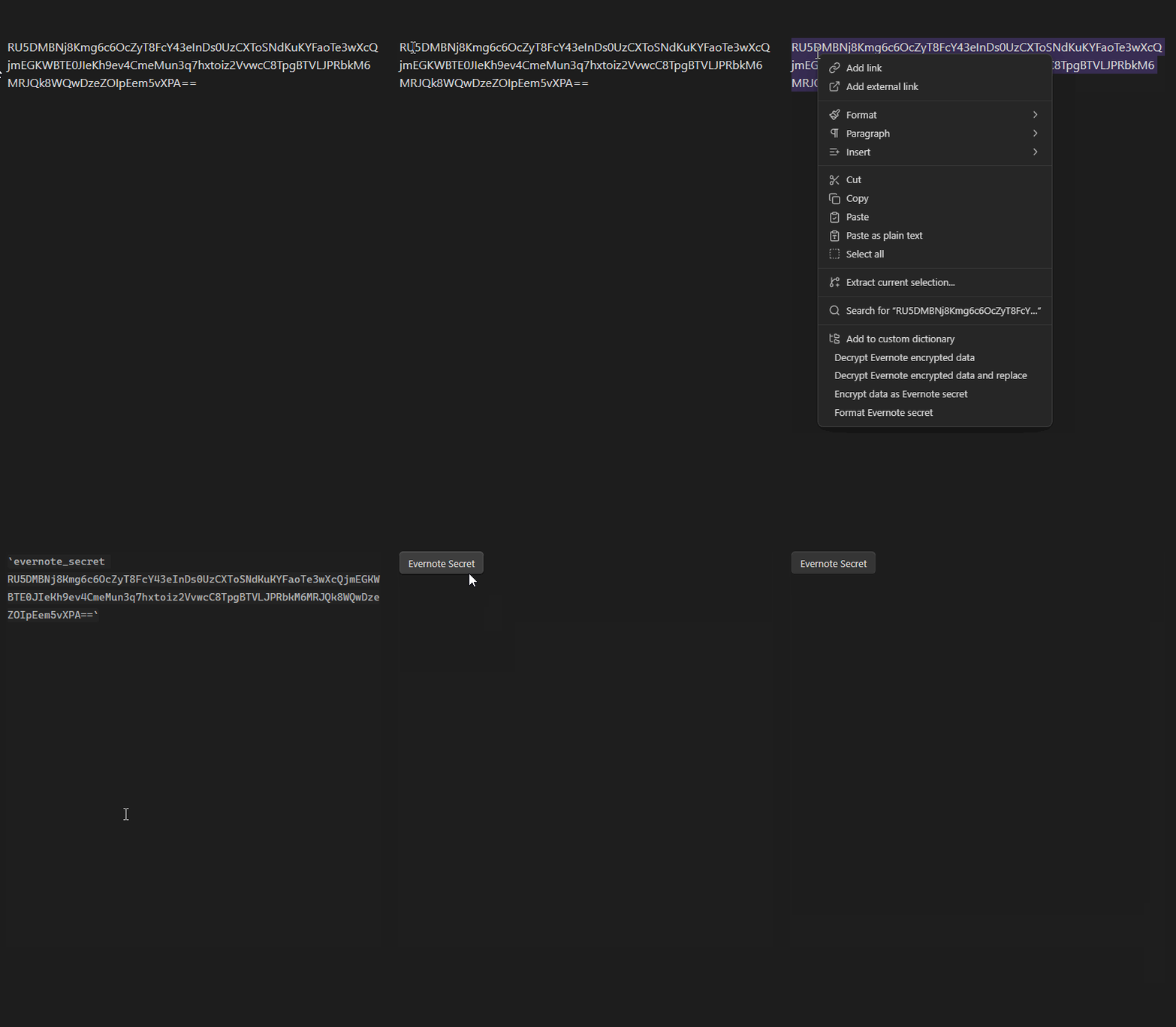
- Format all Evernote secrets in the note: Format the all encrypted text in the note as the Evernote secret format.
These command can be run from the right click context menu in the editor, too.
Evernote secret format is a inline-code block starting with evernote_secret .
My secret is `evernote_secret <encrypted data>`.
This formatted text is viewed as a button of Evernote Secret in both reading and live preview mode.
By clicking the button, the password input dialog will be shown and the decrypted text will be displayed in a modal.
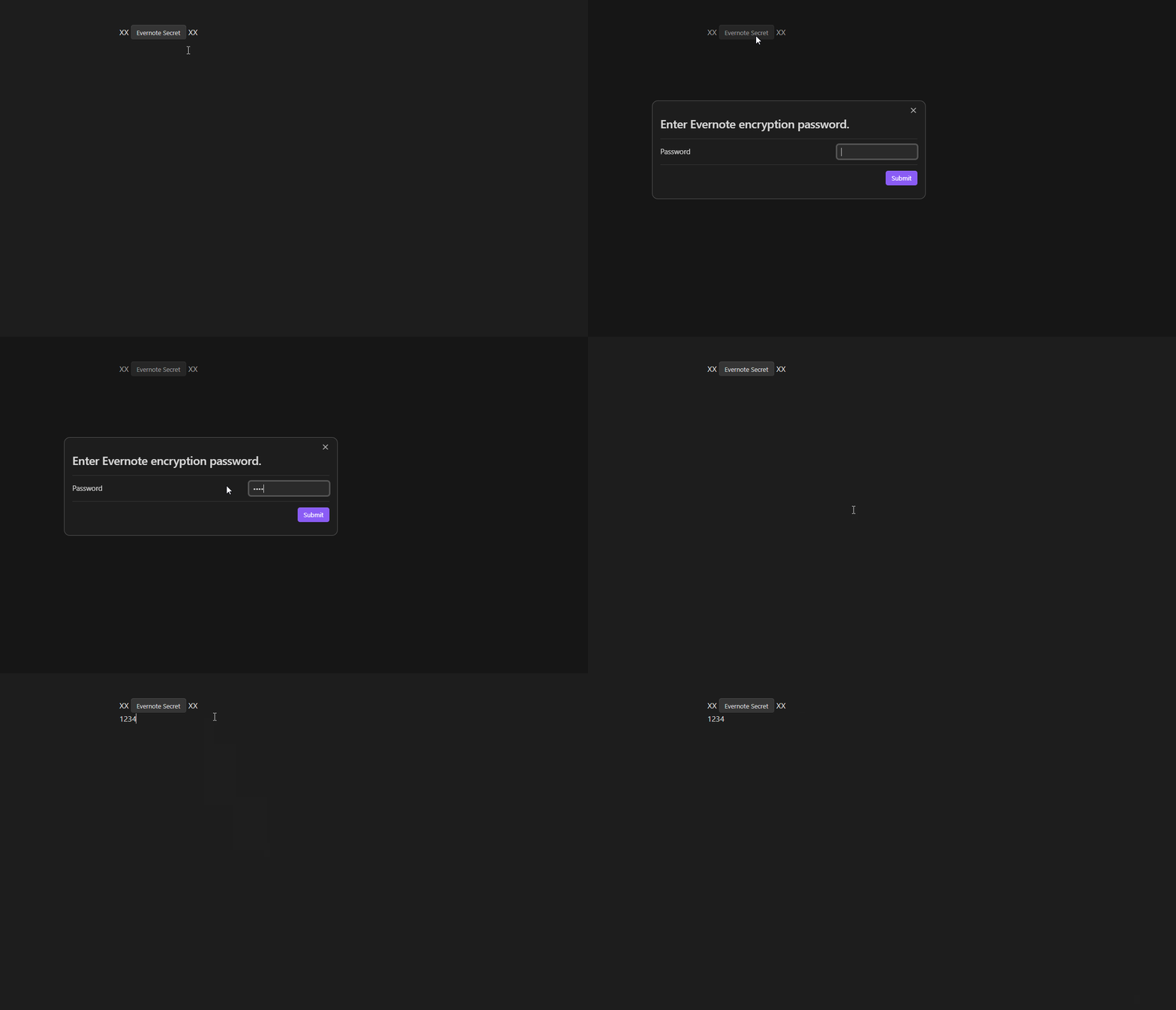
You can directly edit the encrypted text as a inline-code block, too.

Settings
The plugin provides a settings tab under the Obsidian settings menu:
- Show Editor Context Menu Item: Toggle the display of the editor context menu items.
About encrypted string of Evernote
Evernote makes the encrypted data with reserved starting value: ENC0.
This results in the encrypted data starting with RU5DM.
Therefore, you can find the encrypted data by searching RU5DM in the note.
If the encrypted data is not starting with RU5DM, it could be a old encrypted data with RC2 encryption, which is not supported,
or it could be corrupted data.
By Format all Evernote secrets in the note command,
all strings starting with RU5DM in the note will be formatted as the Evernote secret format.
If the string is in the code block (including inline code block), bold, italic, or strikethrough, it will not be formatted.
obsidian-importer-for-evernote-decryptor
obsidian-importer-for-evernote-decryptor is a forked version of importer plugin, which formats the encrypted data as Evernote secret format directly.
It is not integrated as a community plugin yet, so you need to install it with BRAT.
If you've installed the original importer plugin, first disable or uninstall it to avoid conflicts.
After installing BRAT from the community plugin and enabling it,
add obsidian-importer-for-evernote-decryptor
from Add Beta plugin with frozen version button in the BRAT settings.
Use following repository information:
- Repository: https://github.com/rcmdnk/obsidian-importer-for-evernote-decryptor
- The release version tag: 1.6.999
Then you can import notes from Evernote with encrypted data formatted as Evernote secret format.
For plugin developers
Search results and similarity scores are powered by semantic analysis of your plugin's README. If your plugin isn't appearing for searches you'd expect, try updating your README to clearly describe your plugin's purpose, features, and use cases.