External File Card
approvedby james-yu
Display file cards for external files.
External File Card Plugin
External File Card is a plugin for Obsidian. It shows a card displaying basic information of a file in pre-defined folders.
How to use?
Code block card
This plugin add two Markdown codeblock languages ef and extfile, which are equivalent. When provided with a file name or partial file path, this plugin will try to locate the given file in the file system, rooting from paths as given in the setting of this plugin. If a file is found, this plugin will render a card UI with its file name, modified and created times, and containing folder path. Both the file name and the containing folder path are clickable, opening the file and the folder using OS default applications.
For example, the following code block
```ef
file.pdf
```
will be rendered as
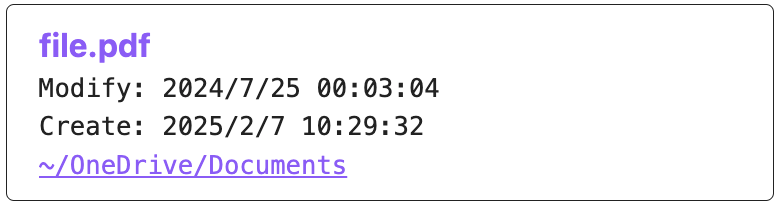
if there is a file ~/OneDrive/Documents/file.pdf.
Multiple files can be displayed in a same file card, if their paths are listed in multiple lines. The following code block
```ef
file.pdf
another_file.pdf
```
will be rendered as
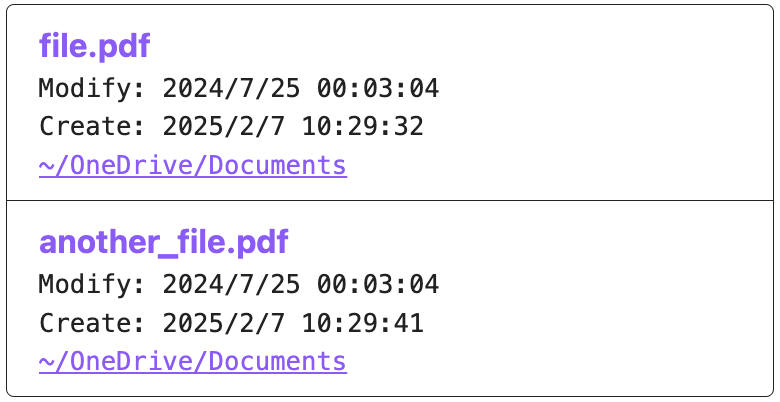
A more compact view of the file card is available via languages efc and extfilec with the final c letter. The following code block
```efc
file.pdf
```
will be rendered as

If the file cannot be found, the following code block
```ef
not_found.pdf
```
will be rendered as

If the note is opened on mobile platforms, this plugin will not try to locate the file, but instead render the following card

Inline file link
If instead of a card, an inline link is required, this plugin also handles Obsidian URIs in the format of obsidian://ef?file.pdf and obsidian://extfile?file.pdf. Note that the question mark ? cannot be omitted, and the file name or partial path should follow the ?. Additionally, spaces in file names should be encoded with colon :, e.g., obsidian://ef?this:is:a:file.pdf for this is a file.pdf.
These two URIs work similar to other URLs, i.e., you can use syntax like [This is the file](obsidian://ef?file.pdf) to create a link to the external file. Clicking on the link will open the file with the default application.
Similar to code block cards, the link won't do anything on mobile platforms.
Insert code block card or inline file link by command
You can first copy-paste / type the file name in the Obsidian editor and select it. Then use Insert external file card command to surround it with ef code block, or Insert external file link command to transform it into [file.pdf](obsidian://ef?file.pdf). The latter command also automatically encodes spaces in the file name to make it valid.
What about folders?
Just end the folder name with a backslash /, e.g., my-folder/ in ef code block or [This is the folder](obsidian://ef?folder/)
Where are the files?
In the setting panel, this plugin defines an External paths config item, which is an editable text area. You can list one or multiple root paths for the plugin to search for files.
For example, the following config
~/OneDrive/Documents
will let the plugin to glob all files by ~/OneDrive/Documents/**/file.pdf with ~ expanded if file.pdf is provided in an ef or extfile code block. The first globbed file is shown.
If the following config is used
~/OneDrive/Documents
~/OneDrive
this plugin will first glob ~/OneDrive/Documents/**/file.pdf. If nothing is found, the second line is used, i.e., ~/OneDrive/**/file.pdf.
Indeed, this plugin just use string concatenation to construct the glob pattern. Therefore,
```ef
Documents/file.pdf
```
will lead to the glob ~/OneDrive/Documents/**/Documents/file.pdf with config
~/OneDrive/Documents
Can I show text other than the file name in the card?
By adding a vertical bar | and displayed text, the first line in the card can be customized.
For example, the following code block
```ef
file.pdf|This is the file
```
will be rendered as

Why is there a plugin like this?
This plugin is primarily for my personal use case. I have many document files stored in the cloud (OneDrive for me), which is outside of the note vault. I design this plugin to make these files accessible within Obsidian across my multiple devices.
However, I believe this plugin may have many other use cases than mine. They are up to you to explore.
For plugin developers
Search results and similarity scores are powered by semantic analysis of your plugin's README. If your plugin isn't appearing for searches you'd expect, try updating your README to clearly describe your plugin's purpose, features, and use cases.