FastForwardLink
approvedby idanlib
Fast-forward multiple links to a single target note. Create custom link shorthands (like `ps` > `photoshop`) to create synonyms, streamline navigation, and keep your vault organized.
FastForwardLink
Obsidian lets you link notes. Great.
But real people don't always use the same terms consistently:
- abbreviations
- acronyms
- nicknames
- alternate spellings
- inside jokes
So you might write:
javascriptjsecmascript
...while meaning the exact same thing.
By default, Obsidian treats these as separate notes.
Over time, that creates:
- duplicate notes
- fragmented knowledge base
- inconsistent linking
- friction while writing naturally
FastForwardLink solves this by turning alias notes into lightweight redirects.
Write naturally. Land on the right note — fast.

FastForwardLink Plugin Demo
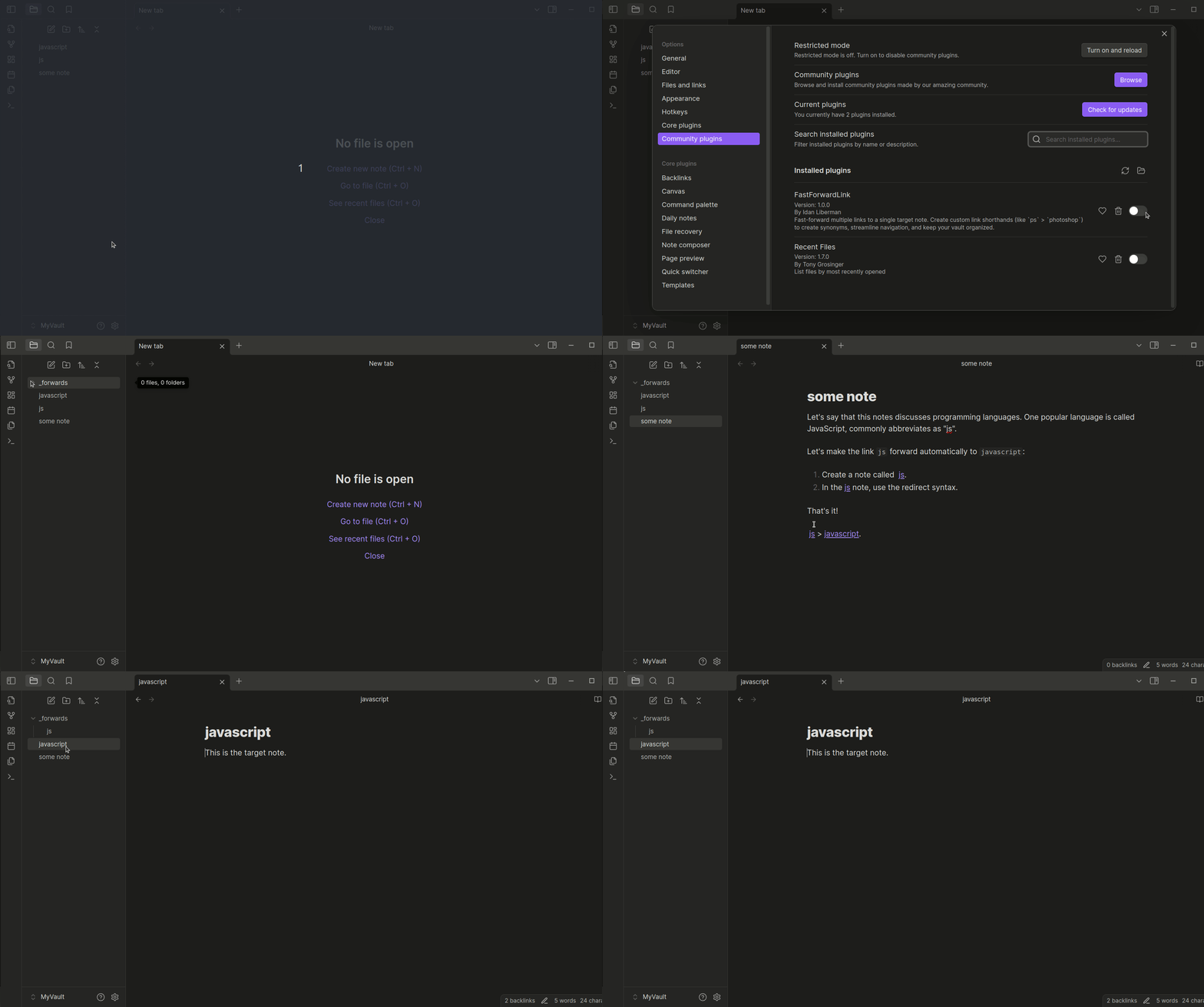
FastForwardLink lets multiple note names point to the same canonical note. Write naturally without fragmenting your vault structure:
js→javascriptps→photoshop
How It Works
Suppose you have a note called javascript.
Elsewhere in your vault, you naturally write:
[[js]]
Normally, Obsidian would create a brand-new js note. But with FastForwardLink:
- Create a note called
js - Add redirect syntax inside it
- Opening
jsautomatically forwards tojavascript
Here are some examples of how you might set up FastForwardLink:
ps>photoshopjs>javascripttay tay>taylor swifte=mc2>Einstein's special theory of relativityfavorite film>bill and ted's bogus journey
Features
-
Multiple Links, One Target: Set multiple links to redirect to a single target note for quick navigation between related topics or abbreviations. Organize synonyms or alternate spellings for easier access.
-
Quick-Paste Command: Set target notes on the fly without breaking your writing flow. In the Obsidian command palette, select Paste redirect syntax onto selection to quickly create a forwarding link.
-
Organized Vault: Streamline vault navigation by unifying concepts, perfect for efficient, clutter-free notes.
-
Easy Management: Forwarding notes are automatically moved to a designated folder for easy review, management, or removal.
-
Flexible Forwarding Options:
- Open the target note in the same tab.
- Open the target note in a new tab while remaining on the original note.
- Open the target note in a new tab and switch to it automatically.
-
Remove Forwarding Notes in One Click: Easily delete all redirecting notes with a single click using plugin settings.
Installation
Download the plugin directly from Obsidian's community plugins. Just search for FastForwardLink.
You can also install manually by doing the following:
-
Download the following plugin files:
data.jsonmain.jsmanifest.json
-
Copy these files to your vault's plugins folder at
{VaultFolder}/.obsidian/plugins/FastForwardLink. -
In Obsidian, go to Settings > Community Plugins and enable FastForwardLink.
The plugin is now ready for use.
Create a Fast-Forward Link
To create a fast-forwarding link:
- Create or open the note you want to fast-forward to a target note. For example, a note titled
ps. - In the note, type the target note's title wrapped in the forwarding syntax:
::>[[target-note]]. For example, to forward frompstophotoshop, include::>[[photoshop]]in thepsnote.
Clicking the ps link in any note now opens the photoshop note.
Quick-Paste Syntax
Yup, typing sucks. Fortunately, there's a command to help you quickly paste the redirect syntax into your code:
- Press
Ctrl + Pto open the Obsidian command palette. - Search for and select the command Paste Redirect Syntax onto Selection.
The command wraps the selected text in the fast-forward syntax.
[!TIP] > Add a hotkey to trigger this command! We recommend
Ctrl + Alt + R(PC) orCmd + Opt + R(macOS).
Version Updates
Version 1.1
Some improvements include:
- You can now temporarily bypass forwarding with a designated command. In Obsidian's command palette, search for "FastForwardLink".
- Source code refactored and better organized for future contributors.
- Better robust event and error handling and messaging.
Bugs and Contact
Found a bug? Well, we can't have those!
Please open an issue in the plugin's GitHub repository or contact the developer directly.
Known Bugs
-
When "Open the target note in a new tab" is enabled and the fast-forwarding note has not yet been moved to the
_forwards_folder, some additional tabs are opened. This is likely due to internal timing issues in the Obsidian-OS interaction.When the fast-forwarding note is in the
_forwardsfolder, plugin behavior is as expected.
Supporting this plugin
If you enjoy using FastForwardLink, consider supporting its development by buying me a coffee or a cheesy slice!

For plugin developers
Search results and similarity scores are powered by semantic analysis of your plugin's README. If your plugin isn't appearing for searches you'd expect, try updating your README to clearly describe your plugin's purpose, features, and use cases.