by theluckystrike
Write named code blocks from the current note to new files in a chosen vault folder.
Fence File Export
Fence File Export writes named code blocks from the current Markdown note to new files in a chosen vault folder. Keep a small script and its configuration beside your notes, then inspect the output before you create files. The free command shows target paths, complete output text and rejected blocks.
Features
Named backtick and tilde fences
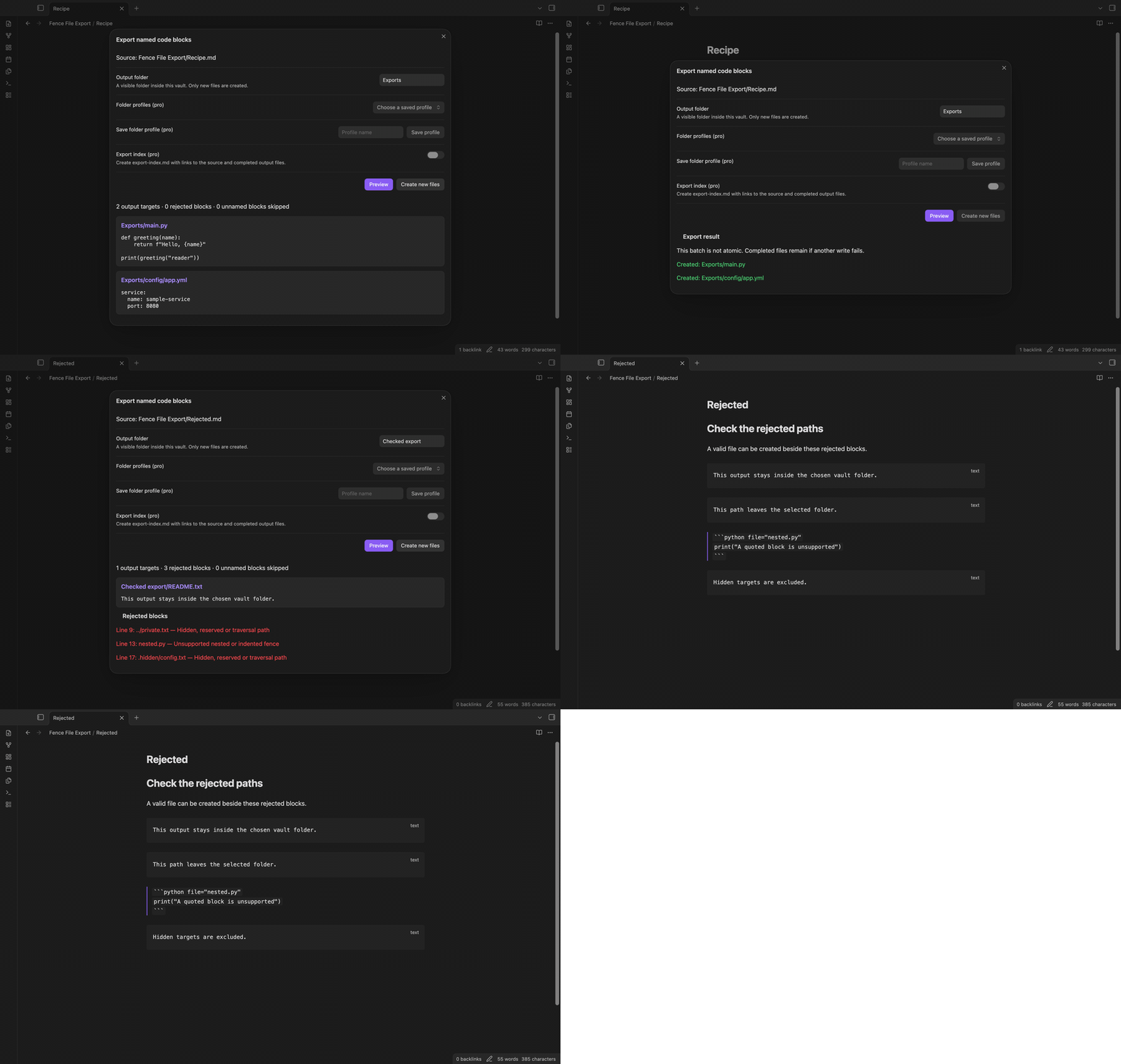
Add file="main.py" after the language on an opening fence. A named tilde fence also works. The opening marker must start in column one. The closing marker uses the same character and has at least the opening length. The language label does not change the output. Ordinary fences without a file attribute are skipped. The plugin reads the active Markdown note when you open its command.
Join blocks in note order
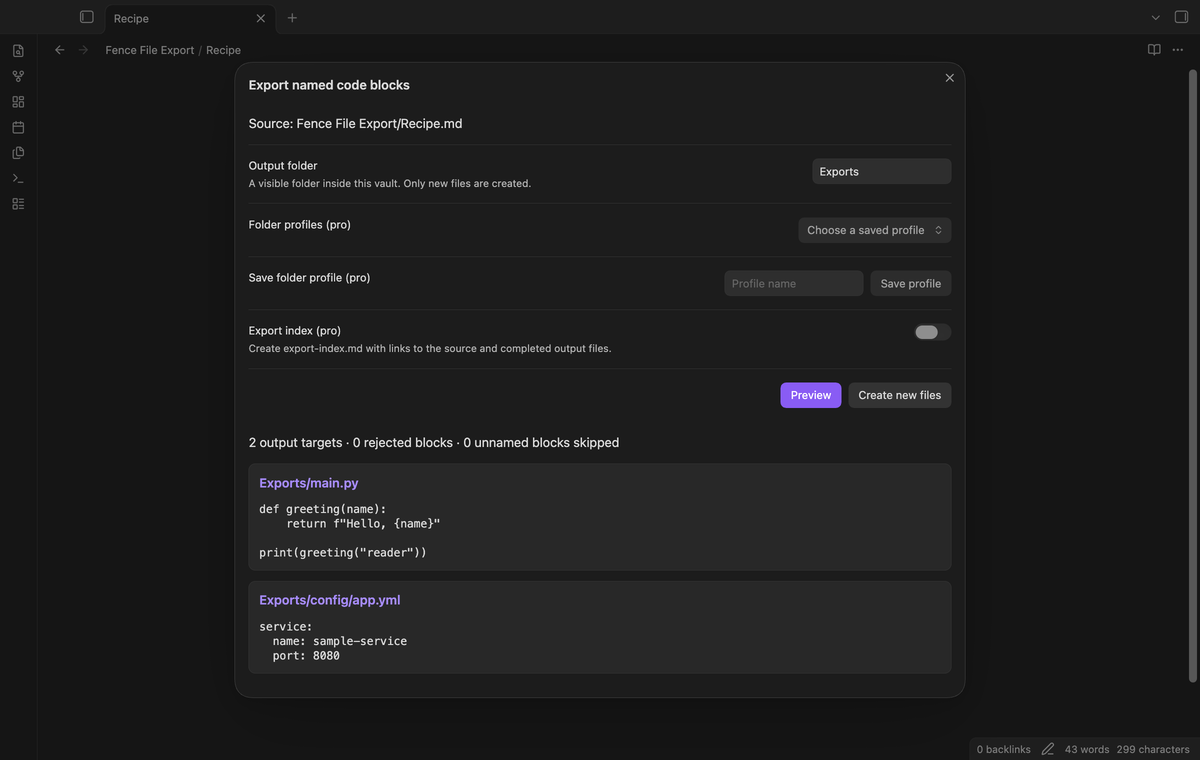
Blocks with the same target path become one file. Their bodies keep their source line endings. One extra newline separates the bodies, in their order in the note. For example, a body with A and its newline followed by a body with B and its newline produces a blank separator line between them. The plugin does not format or compile the text. An empty named block can create an empty file.
Review complete output
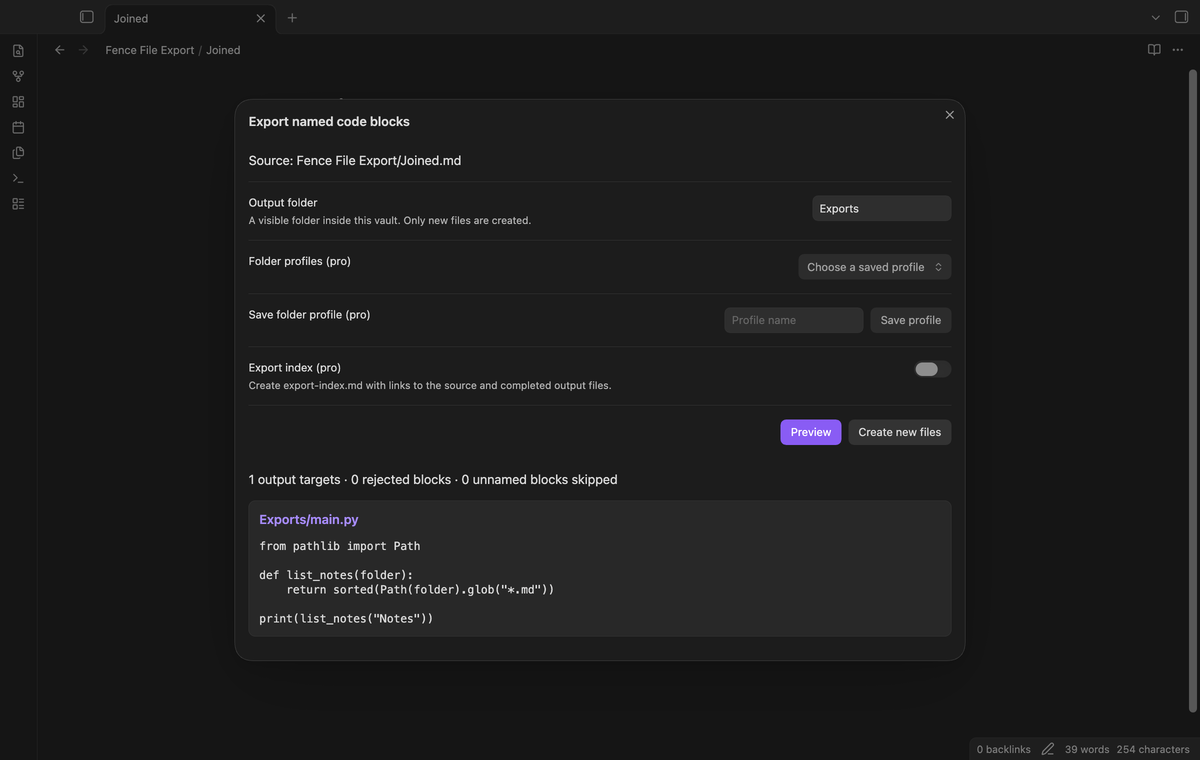
The preview includes the path and complete text of each accepted target. Scroll the preview to inspect longer text. Changing the folder or index option clears the prepared export. Select Preview to check those options again. Create new files uses the source snapshot that the window shows. To include a later note edit, close the window and run the command again. Text that resembles HTML appears as text in the preview.
New files and parent folders
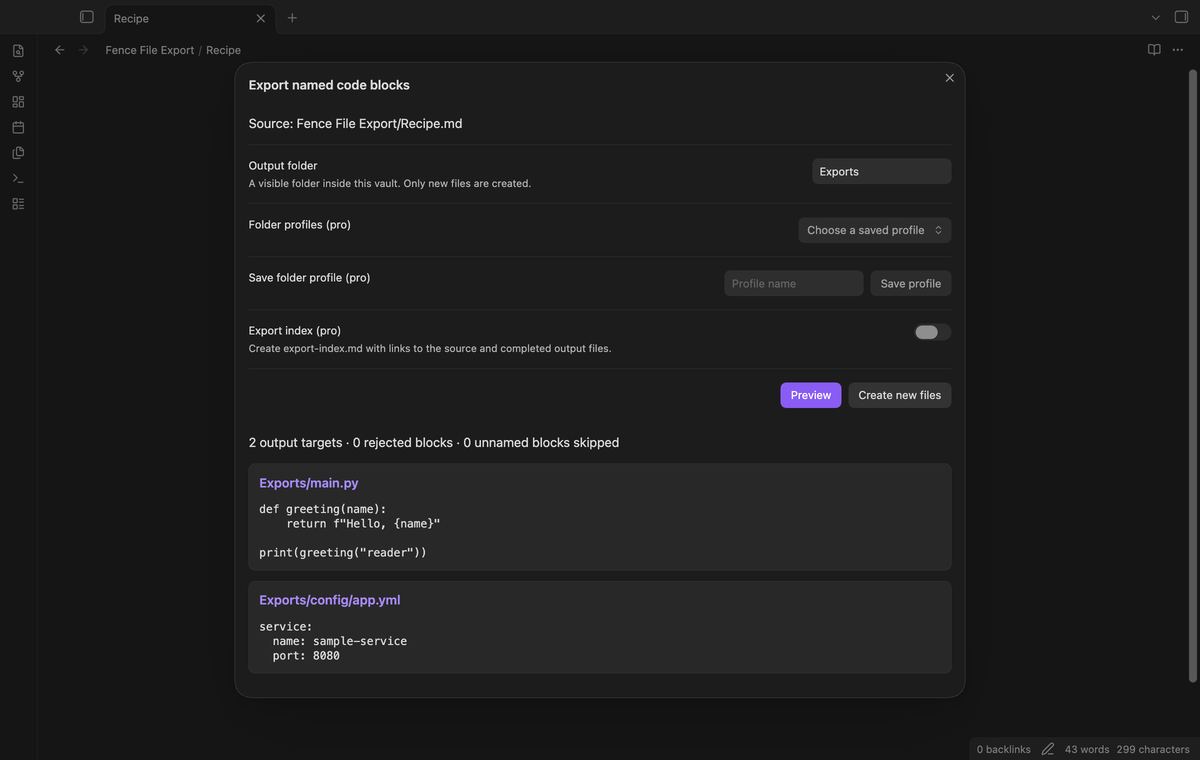
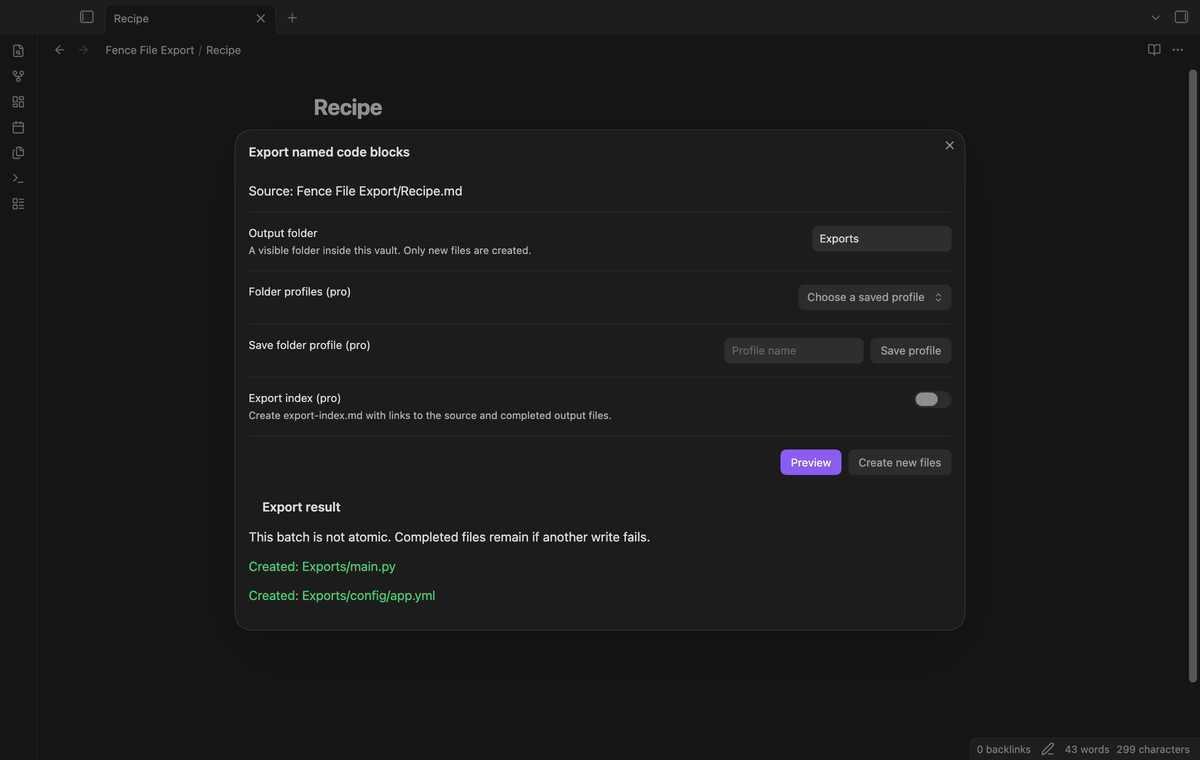
Choose a visible folder inside the vault, such as Exports. A target of config/app.yml becomes Exports/config/app.yml. The plugin creates missing parent folders. It rejects a target that exists and a required parent that is a file. It checks the paths again during creation. The result lists completed and failed targets. A multi-file batch is not atomic: a later failure leaves earlier completed files in place.
Rejected blocks and paths
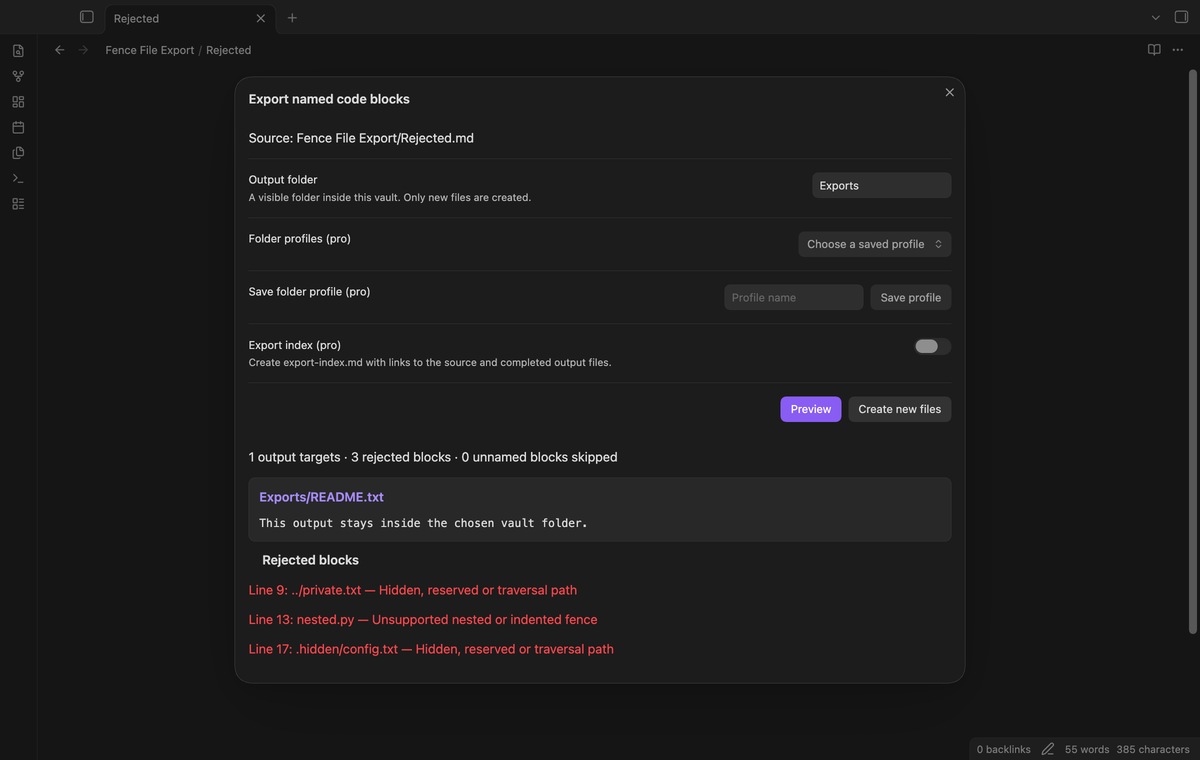
The preview reports named blocks in lists, blockquotes or indented code, and blocks with a missing closing fence. Use one double-quoted file attribute. Paths with traversal, a leading slash, a drive prefix, backslashes, hidden components or reserved device names are rejected. The vault configuration folder is excluded. The plugin also checks targets that conflict with another output target. Rejected blocks do not prevent a separate valid target from being created.
Output folder profiles (Pro)
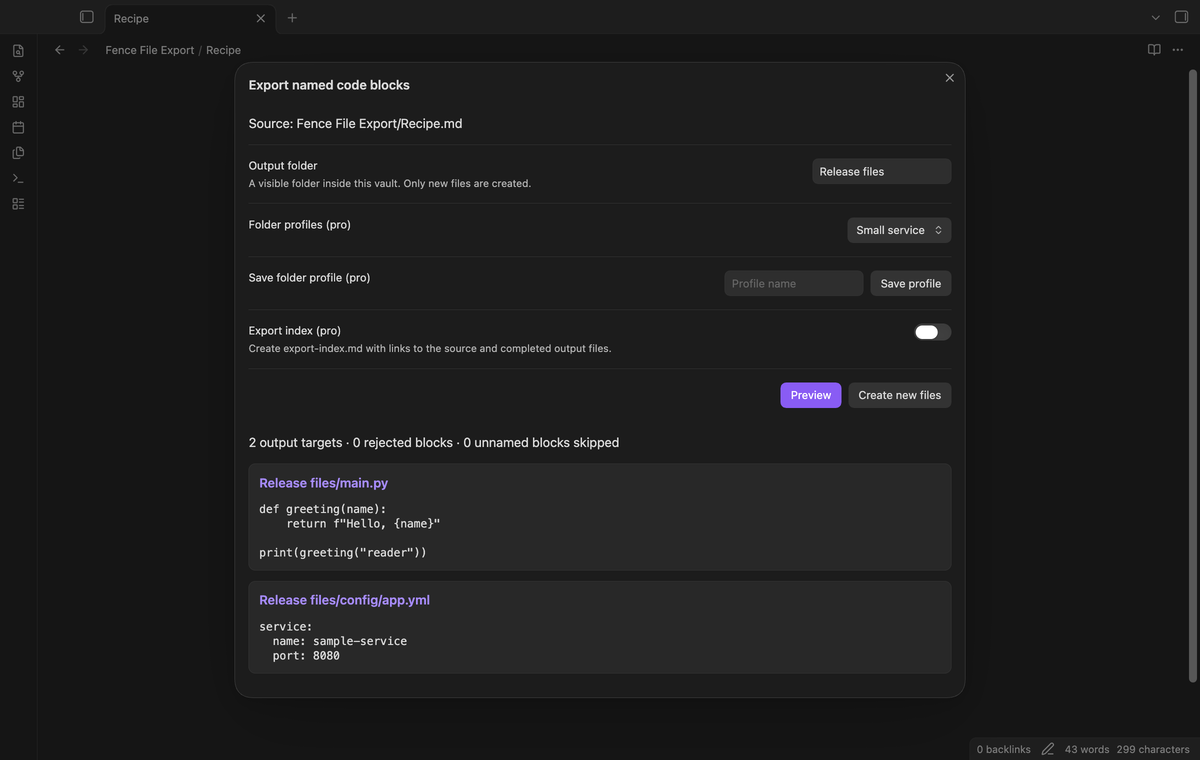
Save up to 20 named folder profiles in the export window. Enter a profile name and select Save profile. Saving the same name updates that folder. Reopen the window to select a newly saved profile. Profiles are stored in the local plugin settings. Their use and save actions need an active Pro check. If Pro expires, the saved entries remain available for a later sign-in.
Export index (Pro)
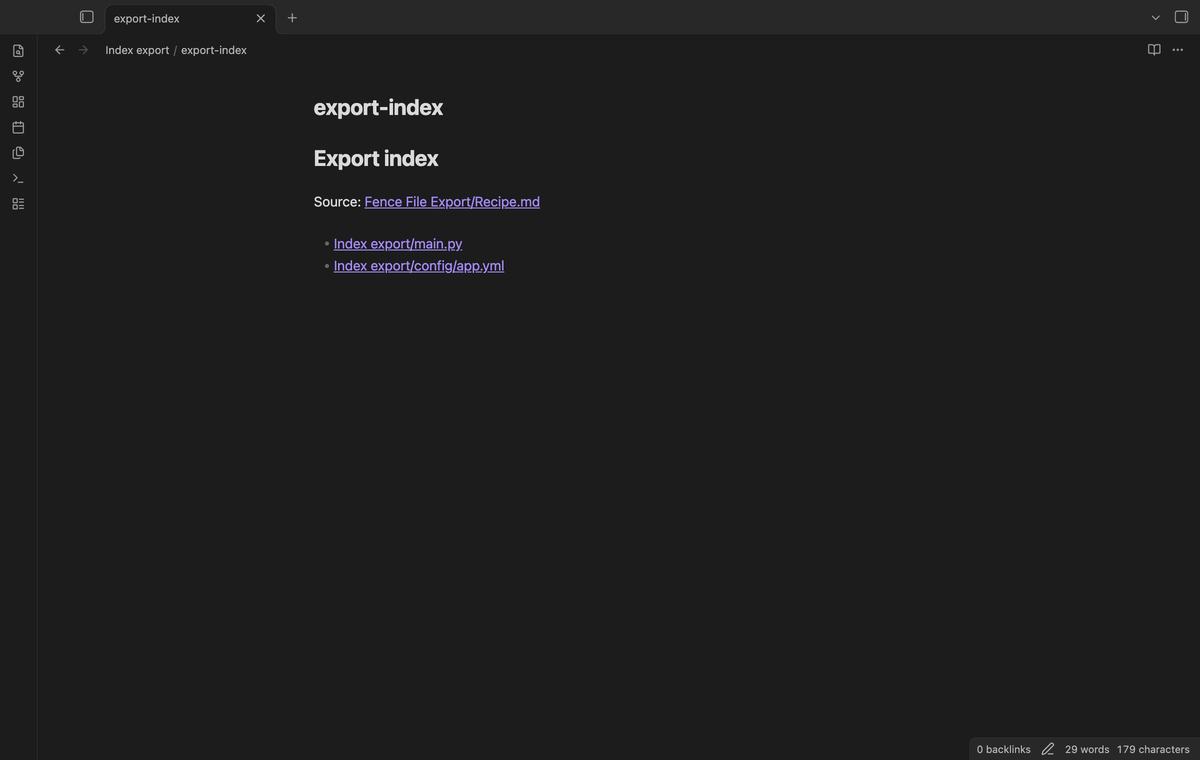
Turn on Export index to add export-index.md in the output folder. Its preview shows Markdown links to the source note and output files. The index uses relative links and counts toward the target limit. If an output fails, the index is omitted and the result explains why. An existing index is a conflict. A later export therefore needs a different folder or a manual move of the previous index.
Install
This source tree is prepared for a community plugin release. For manual installation, build it or obtain the release files, then copy main.js, manifest.json and styles.css into <vault>/.obsidian/plugins/fence-file-export/. Enable Fence File Export in Community plugins. Obsidian 1.13.4 or later is required. Keep a backup of a vault before you install a new plugin.
Usage
- Open a Markdown note with a top-level fence such as
python file="main.py"after its opening backticks. - Run Fence File Export: Preview named code blocks from the command palette.
- Enter an output folder. Review the target text and rejected blocks.
- Select Create new files. Read the completed and failed paths before you close the window.
The note stays as the source. The plugin does not overwrite output files. To export a changed version, choose a new folder or manage the previous files yourself. The command rejects source text larger than 2 MiB in UTF-8 and prepares up to 100 targets. With the index on, reserve one target for it.
Settings
Output folder sets the default for the export window. The initial value is Exports. A completed export stores the selected folder as the next default. The Pro section includes Sponsor on GitHub, Sign in with GitHub, Refresh and Sign out. Folder profiles and the index option are in the export window. The index option starts off for each new window.
FAQ
Can I use an unquoted filename or a nested fence?
Use file="relative/path.ext" with double quotes. This version does not parse nested Markdown structures. Put the opening and closing markers in column one, outside a list or blockquote. A longer outer fence without a file attribute can show an export example without exporting that example.
What happens if a file appears after preview?
The final check rejects that target. The writer reports the failed path and continues with other prepared targets. The existing file is kept. Parent folders created before a failure can remain in the vault.
What was not tested?
Real iOS and Android devices, third-party sync conflicts, operating-system permission failures and live paid GitHub sign-in were not tested. The app tests ran on macOS; Linux and Windows app runs were not tested. Tests use a local injected write failure for partial completion and a mocked sponsorship response for Pro. The product uses public vault APIs and declares mobile support in its manifest, but that declaration is not a device test.
Payment, account and network
The core features are free. Pro features need a GitHub Sponsors sponsorship of theluckystrike: $5 a month or more, or $15 once. A total payment of $15 meets the payment requirement for Pro without further payment. Sign-in and the checks below still apply. Your notes stay readable and editable with or without Pro.
GitHub handles the payment. Sponsor at https://github.com/sponsors/theluckystrike. You need no account for the free features. Pro needs the GitHub account that sponsors.
Until you select "Sign in with GitHub" in the settings, Fence File Export makes no network requests. Sign in uses the GitHub device flow. Fence File Export sends its public client ID and the scope read:user to https://github.com/login/device/code and shows you a code. While you enter the code at https://github.com/login/device, it asks https://github.com/login/oauth/access_token every few seconds to check the sign-in status. The scope permits profile reads only. GitHub needs this access to show the sponsorship tier. It grants no repository scope and no write access.
After sign in, Fence File Export sends one query to https://api.github.com/graphql. It checks if the signed-in account sponsors theluckystrike. It asks for the tier and the total payment to theluckystrike. The plugin reuses a successful check for 7 days. Failed checks can retry after 6 hours. Select Refresh to request an earlier check. It sends no note content, file names or other vault data, and it has no telemetry.
After a successful check, Pro can work offline for up to 14 days. Sign out or a negative sponsorship answer turns Pro off. The plugin stores the GitHub token through the secret storage API of Obsidian. It does not put the token in its saved settings or its local sponsorship data. The local storage of this device keeps your GitHub login, the tier and the time of the last check. Sign out clears the token. You can also revoke the access in your GitHub settings, under Applications.
Support
Report a defect through this repository's issues when it is published. Include the Obsidian version, operating system and a small sample note with private text removed. State the selected folder and the exact failed path. A screenshot of the preview can help show an attribute or fence error. The source is under the MIT license. Keep credentials out of a sample note and out of a public report.
For plugin developers
Search results and similarity scores are powered by semantic analysis of your plugin's README. If your plugin isn't appearing for searches you'd expect, try updating your README to clearly describe your plugin's purpose, features, and use cases.