Find Orphaned Images
approvedby josmarcristello
Finds images in the vault that are not linked to any notes. Either lists, or deletes them.
Find Orphaned Images Plugin for Obsidian
Utility add-on for Obsidian knowledge base.
*Keep your Obsidian vaults tidy with the Find Orphaned Images plugin!*



Find Orphaned Images is an Obsidian plugin designed to help you keep your vault clean and organized by identifying and managing images that are not linked anywhere in your notes. With this plugin, you can:
- Generate a note with a report of all the orphaned (not linked) images in your vault.
- Delete all the orphaned images in your vault.
Features
- Identify Orphaned Images: Scan your vault to find images that are not linked in any note.
- Interactive Review Panel: Open a sidebar panel that lists every orphaned image with a thumbnail, path, and file size. Tick the ones you want, then delete just those — with a running total of how much space you'll reclaim.
- Broad reference detection: Detects images used in note links and embeds, YAML frontmatter links, Canvas files (file nodes, group backgrounds, and embeds inside text cards), raw
<img src="…">HTML tags, and embeds inside legacy Admonitions code blocks (```ad-note). - Generate Reports: Create a report listing all orphaned images (grouped by folder, with per-file and total sizes), with options to display images directly or link to them.
- Delete Orphaned Images: Remove orphaned images, with a confirmation preview and an optional safety scan before anything is deleted.
- Folder Scoping: Include or exclude specific folders, so temporary folders can be cleaned while folders of intentionally-unlinked files are left untouched.
- Customizable Settings: Define which image extensions to look for, where reports are saved, and a maximum number of images to delete.
- Sidebar Button: Access the plugin's features using the sidebar button or with the slash command.
Installation
Recommended
- In Obsidian, go to Settings, Community Plugins, Browse, and search for "Find Orphaned Images". Install it. Done!
Direct Installation (not recommended)
-
Download the Plugin: You can download the latest release from the GitHub Releases page.
-
Extract the Files: Extract the downloaded zip file and copy the files into your Obsidian vault's plugins directory:
.obsidian/plugins/find-orphaned-images/. -
Enable the Plugin: In Obsidian, go to Settings -> Community plugins, disable safe mode if it's enabled, and then search for "Find Orphaned Images". Enable it to start using the plugin.
-
Configure Settings: Go to Settings -> Find or Delete Orphaned Images to configure your preferences.
Usage
1. Using the Sidebar Button
- Enable Sidebar Button: Ensure the sidebar button is enabled in the plugin settings.
- Click the Button: Click the button in the sidebar to open the interactive review panel, where you can browse orphaned images and delete a selected subset.
2. Running Commands
You can also access the plugin's features via commands (Command Palette: Ctrl+P / Cmd+P):
- Open orphaned images panel: Opens the interactive review panel — thumbnails, per-image checkboxes, and delete-selected.
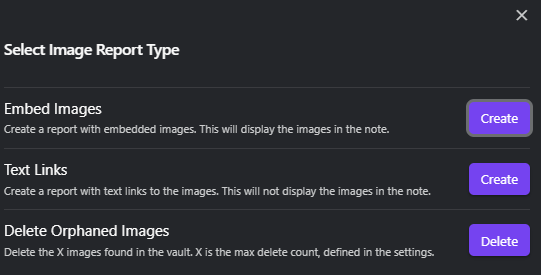
- Find or delete orphaned images: Opens the options modal to generate a report or bulk-delete every orphaned image at once.
3. Settings
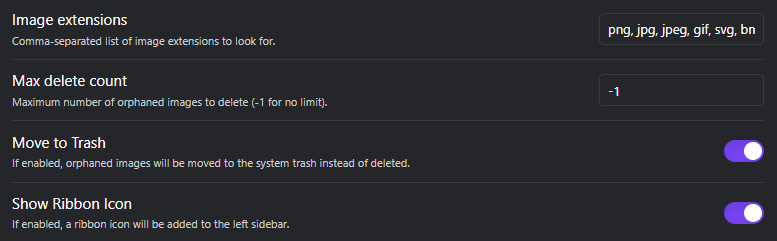
- Image Extensions: Specify which image file extensions to search for. Default:
png, jpg, jpeg, gif, svg, bmp. - Include Folders: One folder path per line. If set, only images inside these folders are scanned; leave empty to scan the whole vault.
- Exclude Folders: One folder path per line. Images inside these folders are never reported or deleted — useful for folders where unlinked files are intentional. Takes precedence over Include Folders.
- Report Folder: Where the generated "Orphaned Images Report" note is saved. The folder is created if it doesn't exist. Leave empty to save it in the vault root.
- Max Delete Count: Set a limit on how many images can be deleted in one operation. Use
-1for no limit, or0to disable deletion. - Move to Trash: When deleting, move images to trash (following your Obsidian "Deleted files" preference) instead of permanently deleting them. Enabled by default.
- Safety Scan Before Deleting: Before deleting, skip any image whose filename still appears in a note or canvas. Guards against references the plugin cannot parse. Enabled by default.
- Show Ribbon Icon: Toggle the sidebar (ribbon) button on or off for quick access to the plugin's features.
Known limitations
Orphan detection relies on how Obsidian indexes references. An image may be reported as orphaned even when it is technically in use if it is referenced only by:
- Bare (unbracketed) frontmatter values such as
banner: my-image.png— Obsidian does not treat these as links; only the consuming plugin (Banners, etc.) understands them. Use a bracketed wikilink (banner: "[[my-image.png]]") to make it detectable. - Other plugins' internal formats that store image references in their own encoding (some Excalidraw usage, custom code blocks, etc.).
- External/remote URLs, which are intentionally ignored (they are not vault files).
The Safety Scan Before Deleting setting is a conservative backstop for these cases: it will keep any image whose filename still appears anywhere in a note or canvas. When in doubt, generate a report first and review it before deleting.
Screenshots
Modal Options
Configuration Options
Contributing
Contributions are welcome! If you have suggestions for new features or find a bug, please open an issue or submit a pull request.
-
Fork the Repository: Click the "Fork" button at the top right of this page to fork this repository.
-
Clone Your Fork: Use the command
git clone https://github.com/your-username/Obsidian-Find-Orphaned-Images.gitto clone your forked repository. -
Create a Branch: Use
git checkout -b your-feature-branchto create a branch for your feature or bug fix. -
Make Changes: Make your changes and commit them with a descriptive message.
-
Push to Your Fork: Use
git push origin your-feature-branchto push your changes. -
Open a Pull Request: Navigate to your fork on GitHub and click the "New pull request" button.
License
This project is licensed under the GPL-3. See the LICENSE file for more information.
Acknowledgements
- Thanks to the Obsidian Community for their support and feedback.
- Inspired by the need to keep vaults organized and efficient.
For plugin developers
Search results and similarity scores are powered by semantic analysis of your plugin's README. If your plugin isn't appearing for searches you'd expect, try updating your README to clearly describe your plugin's purpose, features, and use cases.